


Nowadays, many people use YouTube to learn foreign languages. We have previously introduced 2 extensions that can achieve double subtitles on YouTube. Although they are very easy to use, the subtitles will be side by side, making it difficult to read Chinese when the meaning is not clear, or you do not like to install too many extensions on the browser. In this case, YouTube has a built-in function that can achieve the same effect. Let me teach you how to operate it, and even save the subtitle clips you want.
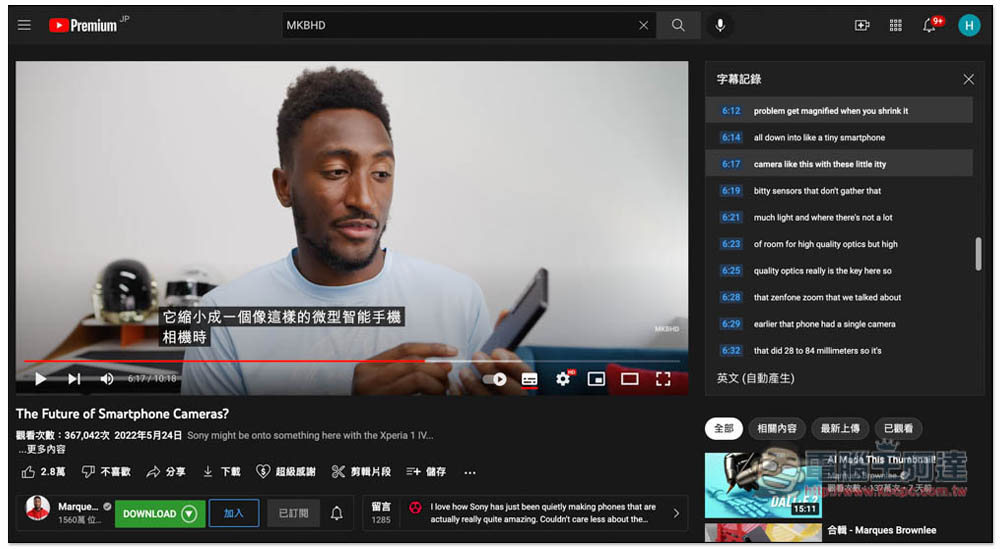
No need to install anything, enable dual subtitles with built-in YouTube functionality
Generally speaking, when we turn on the YouTube subtitle function, there will only be one subtitle. For people who are learning English or other languages, they will definitely encounter certain words or sentences that they do not understand. The dual subtitle function can help solve this problem:
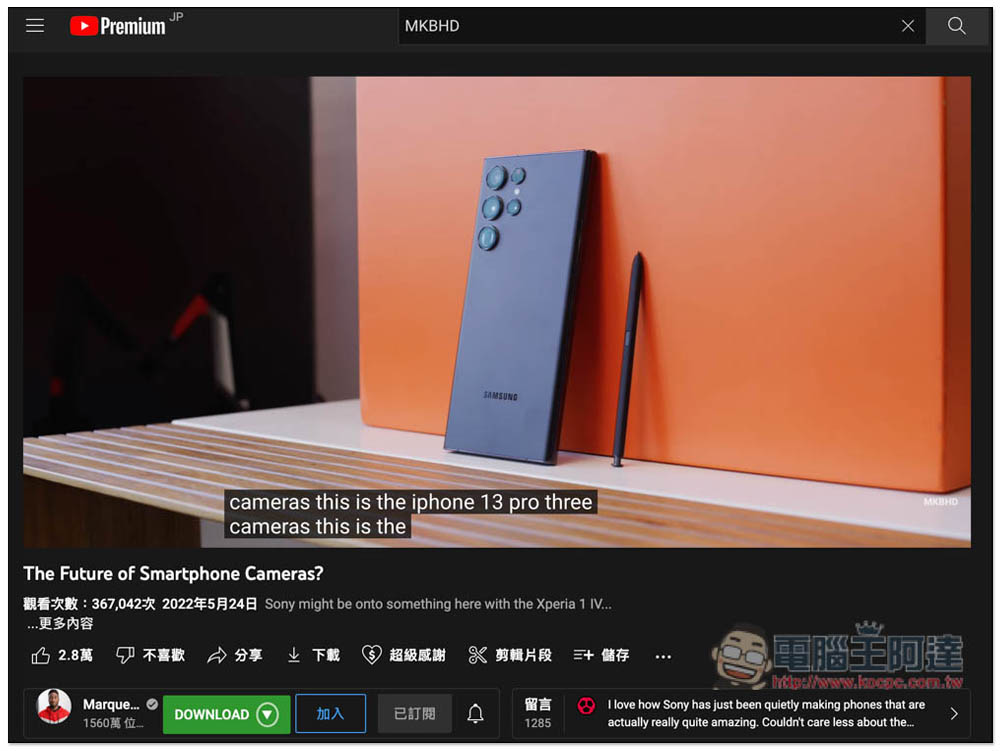
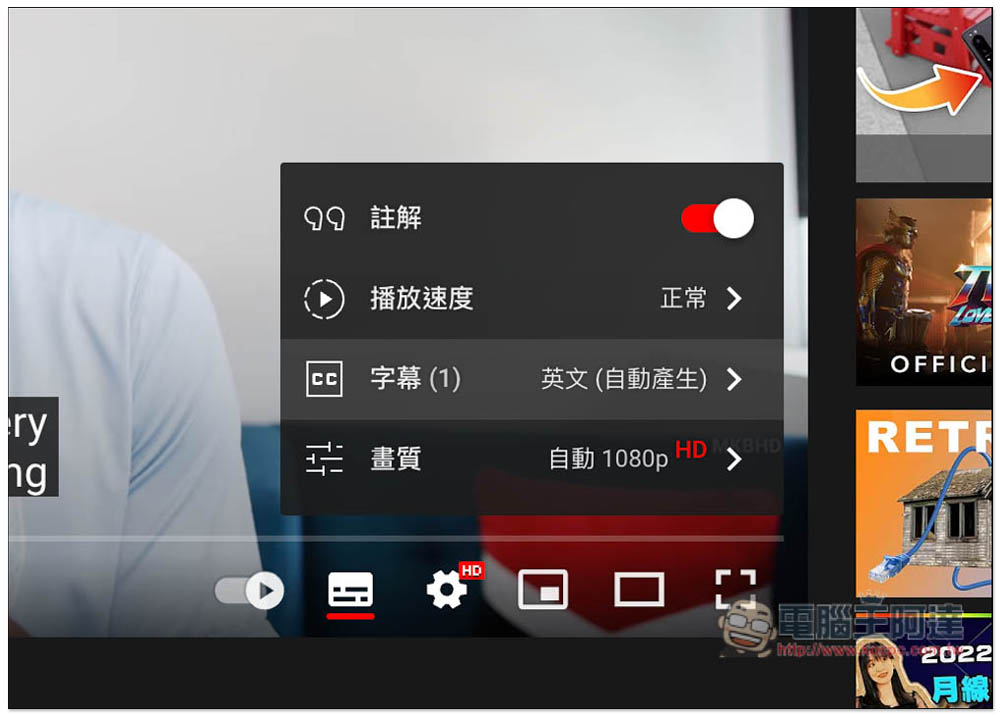
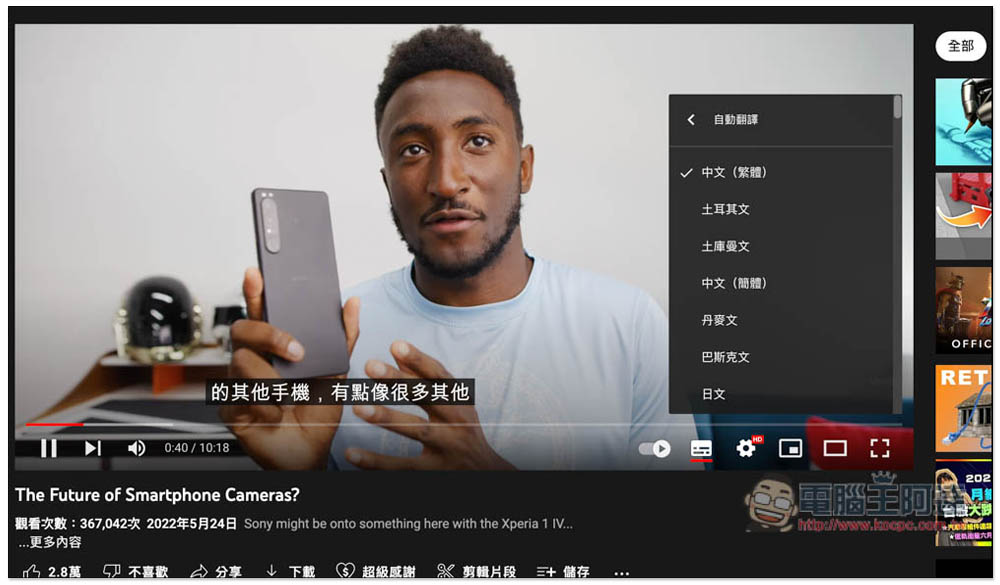
Nowadays, almost all YouTube subtitles provide automatic translation function. Open the settings icon in the lower right corner of the video -> Subtitles:
You can find automatic translation options:
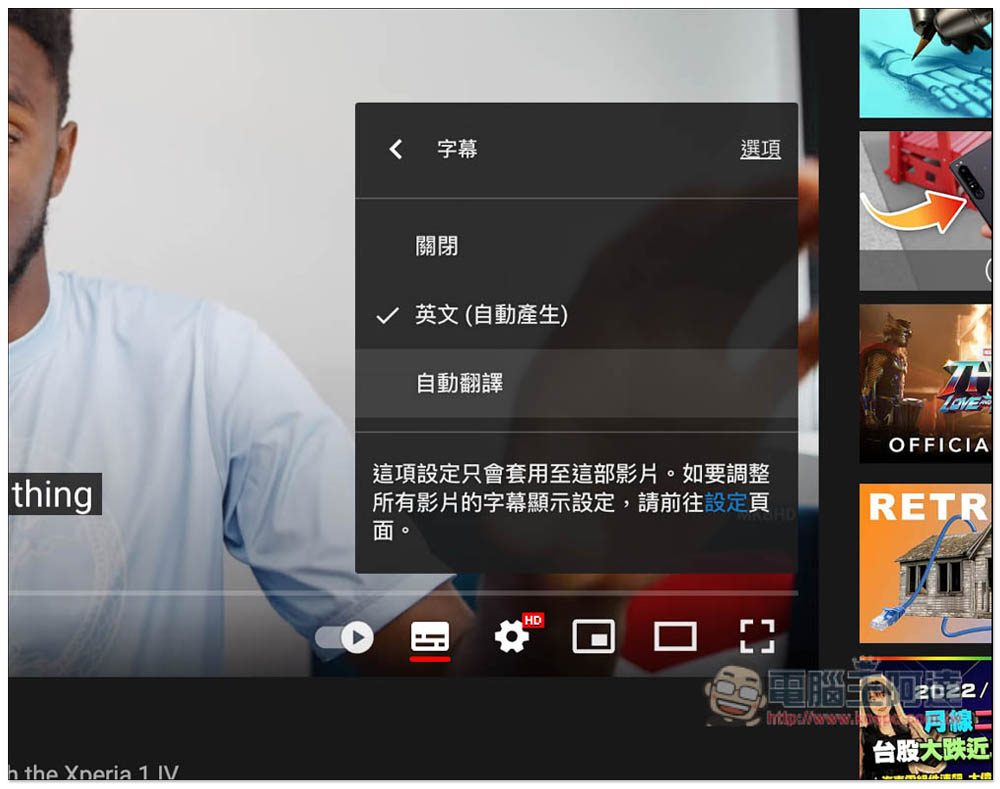
After selecting Chinese (Traditional), YouTube subtitles will be automatically translated into Chinese, but the subtitles in the original language will disappear:
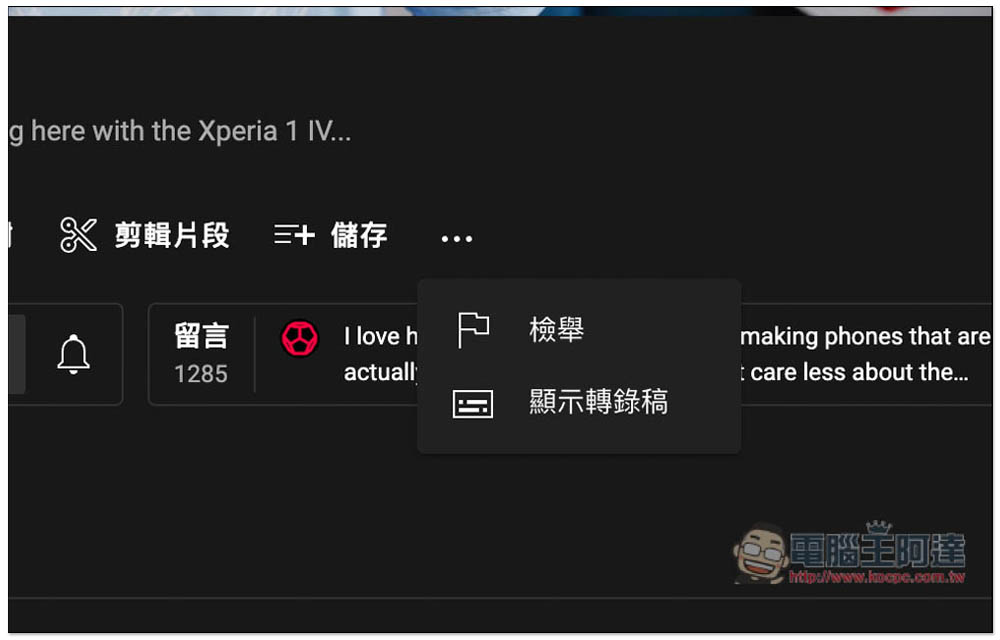
At this time, please click the… menu next to the save function below, and then select “Show Transcript”:
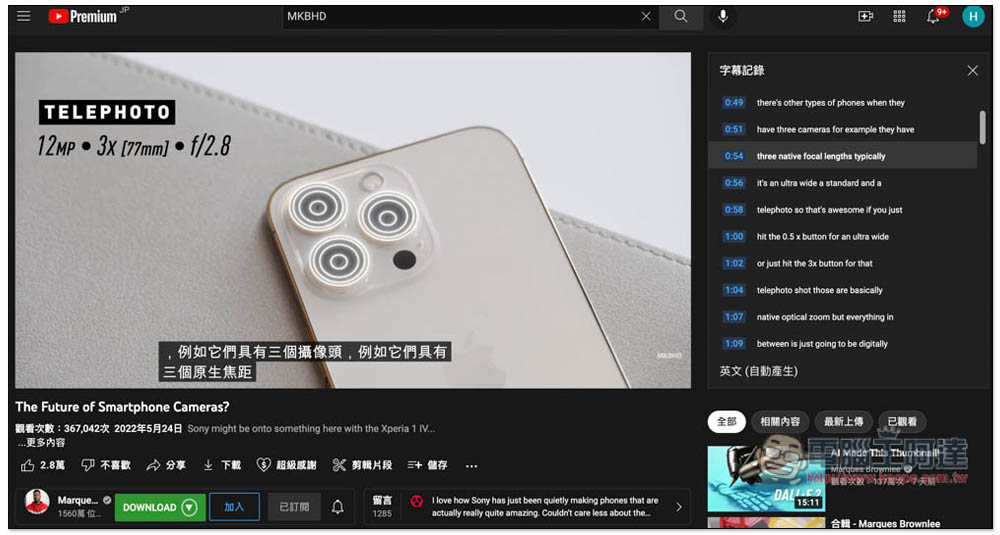
The original video subtitles will be displayed on the right (mine is an English video) and will move with the time of the video, thus achieving the effect of dual subtitles. People who are learning the language can focus on the subtitle record on the right. If they really don’t understand the meaning of this sentence, then look at the Chinese subtitles in the video:
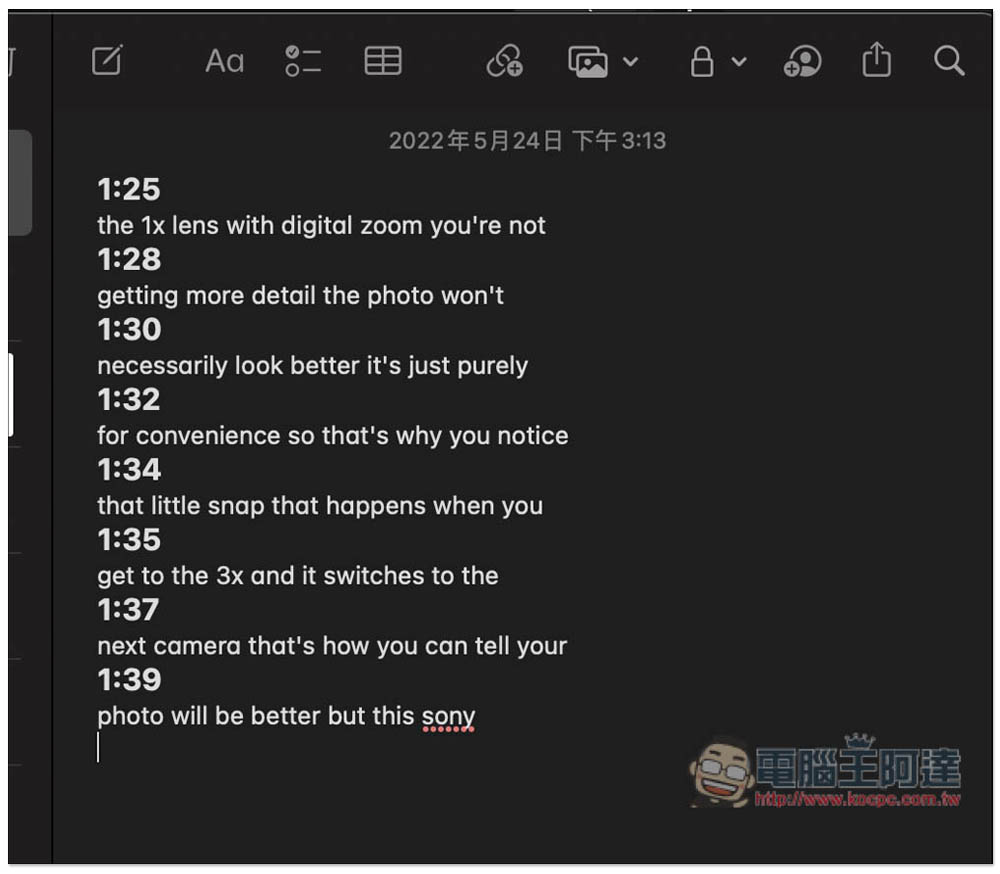
The subtitle records on the right can also be manually circled and copied, which means that when you see sentences or words you don’t understand, you can quickly add them to your vocabulary notebooks and notes:
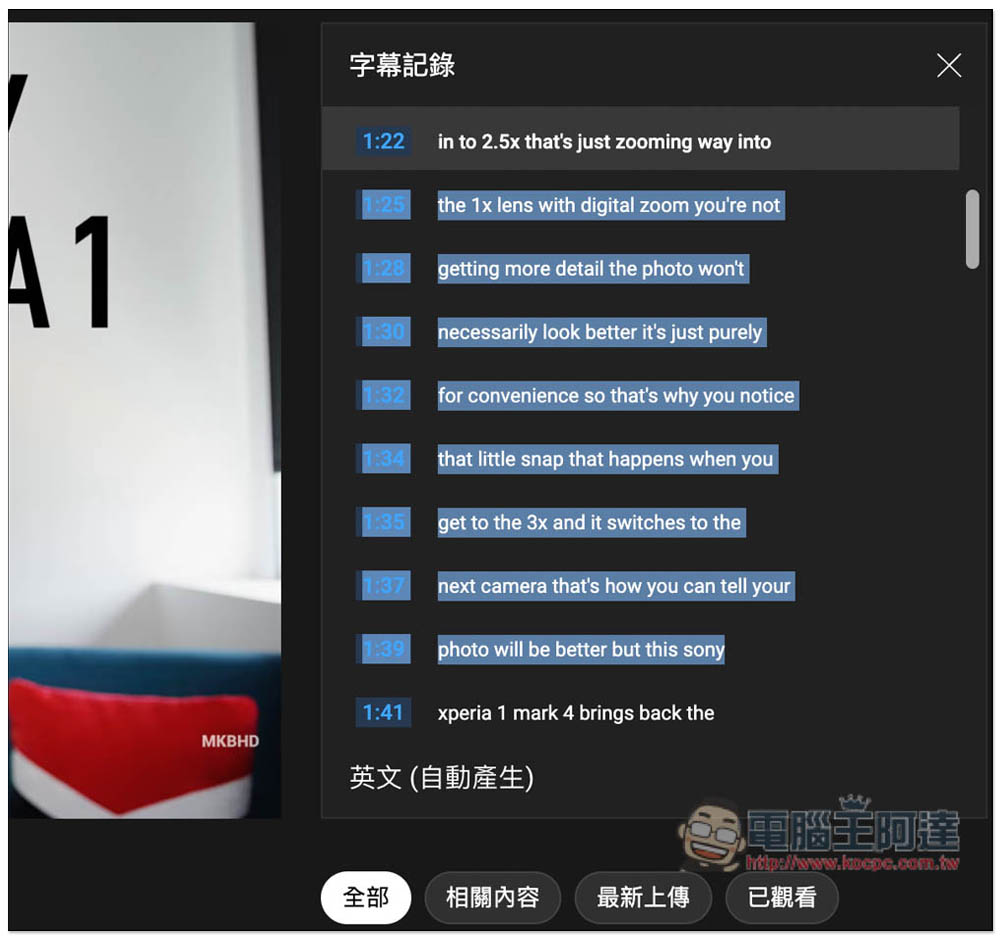
Like this:
The video I demonstrated only has YouTube automatically generating subtitles. The creator did not upload the subtitles, so there is only an English option. If the creator of the video you are watching provides subtitles in multiple languages, you can switch subtitles in other languages under the subtitle record on the right.
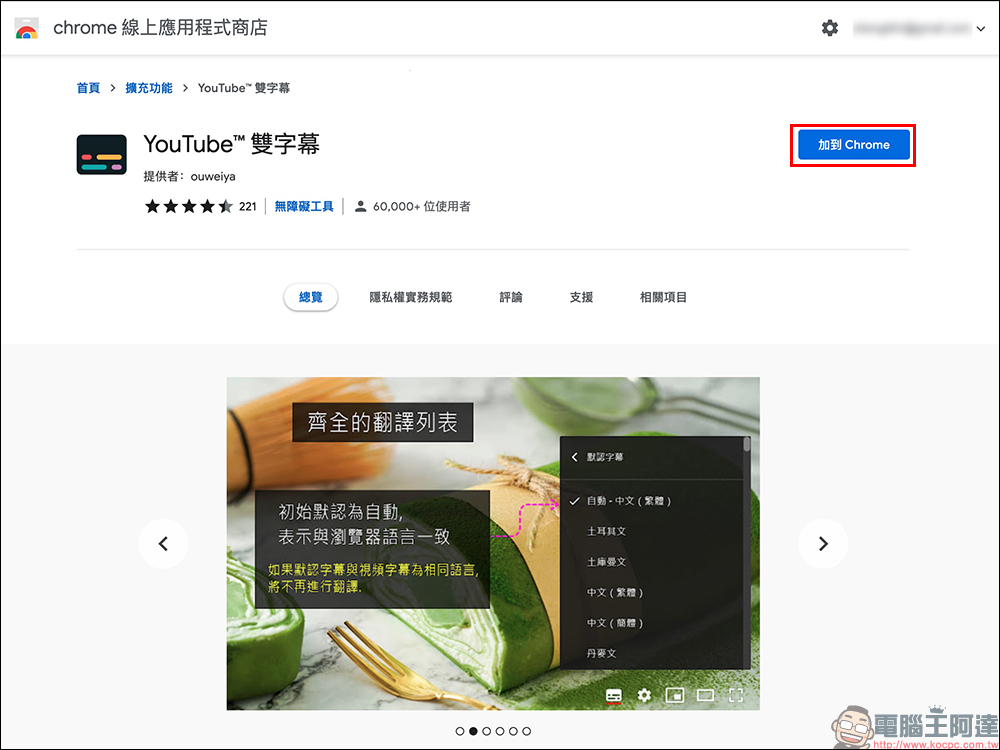
If you don’t mind installing extensions, you can also refer to what we introduced earlierTwo types, the first one is “YouTube Dual Subtitles”. In addition to displaying dual subtitles, it also provides many manual adjustment functions, such as: modifying the color, size, transparency, etc. of the subtitles. In addition, it can also adjust the position where the subtitles are displayed in the screen, including: bottom, left, right, or top of the screen:
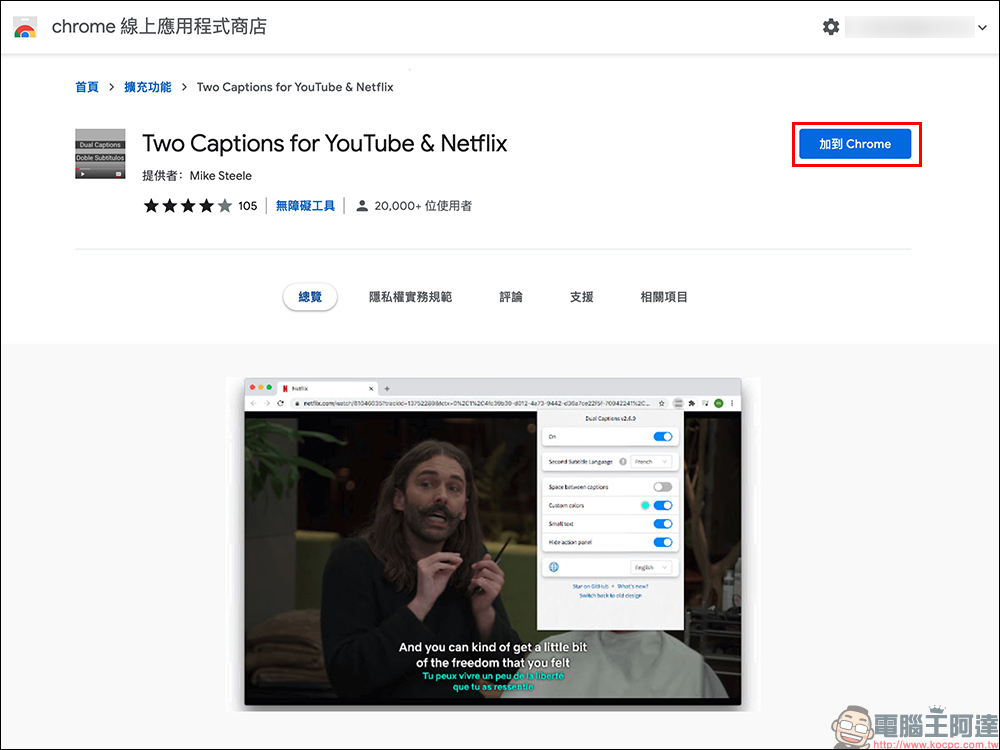
The other one is “Two Captions for YouTube & Netflix”, which also has some adjustment functions, such as the ability to modify the color you want. It is similar to the previous one, it just depends on which one you are comfortable with::
Compared with built-in YouTube, the extension functions are more flexible, each with its own advantages and disadvantages. If you don’t know which one to choose, you can try the built-in YouTube first. If you feel you don’t like this display method, you can try the extended functions instead.
Source: KOCPC Chinese