


OpenAI’s 12-day livestream event has officially entered its second half. On Day 7, they announced that ChatGPT is adding the “Projects” feature that many users have been asking for—similar to what Claude launched earlier. It lets you assign the necessary files, instructions, and chat content to different projects, making it easier to manage your tasks.
The web version and Windows app are now both available for use — of course, still limited to paying subscribers only.
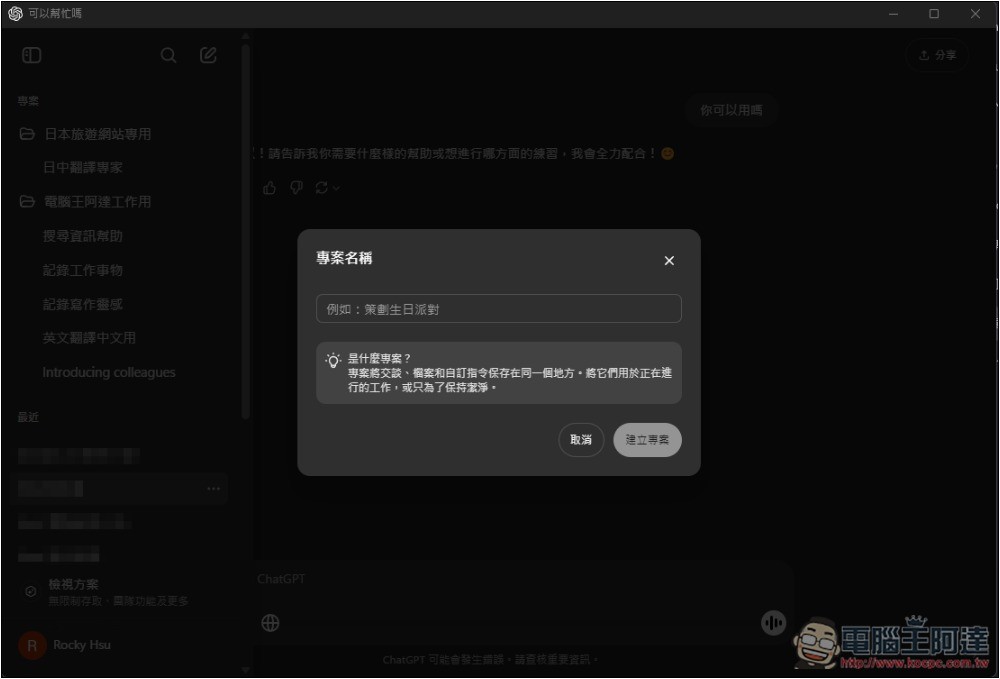
ChatGPT’s Brand-New “Projects” Feature Is Here—Here’s How to Use It
If you’re using ChatGPT Plus, ChatGPT Pro, or ChatGPT Team, you’ll now see the new “Projects” feature in the upper left when you open the web version or Windows app. If you don’t see it on your Windows device, make sure you’ve updated to the latest version.
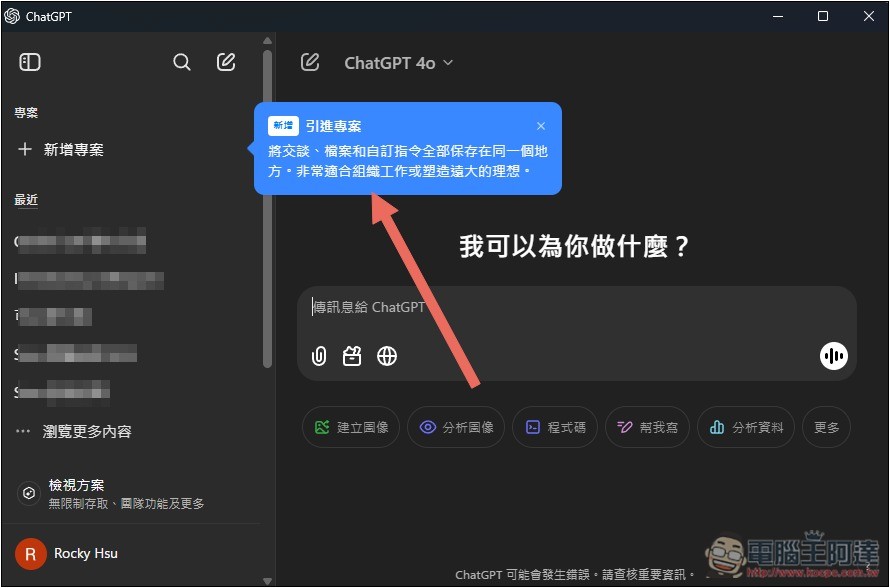
ChatGPT projects can serve many purposes. For example, you can create a dedicated project for different tasks, upload relevant files if needed, and also provide specific prompt instructions to ensure ChatGPT doesn’t give random or irrelevant answers.
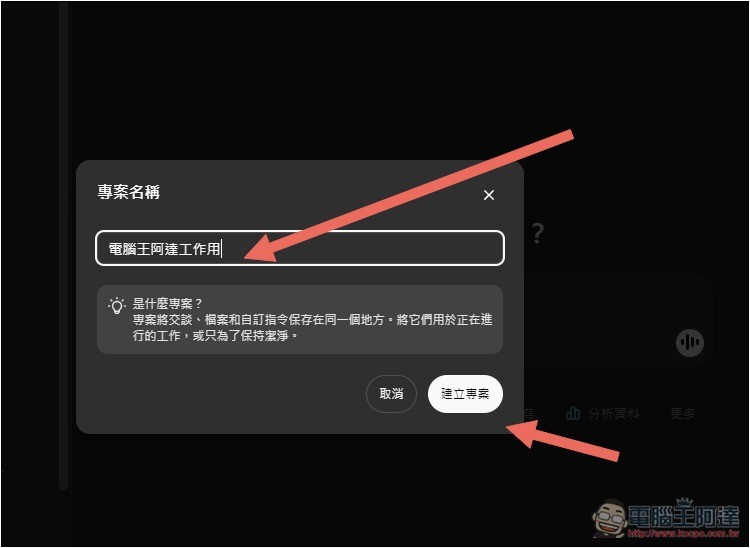
After clicking Add New Project, enter the project’s name, for example, I entered「電腦王阿達工作用」, then click「Create Project」:
The project has been created and will be placed under the project category, so it won’t be mixed in with the existing “Recent” section. Inside the project, you’ll see three functions: at the top is New Conversation, which creates a chat room; below that are the New File and New Command functions.
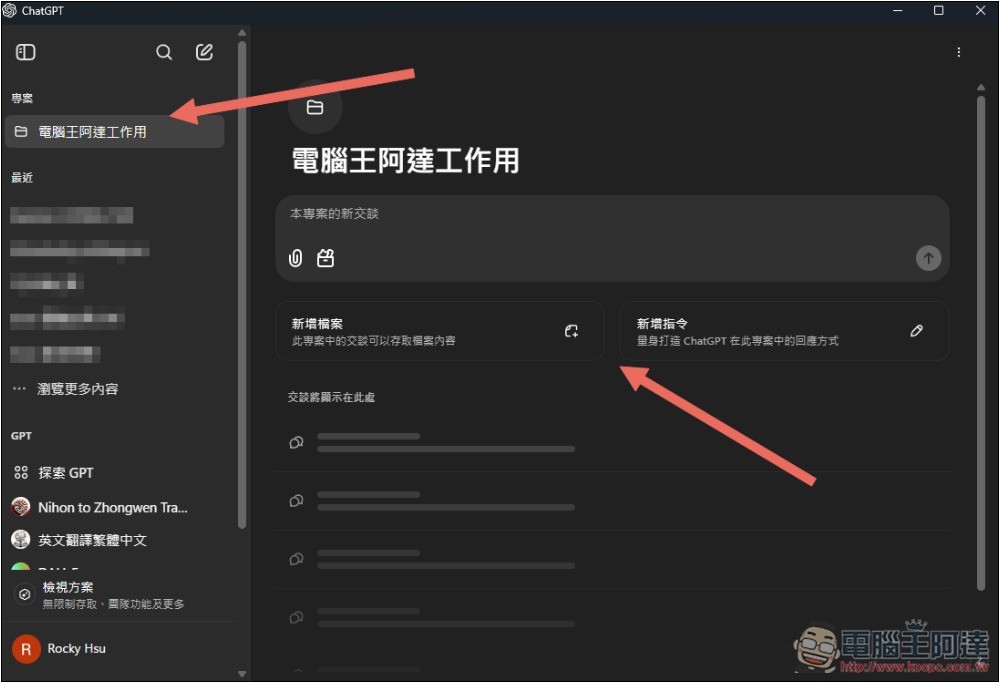
Upload the files used in this project—no matter how many chatrooms you create, ChatGPT can precisely find the content you need.
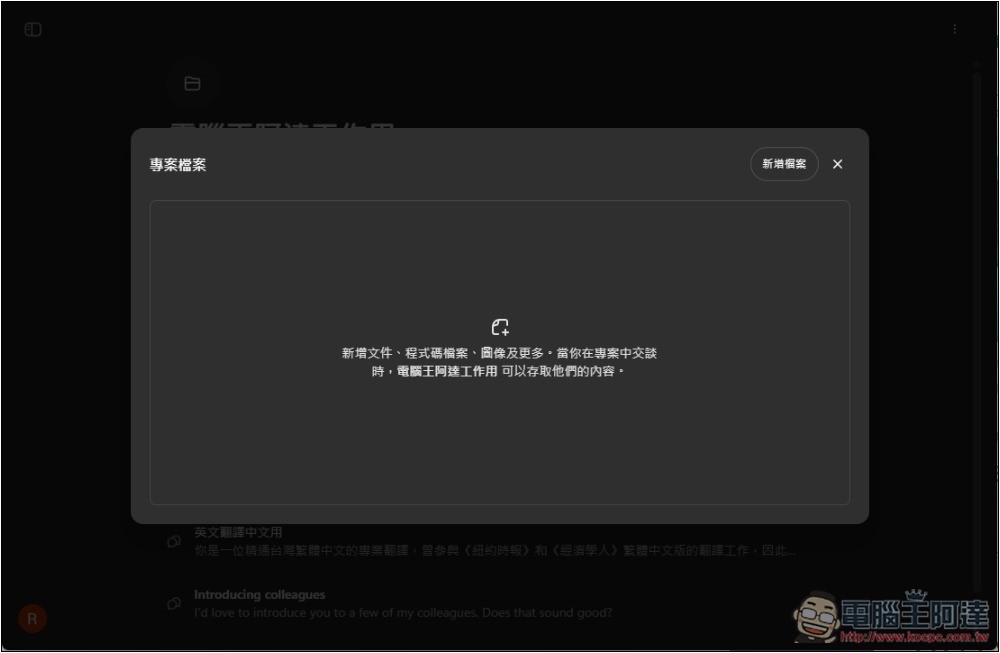
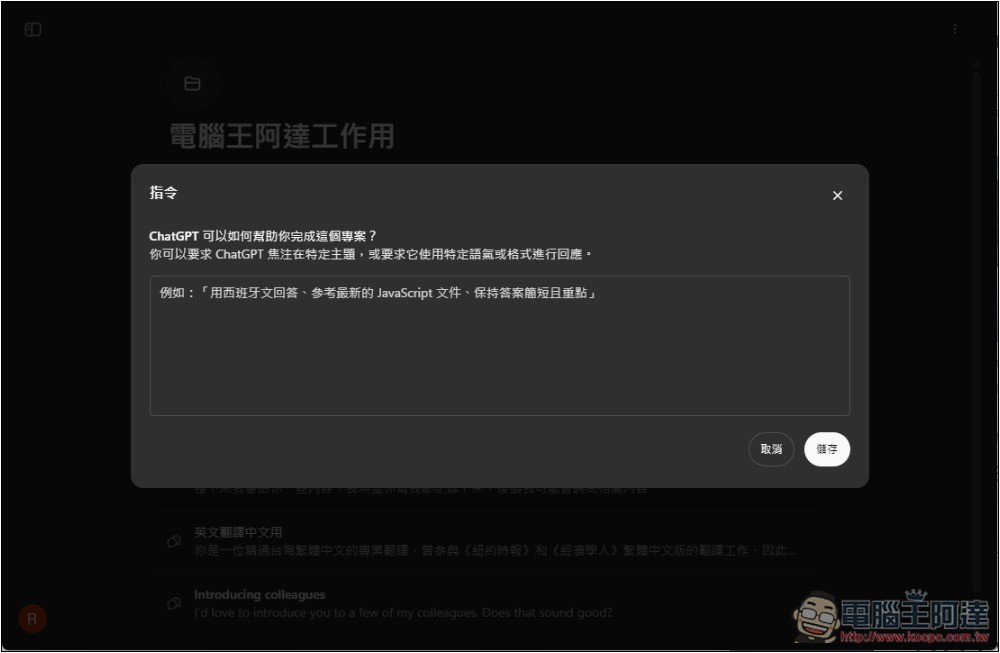
The instruction is the prompt—it’s about whether you have any special requirements, such as what language to answer in, what documents to reference, or keeping the response brief. If you don’t have any, you can leave it blank:
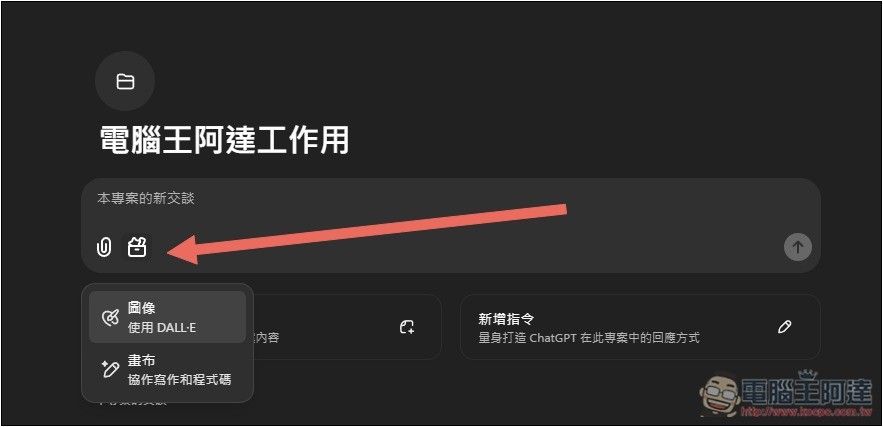
When creating a chat room, you can also upload relevant files for that specific chat. If you want to generate an image, click the image icon below to activate DALL-E generation. Same with canvas: click the canvas and ChatGPT will enable it.
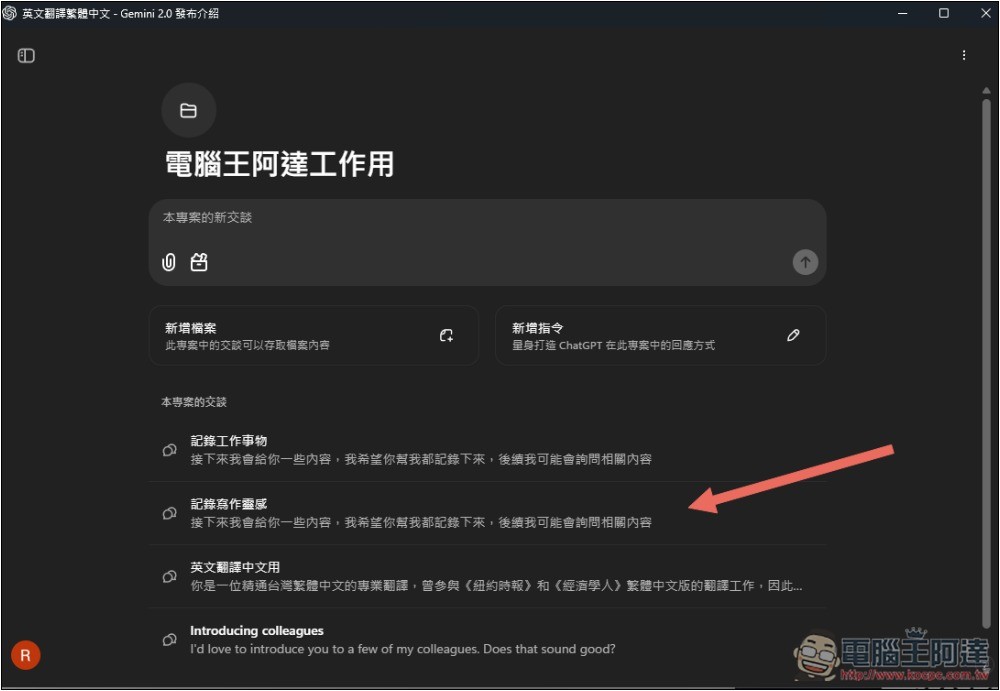
Previously at work, I often used ChatGPT to translate and record key points, but I also use ChatGPT for other things in my daily life, which causes those chat threads to get pushed down. Every time I need them, I have to spend time looking for them, which is a bit troublesome.
Now with the project feature, I can create chat rooms within it specifically for recording work matters, for writing inspiration, and for translation. In the future, when working, I can just open this project, find the chat room I need, and won’t be overwhelmed by other unrelated chat rooms. It’s really much more convenient:
Of course, you can also switch directly in the sidebar. When a project isn’t in use, click the folder icon next to it to collapse the chat room:
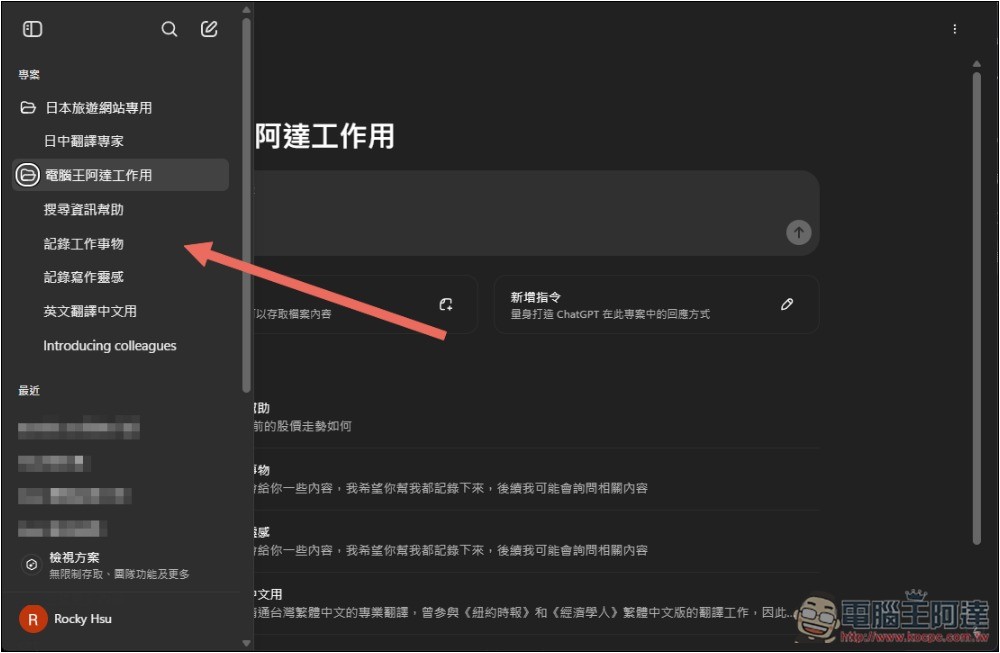
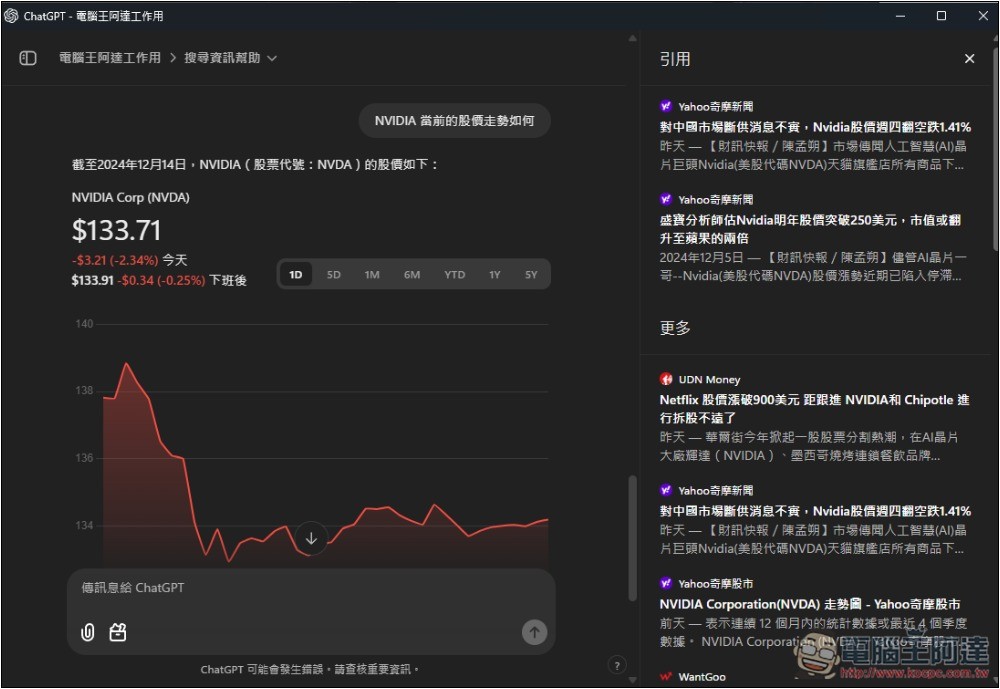
The project’s chat room also supports ChatGPT Search, allowing you to search the web for information:
Additionally, for old chat content, as long as it’s not GPT, you can add it to a project—open the … on the right to find the “Add to Project” option.
OpenAI also announced that in January, the ChatGPT “Projects” feature will be rolled out to enterprise and education users, and it will definitely be made available to free users in the future, though the exact timing is still unknown.
OpenAI introduction video:
Introducing Projects—an easy way to organize chats that share topics or context in 4o.
Now available for ChatGPT Plus, Pro, and Team users globally.
We’ll bring it to Enterprise and Edu users in January, and to Free users soon. pic.twitter.com/Bmv7kB0GKY
— OpenAI (@OpenAI) December 13, 2024
Source: KOCPC Chinese