


CleanMyPC is a multi-functional system cleaning software. In addition to scanning useless junk files and temporary archives in your computer with one click, CleanMyPC also provides the ability to deeply remove applications from your computer, remove browser cache and other data, and completely delete important files without leaving any traces. In short, it means that they are completely unrecoverable. People who do not have system cleaning software on their computers can give it a try.
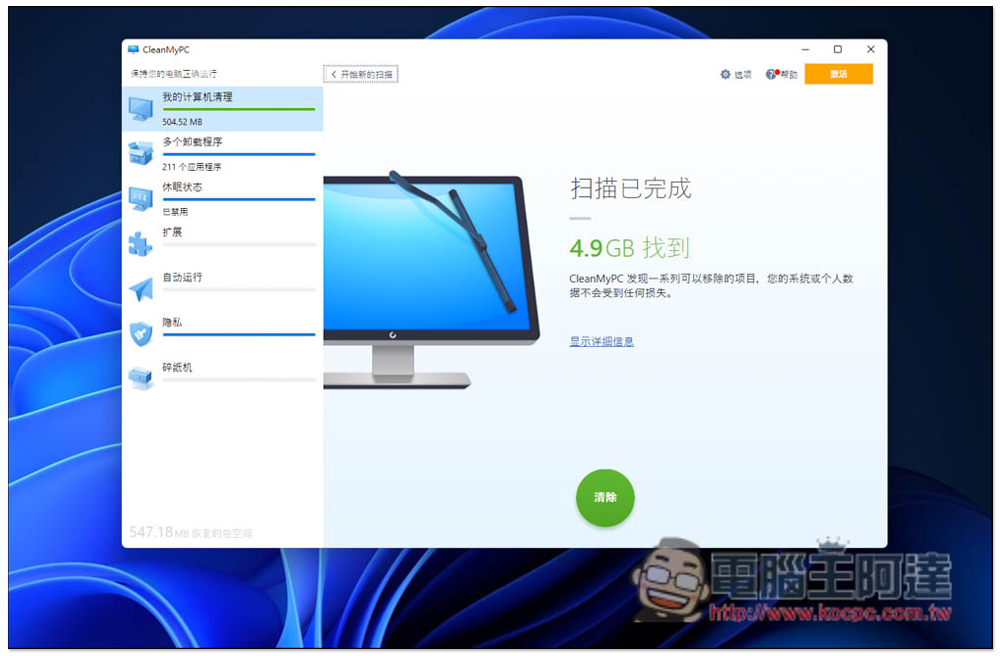
Introduction to CleanMyPC, a free multi-functional system cleaning software with built-in utility tools such as program removal and safe deletion.
CleanMyPC is available in Simplified Chinese, so there should be no problems in operation. In addition, this set provides a paid version. The main difference is that the free version can only automatically clean up 500MB of garbage. If it exceeds 500MB, it must be changed to manual. The paid version has no limit. I think the free version is better. After all, the garbage cleaning part is not often used. It is only cleared occasionally, so when you have more time on a day, you can just delete them one by one manually. Click below to scan and open:
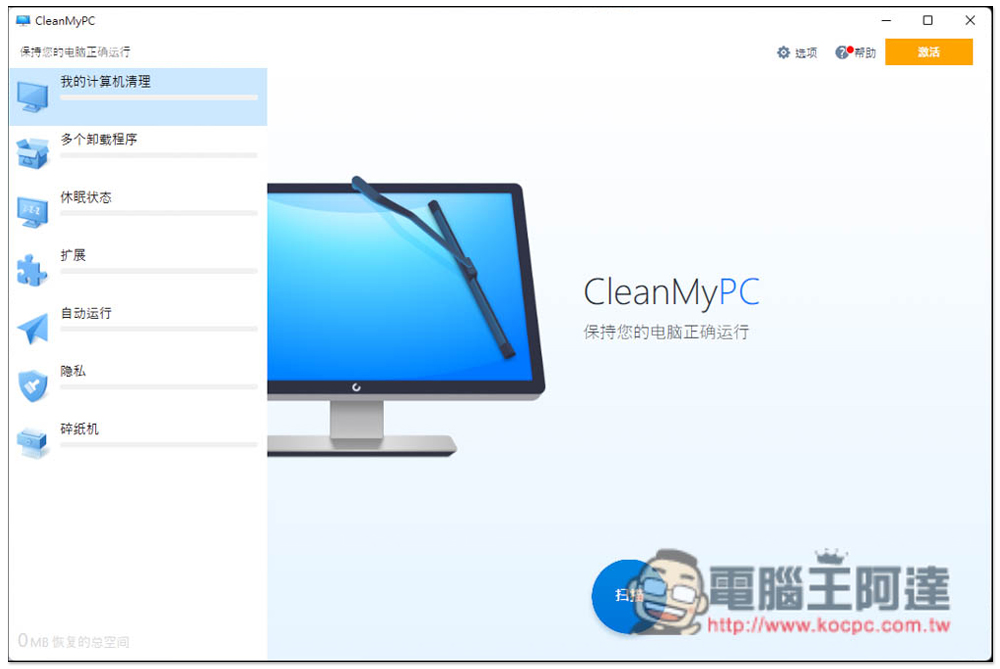
Provides seven major functions:
- my computer cleanup
- Multiple uninstallers
- Sleep state
- Expand
- run automatically
- privacy
- Shredder
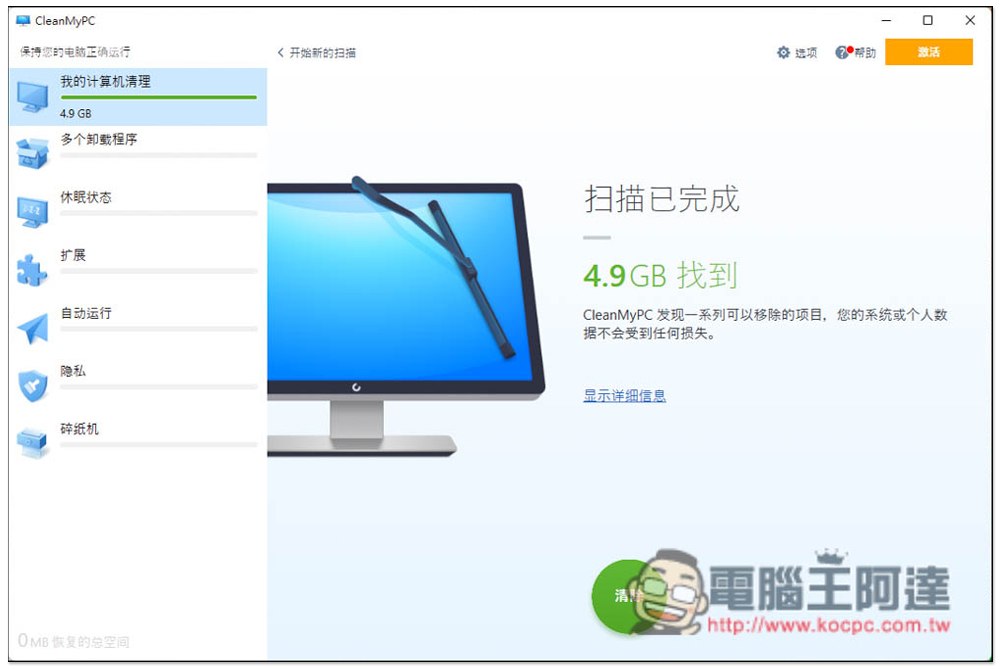
The scanning speed is quite fast. I didn’t expect that there are 4.9GB of useless files in my computer. You can directly click below to clear them, or click Show Details to see which files they are. For those who are afraid of deleting mistakes, it is better to take a look:
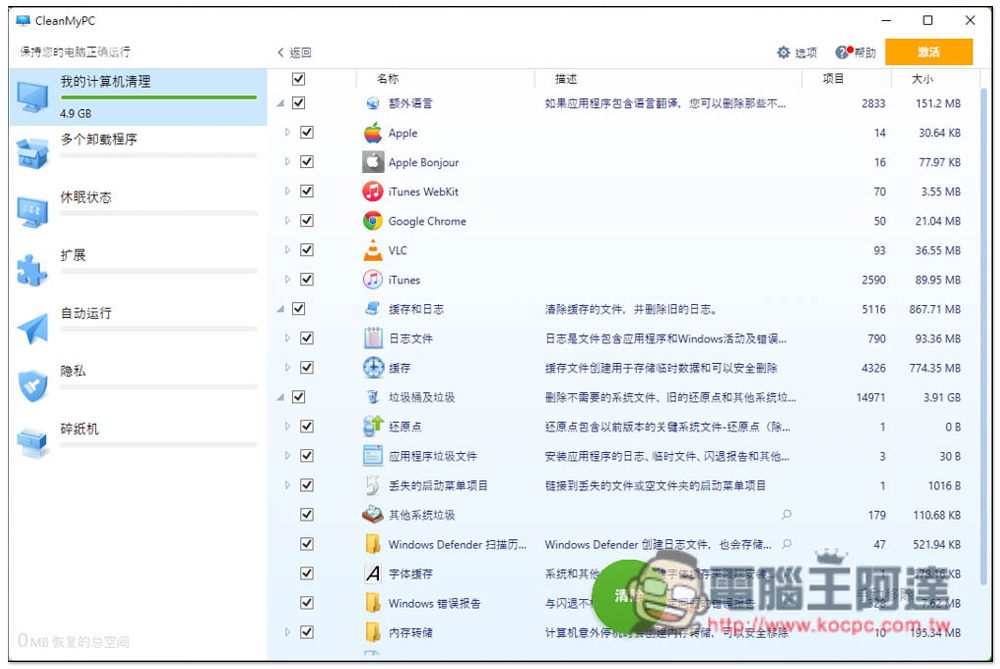
It will scan two major categories, namely “Cache and Log” and “Trash Can and Trash”. It will tell you the name of each file and how much size it occupies. If there is content you don’t want to delete, just uncheck the previous check:
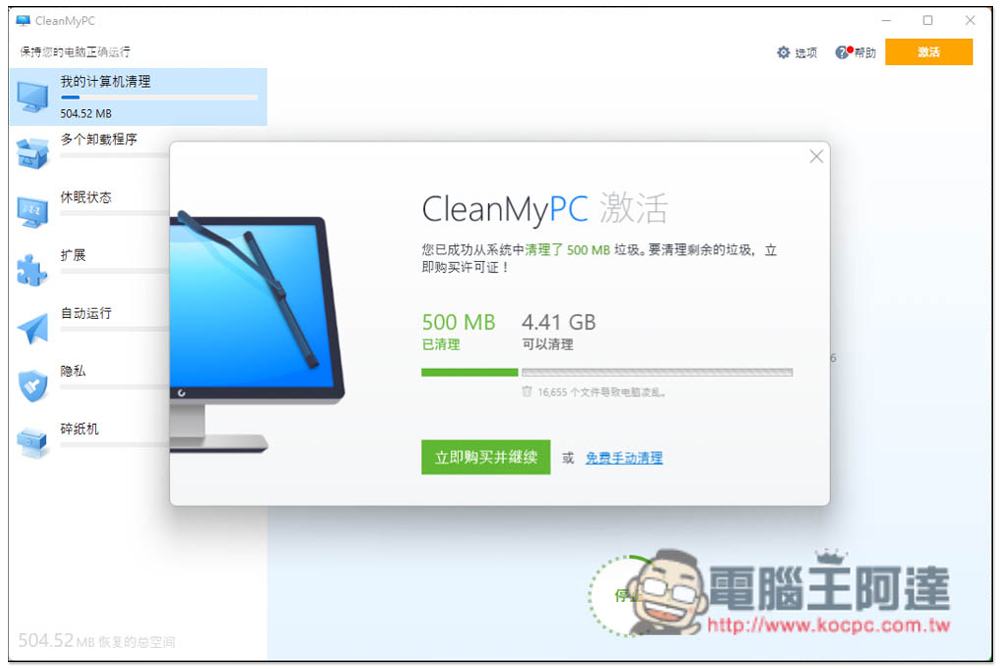
The free version can only automatically clean up 500MB of garbage. If you don’t want to pay for the upgrade, click the “Free Manual Cleanup” function at the bottom right:
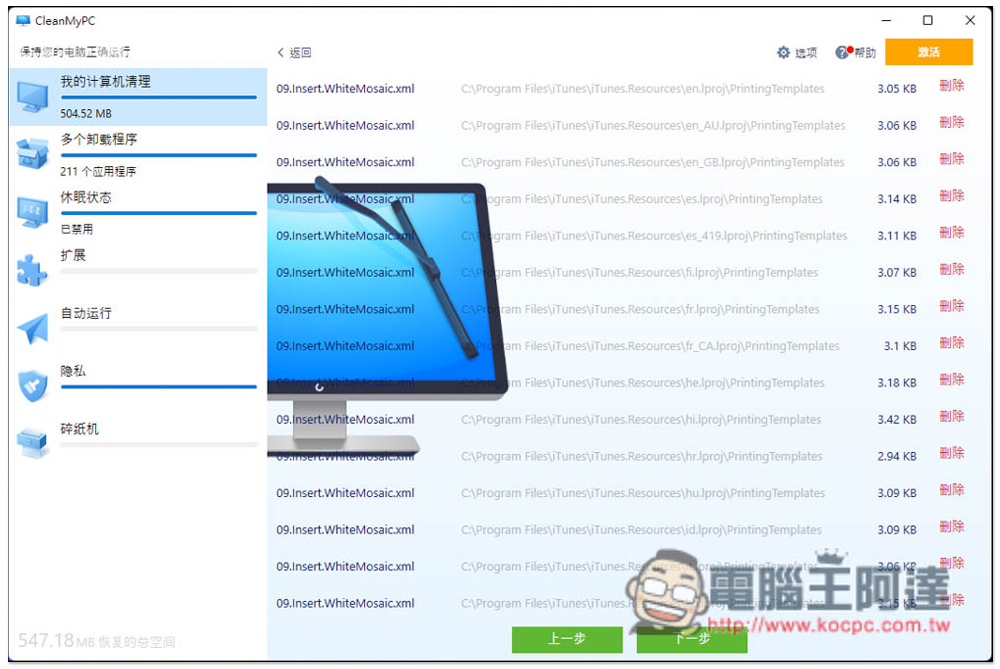
You will see the delete function on the right side of each file, just click delete one by one until they are all gone. (It’s actually not difficult to delete manually):
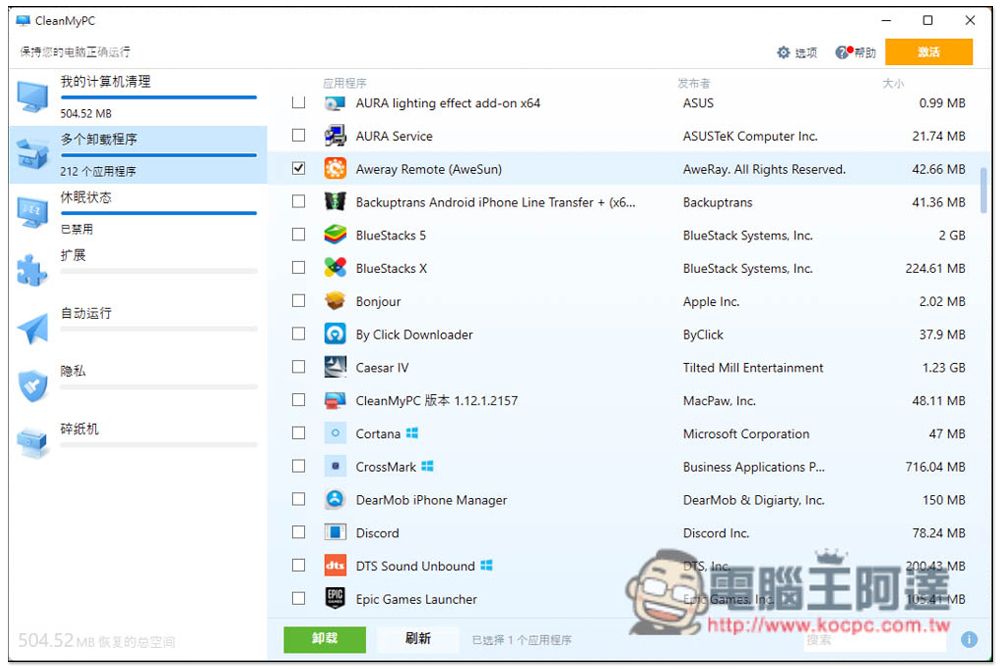
The uninstaller can remove multiple applications at once. It is easier to use than the built-in one in Windows and is also faster. You can use the free version:
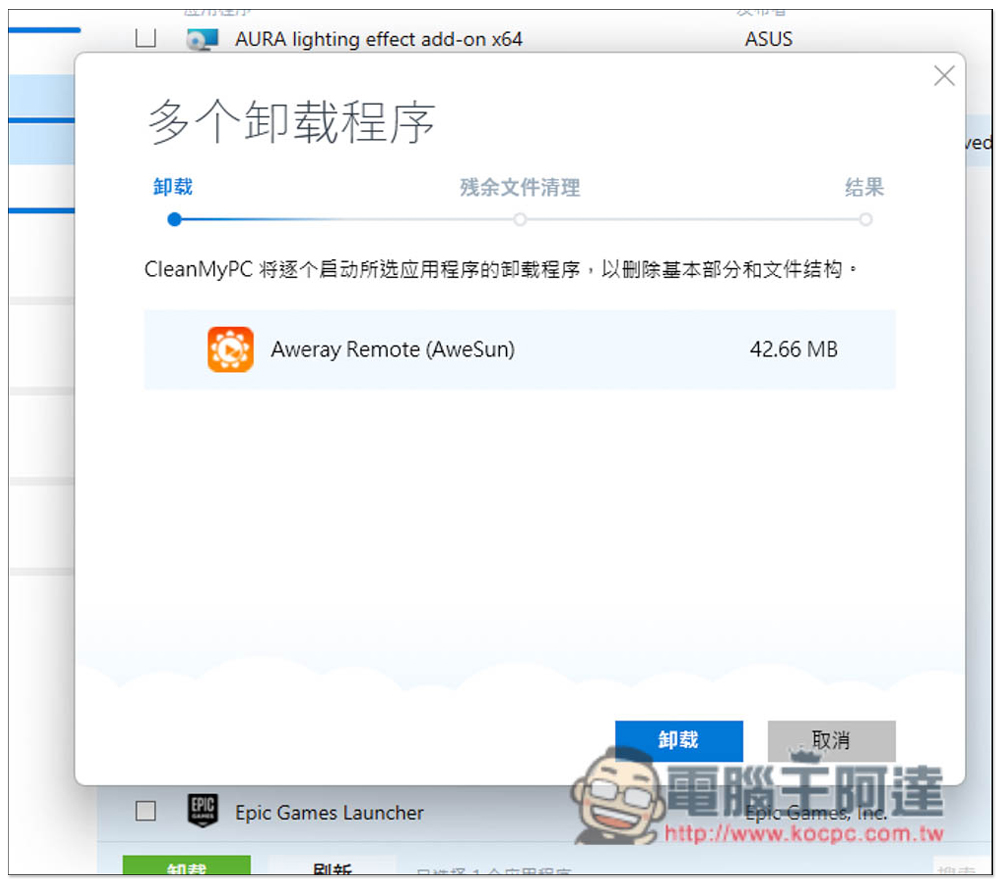
In addition to removing the program, it will also scan whether there are any residual files in this application and help you clean them up:
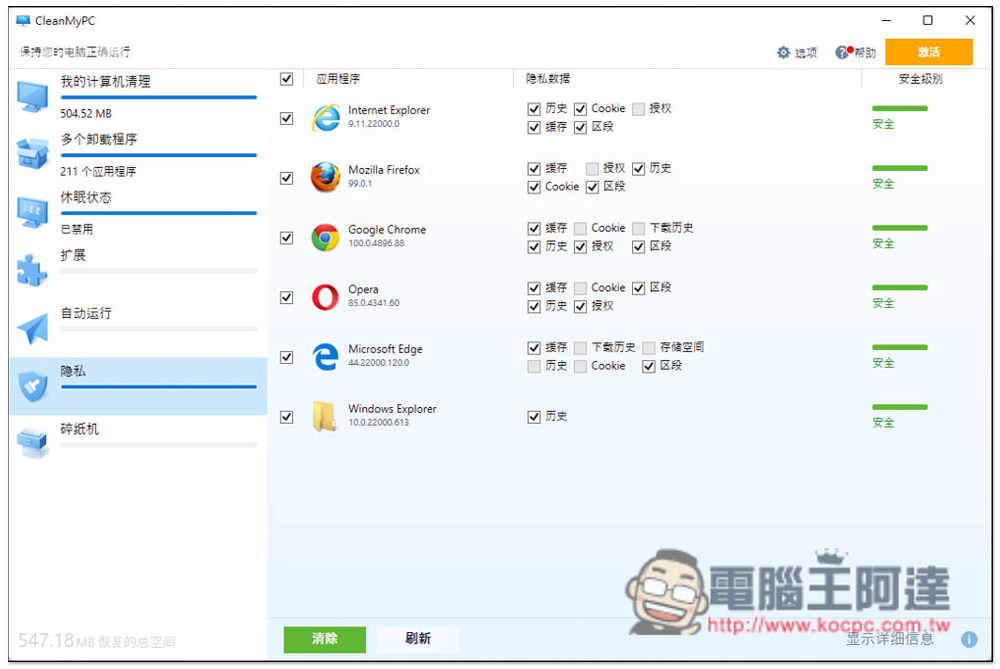
The privacy option can clear the data of all browsers installed on your computer at once, including history, cookies, authorization, cache, and sections. This is quite convenient. You don’t have to open the browsers one by one to delete them. It also supports deleting the history of File Explorer:
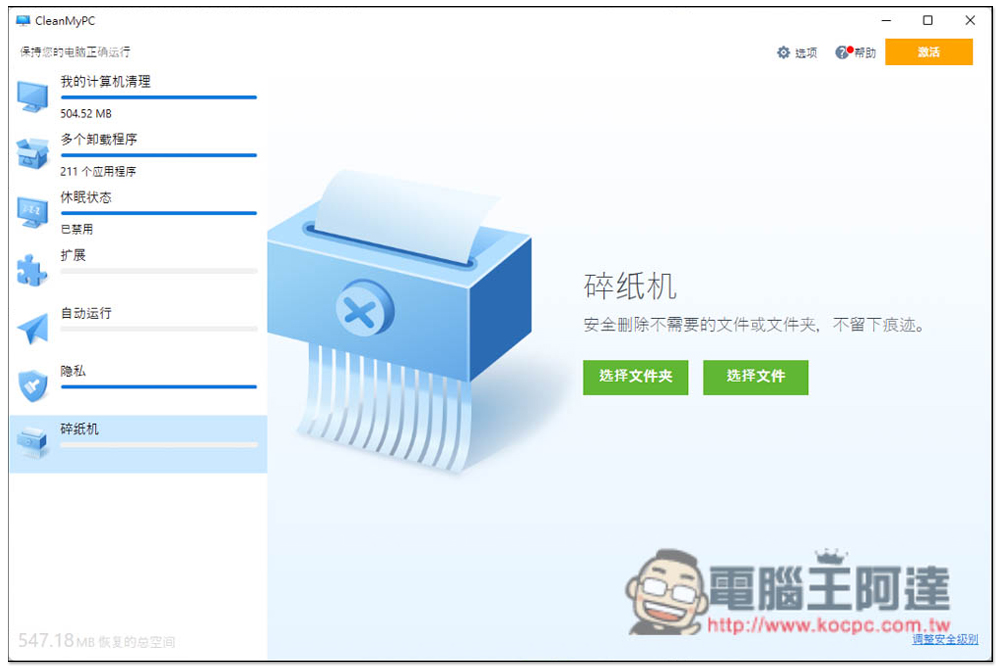
When you have important files that you want to delete, it is recommended to use the shredder function. It completely deletes the specified folder or file and cannot be restored with rescue software, so it is very safe. Of course, since it is so safe, remember to think clearly before deleting:
As for the rest of the functions, the sleep state is to turn on the power saving mode, which is more necessary for laptops. Extensions manage installed extensions for your desktop and browser. Autorun is to manage the software and functions that are automatically activated when the computer is turned on.
Overall, the most difficult part to use is that junk files need to be deleted manually. Others are very easy to use and do not take up space or resources. I recommend it to everyone.
Source: KOCPC Chinese