


As the epidemic continues to be severe, many people, whether working from home or at work, have more opportunities to communicate through LINE. In addition to text communication, there are more opportunities to use LINE’s free video calls for simple meeting discussions. Recently, the LINE PC version 7.8 update was released. In addition to optimizing various functions of video calls, it also added editing functions for stickers and emoticons.
▲Picture source:LINE Taiwan official BLOG
LINE PC version 7.8 update: stickers and emoticons support editing functions, optimized group video preview and other 6 updates
Recently, LINE finally released the PC version 7.8 update. This update adds a new “editing” function for stickers and emoticons, allowing users to adjust the order of stickers and emoticons in the PC version of LINE. In addition, the group video call preview page has been optimized, and a skin beautification function has been added so that everyone can look beautiful during video calls. This update can be roughly summarized into 6 key points. The PC version of LINE previously released the Windows version LINE 7.8 update last week, and this week the update was finally launched for Mac users.
1. Stickers and emoticons support the “editing” function
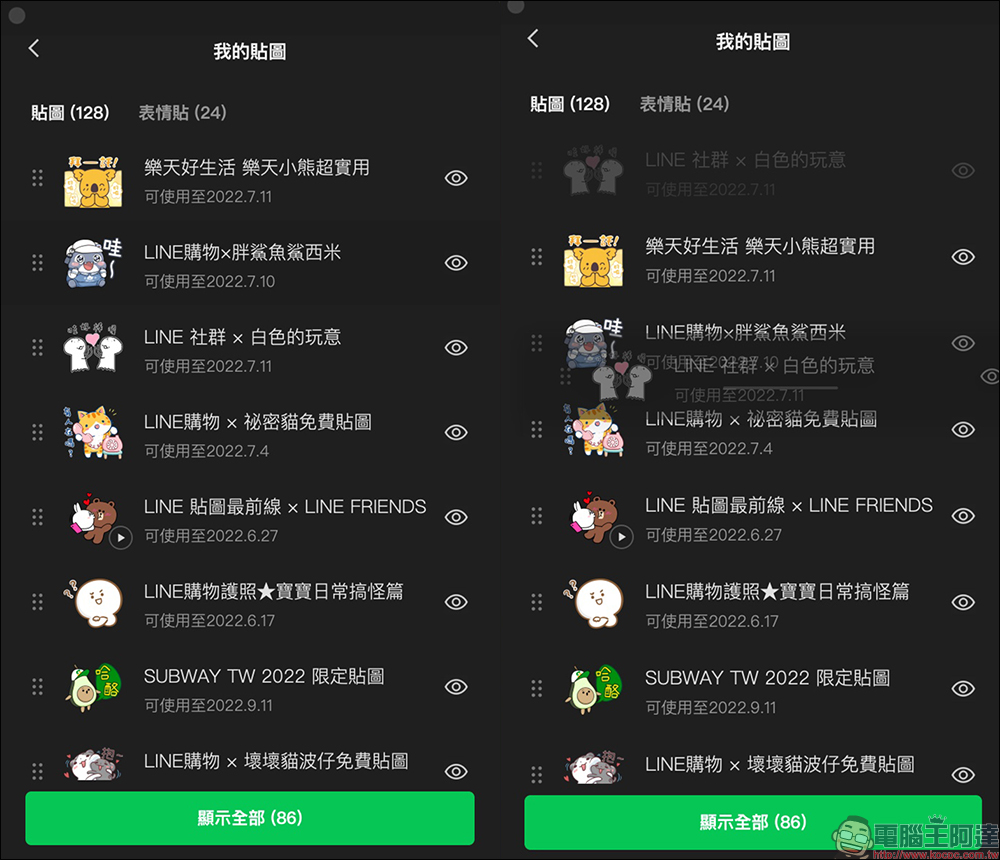
As our LINE stickers and emoticons continue to increase, it will be easier to find them by replacing outdated stickers or emoticons and moving commonly used stickers and emoticons to the front. With this update, the computer version of LINE can finally edit the order of stickers and emoticons!
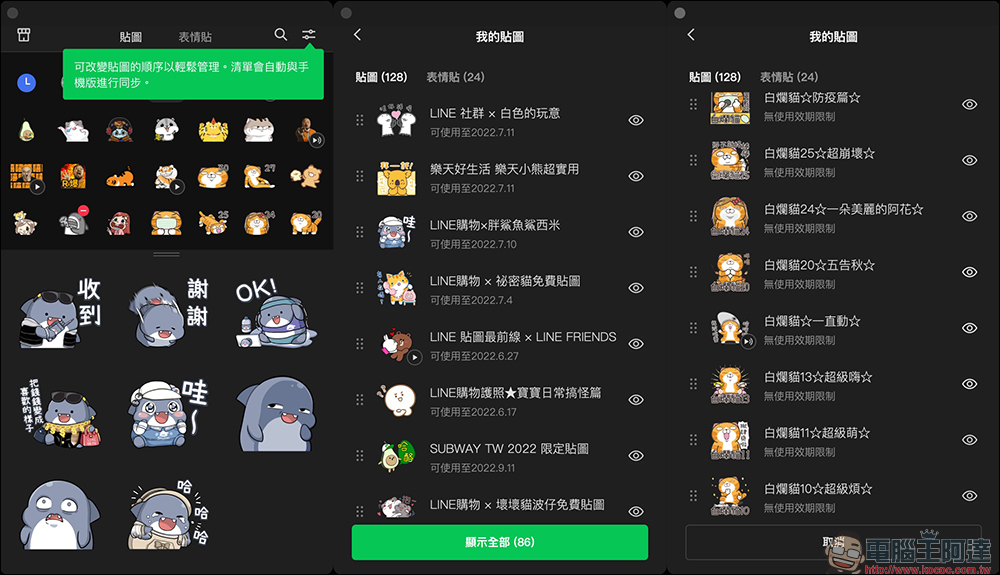
Click “Edit” in the upper right corner of the sticker window to enter the list settings, and then drag the sticker you want to adjust to the desired order. If the texture is not in use, you can also click the “eye” icon on the right to hide it.
It is worth mentioning that after the user adjusts the order of the textures on the computer version, this order will also be synchronized with the mobile phone; if the user adjusts the order of the textures on the mobile phone, it will also be synchronized on the computer.
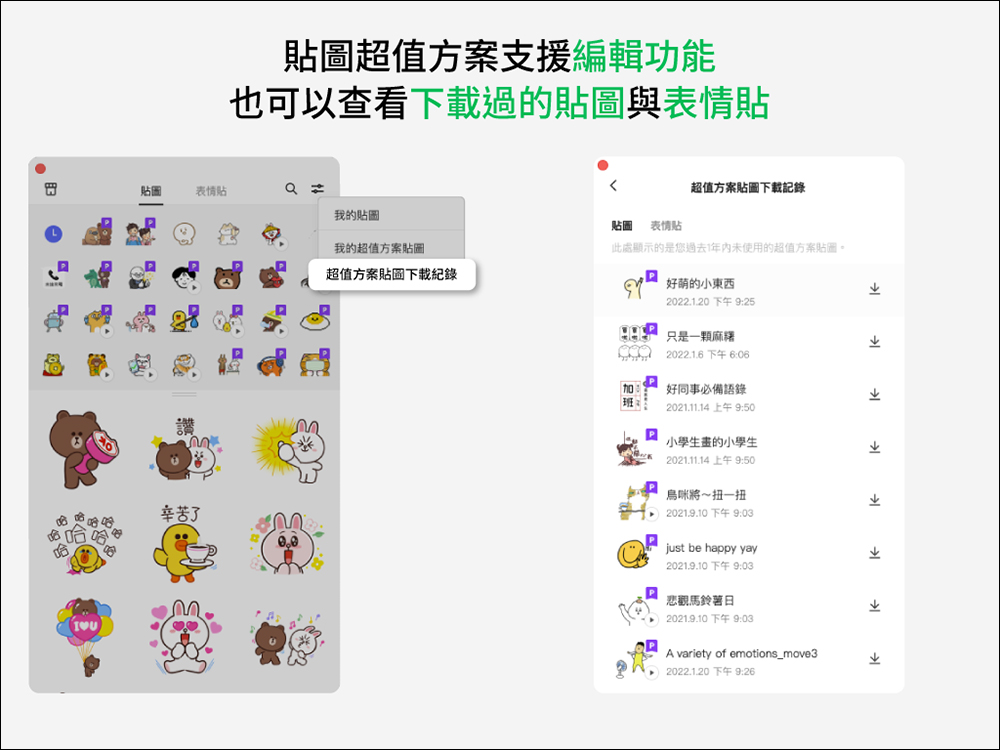
2. The value-for-money sticker plan not only supports editing functions, but also allows you to browse download records.
If you are a user of the sticker premium plan, you will see “My Value Plan Stickers” in the edit menu in the upper right corner of the sticker, where you can browse the stickers and emoticons you currently own; in the “Super Value Plan Sticker Download Record”, you can browse the stickers and emoticon stickers downloaded by the user’s value plan.
▲Picture source:LINE Taiwan official BLOG
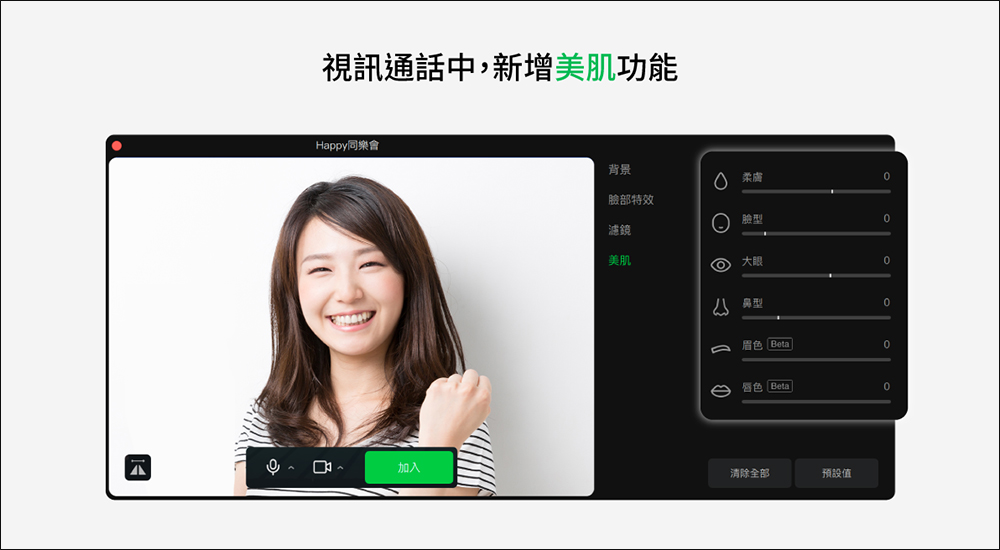
3. Free video calls now have a new “skin beauty” function
When you are using video functions such as LINE group video, one-on-one video or LINE conference room video calls, the “Beautiful Skin” function will also be added after the update! Users can adjust special effects including soft skin, face shape, big eyes, nose shape, eyebrow color and solid color. The set beautifying effects will also be automatically applied during the next video call, which is really considerate!
▲Picture source:LINE Taiwan official BLOG
4. Free group video call preview page optimization
This update to the PC version of LINE also optimizes the preview screen before group video calls. Users can prepare their status by selecting backgrounds, facial effects, filters and skin beautification effects. They can also turn on the sound and video camera below to confirm whether they are satisfied. Once everything is ready, you can start the video with confidence!

▲Picture source:LINE Taiwan official BLOG
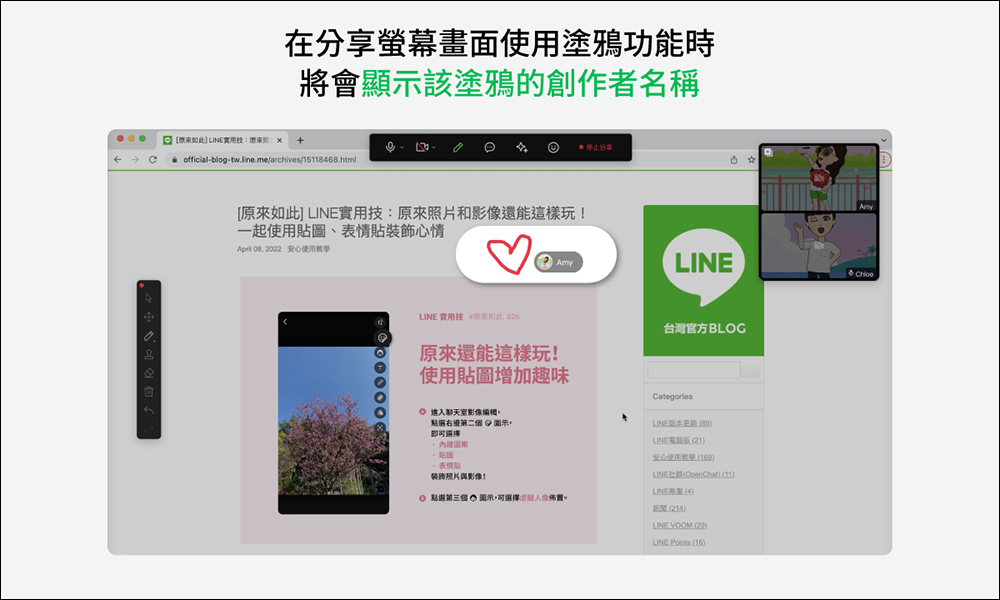
5. When sharing the screen and using the graffiti function, the name of the graffiti creator can be displayed
In addition to being able to take pictures of everyone’s heads, the LINE video call function also has a built-in screen sharing function that is very useful for meeting discussions. In the past, users could use it to discuss with participants during meetings or presentation sharing. If there are key points to be marked, using the graffiti function after the update will simultaneously display the avatar and nickname of the graffiti creator, allowing everyone to identify them more clearly.
▲Picture source:LINE Taiwan official BLOG
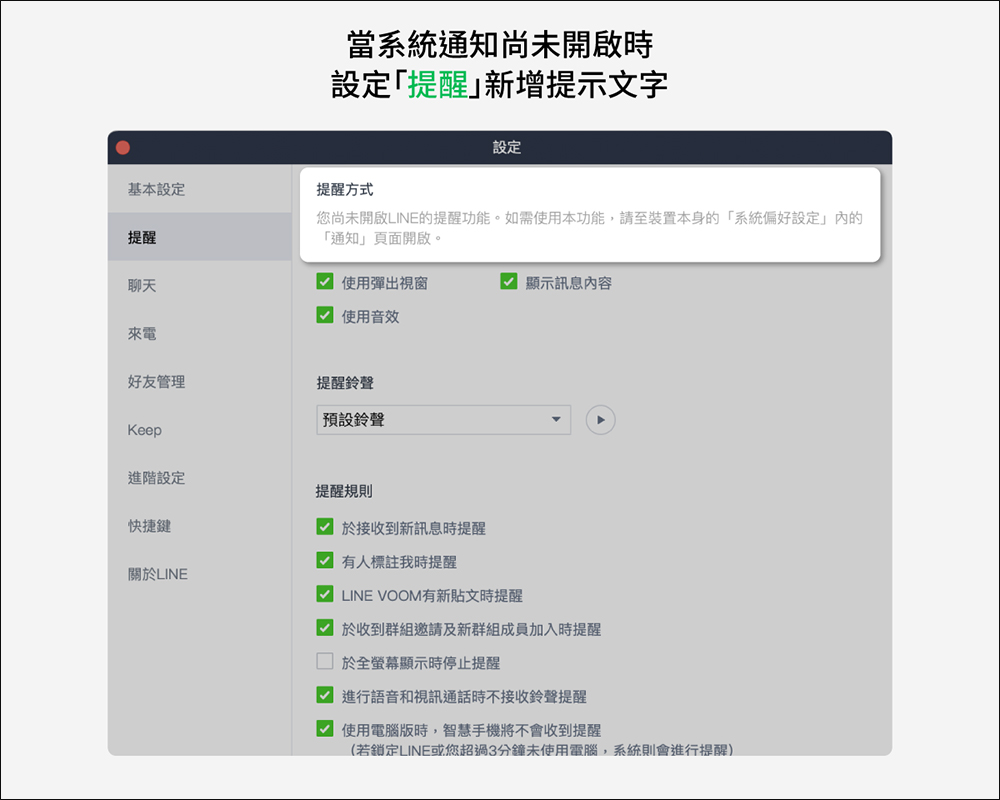
6. If the system notification is not turned on, add reminder text and window
If notifications are not turned on in the computer version of LINE, users can first go to “Settings” > “Alerts” in the computer version of LINE to check. If the system’s own notifications are turned on, users will be notified with reminder text after this update.
▲Picture source:LINE Taiwan official BLOG
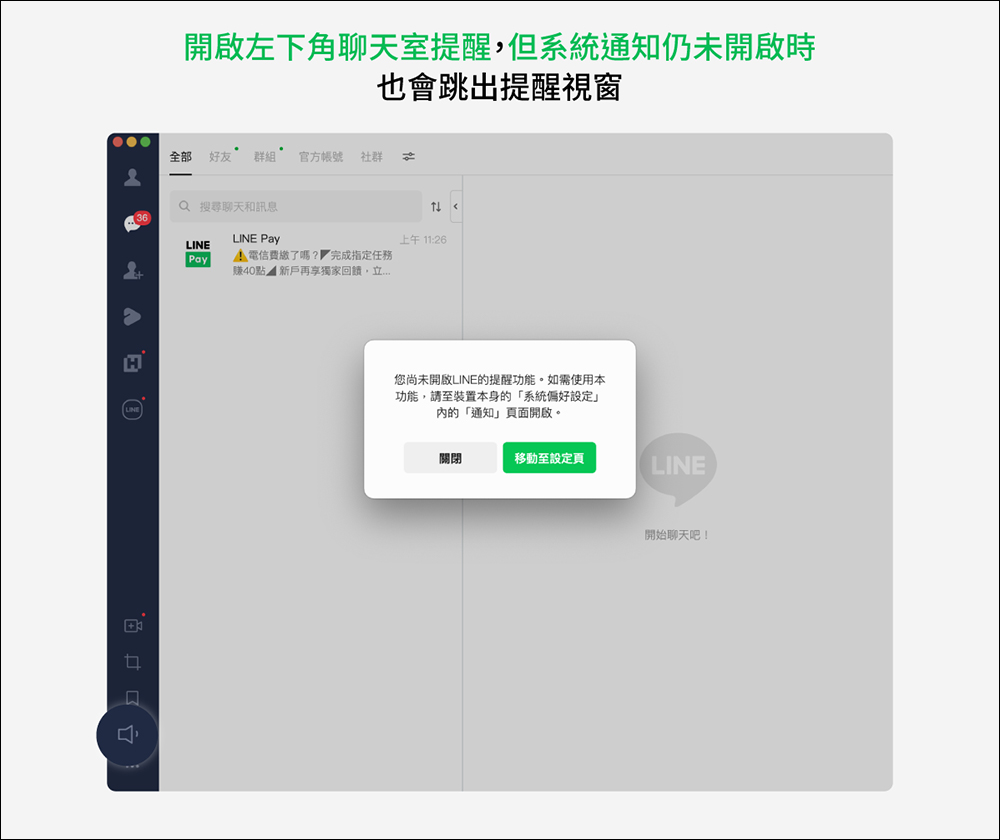
If the user wants to turn on the LINE chat room reminder notification, but the system notification on the computer itself has not been turned on, the reminder will also pop up in the LINE window.
▲Picture source:LINE Taiwan official BLOG
Source: KOCPC Chinese