


After upgrading to Windows 11, although the right-click menu has become more beautiful and has all the functions it should have, not everyone likes this new design. There are also many people who think it is not very easy to use. I am one of them. Even though I have been using it for about half a year, I still don’t feel comfortable with it. If you don’t like the new version of the right-click menu like me, this article will tell you two methods to change the Windows 11 right-click menu back to the old version.
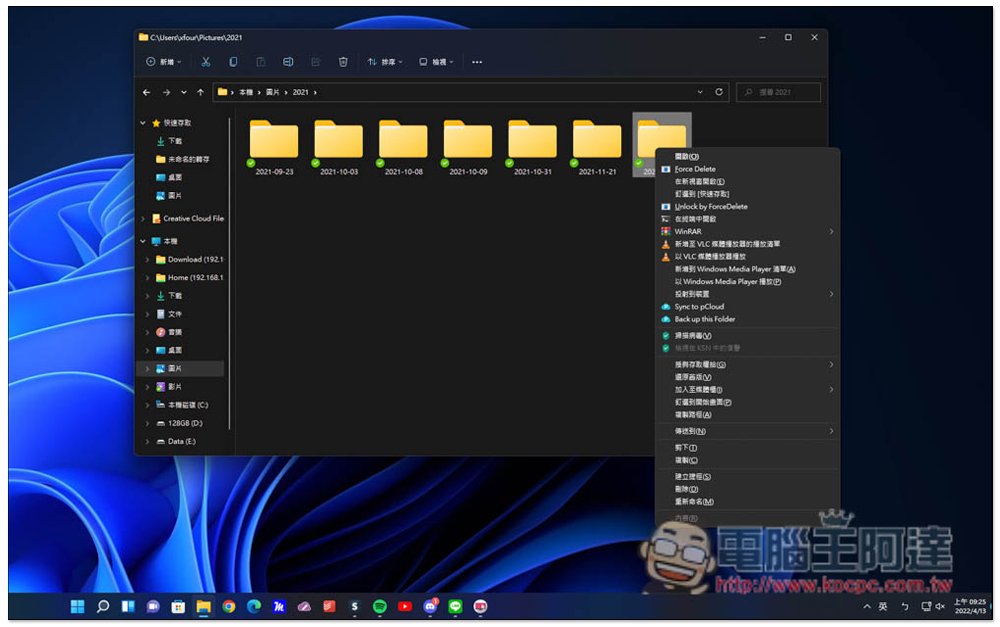
Two methods to change Windows 11 right-click menu back to the old version
The new version of the right-click menu looks like this. It looks much better than the old version. Some functions have also become graphical without text prompts (such as deletion):
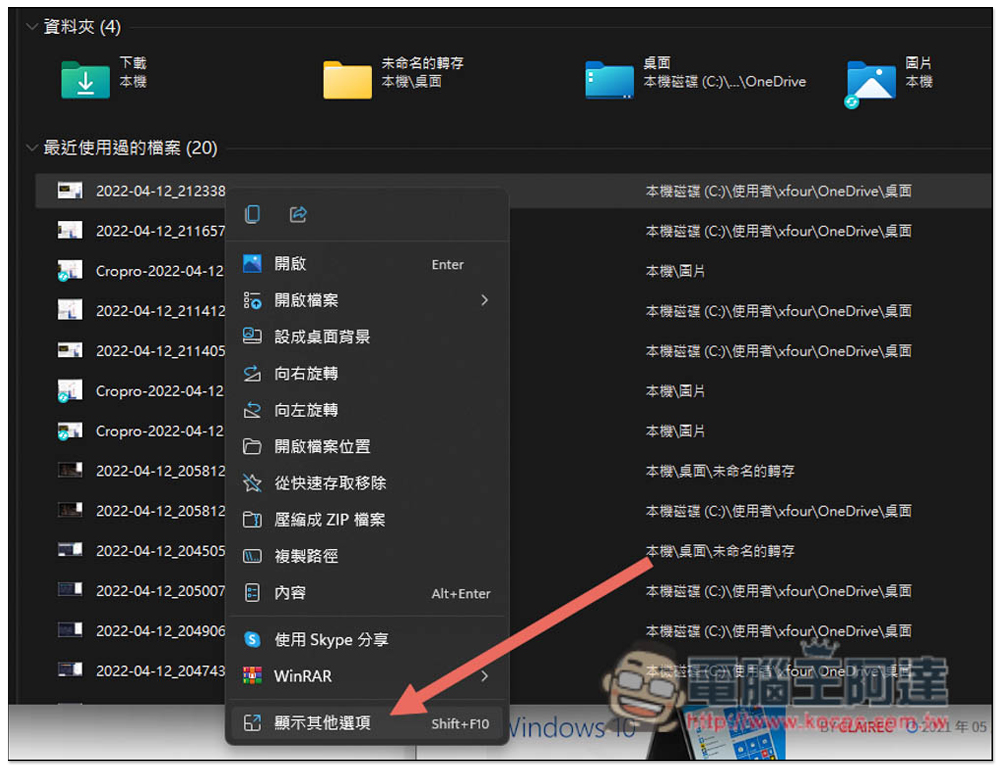
The change principles of these two methods are the same. The second one is relatively simple and only requires one line of commands. But if you want to know what this command does, it is recommended to take a look at the first method.
Method 1: Edit the program by logging in
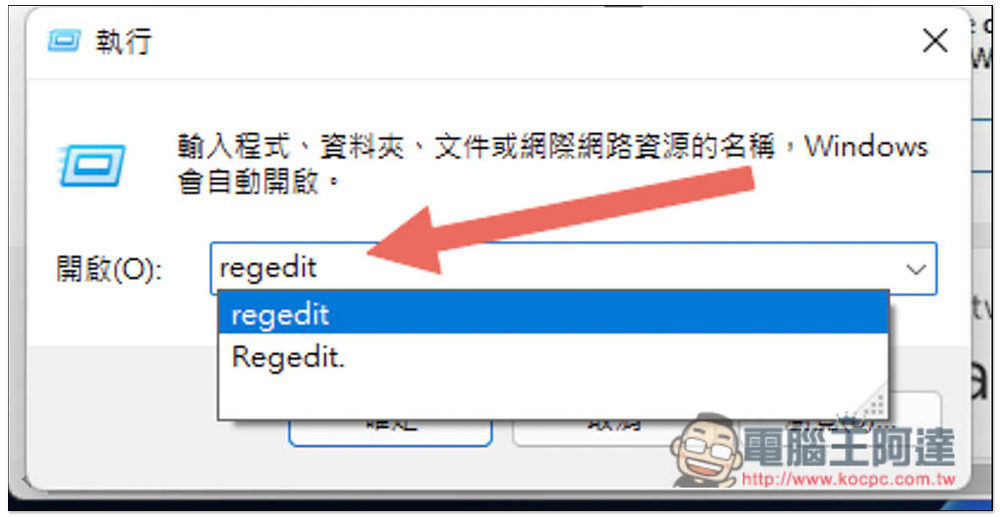
First, please press Windows + R function, the execution will be opened, enter regedit:
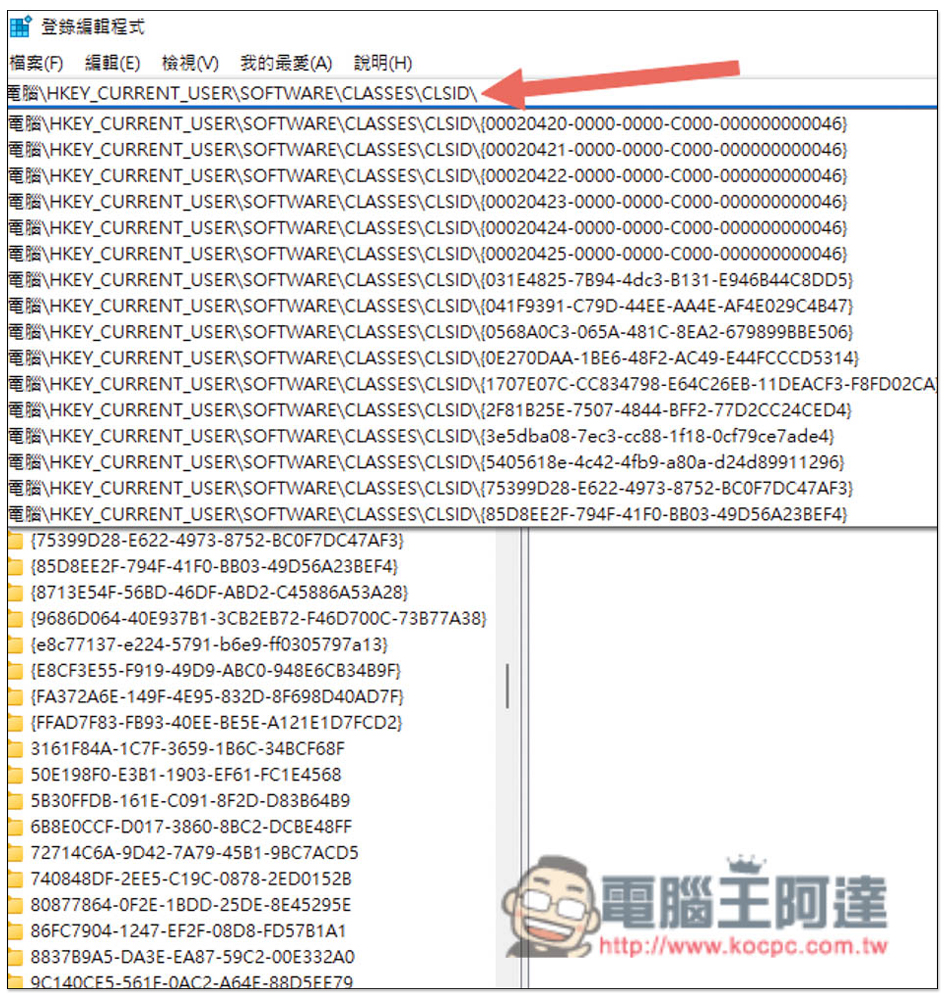
Then enter HKEY_CURRENT_USER\SOFTWARE\CLASSES\CLSID\ at the top, remember to keep the previous computer \, and then press Enter:
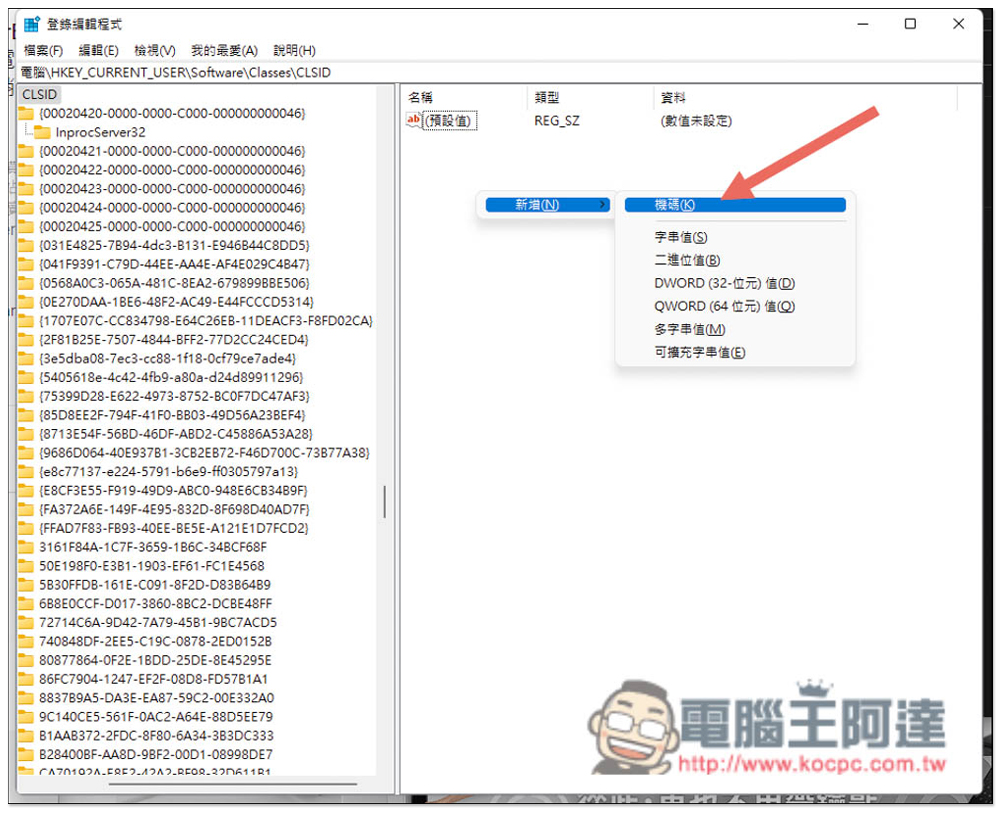
After entering CLSID, open the right-click menu on the right and select Add -> Computer Code:
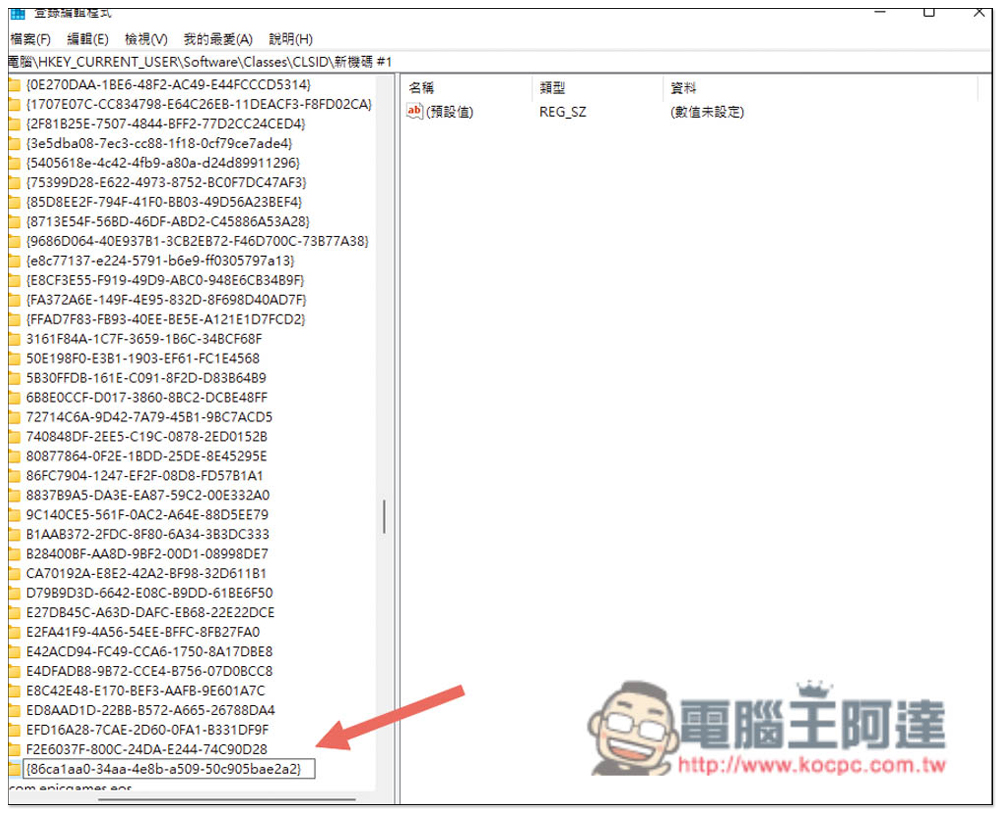
Name it {86ca1aa0-34aa-4e8b-a509-50c905bae2a2}:
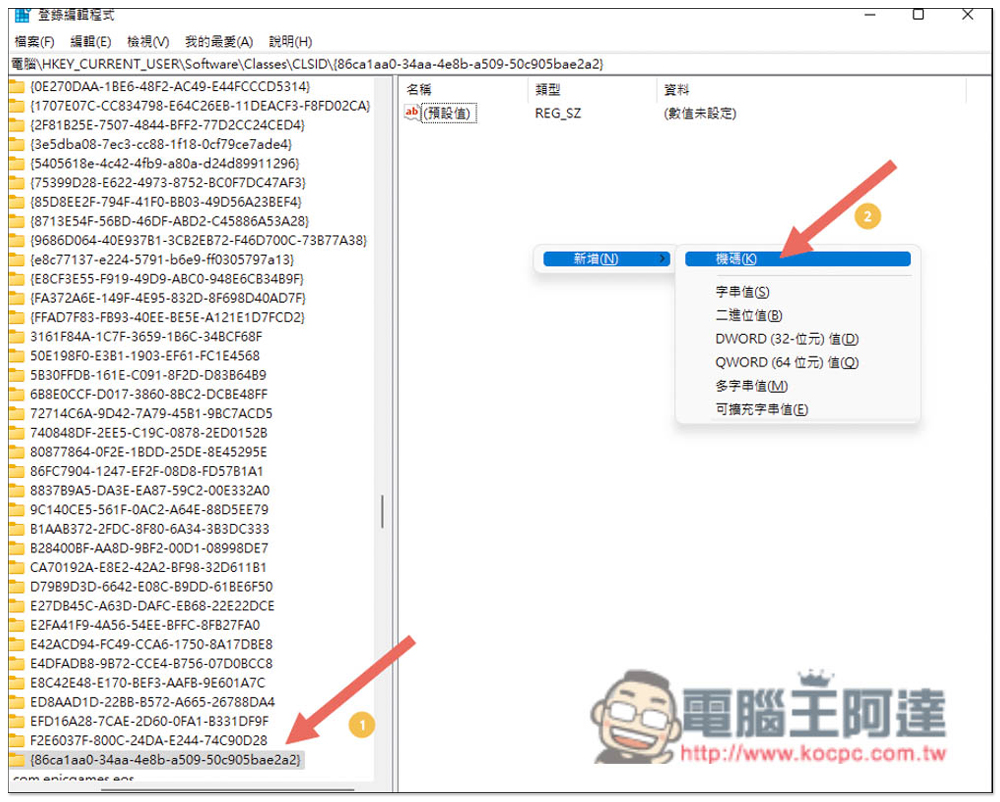
Then add the machine code here and name it InprocServer32:
After clicking on InprocServer32, double-click to open the file inside:
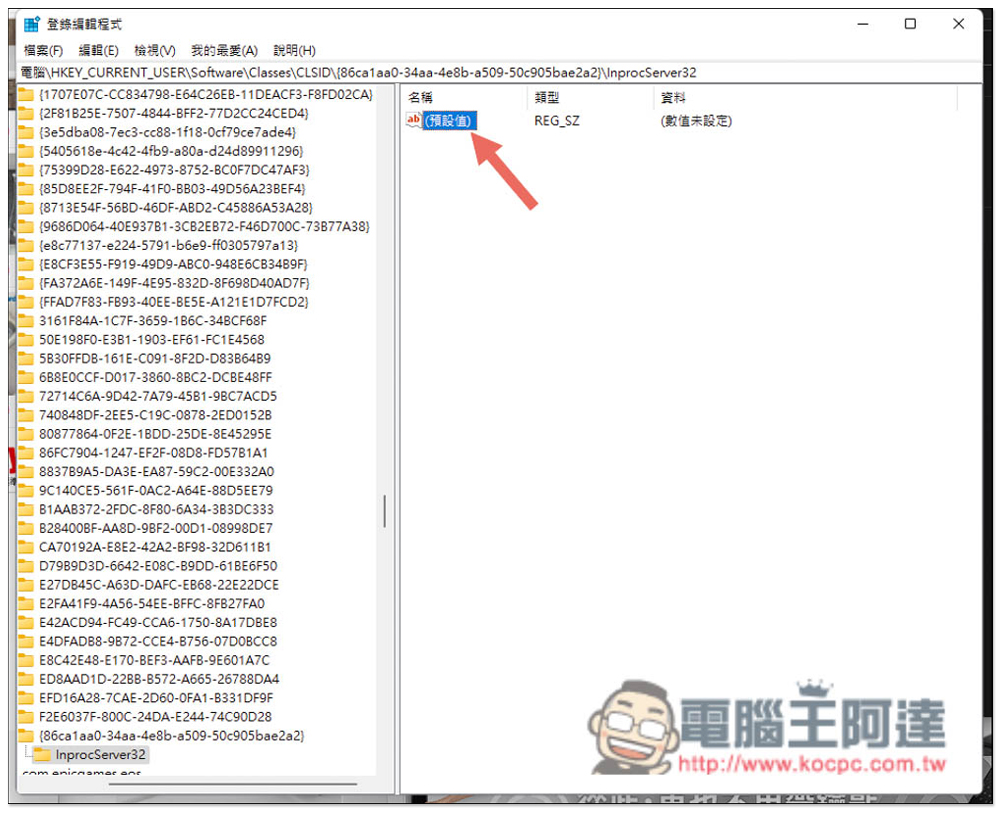
Leave the numerical data blank and press OK directly:
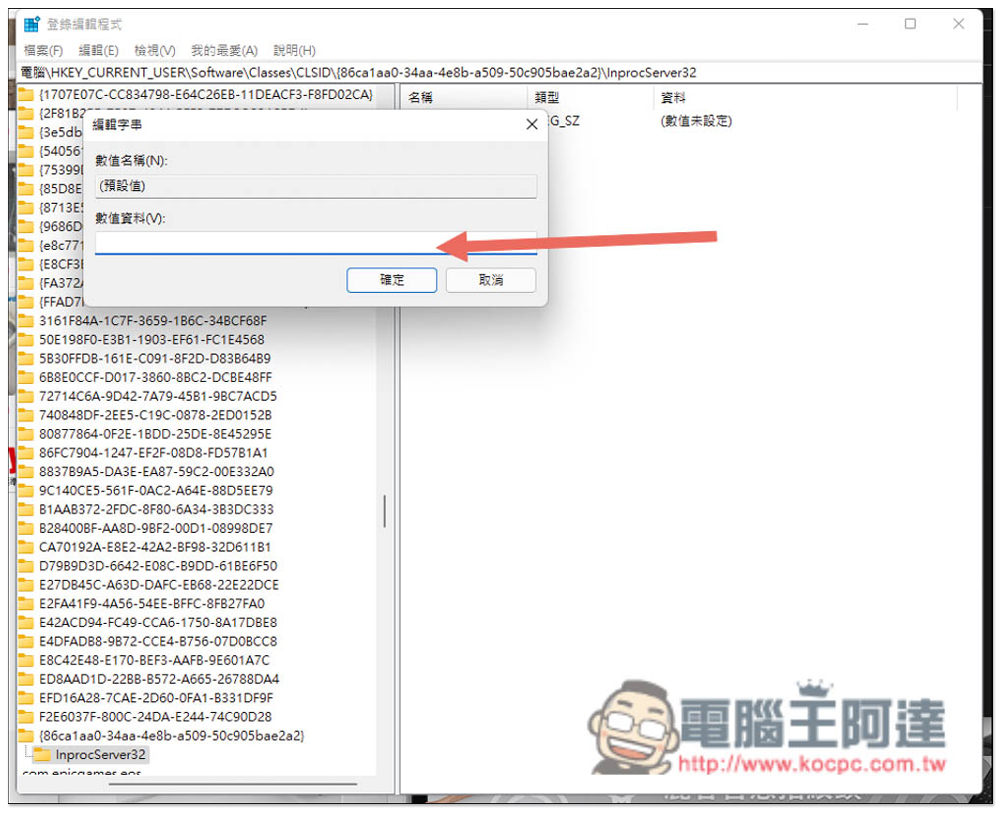
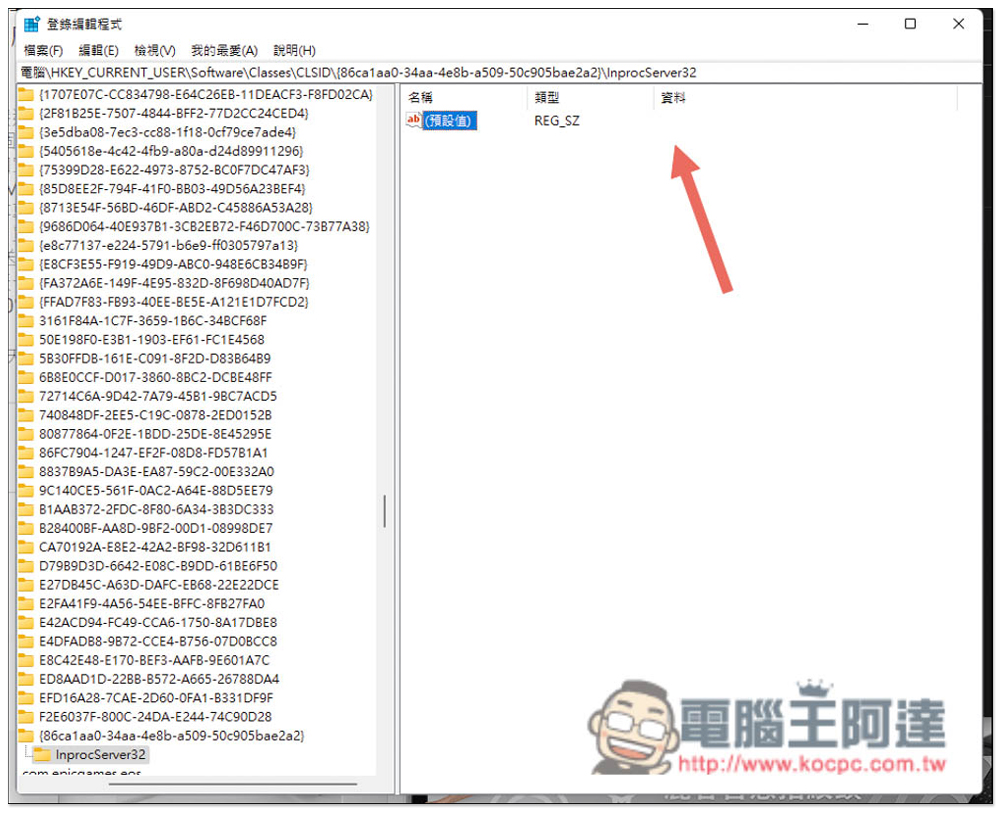
You will notice that the “Value not set” written under the original data disappears. At this time, the setting is complete. Please restart the computer. Remember to save the work you are currently performing:
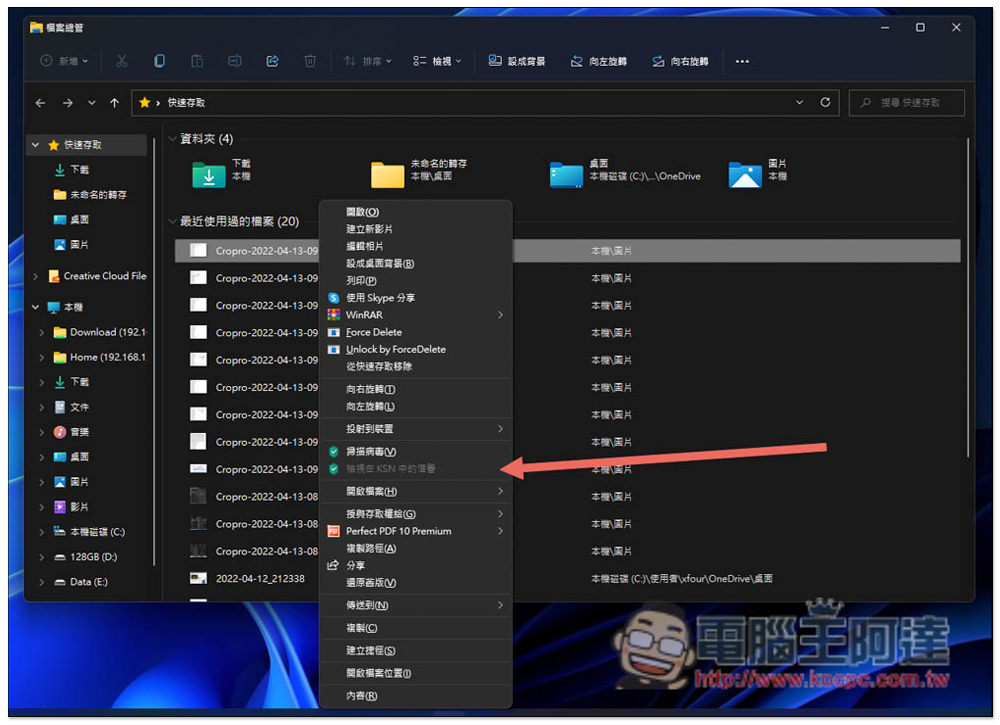
After reopening, open the right-click menu again and you will see that the old version is back. No need to click Show more:
Method 2: Use a series of commands
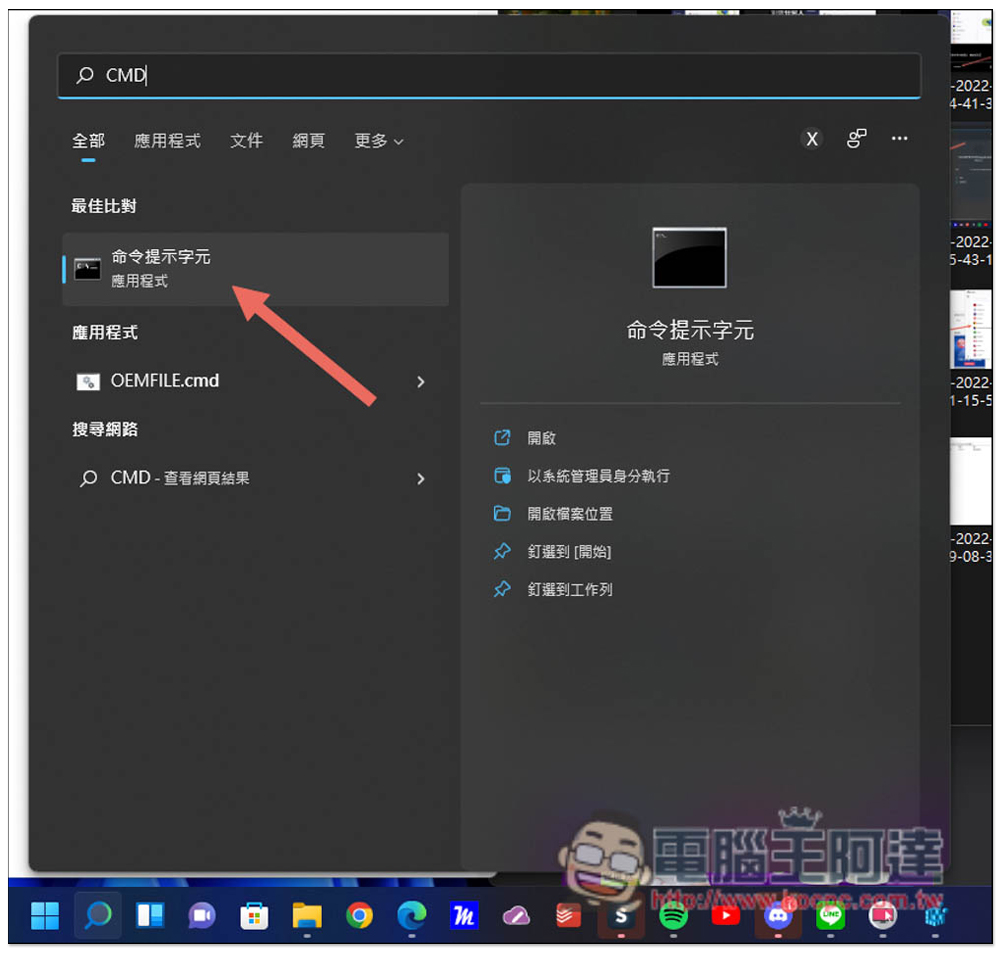
All the steps of method one can actually be completed directly through a series of commands. First, please open the command prompt character tool, open the search function, and enter CMD to find:
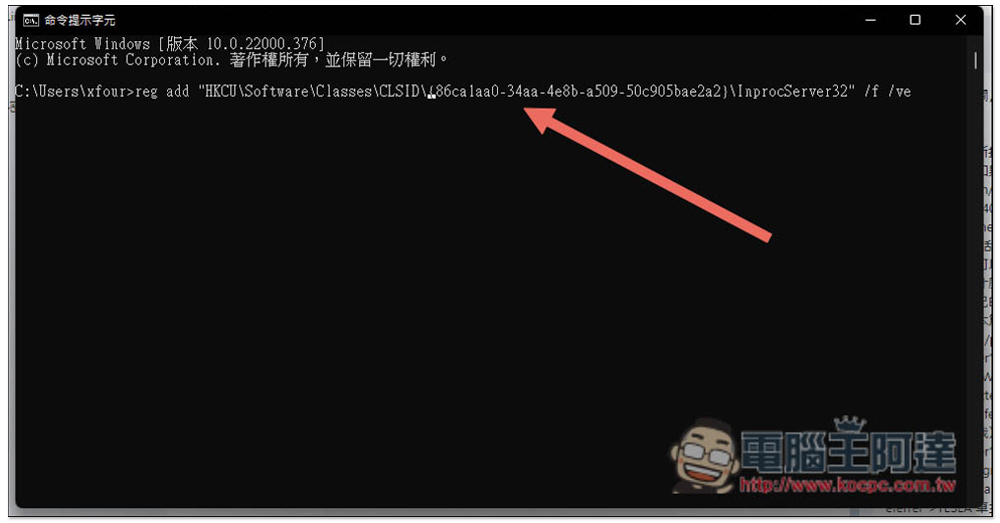
Paste this command reg add “HKCU\Software\Classes\CLSID\{86ca1aa0-34aa-4e8b-a509-50c905bae2a2}\InprocServer32” /f /ve, and then press the Enter key (if you copy and paste directly, there may be problems with the quotation marks, please enter “”” manually):
Seeing that the operation is successfully completed means success. The meaning of this command is to create a {86ca1aa0-34aa-4e8b-a509-50c905bae2a2} under HKEY_CURRENT_USER\SOFTWARE\CLASSES\CLSID\, and then create InprocServer32 and modify the value to complete all the actions of method one with one click:
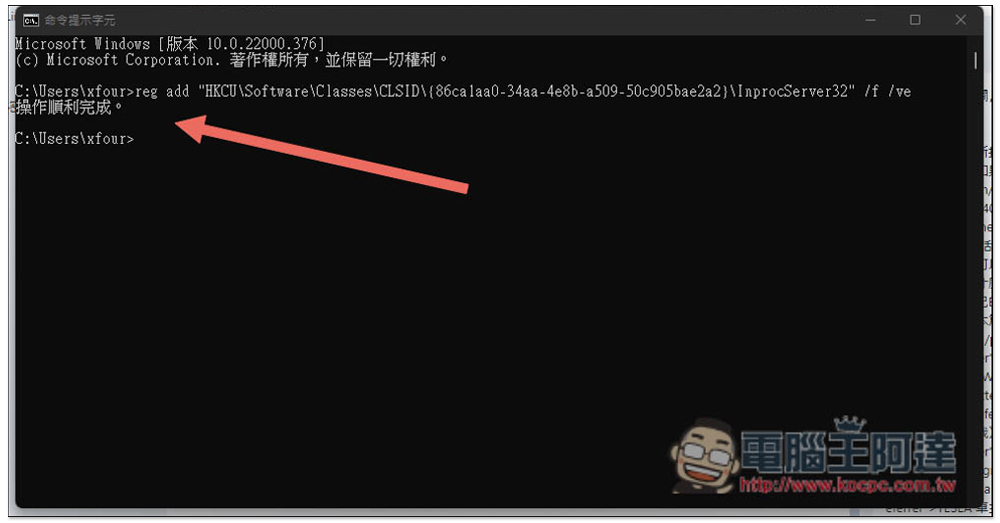
Then restart the computer and you will see that the old right-click menu is back.
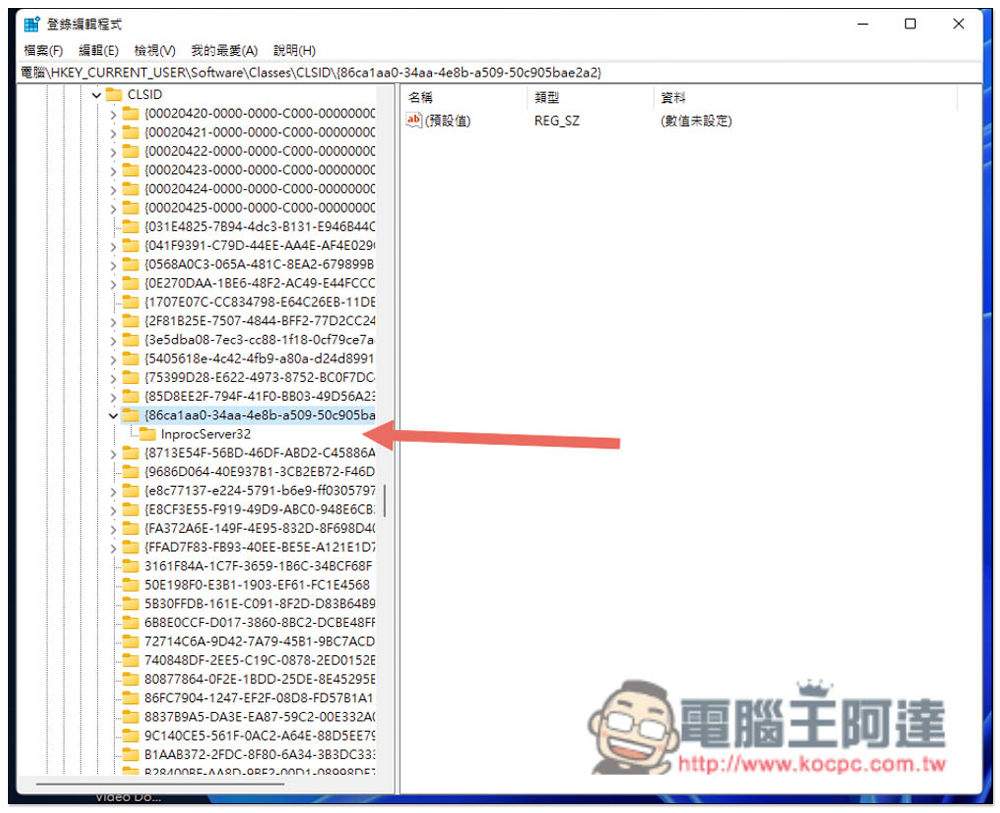
When you open the login editor, you will also see these new machine codes:
Source: KOCPC Chinese