


Unlike the mobile version, the computer version of LINE provides a cloud space backup function. Therefore, when you need to change computers and re-register, you will definitely worry about what to do with LINE chat records. In addition to some paid software on the market that can do it, you can also do it manually by yourself, and it is also a complete backup, and all chat records are there. The following will teach you step by step how to do it.
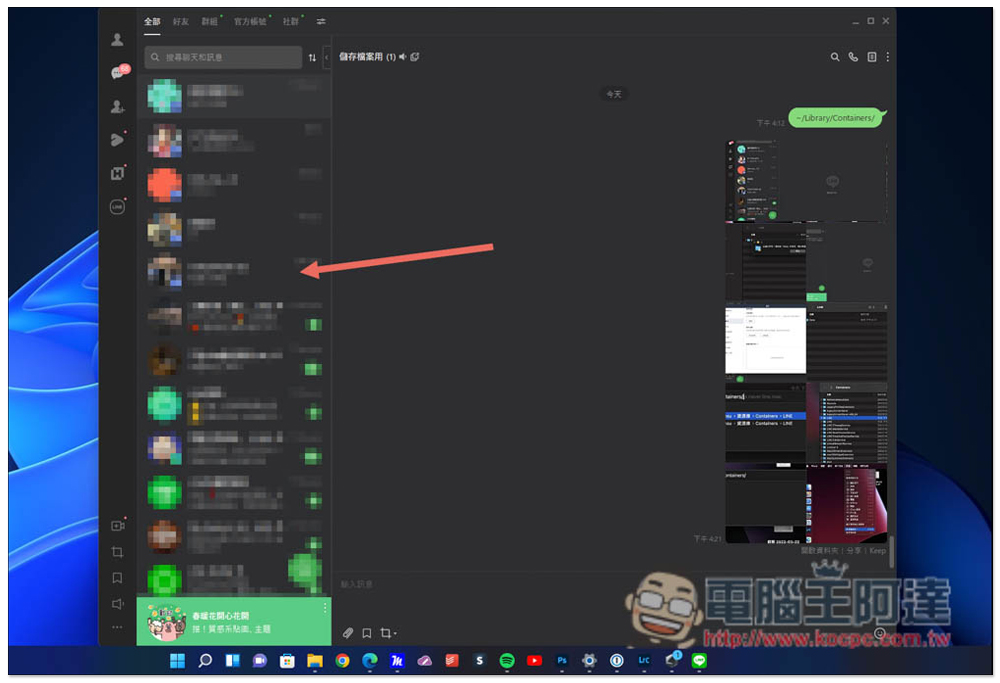
Use professional backup software to complete mobile phone LINE backup (applicable to both Win & Mac)
In addition to data backup on the computer, there are also LINE applications on mobile phones, and after backup, you can browse your chat history through the computer at any time. I just said that I have not seen any completely free ones. These paid software have more comprehensive functions and are relatively simple and convenient to use.
Mobile phone LINE backup is recommended here for everyone to useiCarefone for line, iCarefone for line can realize cross-end transmission of chat records, backup and restoration of chat records. Of course, it can also be easily backed up to a computer.
The following are the steps to use iCarefone for line,First connect the device to the computer and then select the backup function in the middle:

Then follow the software instructions to complete the settings and the backup is complete:

After the backup is completed, you can view the backed up chat history in the “View and Restore” location. If the chat history on the mobile device is deleted, you can also use the “Restore to IOS/Android” function to restore it to the phone:

Click to download:iCarefone for line
How to manually and completely back up all chat history in the PC version of LINE? (Windows)
First of all, make sure that your LINE has been updated to the latest version. It is not sure whether this will affect the restore backup. However, in order to avoid errors due to different versions, it is recommended to upgrade to the latest version before backing up. Open the settings in the… menu and click “About LINE” to check whether you are currently installing the latest version:

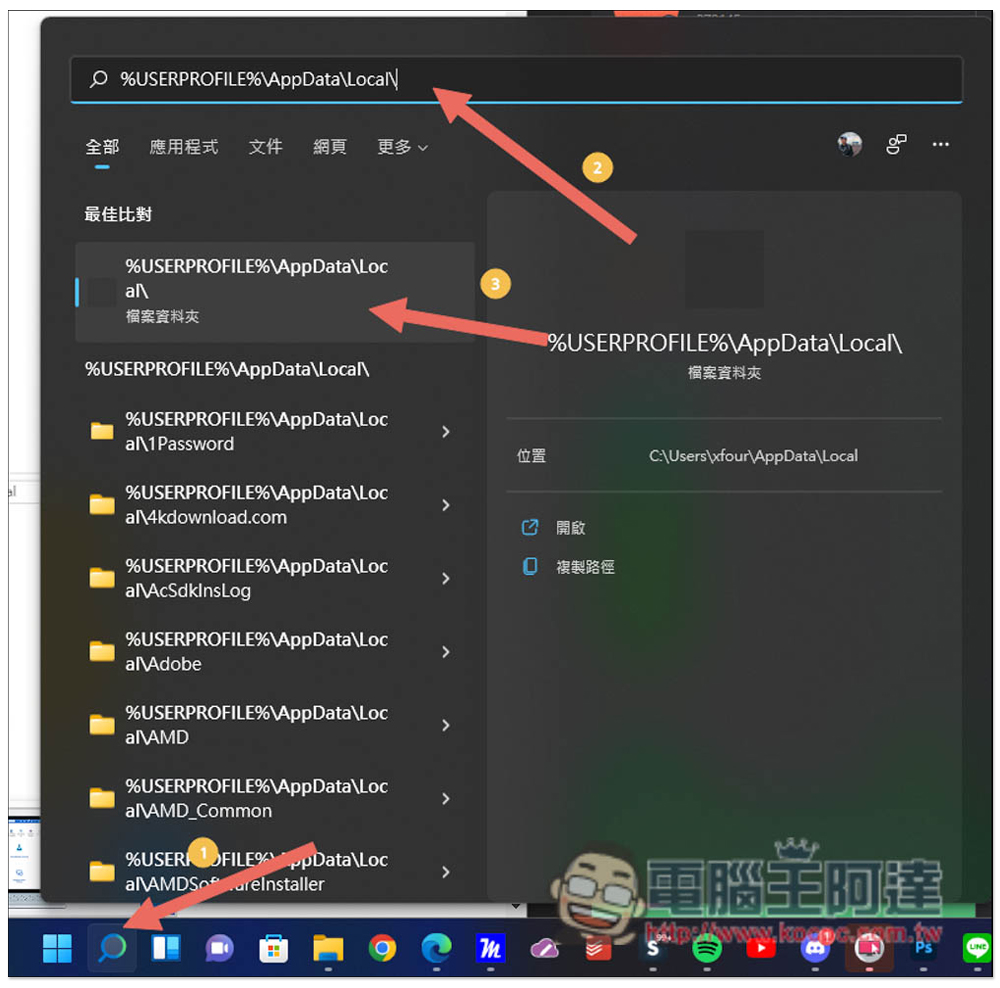
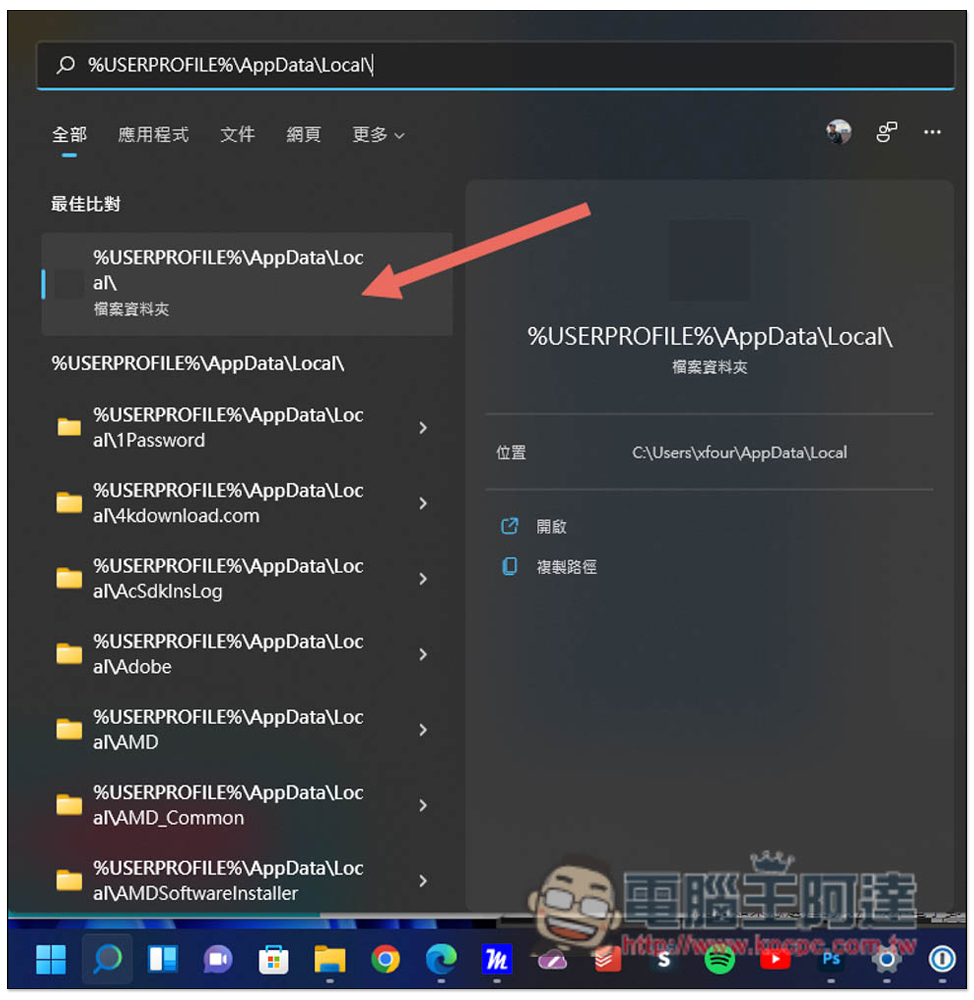
Then open the search function, enter the location “%USERPROFILE%\AppData\Local\”, and then open the folder:
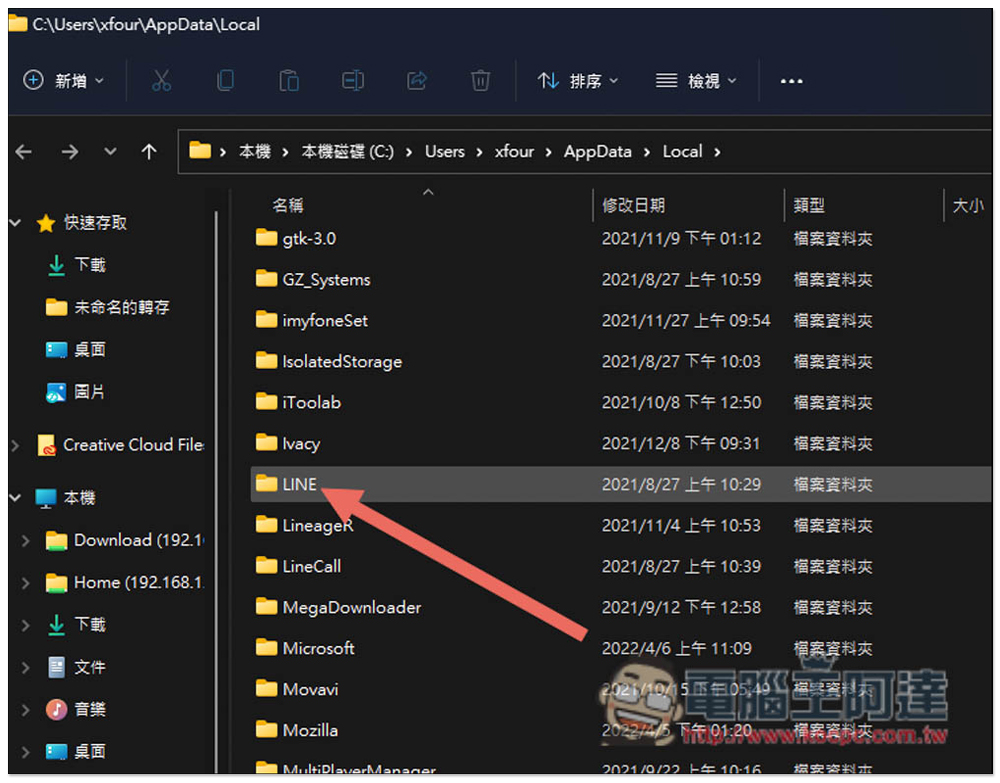
Then you can find the LINE folder:
Please copy it for backup:
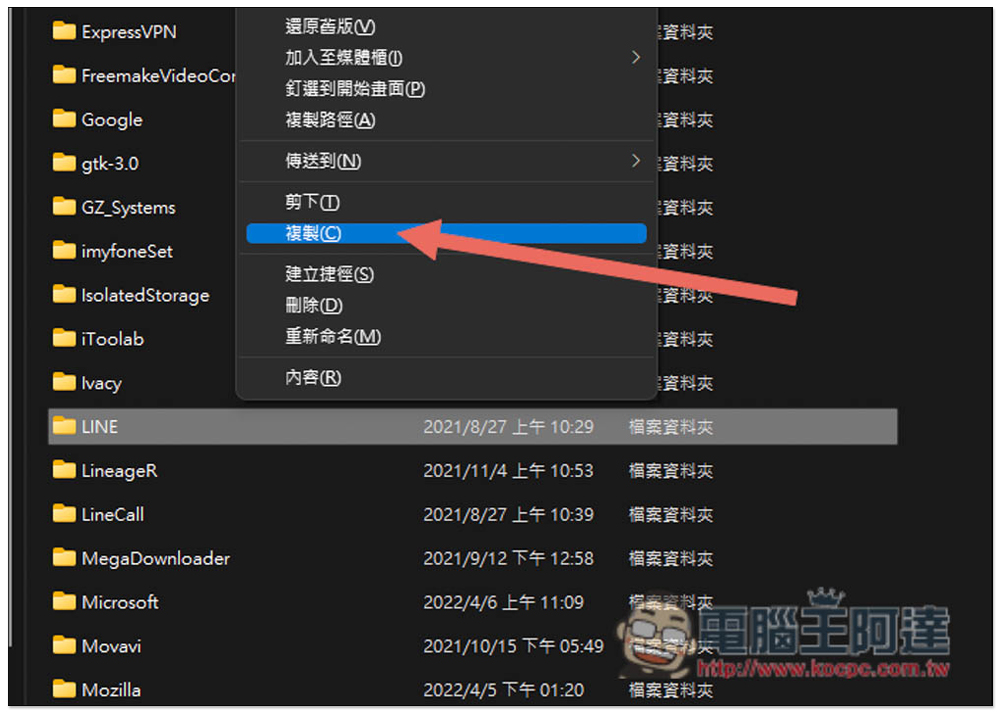
Back up to another hard drive or cloud space, etc., the file is quite large, especially for those who have used LINE PC version for a long time, like me, who have used it for more than two years, it is nearly 7GB, and for people who have used it for longer, it may exceed 10GB:
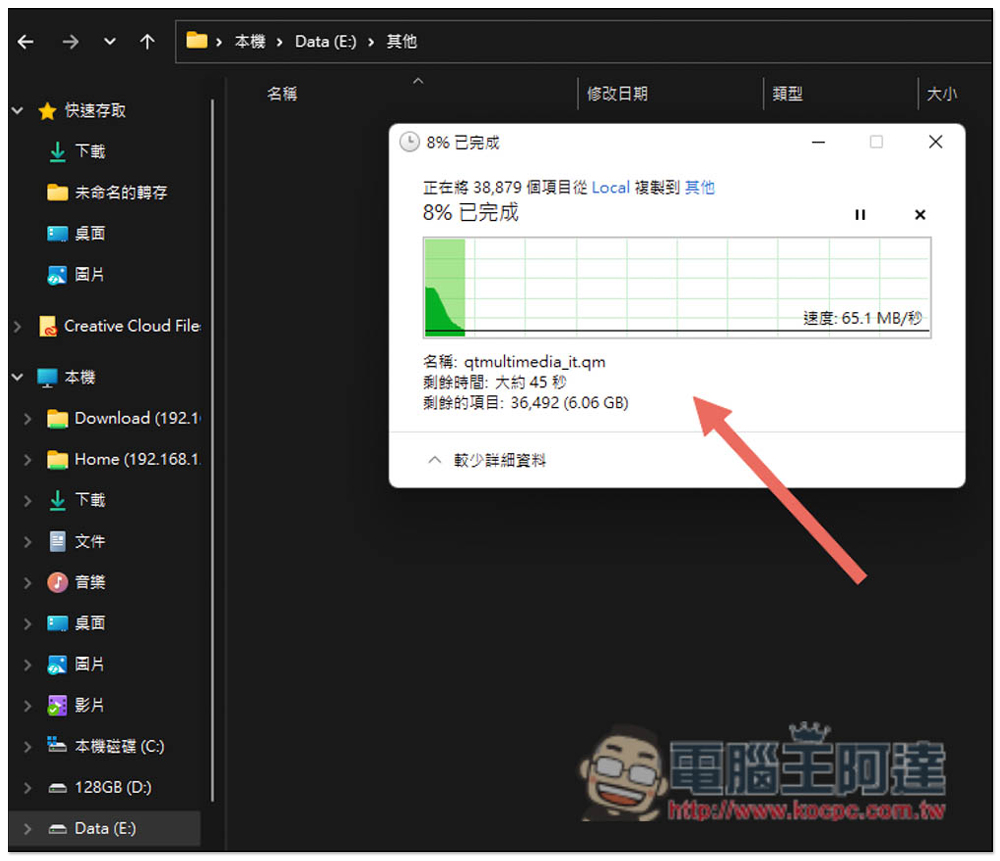
After backing up, in order to let everyone know that this method is effective, I deleted my LINE chat history and cached data:

Everything was cleared, and all my LINE chat history of more than two years disappeared. At this time, I turned off LINE:

Open the “%USERPROFILE%\AppData\Local\” folder again:
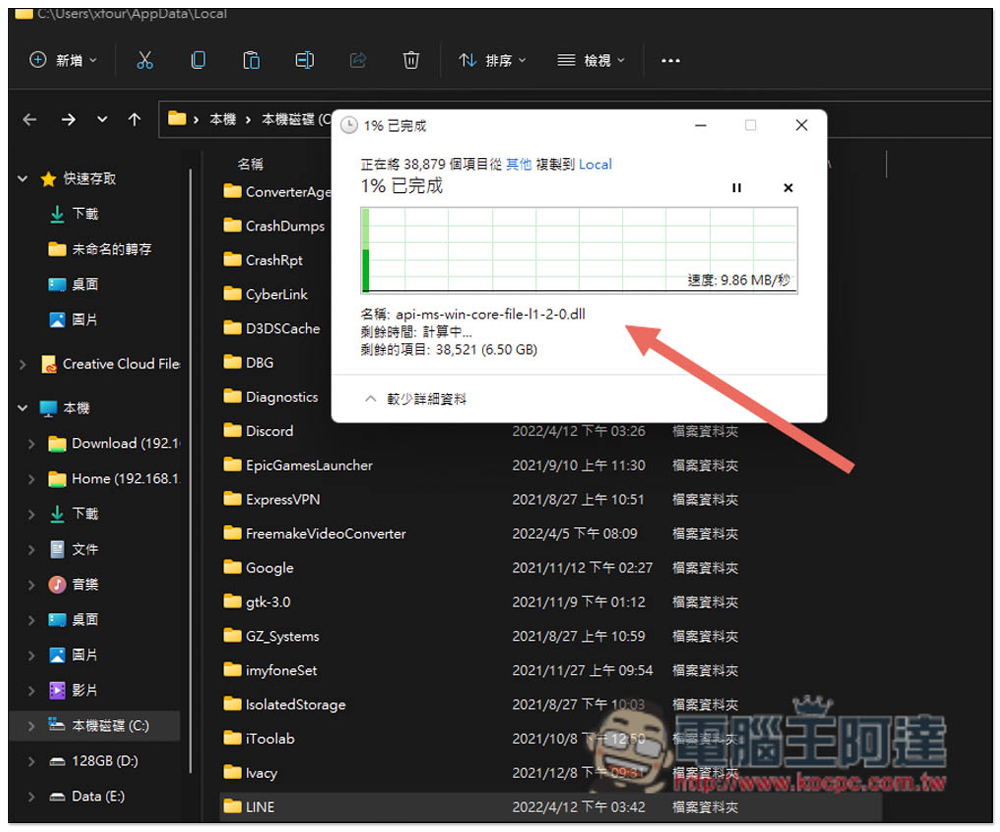
Copy and overwrite the LINE folder I just backed up to the LINE folder located at “”%USERPROFILE%\AppData\Local\””. When the run is finished, you will be asked to confirm whether you want to overwrite it again. Please click on overwrite:
Then I opened LINE again, and all the originally deleted chat history came back:

View recently uploaded photos and videos can also be opened:

How to manually and completely back up all chat history in the PC version of LINE? (Mac)
The operation method of the Mac version is basically the same, but the folder names are different. Also make sure that your LINE has been updated to the latest version, open the Go option above Finer, and click the “Go to Folder” function:
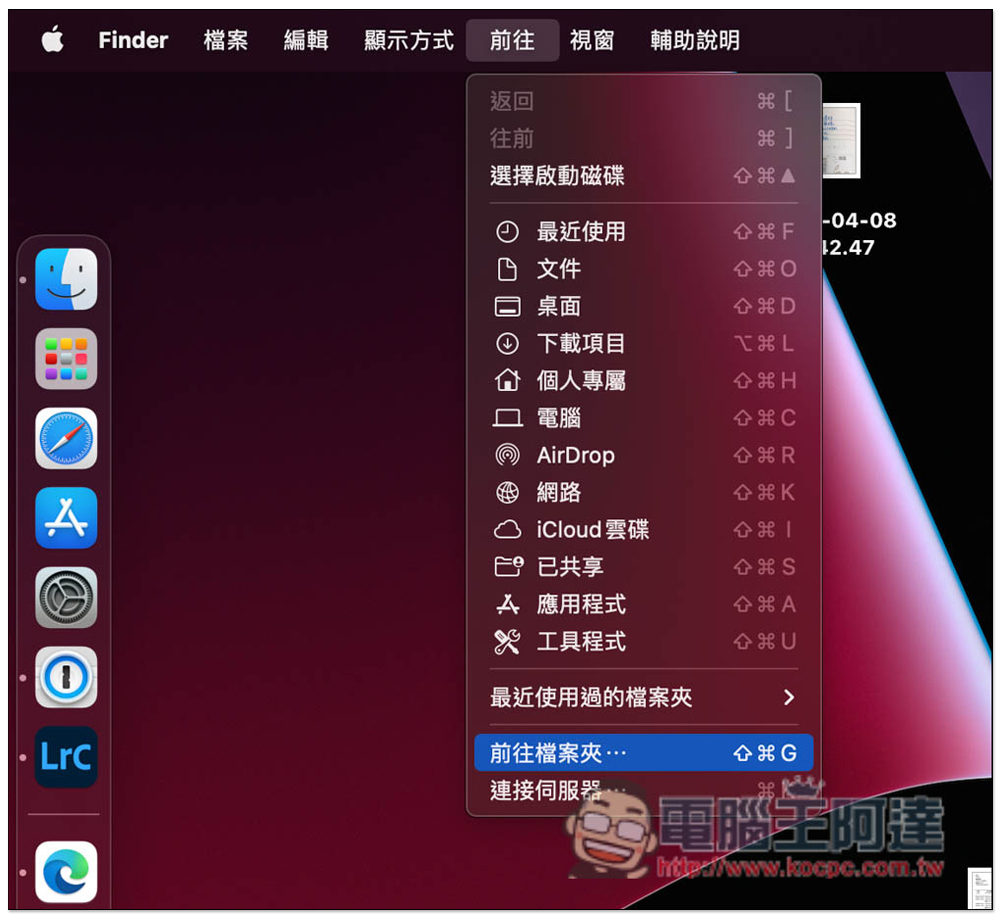
At this time, please enter “~/Library/Containers/” and then type j, the words jp.nvaver.line.mac will appear. Please press the Tab key to let it enter automatically, and then click Enter:
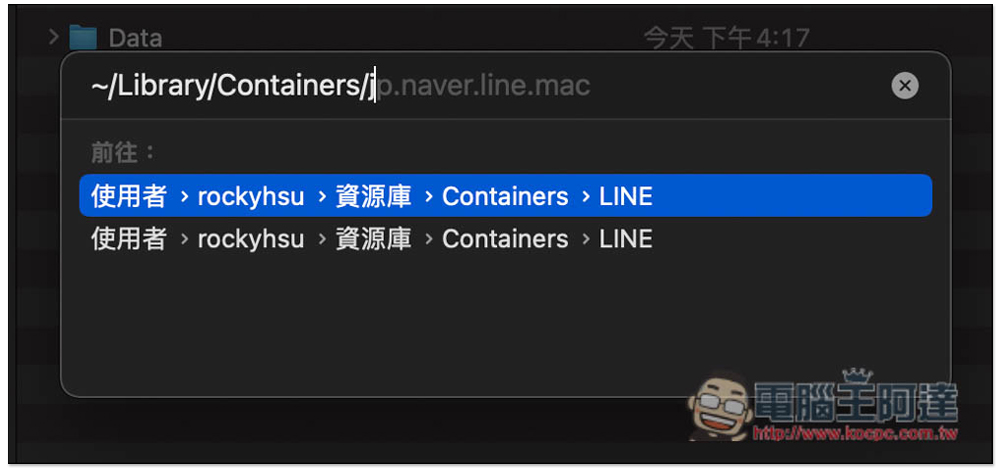
The LINE folder will open, please back up the Data folder in the screen:

After I backed it up, I also deleted all LINE chat history and cached data:

Now completely empty, I turn off LINE:

Overwrite the Data just backed up under “~/Library/Containers/jp.nvaver.line.mac”:
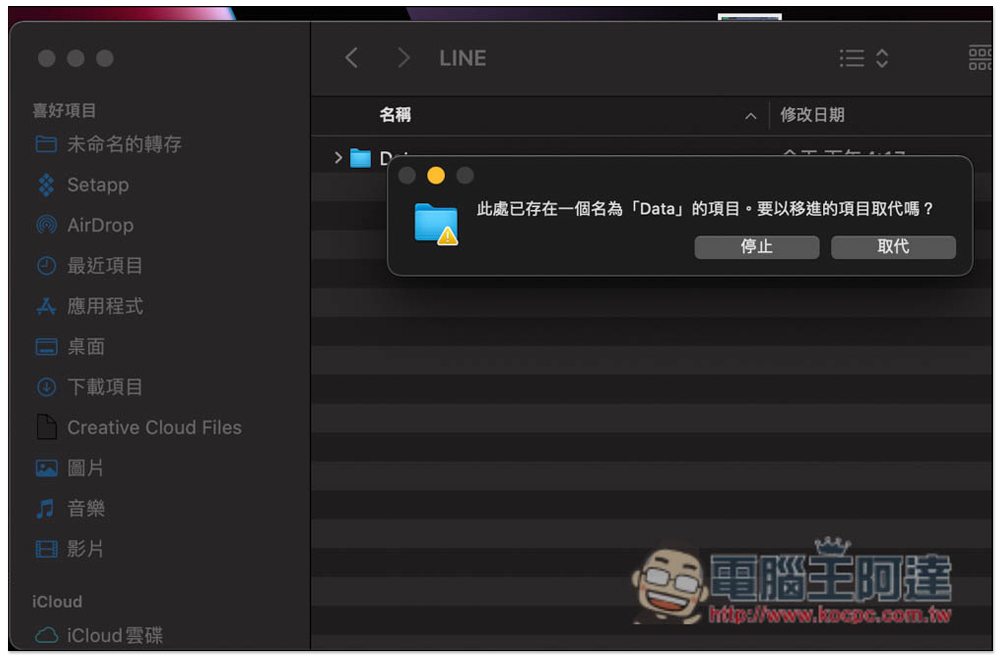
Open it again, and sure enough the chat history is back:

So, if you want to back up your Windows computer version of LINE chat history in the future, just use this method.
Also, please note that this method can only restore the chat history of the same account, so if you log in to other LINE accounts, you will not be able to see the backup of these chat history, so it is very safe. The attachment part also has a 30-day limit, and you cannot preview it after it is exceeded. Even if you use this method to restore, it will be counted from the day of transmission, not the backup date.
Further reading: moreLine backup to computer for teaching
Source: KOCPC Chinese