


When taking selfies when traveling, taking photos with family and friends, or recording rare scenes, you will often encounter unwanted people and things in the photos. For people who know Photoshop, it may not be difficult, but for those who don’t know how, they can only ask other people for help. Facebook groups often see such posts, such as: Can you help me remove someone? In this case, you might as well try Hama first This free online tool allows you to upload images, draw the people and things you want to remove, and it will automatically remove them for you and fill in the appropriate images using content-aware technology. I have tested it and it is really good. The effect is even better than Photoshop.
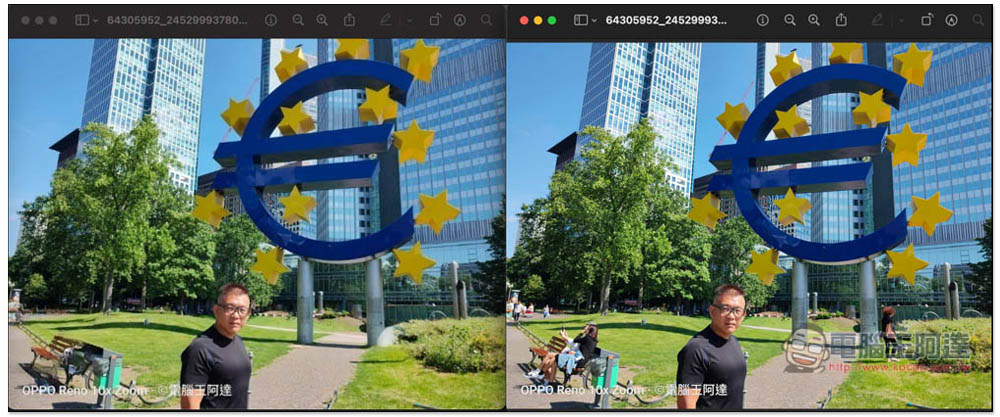
Hama removes unwanted people and objects from photos with one click, and the effect is even better than Photoshop
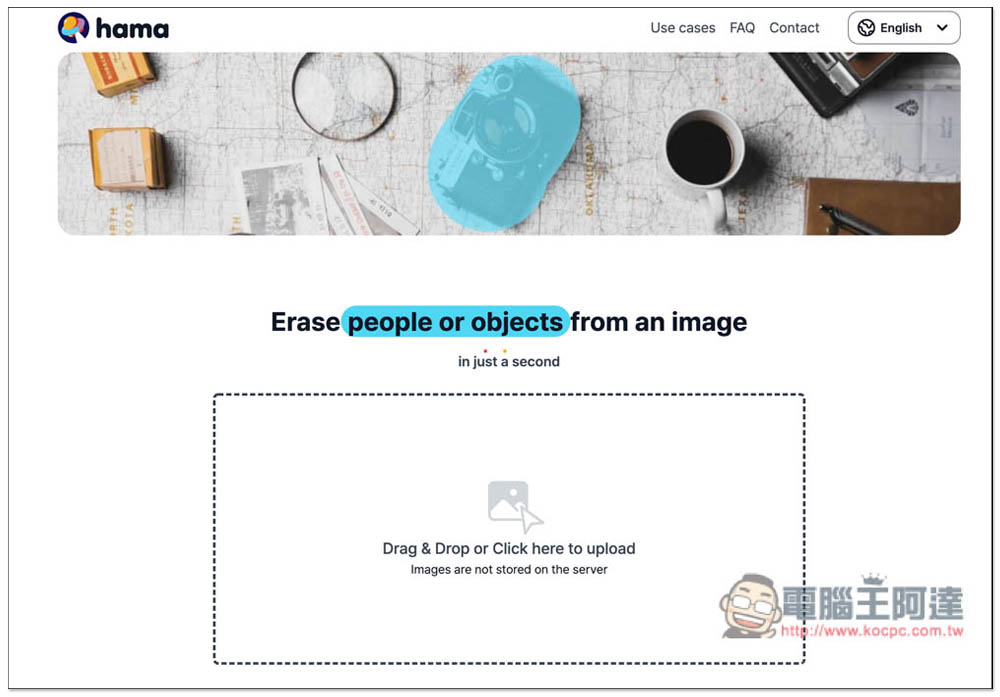
After entering the Hama online tool, you can drag the photos of people and things you want to remove into the window, or click on the middle frame to manually select photos:
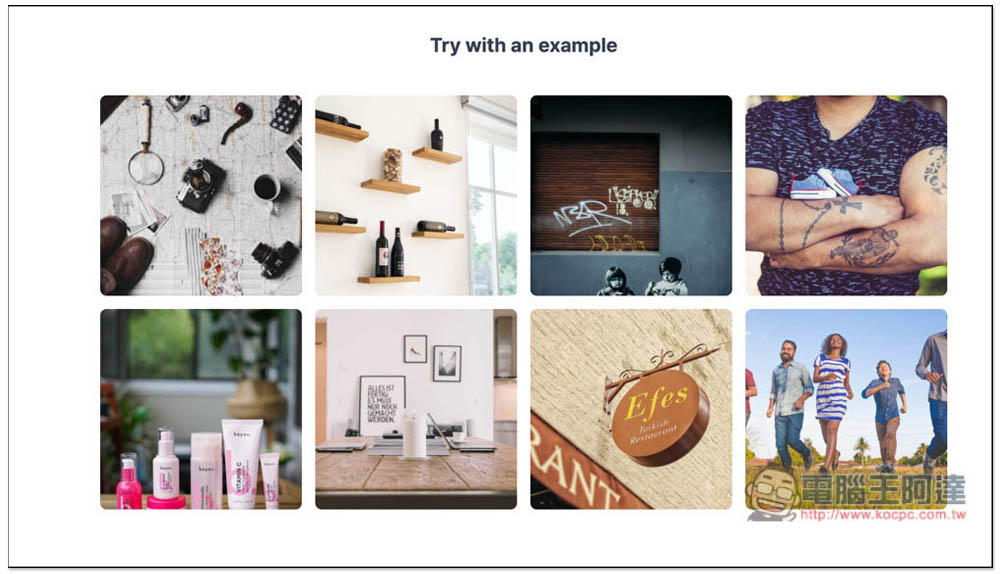
There are also some sample photos provided for those who want to try it out first. There are complex backgrounds and simple ones:
I first used its demonstration photo. The picture below is the editing backend. It has two functions, adjusting the size and color of the selection range, and zooming in and out of the photo:
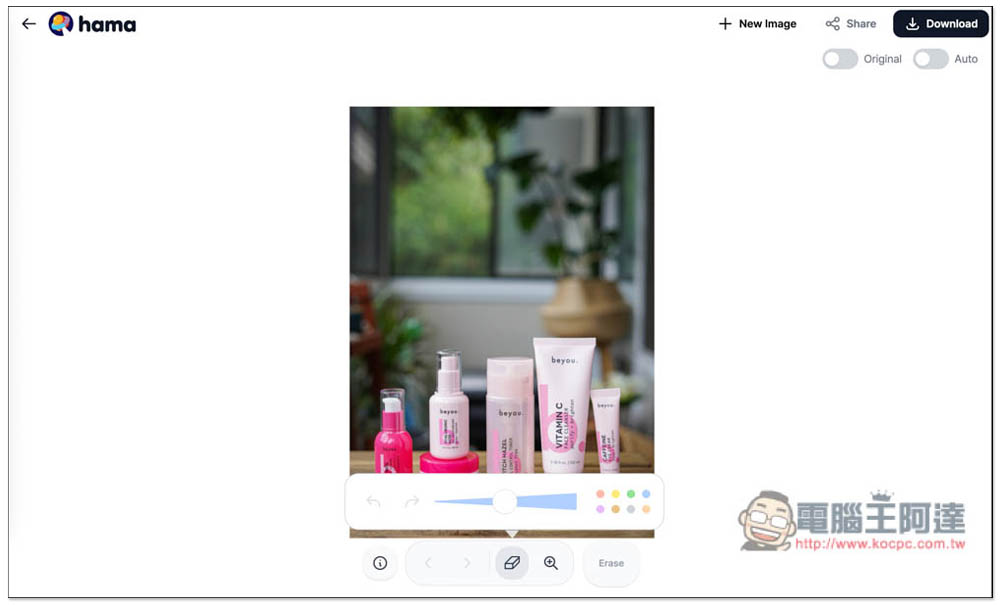
Move your mouse over the person or thing you want to remove, and you will see a blue circle (if you have not changed the color). Use this blue circle to draw the person or thing you want to remove:
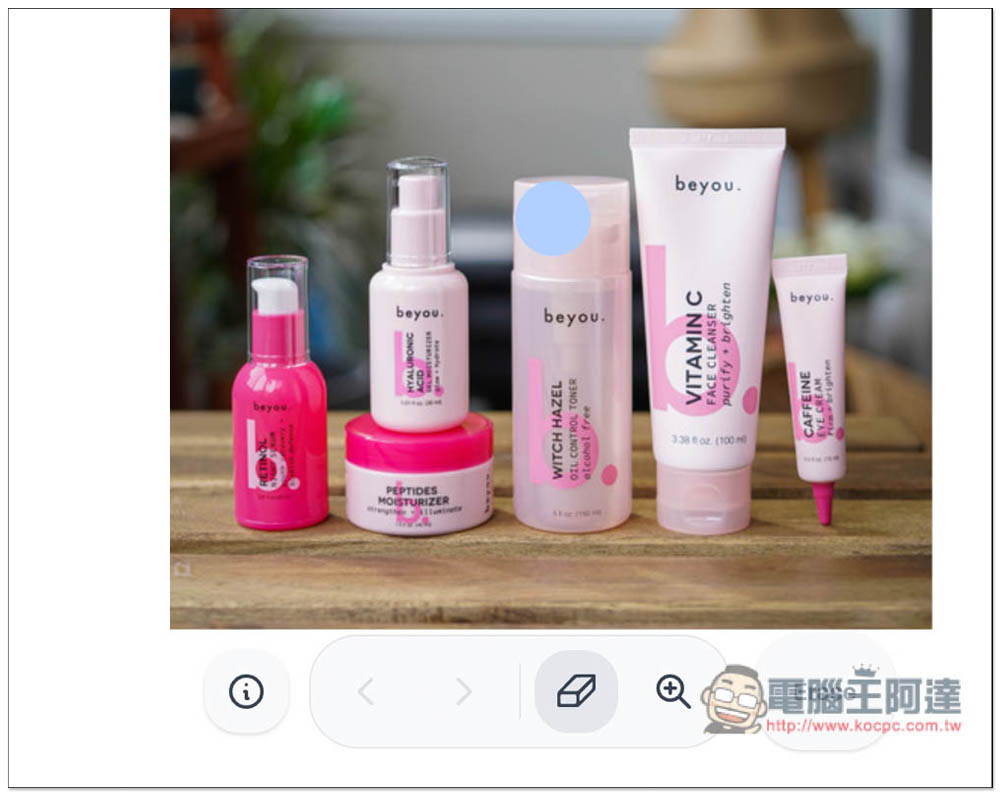
Like this, I want to remove the bottle in the middle. If there is no problem, press Erase on the lower right:
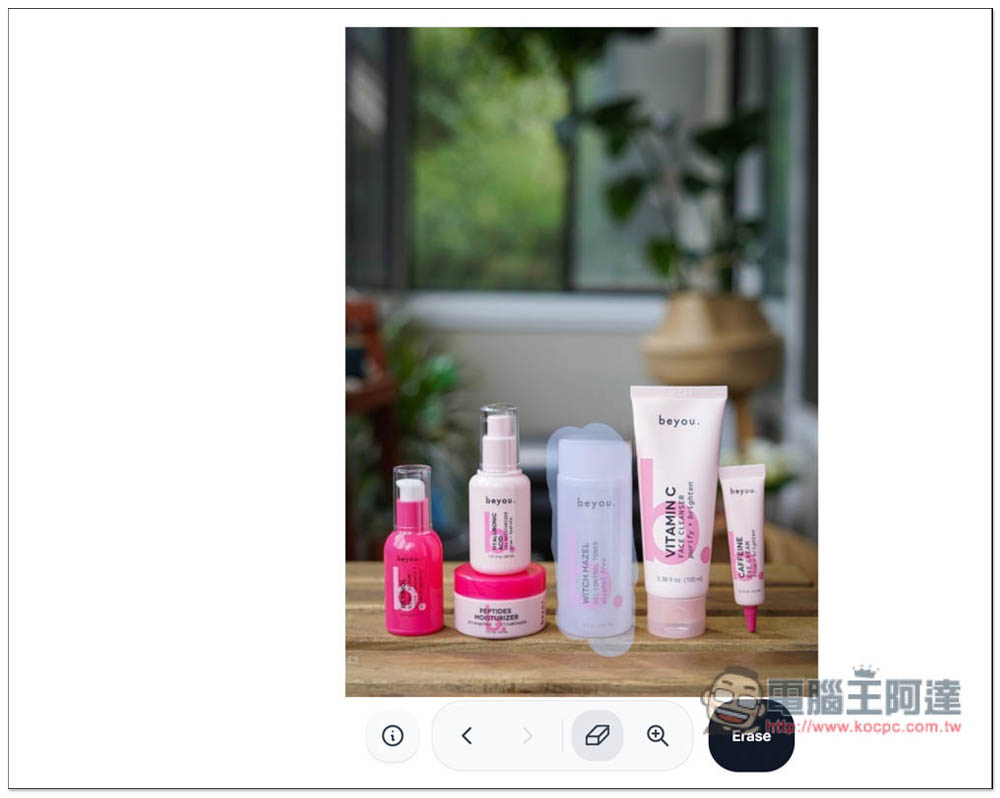
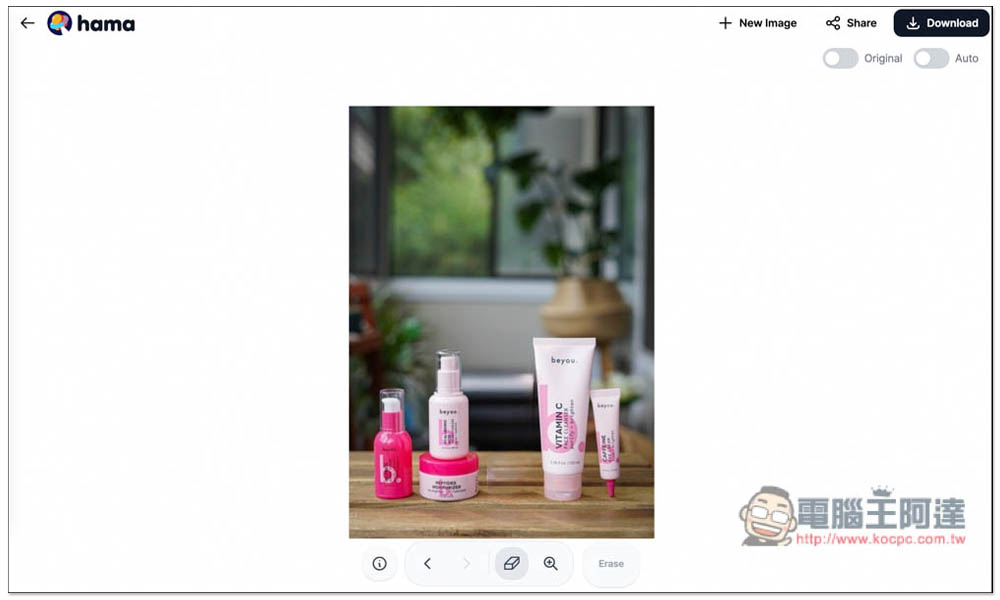
It was successfully removed within a few seconds, and the effect is quite good. It is indeed a sample photo:
Then I tested Ada’s photos. Passers-by often appear in the background of such travel photos, and it is very difficult to take photos with no one at all:
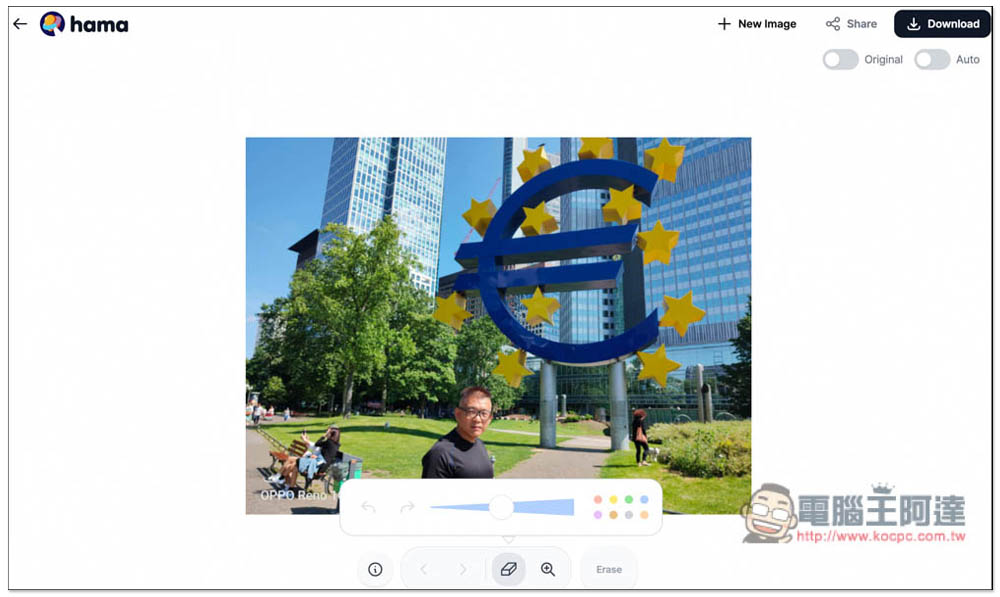
First, I removed the simpler passerby on the far right:
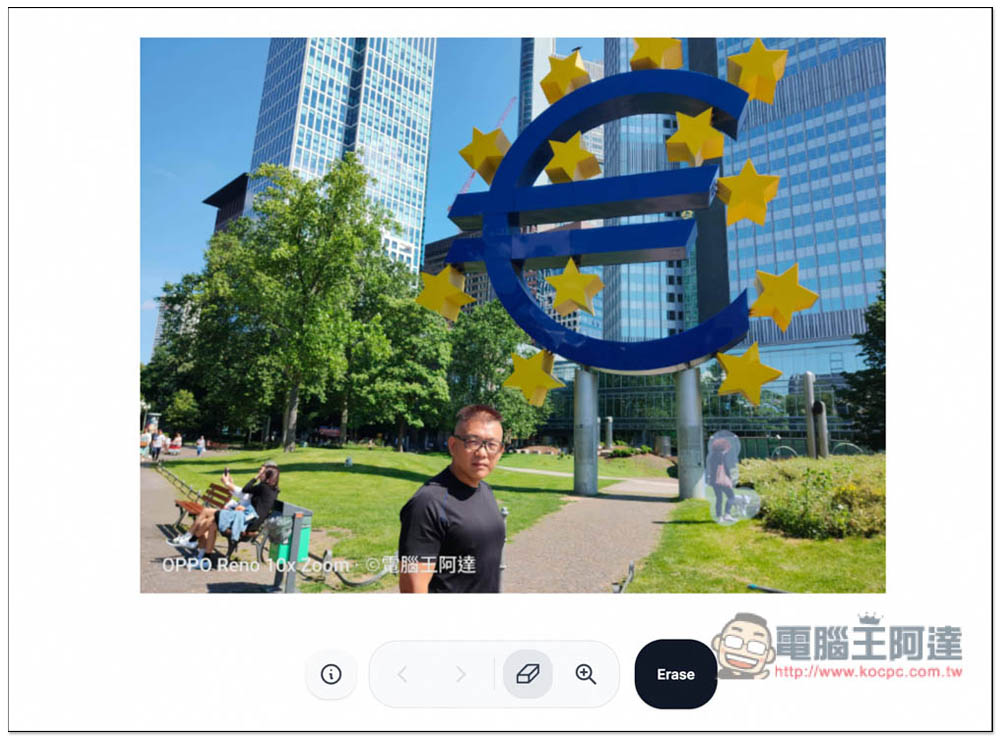
Sure enough, it worked. Although the picture added by content awareness is a little strange, for those who have never seen this photo, they probably won’t notice it:
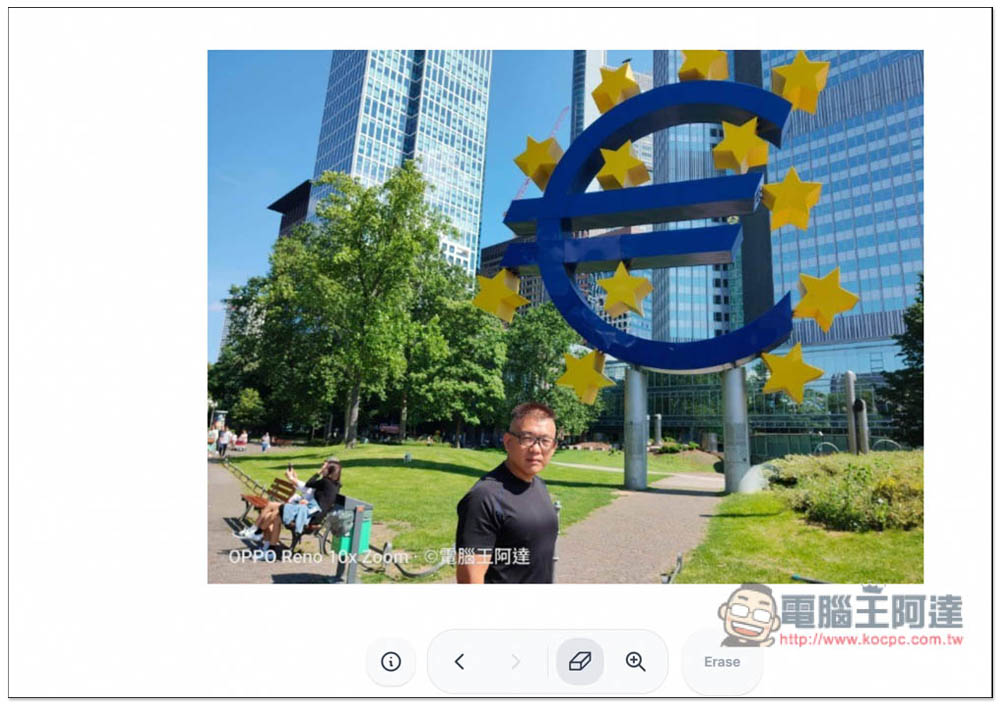
Next is the more difficult passerby on the left bench, which I originally thought would not be very effective:
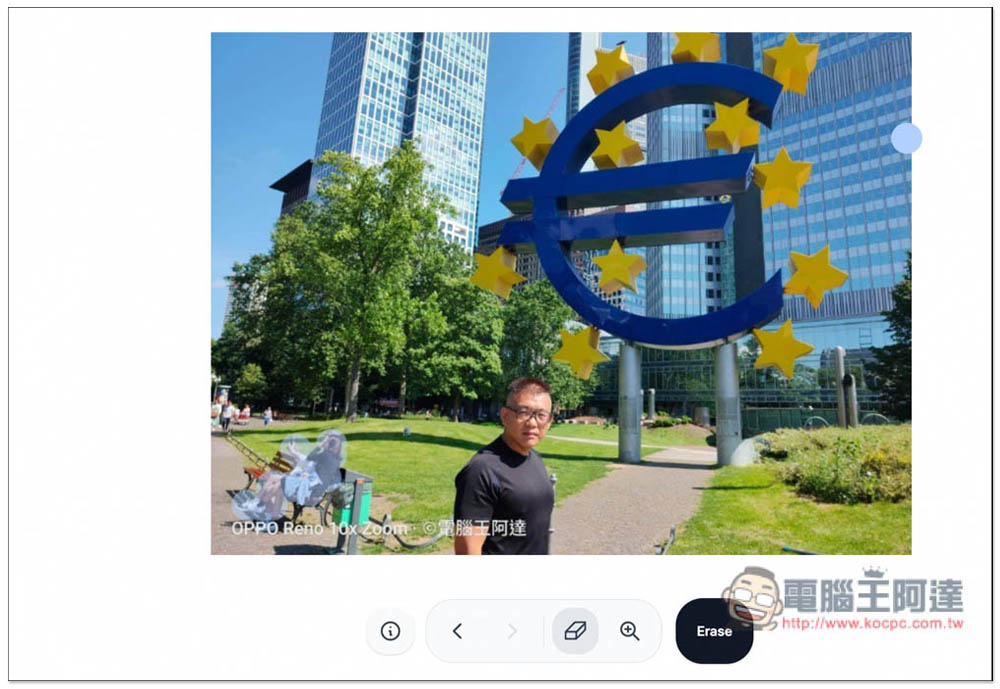
I didn’t expect it to be pretty good. Of course, it looks a little strange, but the automatic removal can do this, which is actually very satisfying. I forgot to test whether the effect would be better if the bench was removed:
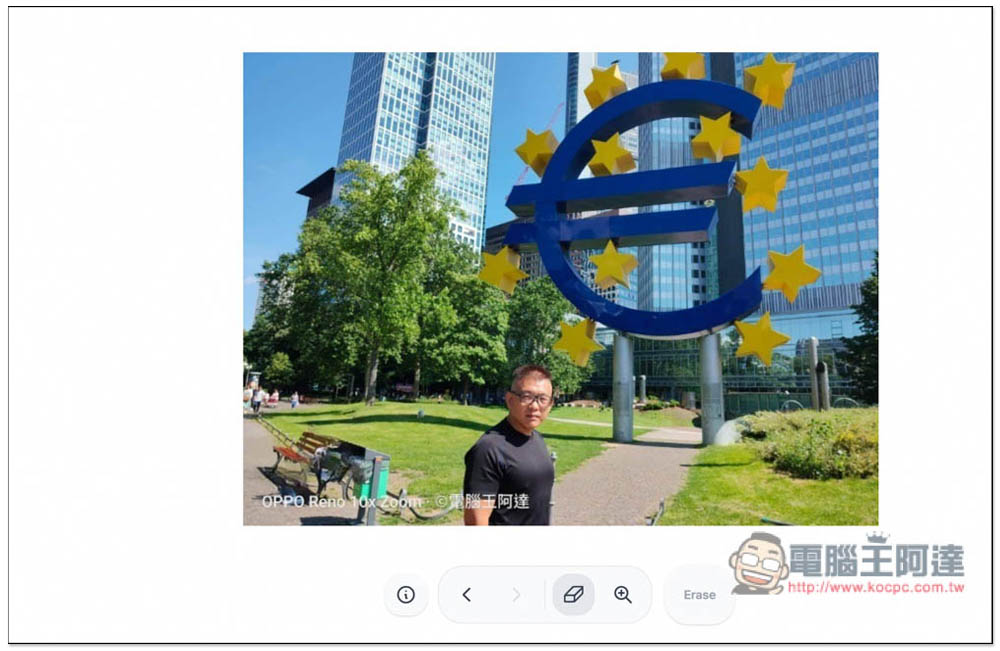
Finally, there is the passerby far behind on the left:
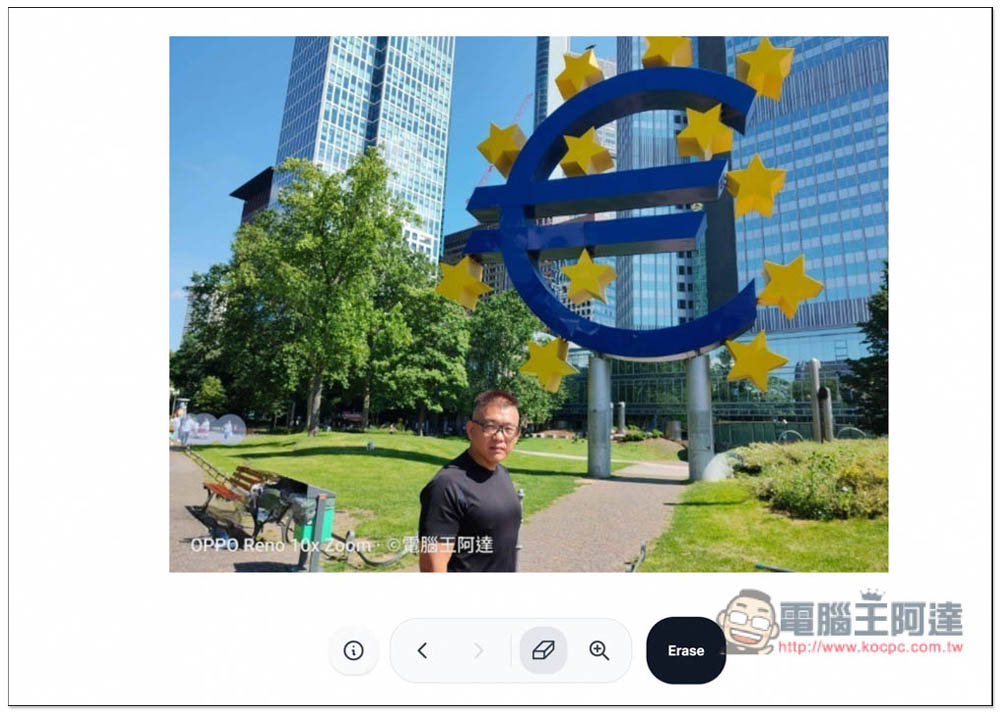
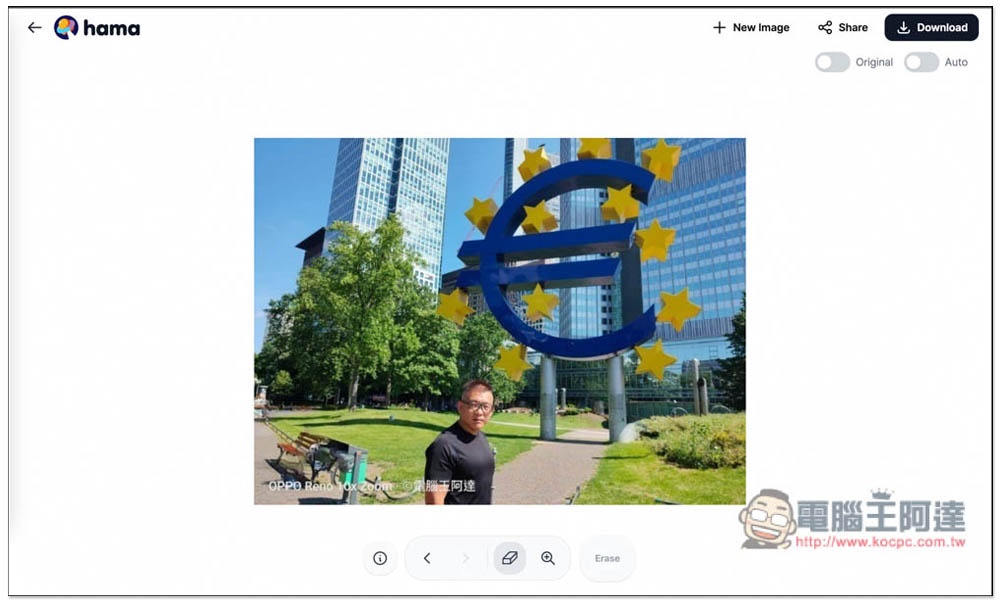
It can also be removed easily and more naturally than the previous two. In less than a minute, this original outing photo with many passers-by was transformed into a solo photo with no passers-by at all. No need for any photo editing knowledge, just click on it:
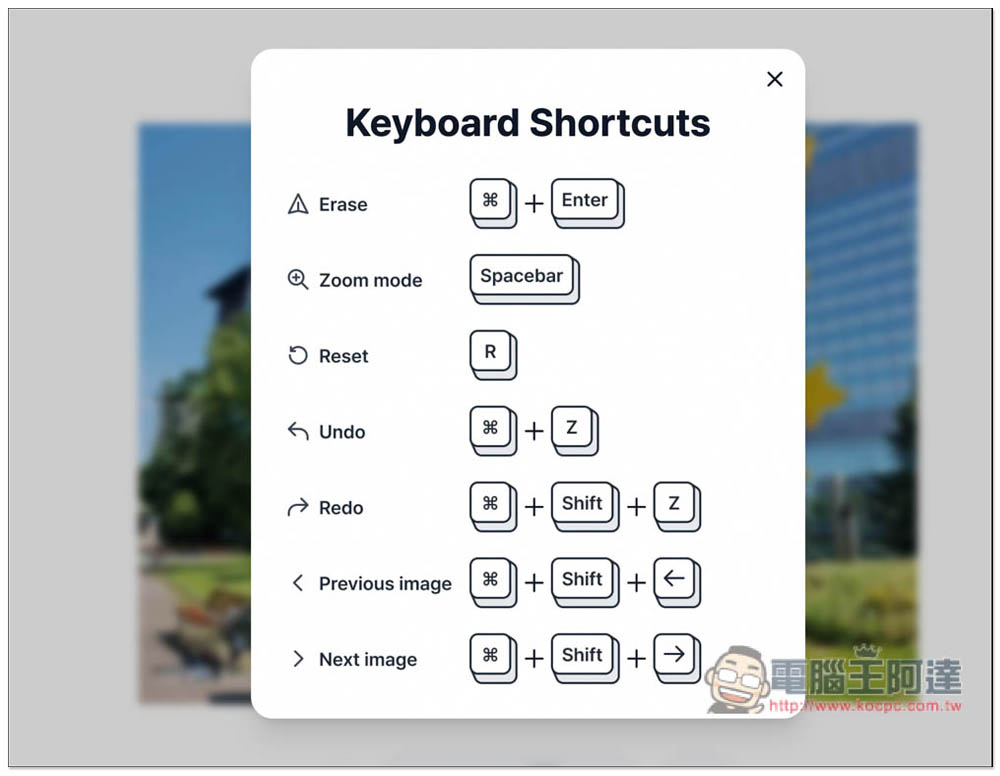
This tool also supports shortcut keys, so those who want to operate faster can take a note of them. In addition, if you accidentally click on the wrong content to memorize, a recovery function is also provided:
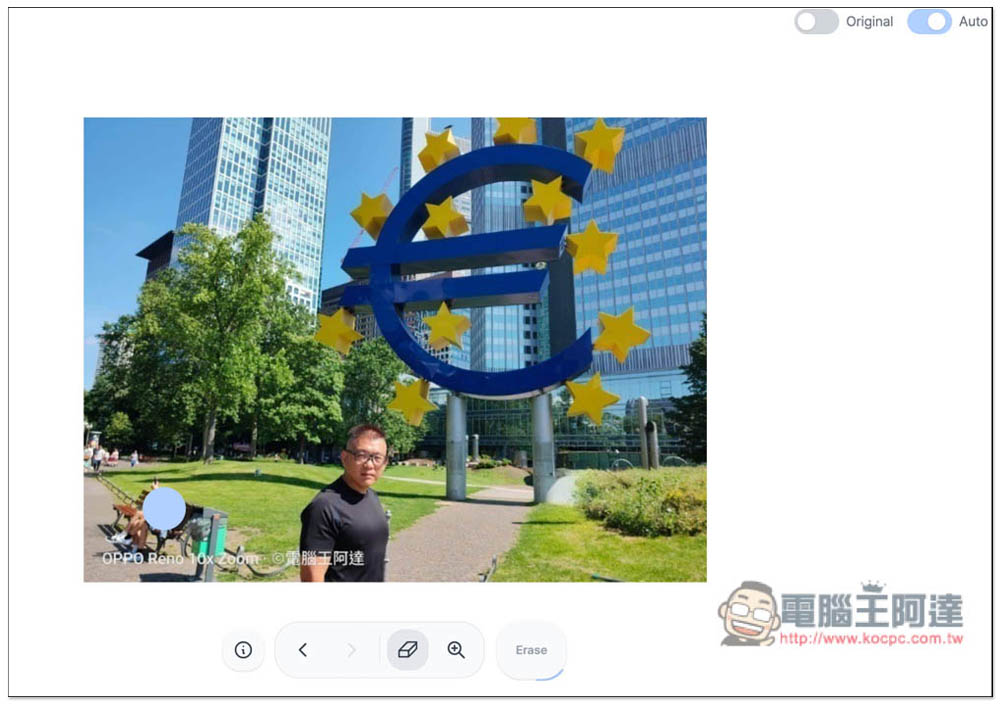
There are two switches “Original” and “Auto” on the upper right. Original is to view the original image, allowing you to quickly compare the differences before and after. Auto starts the removal automatically. It will be removed every time you draw, so you don’t have to click Erase manually:
No problem, just click Download in the upper right corner and the memorized photos will be downloaded. The only drawback is that the photo size will be reduced, and the free version will be reduced to 720px.
Source: KOCPC Chinese