


There are always some apps on the iPhone home screen that you want to disappear but can’t deal with, or you like to keep them organized and want to hide them. For example, the apps that are preloaded and built into the iPhone cannot be deleted at all. They are obviously not used and cannot be deleted, so they can only be left scattered in the phone. If you want to keep them out of sight, this time I will teach you a trick to hide them, which will be much more refreshing!
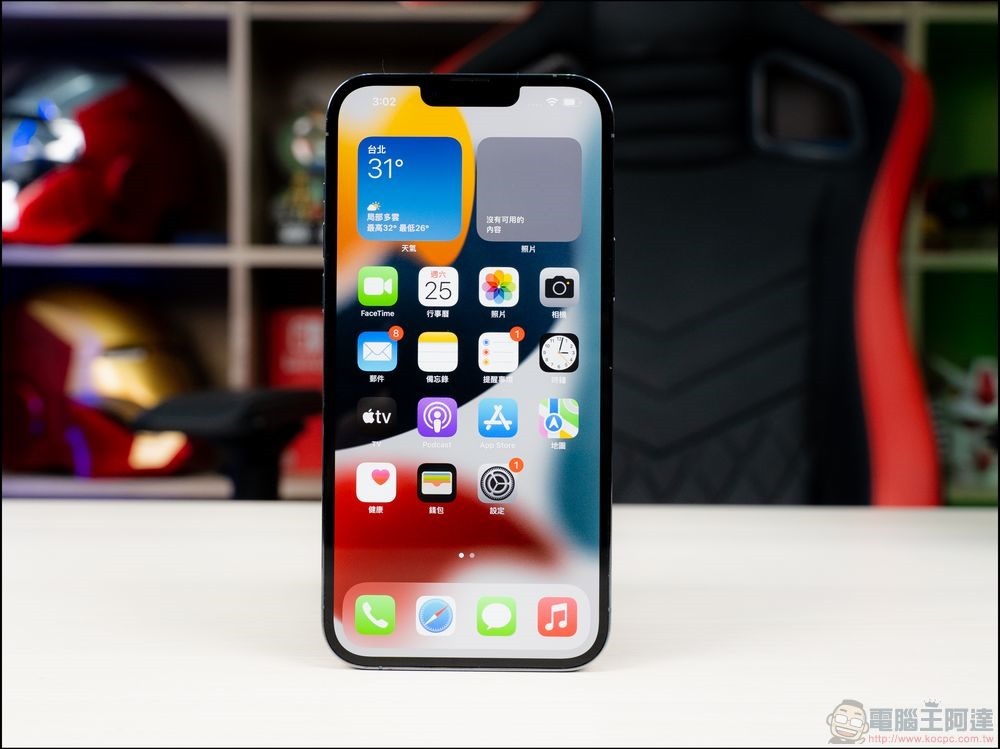
How to hide apps you don’t want to see on the home screen on iPhone?
There are many options for third-party applications. Many people are accustomed to replacing the original factory-installed applications on their phones with applications that better suit their personal needs (such as calendars, clocks, etc.). However, these original applications have a common problem, that is, they cannot be deleted, they take up space, and they are still an eyesore. Fortunately for those cases, you can choose to hide it from the home screen, which doesn’t help free up space, but makes your view clearer without making those apps unusable.
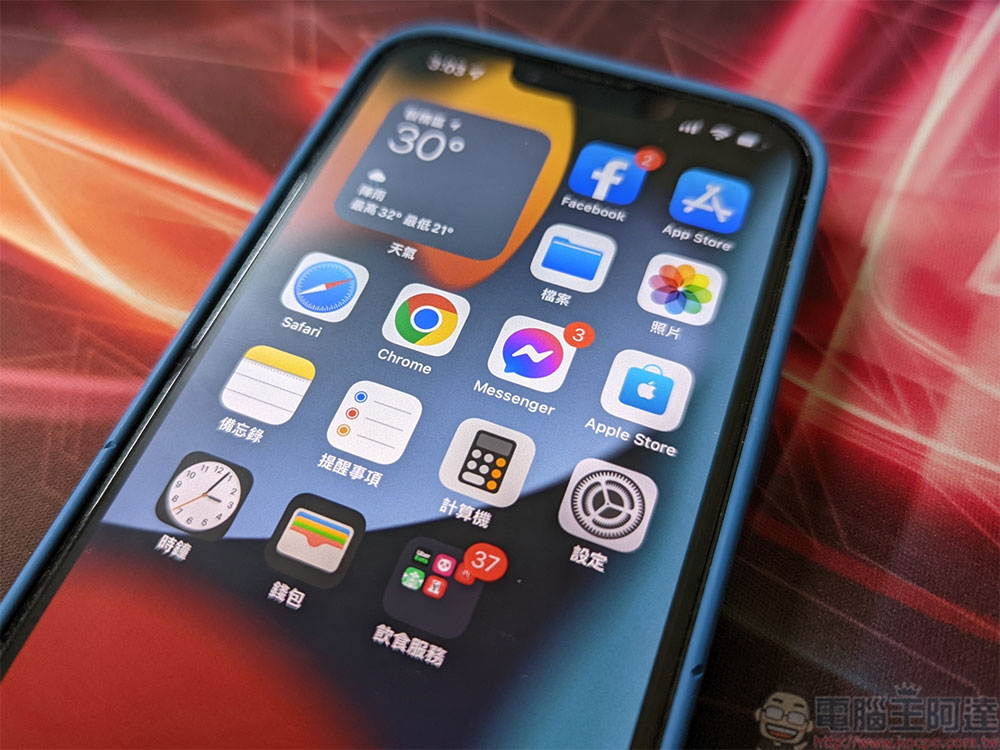
Resolve from “Settings”
One way to hide apps on iPhone is to single them out through settings. However, any app hidden in this way can still be found through the App Library or search, and will still appear in Settings regardless of whether it has been hidden.
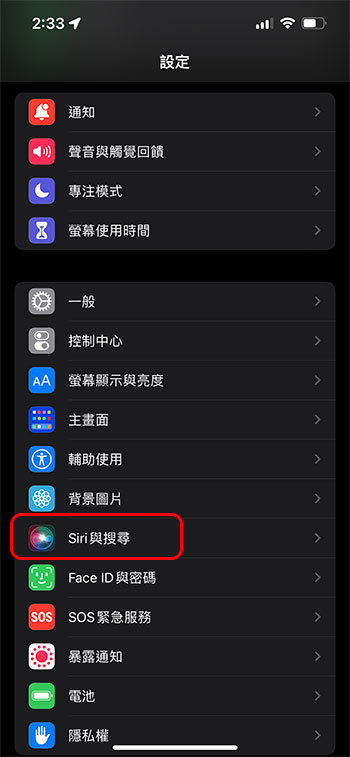
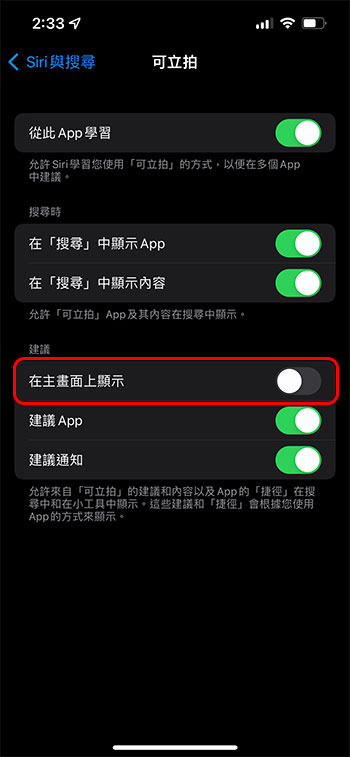
- Open the Settings app and click on the “Siri & Search” item.
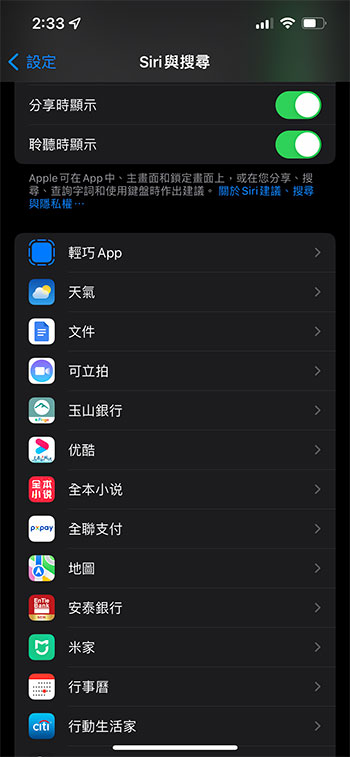
- Scroll down to the section of the app list and click the app you want to hide. Turn off the “Show on main screen” option on a further page. If you want it to display again in the future, just follow the same steps to turn this item on.
Resolve from Home Screen
If you don’t want to deal with it in settings, or if you happen to see an app you want to hide, you can quickly hide it from the home screen.
- Find the app you want to hide on the iPhone’s home screen, or in any folder you set on the home screen, then press and hold the icon for 1 second until the app icon starts shaking and a “-” sign appears in the upper left corner of the icon (just like when you delete an app).
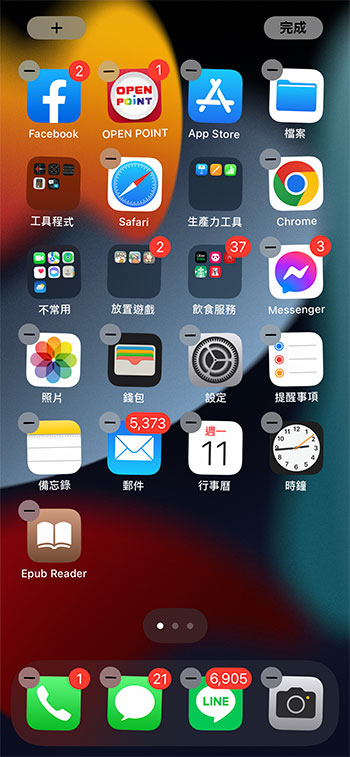
- Click the “-” sign in the upper left corner of the target application to bring up the menu. Depending on the application, you can see the function options of “Delete App” and “Remove from Home Screen” (apps that can be removed) or a “Remove from Home Screen” notification will pop up directly (preloaded apps that are not removed).
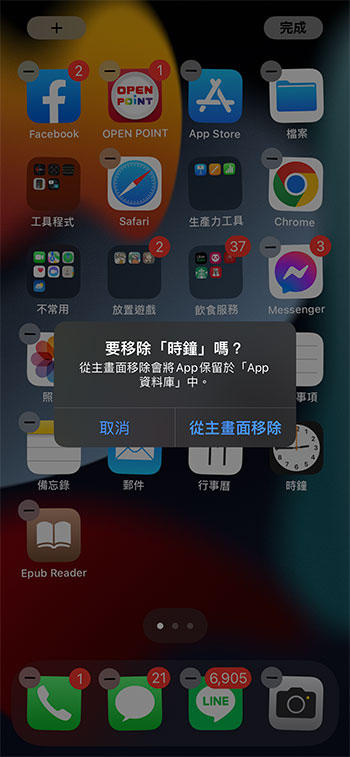
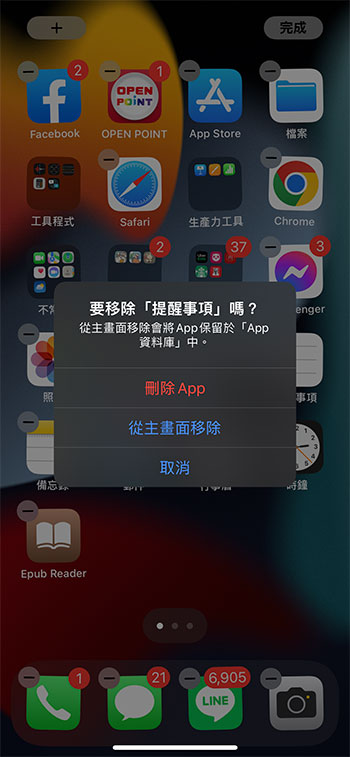
- If you want the app to be displayed on the home screen again, swipe left on the phone screen to search in the iPhone app library, then press and hold the target app to bring up the menu, and select “Add to Home Screen”.
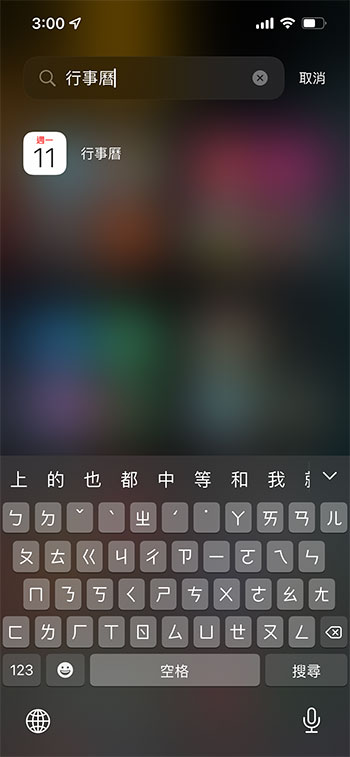
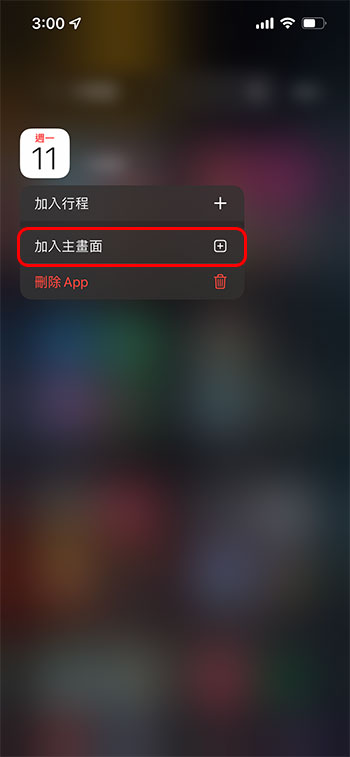
Source: KOCPC Chinese