


If you want to use LINE to keep in touch with friends all the time, in addition to keeping an eye on notification messages on your phone, you could also view and reply to messages through Apple Watch in the past. Recently, LINE officially supports WearOS 3.0 and watchOS dual-system smart watches, allowing LINE to be used on Wear OS 3.0 smart watches! This article will also share how to install and use LINE on watchOS.
LINE officially supports WearOS 3.0 and watchOS dual-system smart watches
In the past, using LINE on smart watches was a function exclusive to Apple Watch users, that is, iPhone (iOS) users. However, recently LINE finally announced that it also officially supports smart watches based on Wear OS 3.0 system!
How to install LINE on watchOS smart watch?
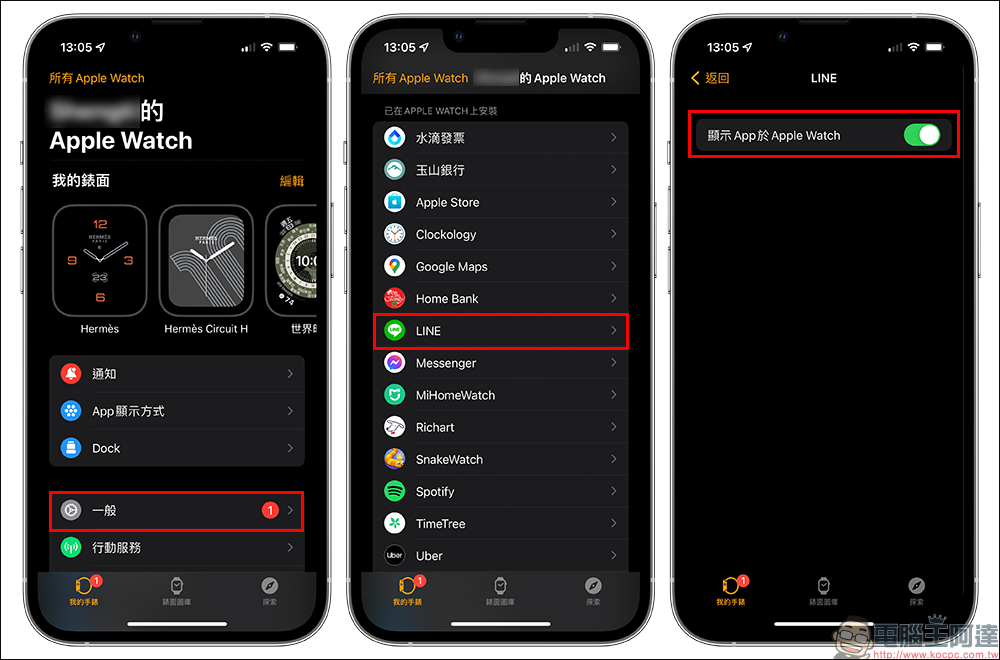
To use LINE on Apple Watch (watchOS), first make sure that the LINE App is already installed on the iPhone, then open the Watch App on the iPhone, then find LINE and click to install it. Don’t forget to turn on the “Show App on Apple Watch” function.
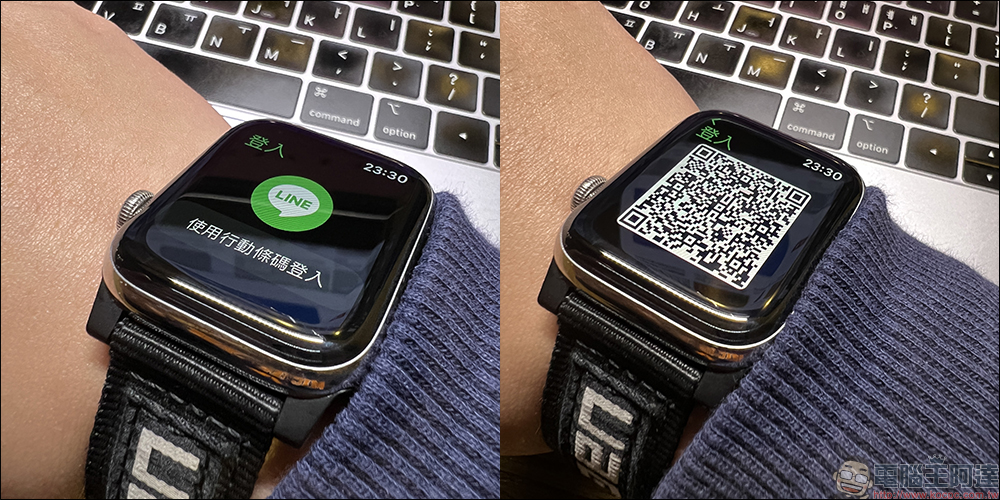
Then open the LINE App on Apple Watch and click “Use Mobile QR Code”, then take out your iPhone to scan the mobile QR code.
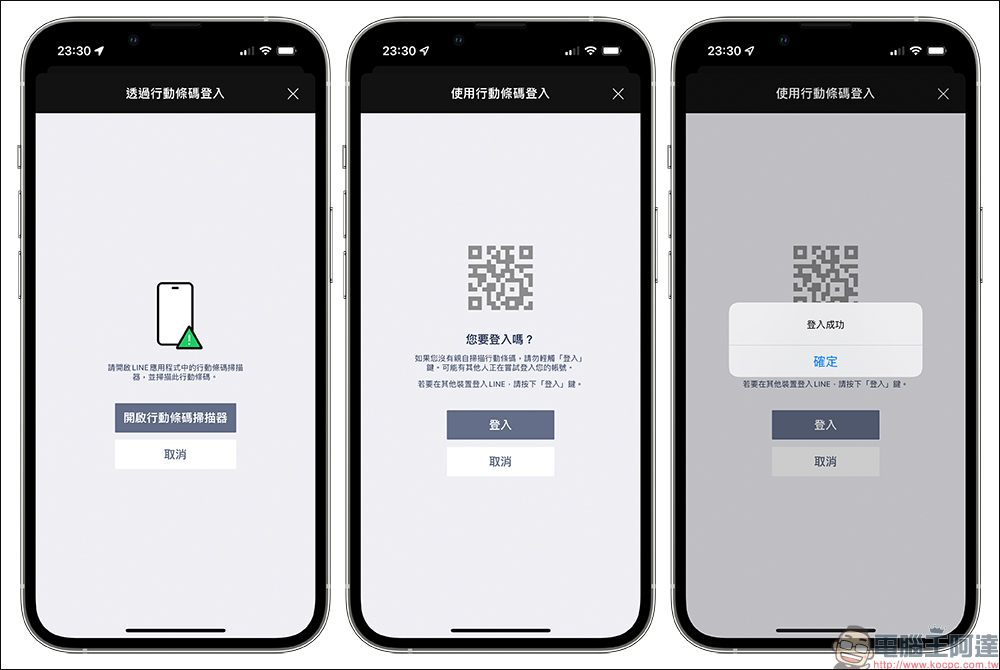
After successfully logging into LINE on Apple Watch, you can browse your friends’ chat history in the past two weeks.
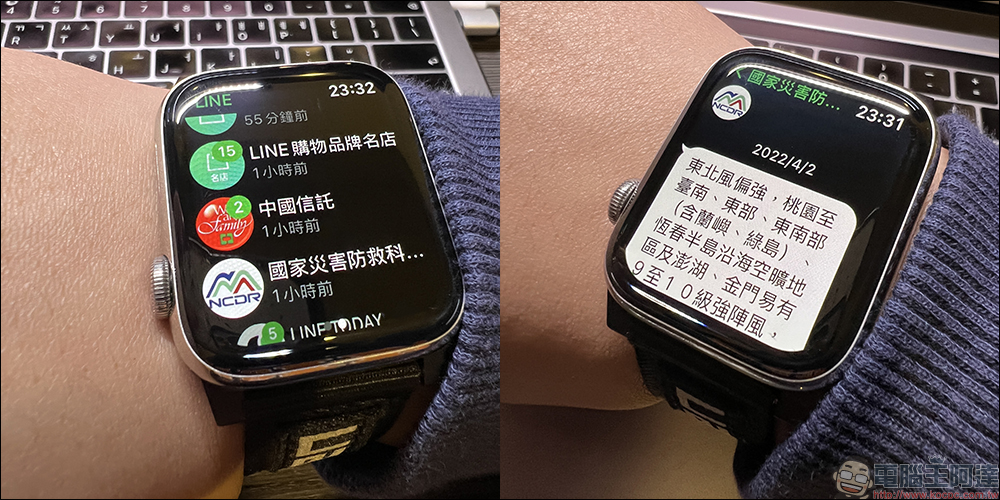
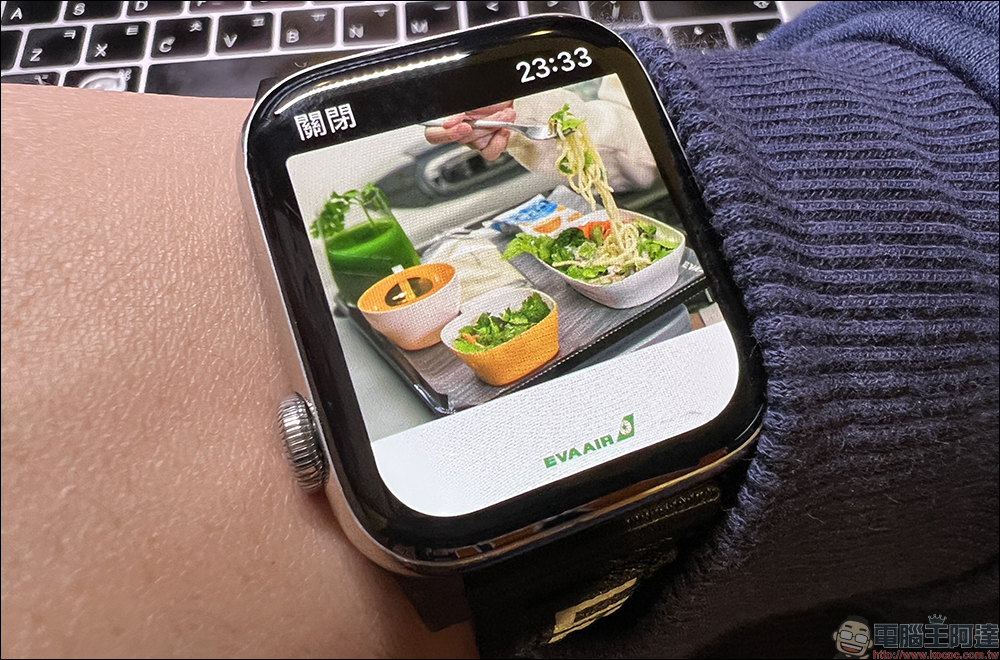
In addition to text messages, LINE on Apple Watch can also read emoticons, stickers, pictures, and voice messages.
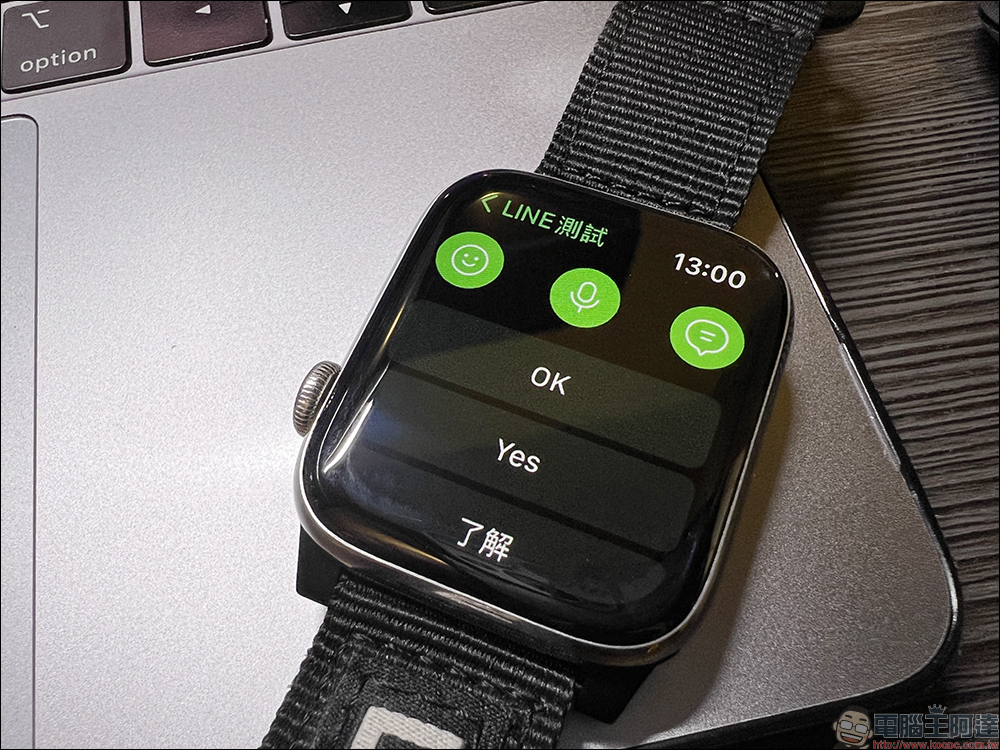
If it is not suitable to reply to messages on your phone at the moment, you can also reply directly on Apple Watch. Options include handwriting, keyboard input, official emoticons, voice messages, and customized quick reply messages.
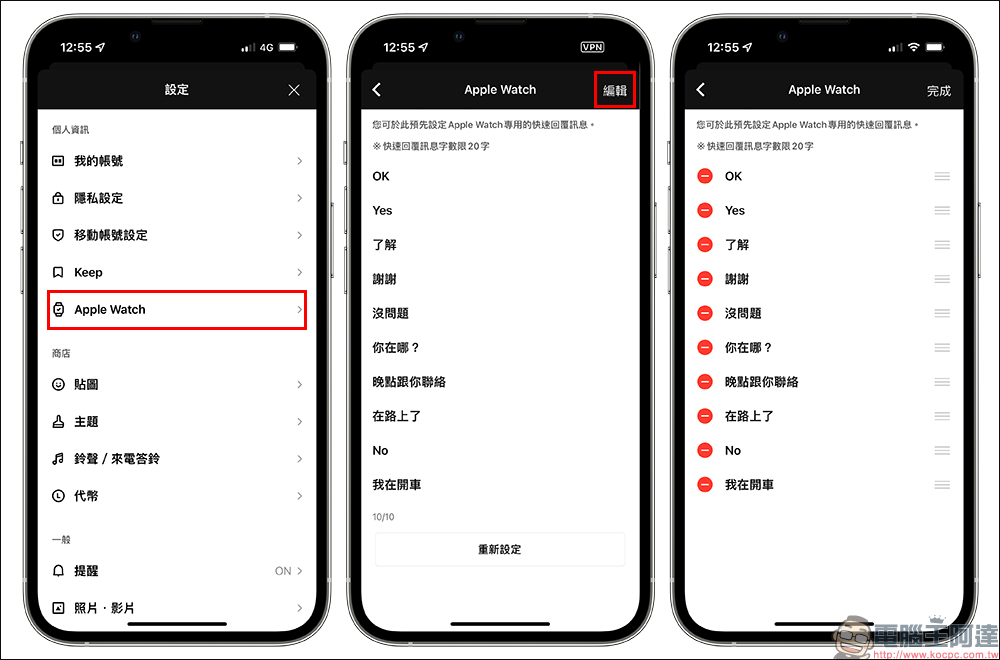
The content of customized quick reply messages can be edited in the settings of the mobile LINE App. Click “Settings” > “Apple Watch” to edit the contents of multiple sets of quick reply messages.
Wear OS 3.0 smartwatches can also support LINE
From now on, you can also use LINE with smartwatches running Wear OS 3.0 system! Before using it, make sure the LINE App is installed on your phone, then open the phone to find the Galaxy Waerable App and click “Store”. (*Here LINE officially uses Galaxy Watch as an example)
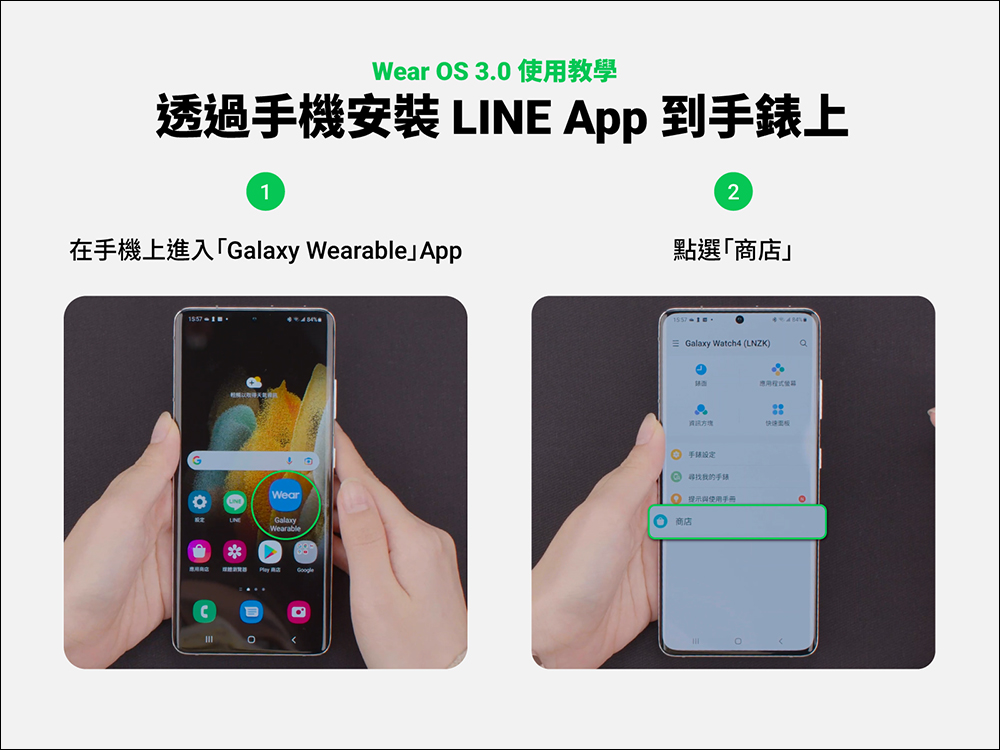
▲Picture source:LINE Taiwan official BLOG
The screen will then jump to the Play Store and search for LINE. Find the LINE App page and click the arrow to the right of “Available on more devices” to expand the menu.
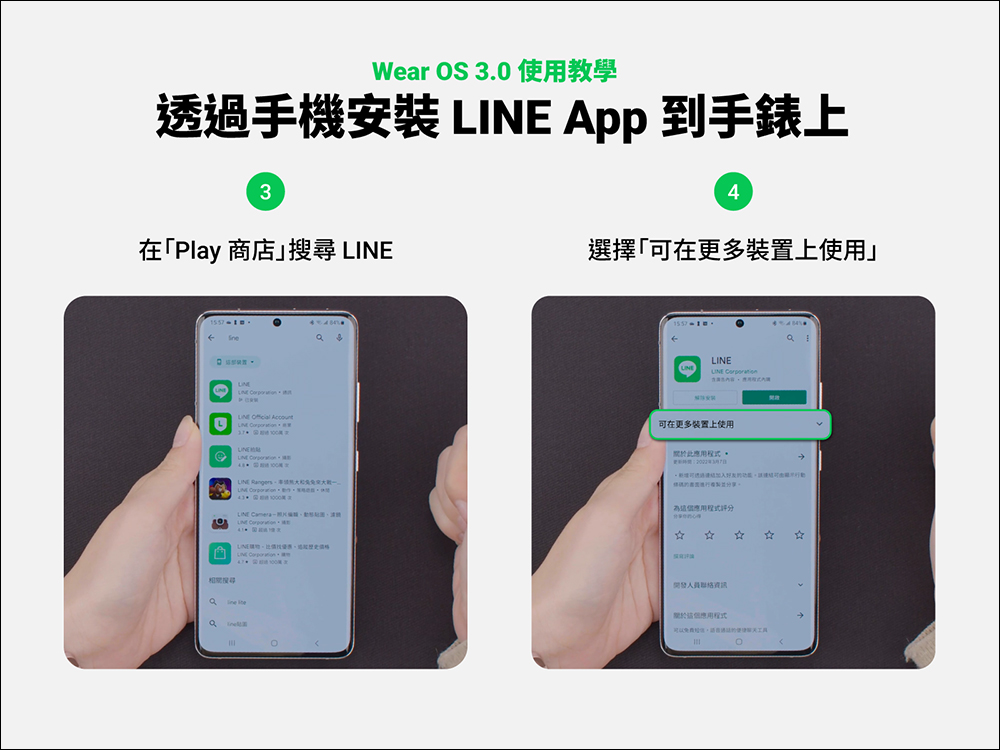
▲Picture source:LINE Taiwan official BLOG
Then click “Install” to install the LINE App on the smart watch running Wear OS 3.0 system.
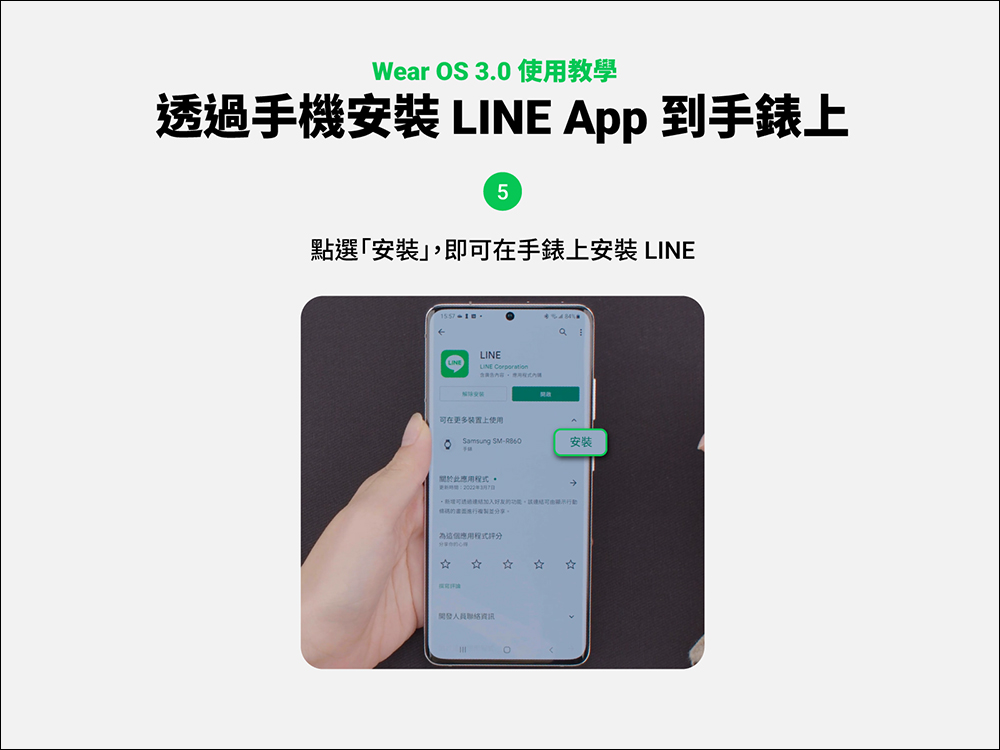
▲Picture source:LINE Taiwan official BLOG
After successful installation, select LINE from your watch and click “Log in via mobile barcode”.
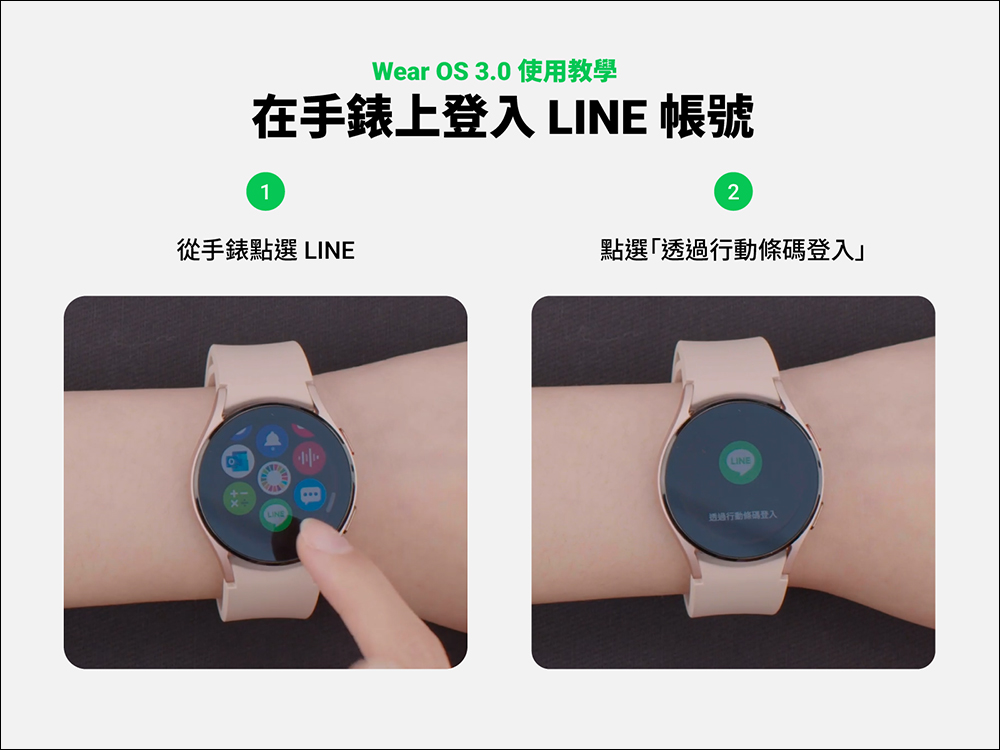
▲Picture source:LINE Taiwan official BLOG
Then take out your mobile phone to scan the mobile barcode, and then enter the verification code on your mobile phone to log in (*You only need to enter the verification code when logging in for the first time).
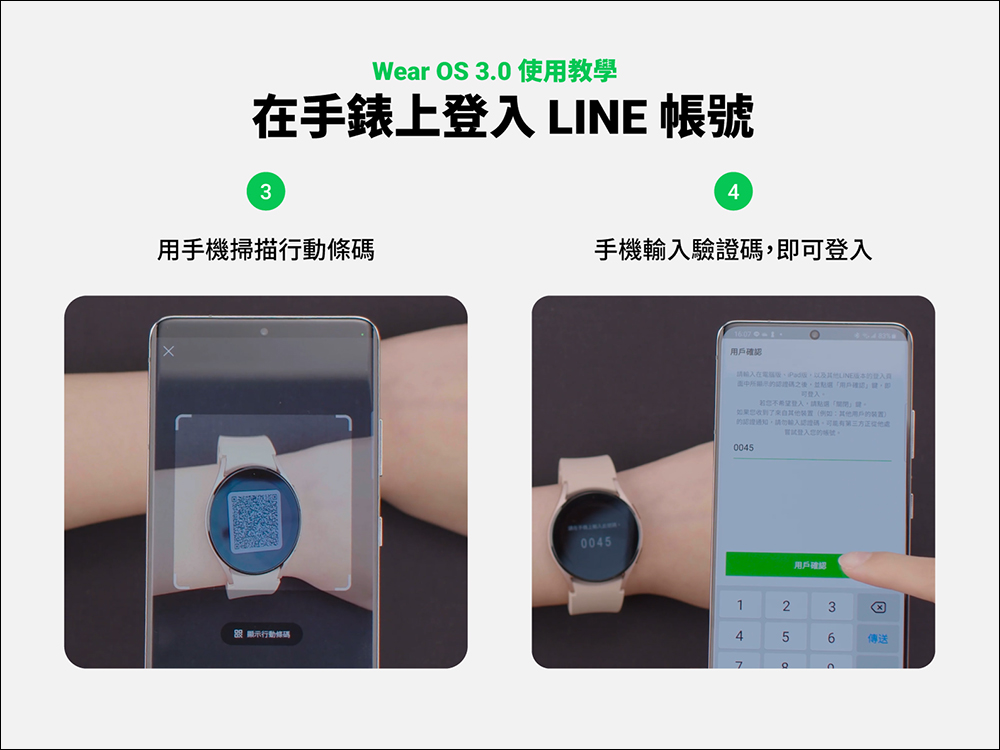
▲Picture source:LINE Taiwan official BLOG
After successfully logging in, you can browse friend messages, view chat history within two weeks, and read text messages, emoticons, stickers, pictures, and voice messages on the Wear OS 3.0 smart watch. In addition, you can browse text messages and emoticons in a single message box at the same time on Wear OS. The message reply method currently supports handwriting, keyboard input, sending official emoticons, and recording voice messages. Users can also click “Settings” > “Smart Watch” in the LINE App on their mobile phones > customize the content of messages they want to reply quickly.
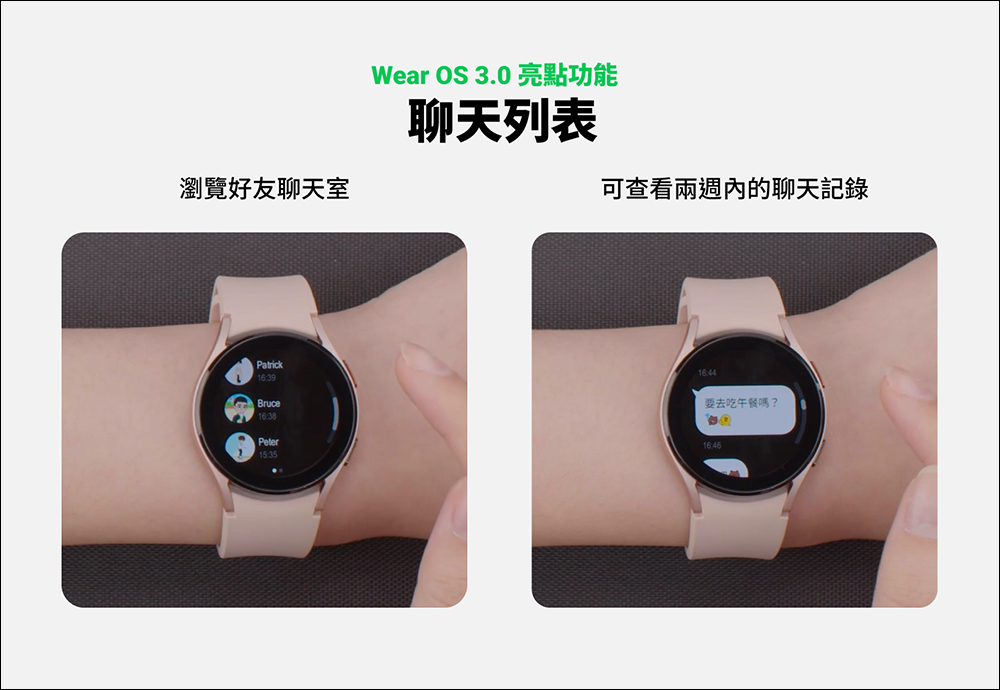
▲Picture source:LINE Taiwan official BLOG
Source: KOCPC Chinese