


AOMEI Backupper Professional has always been my favorite Windows system data backup software. It is easy to operate and has comprehensive functions. It can also directly clone the system disk, which means it is very easy to change the hard disk without having to rewrite it there. In addition, it can also set up different hard disks to synchronize or back up important data. This set was originally priced at US$49.95, but now foreign websites are offering a limited-free promotion. You can get it for free by entering your E-mail. Those who don’t have it yet recommend it.
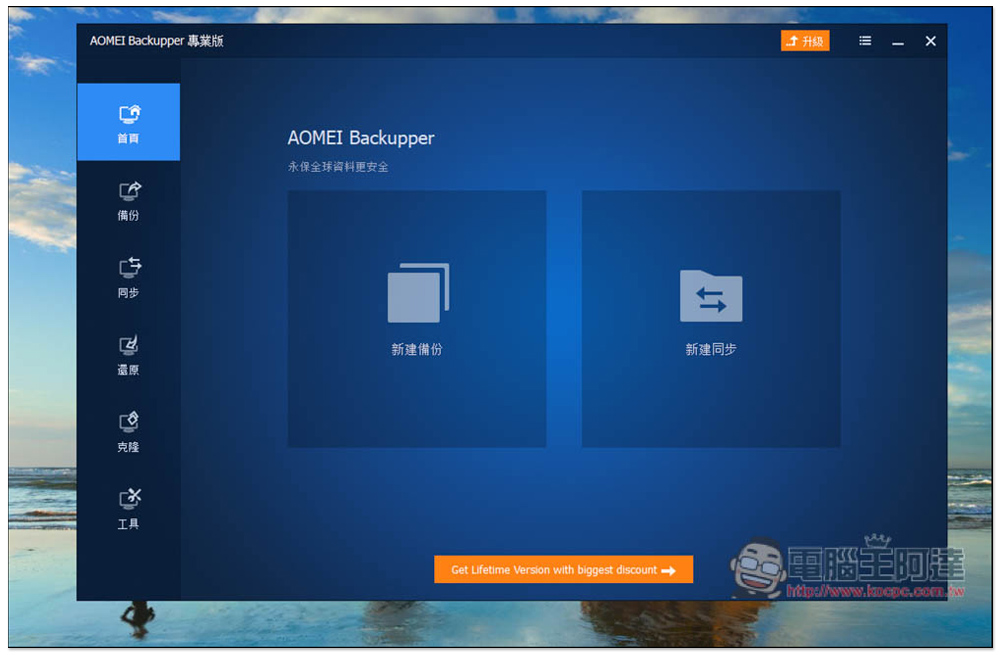
AOMEI Backupper Professional free system backup and cloning professional software
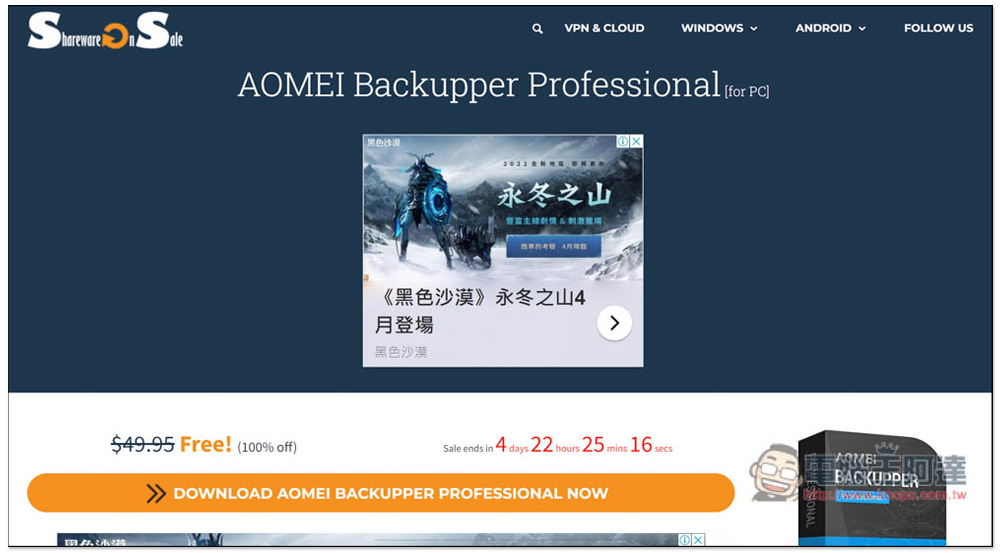
After entering the AOMEI Backupper Professional limited free page of SharewareonSale, you can see that Free is available for free. There are still more than four days left. Click the DOWNLOAD AOMEI… button below:
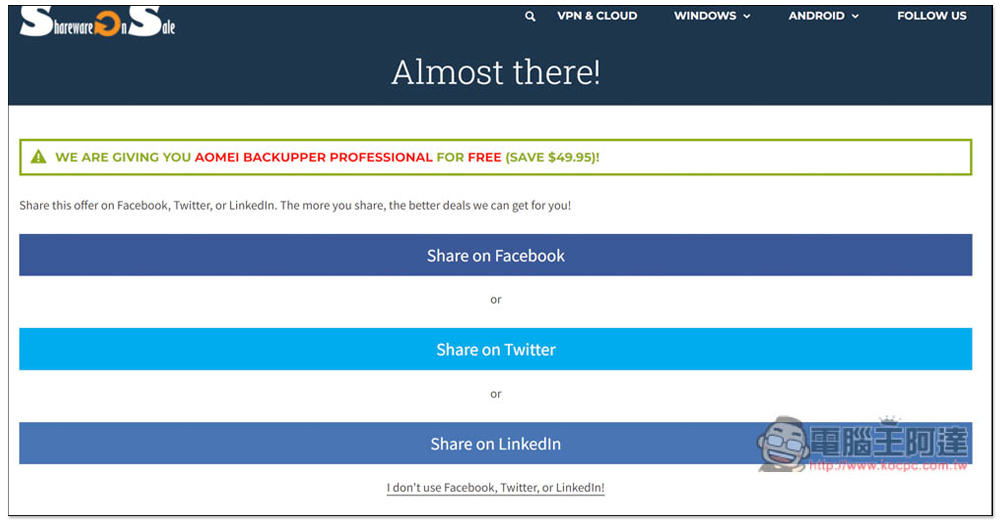
Then you will be asked to share to Facebook, Twitter or Linkedln. Those who do not want to share can click I don’t use… at the bottom:
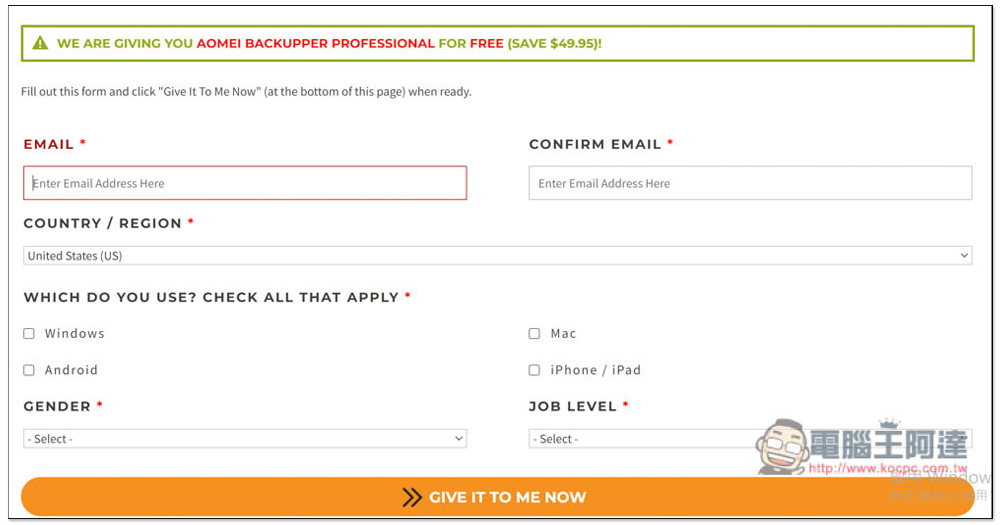
It will turn into entering your email and filling in some basic information, and you will get the loading point and serial number on the next page, so you don’t have to receive the email:
As shown below, this serial number is free for one year, but don’t worry too much, because AOMEI Backupper Professional basically launches several limited-free activities every year, so if the serial number is about to expire, check if there are any new limited-free activities in the past few months, so that you can replace the new serial number:
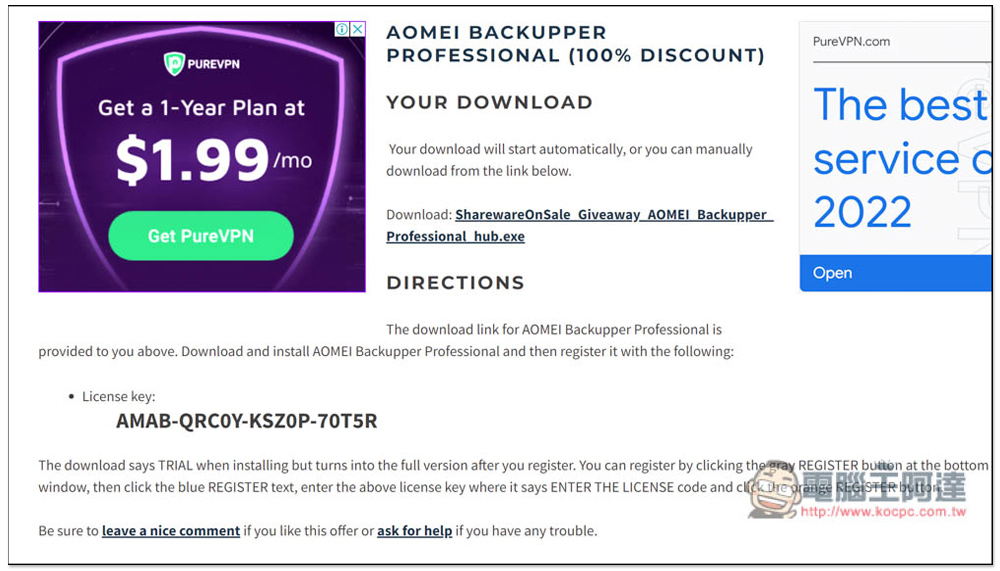
The downloaded file is SharewareOnSale Download Hub. You also need to use this to download the real installation file:
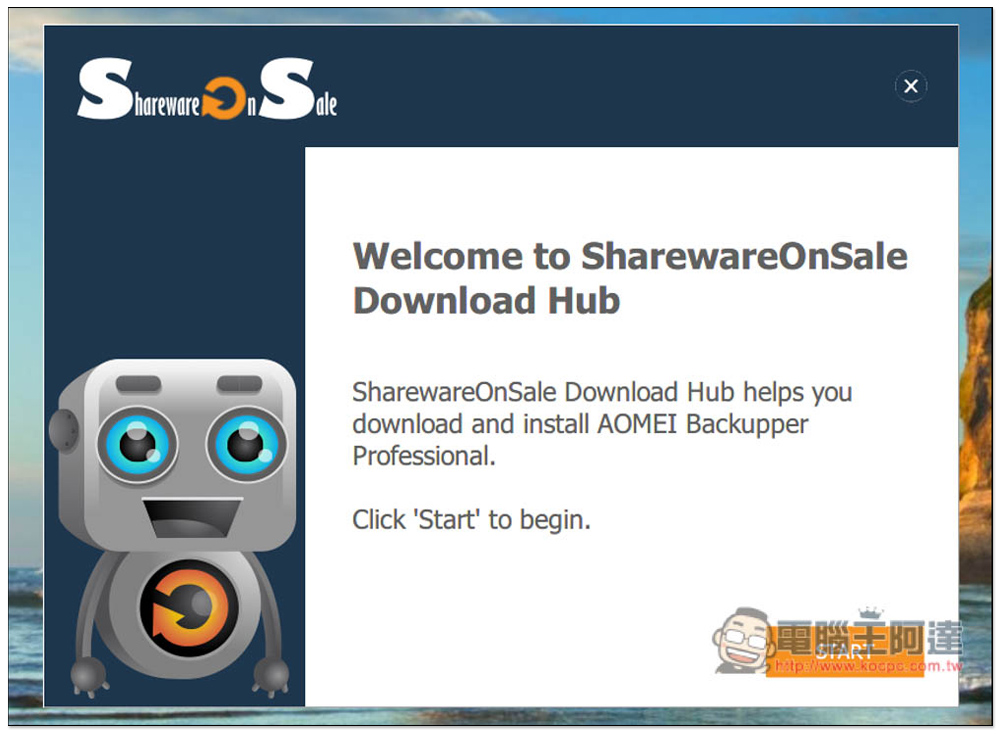
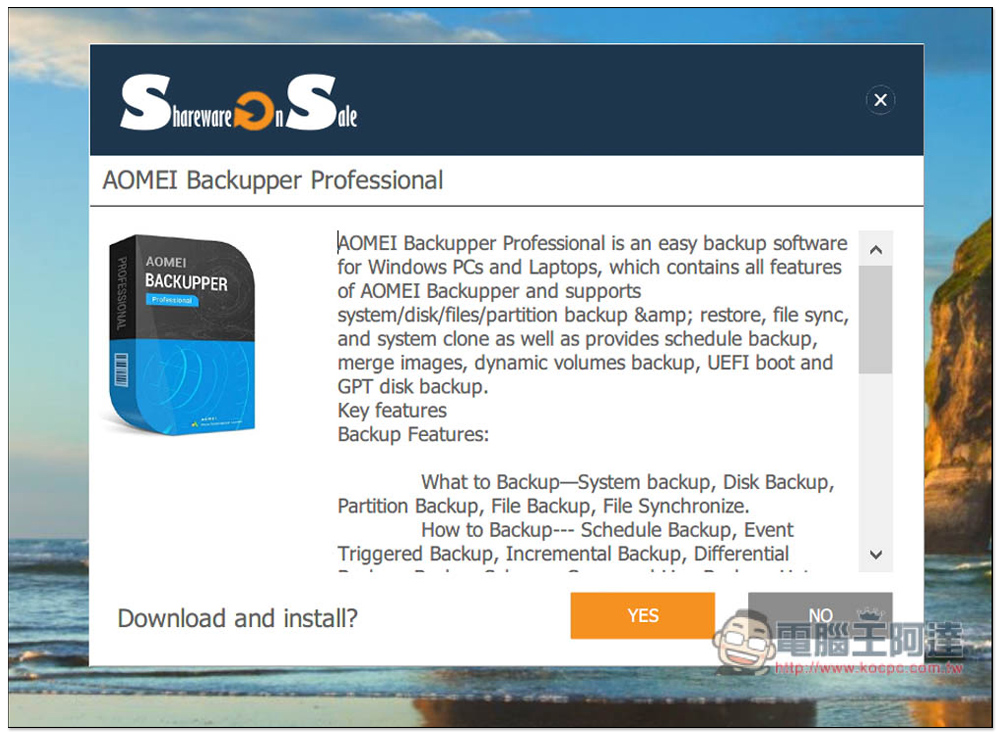
This page asks you if you want to download and install, please click Yes:
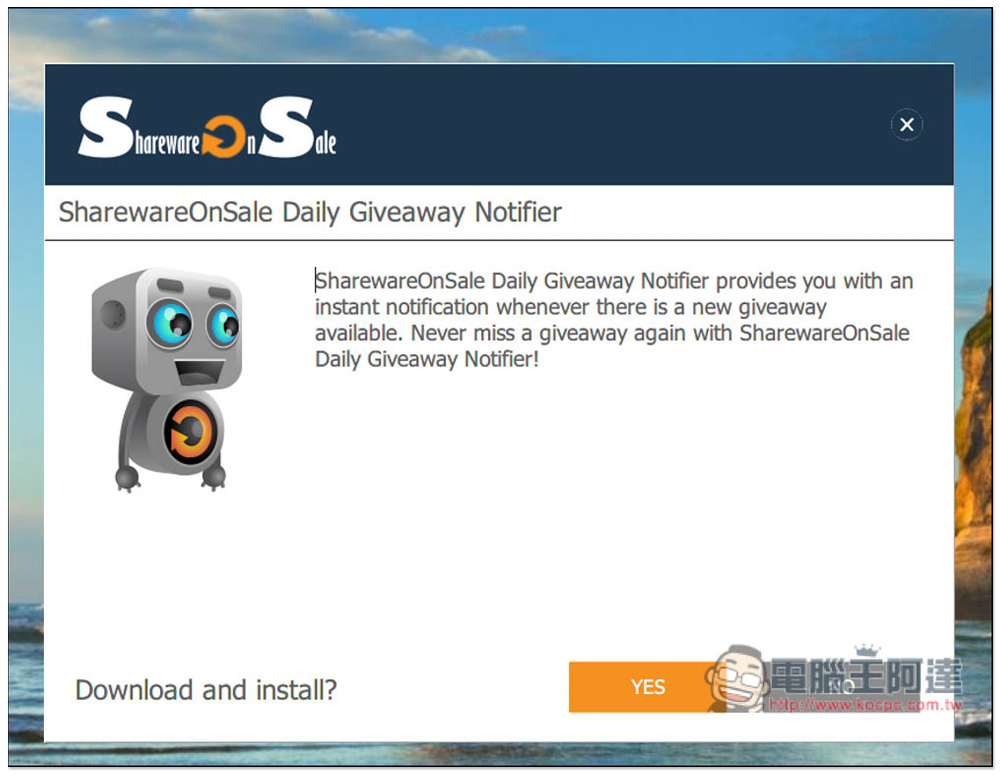
The next page is SharewareOnSale’s limited-free automatic notification function. See if you need it. If not, just press NO:
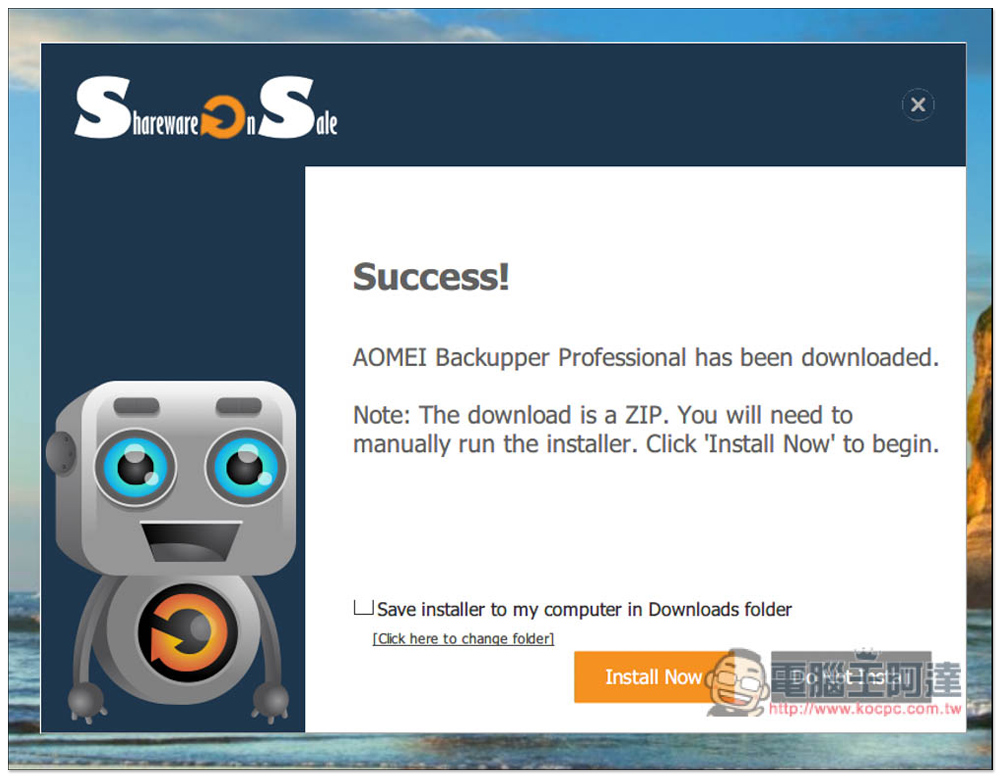
After downloading, it will be a ZIP file, which can be installed after decompression:
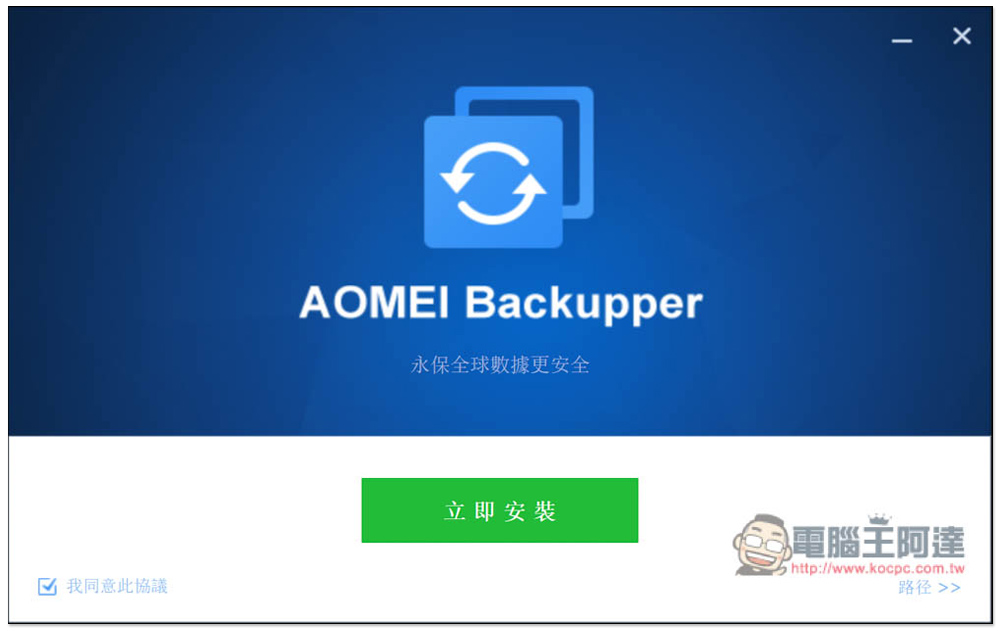
There is a Traditional Chinese interface, so there should be no problem in using and installing it. Just keep pressing Next during the installation process:
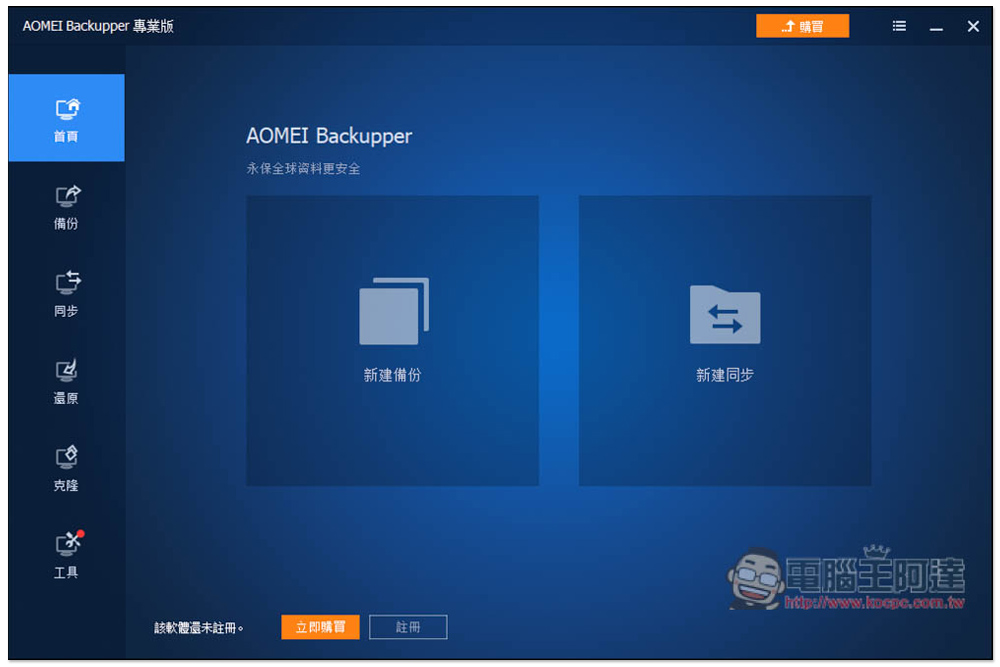
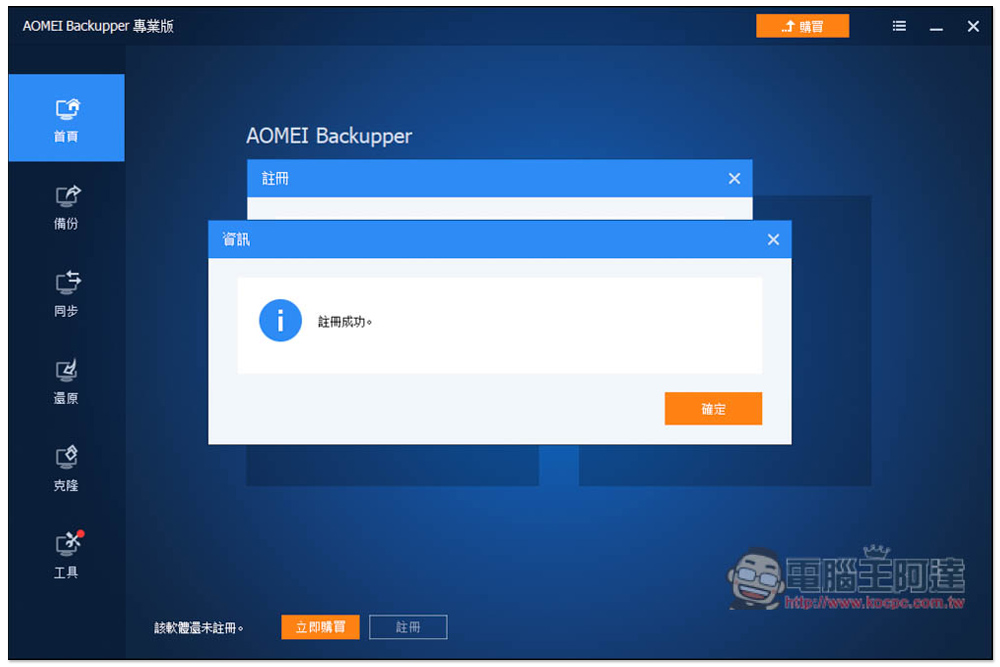
At the beginning, it is not registered yet, so the purchase button will be displayed. Press “Register” at the bottom:
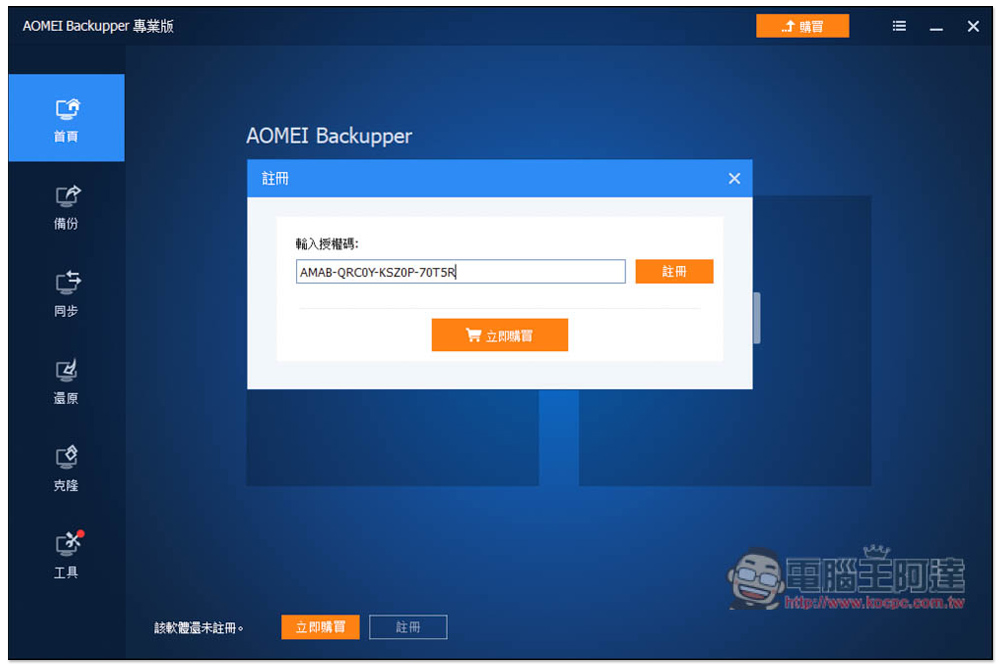
Fill in the serial number just now and click register:
This is successfully enabled:
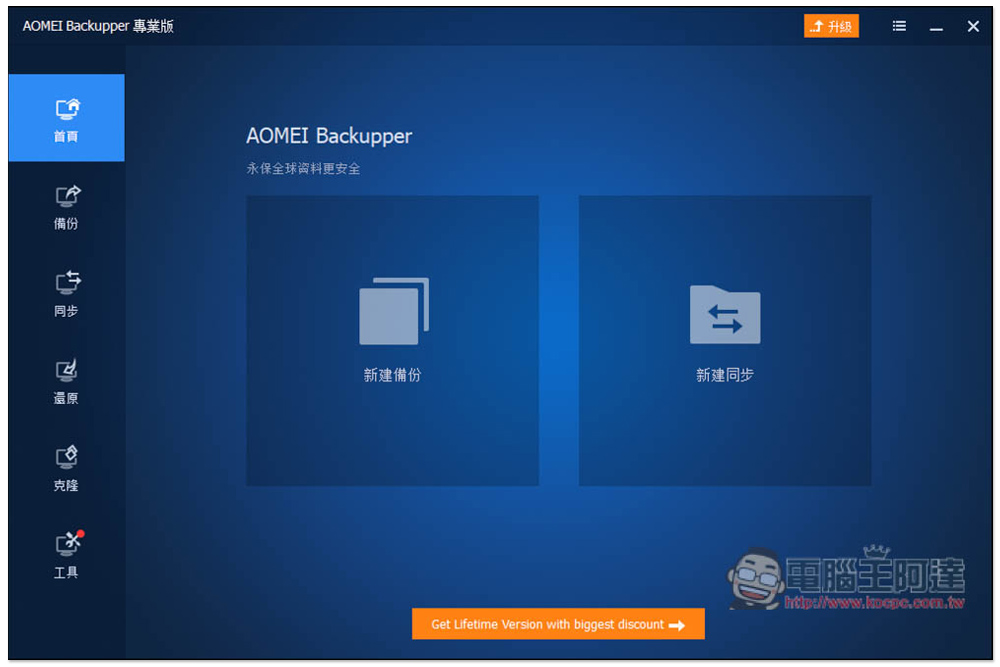
The purchase function will disappear and become an upgrade. Upgrading means asking you whether you want to pay to become a permanent version. Home page can create new backup and synchronization:
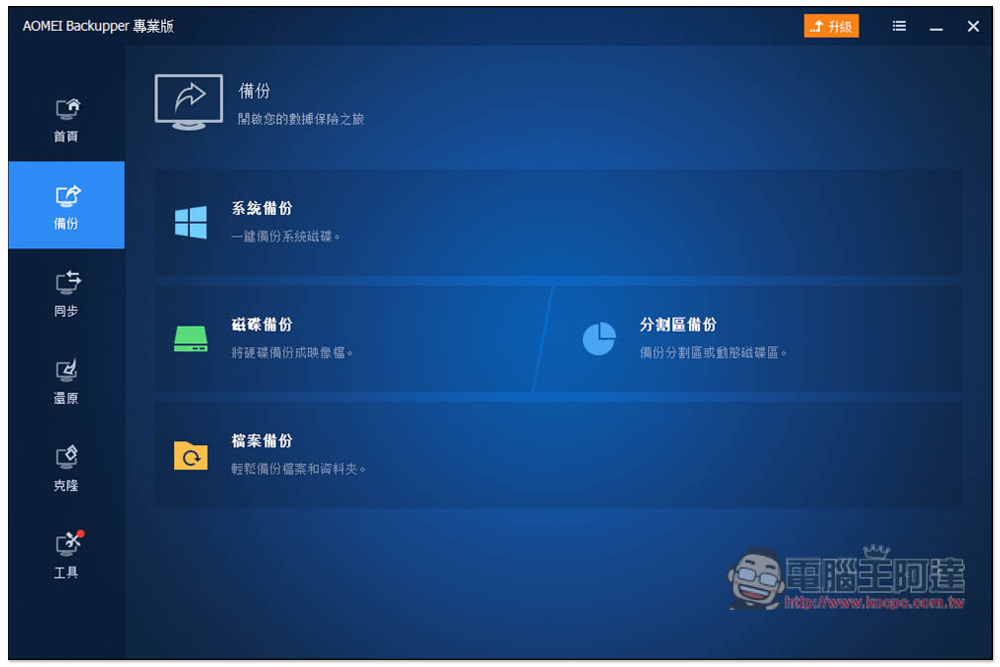
There are four functions in the backup menu: “System Backup”, “Disk Backup”, “Partition Backup” and “File Backup”:
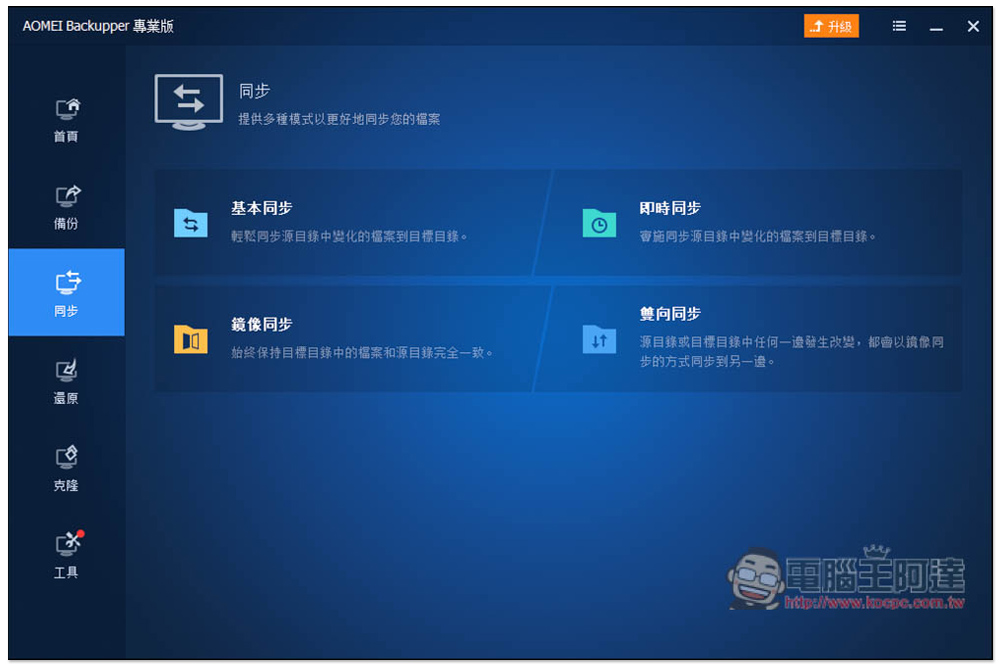
There is also a synchronization function, and there are multiple modes, such as: basic synchronization, instant synchronization, mirror synchronization, and two-way synchronization. I am not sure what this mode is for. You can read the introduction below:
Restore is to restore the content you previously backed up to the hard drive you specified:
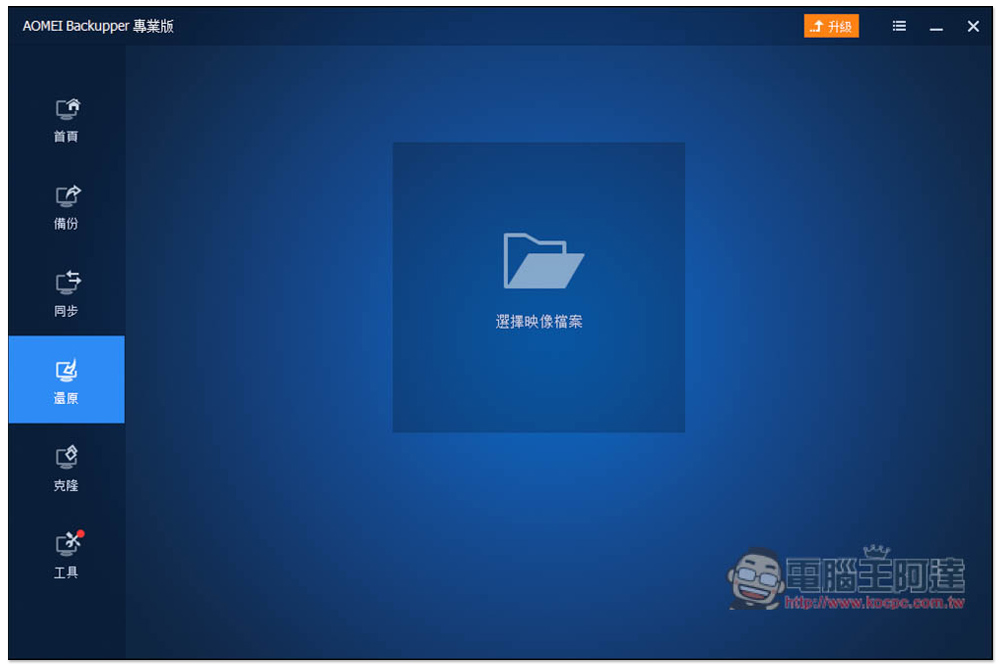
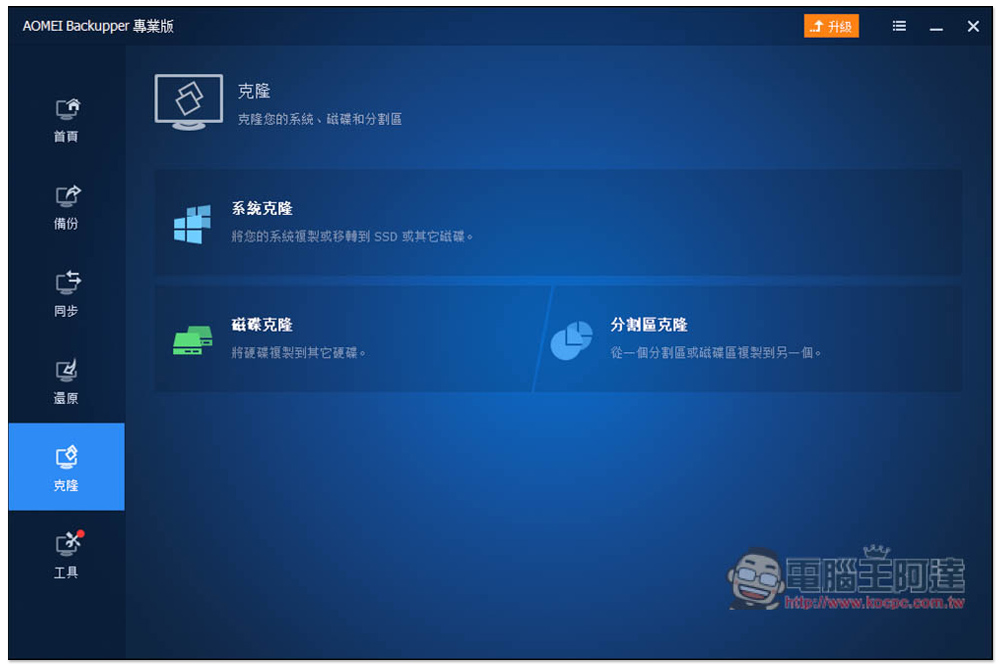
If you plan to change the system disk and are too lazy to reinstall it, you can use the cloning function. After cloning the system directly to the new hard disk, you can shut down the computer, unplug the old one, and replace it with the new hard disk. In addition, it also supports disk cloning and partition cloning functions:
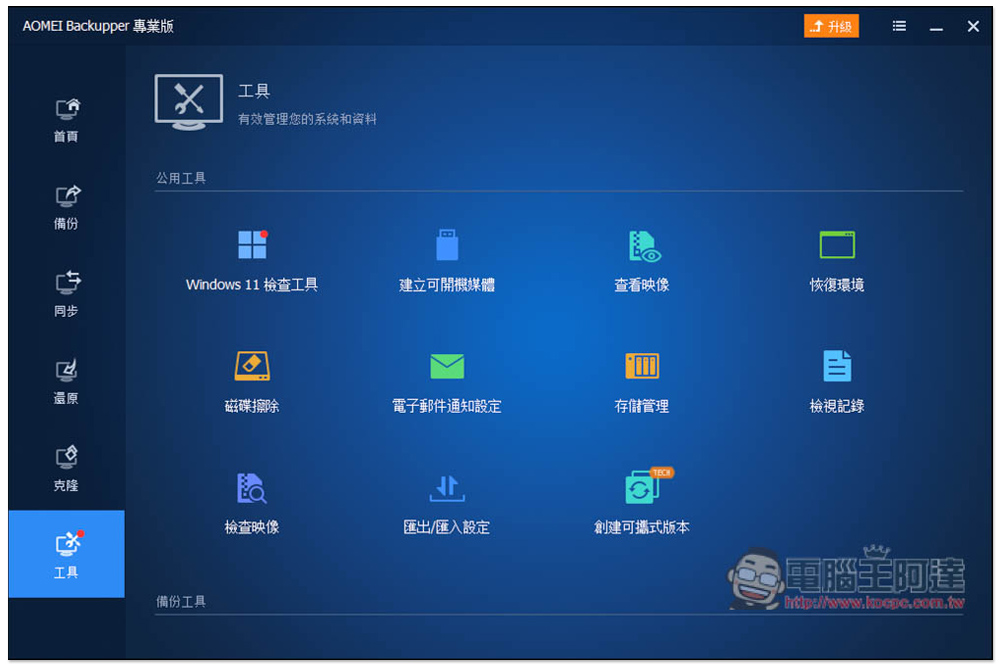
The tool menu also has many practical functions, such as: creating boot media, disk erasure, creating portable version, Winodws 11 check tool, etc., all of which do not require the installation of other software:
Source: KOCPC Chinese