


Although Windows 11 is an operating system based on Windows 10, adding many new design elements, logic and improved functions, there are a lot of things to play in the new Windows 11, and the part that makes the new operating system more interesting is that you can discover interesting hidden features and use them to help you improve your work efficiency. Follow me and give it a try now.
Four Windows 11 hidden features that greatly improve productivity
Title bar window shake
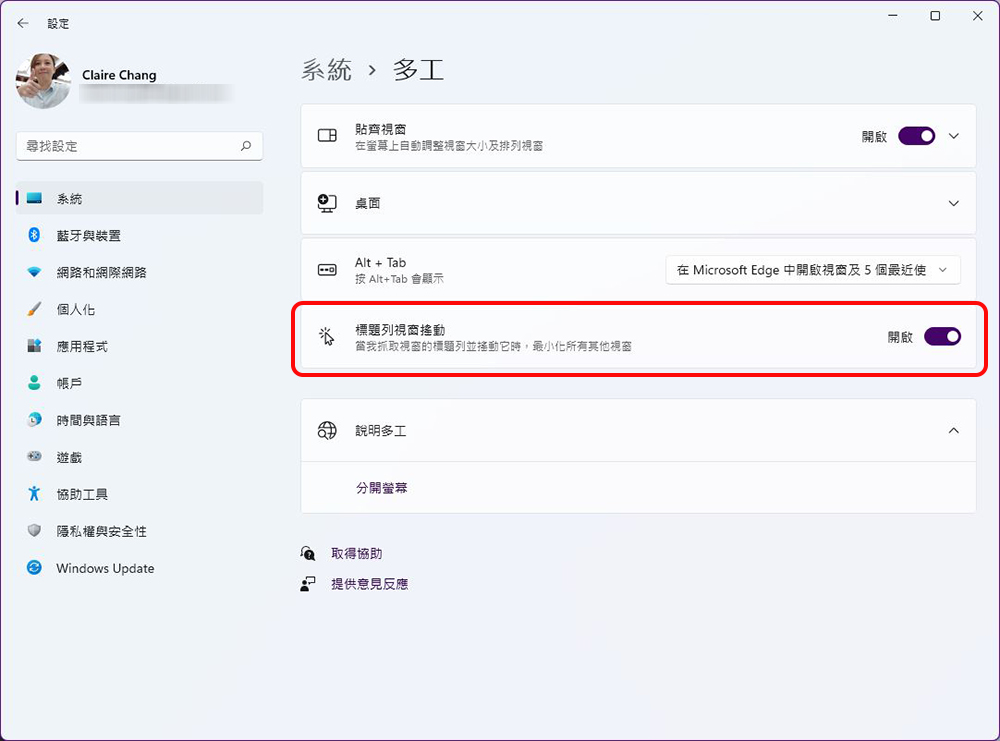
When working, you may open many windows like the author, but sometimes you often accidentally pull the wrong window just when you want to open it. Windows 11 has an interesting solution for this not-quite-a-problem but somewhat annoying thing: the title bar window shakes. Through this function, you can click on the top title of the window you are using and shake it to minimize other windows not in use without changing the window you are using. The same action can restore all windows.
Path: Settings >> System >> Multitasking >> Turn on “Title Bar Window Shake”
Second start menu
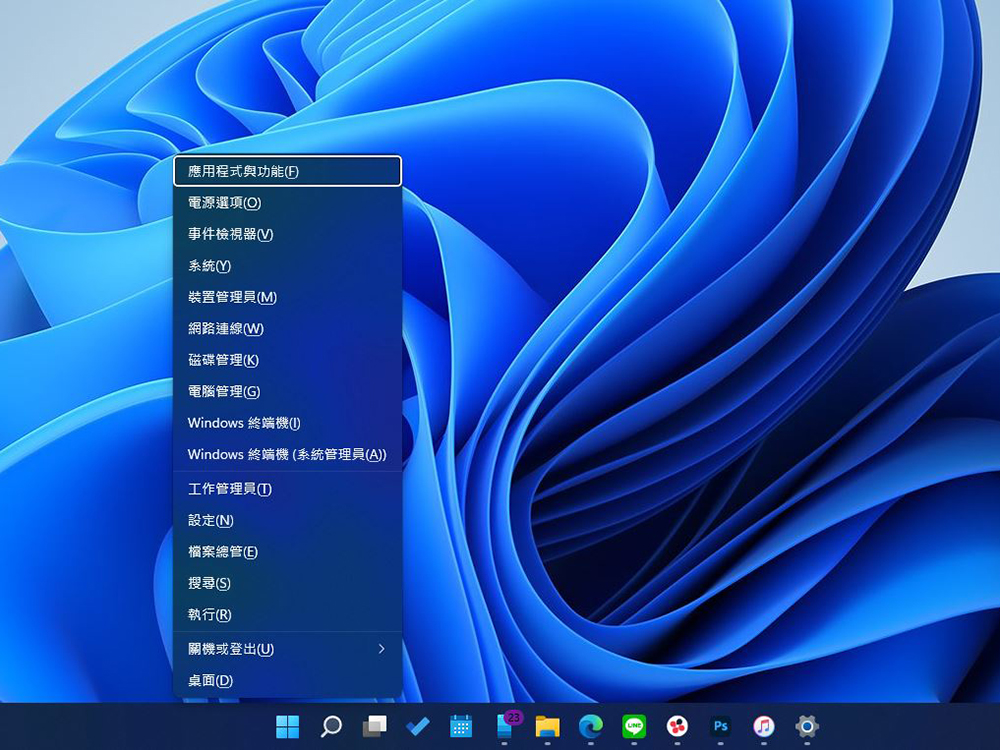
This isn’t a huge feature, but it’s useful if you want another way to access the Home menu. In addition to clicking the leftmost Windows icon on the taskbar, you also have the option of shortcut key combinations to call up a simpler start menu.
Key combination: Windows +X or right-click on the taskbar Windows icon
Cleaning suggestions and power saving
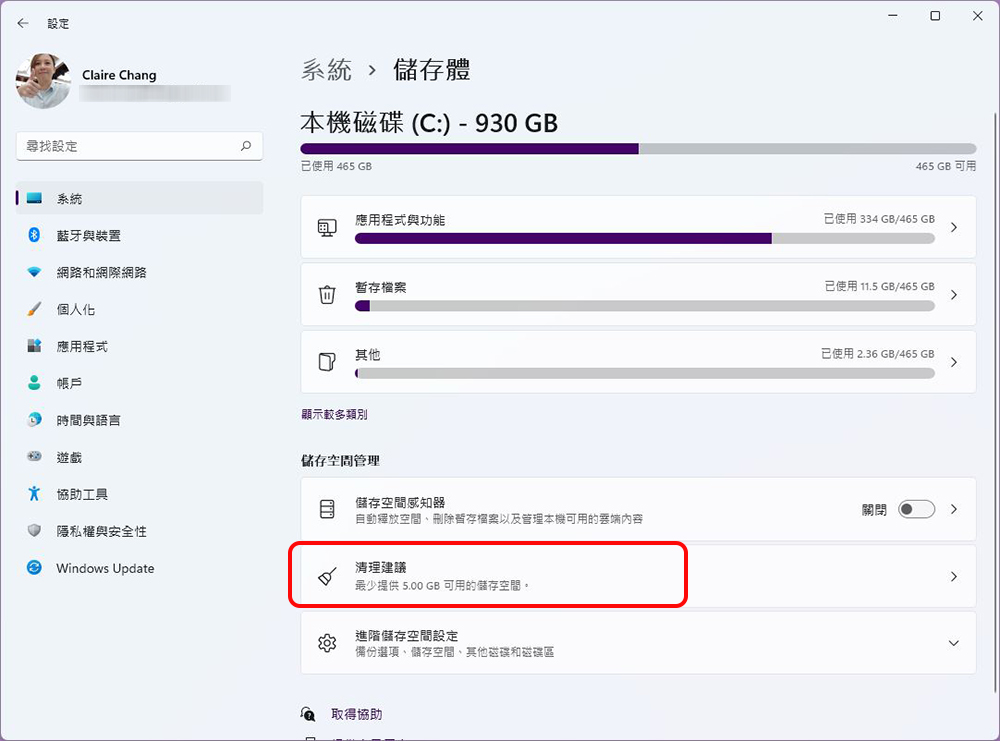
Keeping certain applications running in the computer system may reduce computer performance. Windows 11 provides users with quick solutions through cleaning suggestions. You can start by checking the space occupied by each application and clear out some unnecessary wasted capacity.
Path: Settings >> System >> Storage >> Cleanup Suggestions
At the same time, you can also close some applications running in the background to help you save power and network traffic. In this setting, you can customize which applications can run in the background and set the time when the power saving mode is turned on.
Path: Settings >> System >> Power & Battery >> Power Save Mode
Focus aid
When you focus on your work, you hate external distractions, so the hidden focus assist feature in Windows 11 is designed to help you eliminate some unimportant tasks. Through Focus Assist, you can choose to hide all notifications when you are concentrating. You can also customize whether to turn off Focus Assist, the priority of message notifications, alarm clock only, etc. Use your own priorities to decide which notifications are worth checking immediately and which notifications can be ignored. You can also set a schedule to turn on Focus Assist at a specified time. In addition, you can also set the focus assist to automatically turn on or off when you watch videos or play games in full screen mode.
Path: Settings >> System >> Focus Assist
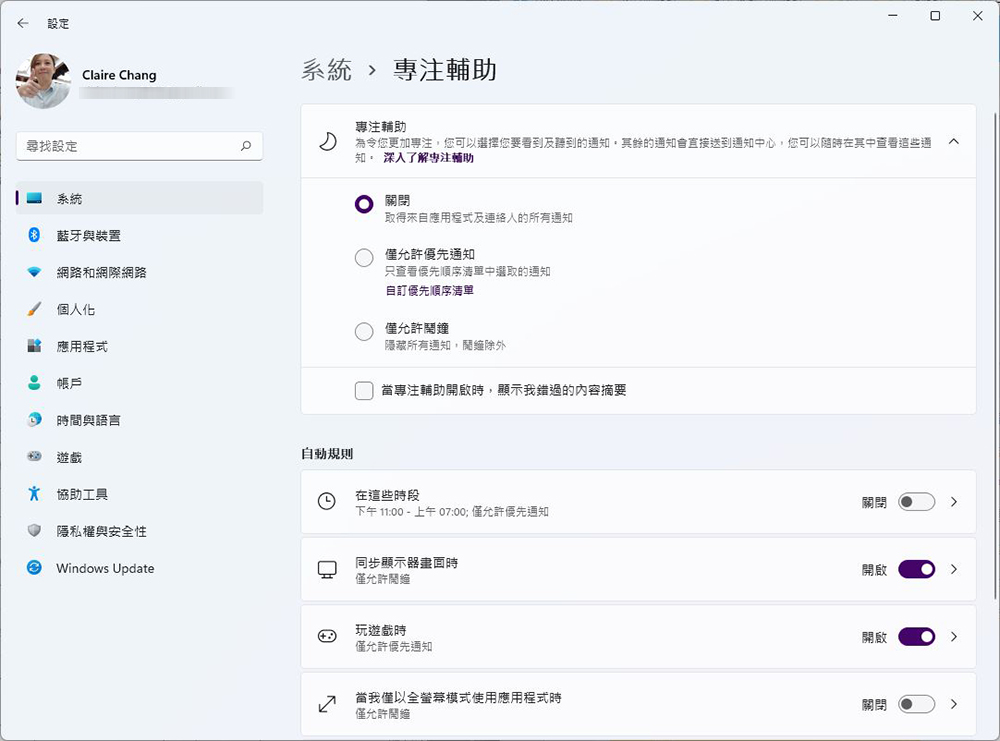
Source: KOCPC Chinese