


As Google’s signature text editing service, their Google Docs not only has many innovative features in recent years, but also corresponds to the enhancement of various functions of its key competitor Microsoft Word. It is actually a very positive “tribute”. Recently, this cloud text editing service has added a watermark function to prevent data from being easily copied. Continue reading Google Docs has added the Watermark function. This article teaches you how to use the report content.
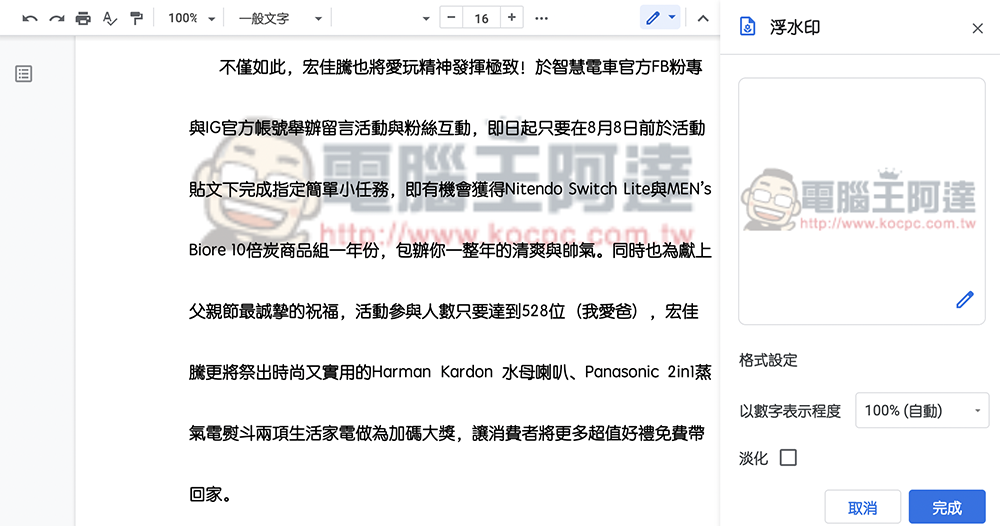
Google Docs adds Watermark function, this article teaches you how to use it
For users who need to handle confidential documents with sensitive information, in the new year, Google Docs/Google Docs will bring editing functions that meet these needs, which will allow you to add watermarks of images or text (text is not available in Taiwan at the moment when I try it). This will increase the recognition of confidential documents and reduce the chance of being directly copied or stolen. There is no need to find a third-party application to add this function to the files. Let’s share how to use this new feature below.
This new “watermark” function can be found in “Insert > Watermark” at the top of the Google Docs editing interface – currently there is a new feature marked as “New”, so it should be easy to find.
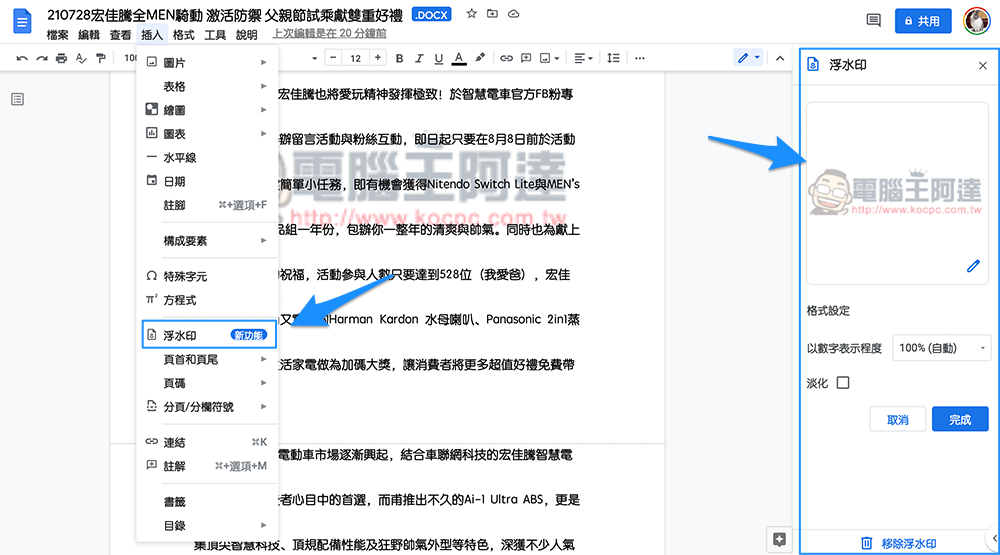
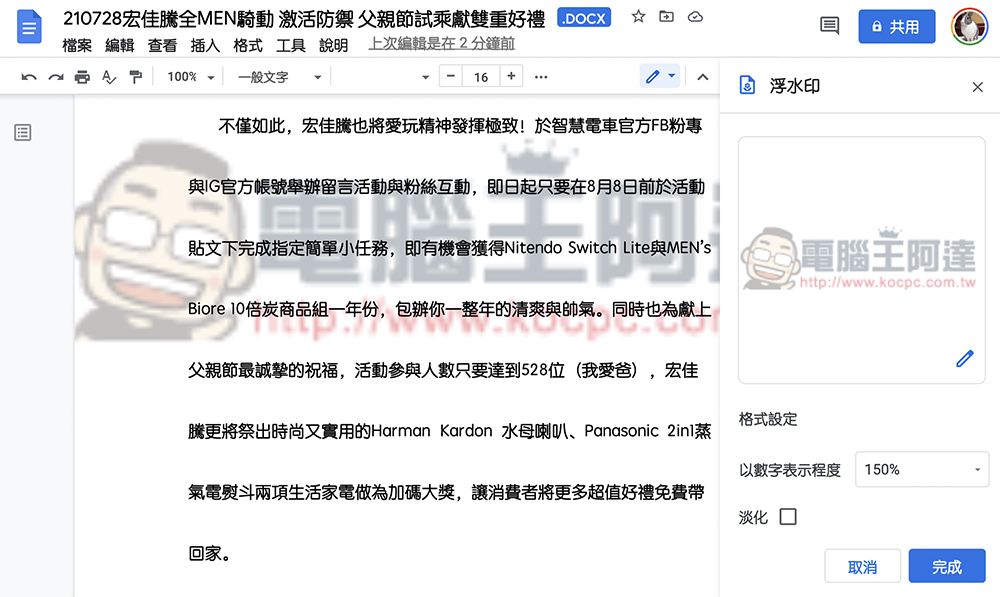
After clicking, a small watermark function window will appear. Here you can click “Select Image” to add the watermark pattern you want to import. And you can choose whether to change the display ratio of the image (the default is automatic), or you can uncheck “Fade” to reduce the transparency to make the base image more obvious.
In terms of simple use, I personally think that the downplay option works quite well. It is less likely to interfere with the relevant graphic content of the document. However, it can still be decided based on the content of the file.
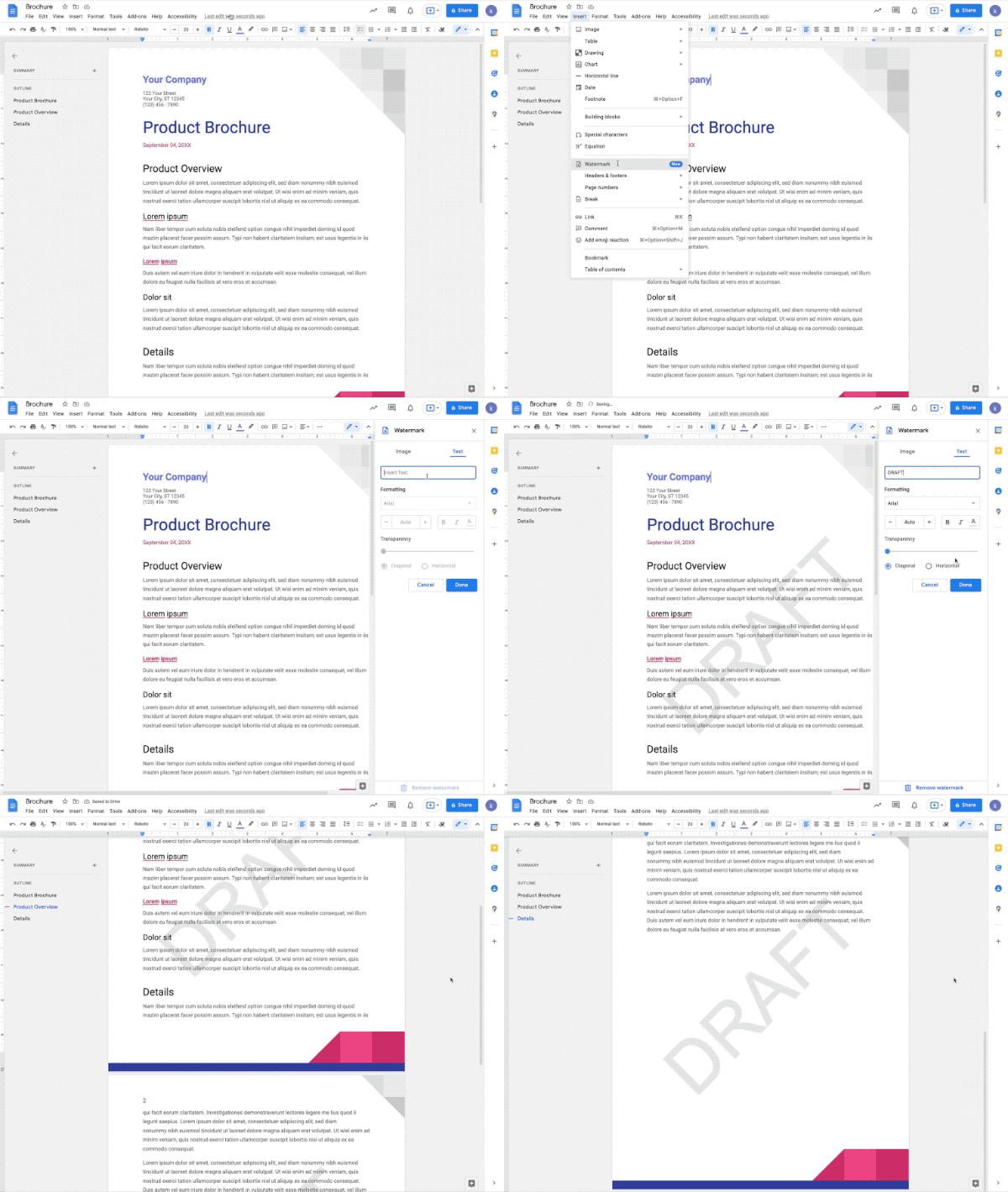
What’s wonderful is that the watermark function here in Taiwan can only be applied to pictures in my test. The official shared the “Text” watermark option (an additional “Text” tab can be selected), but I didn’t see it. Although if you are willing, you can achieve a similar state by converting text into pictures (and you can also add more effects). However, the convenience of adding a watermark immediately by just entering text is still a bit lacking.
Previous updates to Google Docs seemed to focus on linking its own services such as Google Drive and calendar functions (see more:Google Docs super convenient new feature: use “@” to add almost any file and smart component (tutorial)). This time, after strengthening the PDF conversion function, the watermark function has begun to improve the editing function (see more:Google Docs has made great progress, converting PDF files to Google Docs without affecting the overall format.)。
As Google Docs evolves, it becomes more and more close to the business-use functions of competitors such as Word. I wonder if more people will be willing to abandon their long-standing document editing tools and switch to Google Docs, which has increasingly powerful functions? Or has it been a long time since everyone’s current computers have a dedicated document editing application installed?
Further reading:
M1 Max top-end MacBook Pro 16 experience: Can you keep up with it?

Source: KOCPC Chinese