


Sometimes you need to use LINE to contact relatives and friends or have important matters to convey, but you are worried that it will be too late and disturb the other party. What should you do? It would be super convenient if you could schedule messages so that your phone automatically sends LINE messages at a specified time! Although LINE has not yet officially launched this kind of “scheduled message sending” function, if you are an iPhone user, you can use the automated operation of the Shortcut App to have the system automatically help send messages at a designated time!
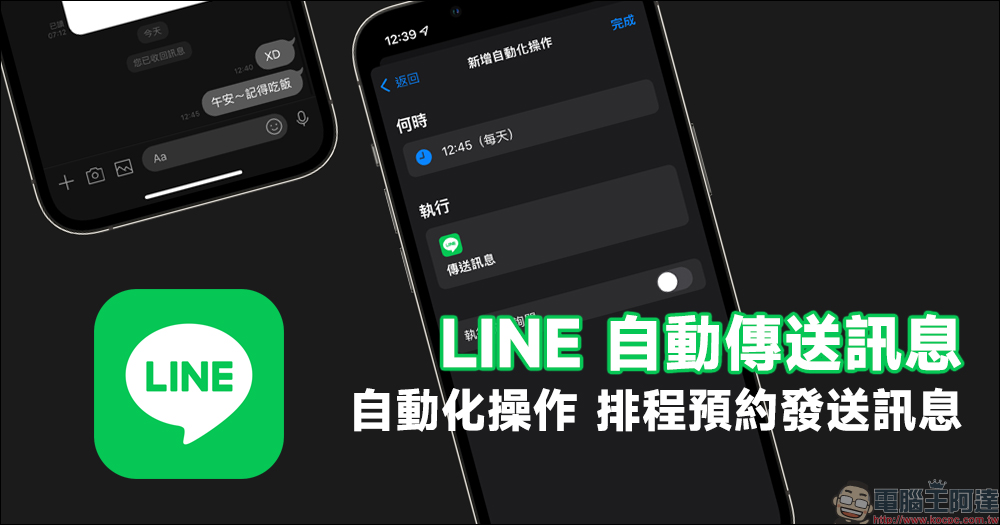
LINE’s automatic messaging function is super convenient! iOS automation operation, schedule sending messages like this (tutorial)
Making good use of iOS automation operations can bring a lot of convenience to life. In the past, we have also introduced many convenient application methods, such as “Automatically turns on clock display when charging」、「CarPlay connects to automatically broadcast the weather, and can also simultaneously turn on the SHIELD speed camera, play music or podcasts”. In fact, automated operations can also be used to help users automatically send LINE messages! This feature is very convenient if you want to send messages to LINE friends at a specific time every day.
First, select “Create Personal Automation Action” on the automation page of the “Shortcut” App, then select “Specific Time” and enter the time point at which you want to automatically send messages. The frequency of automation can also be set at this stage.
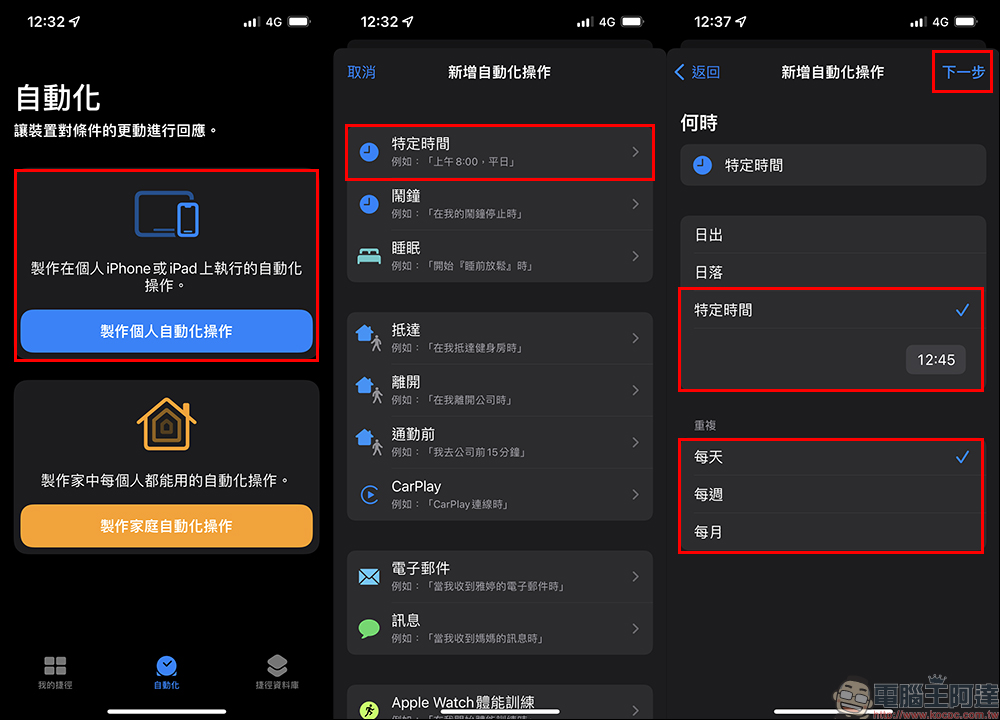
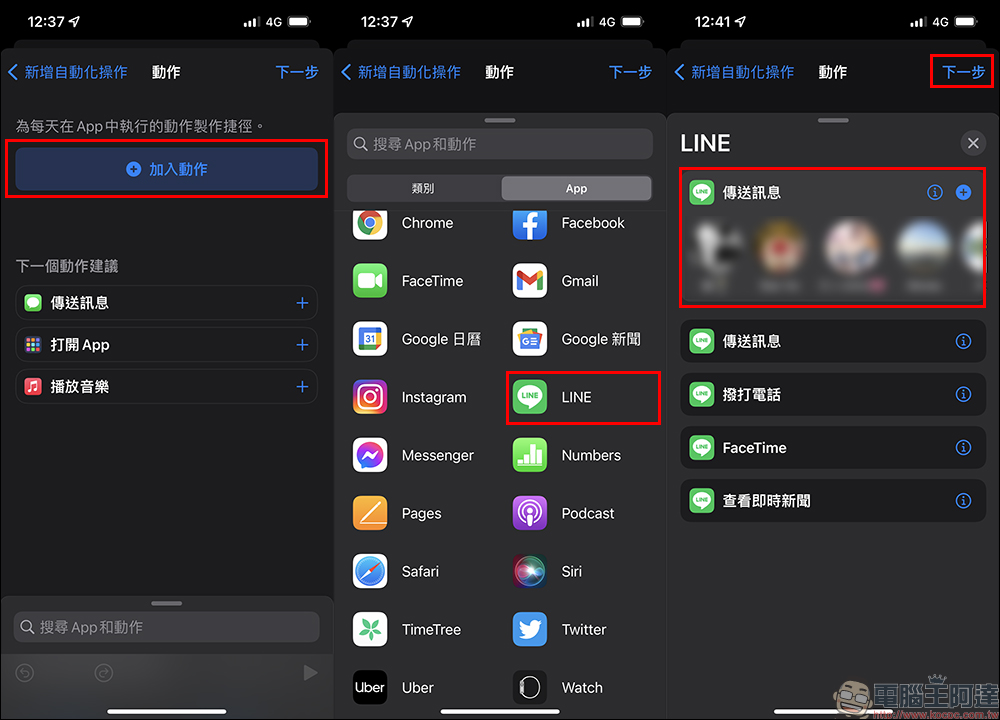
After entering the next step, click “Add Action” and select LINE from the App category (you can enter LINE in the input field to find it faster), then select the person to whom you want to send the message and proceed to the next step.
In the action setting step, click “Message” and enter the text content of the message to be automatically sent before proceeding to the next step. Finally, be sure to turn off the “Ask before executing” function before completing the settings, and finally click “Finish”. You need to turn off “Ask before executing” so that when the conditions for the automated operation instruction are met, the action can be performed automatically without asking.
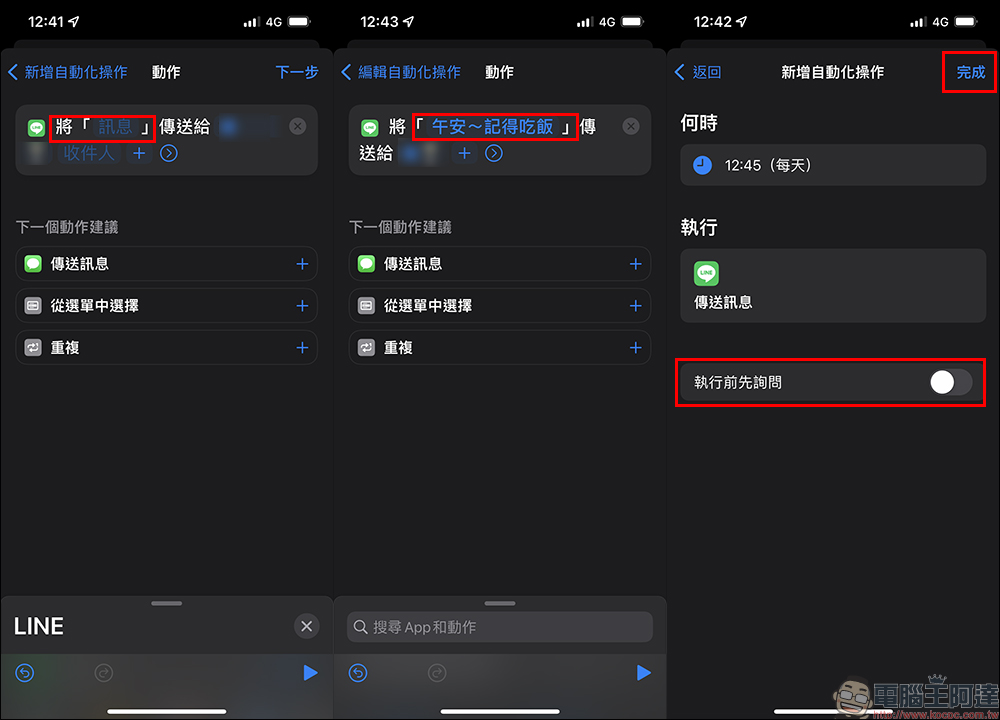
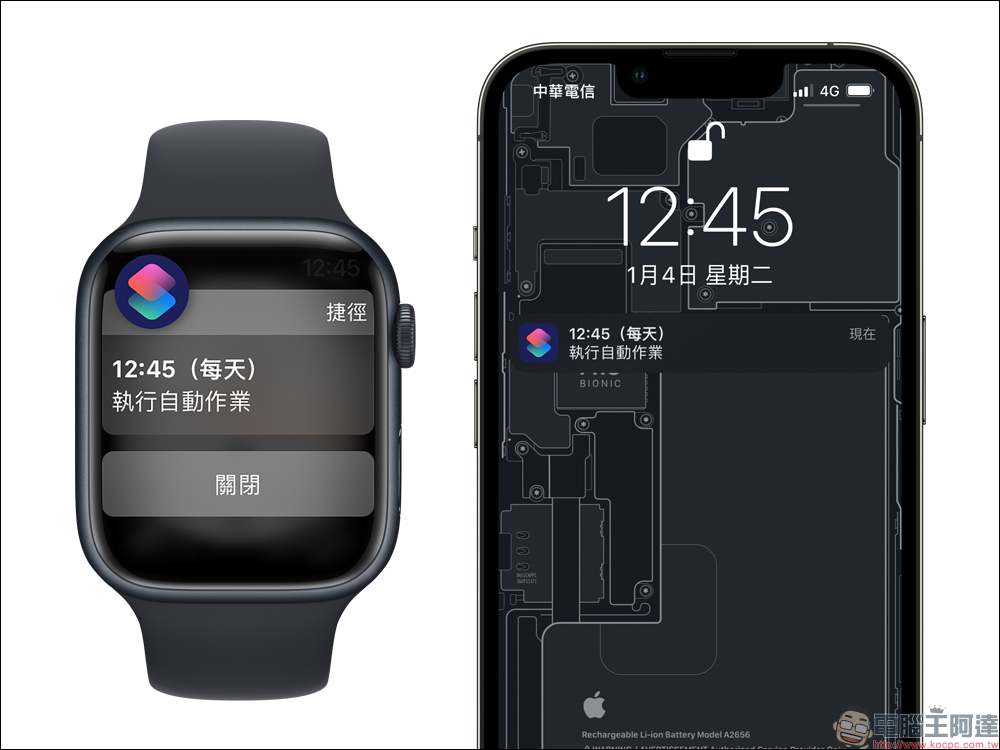
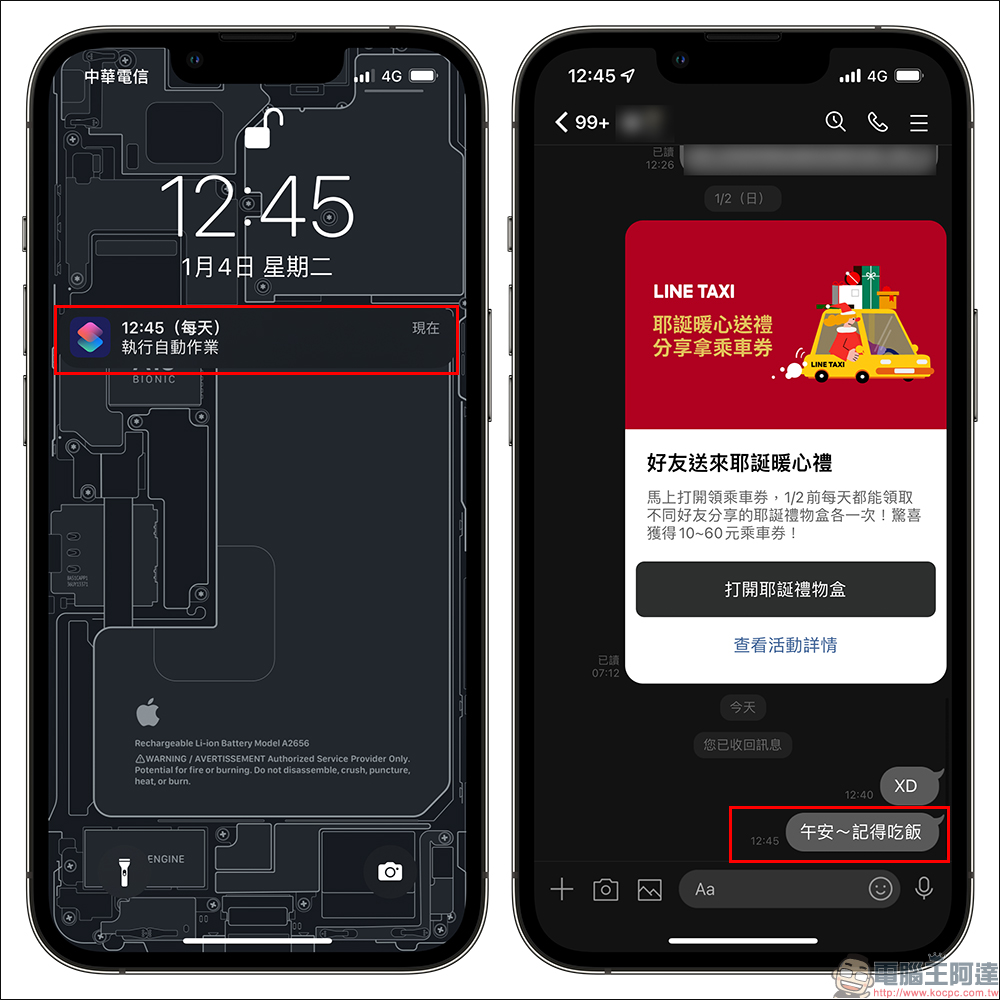
Take the author’s setting of automatically sending LINE messages at 12:45 as an example. Once the time is up, the iPhone will automatically perform the set automation operation, and will also simultaneously push reminder notifications on the iPhone and even the Apple Watch.
Check the recipient of the automatic LINE message and you can see that the set message content has been successfully sent to the recipient!
The iOS automated operation setting introduced this time is not only suitable for greeting relatives and friends via LINE, but also if you need to contact customers about something important, you can set it to be sent at a suitable time the next day. In this way, there is no need to worry about the embarrassing situation of disturbing the other party by sending a message too late and forgetting to send the message the next day.
Further reading:
The 2022 FamilyMart Tiger Lucky Bag is now on sale in limited quantities: a Porsche SUV grand prize will be drawn! App Spring Festival map to quickly check stores selling lucky bags and gift boxes


Source: KOCPC Chinese