


Although there are some free tools that can quickly extract the WIFI password of the computer, you may not want to download and install it, or it may be inconvenient. In fact, there is a hidden secret that does not require downloading anything. Through the command prompt character, you can quickly obtain all the WIFI passwords connected to the computer. The operation is very simple.
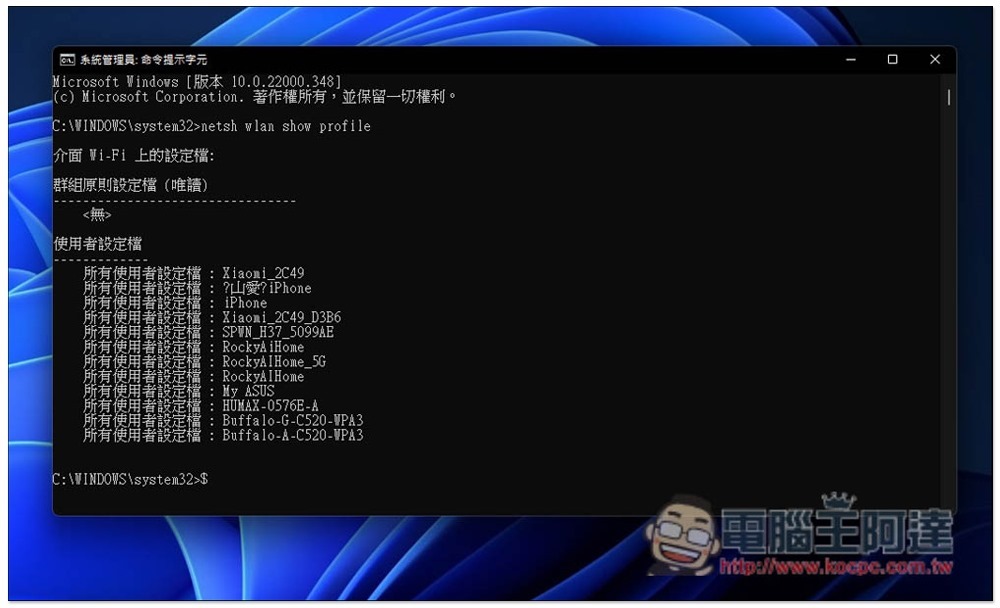
No need to download any tools, you can get all the connected WIFI passwords of your computer through commands
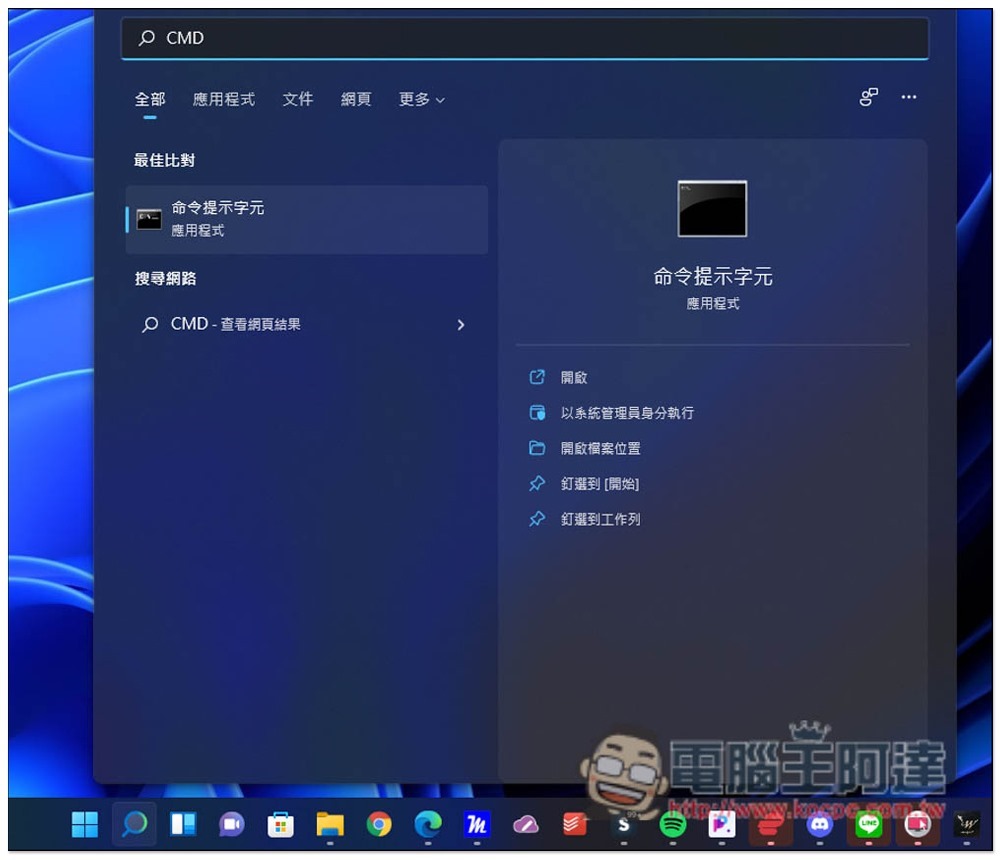
First, open the Windows search function and enter CMD to find the “Command Prompt Characters”. Please do not open it directly. You must “execute as a system administrator” to export WIFI data. You can find the function keys executed as a system administrator on the right:
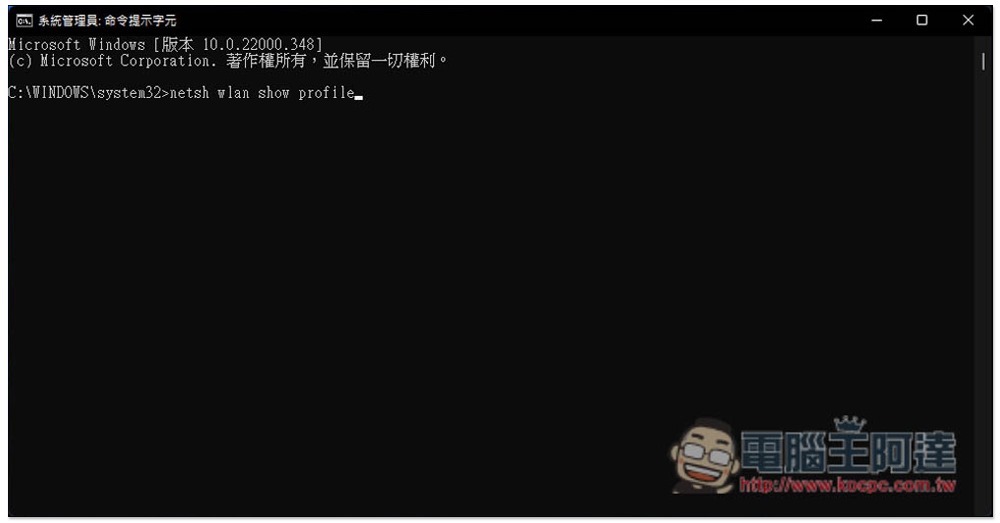
After opening, “System Administrator” will be displayed to the right of the command prompt character name, which means success. Then enter the command netsh wlan show profile and press the Enter key:
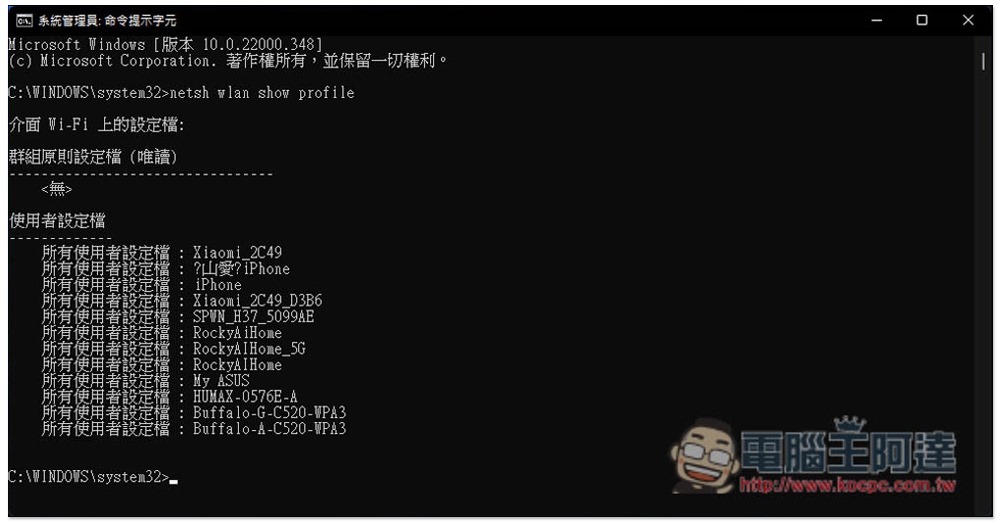
The screen will list the WIFI profiles this computer has been connected to:
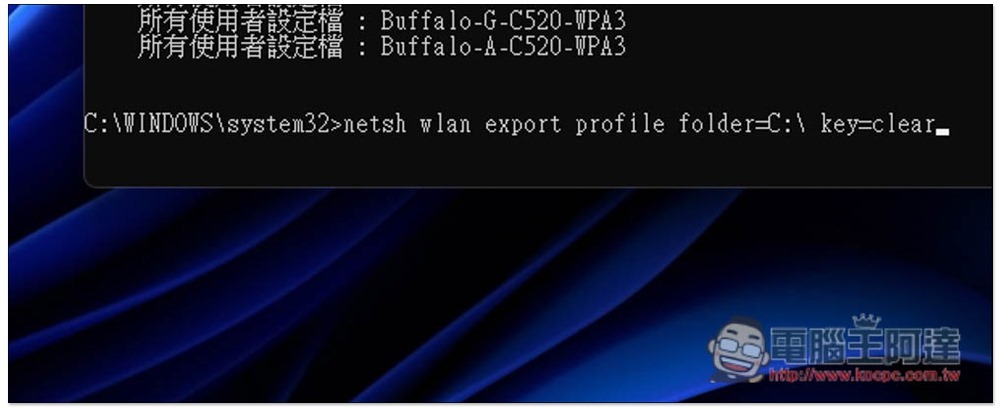
Please enter this command again netsh wlan export profile folder=C:\ key=clear:
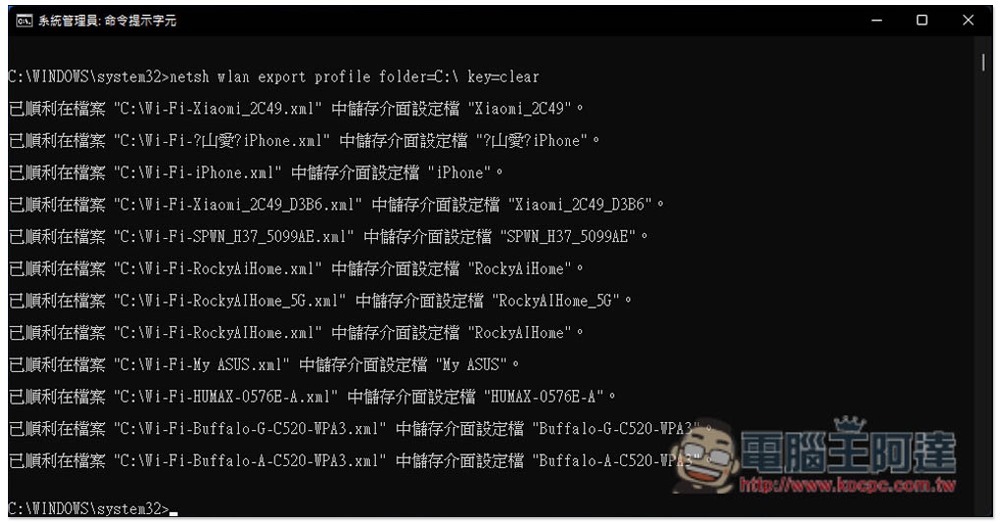
Seeing that the file has been successfully exported… means that all WIFI configuration files have been successfully exported and the files will be stored under C:\:
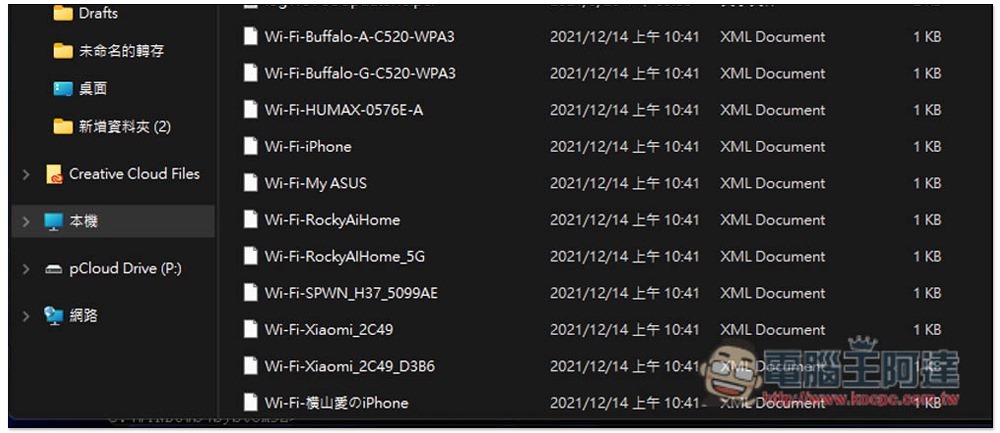
As shown in the figure below, you can see it by opening the C slot. The file type is XML. You can directly open the WIFI password you want to view with two clicks:
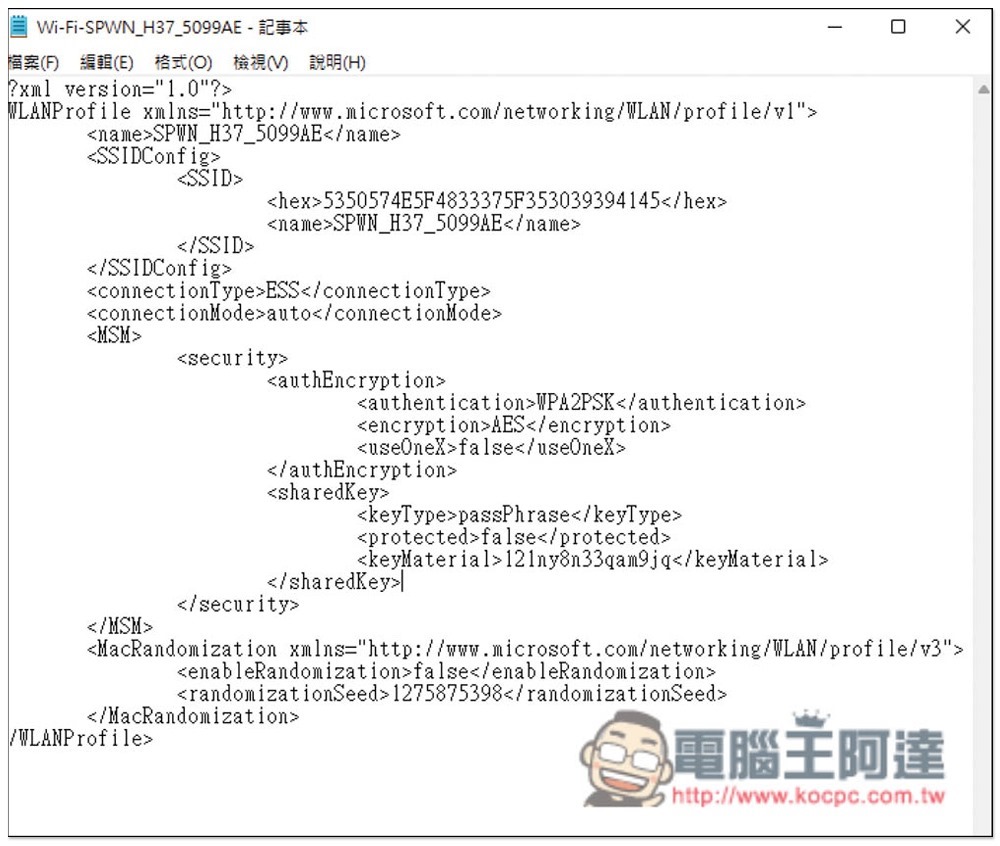
The one in the middle of keyMateial is the WIFI password. For example, my SPWN_H37_5099AE is 121ny8n33…. This password:
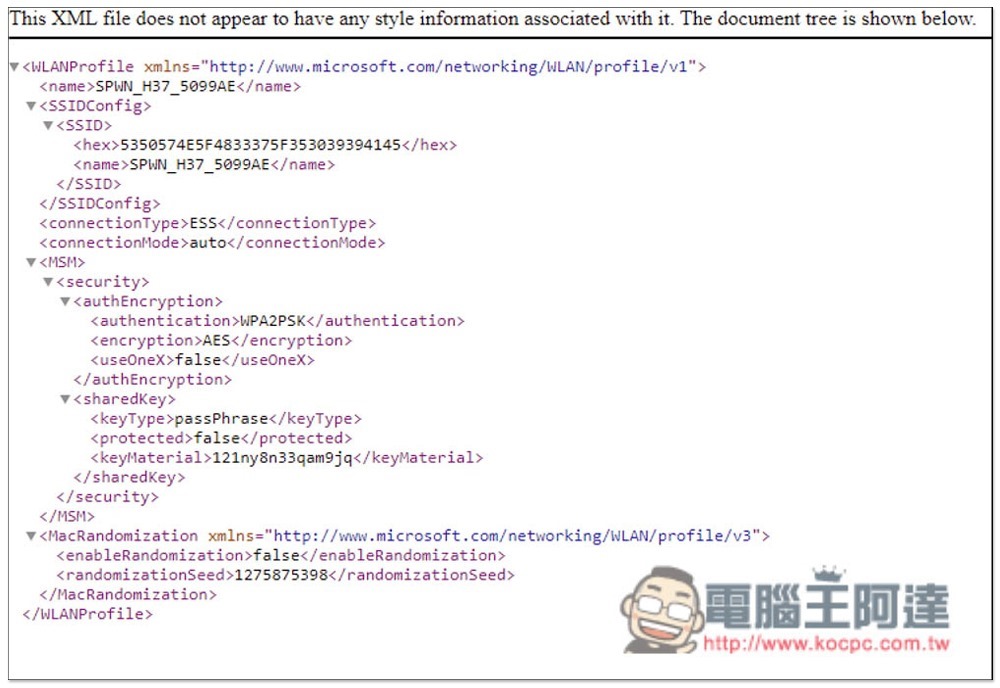
If you find the XML file difficult to read, you can also use Notepad to open it:
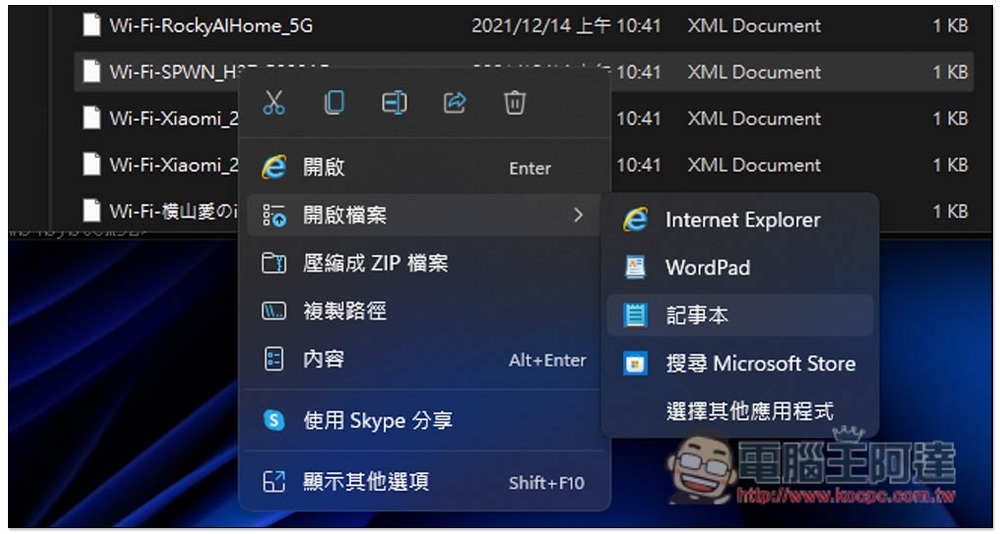
The same keyMateial, the middle one is the WIFI password:
So, write down these two instructions. If you forget the WIFI password in the future, you can get it directly through CMD. And this is not limited to your own computer, but also computers used in schools, libraries and other places to find out the WIFI password you want to know (of course this is not recommended).
Intel 第 12 代處理器測試 8 款遊戲在 Windows 11 與 Windows 10 的表現差異,其實沒差很多
Source: KOCPC Chinese