


In the past, if you wanted to use Adobe Photoshop software, you had to install it on your computer. It was really not that convenient to use. Sometimes we might just need to modify some content, and downloading and installing it wasted a lot of time (the installation file is very large). The good news is that Adobe Photoshop finally has a web version. You don’t need to install anything, you can just open the browser and use it, and it has many functions.
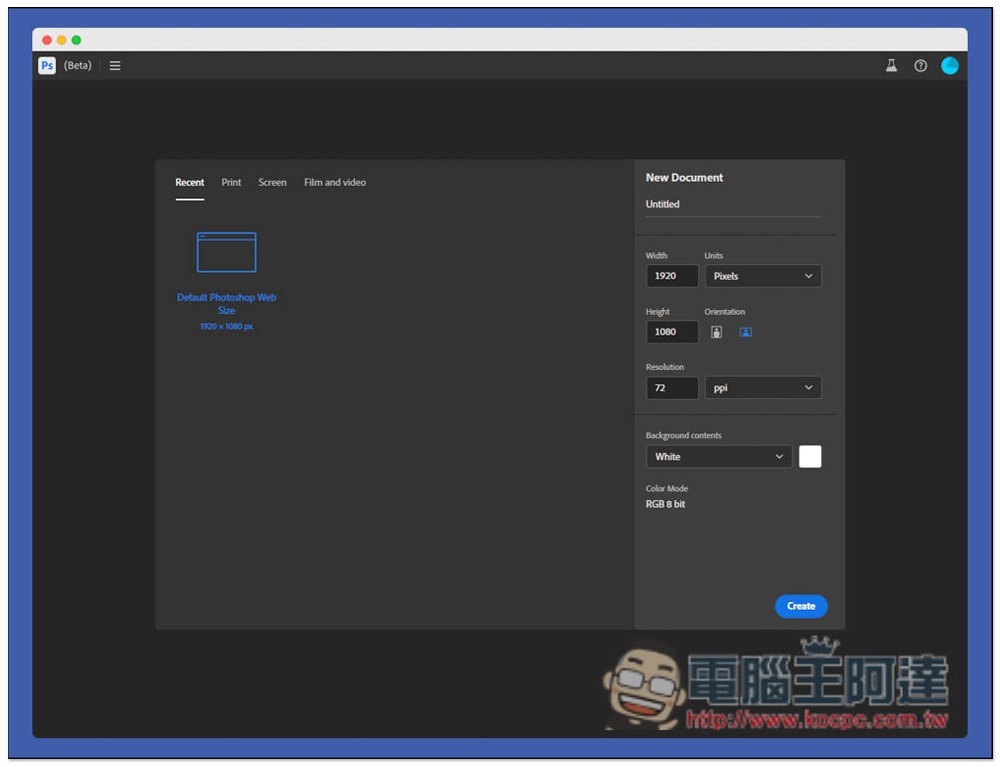
Introduction to Adobe Photoshop web version
Adobe Photoshop is still in the beta testing stage, so it only has an English interface and does not support Chinese. Unfortunately, like the desktop version, it is only available to subscribers and is not open to free use.
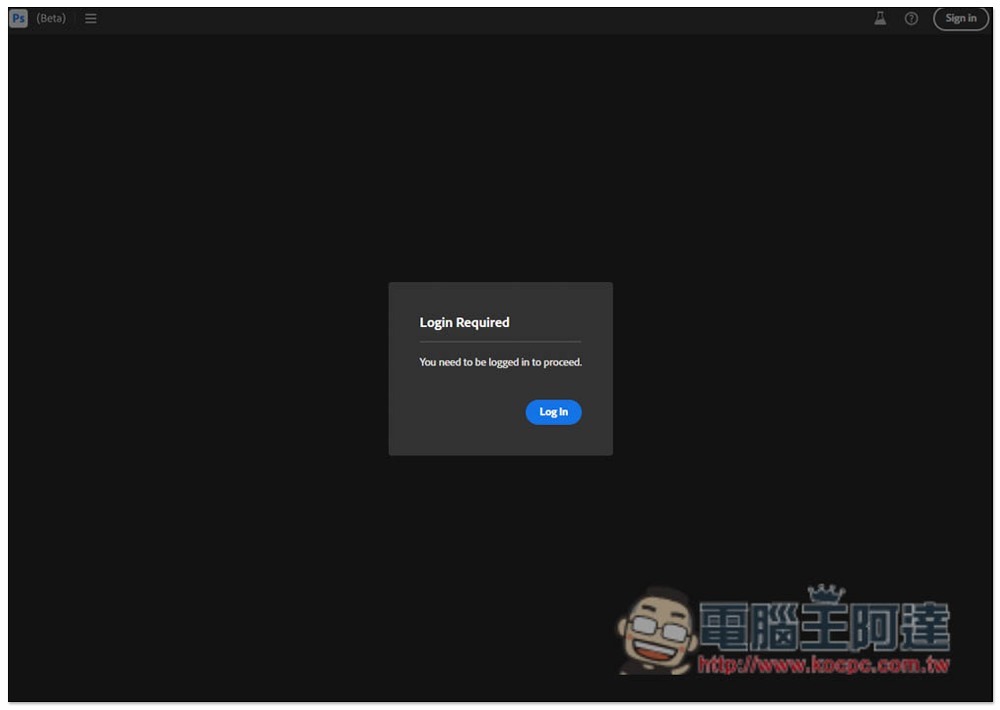
After entering the Photoshop web version, you will see a message asking to log in to your Adobe account. Click Log In to log in. As mentioned above, this web version is only available to subscribed users. If you log in to a free account, you will be shown that you must subscribe to continue using it:
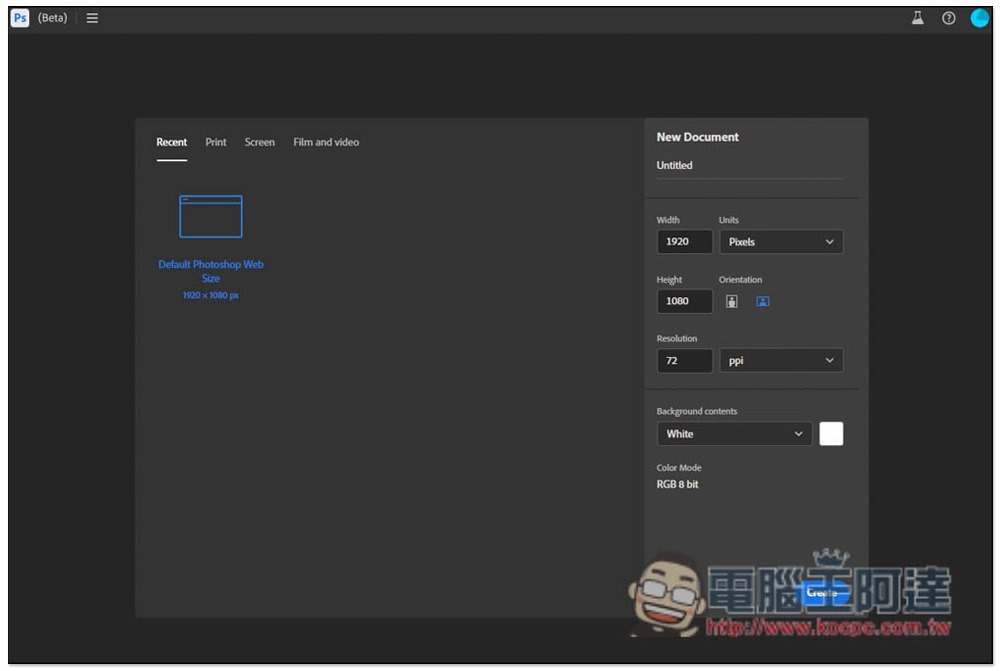
Then you can create a new document. The interface is similar to the desktop version, so even if you don’t understand English well, you should be able to get started quickly:
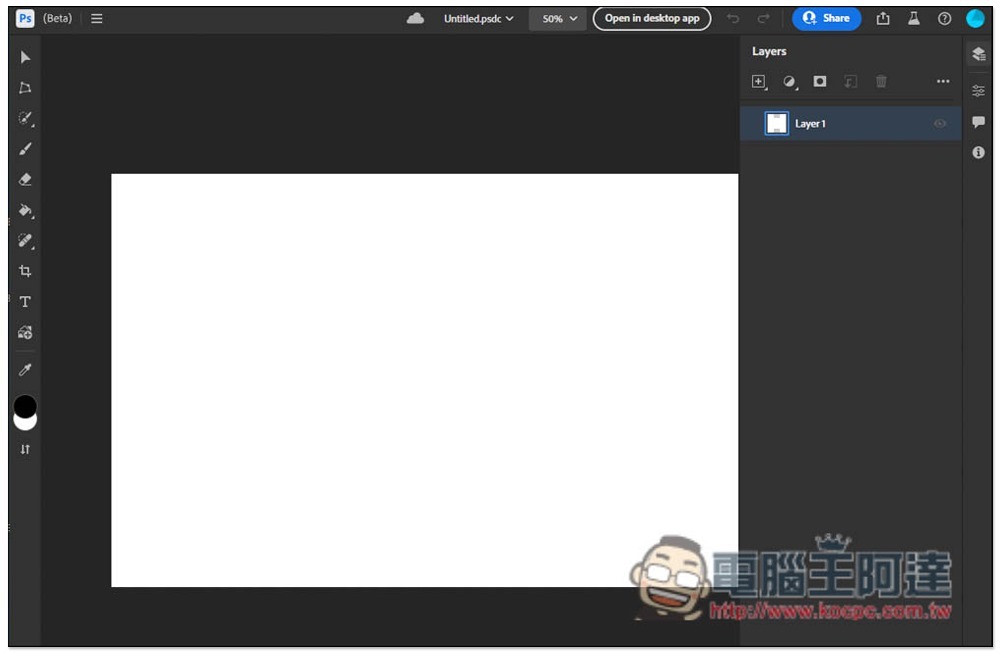
The main menu is also located on the left, and on the right is the layer menu. Commonly used stain repair brush tools, repair brush tools, text, brushes, eyedropper tools, etc. are available:
You can also open files on your computer:
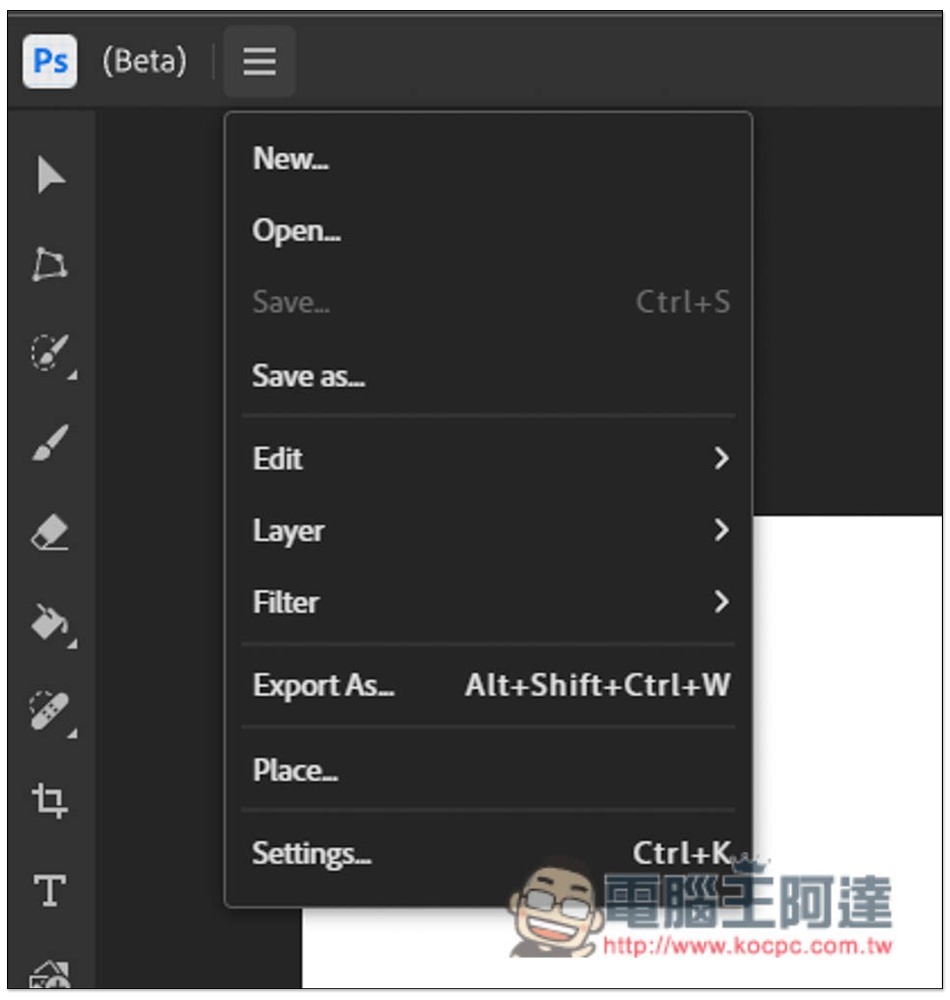
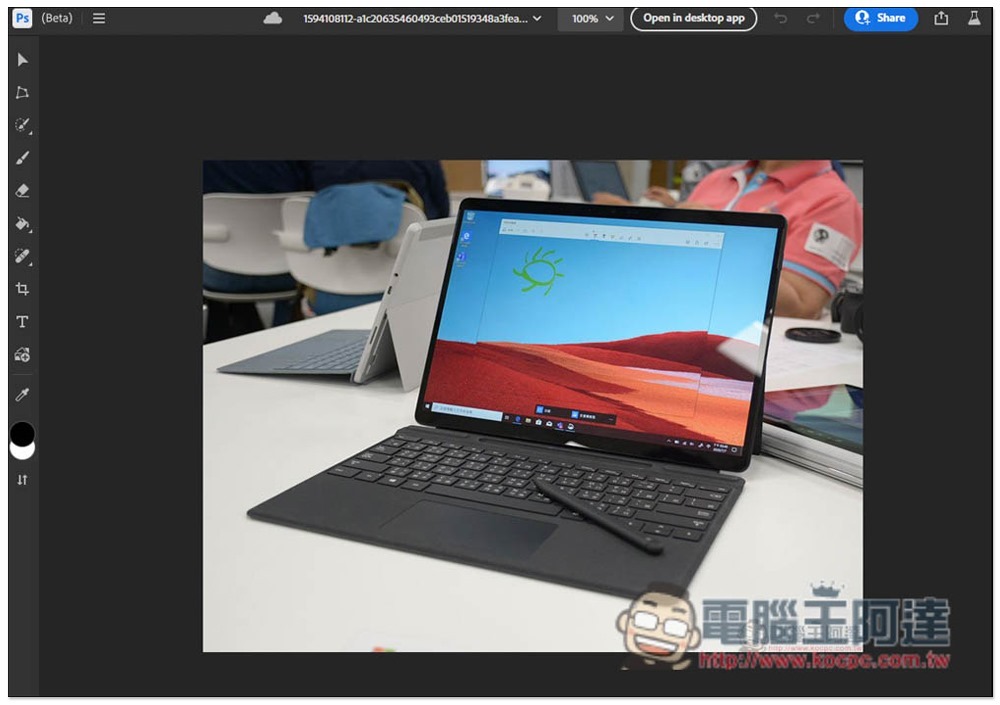
For example, if you want to remove unnecessary objects from the photo, open the photo on your computer:
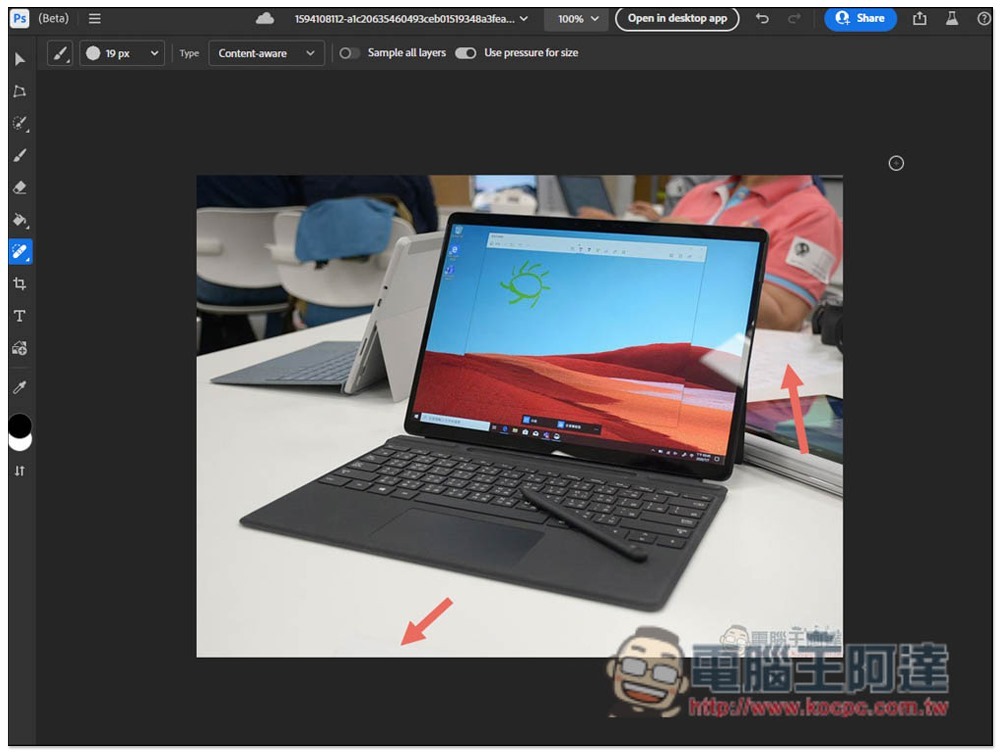
Then use a spot repair tool to remove it. For this photo, I removed two parts. The retouching effect is as good as the desktop version, and the processing speed is quite fast:
The rest of the functions are left to the readers to play around with. With the web version, when you want to use Photoshop on a new computer in the future, you can just open the browser directly without having to download and install it like before. It is very convenient. I hope the Chinese interface will be available soon.
In addition, when saving, the Save As function will store the file in the cloud. If you want to download it to your computer, please use the Export As function, and you can choose PSD, JPG, PNG and other formats.
Source: KOCPC Chinese