

• About Us
King of Computer Media
  • Home
  • Tech News
  • AI News
  • Apps & Tutorials
  • Mobile & Telecom
  • Lifestyle
  • About Us
No Result
View All Result
  • Home
  • Tech News
  • AI News
  • Apps & Tutorials
  • Mobile & Telecom
  • Lifestyle
  • About Us
No Result
View All Result
King of Computer Media
No Result
View All Result

Home - Computer Applications and Other Tutorials - Switch the input method in Windows 11 and set different input methods in different application windows!

Switch the input method in Windows 11 and set different input methods in different application windows!

KOCPC Editor by KOCPC Editor
December 4, 2021 - Updated on August 4, 2026
in Computer Applications and Other Tutorials, Internet and software applications

The latest Windows 11 There should still be many people getting used to and learning about the operating system, but what most people are asking now is how to switch Windows 11 to their own custom input method in different applications. Because everyone’s habits are different, the input method always needs to be switched back and forth. Most people We are all accustomed to using English and Traditional Chinese, but if all applications are preset to use Traditional Chinese, it will become very difficult to use when writing programs or opening command window applications. Therefore, we only need to turn on “Switch Input Method” to switch to the input method we are accustomed to according to different applications.
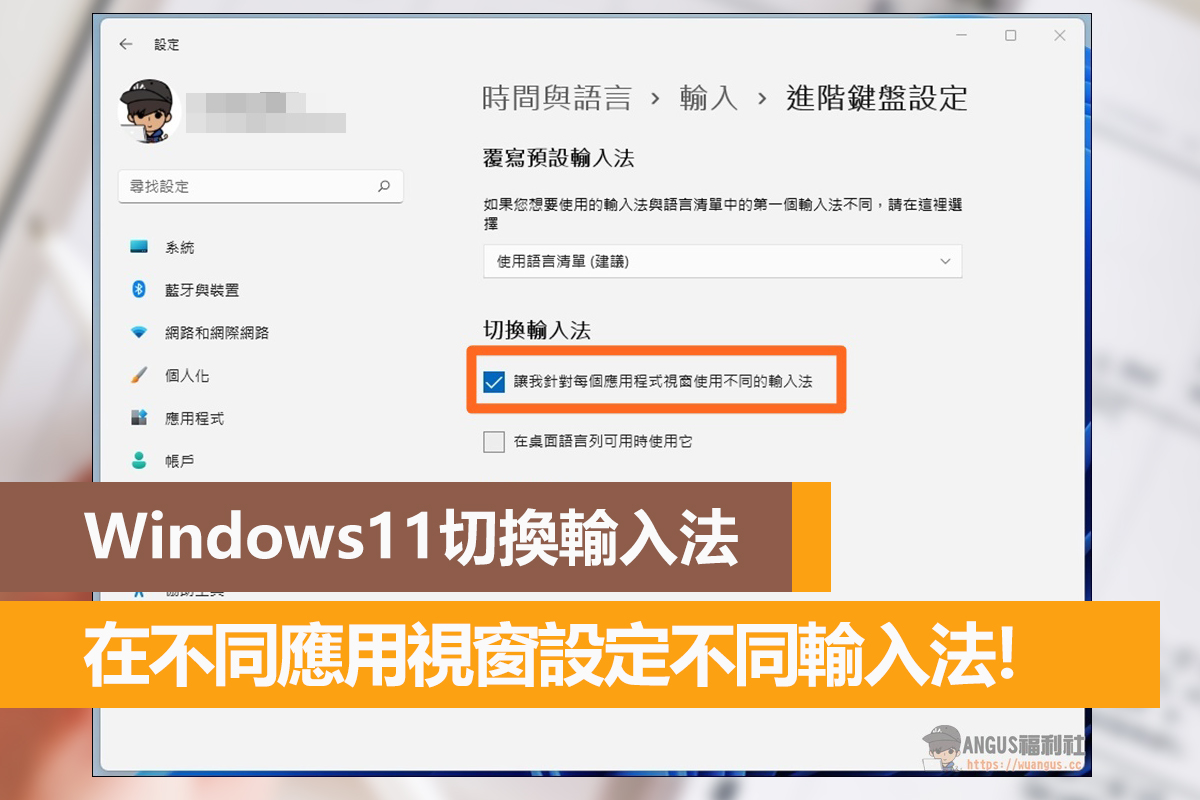
Windows 11 switching input method tutorial

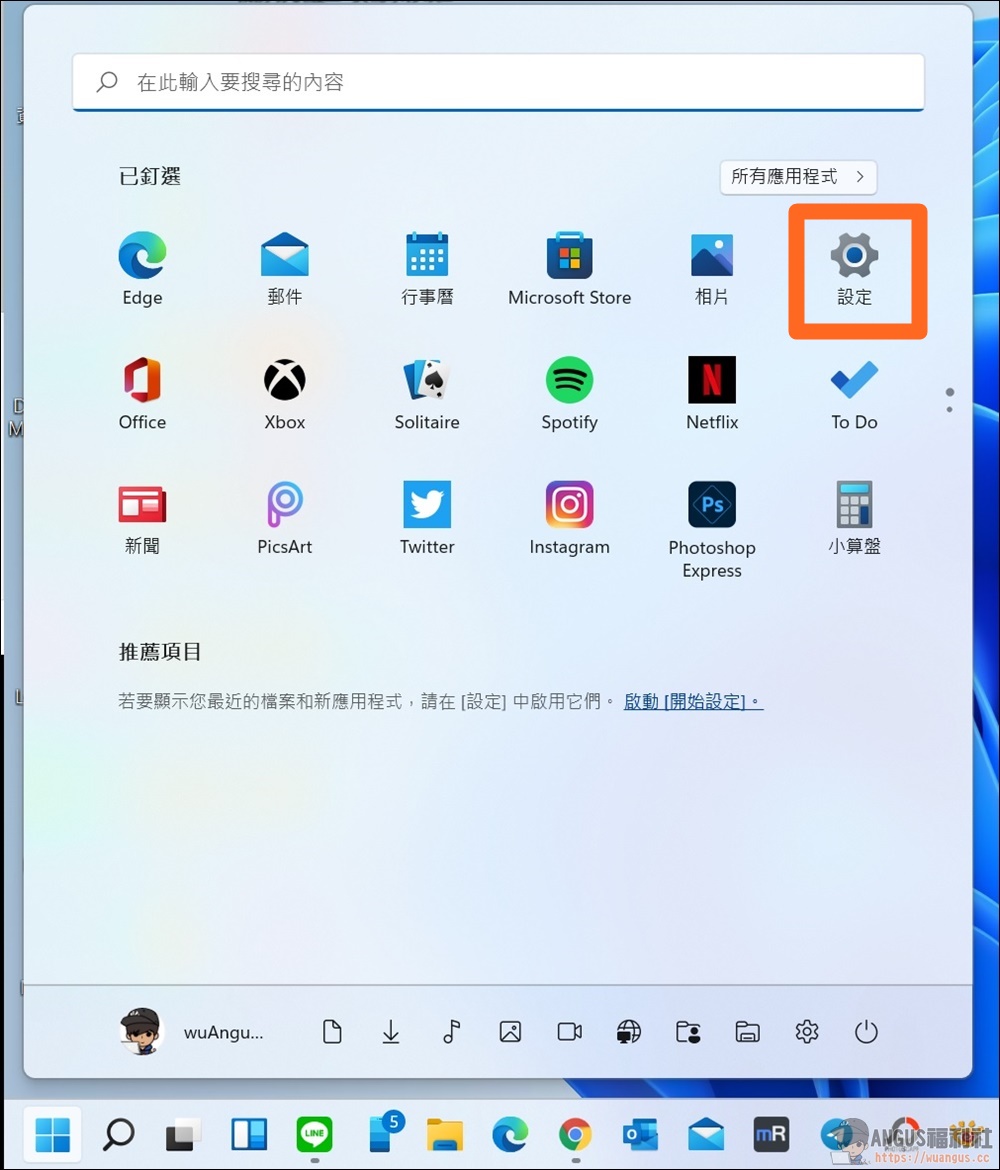
First, press “Start” in the lower left corner > enter the “Settings” tool.
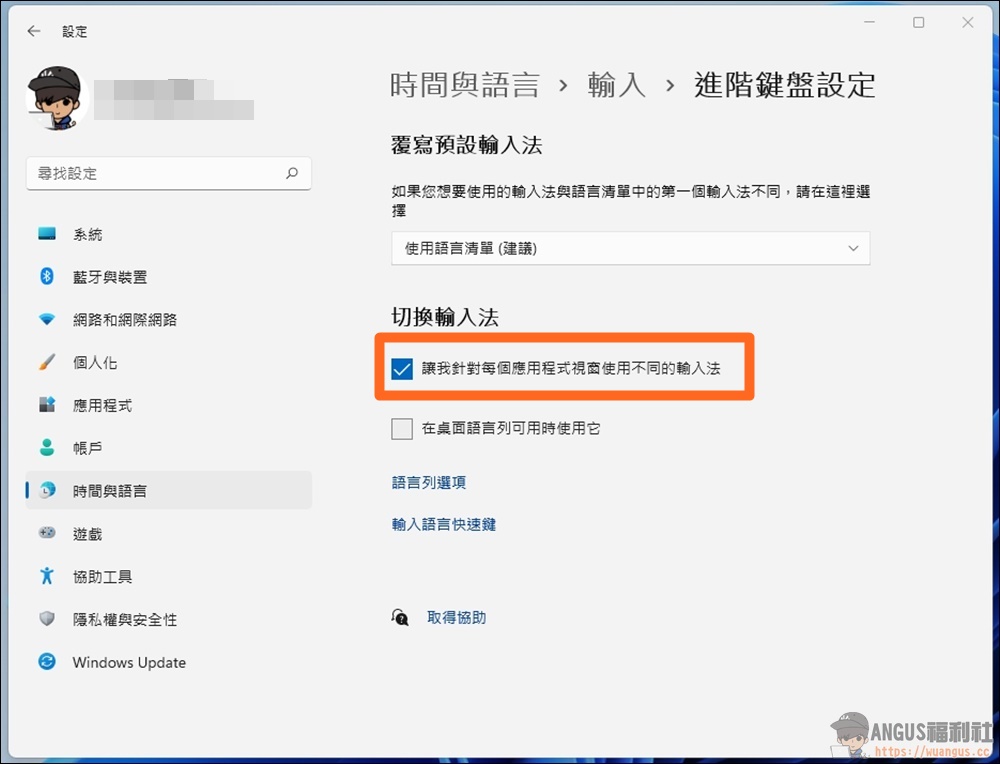
Next, go to “Time and Language” > “Input” > “Advanced Keyboard Settings” and directly check the option “Let me use a different input method for each application window” to switch input methods. This way the operating system will memorize the input method you usually use in the window, so that it will not jump back to the default input method every time you open an application, LINE, or chat room window.

More Windows application tutorials

  • Solve Fortinet SSL VPN cannot connect Windows RDP connection dropped!
  • Advanced SystemCare 15 PRO, a deep optimization tool for Win system!
  • Free and painless upgrade to Windows 11, officially launched to join the tester program!
  • Official recommendation: Open a DWG file browser and view AutoDesk images without spending any money!
  • Reinstall Windows 10, restore internal key functions with one click, save 800 yuan!
  • A super practical file management tool, let Q-Dir help you plan your files!

Source: KOCPC Chinese

Recent Posts

  • Genius developer releases PP (PS5 Proton): allows PS5 to run Windows software and games directly.
  • This tool not only lets you generate images for free using GPT Image 2, but also requires no account registration and offers exceptional privacy.
  • Taiwan Motorcycle Best-Seller Rankings for September 2026
  • Capcom shares RE Engine upgrade plan! Confirms it will be developed into an “AI-generated game engine.”
  • Not enough Mac memory? You can borrow an iPhone! An overseas developer successfully got two devices to run a 27B AI model together, boosting speed by up to 44%.

Recent Comments

No comments to show.
  • About Us

We welcome partnership inquiries and product review opportunities from smartphone manufacturers, iPhone accessory brands, and app developers.koc kocpc.com.tw|Privacy Policy |Hosting & Maintenance: Fast Line Taiwan, A-Chang Digital Technology

No Result
View All Result
  • Home
  • Tech News
  • AI News
  • Apps & Tutorials
  • Mobile & Telecom
  • Lifestyle
  • About Us

We welcome partnership inquiries and product review opportunities from smartphone manufacturers, iPhone accessory brands, and app developers.koc kocpc.com.tw|Privacy Policy |Hosting & Maintenance: Fast Line Taiwan, A-Chang Digital Technology