


When you get a thick paper document that must be manually typed and converted into a digital file, do you secretly roll your eyes twice? It’s okay, me too. Fortunately, in this era, everyone has a smart phone, which can help us do many manual tasks that are usually hard to do. This time I will tell you how to use your iPhone and Android phone to scan and enter text, saving a lot of precious time.
How to use iPhone / Android phone to scan and input text, saving time on manual transcribing
If you want to convert paper data to digital, you can use tools such as scanning, but if you have ready-made equipment, you don’t have to go out of your way to buy it. Whether it’s an iPhone or an Android phone, it can serve you, and the accuracy may be higher than that of a scanner.
Scan text on iPhone (iOS 15)
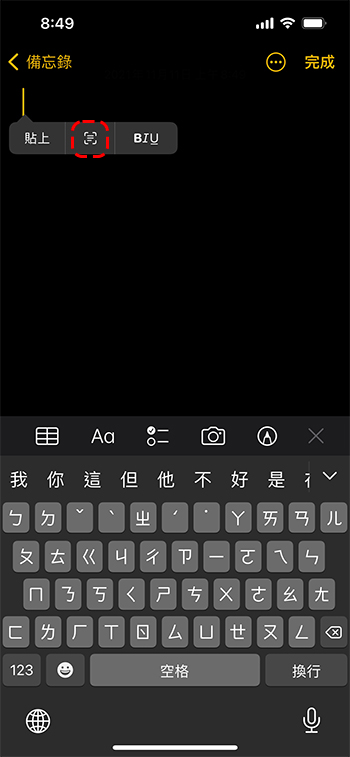
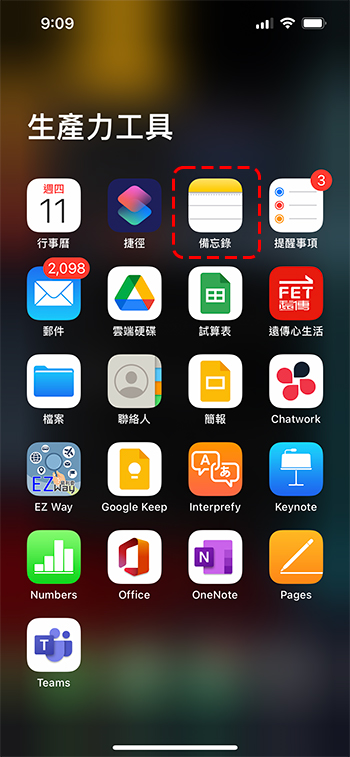
- First open the app and long press in the input area until the text editing option appears. You will see a button to scan text, click it. Other authors have tried it, and this option can also be seen in the input boxes of LINE and Facebook, but it is not available in productivity tools such as Apple’s own Pages and Word. Therefore, if you want to insert a large amount of text more safely, it is recommended to use the “Notes” application in the phone or Google Docs.
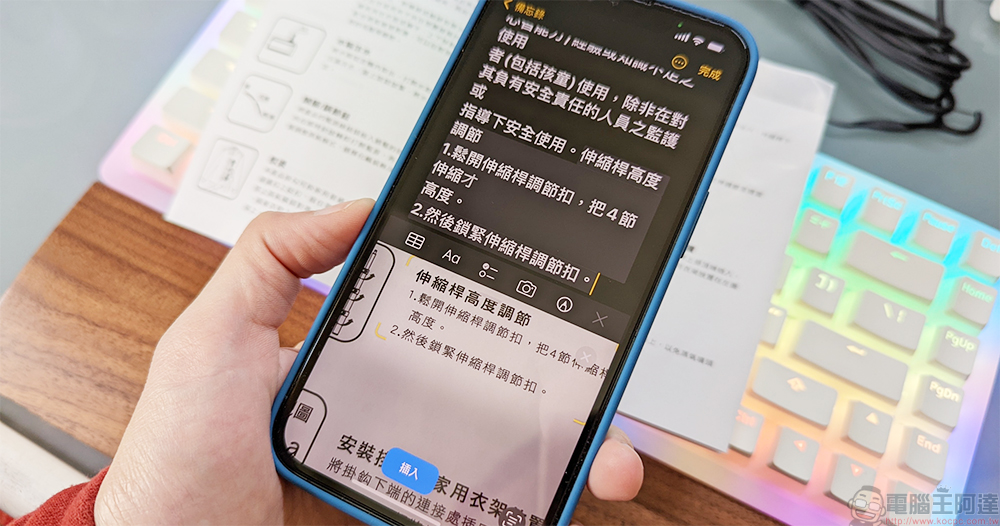
- Next, point the camera at the text you want to scan. A preview of the scan will appear in the input area in the upper half of the application. Then press the insert key at the bottom of the screen to read in all the text.
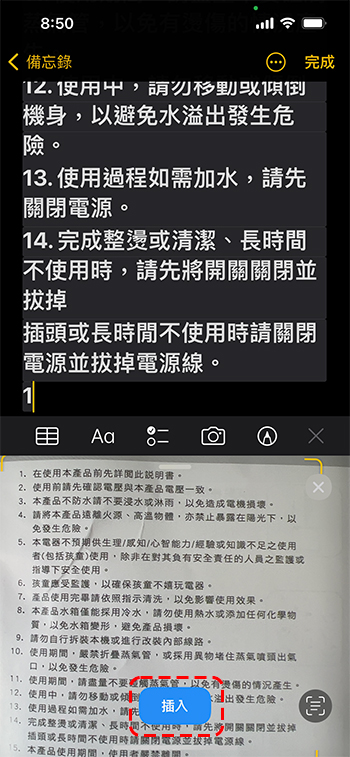
- After scanning and reading, you can manually adjust the text and paragraph misjudgments that may occur, which is much easier than manually inputting everything.
Android scan text
- After opening the camera app, find “Smart Lens” in the mode. In this part, the author uses Pixel 6 as a demonstration. The smart lens in some people’s mobile phones may be an independent application that needs to be installed separately. You can look for it.
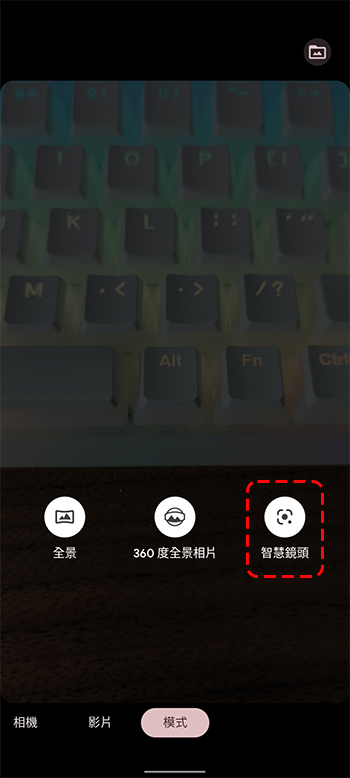
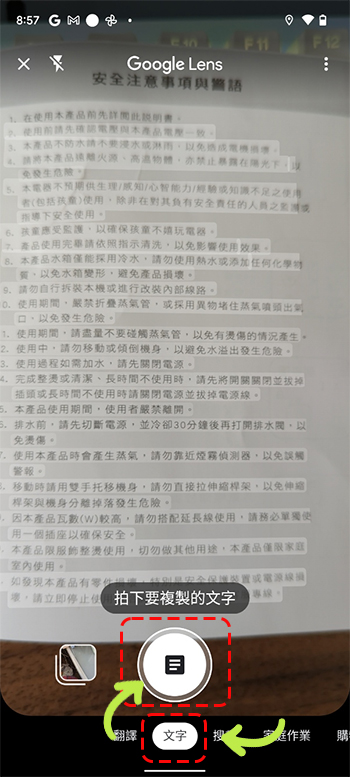
- Select “Text” from the options below, then point the phone lens at the text you want to copy and press the capture button.
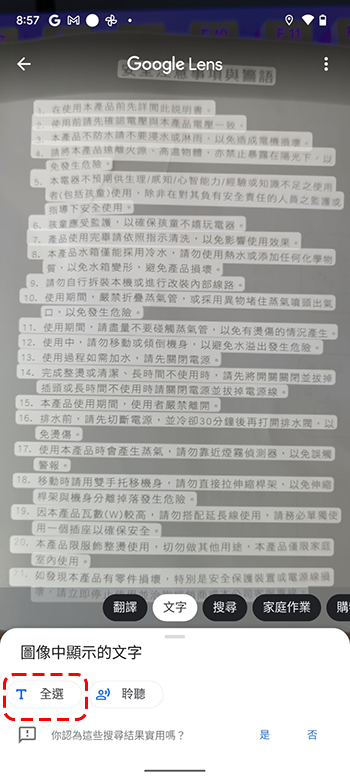
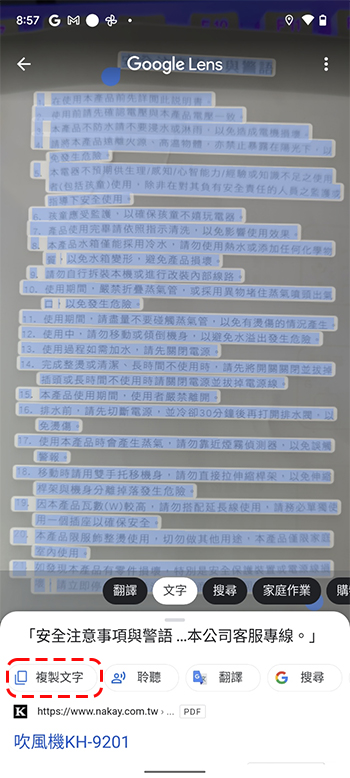
- After taking the photo, you can manually smear the part of the content you want to copy on the drawing, or you can click “Select All” that appears at the bottom of the page, and then select the “Copy” action item. You can post the text you just copied to the destination file, and then make subsequent fine-tuning and editing.
Generally speaking, with the evolution of AI, the accuracy of text has improved a lot. Unless there are problems such as blurred text or too far distance that affect judgment, most of them can be converted very well. In any case, it saves a lot of time and energy compared to manual typing. You can try it more!
Source: KOCPC Chinese