


I believe that after buying an Apple Watch, you will still be figuring out how to use its various functions for some time. Among them, Apple Watch will default to automatically opening the player interface when the user’s connected device plays videos and music. The original intention is to help users operate multimedia controls more intuitively. However, when the player is commuting, working, etc., and the player suddenly appears, you have to manually press the digital crown to turn it off. In the long run, it will cause a lot of inconvenience to use. So what do you do if you want to turn it off by default? Keep reading to learn how to turn it off!
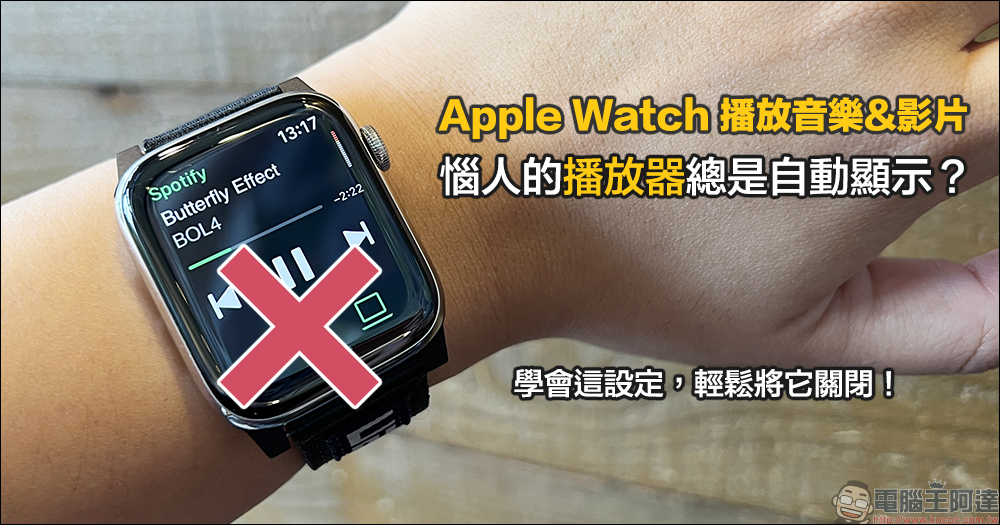
Annoying player always displays automatically when playing music videos on Apple Watch? Learn this setting and turn it off easily!
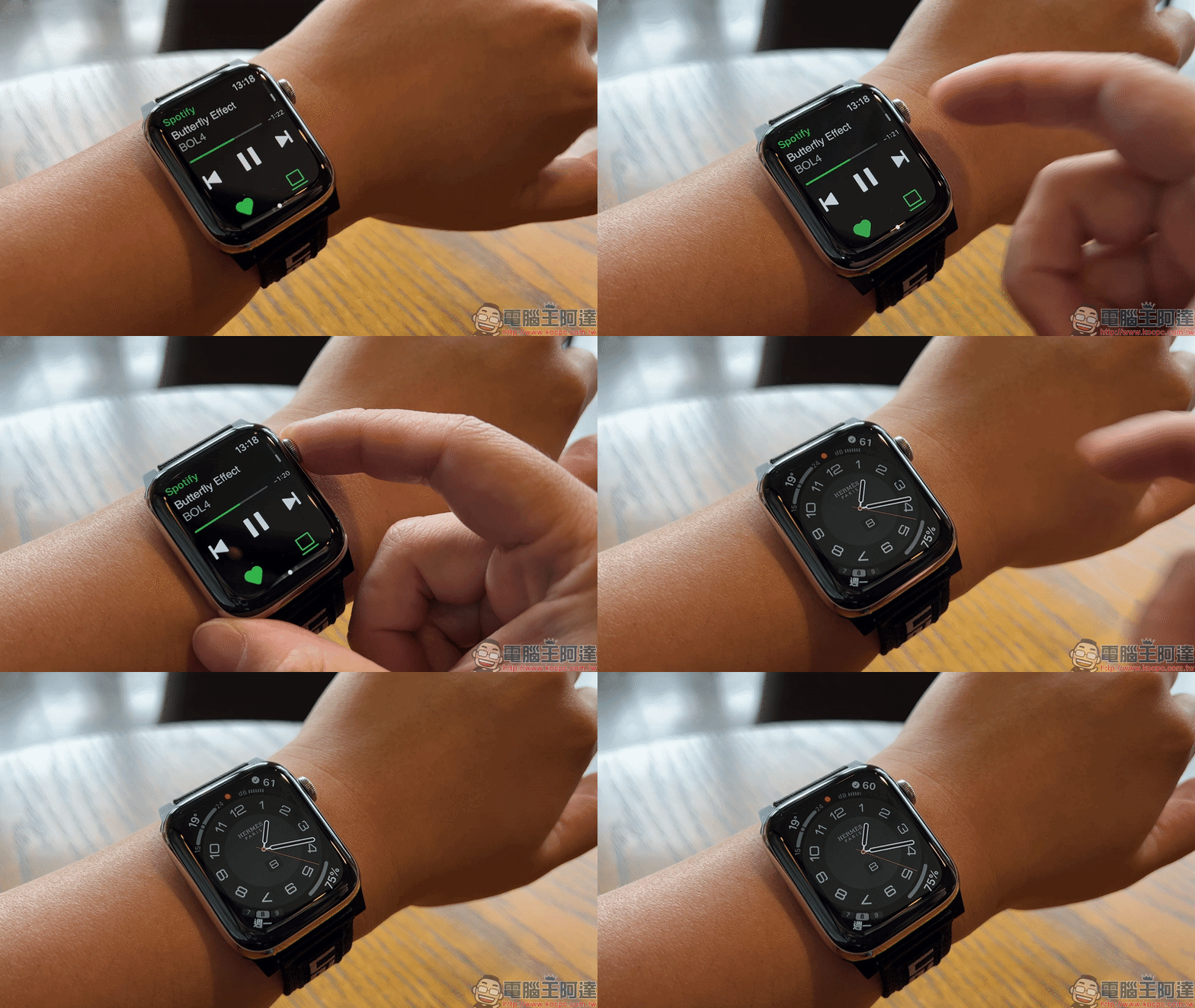
When the iPhone starts playing music or videos, a player like this will always pop up automatically on the Apple Watch. If it is displayed during work or commuting, apart from the inevitable accidental touch, the most troublesome thing is to let the people around you know what content you are “playing”. Especially if you want to take a break during class or work, and the Apple Watch automatically pops up the player, you have to manually press the digital crown of the Apple Watch to turn it off.
It might be okay if it happens once or twice, but for people who often use their iPhone to play music and videos, frequent operations are still frustrating! Next, let’s share how to turn off this feature!
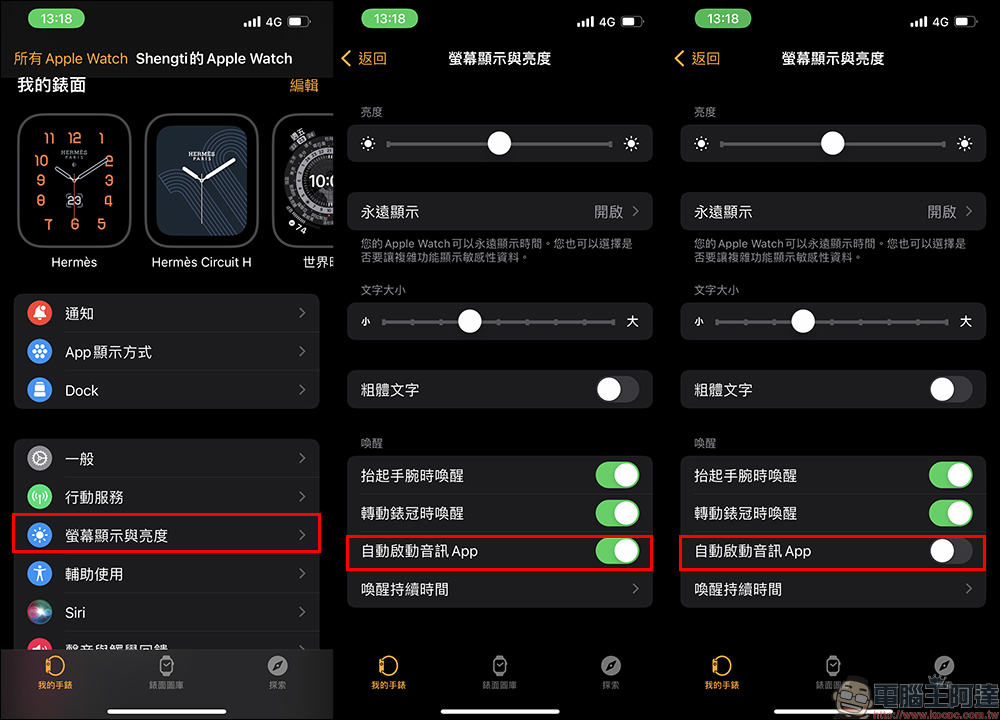
First, open the Watch App on your iPhone and click “Screen Display and Brightness” on the home screen, then find “Auto-launch Audio App” in the Screen Display and Brightness settings and turn it off.
It can be seen that after turning off the “Auto-launch Audio App” setting, when the iPhone starts playing music, the Apple Watch screen no longer automatically displays the playing player. Only a small “Playing” icon is displayed at the top of the screen, which will not be turned on unless the user manually clicks it.
Although this function seems quite inconspicuous, it is actually a very practical setting when you frequently use your iPhone to play videos and music content. Even many people who have owned Apple Watch for a while may not know how to set it up. It is highly recommended that all users of Apple Watch can turn it off, so that they no longer have to worry about embarrassing situations caused by others seeing the played content!
watchOS 11 setting method (updated on 2024.09.29)
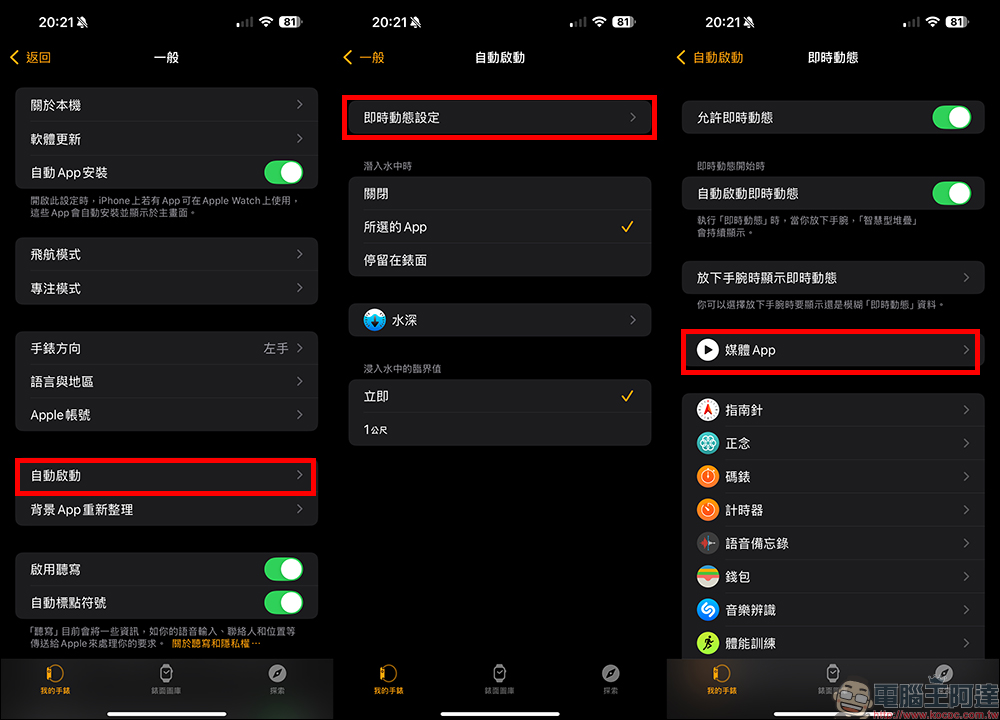
After updating to watchOS 11, sharp-eyed users may have noticed that the “Automatically launch audio app” option introduced previously is missing. If you have also updated to watchOS 11, you can try using the following steps to turn off the player. First open the Watch App on iPhone, then select “General” > “Auto-Start” > “Real-time Dynamic Settings” > “Media App”:
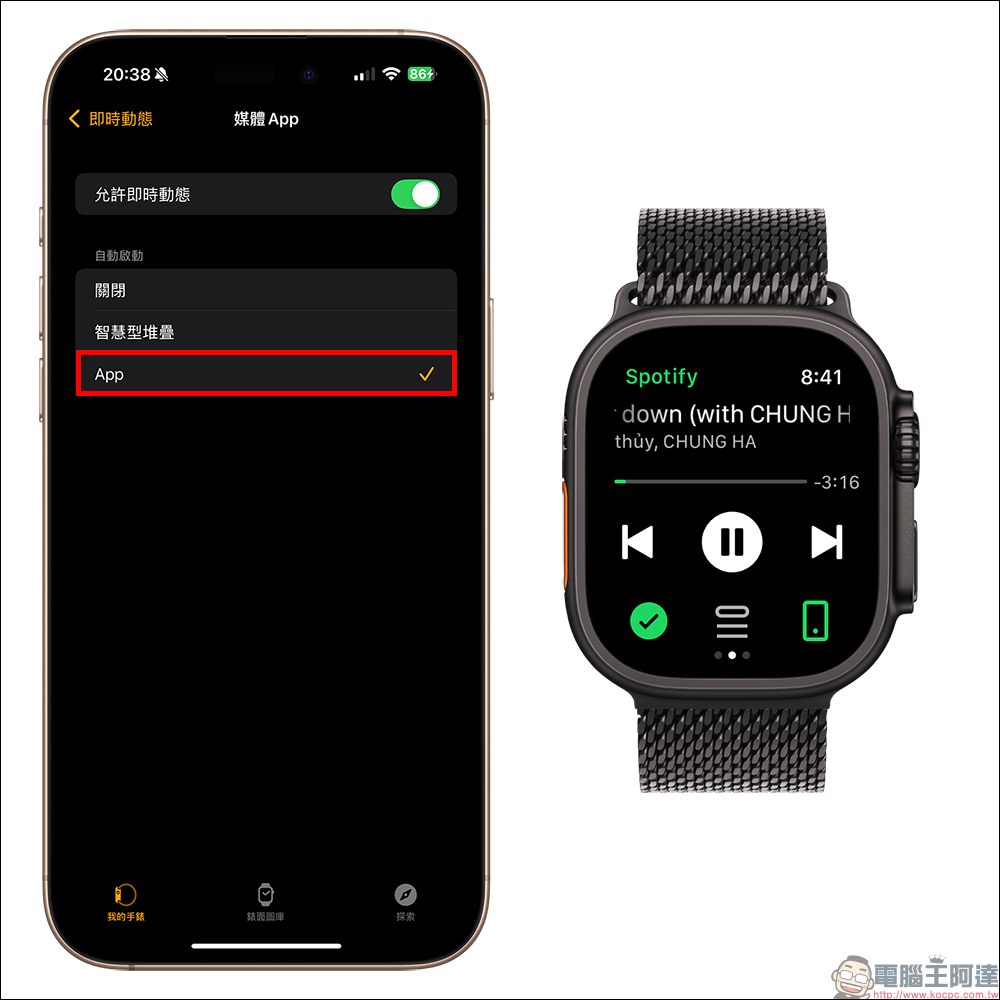
When you originally set up the app under the auto-launch option on the “Media App” page, the player on the right side of the Apple Watch screen will automatically pop up when playing music or videos.
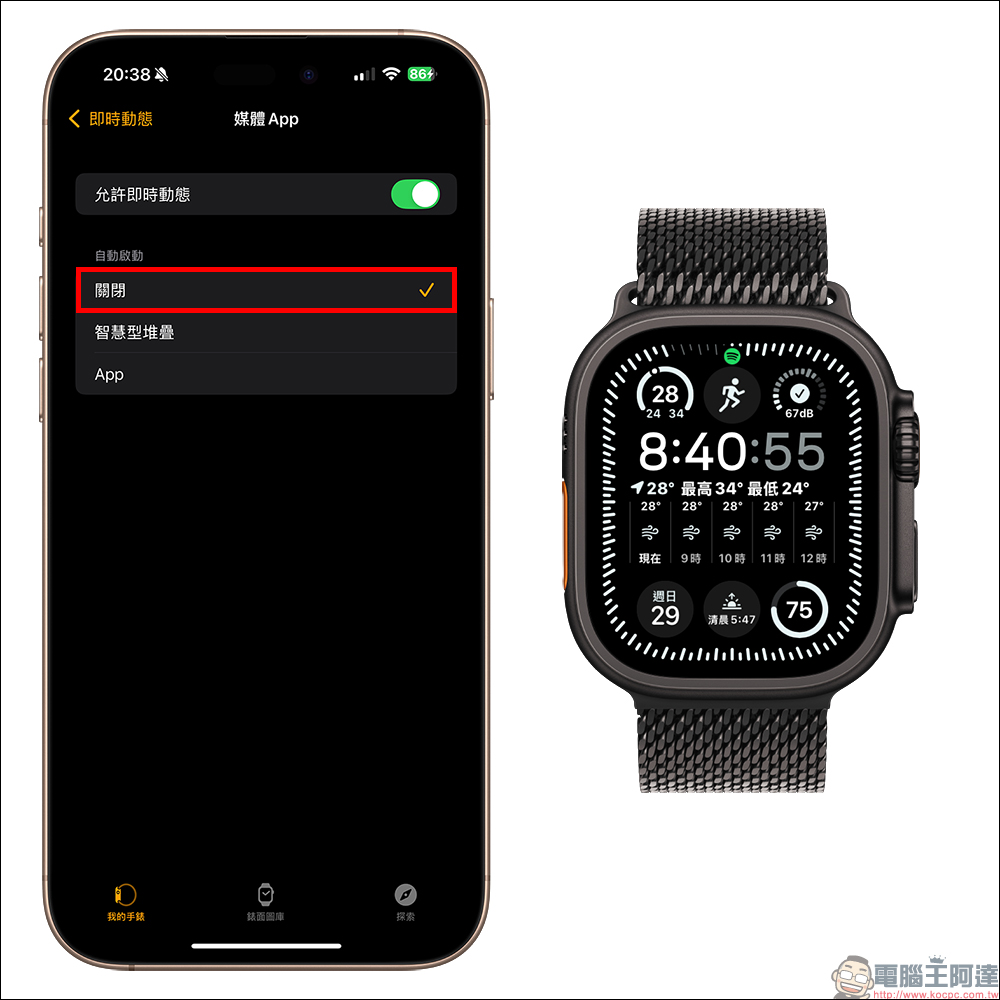
If you want to turn it off, just switch the auto-start setting to “off”. After this setting, the player will not automatically open unless the user clicks the App icon at the top of the Apple Watch. However, this setting will still have real-time dynamics in the smart stack. If you want to completely prevent the multimedia player from displaying playback information in the smart stack, you can directly turn off the “Allow real-time dynamics” at the top of the Media App page.
Further reading:
LINE 11.19 version update released, LINE Pay’s new version adds “separate verification” mechanism

Source: KOCPC Chinese