


Ordinary people must need a keyboard and a mouse when using a computer, and the proportion of the mouse may be much more important. However, players who are deeply familiar with the Windows system will increase the proportion of the keyboard. This is because the default keyboard shortcuts of the Windows system can sometimes perform certain operations faster than the mouse. Microsoft’s newly released Windows 11 is no exception. In addition to the shortcut key commands built into the system in the past, some shortcut keys have been added for players to use with the new default functions added to the new version of the system. As for what instructions there are, let us continue to look at:
▲Shortcut keys are a way for system developers to provide advanced users with a more efficient way to use the system’s built-in functions. This time, Windows 11 provides some new shortcut key commands with the launch of new functions.
In addition to the very different interface, Windows 11 has also made many functional adjustments. Taking window adjustment as an example, the new Snap function allows users to place the mouse on “Maximize” in the upper right corner of the window, and the window layout mode menu will slide out in less than a second or two. In addition to functional adjustments, the system shortcut keys also include some key combinations that have not been used in the past. These new buttons may be small functions that are not worth mentioning to experienced players, but for players who are new to computers, some button combinations may help a lot inadvertently.
Let’s take a look at what keyboard shortcuts Windows 11 has added this time.
Win + W opens the gadget
The most impressive adjustment in Windows 11 is that the past “News and Interests” has been turned into a pop-up window on the taskbar. Overall it’s still the same stuff. Although it can be opened by clicking the icon on the taskbar with the mouse, it is still cooler for players to open it with shortcut keys:
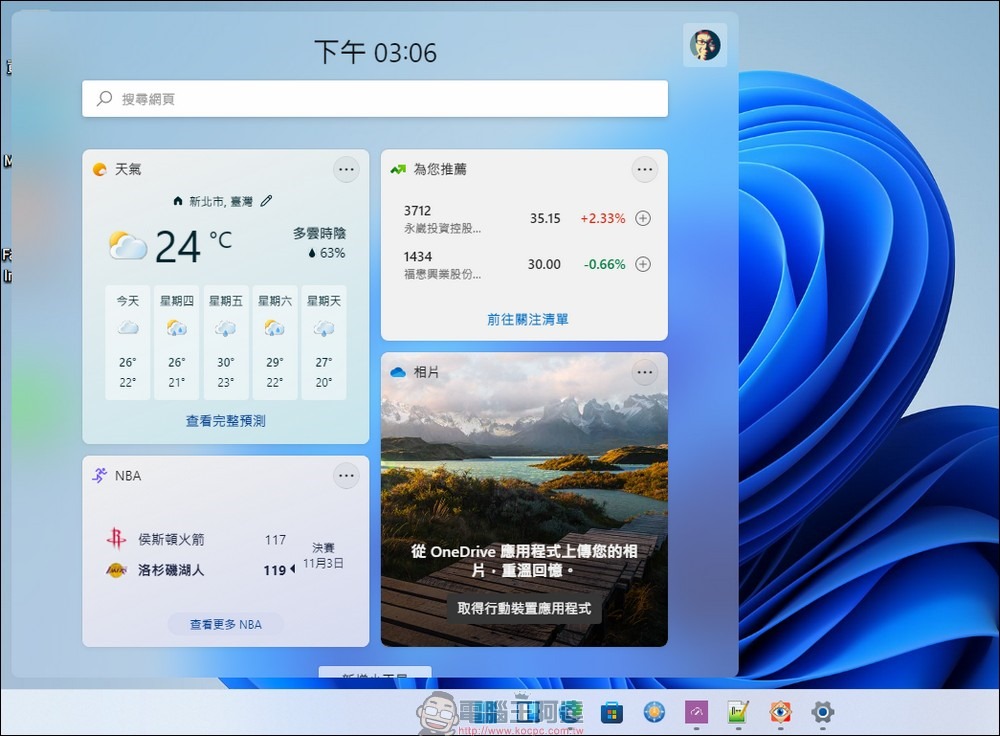
▲The gadget menu can be said to be a beautified version of “News and Interests”. When a new system is installed, you can usually see its icon parked on the taskbar.
Win + Z opens Snap menu
The Snap menu is the new feature of Windows 11 mentioned earlier. You can adjust the window layout through the menu. In fact, it can be easily opened with the mouse, but using this shortcut command can open it more efficiently. After the menu is opened, you can use the arrow keys on the keyboard to adjust the window layout mode and position you want.
This command was actually used in Windows 10, but Windows 11 adjusted it to what it looks like now. In the Windows 10 system, the Win + Z command can only be used in applications in full-screen mode to call up the available command menus. Perhaps because it is too popular, in Windows 11 it was changed to a call command for the new Snap menu:

▲The Snap menu is probably the first new feature that many people see when they get to know Windows 11. Although it enhances the original window layout function, it is quite intuitive and easy to use.
Win + Alt + Direction Up/Down: Move the window to the upper/lower half of the screen
Although there are two instructions, their functions are of the same type. General players may be familiar with the “Win + Direction Left/Right” shortcut key combination. This combination has the same purpose in Windows 10 and 11. It automatically scales the window in use to the left or right half of the screen. Since the mainstream monitors of modern computers are all 16:9 or 16:10 wide screens, it is more visually comfortable to divide the two windows into left and right sides instead of dividing them into upper and lower halves. The command to browse in two halves may be a little less popular, but it still has its uses.
By the way, if you remove Alt and change it to the “Win + Direction Up/Down” command, you will see that the window in use is maximized or minimized to the taskbar. This command has not changed from the Windows 10 era to Windows 11:
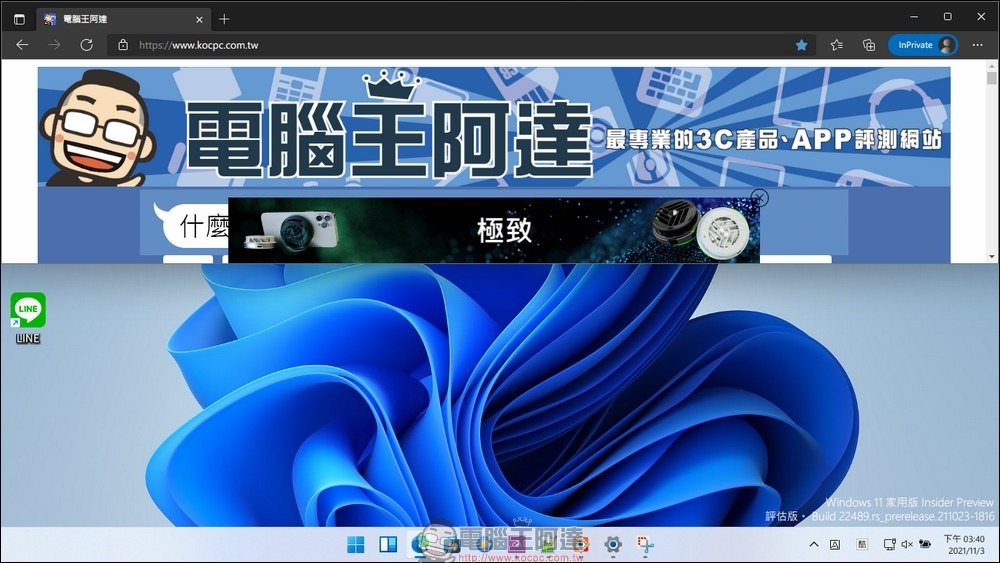
▲I believe there are still people who use it by dividing the window into the upper and lower halves of the screen, but this feature is somewhat unpopular nowadays when wide screen is the mainstream display specification.
Win + Ctrl + C open color filter
Color filter is one of the accessibility features of Windows assistance tools. It can specify the system colors to be displayed in red-green, blue-yellow, grayscale, etc. It is a very practical feature for people with color vision impairment or who need to adjust the screen tint for special reasons. Even users without color vision impairment sometimes use this function to convert computer colors into black and white to reduce visual stress and increase work concentration.
This shortcut key must first set the color rendering mode in the color filter function in the assistant tool, and turn on the shortcut key function before you can use this key command to quickly switch between normal color and filter color rendering modes:
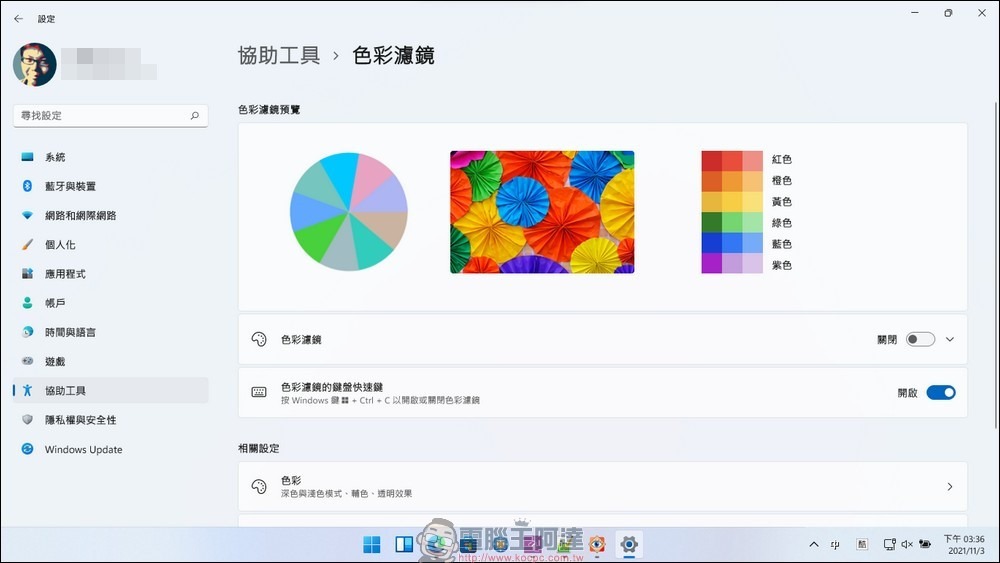
▲The color filter shortcut key is off by default. In fact, it would be better to check the set color and effect first and then turn on the shortcut key function.
Win + C opens Microsoft Teams communication software
This command is different from the Windows 10 era. In the past, this command was used to call the Cortana smart assistant, and the specified function must be set up in the system settings in advance, otherwise it will not have any effect under normal circumstances. In Windows 11, although Cortana is still built into the system, it may not be popular enough and this function is not available in many countries/regions including Taiwan. Therefore, in Windows 11, this shortcut key has been inherited by the Teams communication software.
By the way, since I don’t use Teams very much, I removed Teams from the console when Windows 11 was first installed. But even if the software is cleared, using the shortcut keys will still be effective and will help users automatically and spontaneously download and install the removed Teams back. After the installation is complete, press Win + C and you will see the Teams software interface.It’s really yours, Microsoft:
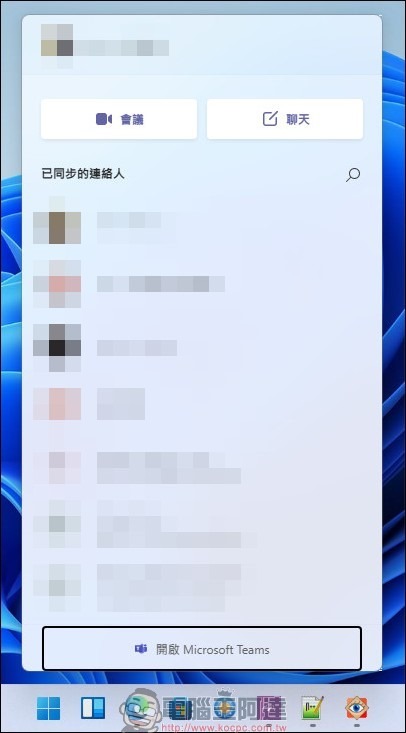
▲Whether the Microsoft Teams communication software has been removed or not, this shortcut key combination is still useful.
Win + A opens the quick settings menu
The effect of this command is the same as the same command in Windows 10. The difference is that Windows 10 combines quick settings and notifications into the “Control Center”, which will appear by pressing Win + A. Windows 11 separates the quick settings menu and can be called by pressing Win + A.
Although the quick settings menu is not the same as in the past, and its functions have been streamlined a lot, for users who were familiar with the control center in the past, this menu still has its practical uses:
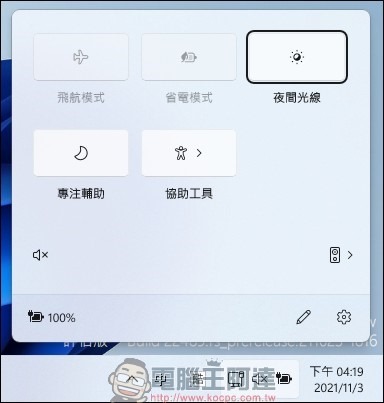
▲The quick setting menu will have different function buttons on different computers, but it is much simpler than before.
Win + N opens notification center and calendar
This shortcut key is a combination with the previous Win + A. In Windows 10, the two functions were combined into one. Although they were split into two in Windows 11, the functions are roughly the same. The author thinks that the most convenient thing about this shortcut key is to call up the calendar to confirm the date. Although the notification part is as easy to use as before, it may still be a bit useless for users who are not paying attention to the system notification messages:
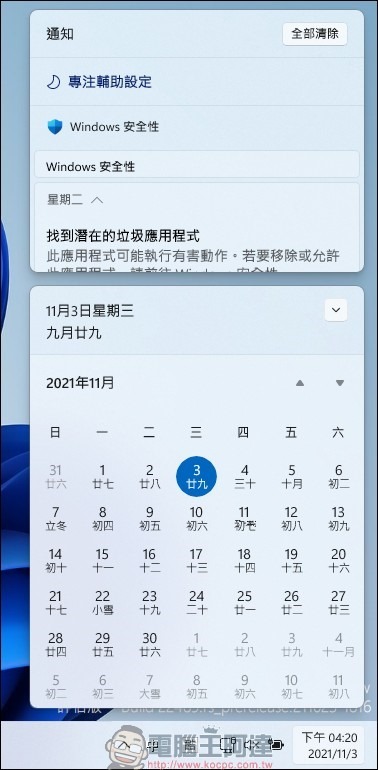
▲The calendar function is an important tool for modern people to confirm appointment times. Everyone uses it differently. If it is used frequently, you might as well remember this shortcut key combination.
Source: KOCPC Chinese