


For designers and people who collect image assets, you’ve probably heard of Eagle. It’s practically a must-have tool for every designer—great for managing images, reasonably priced, and it comes with lifetime updates. That means you pay once and get the latest version forever, which is a huge plus.
With the launch of the latest Eagle 4.0, it’s even more worth getting! It introduces a brand-new plugin center, letting you enhance your experience through plugins. Over 20 plugins are already available, and many of them are the hottest AI features, such as AI background removal, upscaling, and removal. There are also very useful ones like compression, format conversion, Pinterest reverse image search, and more. Here’s a quick introduction.
The ultimate Eagle image asset management software’s latest version adds a fantastic brand-new plugin center, with AI background removal, upscaling, and one-click compression all included.
Although Eagle isn’t free software, if it’s the first time you’re installing it on your computer, there’s a 30-day free trial. You can try it out first, and if you like it, then decide whether to upgrade to the paid version.
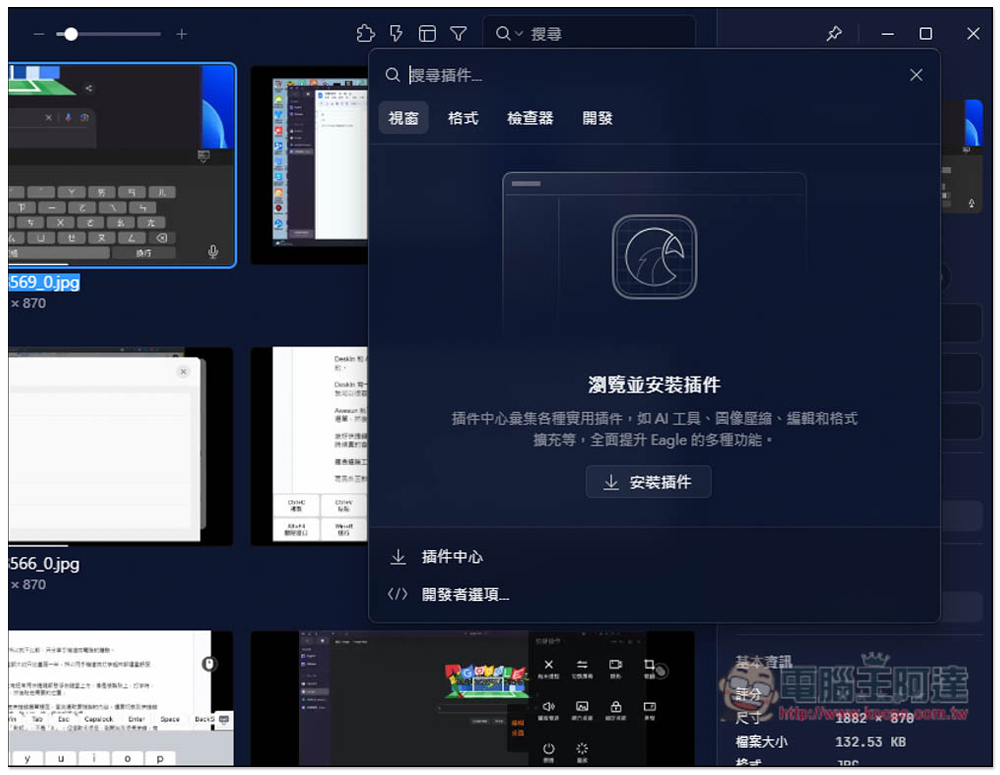
After opening the latest version of Eagle 4.0, you’ll find the newly added plugin icon in the top-right corner. Initially, no plugins are installed. Click “Install Plugins” or “Plugin Center” on the screen:
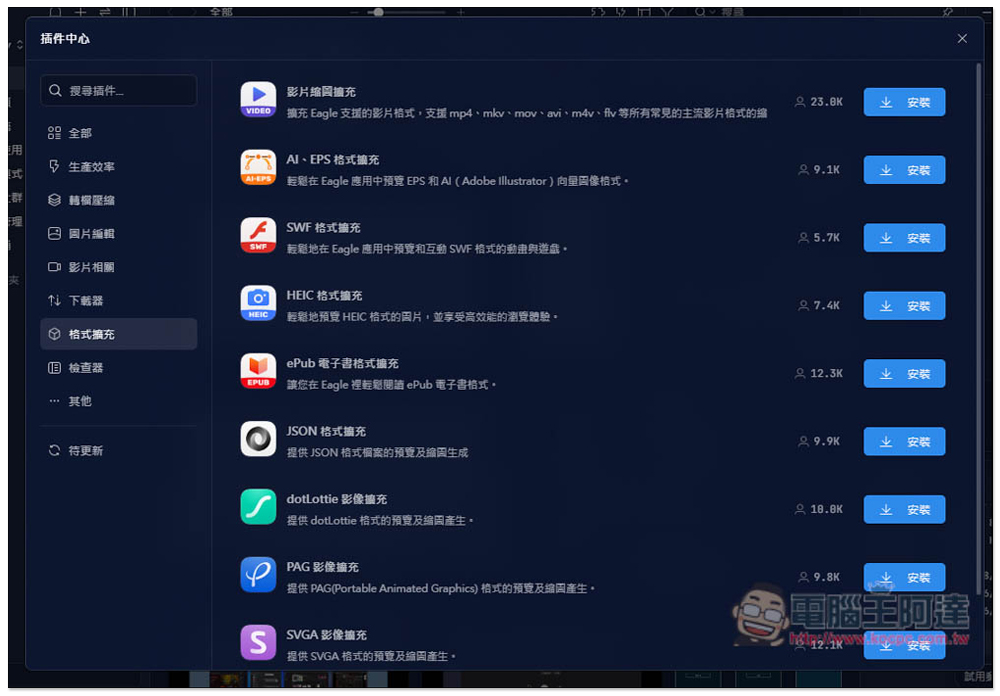
Then the plugin center will open, which currently has 8 major categories: Productivity, Conversion & Compression, Image Editing, Video-related, Downloader, Format Extension, Inspector, and Others. There are already over 25 free plugins available, with more expected to be added in the future:
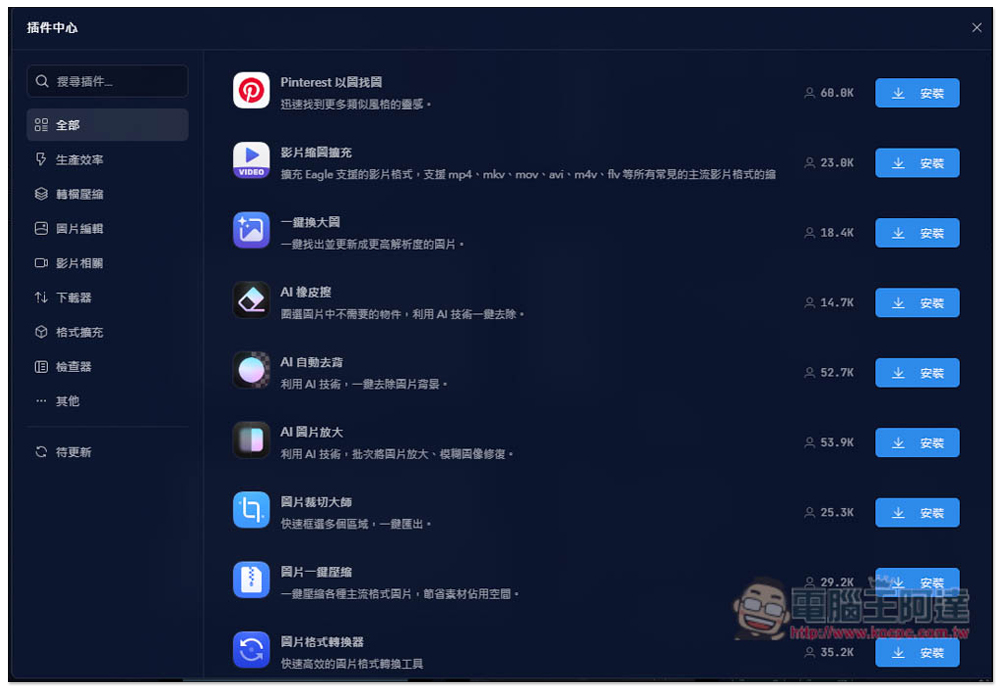
Many plugins are quite good, such as AI automatic background removal. Just like many online tools, it removes the background with a single click. I tested it and the results are quite good:

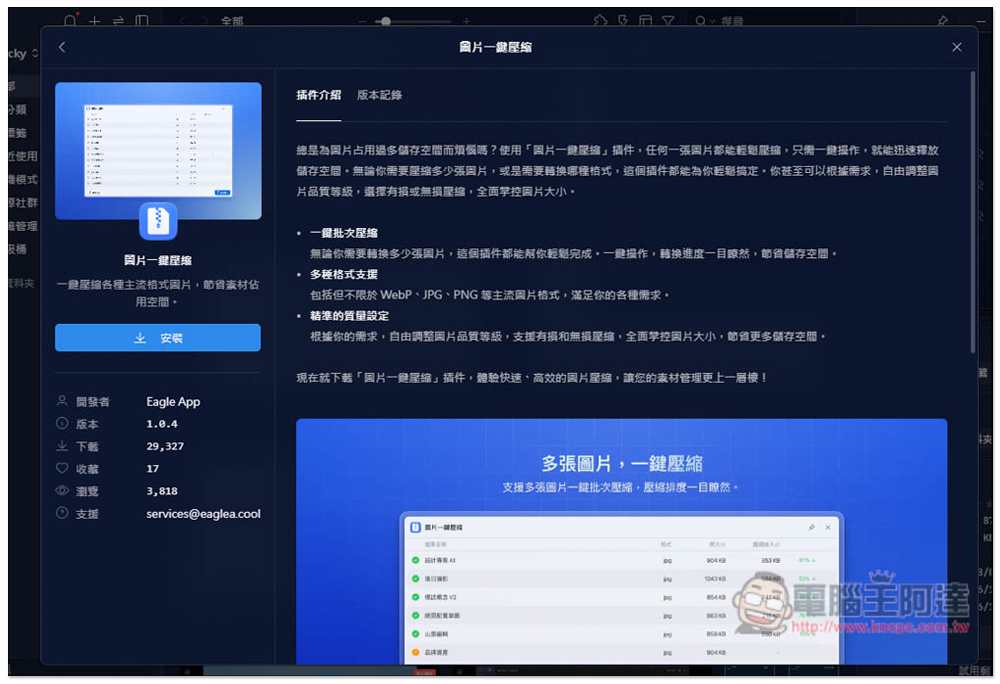
One-click image compression is something a lot of people probably need, especially for site creators like me who upload tons of images every day. Running this plugin to compress images before uploading helps slim down article pages, and the faster they load, the better:
Pinterest’s image search feature is also highly recommended, making it easy to find similar images on the Pinterest site and search for image assets more efficiently:

The usage is also very simple. The installed plugin will appear in the plugin list. Select the images you want to process (supports processing multiple at once), then click the plugin you want to use.
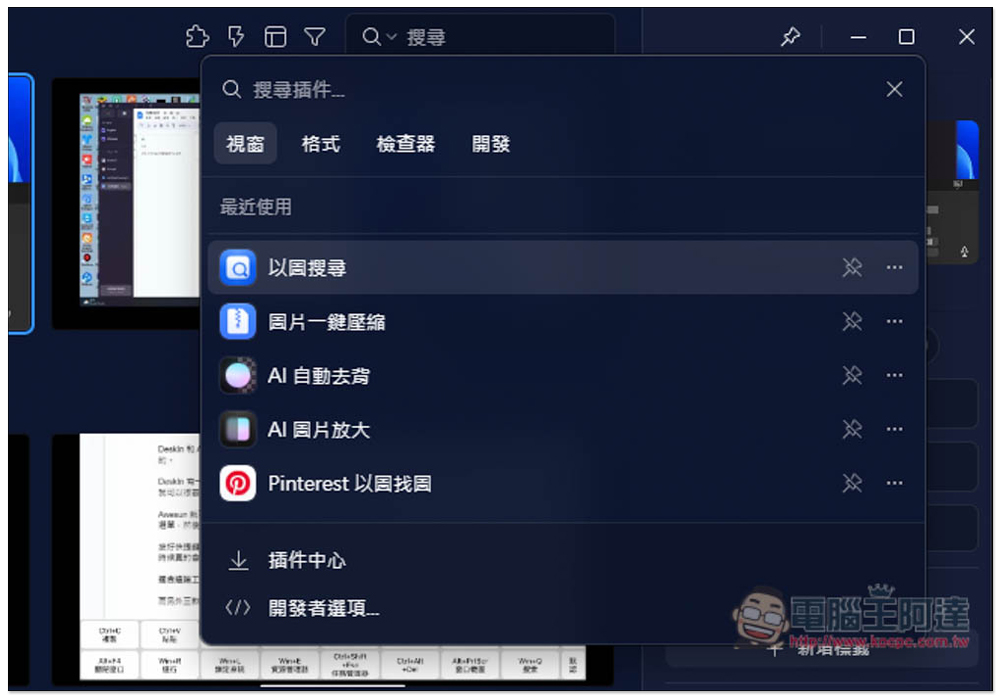
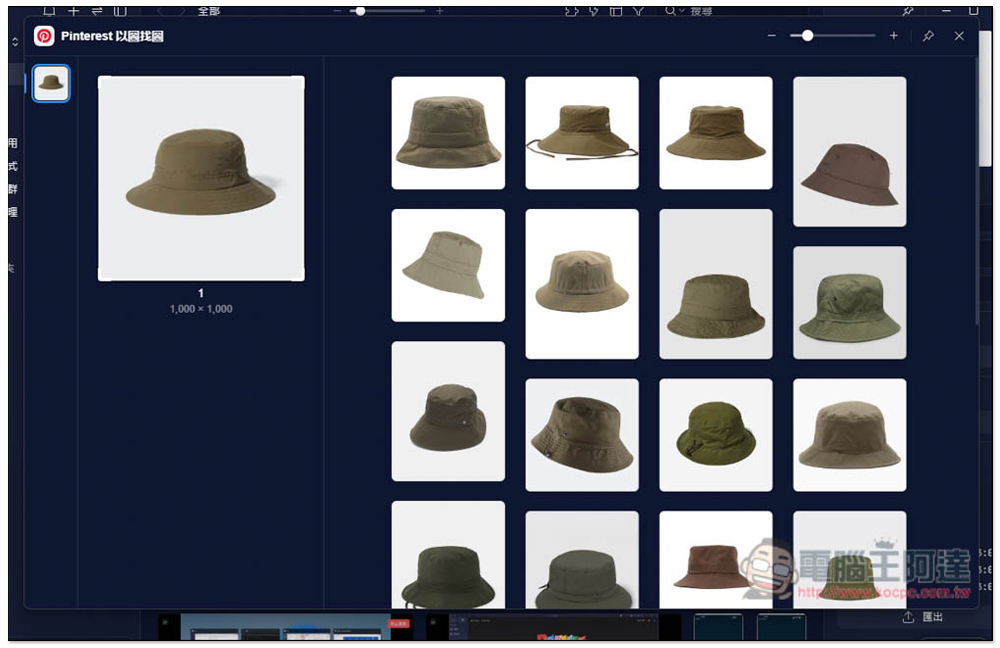
For example, when I use Pinterest to search by image, it shows similar images on Pinterest:
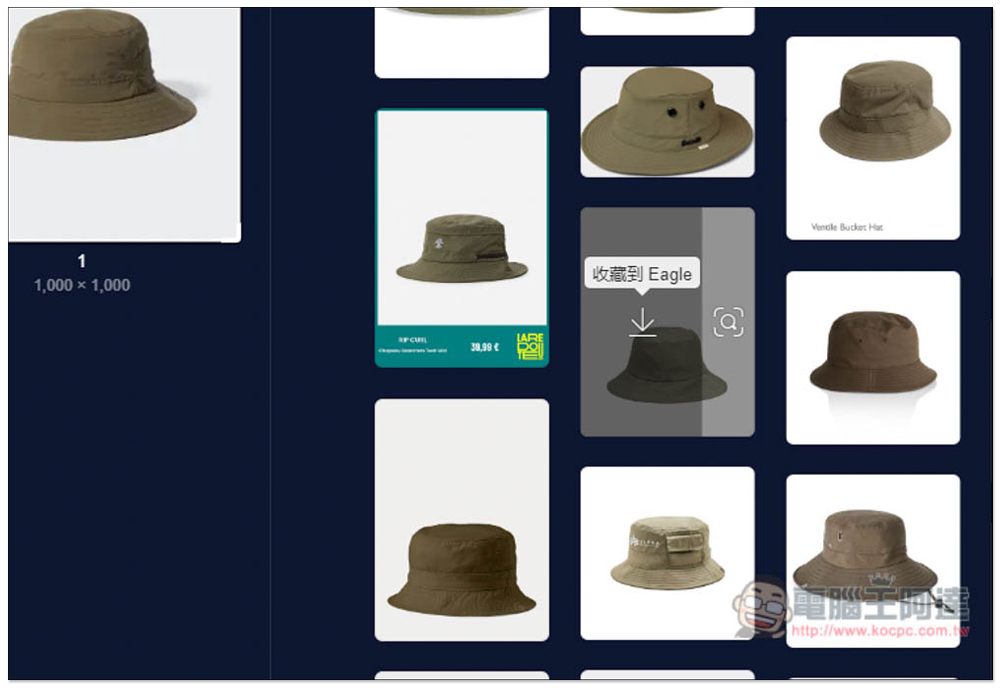
If you see something you like, you can save the image directly to Eagle without needing to log into a Pinterest account:
If it is an AI plugin, such as AI automatic background removal, you need to download AI models on first use; some are quite large, so pay attention to whether you have enough hard drive space. Another downside is that it currently doesn’t support GPU, so it can only be processed with the CPU:
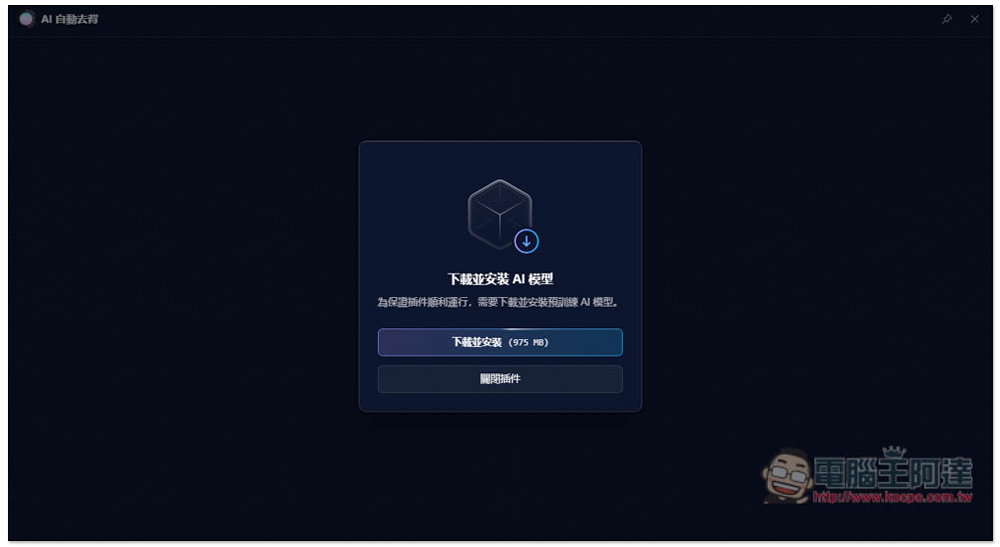
After the AI model is downloaded, it will be initialized, and then you can start using it:

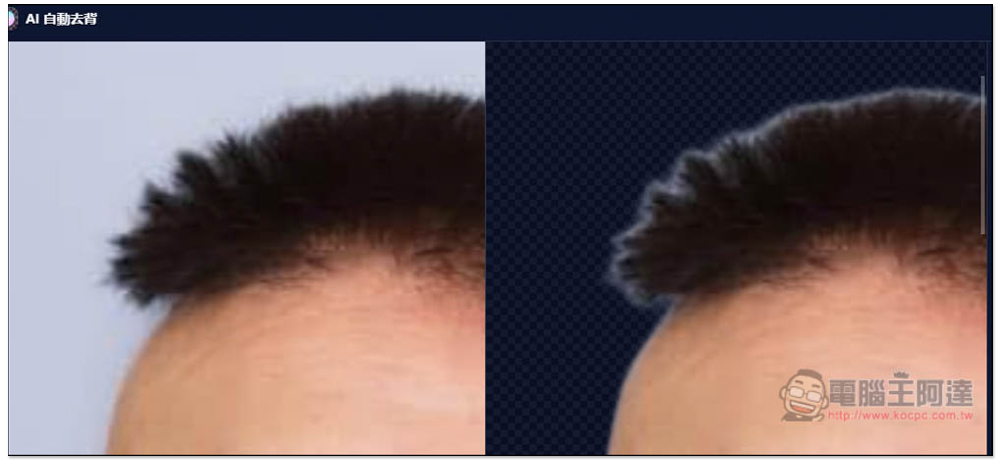
The image below shows the AI background removal effect; it automatically removes the background. This image is fairly easy to remove the background from, so the result is quite good:

You can also zoom in to see the details:
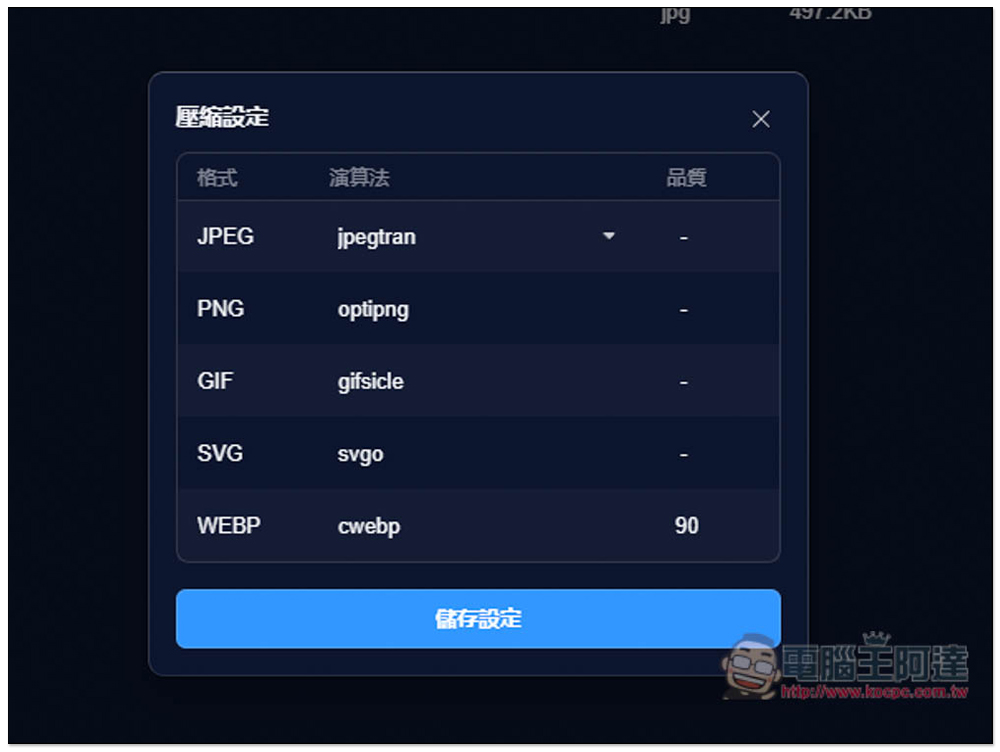
Next, I tried one-click image compression, which supports JPEG, PNG, GIF, SVG, and WEBP formats. JPEG can also use another algorithm with even higher compression:
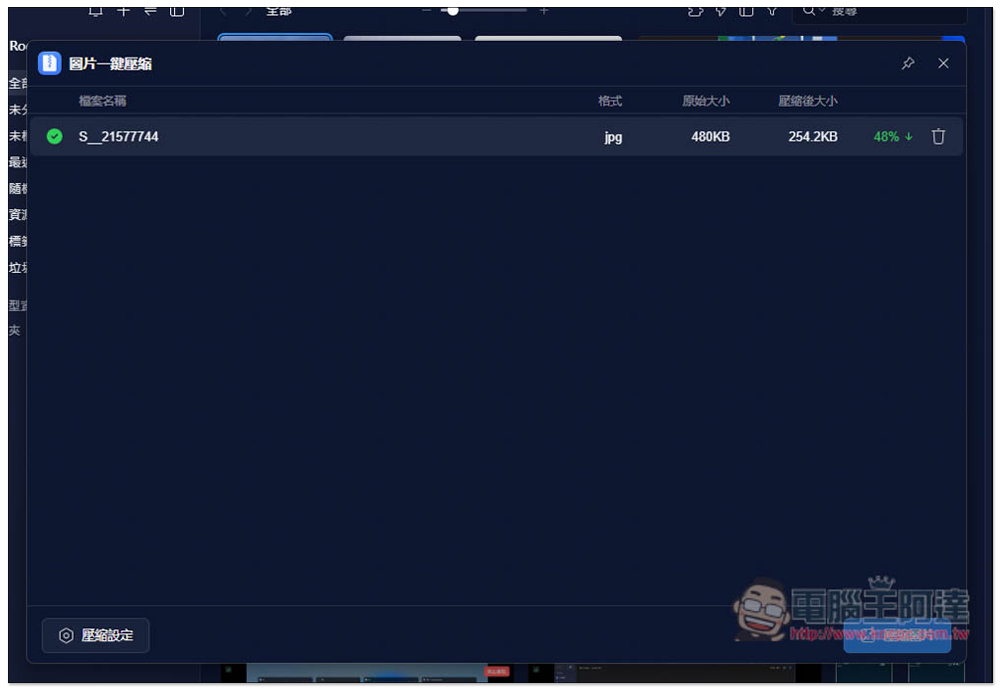
The image I tested went from the original 480KB down to 254.2KB after compression. For quality, I set it to not compress too low (80%). If I adjusted it lower, the compressed size would definitely be even smaller:
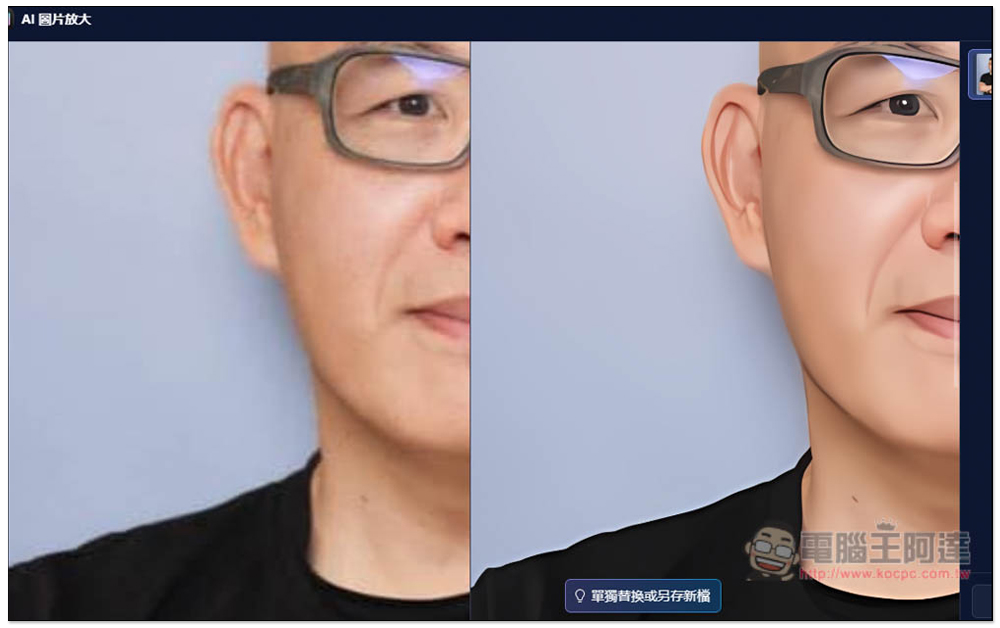
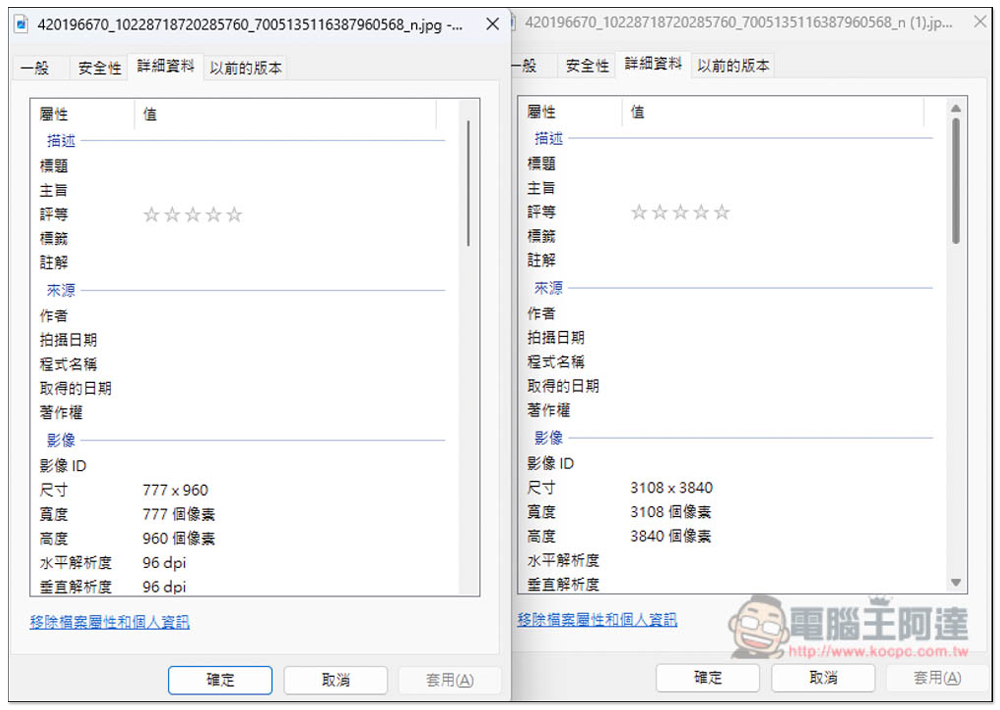
I also tested AI image upscaling, and it was quite impressive. It enlarged the image nearly 4 times with no blur at all (left is the original, right is the enlarged image):

Zooming in, you can see that the skin has actually become smoother, and the eyes are even more spirited—this is truly impressive:
Checking the image dimensions, it’s indeed been scaled up from 777×960 to 3108×3840.
Eagle 4.0 also has many great plugins; we’ll leave the rest for readers to explore on their own.
Source: KOCPC Chinese