


When you want to reinstall the cleanest Windows 10 operating system, a USB bootable flash drive is a must-have. However, it seems that many people still don’t know how to make one, so this article will help you sort out the 3 easiest ways. There are official Microsoft and third-party free gadgets, and you can also download the Windows 10 ISO installation file directly from the software, which means you only need to prepare a USB flash drive. Remember to use a capacity of at least 8GB to be safer.
The following three methods are not particularly good or bad, it depends on which method you prefer. I personally use the second Rufus free gadget.
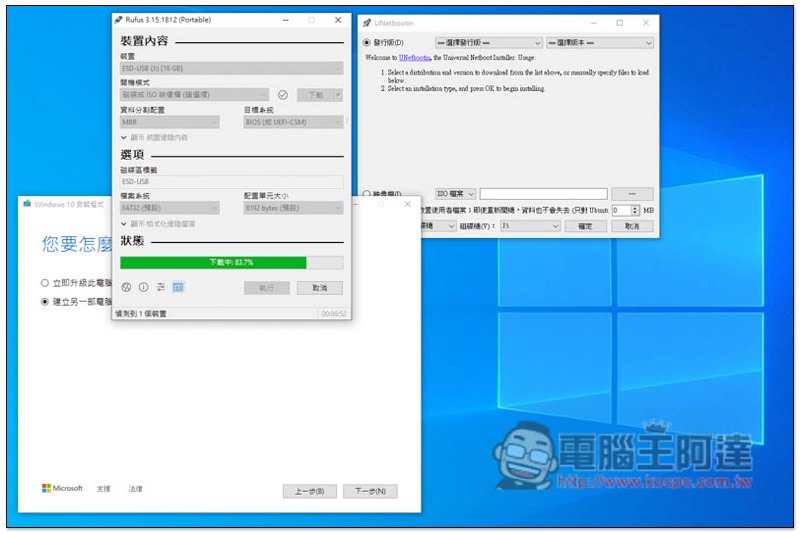
3 Ways to Make a Windows 10 USB Bootable Disk
1. Use Microsoft’s Windows 10 Media Creation Tool
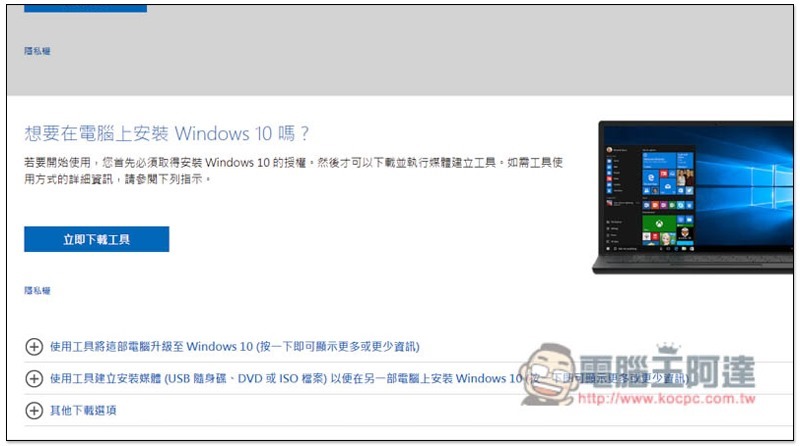
After entering the Microsoft official website, please download the following media creation tool and click “Download Tool Now”:
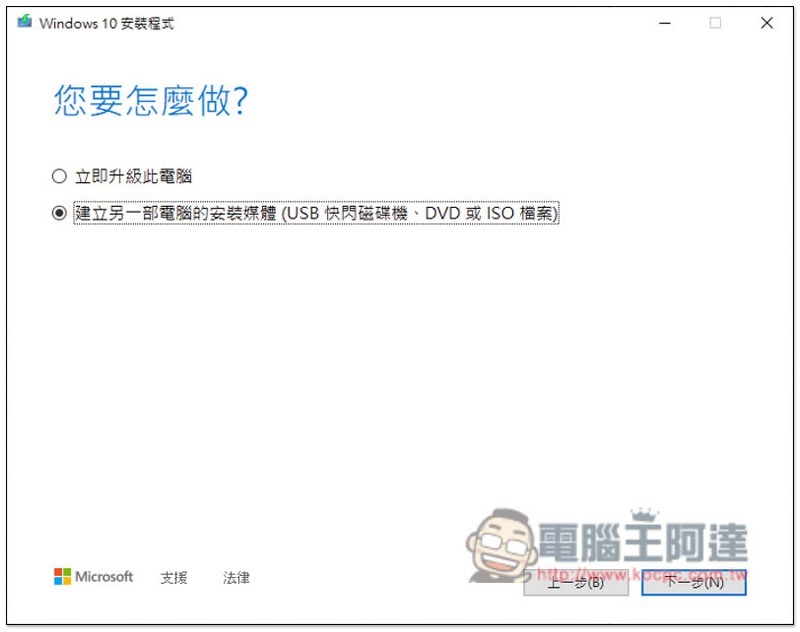
Open and select the second “Create installation media for another computer”:
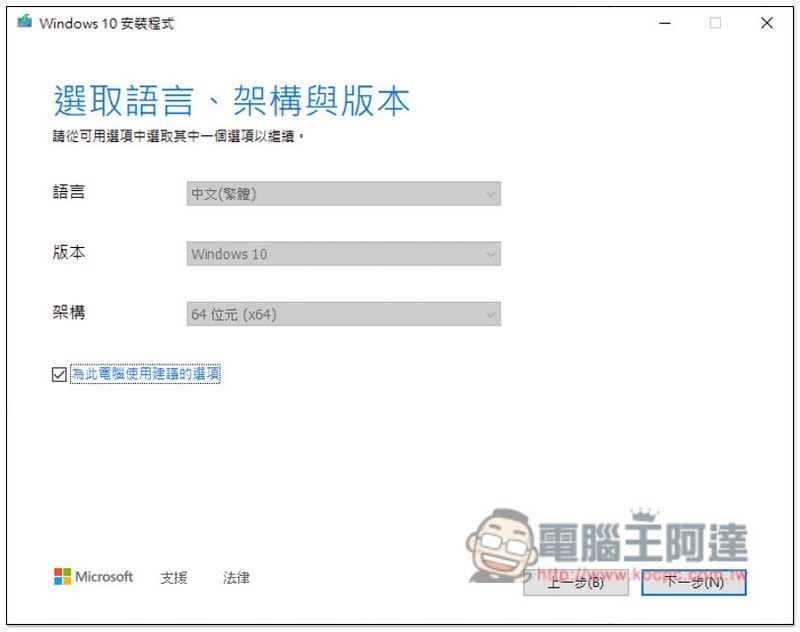
The Windows 10 operating system version you are currently installing will be automatically selected. If you want to change it to something else, such as downloading another language or architecture, uncheck “Use recommended options for this computer” to modify it. No problem, click next:
Select USB flash drive and press Next:
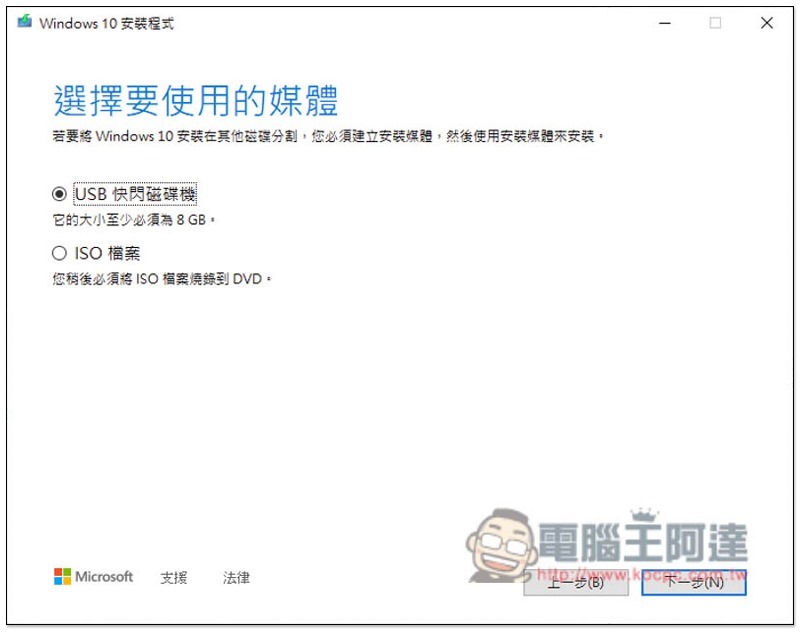
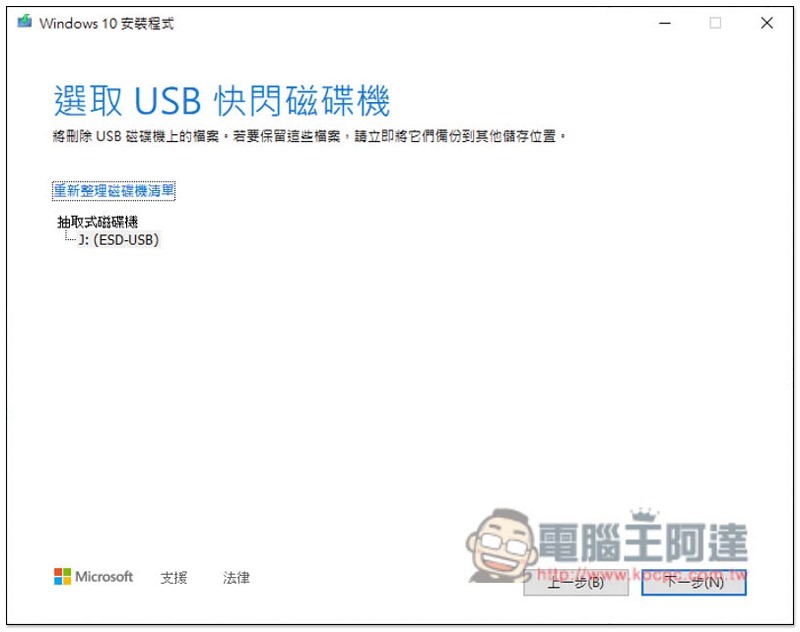
It will automatically detect the USB flash drive currently installed on your computer. After confirming that it is correct, click Next:
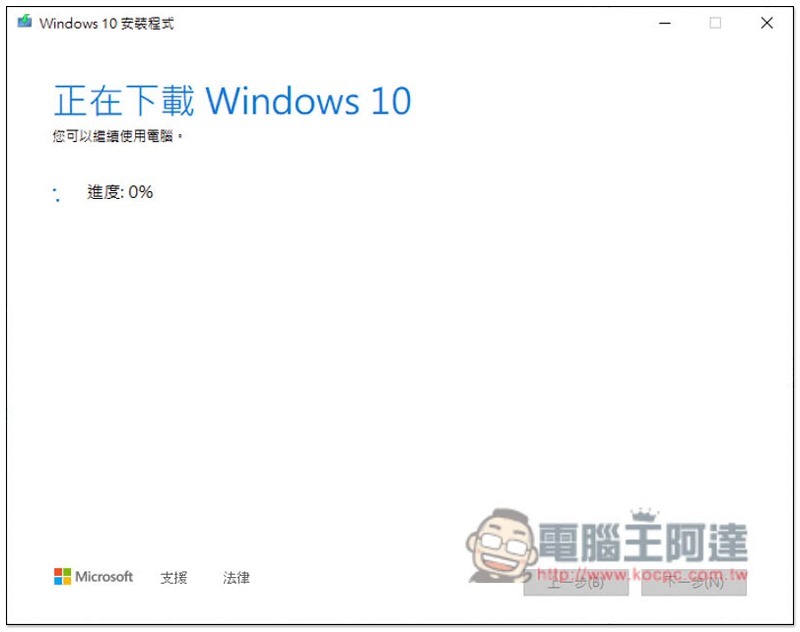
Finally, just wait for it to finish downloading. After completion, the program will automatically create a USB bootable disk. After everything is finished, the Windows 10 USB bootable disk will be created:
2. Use Rufus Free Gadget
The steps to create a Windows 10 bootable disk through Rufus are simpler and more convenient. It also supports downloading Windows 7 / 8.1 / 10 ISO files from the Internet. It doesn’t matter if you don’t have them in your computer.
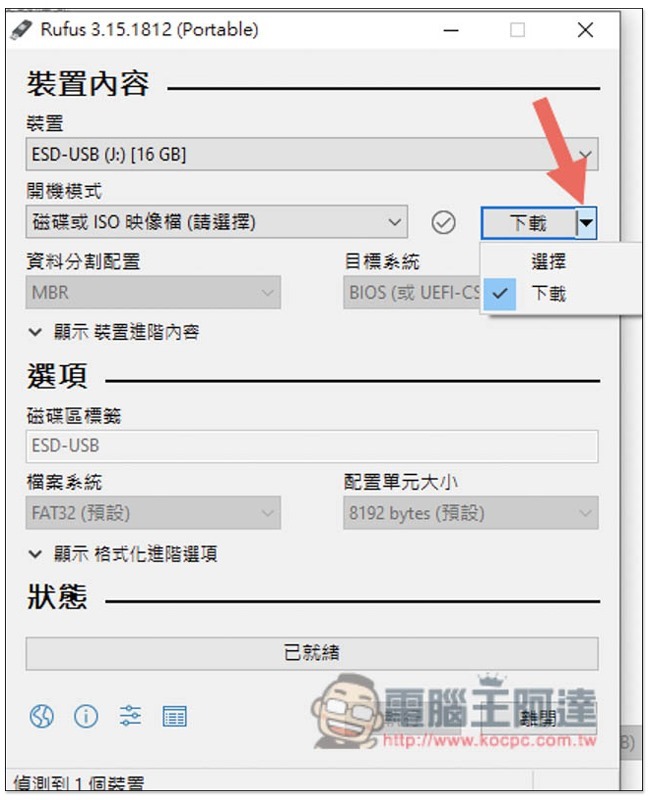
After opening the Rufus free tool, the device will automatically detect your USB flash drive. If you have multiple USB flash drives plugged into your computer, remember to make sure they are correct. If you have the Windows ISO file, just read it in directly. If you don’t have it, open the inverted triangle on the right to find the download function:
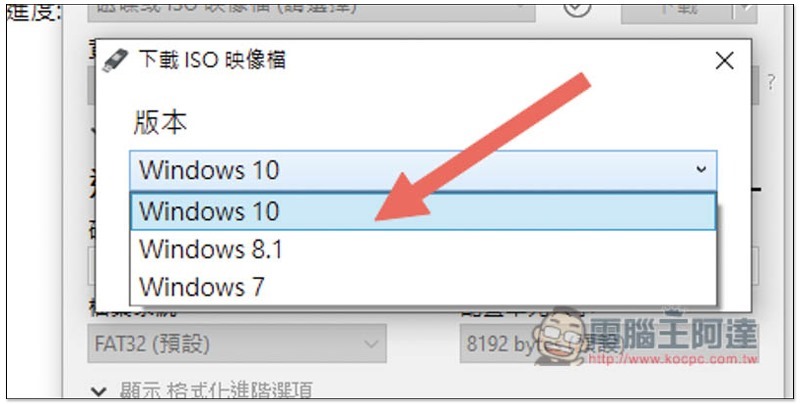
Select the Windows version you want to download, I’ll take Windows 10 as an example:
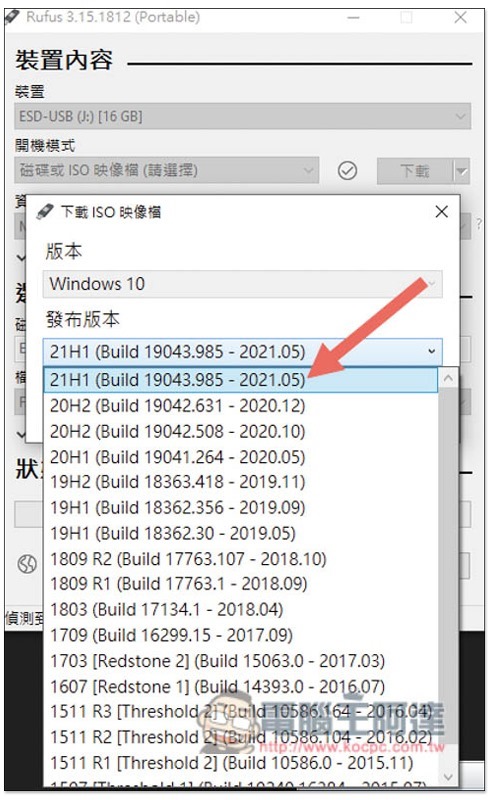
The release version can also be specified, and older versions can be downloaded. This is very good and is much more convenient than Microsoft’s official tool:
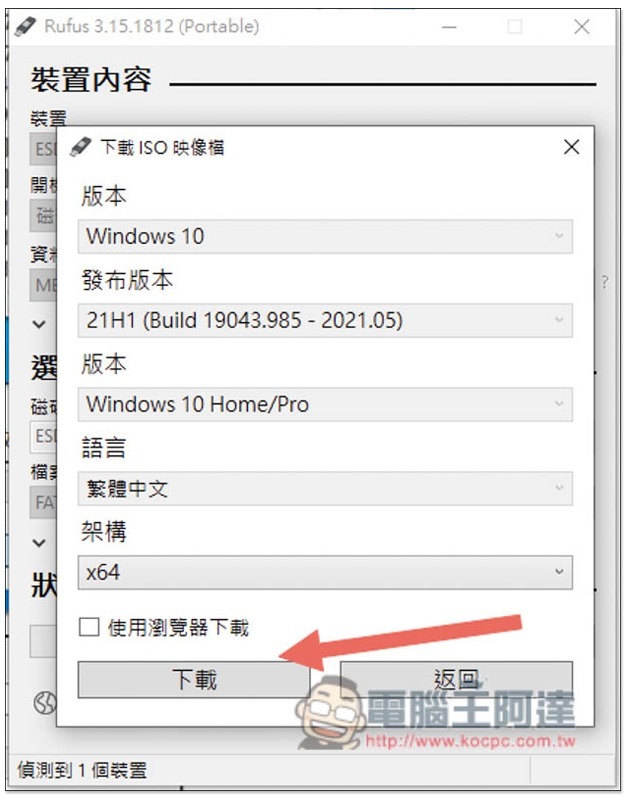
Windows 10 Home/Pro, language and architecture can also be selected. Click download after confirming everything is correct:
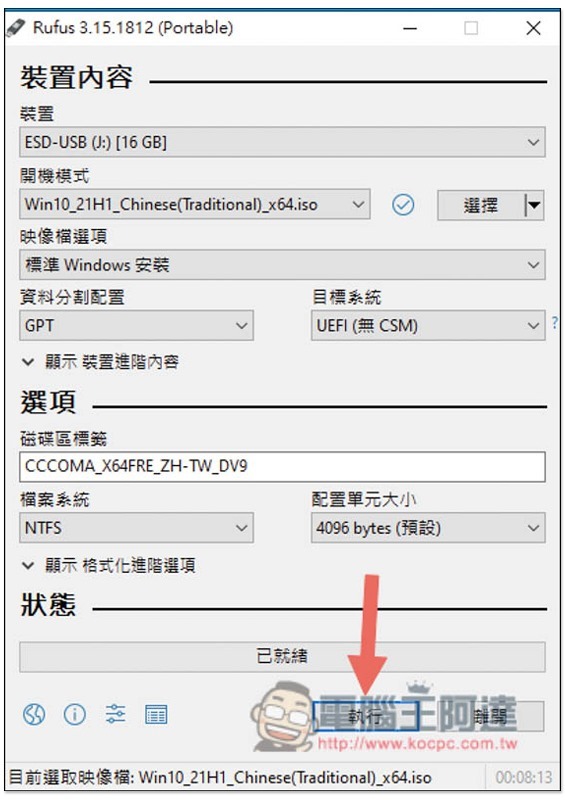
After downloading, click below to execute and the production will start:
3. Use the UNetbootin free gadget (you need to prepare the Windows ISO file yourself)
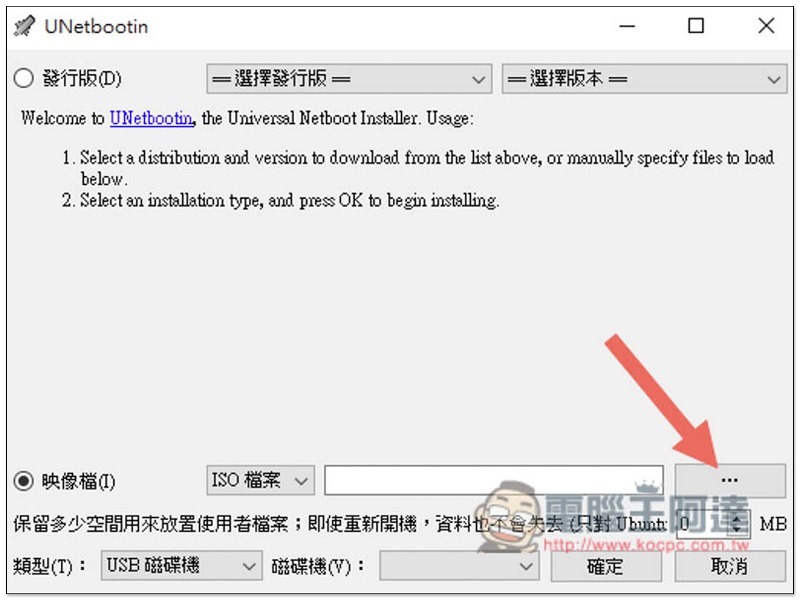
UNetbootin is also a set of free gadgets that can create USB bootable disks, but the automatic download function does not have a Windows option. The representative said that you must prepare it yourself. Click on the… on the right side of the image file. After reading it in, click OK and the creation will start:
Source: KOCPC Chinese