


Nowadays, many people use Google Calendar and Apple Calendar to arrange their daily schedules. If you also use LINE, this article recommends a very handy bot called “Dola AI”. After adding it to your LINE chat list, the AI will automatically add events to your calendar through chatting, and when the time is near, it will also notify you via LINE. That’s really great.
Even more importantly, it also supports voice messages. I tested it and the recognition accuracy is spot on, and it’s completely free to use right now. In fact, it’s not just LINE—Telegram, WhatsApp, and Apple Messages are also supported.
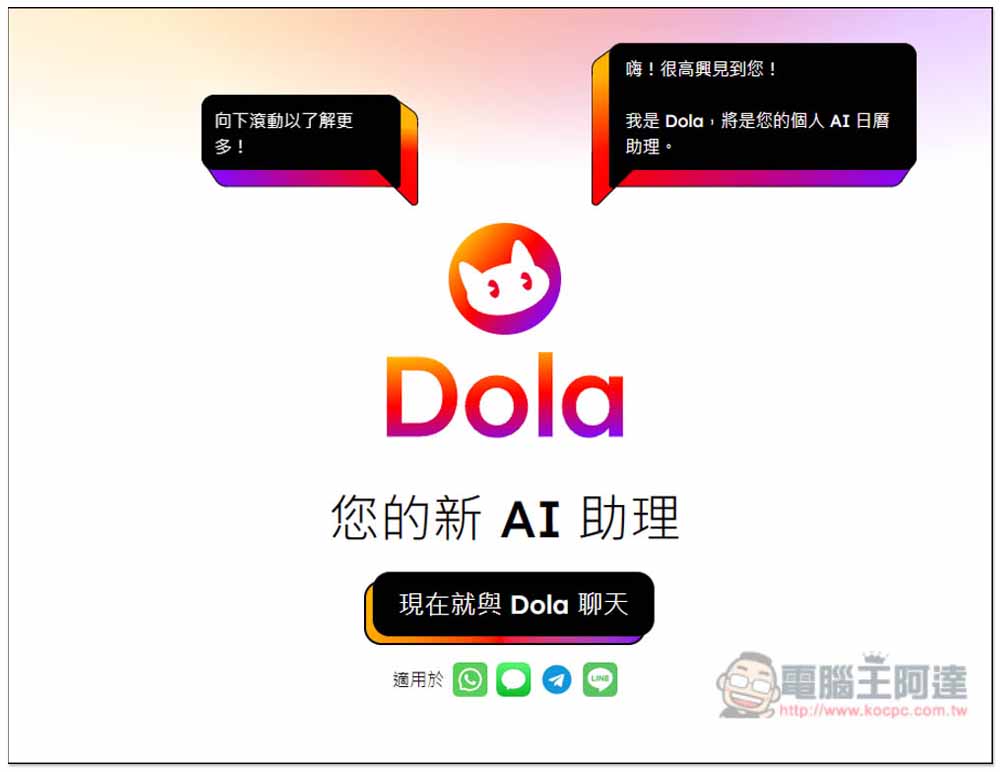
“Dola AI” automatically sets daily schedules and reminders through LINE chat, with support for Google and Apple calendar sync.
Dola is an AI-powered reminder and scheduling bot that requires no app download—you can use it through LINE, Telegram, WhatsApp, or Apple Messages. I tested that LINE partially supports a Chinese interface, so you don’t need to worry about setup issues.
As for data security, the official website has a special statement: “Data is encrypted during both transmission and storage, and there is a policy strictly prohibiting our company and its employees from accessing any user data without the user’s explicit prior consent.”
It’s also very simple to use—for LINE, it’s just three steps:
- Add the Dola AI LINE bot
- Set up calendar sync (or use the built-in calendar)
- Begin planning your daily schedule.
After clicking the link above to go to the official website, click “Chat with Dola now,” then select the chat messaging app you use. I’ll use LINE as an example:
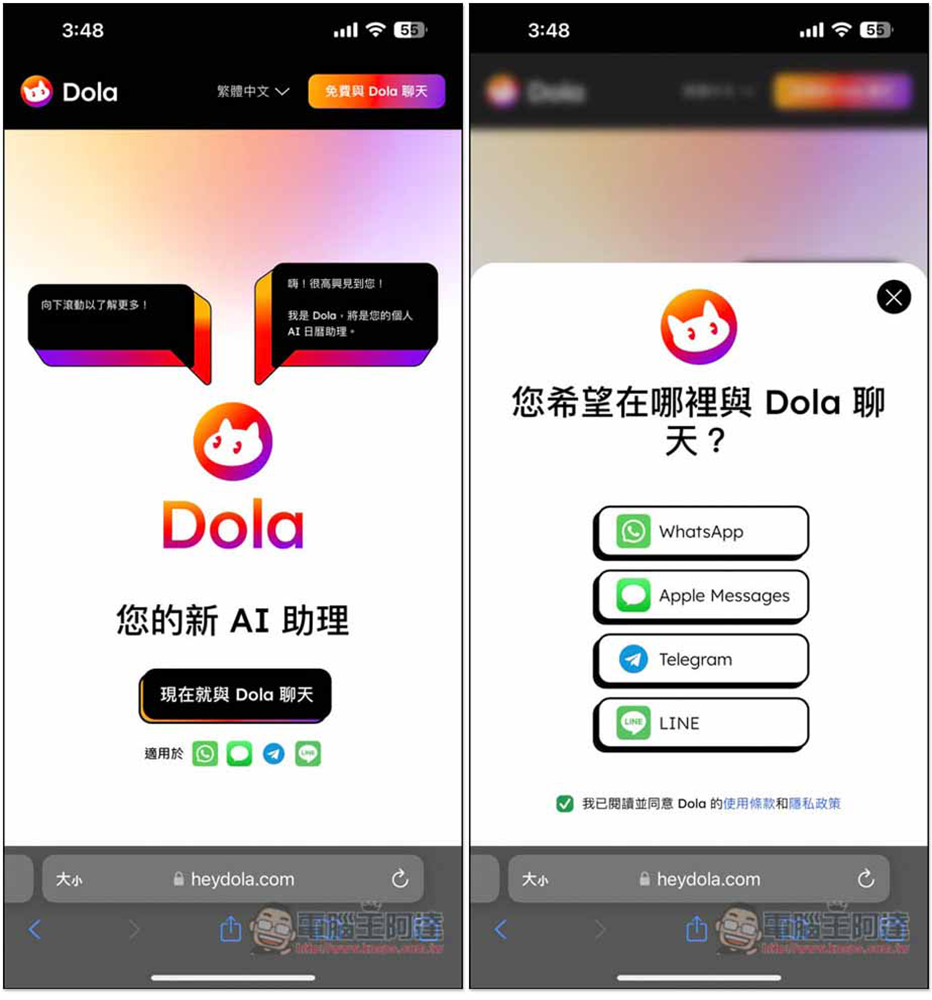
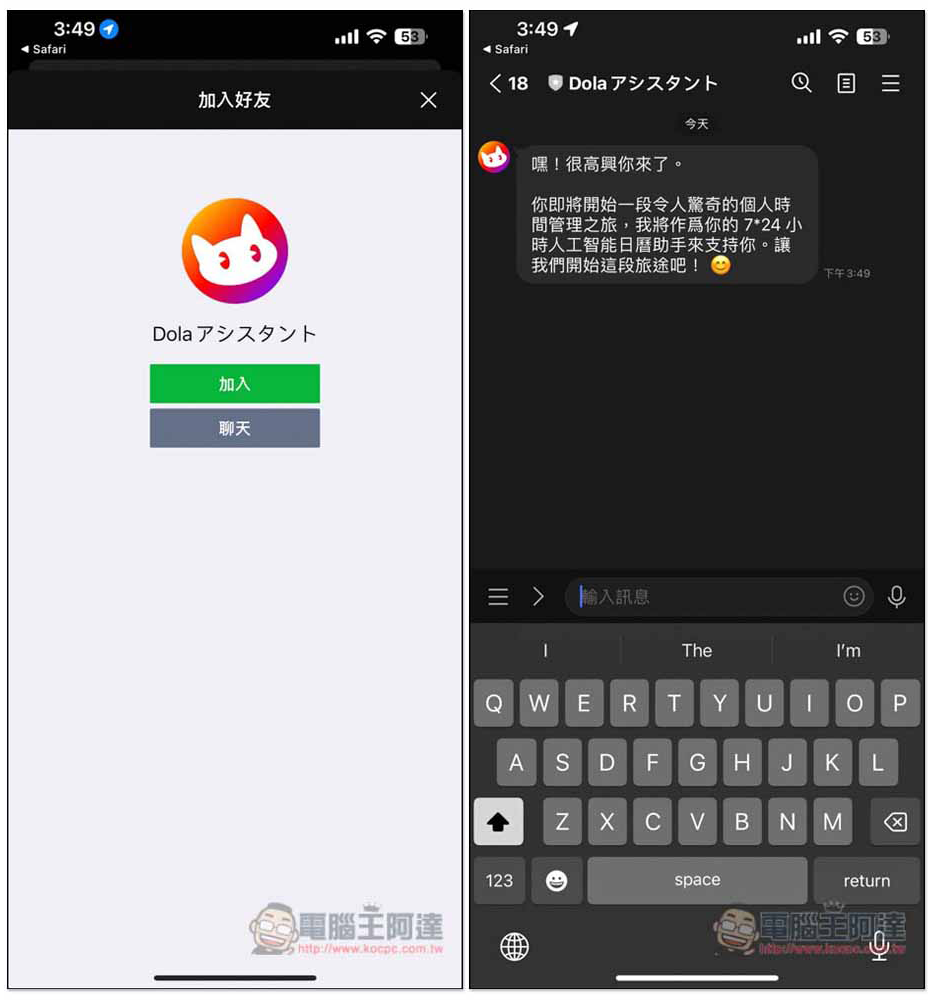
I tapped Add Friend. I don’t know if it’s because I’m in Japan that the LINE name shows in Japanese:
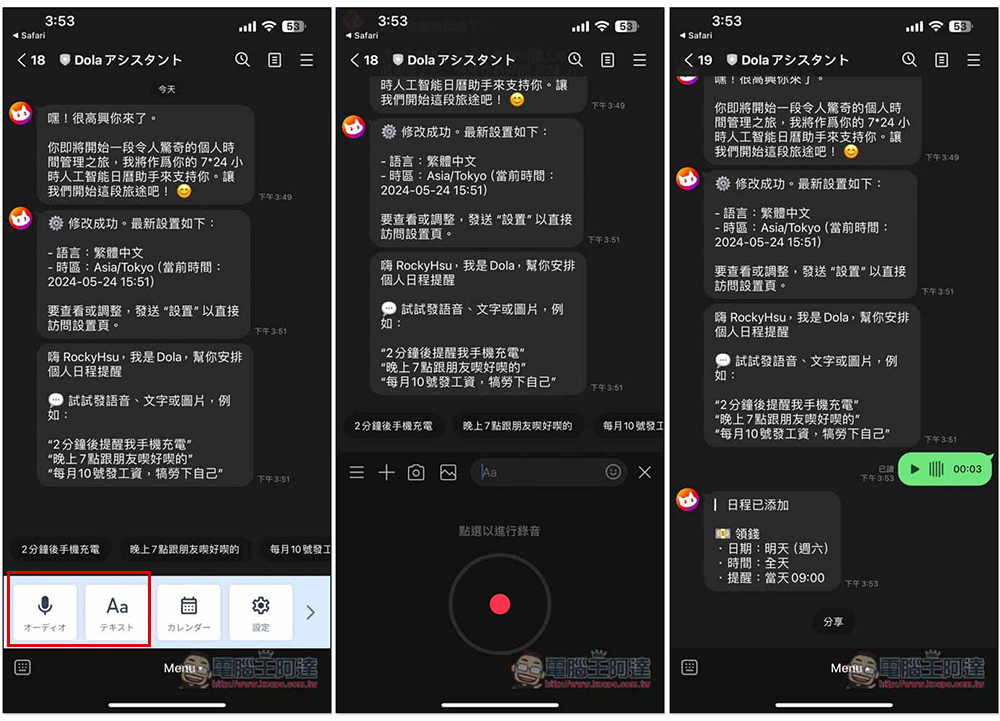
After collapsing the keyboard in the chat room, tap the bottom-left icon to enable the menu, go to settings options, and the first time you need permission:
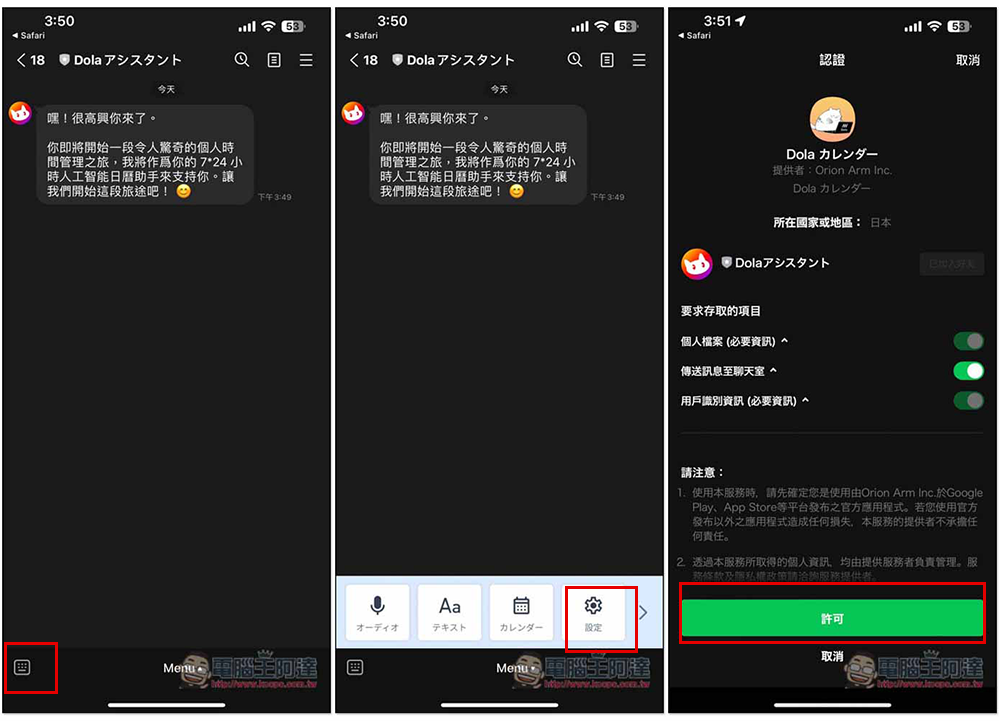
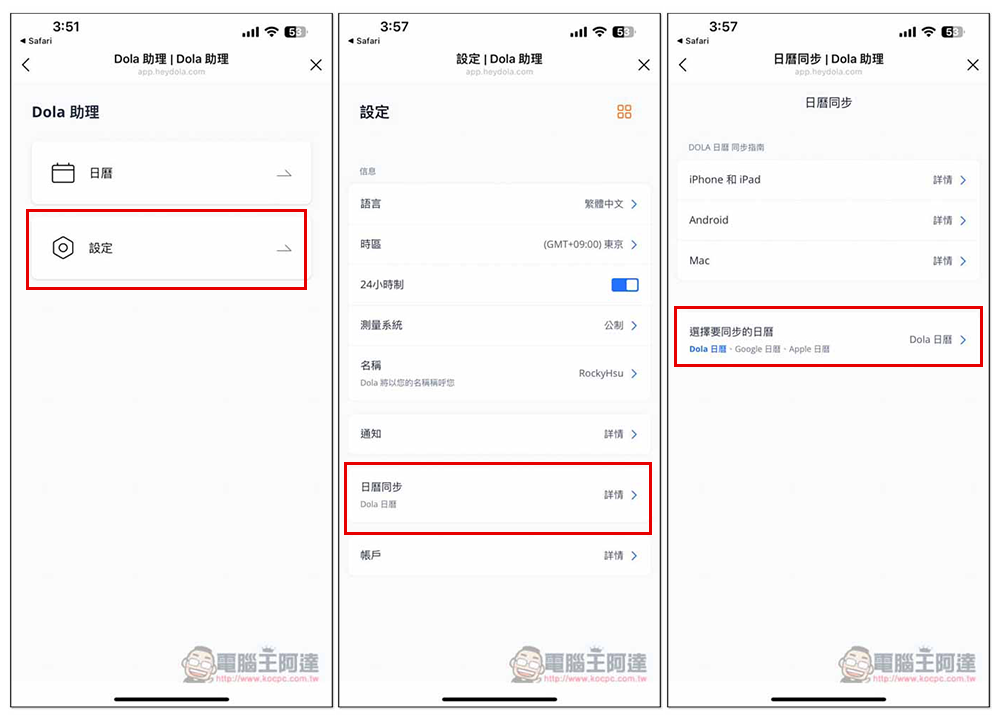
Next, you’ll see two options: “Calendar” and “Settings”. Enter Settings, and below you’ll find the “Calendar Sync” option. Then you’ll see the “Choose Calendars to Sync” setting, which is set to Dola Calendar by default:
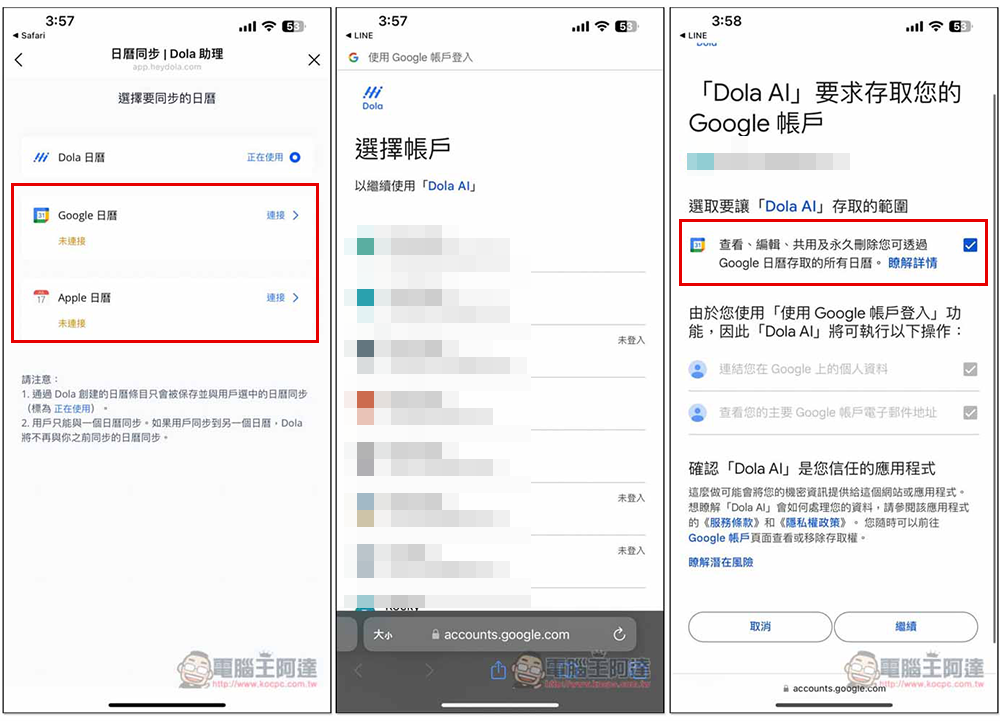
Choose the third-party calendar you want to use. I use Google Calendar. After clicking, it will redirect to the Google account login page. Then you need to grant permissions. Remember to check the first option, “View, edit, share, and permanently delete all calendars you can access through Google Calendar,” and then click Continue:
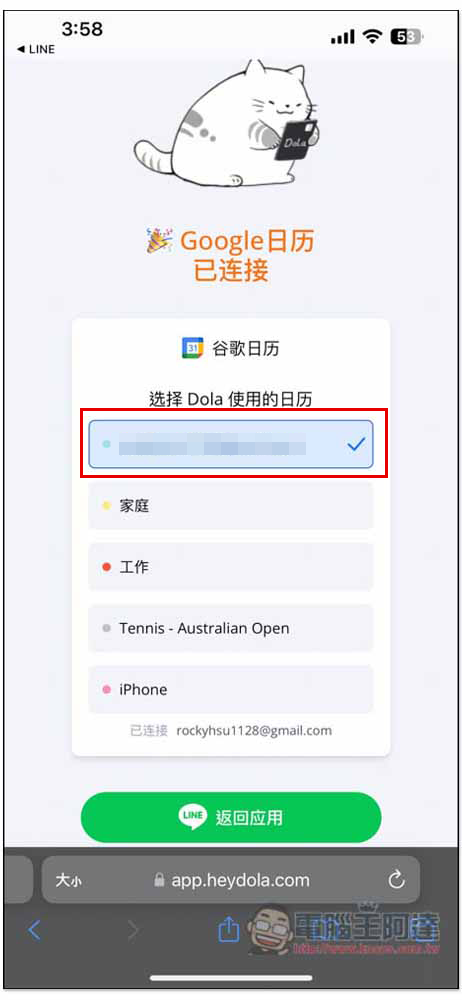
Choosing which calendar to use means you can also create a calendar exclusively for Dola, to avoid getting it mixed up with others:
Once the calendar is set up, you can start scheduling events. You can enter text directly or use the voice feature. After sending a voice command, you’ll need to wait a few seconds for it to be recognized; the accuracy is quite high. I said, “Remind me to withdraw money tomorrow,” and Dola created an event in Google Calendar for me to withdraw money, with the date set to Saturday, all day, and a reminder at 9:00:
To test the reminder feature, I deliberately created an event one minute later, reminding me to grab the book soon. When the time came, sure enough, I received a notification on LINE: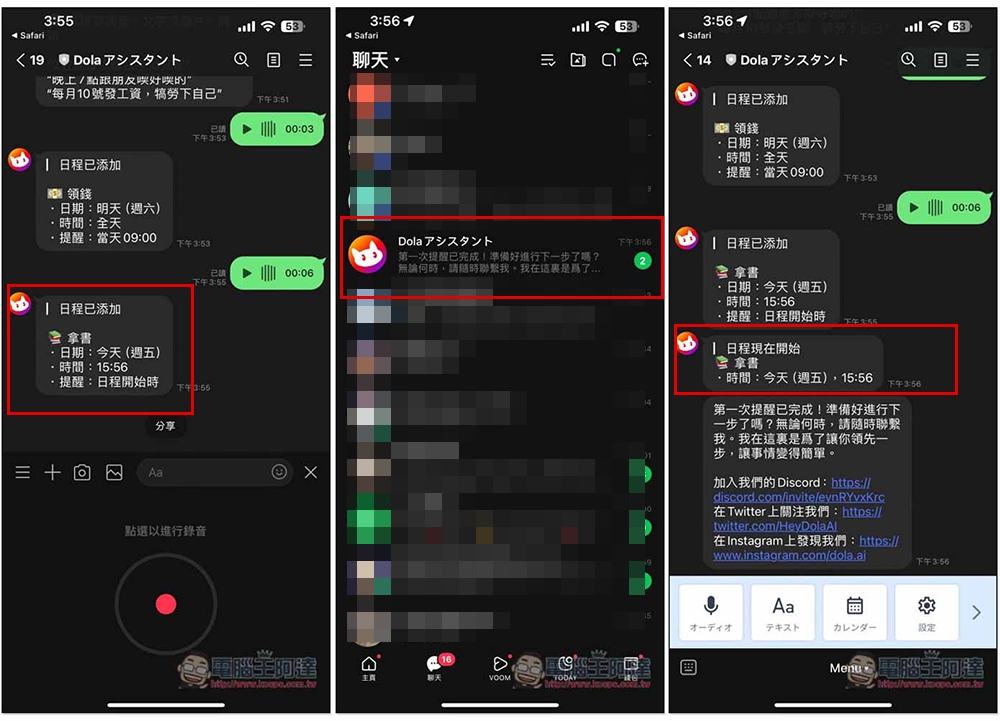
And when I opened Google Calendar, I indeed saw the itinerary that Dola helped me create:
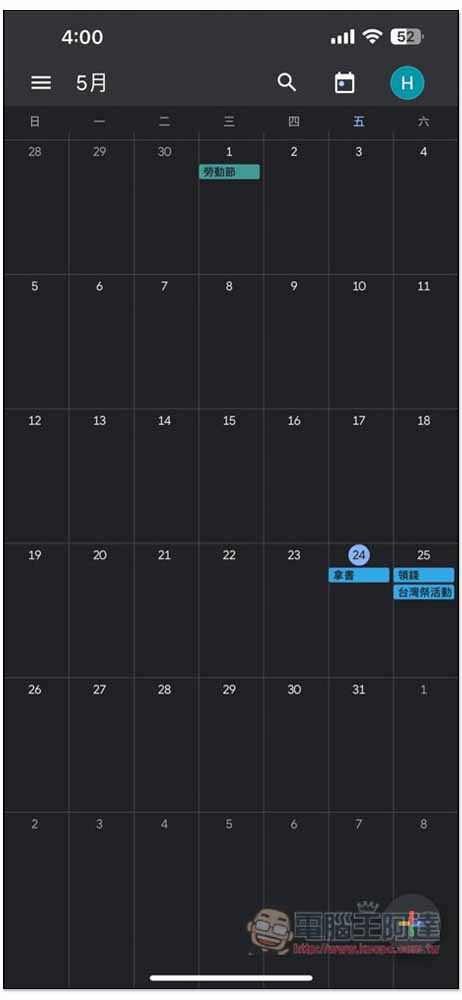
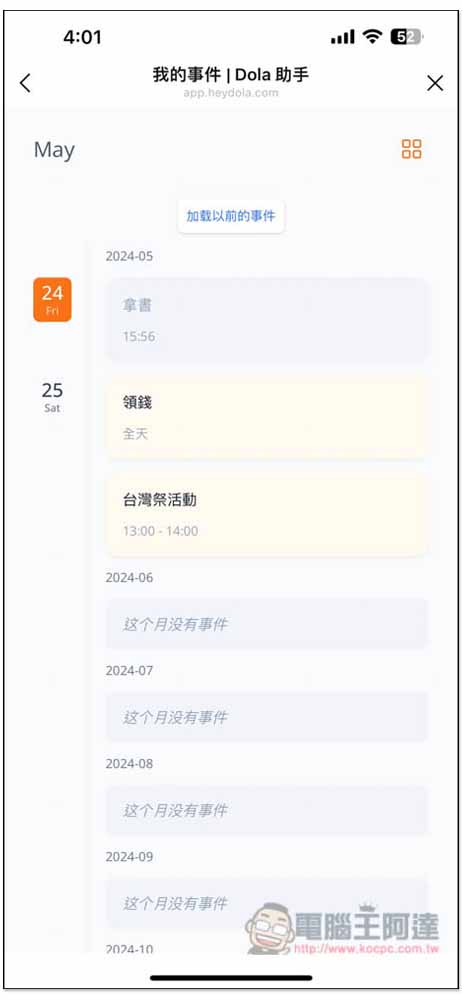
Additionally, the calendar in LINE’s settings allows you to check upcoming events, so you don’t necessarily have to open Google Calendar.
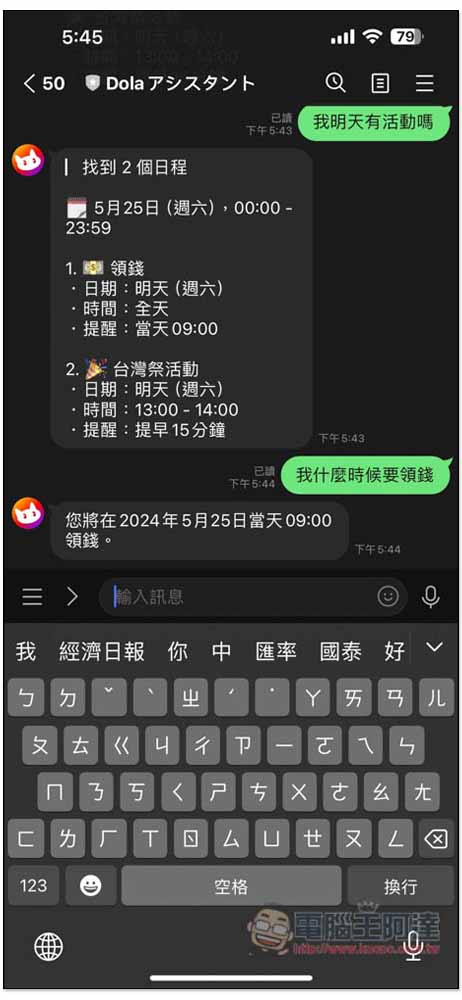
In addition to creating events, you can also directly ask it about tomorrow’s or a specific date’s schedule, even things like “When do I need to withdraw money?” Dola will help you find out from your calendar which day and at what time. It also supports editing and deleting events:
Source: KOCPC Chinese