


There are many AI assistants available as Chrome extensions, but most of the good ones require payment, while the free ones either use older models or require connecting to your own free version of ChatGPT. Recently, I discovered this incredibly useful one called “TinaMind,” which claims to use GPT-4 (though my testing seems to suggest it’s actually Google’s Gemini). It supports a wide range of features, from general AI chat, summarizing web content and YouTube videos, translating selected content, checking your grammar, generating articles or emails, and text-to-speech (TTS) conversion, among others. You can also upload your own documents.
More importantly, it’s completely free—after logging into your Google account, you can use it unlimitedly, making it one of the best free AI assistants available right now.
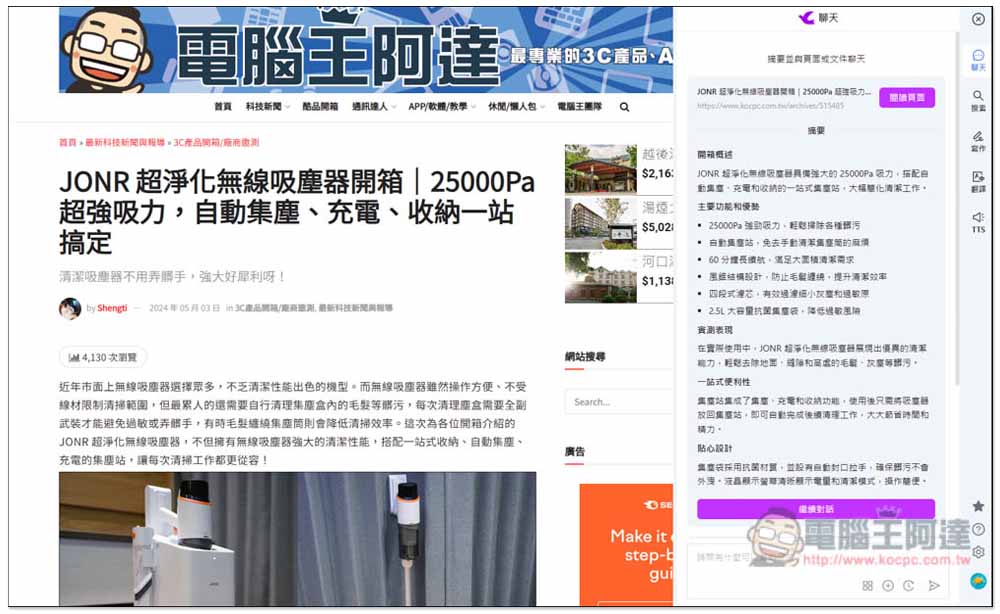
AI Assistant Powered by GPT-4: TinaMind
TinaMind is a Chrome extension that can be installed on any browser built on the Chromium core, meaning Microsoft Edge, Arc, and others all work.
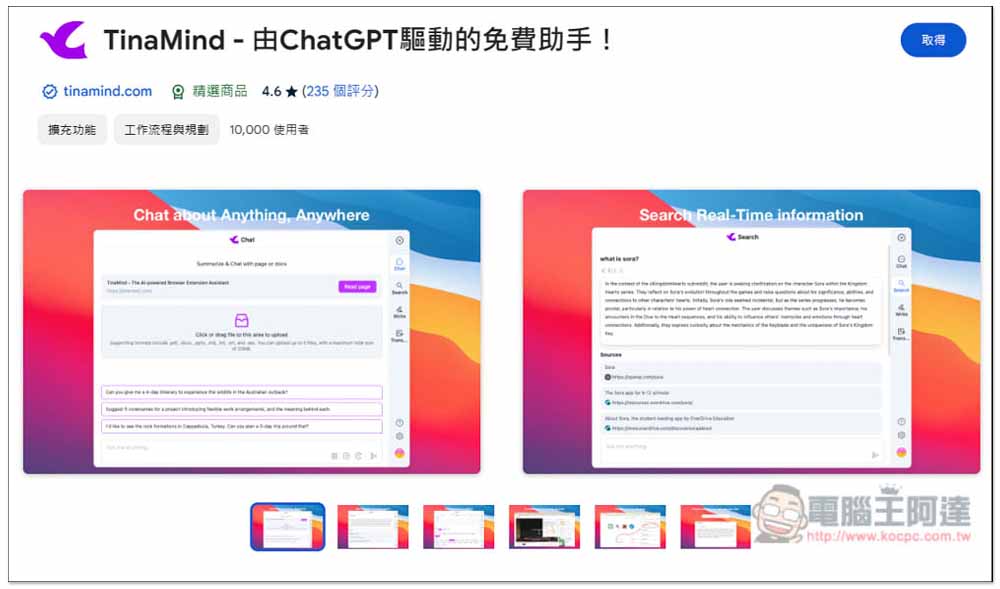
After clicking the link above to go to the Chrome Web Store page, click ‘Get’ in the top-right corner:
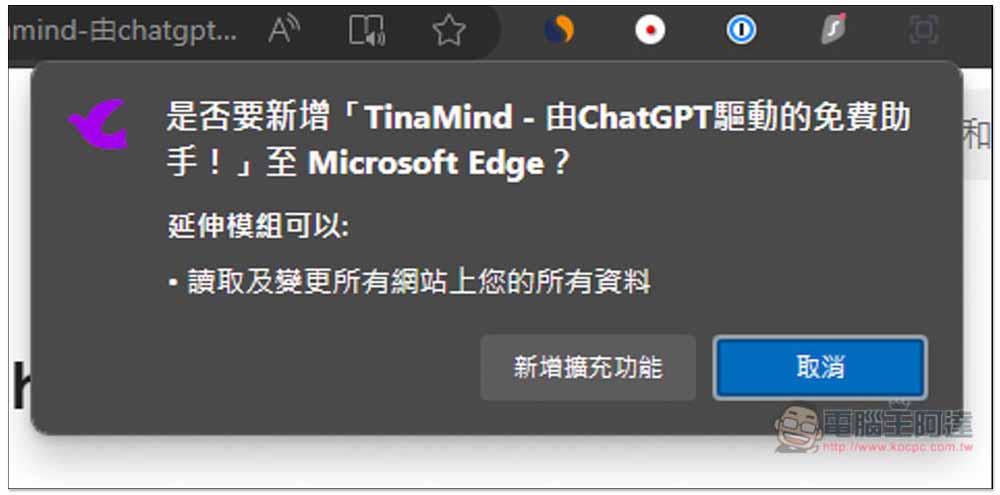
A window will pop up above; click “Add Extension”:
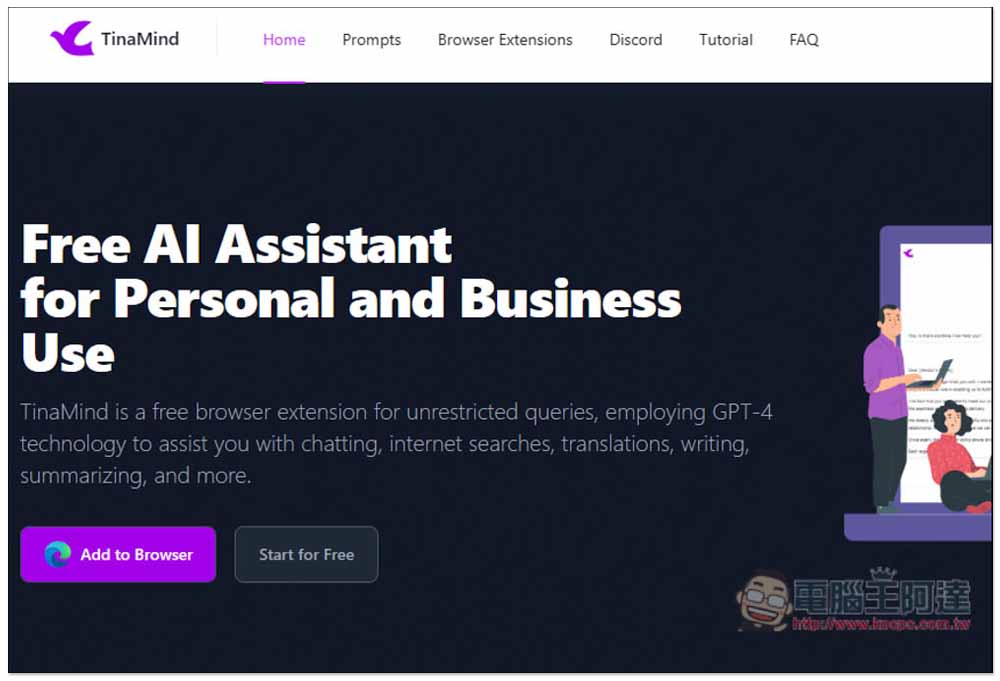
After installation is complete, the TinaMind official website will open automatically, and you can simply close it:
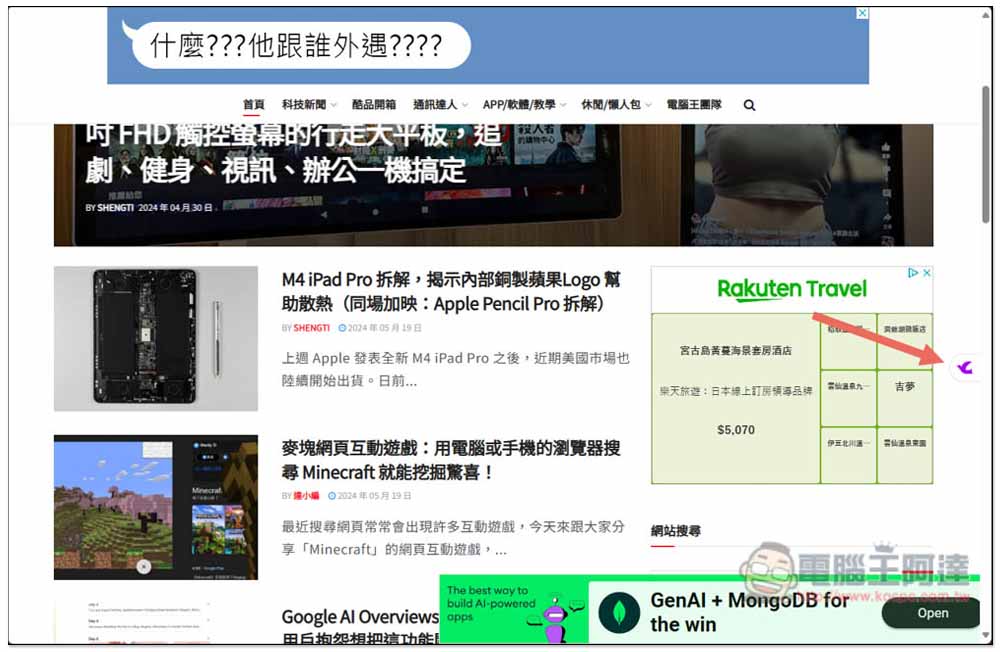
The TinaMind extension icon doesn’t need to be pinned; you’ll see a bird icon appear on the right side of the webpage, which can activate the AI assistant:
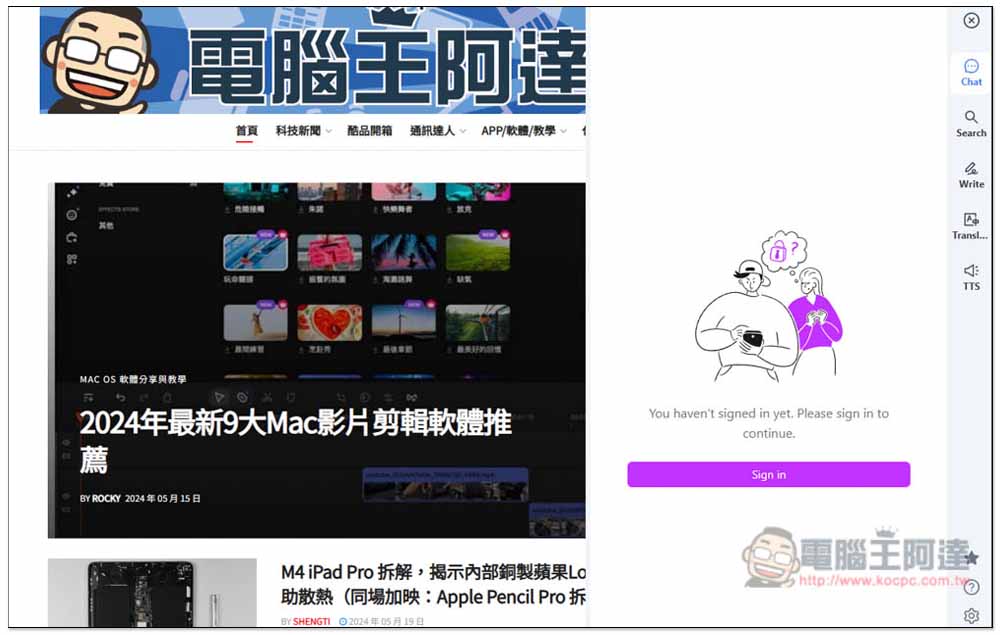
First-time use requires signing in with a Google account:
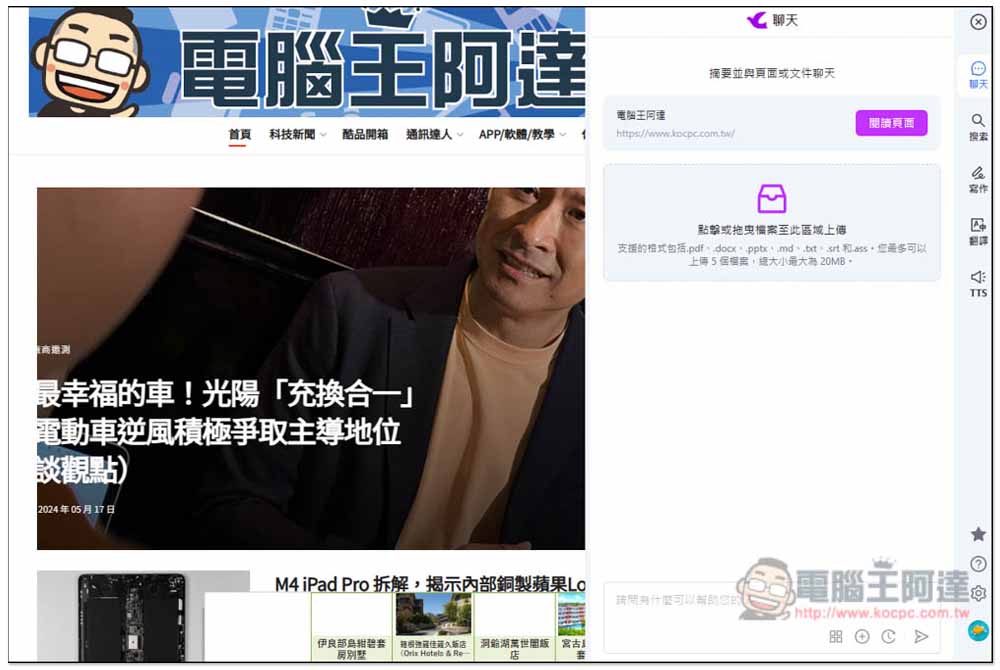
After completing login, the AI chat interface appears, where you can type anything you want to ask or process:
Summarize the current webpage content and YouTube video.
With this AI assistant, in the future when you come across long articles and don’t have time to read them fully, you can tap “Read Page” at the top of the chat interface:
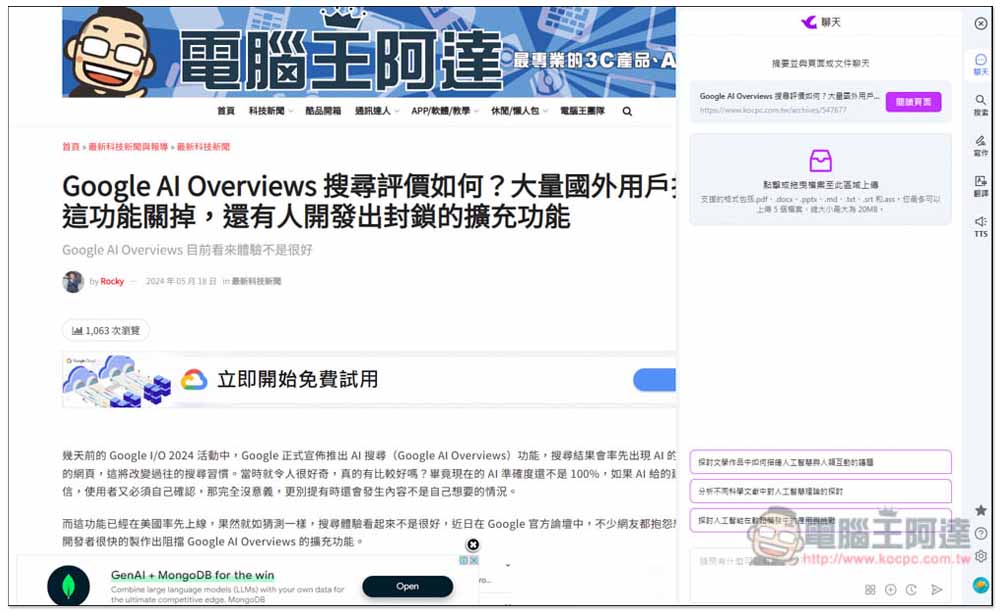
It will then summarize the key points and provide key information. I tested it and it was quite good—it captured all the important points. If you want to ask for more details, you can click “Continue Conversation”:
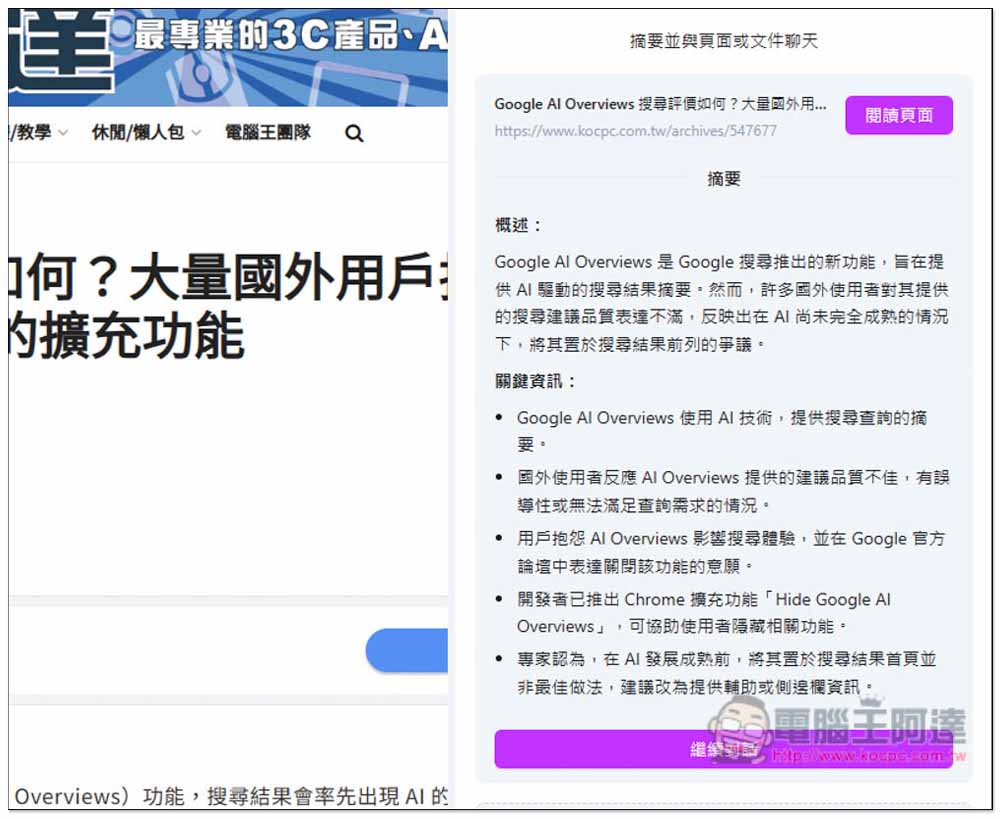
You will enter the chat interface for the current webpage content. Enter any question you want to ask, and it will also give you a few questions you might ask. If there are any, just click on them:
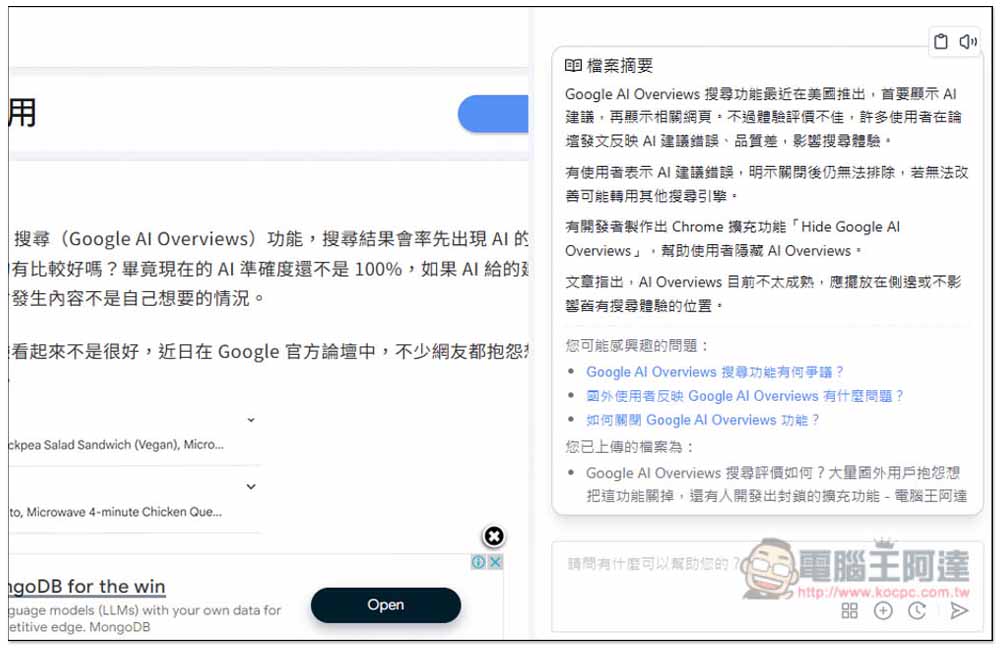
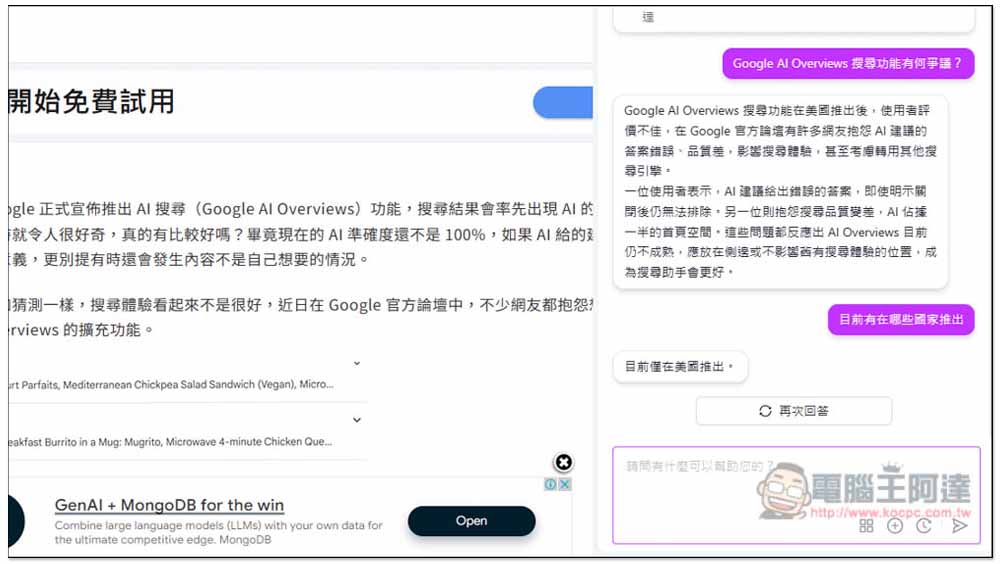
Like so, it will reply based on the content of the current webpage:
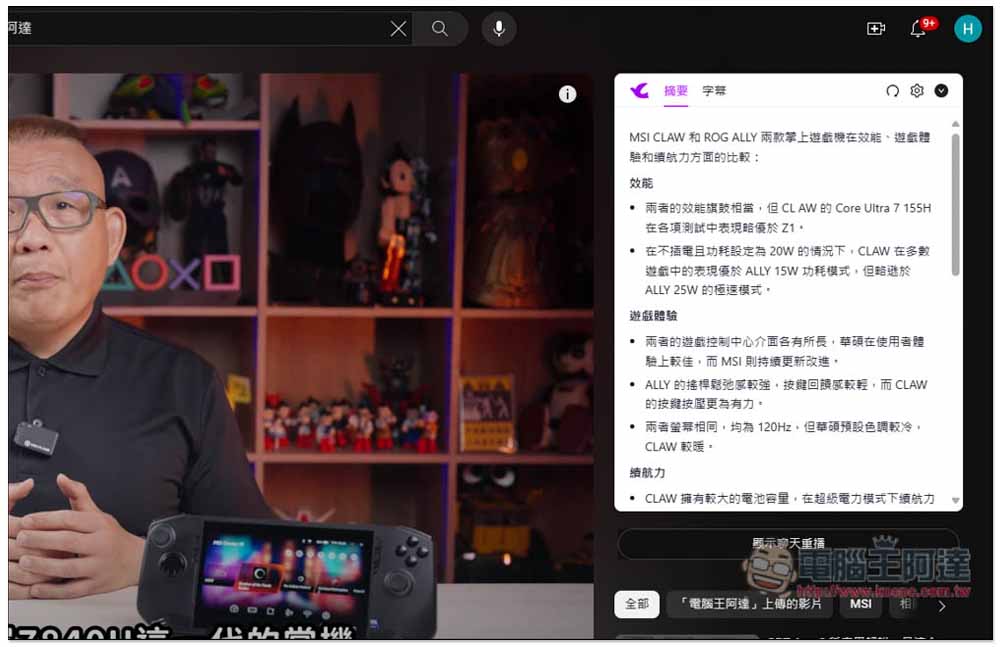
When watching a YouTube video, a summary block appears on the right side. If needed, click “Summary” to start processing.

Without watching the entire video, you can easily get the key points and crucial information of this video:
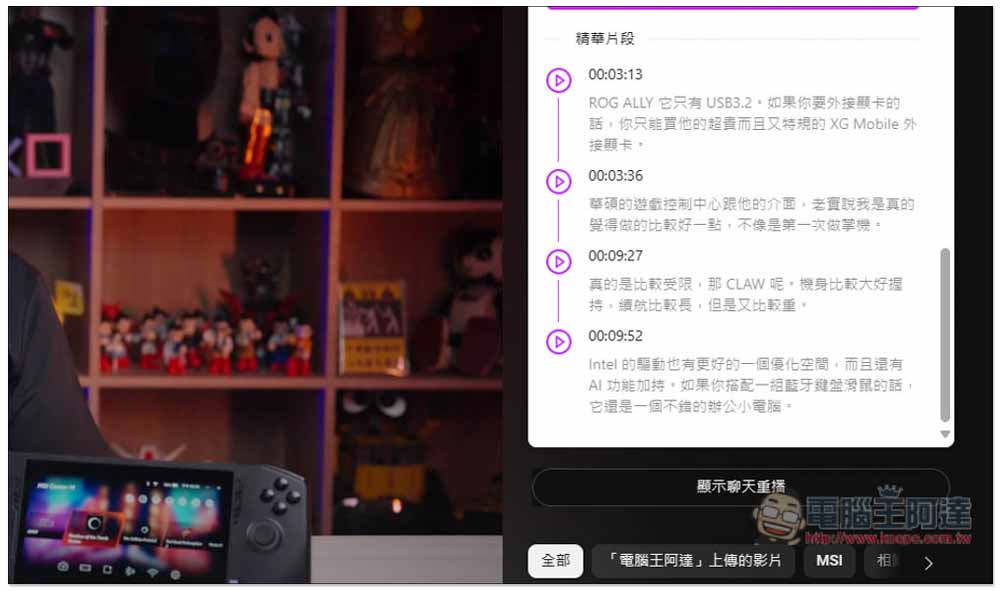
There are even highlight clips:
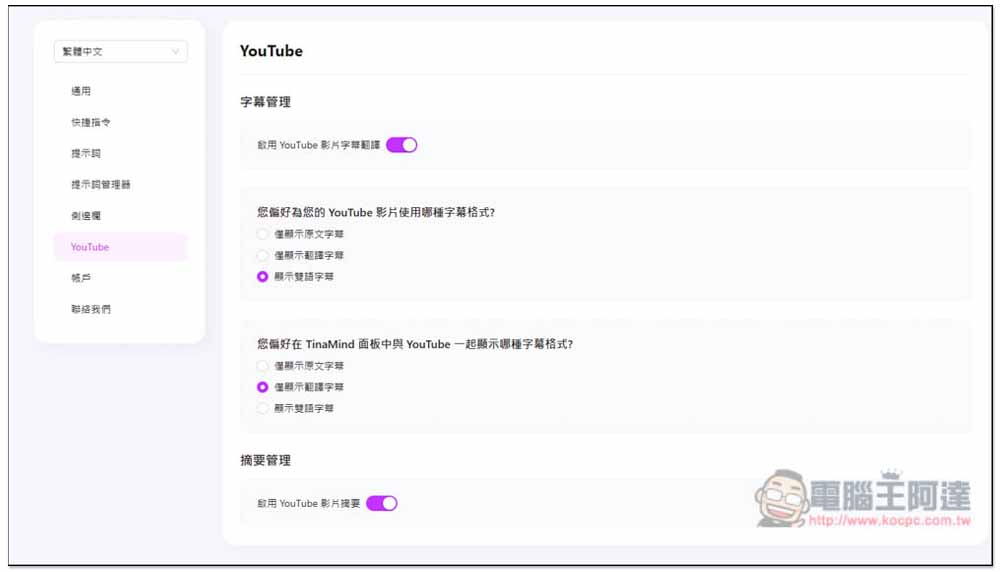
YouTube videos also support subtitle translation:
Generate writing articles
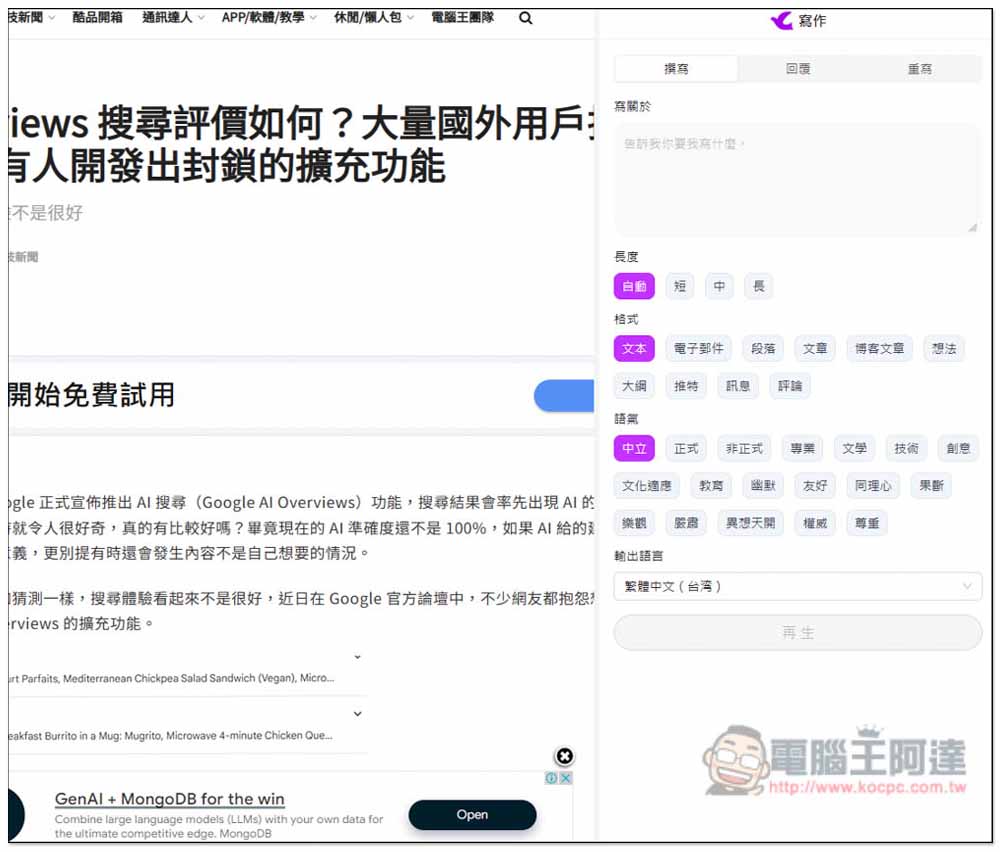
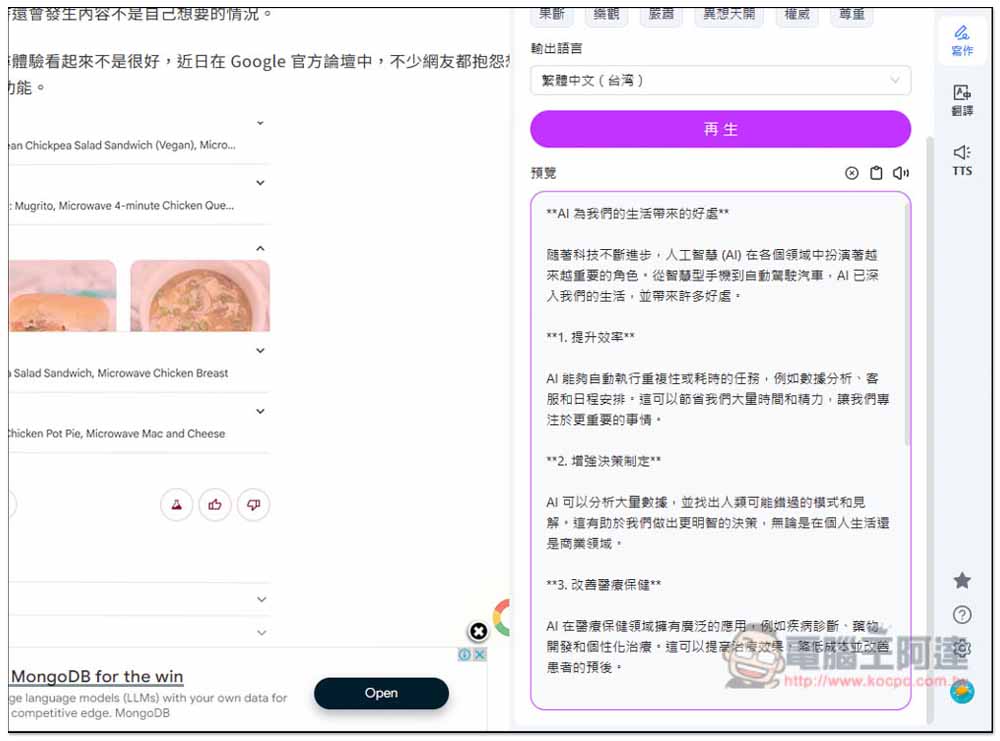
The writing features provided by TinaMind are also very powerful. In addition to giving the topic of the article you want to write, you can also set how long the article should be (short, medium, long), what format it should be (e.g., email, article, idea, outline, etc.), and the tone (formal, professional, friendly, educational, etc.). The output language also supports Traditional Chinese:
I request a blog post about “What benefits AI brings to my life,” medium length, using a friendly and neutral tone.
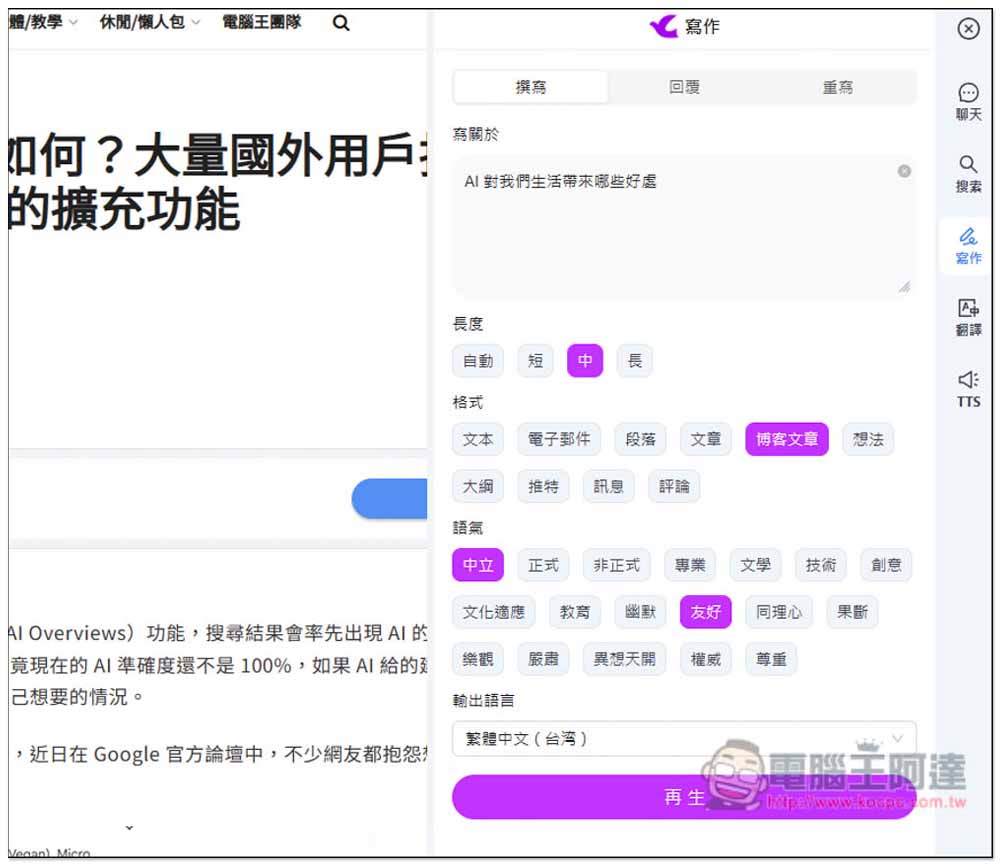
A first draft of an article is ready. If you want to add more content, just modify the topic and generate it again. You can generate as many times as you like, completely free.
Translate the specified content and paragraphs, and check grammar.
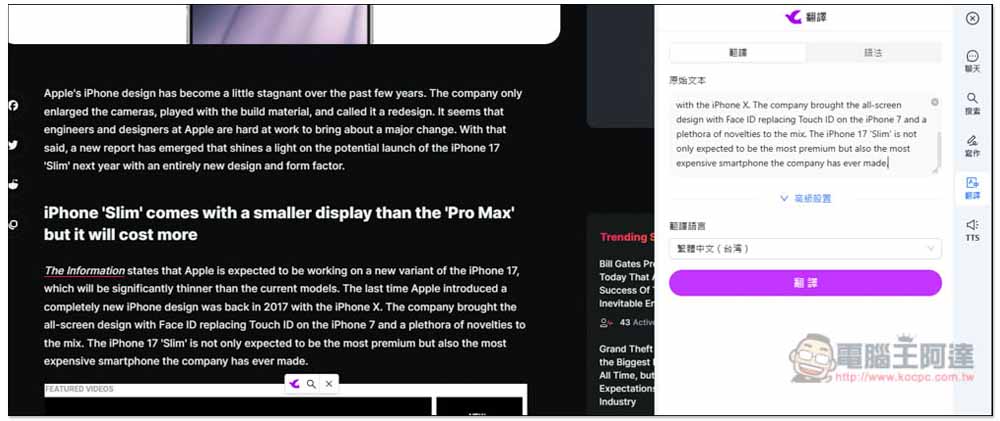
When reading foreign articles, if you want to translate something you don’t understand, switch the AI assistant to the translation feature, paste the content, and press translate:
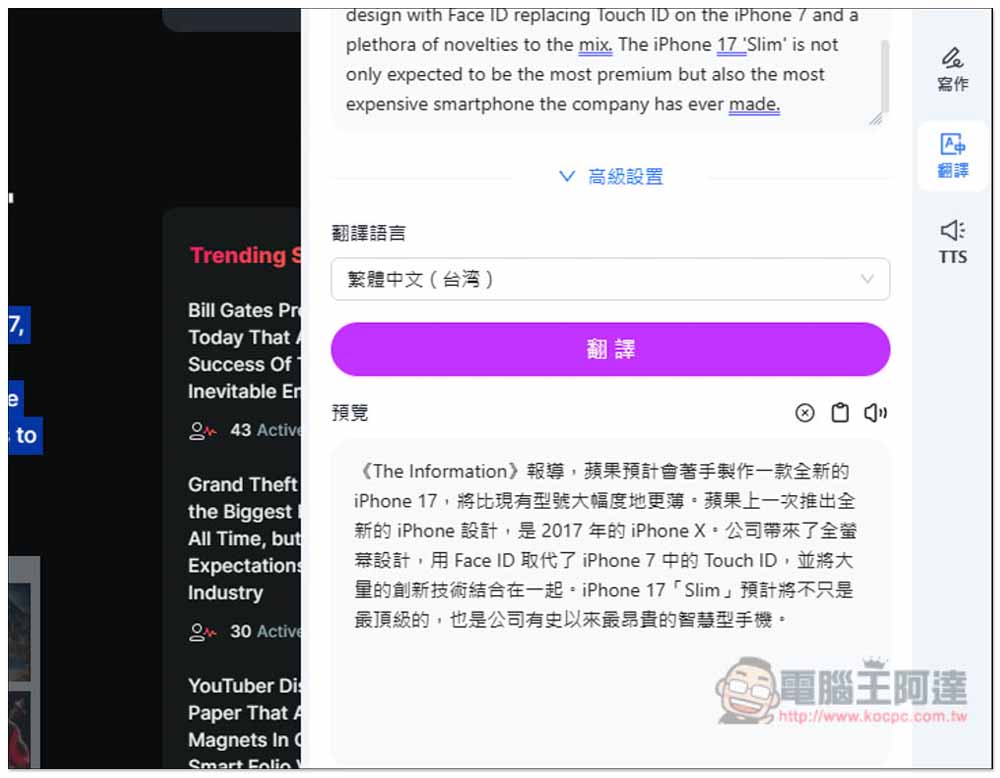
then you can get the Chinese translation:
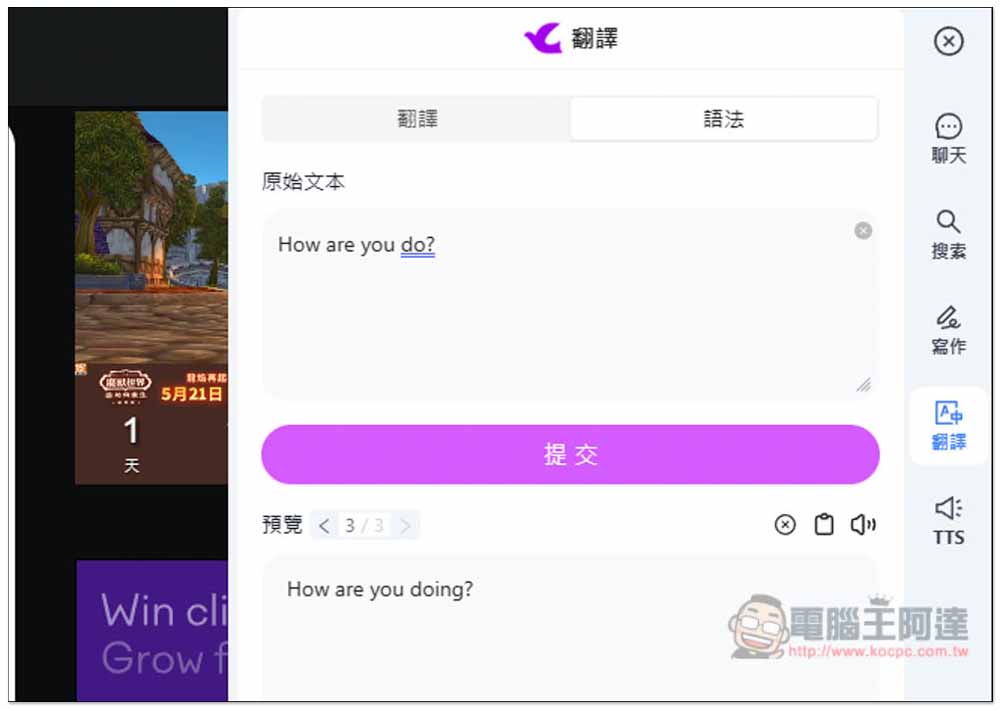
When writing articles for overseas or replying to foreign clients, if you’re unsure whether your grammar is correct, you can paste it into the grammar check function and let AI check it for you:
Generate TTS speech, and also download it as an MP3 file.
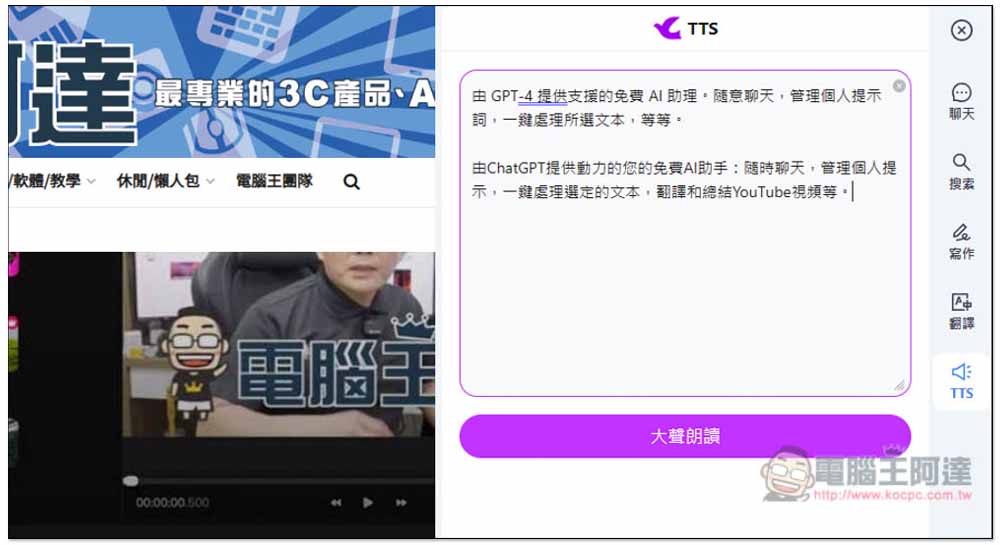
Paste the text you want to convert into TTS voice, press Read Aloud, and it will start playing the narration:
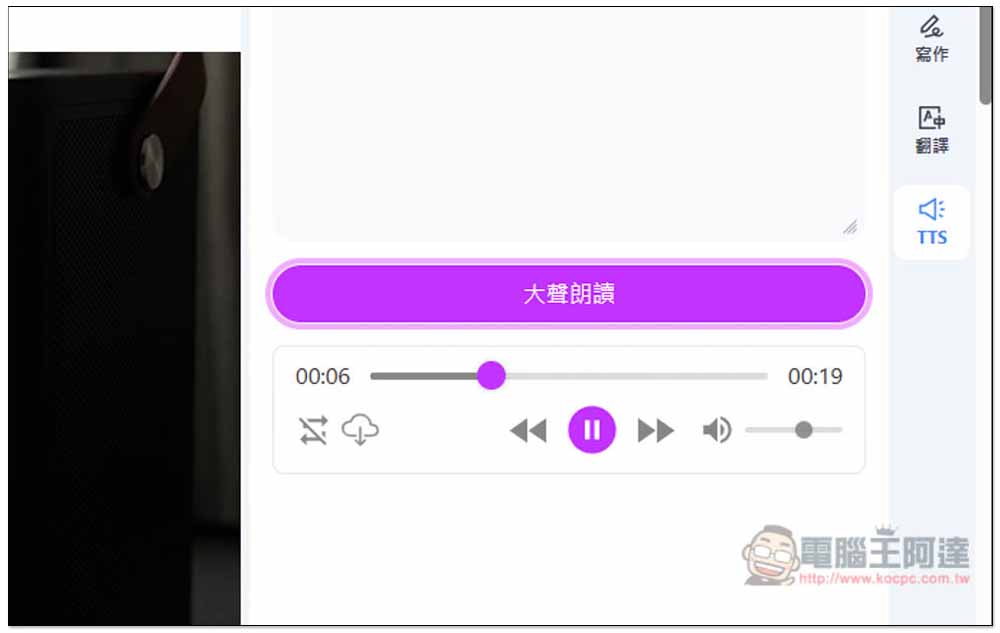
If you’re satisfied, there’s a cloud download icon below the playback interface. Click it to download the converted audio file as an MP3:
Set prompt
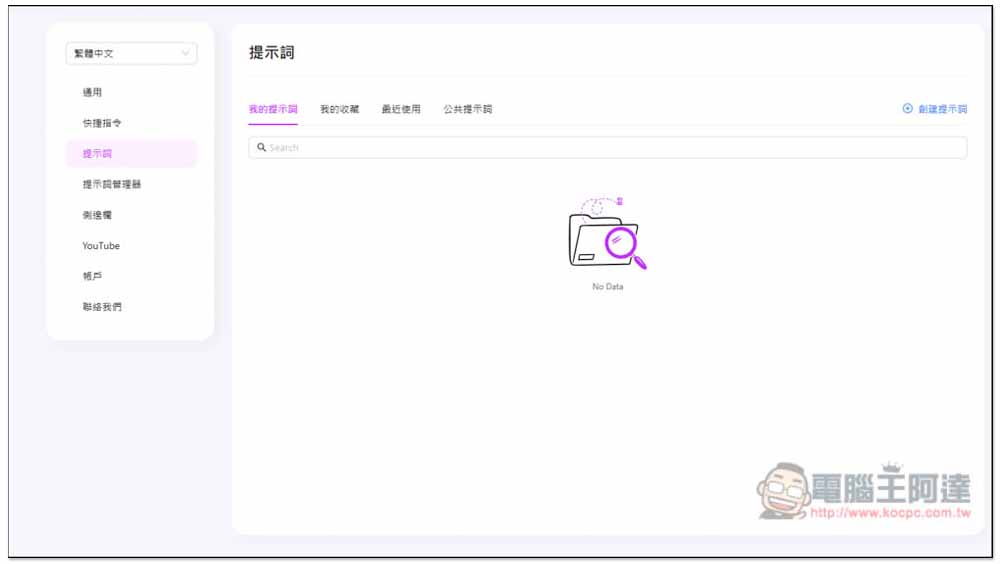
In the account backend, you can also add your own prompt words to quickly use them in the AI assistant in the future:
Source: KOCPC Chinese