


“Image Compressor” is a free image compression software that claims to be simple and easy to use. It is very different from other software of the same type. In addition to compressing images and photos, you can also specify the compression strength, width or height, and storage format. It is more flexible to use. It is also available in Windows and Mac versions. People who need it can try it. It is quite useful.
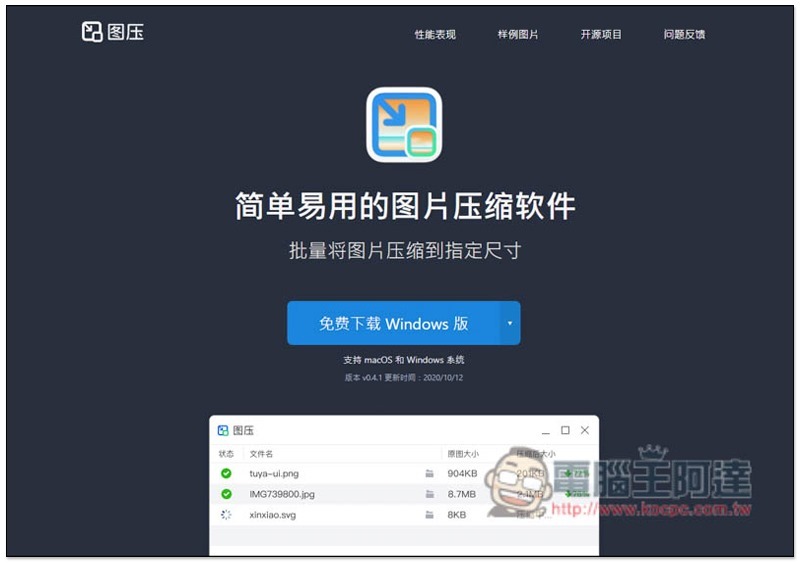
Introduction to “Picture Compressor” free image compression software
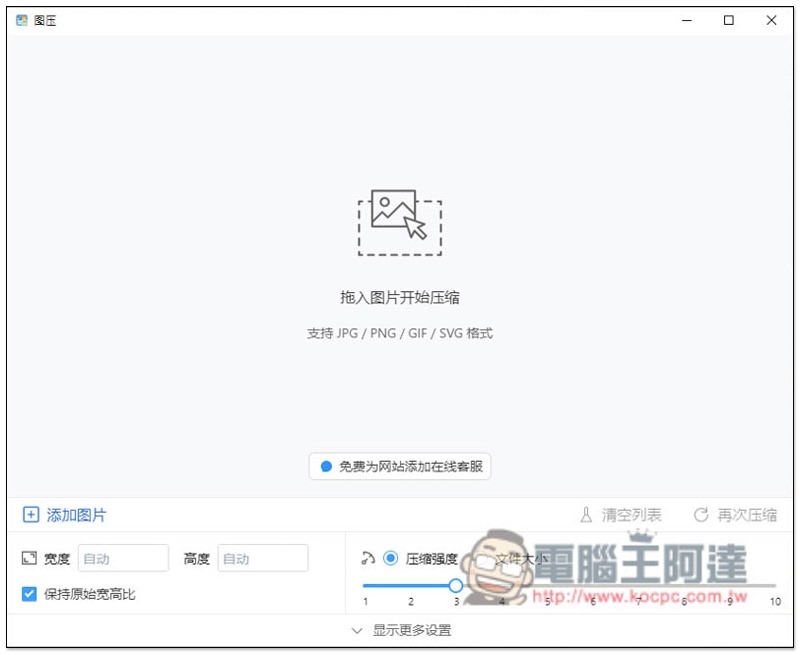
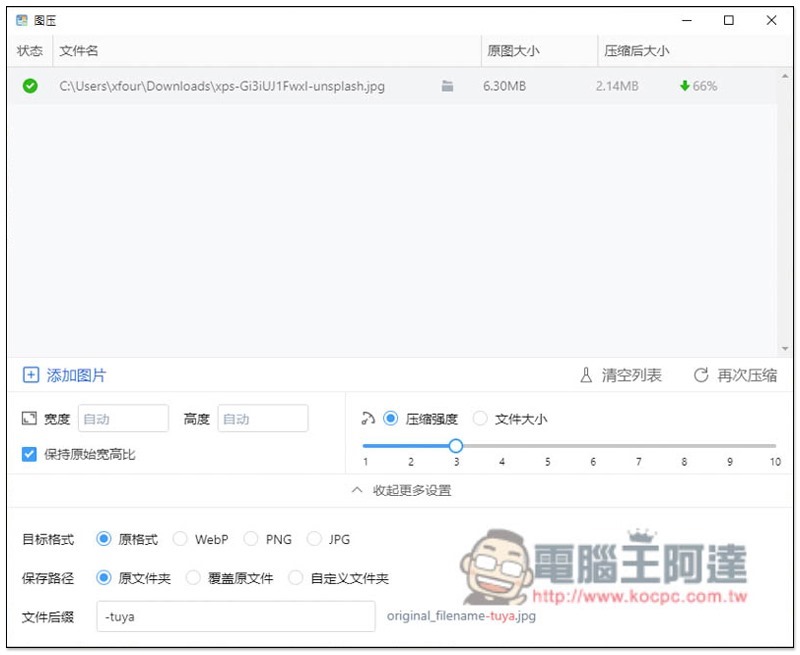
After opening the image pressure software, please set the settings below first, because after dragging pictures and photos in, automatic processing will begin. In the lower left corner, you can set the width, height, or maintain the original aspect ratio. On the lower right, you can adjust the intensity or file size. If you don’t know how much to adjust, just use the preset first. If the compression is not small enough, then increase it a little bit (the larger the number, the stronger the compression):
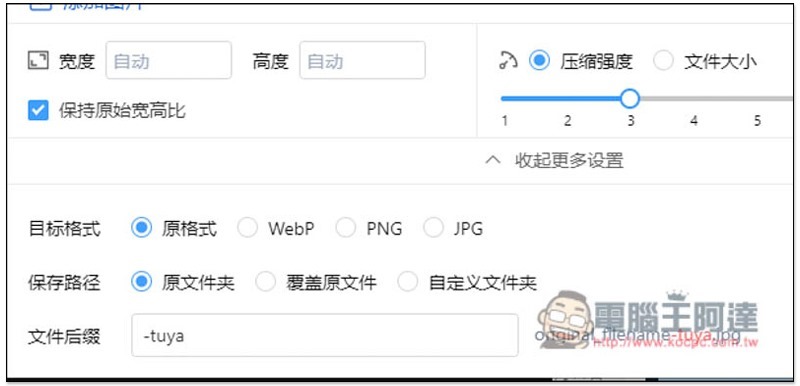
In more settings, you can also specify the format you want to save. There are four options: original format, WebP, PNG and JPG. The default saving path is “original folder”, you can specify other or overwrite the original file, and also whether to add other text after the name of the compressed image file:
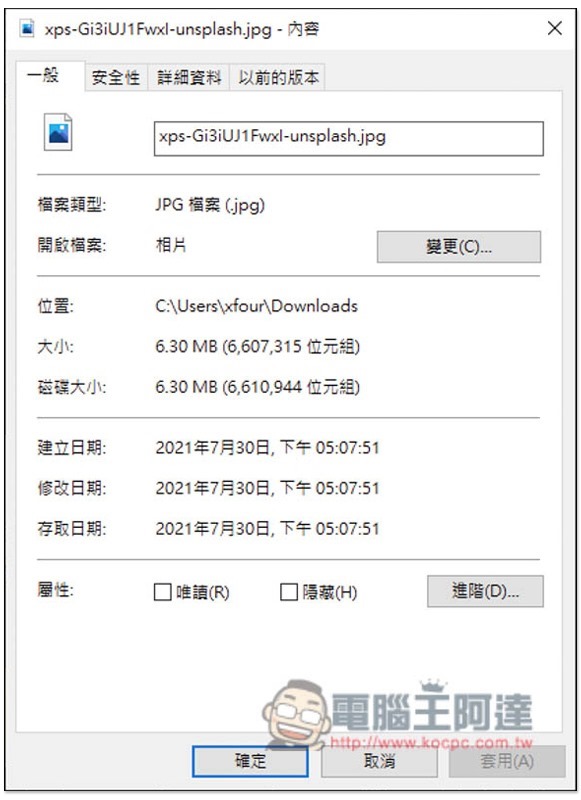
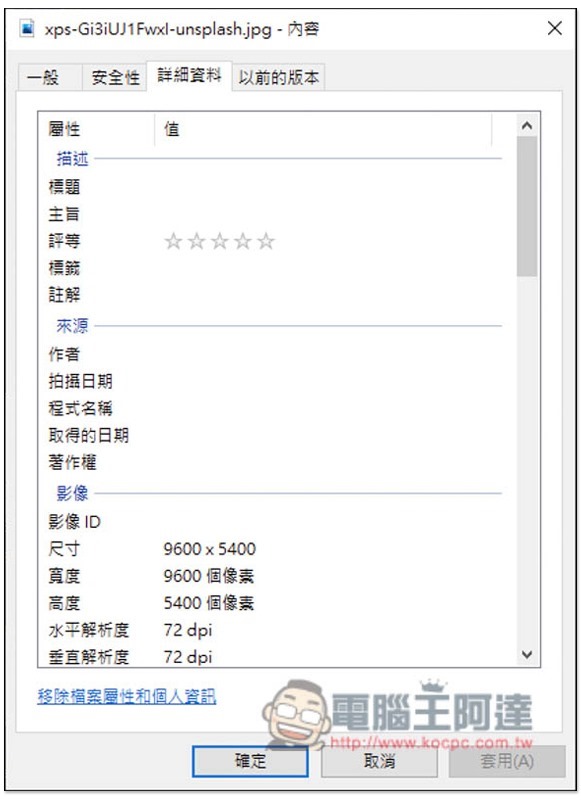
I take this photo as an example. The original file size is 6.30MB. It is not said to be particularly large, but it is not small either:
The resolution is 9600×5400:
After dragging the photo in, it will start to compress without pressing any keys. After the compression is completed, it will be automatically saved. The “Compressed Size” will be displayed on the right. My photo has been compressed by 66%, and the difference is quite large, becoming 2.14MB:
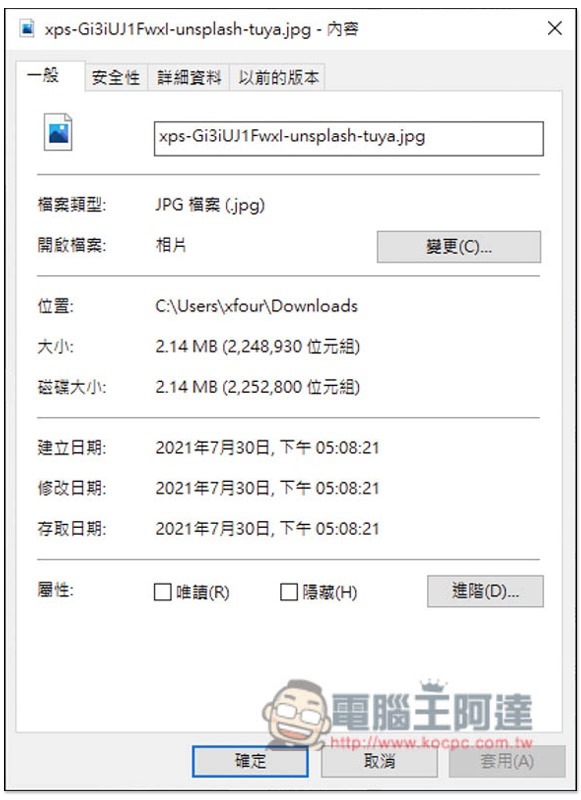
Actual inspection does turn out to be 2.14MB:
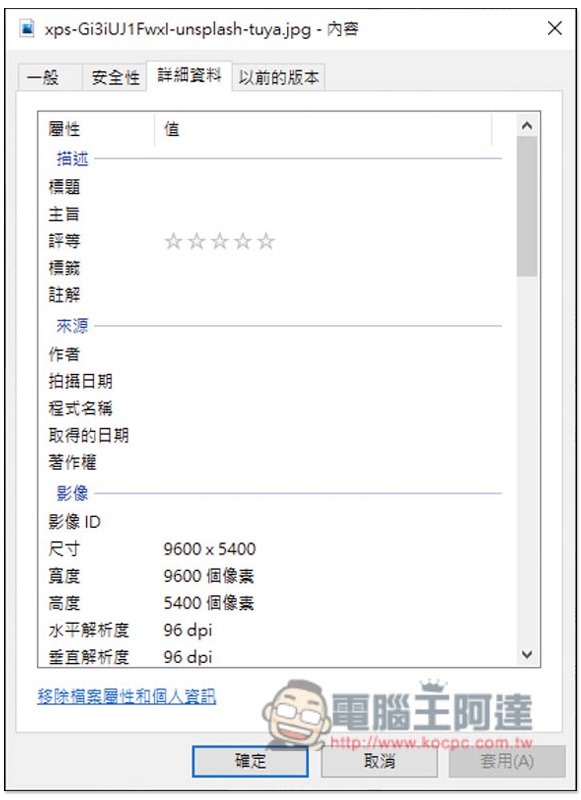
The resolution is still 9600×5400, unchanged:
Open the photos before and after compression to compare, and you can’t feel the difference at all (Image source):
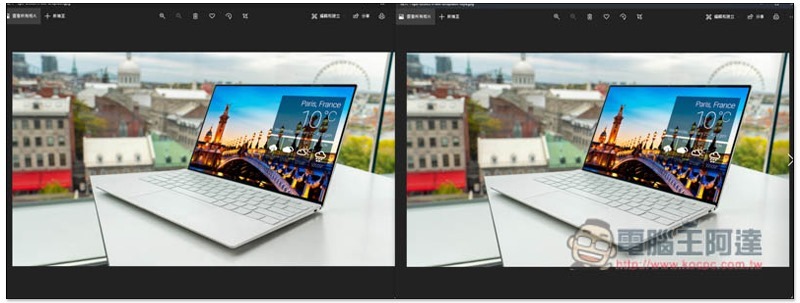
There are other comparisons of photos before and after compression on the official website, and those who are interested can also take a look.
In addition, I also tested this photo if the strongest compression strength (10) was used. Although it changed from the original 6.30MB to 155KB, a difference of 98%, the content of the photo has completely changed, so the compression cannot be too strong. I tested it to about 6 to 7, which is about the same, and the compression is at least 80%. No matter how high it is, it will change.
Source: KOCPC Chinese