


Since Google Photos canceled the unlimited capacity benefit, I believe many people are worried about how to back up photos on their mobile phones. If you haven’t found a useful one and you have a computer at home, you may want to consider setting up a private cloud to automatically back up iPhone and Android photos and videos to your computer through a wireless network. This Lomorage free app can do this, and it also supports automatic background backup, which is quite convenient.
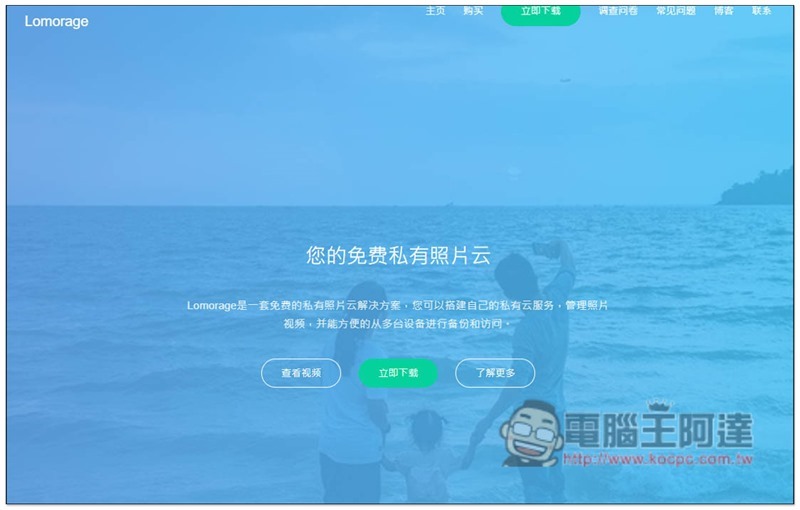
Lomorage creates a private cloud for backup of mobile phone photos and videos on your computer
Lomorage is a free open source software available in GitHub It is now available on the official website. The computer software can be downloaded directly from the official website. The mobile app is also available on the App Store and Google Play.
- Click me to go to the official website
- Click me to go to the computer software download page(Windows、macOS、Raspbian、Docker、Armbian、Ubuntu)
- App Store
- Google Play
In the following tutorial, I use the example of backing up iPhone photos to a Windows computer.
If there are no special requirements during installation, just keep pressing Next:
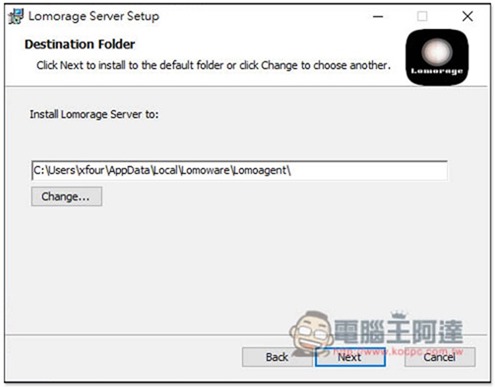
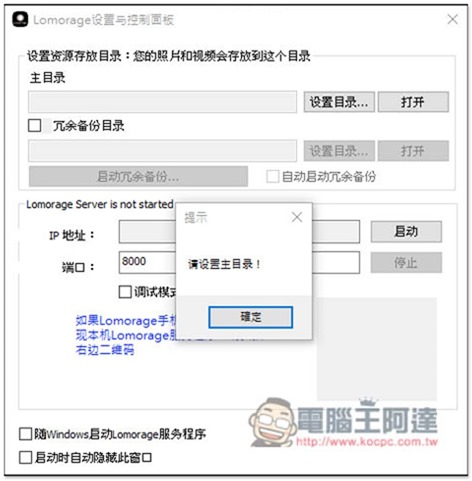
After installation, open it. There is a Chinese interface. You need to set the backup directory at the beginning. Click the “Set Directory” function in the top home directory:
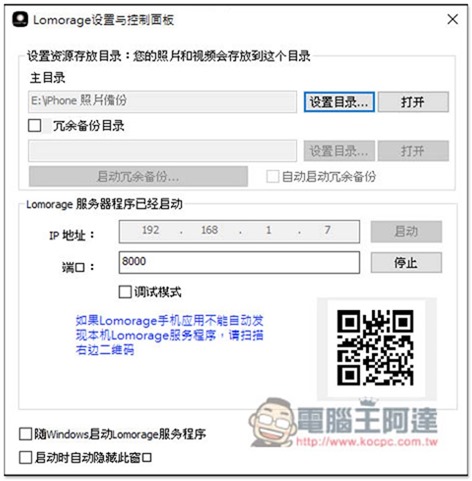
After the setting is completed, click “Start” of the server program, and the IP address and QRCode will appear. If the server is not found automatically when logging in with your mobile phone, you can connect through these two methods. Remember, you must be on the same network:
After opening iOS, if you use the same network, the server should be found automatically. There is no need to enter the IP or scan the QRCode. I tested it on Android. Then please create a login account. If you have a second or more mobile phones and want to use this backup set, just log in with the same account and password:
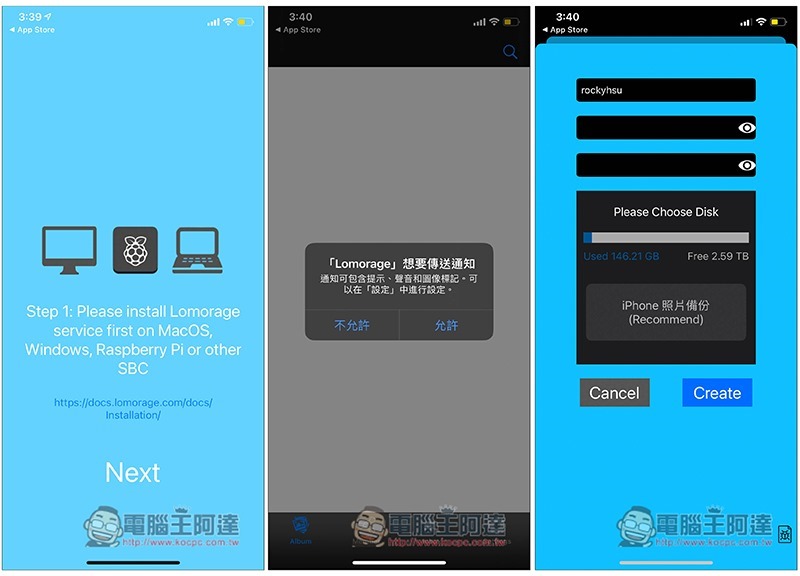
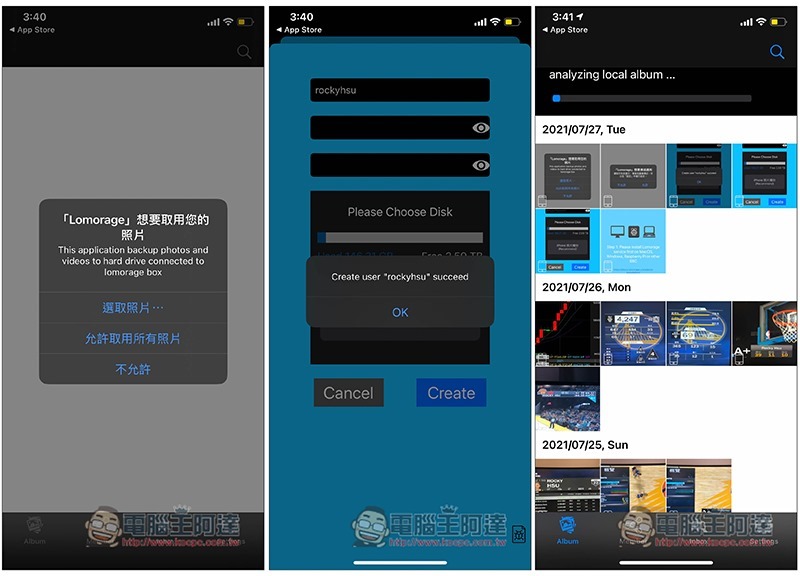
Remember to allow access to all photos. After the creation and login are completed, the local photo album will be analyzed first. Please be patient and wait for the run to complete:
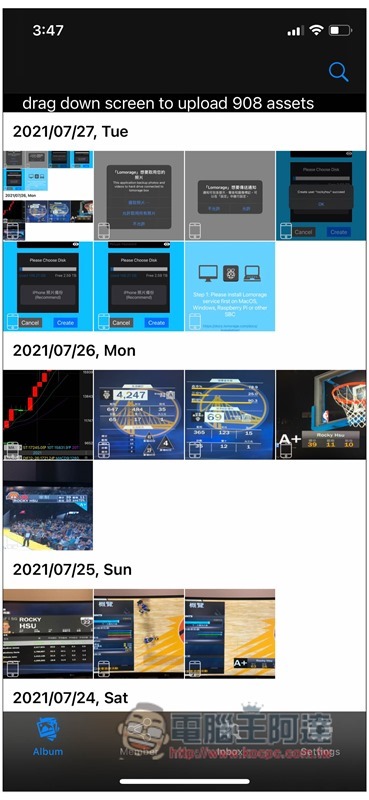
After scanning, drag down screen to upload…. will be displayed above. Please press and hold the screen to slide down and release:
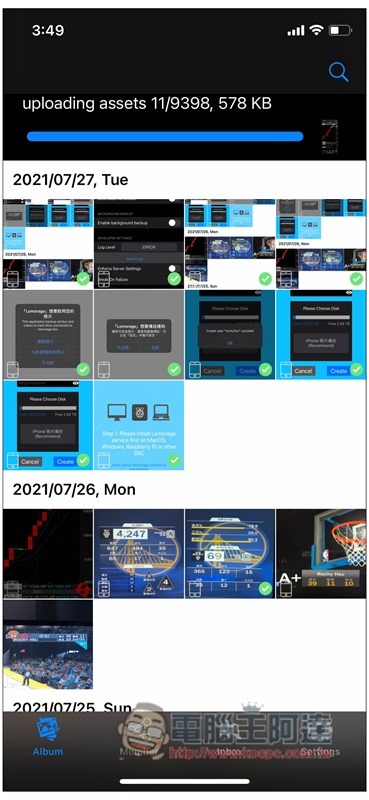
The photos will start to be backed up to your computer:
In the backup directory you specified, you will see the user account you just created:
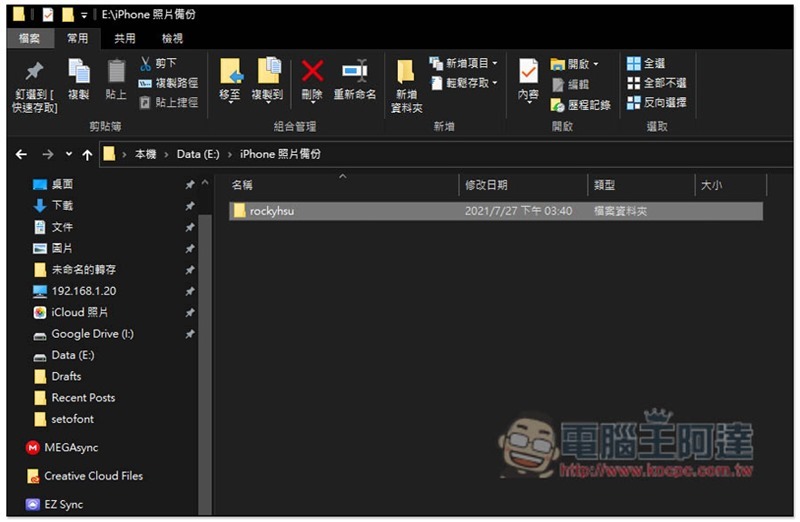
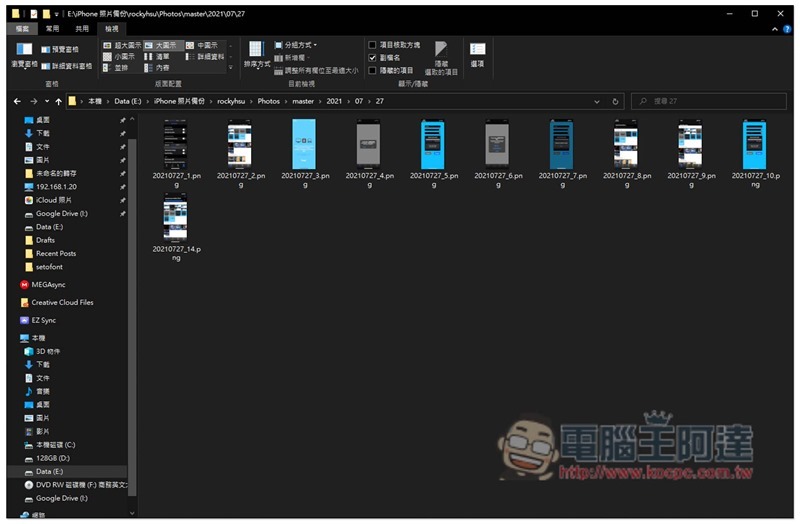
There will be two folders, master and preview. Master is the original file, and preview is just a small preview file. Folders will also be automatically created based on the photo date. For example, photos taken in 20210727 will be backed up in 2021 –> 07 –> 27:
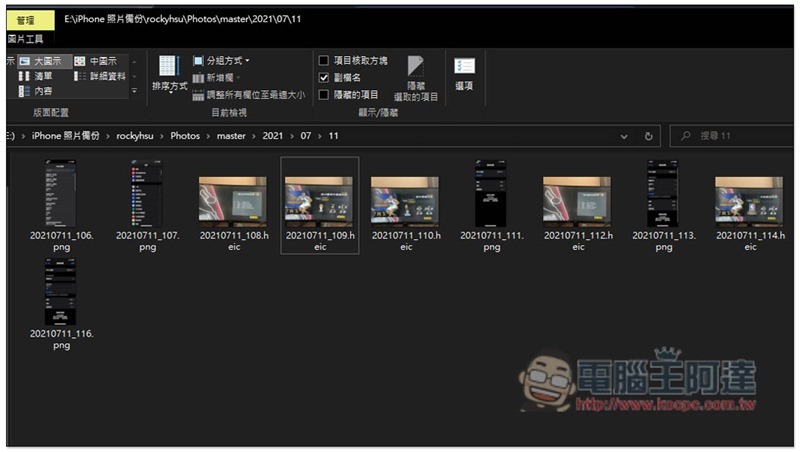
Photos taken on iPhone will also be backed up as heic original files:
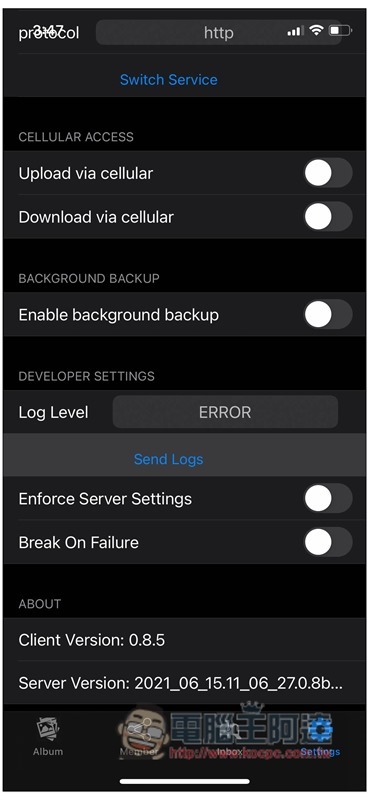
In addition, the “Mobile Network Backup” and “Background Backup” functions can be enabled in the settings. However, when I tested the iOS version, the background backup seemed to be useless. It would stop when I turned it off, while the Android version would operate normally:
Source: KOCPC Chinese