


Affected by the epidemic in the past two years, everyone cannot run around for safety and can only stay at home. Therefore, in some cases, you may want to use fake GPS software to change the actual location of your iPhone, such as:
- Don’t want to be tracked by others
- Deceive your friends and go to another place
- Play games that require you to be out and about, Pokemon Go, Harry Potter: Wizards Unite, and more
The fake GPS software launched by iToolab AnyGo is a very good choice. It has a Chinese interface, is super simple to operate, and provides a variety of modes, including: specifying a certain location, two-point routes, multi-point routes, and supporting GPX import, etc. It can also control the driving speed, allowing you to move more naturally. It is worth a reference for those in need. I will introduce it to you in detail below, and you can use it without JB jailbreak.
Disclaimer:We do not recommend using fake GPS software to play games. After all, this will affect the entire experience and fairness. It is of course best to go out and play unless necessary. Please use it at your own discretion.
Click here to go to iToolab AnyGo official website

iToolab AnyGo Review Introduction
Supports Chinese, connect iPhone/iPad to start changing GPS location
The operating interface of iToolab AnyGo is really super simple. After opening it, connect it to your iPhone and you can start setting the GPS location you want. It can be anywhere in the world. For example, if you are in Taipei, if you want to deceive others, you can go abroad to New York, USA. The software interface also has Chinese language, so you can understand what all the functions are used for.
Click here to go to iToolab AnyGo official website
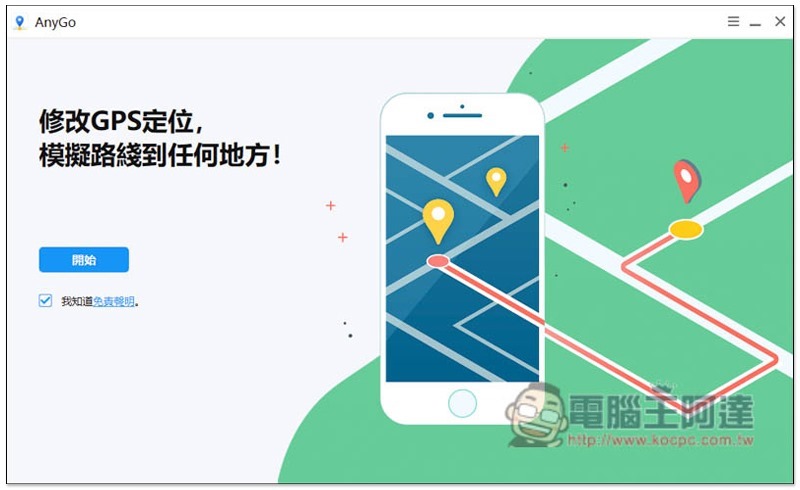
After opening the software, there is a disclaimer below. Anyone who is interested can read it and press “Start”:
The screen will prompt you to connect the iPhone to the computer:
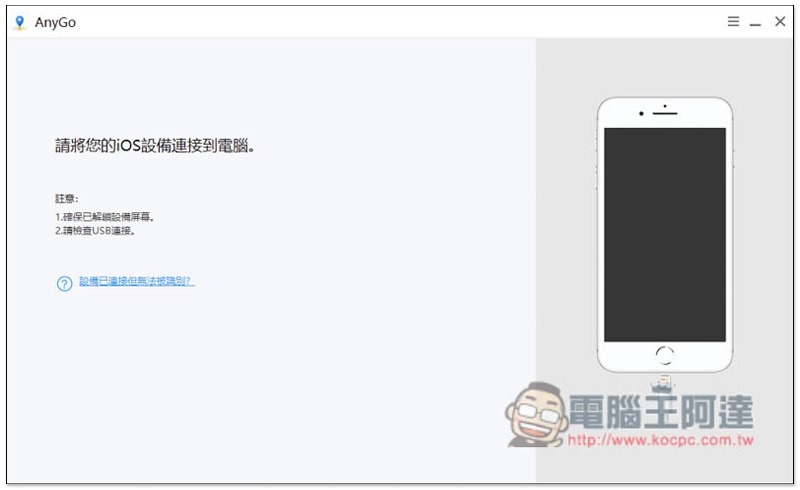
After completion, you will see that the connection is successful and you will enter the map screen:
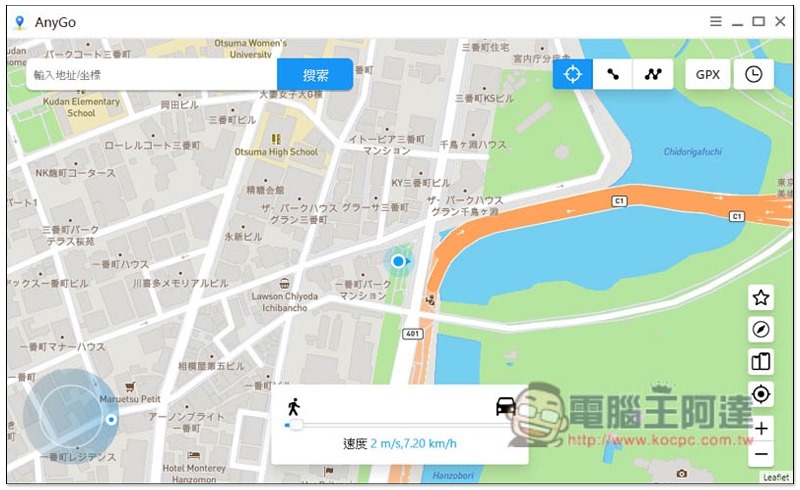
Provides three GPS positioning modes and can also import GPX files
In addition to the basic setting of changing the GPS position, iToolab AnyGo also has two-point or multi-point routes. Simply put, you can specify other places you want to go to. After startup, your GPS position will start to move, even if your phone is not moving. This way, others will think you are really moving, or when playing games like Pokemon GO, you can move to other locations to visit supply stations or challenge gyms.
There are three modes to choose from in the upper right corner, namely “Teleport Target”, “Two-Point Route” and “Multi-Point Route”:
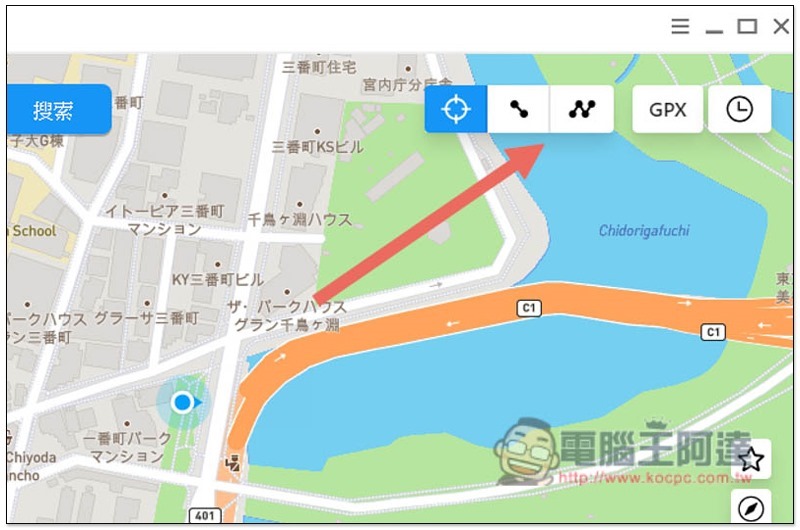
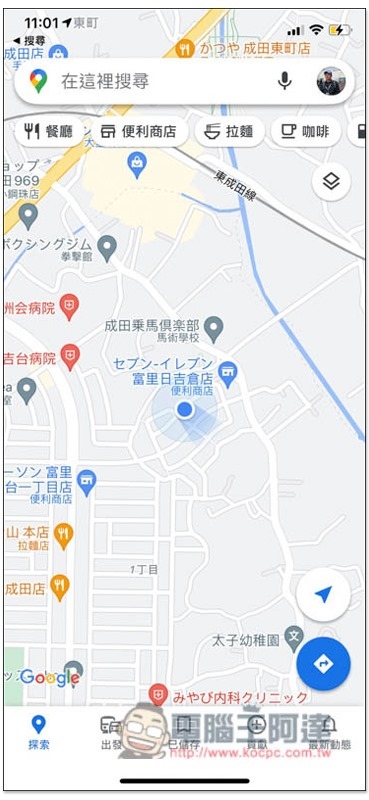
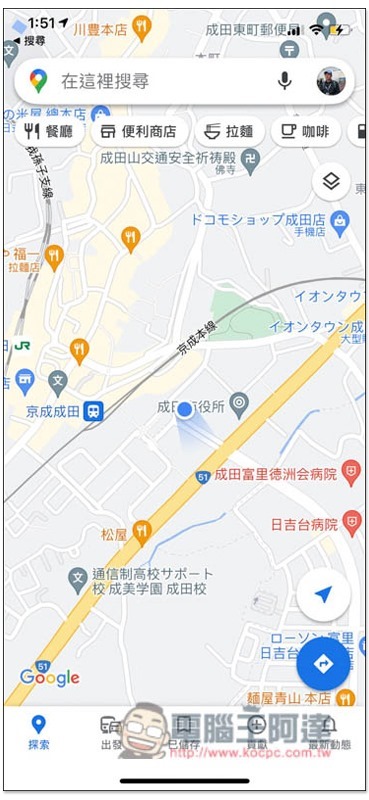
The picture below is my current real location, in Narita City, Japan:
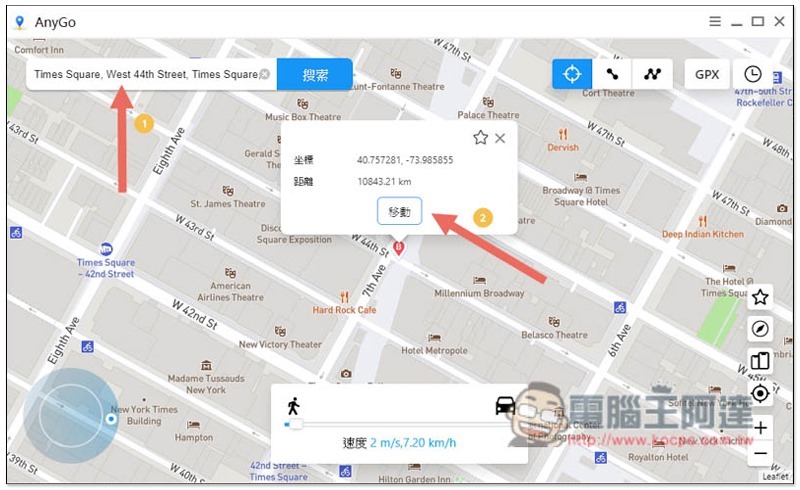
I first use the “teleport destination” mode (that is, a single point), taking Times Square in New York as an example. Enter the destination you want to go to in the address/coordinate field above, or click any location on the map, and then press Move:
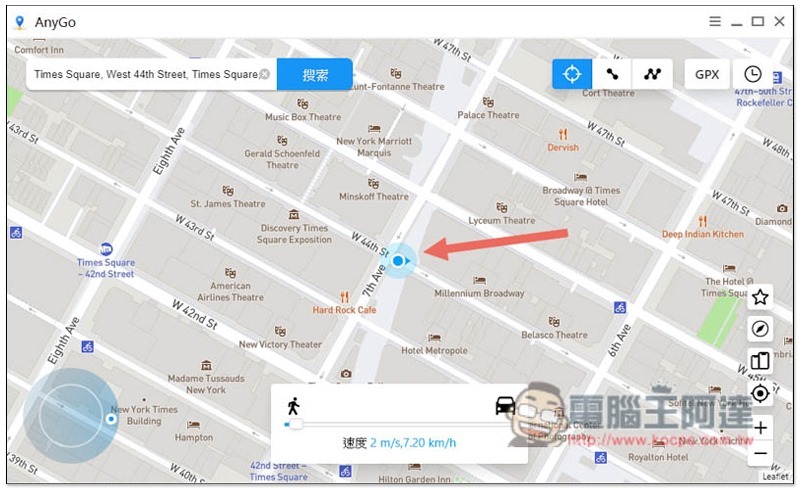
The location on the iToolab AnyGo map will change to this:
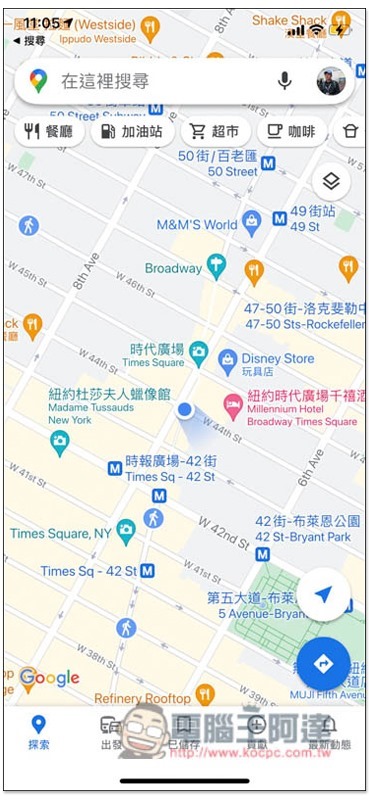
I opened Google Maps on my iPhone again to check, and sure enough it also changed to Times Square:
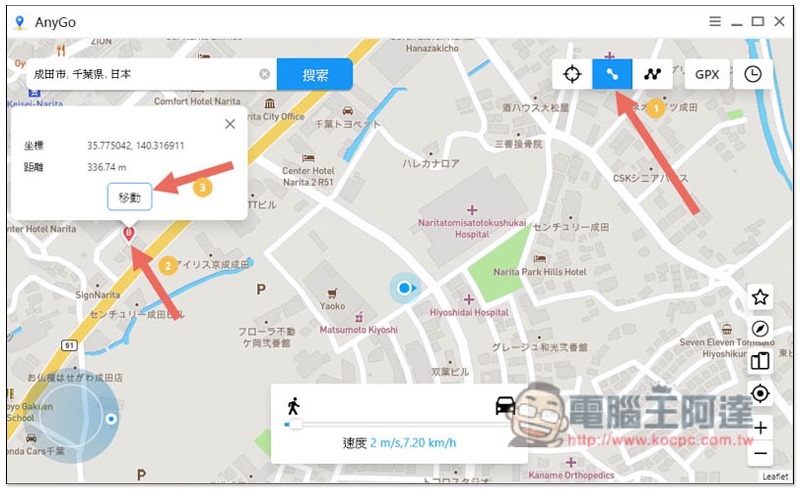
The “two-point route” setting method is similar. After switching to the two-point route mode in the upper right corner, click on the map or enter the address you want to go to, and then press Move:
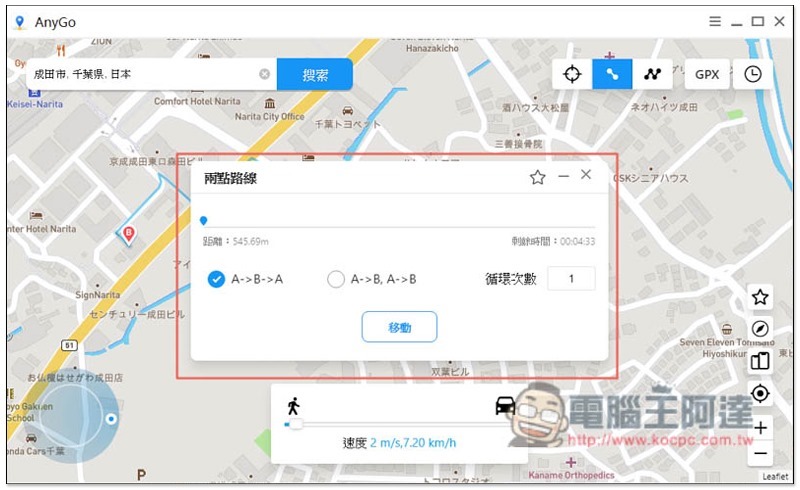
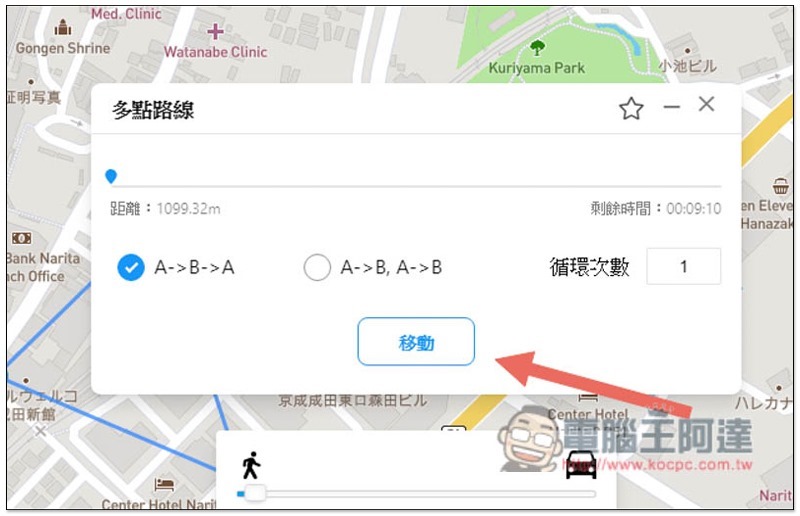
Then the setting window will pop up. Select the movement method you want “A->B->A” or simply “A->B”. A is your current location and B is the destination. The number of loops is only once by default. If you want to play AR games, you can set it multiple times so that your GPS position will always move at these two points:
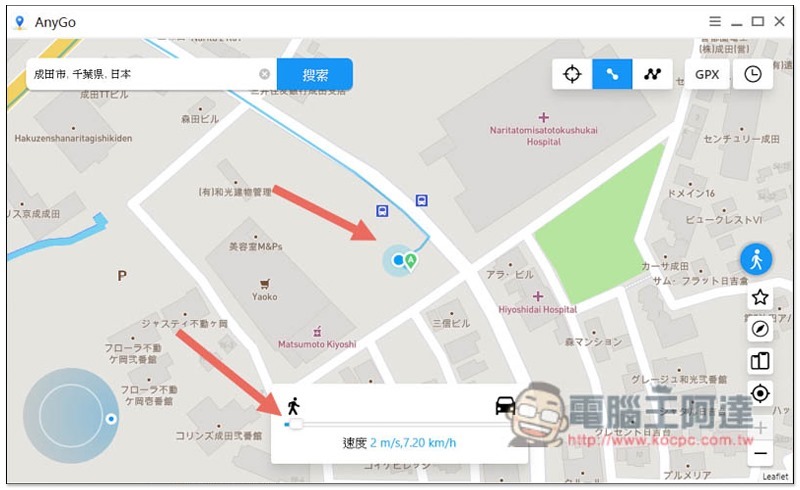
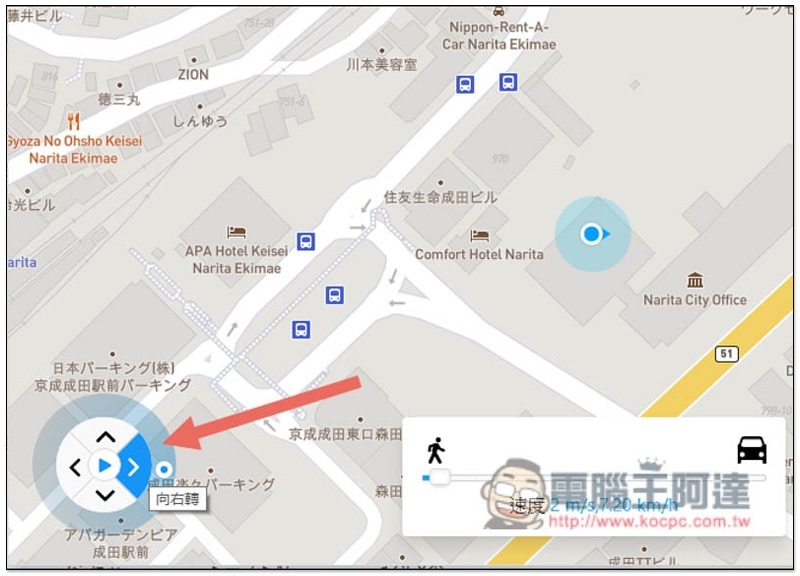
Once you start moving, you will see on the map that you are moving along the set route. You can also adjust the movement speed below. To the left is to simulate walking, and to the right is to drive:
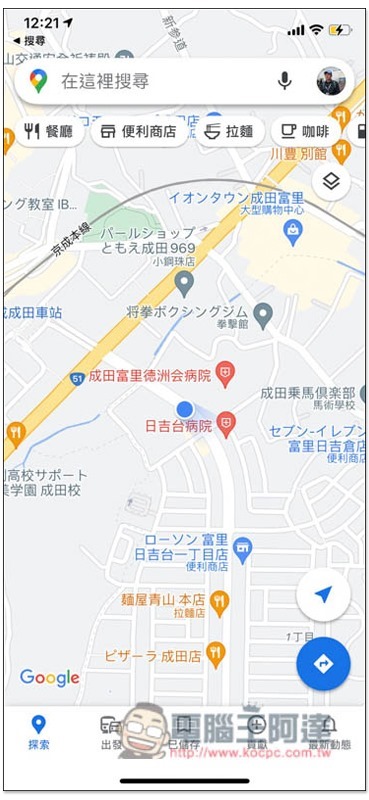
And I opened Google Maps on my iPhone to view it, and it was indeed moving:
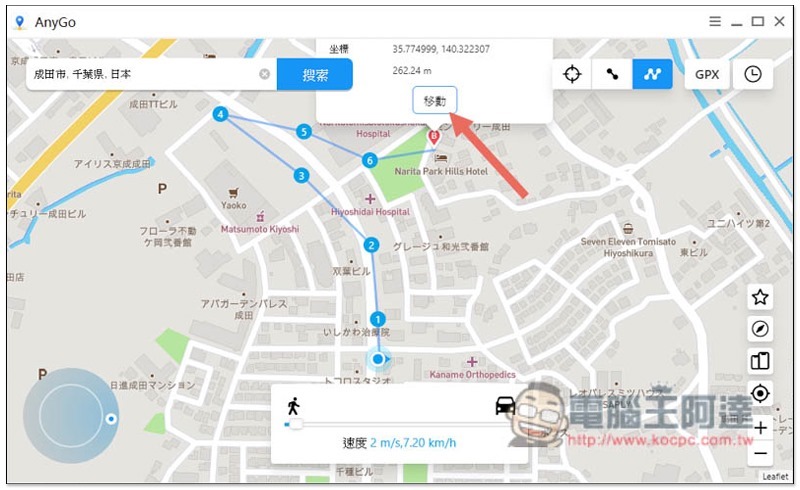
Next is the multi-point route. Click on the map where you want to pass. These places will be automatically marked 1, 2, 3… and the walking will be guided in this order. After the setting is completed, press “Move”:
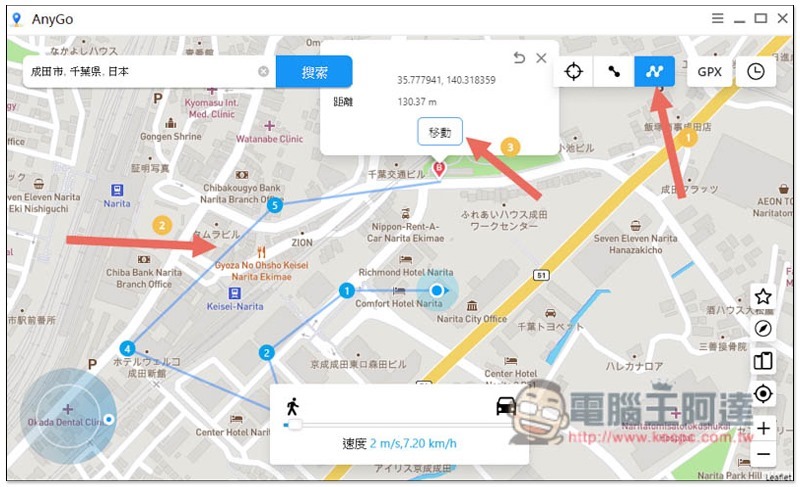
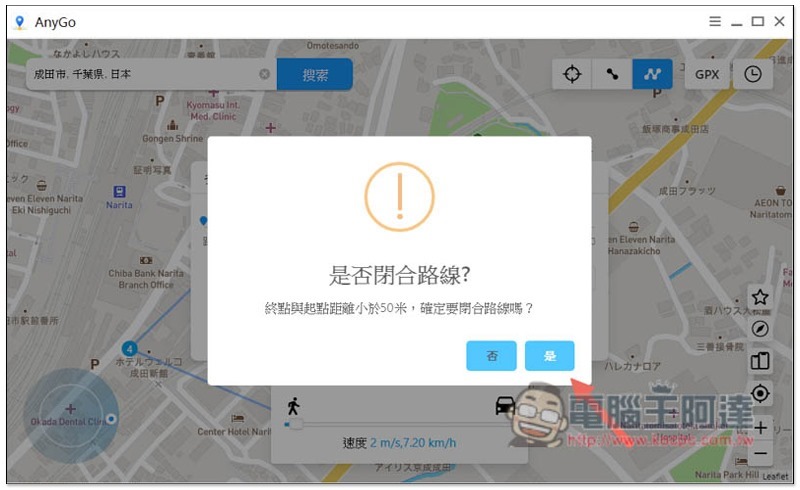
If the end point and starting point are less than 50 meters away, you will be asked whether it is a closed route. If so, press Yes:
You can also set the movement method and number of cycles:
Then your fake GPS location will start moving:
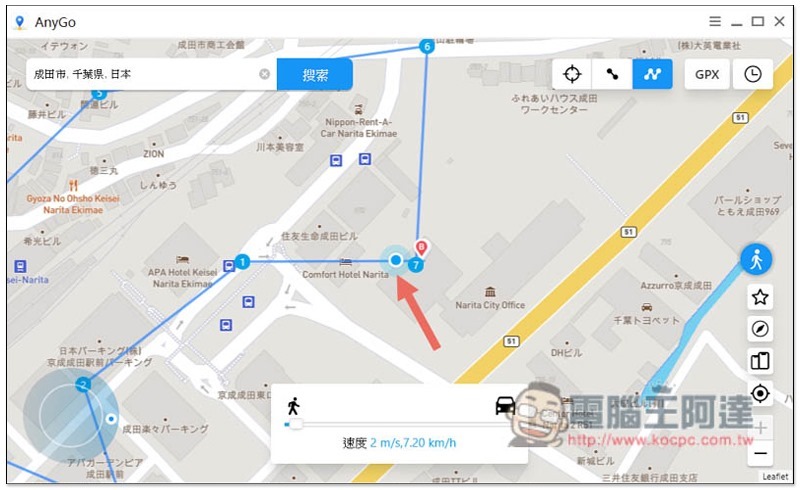
I opened Google Maps to confirm that it was correct. It really moved in the order I set the locations:
In addition to setting the route, you can also manually control the movement direction. There is a “direction key” function in the lower left corner. After clicking the playback function in the middle, the GPS position will move according to the direction you choose:
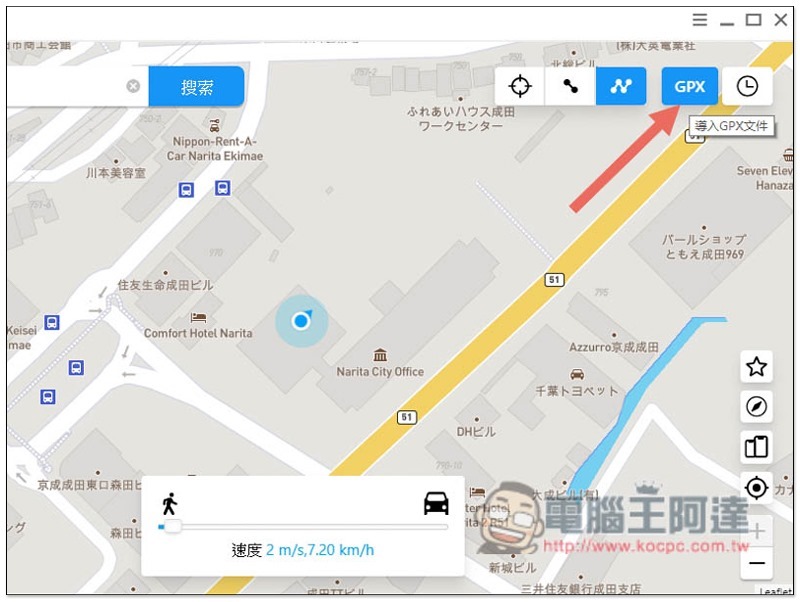
For those who have GPX track files, iToolab AnyGo also supports the import function:
The time icon on the far right will record the coordinates and routes you have set in the past so that you can reuse them:
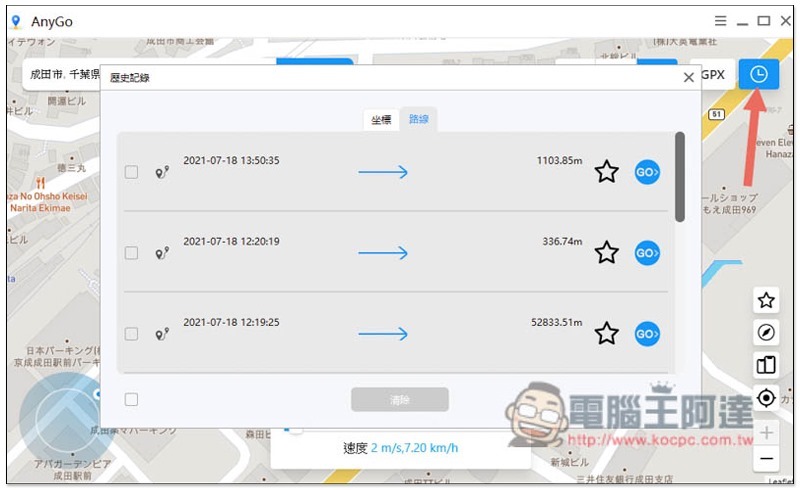
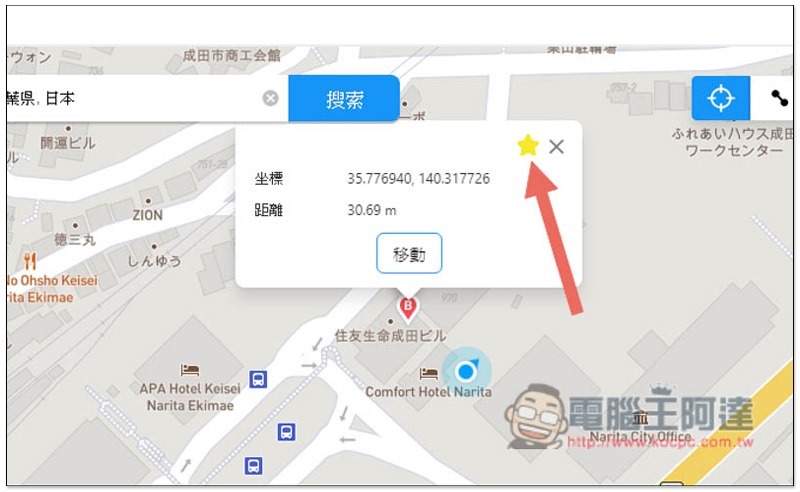
Frequently used routes or addresses can also be added to favorites. I recommend this method because it is easier to find:
Not only one, but also multiple iPhones/iPads can be controlled at one time
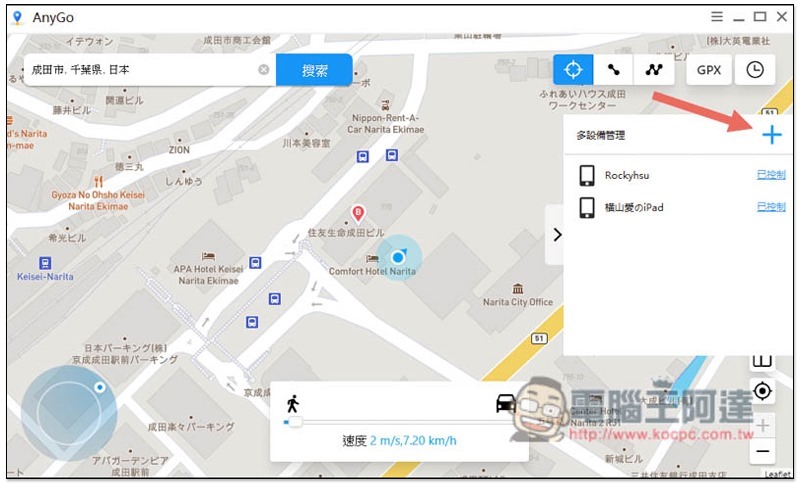
This is one of the features I like very much about iToolab AnyGo. It can control not only one but also multiple devices, which means you can change the GPS positions of multiple iPhones/iPads to other places you want at the same time, and the operation is also super simple.
After opening the multi-device management function on the right side of the screen, press the + above to add other iPhones and iPads. Remember to connect them to the computer as well:
After the iPhone / iPad is restarted, the original GPS position will be restored
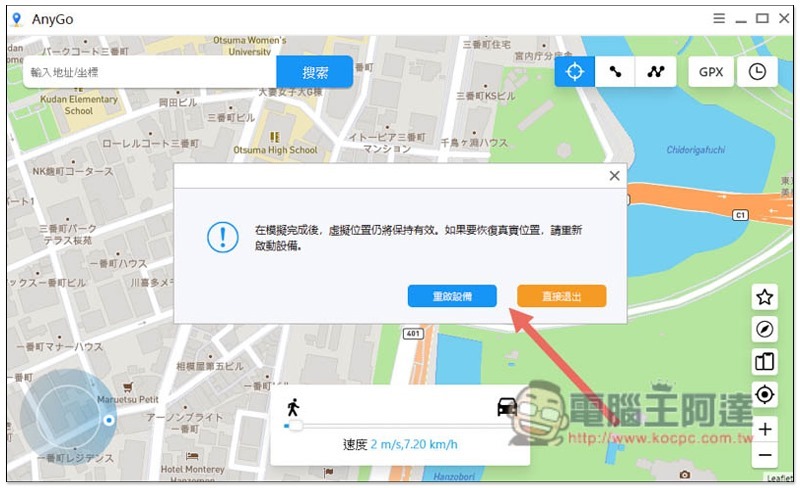
After you no longer use the fake GPS location, you only need to restart your iPhone/iPad, and the GPS will return to its original state without any impact on your iPhone/iPad. There is no need to worry about this. In fact, when you close the iToolab AnyGo software, a prompt will pop up on the screen. Press Restart the device and the iPhone / iPad will automatically restart.
Of course, you can also continue to keep the fake GPS position (press to exit directly) until you no longer need to manually restart the phone.
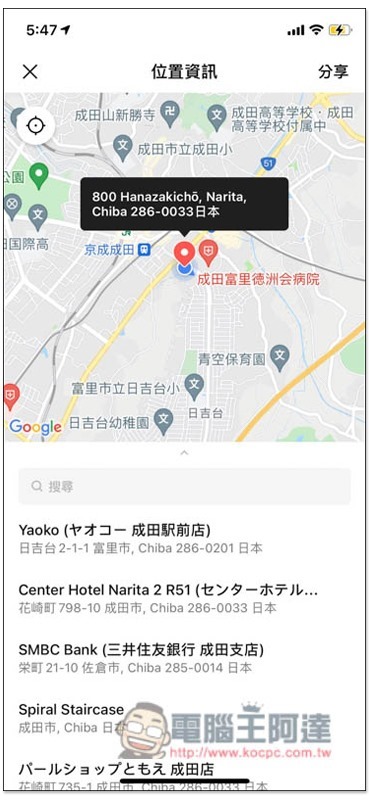
LINE shares actual location measurements to deceive others that you are now somewhere
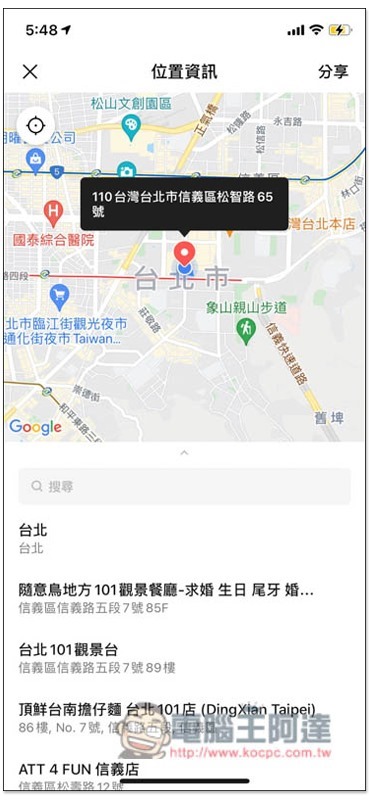
LINE’s shared location function allows you to place “tacks” at will, but the “blue dot” of your current location cannot be changed, so normally there is no way to deceive others, but it can be done through iToolab AnyGo.
The picture below is where I am currently. I am currently in Japan:
Use AnyGo to change to Taipei 101:
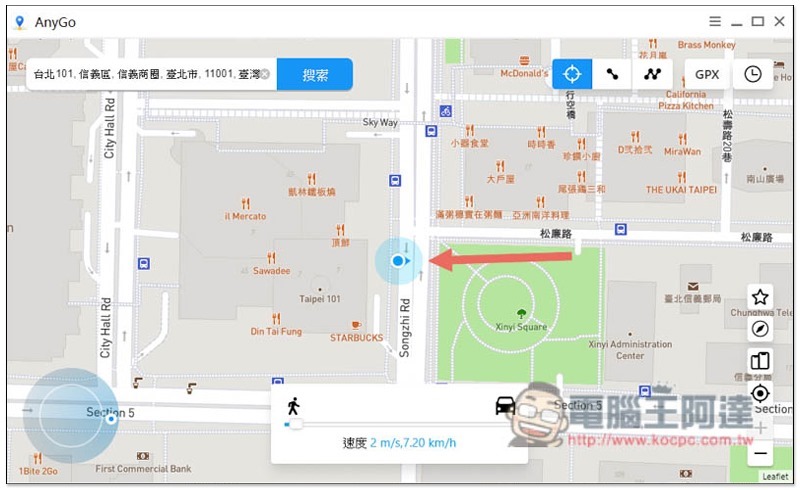
People fly from Japan to Taipei in an instant 101:
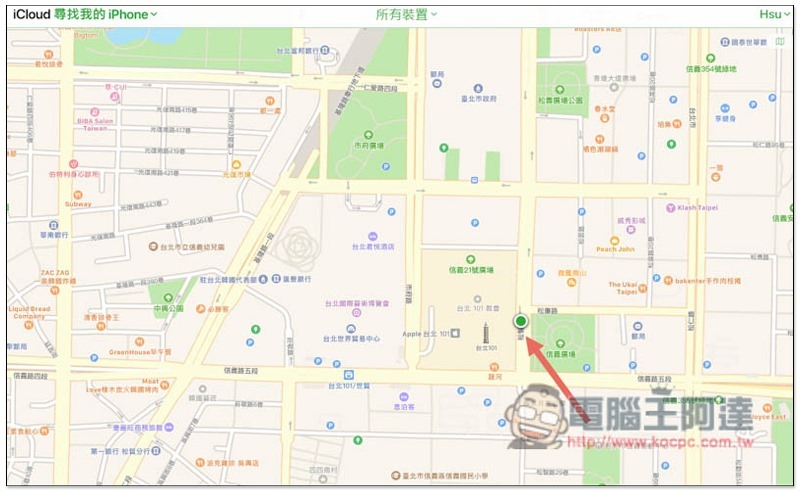
And this also means that other apps with location sharing are basically no problem. At least I tested Google Maps and found my iPhone successfully. I now see that my iPhone is in Taipei 101:
Pokemon GO, Harry Potter: Wizards Unite game testing
Important reminder:In addition to destroying the balance of the game, using fake GPS software may result in your account being locked if detected by the authorities. Please consider this before using it. This is mainly for testing software capabilities and does not promote this behavior.
Now that Google Maps has been tested successfully, many people will definitely be curious. Pokemon GOWhat about games like Harry Potter: Wizards Unite? Here is the actual test for everyone to see.
In addition, remember to read the important reminder above before use. When changing locations, please do not fly around, such as Taiwan, the United States, or Japan. It is completely impossible for you to do this in reality. No one can be in Taiwan 5 minutes ago and suddenly go to the United States now, so please arrange your time, even if it is in different cities in the same country.
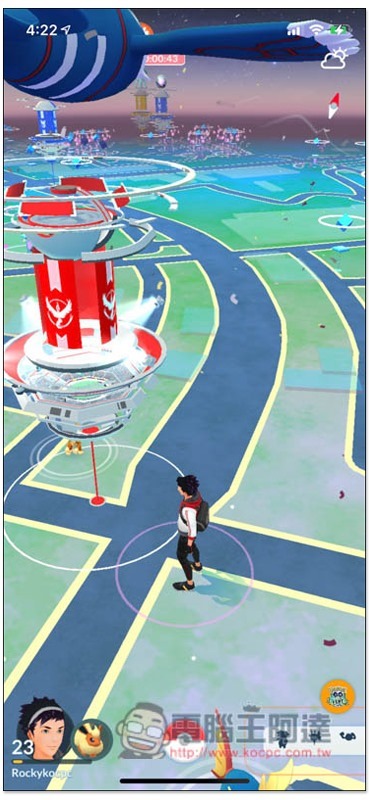
This is my initial position:
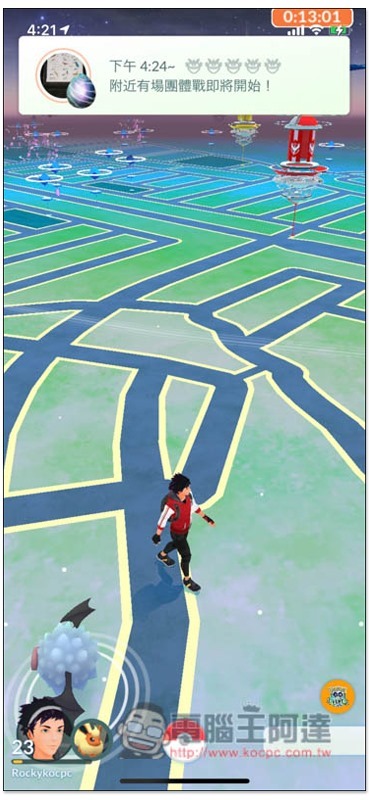
Then I used iToolab AnyGo to set a location slightly farther away from where I am now, and pressed Move, and sure enough, it moved there:
Let’s test multiple routes:
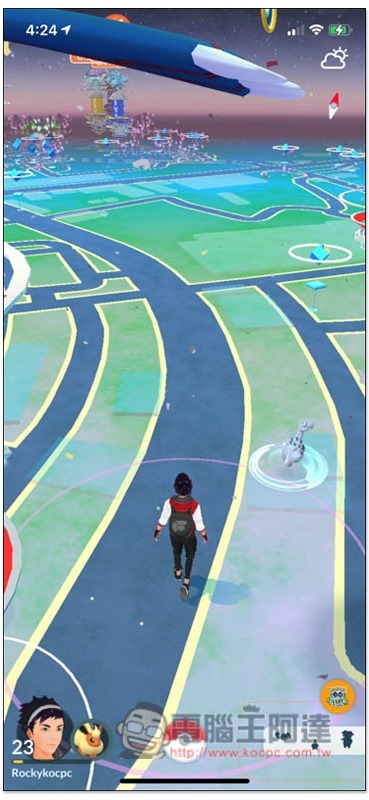
Sure enough, the Pokemon GO characters also moved, so it is definitely feasible:
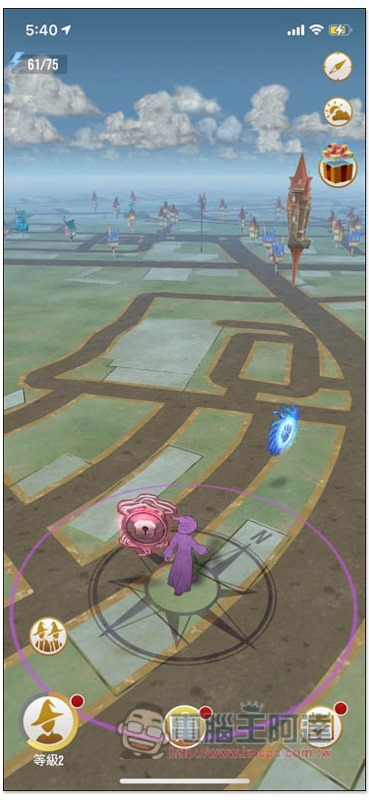
The same goes for Harry Potter: Wizards Unite, which starts in the same location as Pokemon GO:

After changing the GPS location through iToolab AnyGo, when I opened the game again, it went to another place:
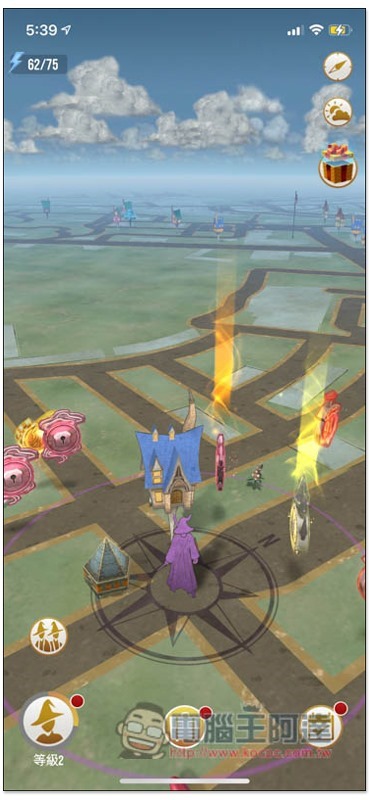
The multi-point route test was also successful:
Summarize
iToolab AnyGo is really a very good software for changing GPS location. Even people who are not very computer literate can easily get started. The operation is really simple. It is highly recommended to those who need it.
Click here to go to iToolab AnyGo official website
Recently, the official is also launching an event, enter the discount code on the purchase page “PLAB30S”, you can get a 30% discount, no matter which plan you choose, the picture below is the original price:

After entering the discount code, all prices are 30% off:

Source: KOCPC Chinese