


previously written Tutorial on changing Windows 10 to imitate Windows 11 interfaceA lot of software is used and there are many steps. If you want to return to the original state after the operation, it will definitely be very difficult for some people who are not familiar with computers. In fact, it is not possible at all. Just do it in reverse. It doesn’t matter if you are not sure. I will teach you how to operate step by step.
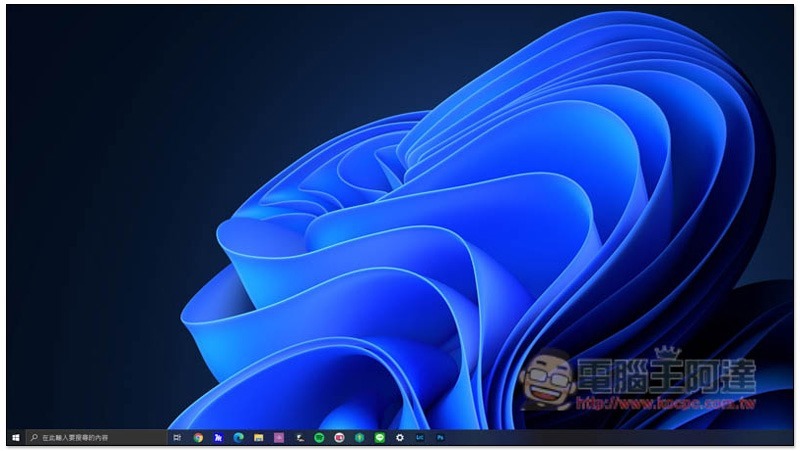
How to restore the Windows 10 theme and remove the imitation Windows 11 interface?
Step 1 – Change the theme back to original Windows 10
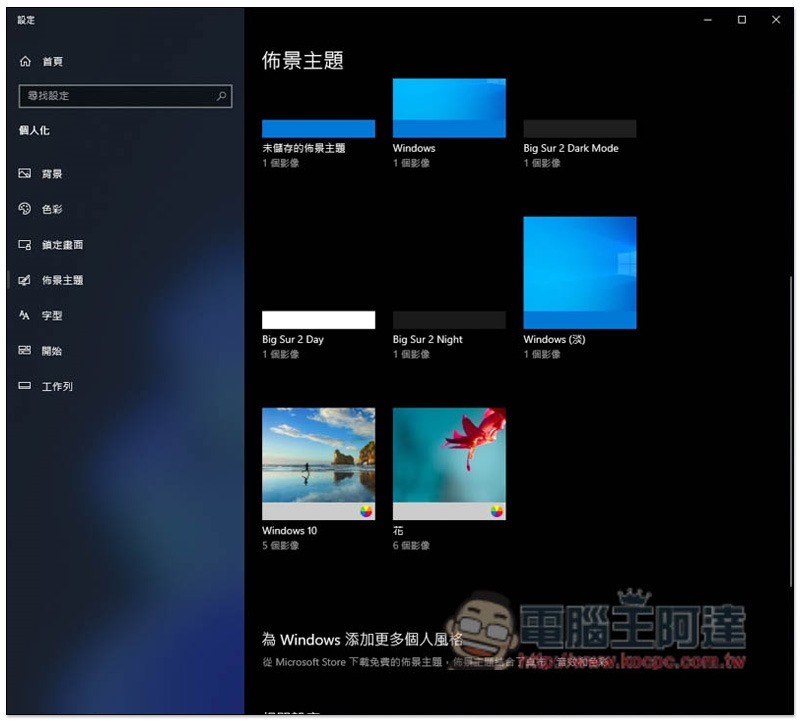
After opening the personalization function by right-clicking on the desktop, you can find the theme on the left side and change it back to Windows or Windows (Light):
Step 2 – Remove UltraUXThemePatcher and Classicshell software
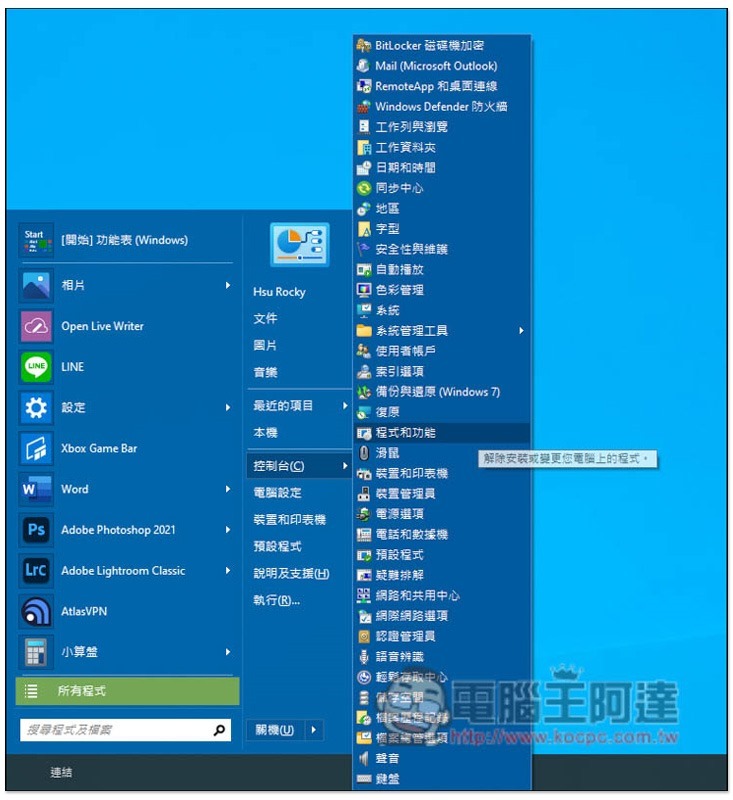
The next step is to remove the previously installed UltraUXThemePatcher and Classicshell software. Click on the hidden Windows 10 Start menu in the lower left corner and enter the Control Panel –> Programs and Features:
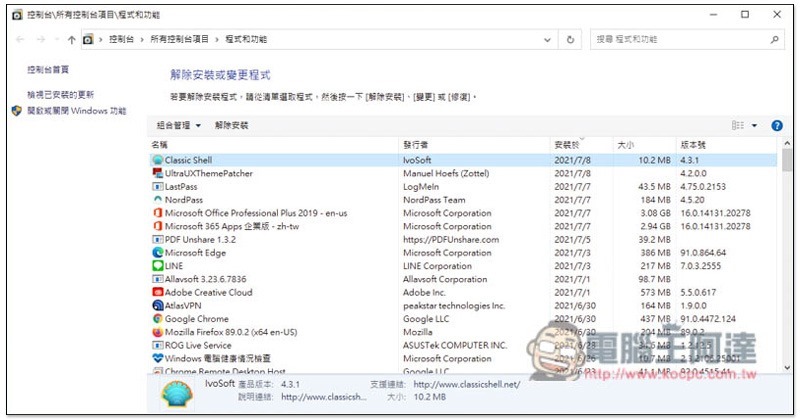
Then find these two sets of software and uninstall them. If you can’t find them, you can click “Installed on” and put the latest date at the top, and you should find:
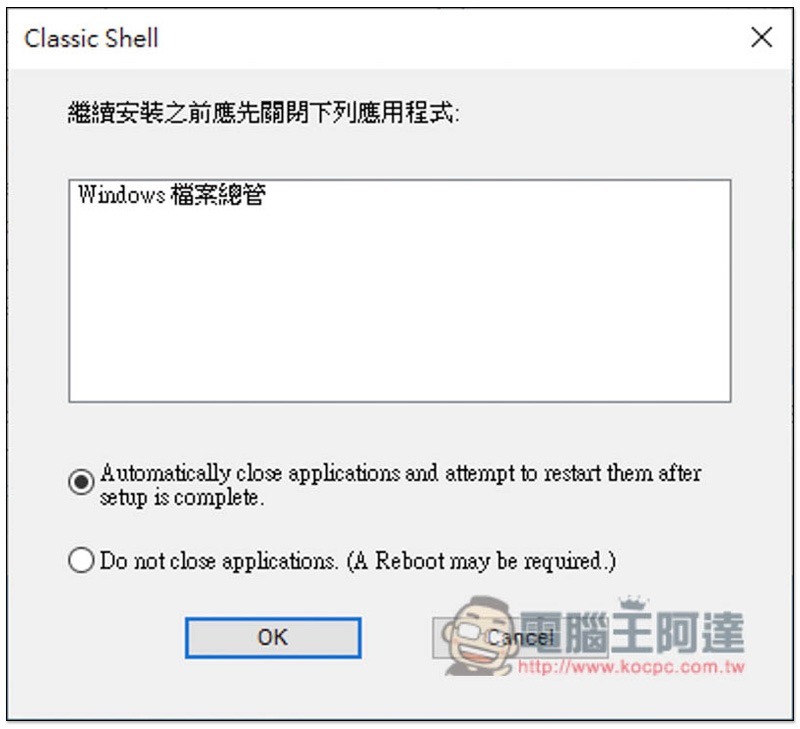
This screen will pop up when removing Classic Shell, click OK below:
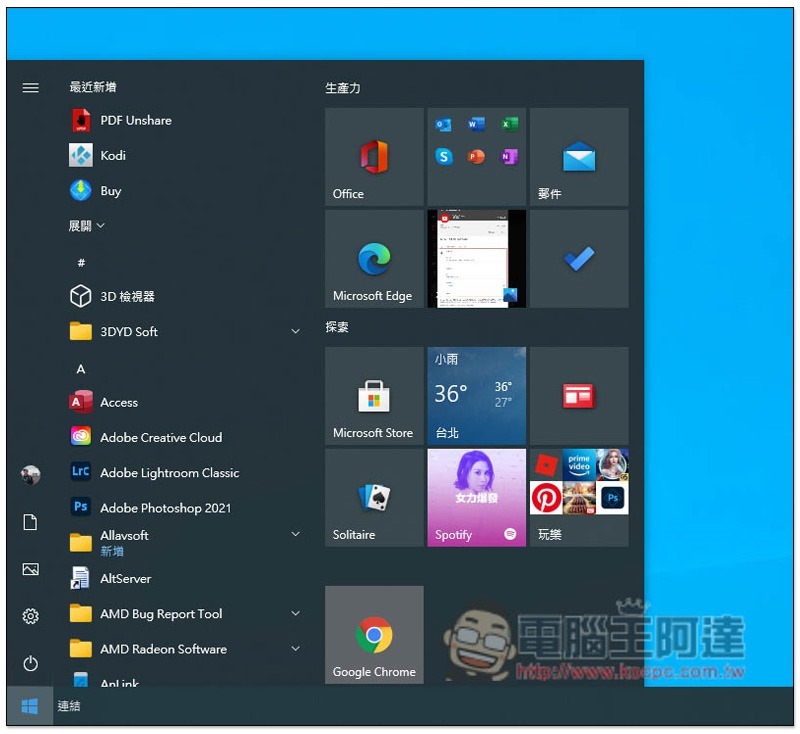
After removing it and restarting, you will see that the Windows 10 start menu is back:
Step 3 – Open 7tsp and select Restore
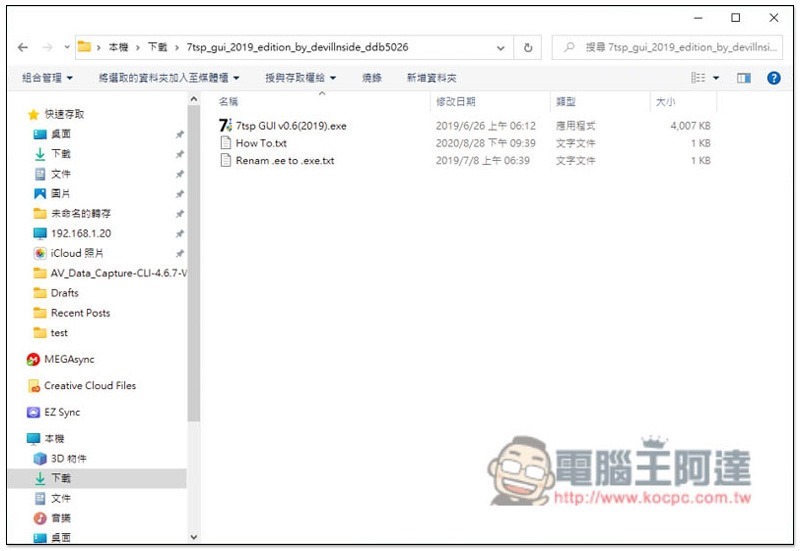
Open the previously downloaded 7tsp gui 2019 folder and enable the .exe file:
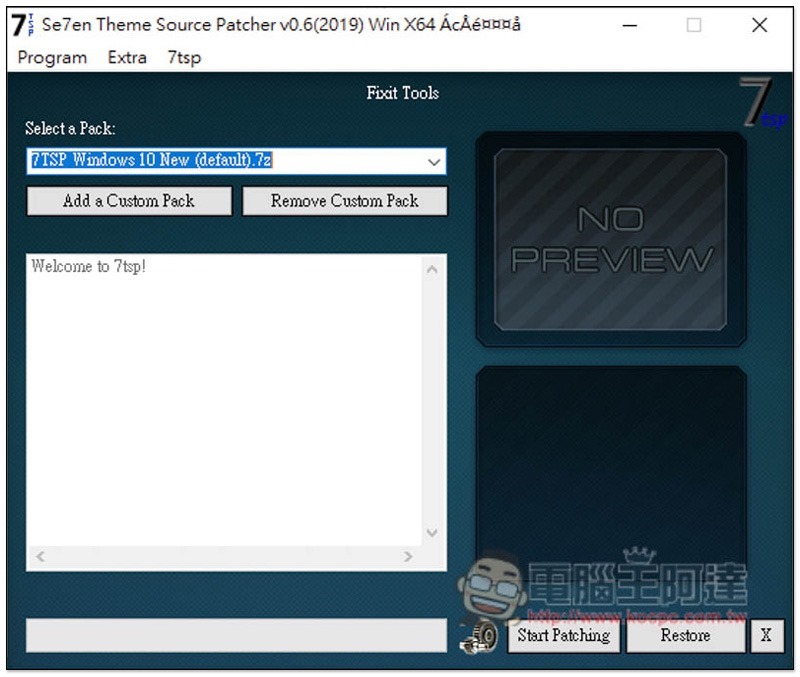
Then press Restore in the lower right corner to restore:
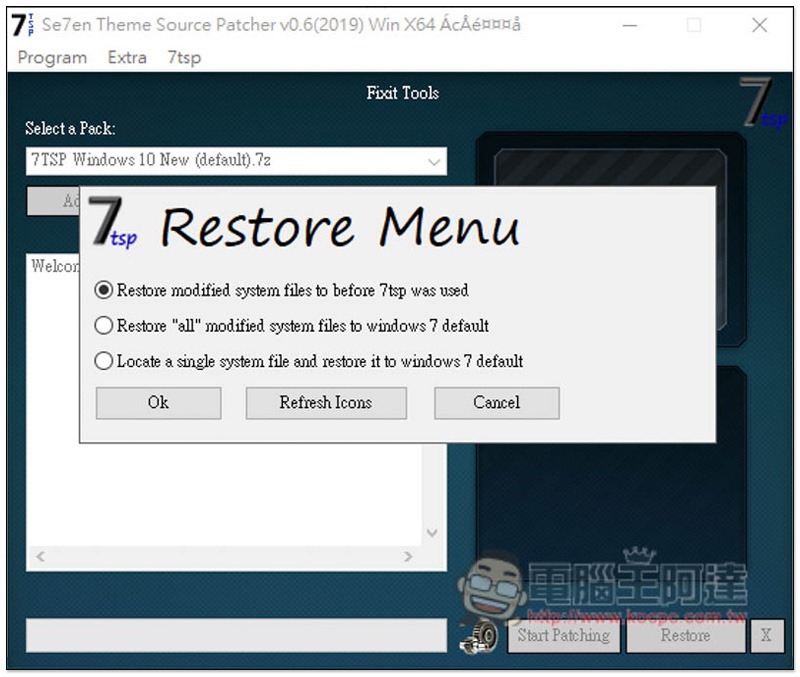
Confirm that the first one is selected and click OK:
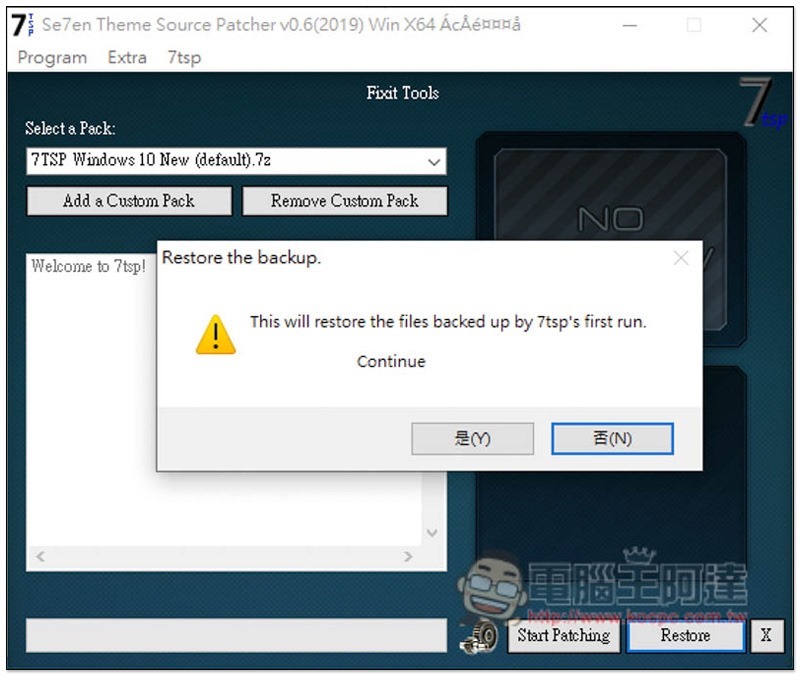
Press Y to exit this screen:
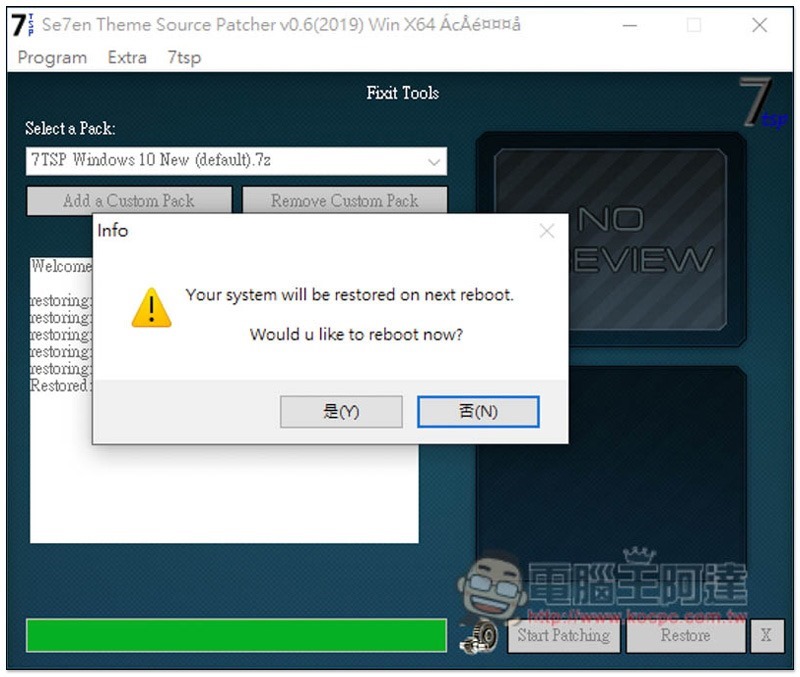
The restore will take a while, so just let it run and press Y to reboot when finished:
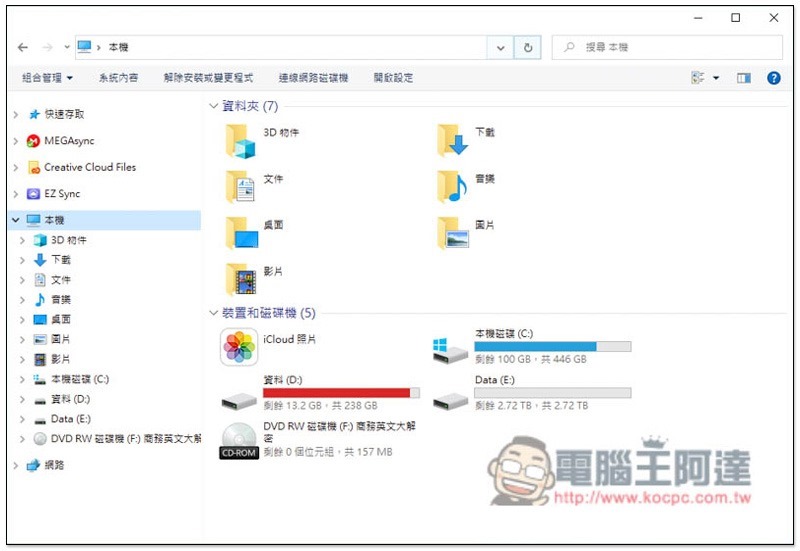
After restarting your computer, open File Explorer and you will see that your folder icons have changed back:
Step 4 – Open OldNewExplorer and remove the installation
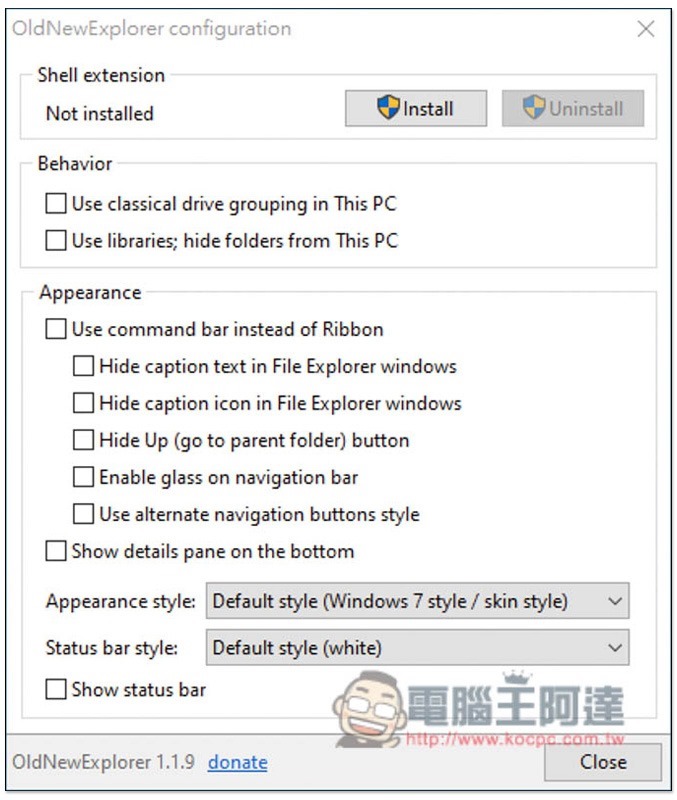
Next, open the OldNewExplorerCfg.exe in the OldNewExplorer folder, cancel the Hide… and Use command… that were originally checked below, and then click Uninstall above:
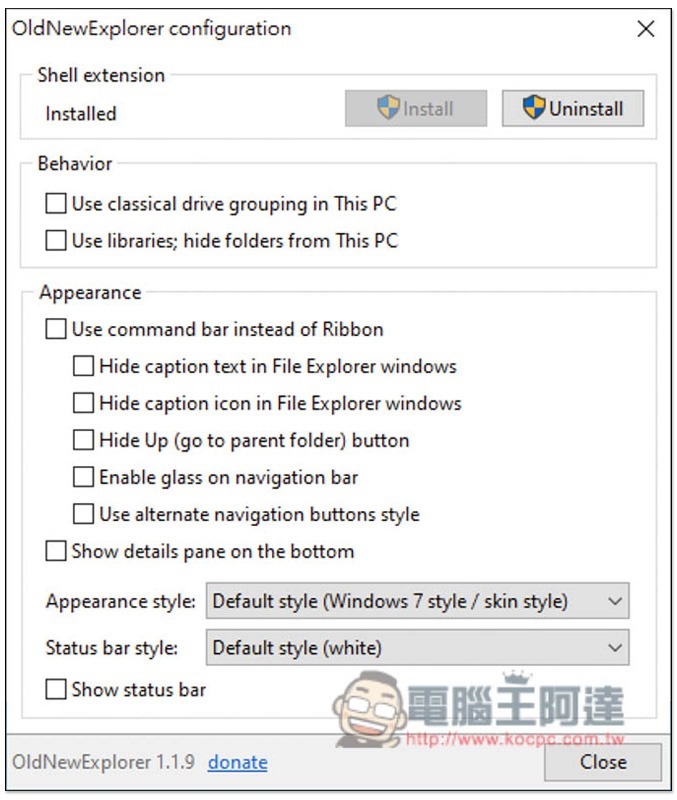
When the left side changes to Not installed, it means the removal is successful:
Step 5 – Remove all downloaded files
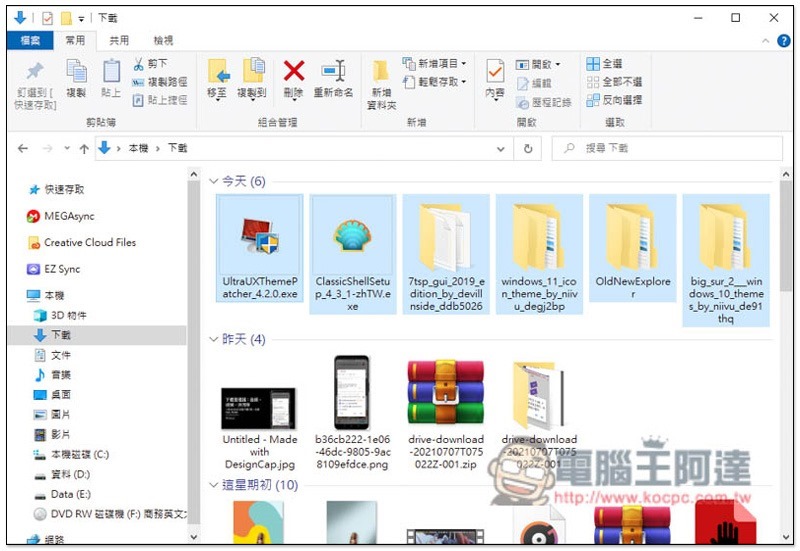
After the above operations are completed, you can delete all previously downloaded files:
Don’t forget to put the center start menu folder in slot C:
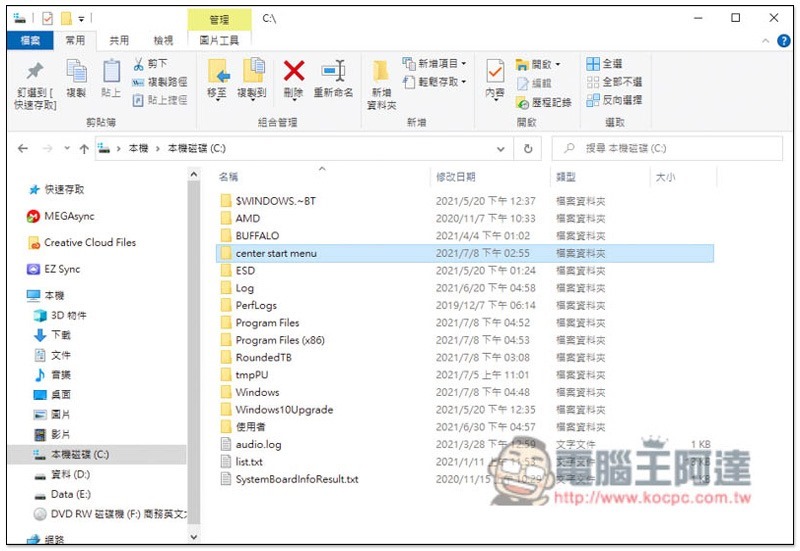
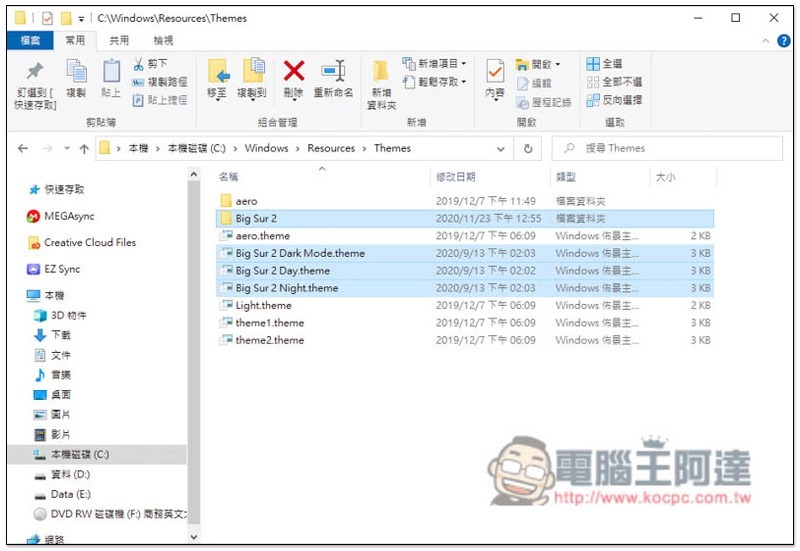
There are also themes under Windows\Resources\Themes. There are four files, all starting with Big Sur 2:
Step 6 – Adjust Toolbar Settings
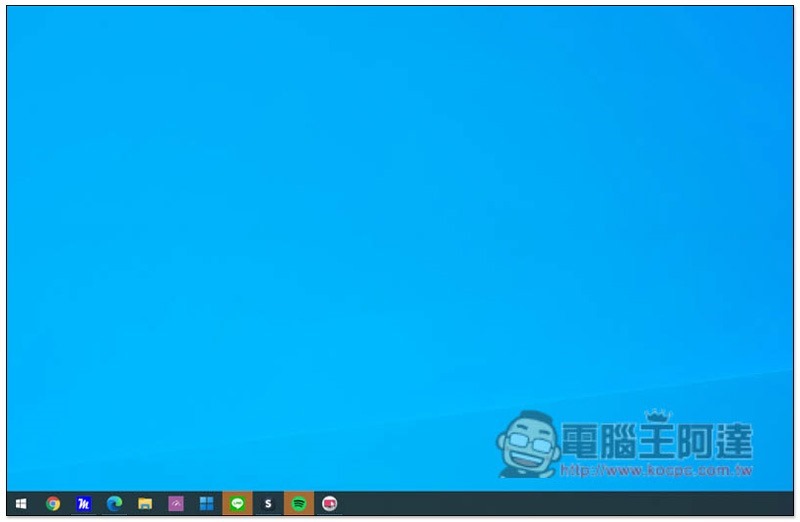
Finally, restore the toolbar. First unlink the toolbar so that all icons will move to the left:
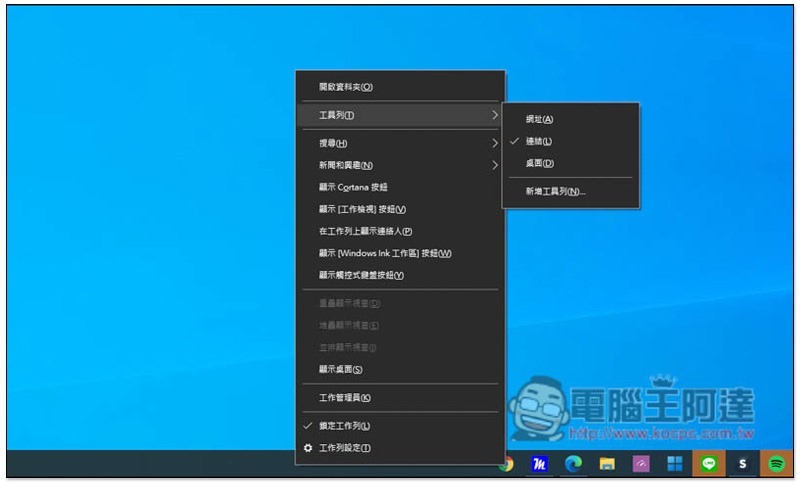
As shown below:
Windows 10 Search can also be reopened if necessary:
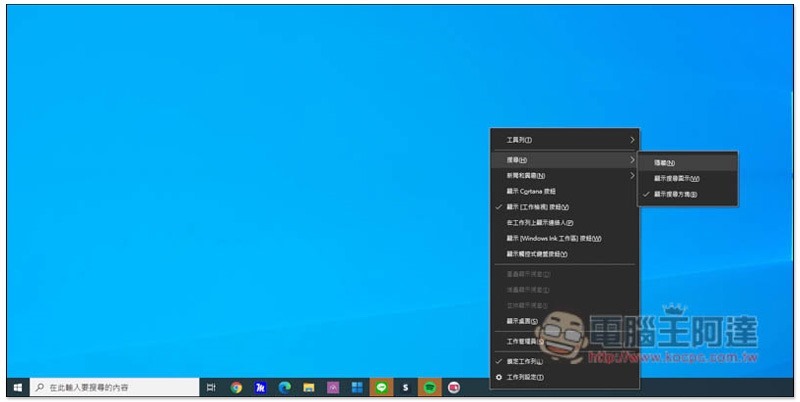
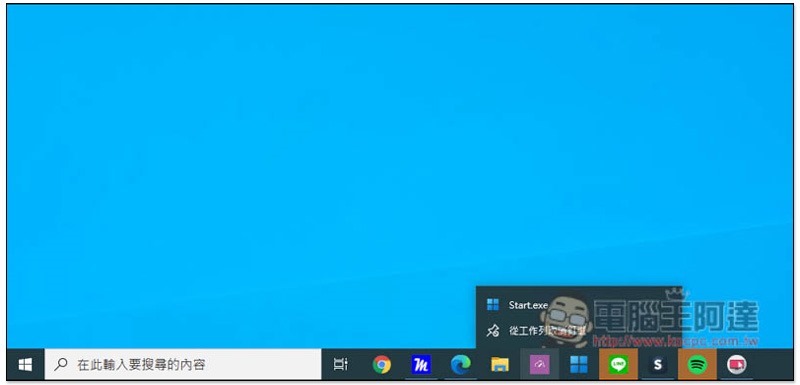
If the Windows 11 Start icon is still there, open the right-click menu to unpin it from the taskbar:
Summarize
After completing the above six steps, your Windows 10 interface will be restored to its previous state. If you install other scenery themes in the future, the restoration method will be similar, so just do it in reverse.
Source: KOCPC Chinese