


After Microsoft announced Windows 11, it seemed to inject vitality into the long-dormant PC market. Everything started to move, and information became more important. Many people may ask whether there is something called TPM in the computer, and whether it is possible to obtain support without spending money, etc. In fact, for users who have just purchased a new computer in the past two or three years, TPM may have been supported unknowingly. Some may require a little skill to enable, and some may require a little more work to expand the hardware to obtain this support:

▲In fact, TPM support may not be turned on in the BIOS settings. If you have a new computer, there may be settings in it that you can use.
TPM is called “Trust Platform Module” in Chinese translation. Its bottom layer is actually a co-processor used to calculate security passwords. This module generates keys through the operation of software and hardware to identify the system’s hardware, thereby protecting user data from being destroyed by malicious software. The 2.0 hanging at the back represents its current version. For some commercial computers, TPM modules may have been introduced very early.
The term TPM is not originally so sensitive, but because Microsoft’s newly released system includes support for TPM 2.0, it has caused panic among many information people. After all, there are only a very small number of people who have the funds to keep their computers up to date these days. Many people are still using computers from five or even ten years ago for productivity tasks. Therefore, as soon as the need for TPM 2.0 was disclosed, it became a hot keyword in search engines. The TPM 2.0 expansion module has even become the best new way to make money in the minds of speculators. The small TPM 2.0 has caused a lot of trouble. So far, Microsoft has finally relented, saying that even if the TPM specification does not reach 2.0, only TPM 1.1 support can still be upgraded, which can be regarded as stopping the bleeding of this storm as much as possible:
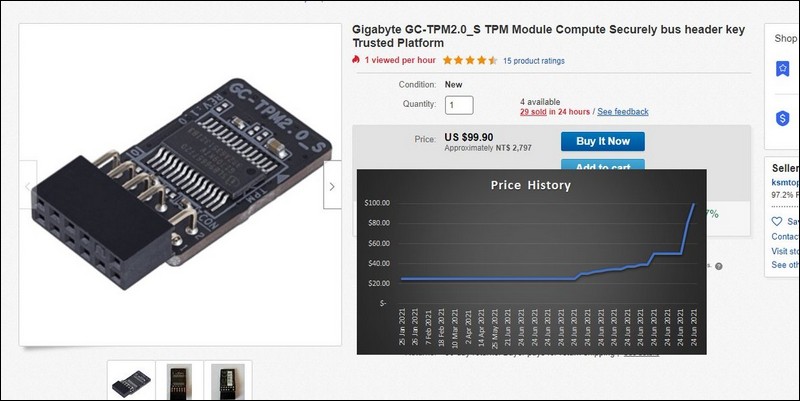
▲TPM module was once very popular due to the demand for Windows 11, but it should have declined recently (Image source)
After all, TPM is not just a thing that is said casually to make money. It has its benefits. Microsoft obviously intends to use Windows 11 to expand the popularity of TPM, but this step is obviously a bit aggressive. For players, if you want to check whether your computer supports TPM, you can do it through the following simple method.
First, on the computer desktop, press the Win + R key combination to open the “Run” window, enter tpm.msc in the blank column, and then press the Enter key on the keyboard. The computer will automatically enter the TPM management window. At this time, you can know from the information on the screen whether your computer supports TPM. If it does, you can also see the currently supported TPM version:
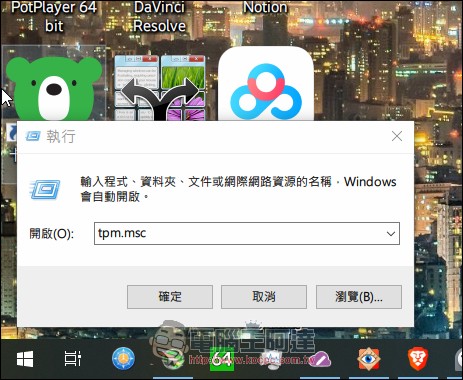
▲The familiar “Execute” can not only be called through the Win + R key combination, but can also be found by right-clicking on the window icon with the mouse.
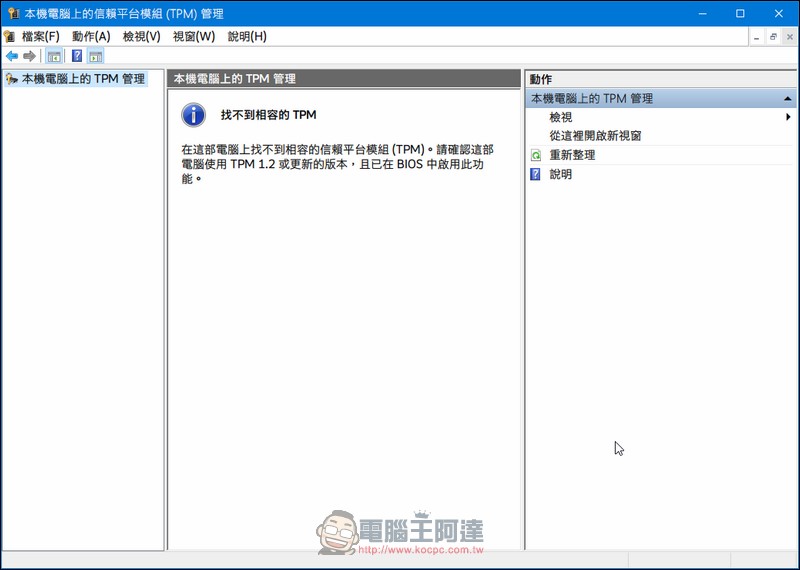
▲Take the author’s computer as an example. My computer has not yet turned on TPM support, so I will see this screen.
Of course, sometimes TPM is not supported, and it is not simply due to a lack of components in the computer. Although some of the recently launched motherboards come with the TPM module preloaded, users may temporarily turn it off through the BIOS interface because they must require this function.
In order to solve this problem, many people have shared BIOS opening methods to help everyone. Among them, msi MSI also used a short video to teach everyone how to turn on the TPM settings in the BIOS so that their computers can obtain TPM support. Although Microsoft has relaxed the restrictions on TPM versions in the upgrade system, this little knowledge is still helpful for players who want to learn more about TPM 2.0 modules. Therefore, let’s refer to our diagrams to operate your own MSI motherboard. Maybe your computer has been released from the seal and obtained equipment that has never been discovered and enabled in the past:
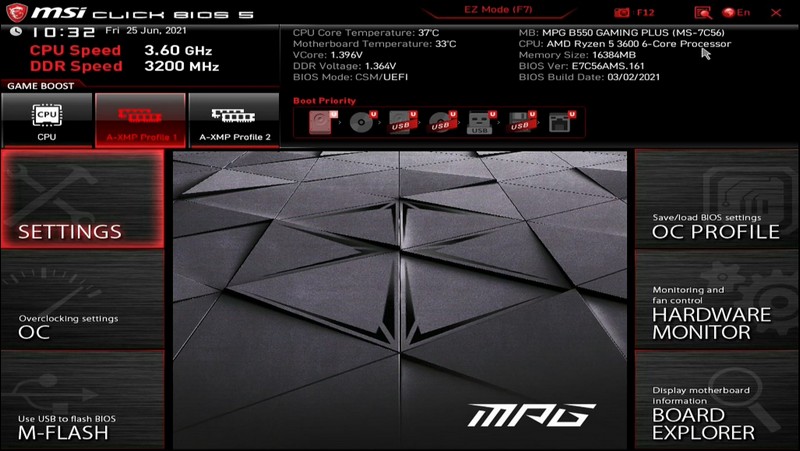
▲MSI motherboard provides tutorials. First enter the Settings in the BIOS screen.
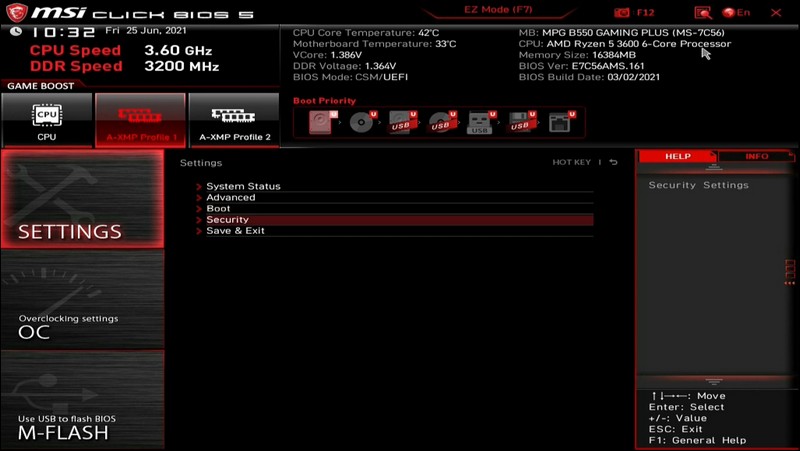
▲Then find Security and press Enter or click the mouse
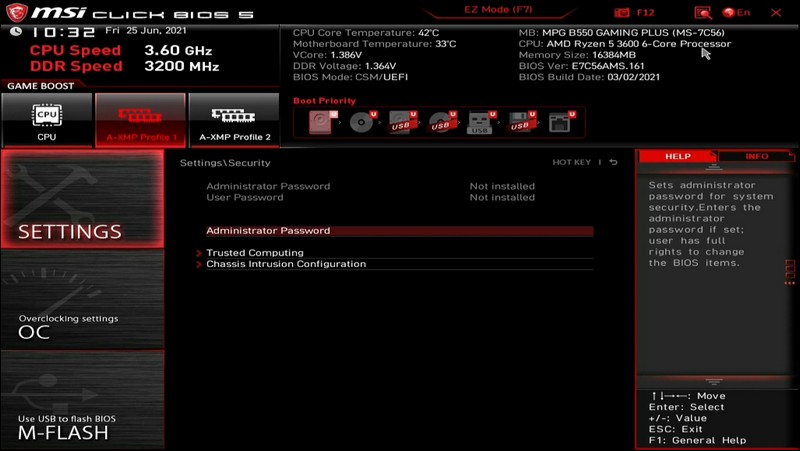
▲Then when you see this screen, you can find that there is an option called Trusted Computing in the picture.
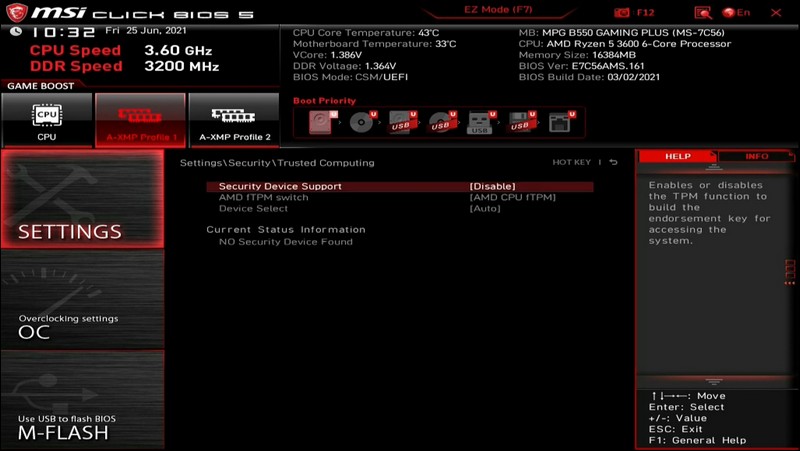
▲Press Enter to enter (or click with a mouse, depending on whether the BIOS supports mice), and you will see the Security Device Support option.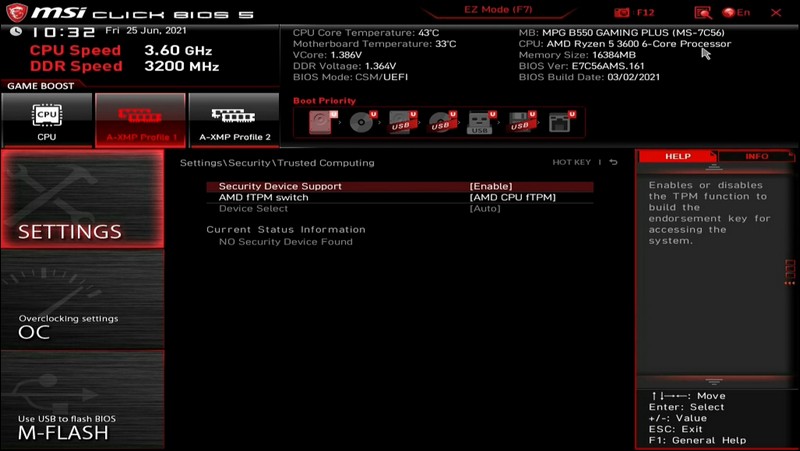
▲Then change the option from Disable to Enable.
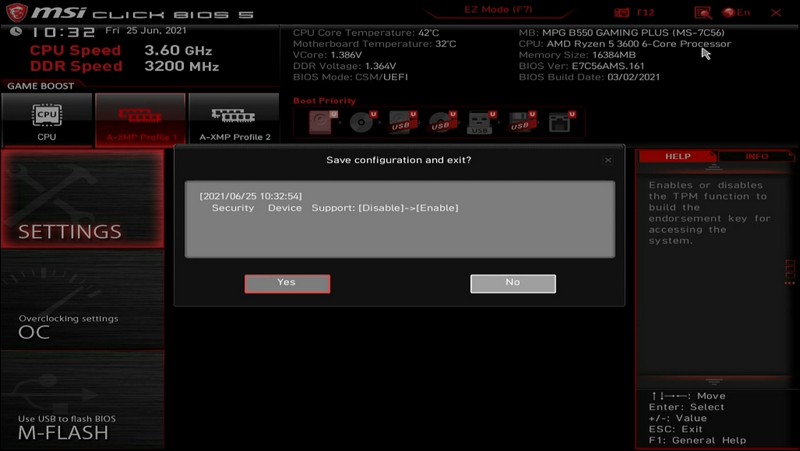
▲Press F10 on the keyboard to save the BIOS and exit this interface. At this time, the BIOS will pop up a prompt, just press Yes.
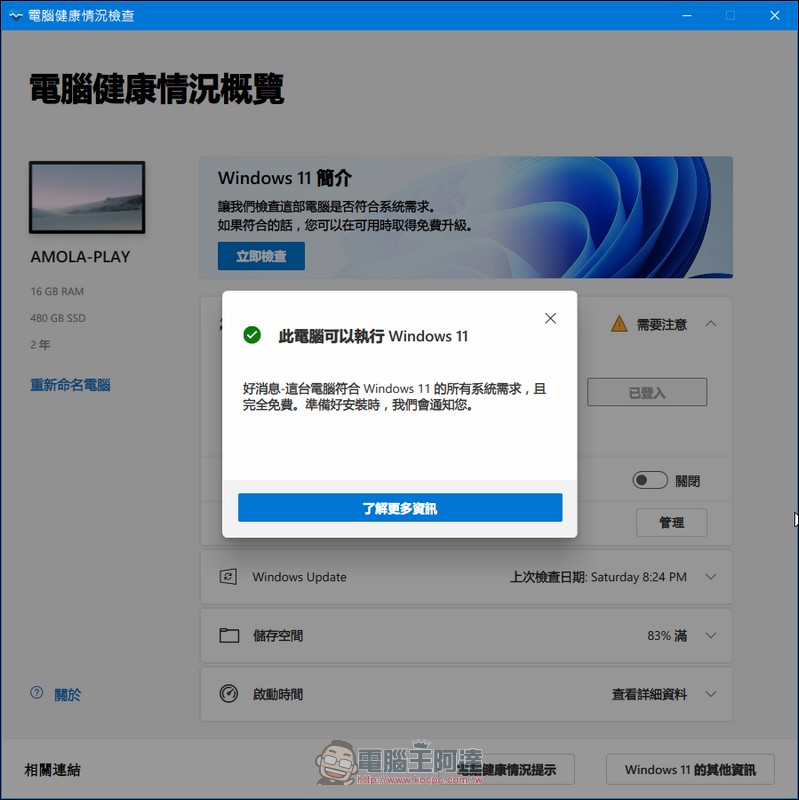
▲Turn on the computer and run a computer health check to make sure it can run Windows 11.
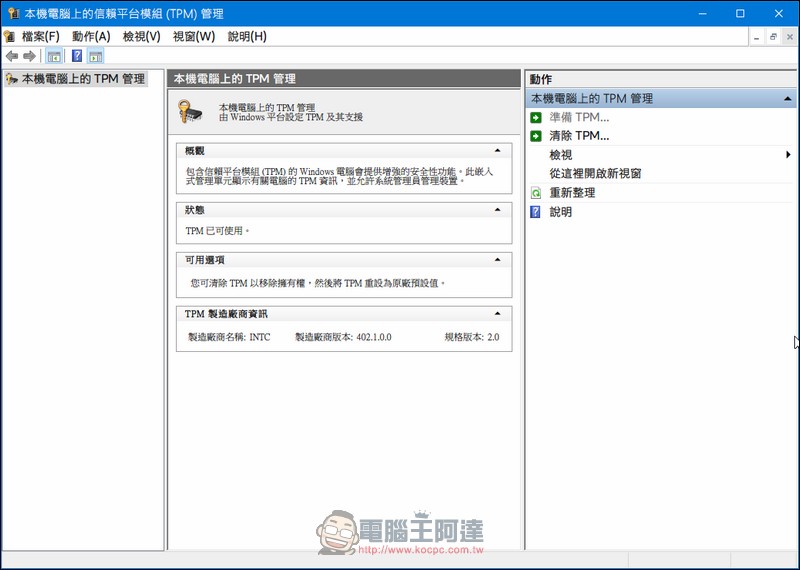
▲The tpm.msc screen will also look like this. However, this is the screen of the author’s own computer, so the manufacturer name shows INTC instead of AMD as shown in MSI motherboards.
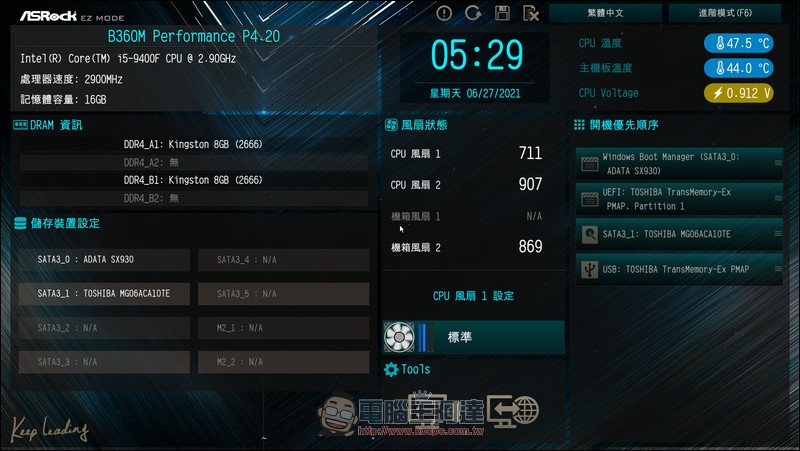
▲Since the MSI motherboard can be adjusted, can the author’s own ASRock motherboard be used? Although the computer specifications are not advanced, at least it is a computer that was just upgraded the year before last. Maybe there are settings inside that can be turned on.
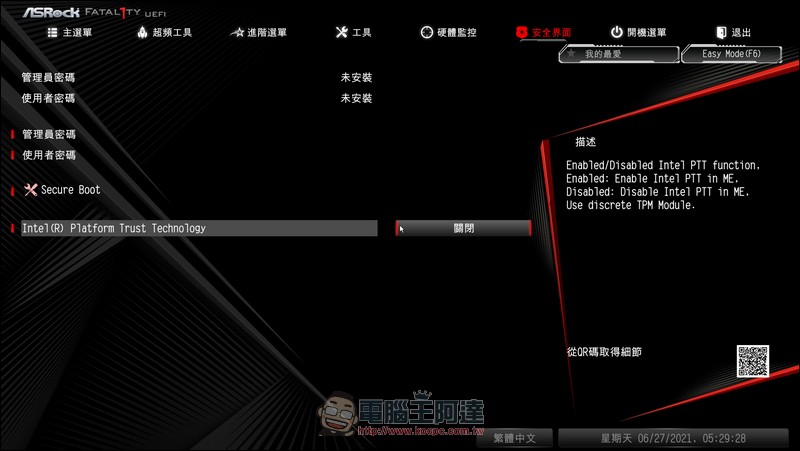
▲Press F6 to switch to professional mode, then switch the tab to the “Security Interface” section
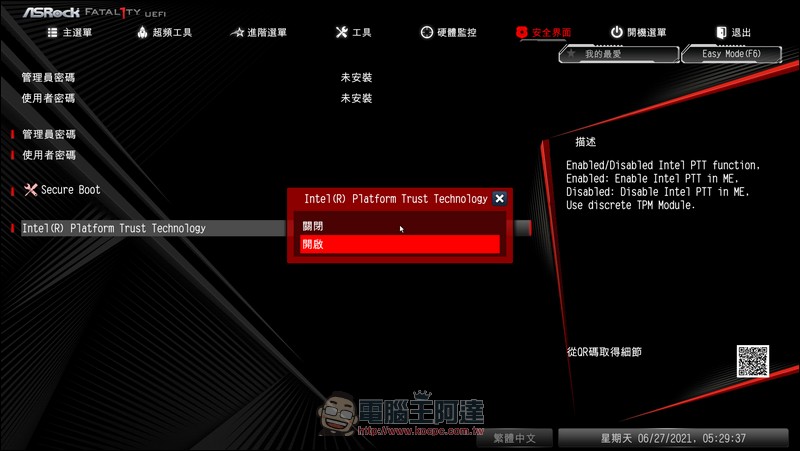
▲Find a setting called Intel Platform Trust Technology and turn it on.
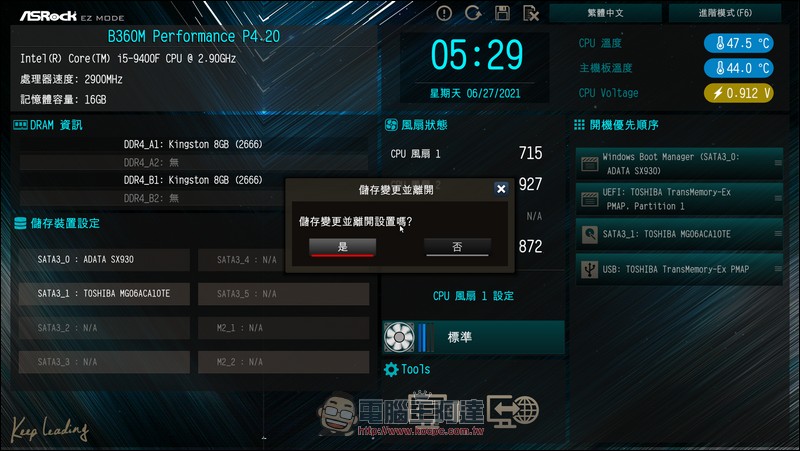
▲Then press F10 to access the BIOS settings and exit. The system will boot into Windows. This way my computer also has TPM support.
Source: KOCPC Chinese