


In the past we have introduced a Claunch Although this launcher gadget is useful, I have encountered a problem after using it for a long time: “occasionally it crashes”, and when it crashes, I can’t force it to shut down through the tool administrator. I can only restart or log out. If I haven’t archived the work I am currently doing, I have to start it all over again, which is very troublesome. It has happened several times, so I have been looking for other alternative software recently, and finally found this artifact. Maxlauncher can not only organize applications and commonly used folders, but also create a clearer space on the desktop and toolbar. Each box also has corresponding keyboard shortcuts, which means that you only need to click a button to open the application you want to use. No need to click with the mouse, making the operation more convenient.
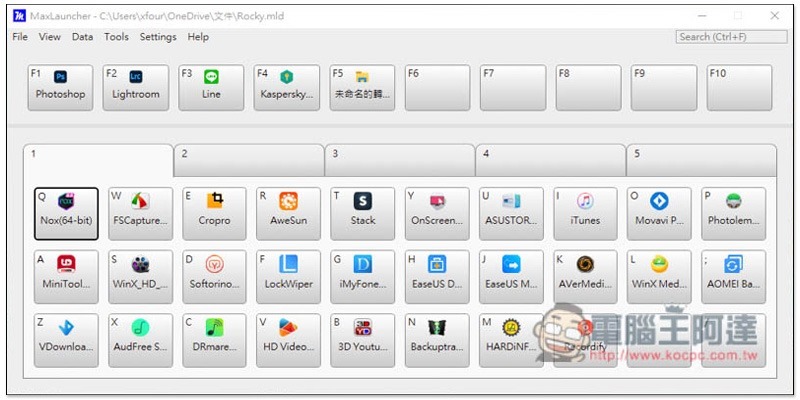
Introduction to MaxLauncher Free App Launcher
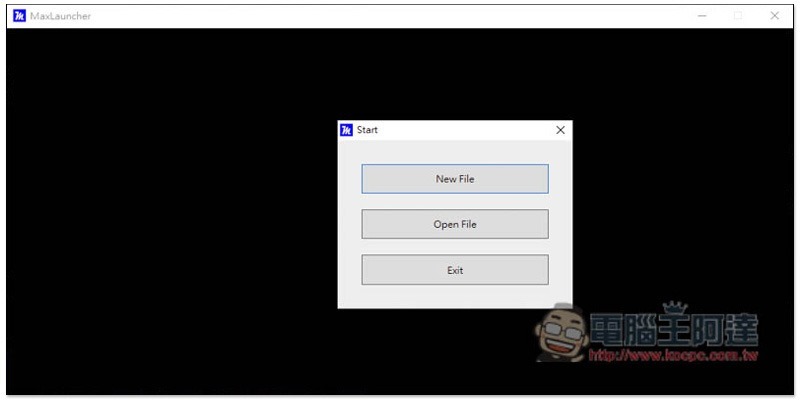
Although MaxLauncher currently only has an English interface, it is very simple to use, so people who are not good at English don’t have to worry. Open for the first time and click the first New File to create a new file:
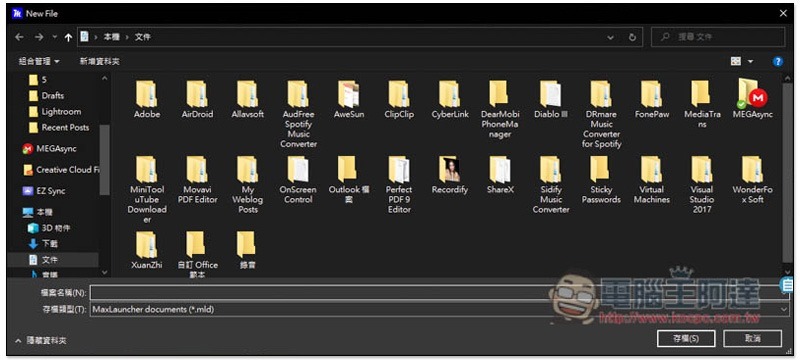
Select the storage location and file name. Anywhere will do. After setting, click Save:
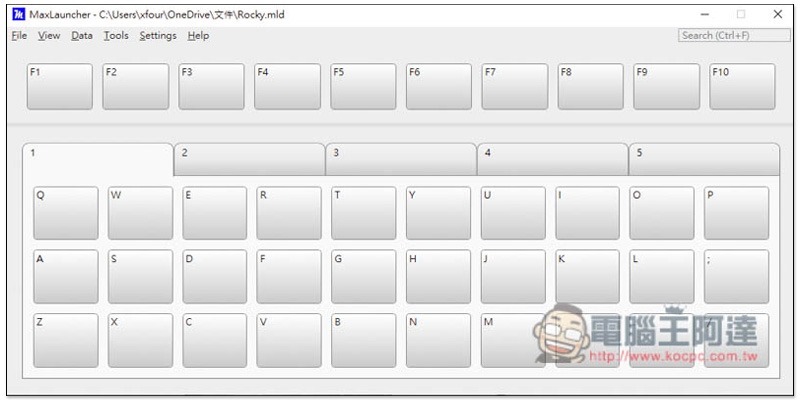
Now you can start using it. The corresponding keyboard keys have been preset for each frame on the screen, and the arrangement is actually exactly the same as the keyboard. Therefore, once you get used to it, you can basically open the application and folder you want to use as soon as you get used to it. The numbers 1, 2, 3, 4, and 5 on the screen represent that there are 5 menus (folders) available. Press the left and right arrow keys on the keyboard to quickly switch:
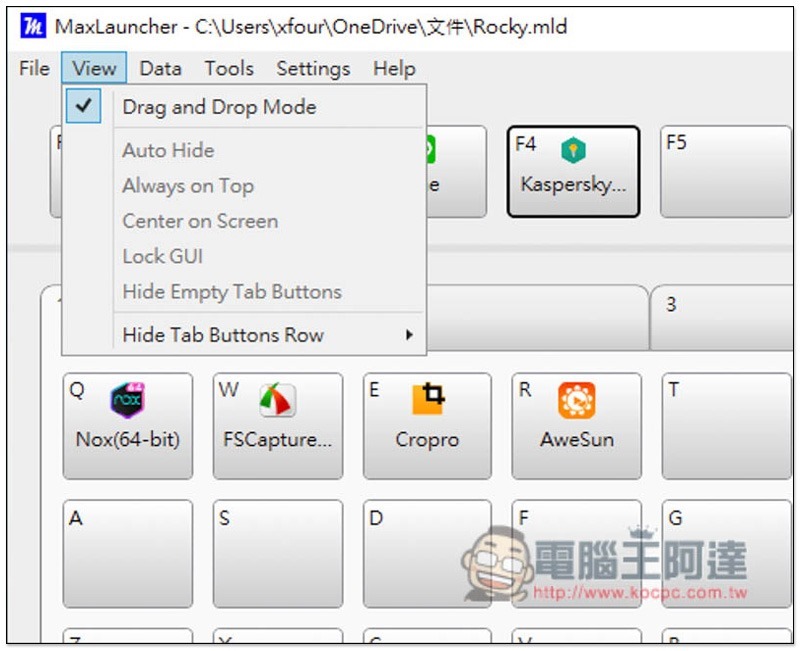
By default, it is not possible to directly drag the applications and folders you want to add. If you want to have this function, please open the View menu and check Drag and Drop Mode:
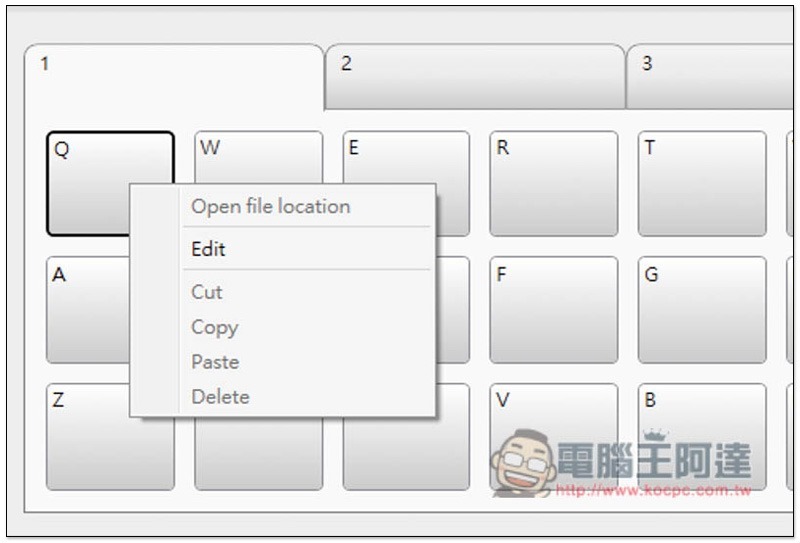
Another method is to open the right-click menu “Edit” function directly in the space you want to add:
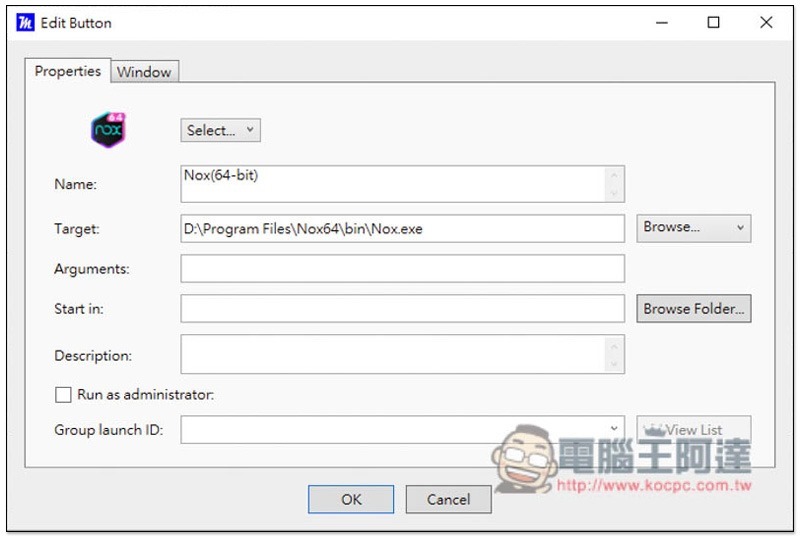
Then you can select the application you want to add. If there are no special requirements for Arguments, Start in, Desciption and other fields, there is no need to set them. Just select and click OK:
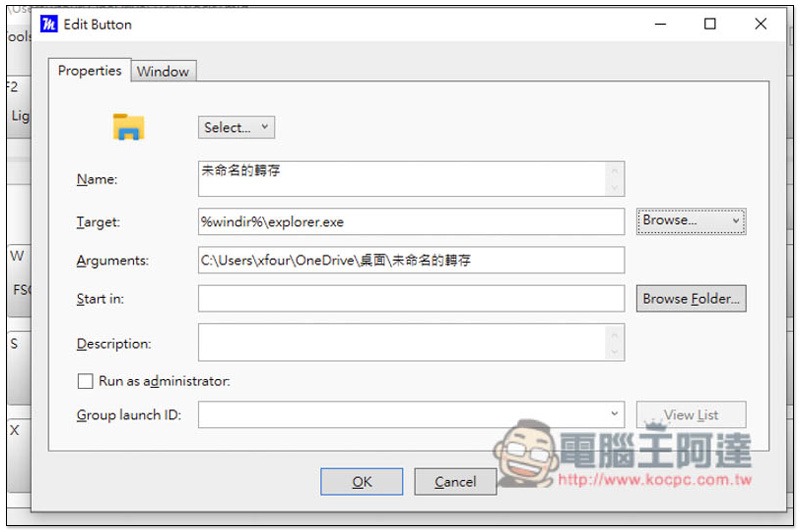
Folder locations are also supported:
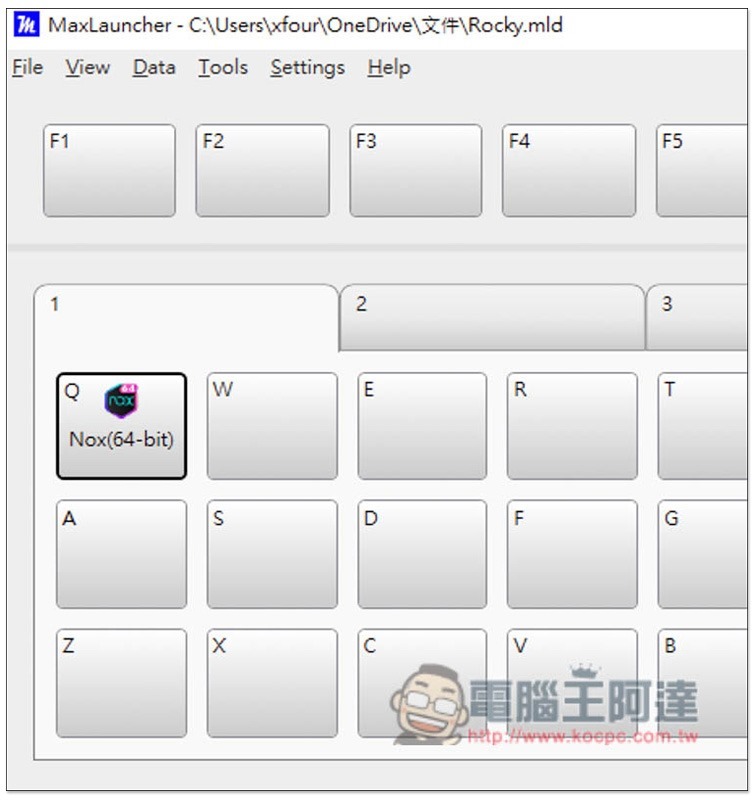
It’s done like this. In the future, you can directly press Q on the keyboard or click with the mouse to open this application:
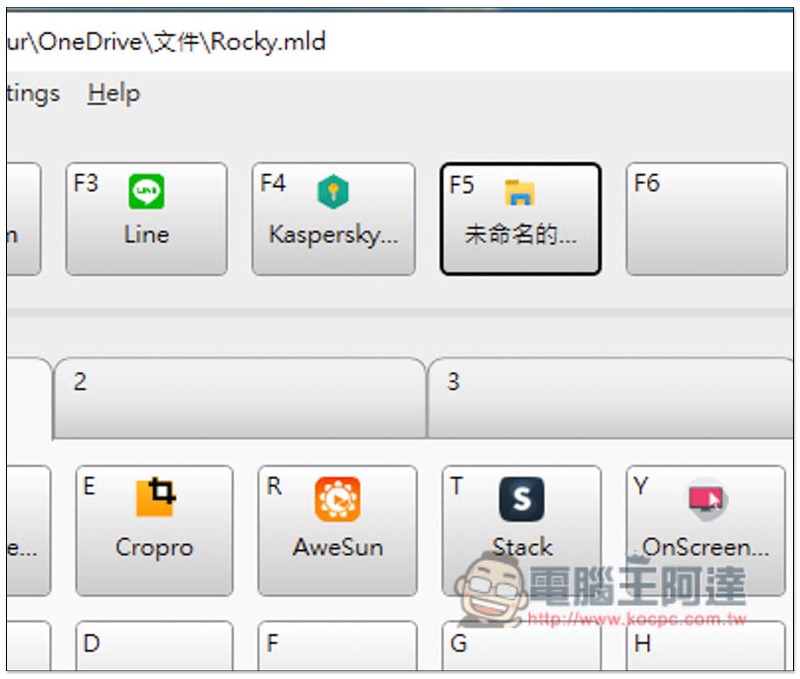
The same goes for folders. After setting them up, I press F5 and it will open:
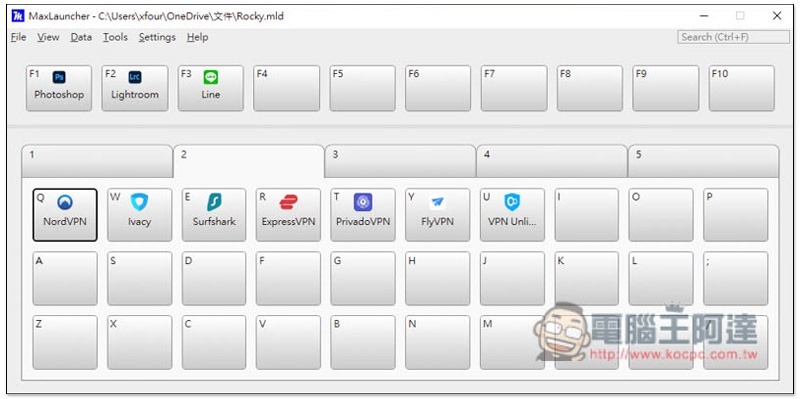
In addition, you can also use the built-in 5 menus to classify applications or frequently used folders. The menu names can also be modified by yourself. You can find the Rename function by right-clicking. For the most commonly used applications, I recommend setting them on the F1 ~ F10 keys:
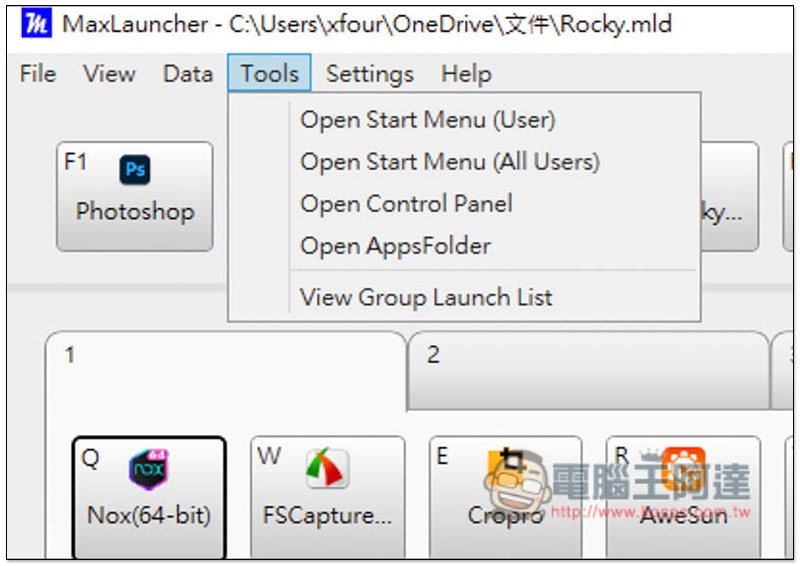
There are also some useful functions in the Tools menu, such as opening the Start Menu, Control Center, and Application Folder:
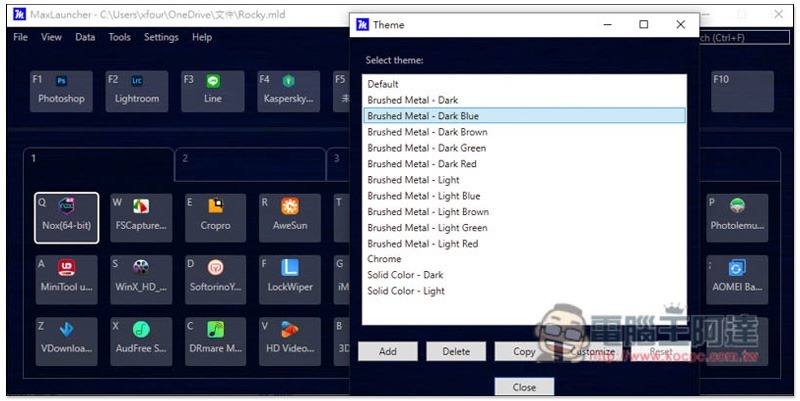
You can also change the theme, if you think the default one doesn’t look good:
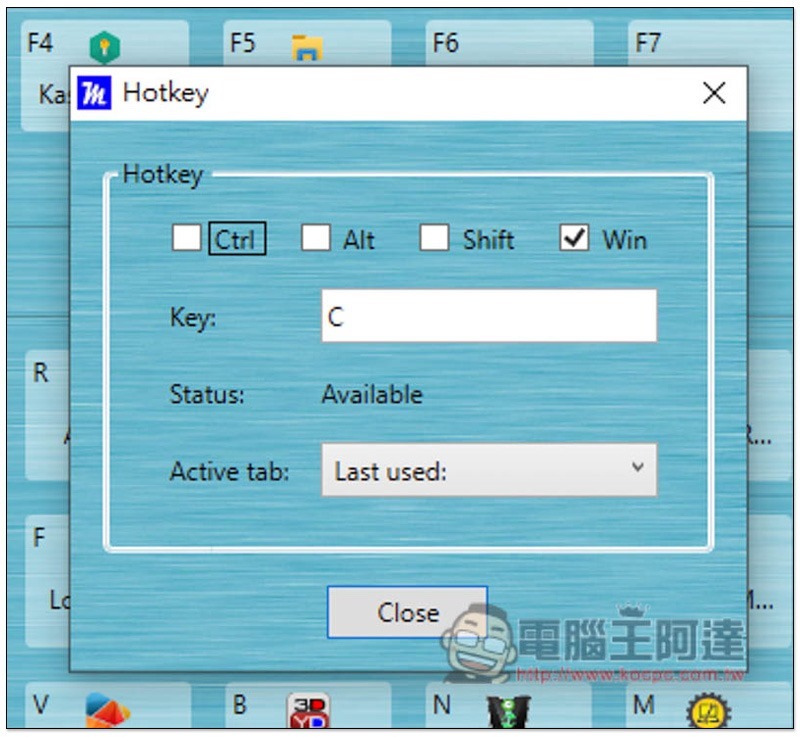
Hotkey is used to set a hotkey to quickly open this tool. For example: after I set Win + C, no matter which set of software I am using in the future, pressing Win + c will open MaxLauncher:
Source: KOCPC Chinese