


Affected by the epidemic, more and more companies are allowing employees to work from home, and as a result, the demand for remote desktop software has greatly increased. There are many remote desktop software on the market. Many people may think that they are similar. In fact, they are not at all. There are some differences in connection quality, cross-platform ease of use, privacy and security, and functionality. This article will help you compare the four most well-known remote desktop software on the market, TeamViewer, AweSun, AnyDesk and Chrome helps you quickly find the best option for you.
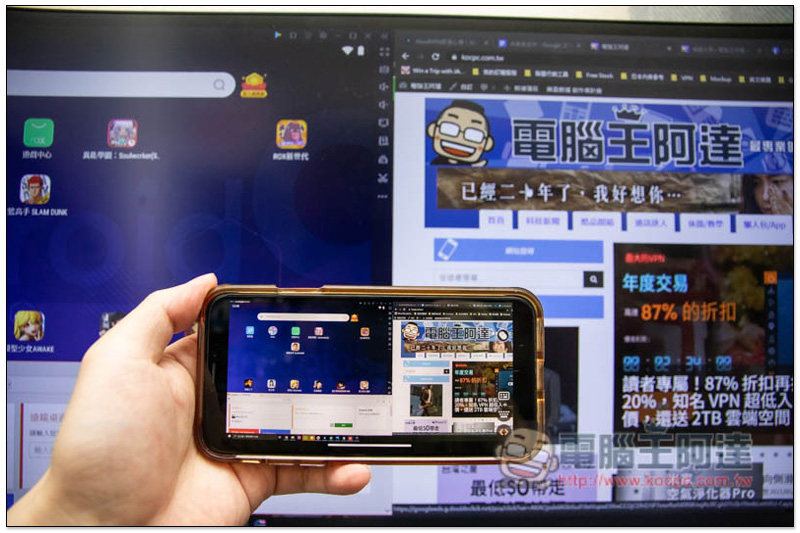
What is remote desktop software?
Remote desktop software is a software that allows users to connect to other devices and operate them through the Internet. It does not require any technical background. It can be implemented after the same software is installed on both devices. It is very suitable for remotely solving technical problems, teaching function demonstrations, checking tasks, etc.
What can remote desktop software do?
remote office
The epidemic situation in Taiwan has been escalating rapidly recently. In order to reduce the spread of infection and protect employees, companies one after another have allowed employees to work from home WFH. I believe some readers should do so. However, if you suddenly switch to working from home, you will not have time to back up a lot of data. In addition, during the work process, you may suddenly need to use certain files and software on the company computer. At this time, remote desktop software can help you, allowing you to remotely log in to the company computer at home at any time, perform necessary related operations, and remotely transfer files, easily and seamlessly.
Help family, friends, and companions solve computer problems
In life, you will definitely encounter problems with the computers of family and friends, but you may not always be around. Remote desktop software allows you to easily log in to the other party’s computer, check where the problem is and help solve it. Some even provide auxiliary functions such as blackboard, text chat, and real-time voice to facilitate communication with the other party.
Most remote desktop software is very easy to install, and after installation, there is no need to register. You can get a set of exclusive IDs and authentication codes for you to log in remotely, making it easy for even elders to get started.
Teach parents how to use computers and mobile phones
After parents buy a new computer or mobile phone, they will definitely have many questions, such as how to download apps on the mobile phone, where is the contact book function, how to access the Internet, etc. It is best if someone can teach them directly next to them, but most people probably live outside and cannot run back just because of this. The remote desktop software is a very good auxiliary tool. You can operate it remotely and explain it to your parents at the same time.
You can also check whether computer game hang-up, graphics calculation, video conversion and other tasks are normal while outside.
After audio and video workers complete a project, the computer will be used to calculate graphics and convert files. When people go out, they are more or less worried about whether these tasks are running normally. If something suddenly goes wrong in the middle, they have to start all over again. At this time, as long as the mobile phone or computer has remote desktop software installed, no matter where you are, as long as there is an Internet connection, you can remotely log in and check with one click.
This is also true for people who like to hang up their computers. You can check remotely at any time whether you are killing monsters normally, whether there are enough supplements, whether the game crashes, etc. Even when the supplements are not enough, you can buy them remotely and continue practicing on the idle screen.
Play computer games remotely on mobile phone
Since it can be operated remotely, of course you can also use your mobile phone to play computer games remotely. This means that when you have nothing to do outside and there are no games to play on your mobile phone, you can log in to your home computer through remote desktop software and open your favorite computer games to play.
However, if you only use the basic functions of the remote desktop software to operate, it will be very difficult to play. Among the recommended lists below, there is one with a built-in “virtual keyboard specially designed for games”, which is more suitable for playing computer games remotely.
Is it safe to use a remote desktop computer?
This depends on the remote desktop software used. If you choose the list recommended in this article, or other well-known remote desktop software, it is of course very safe. These softwares use military-grade encryption technology to protect the transmission traffic to ensure that it will not be stolen by malicious parties.
In addition, each device also has a unique ID and verification code, which will not be repeated with others. When someone logs in remotely, you will also receive relevant notifications and can cut off the connection at any time.
How to choose the remote desktop software that suits you best?
The first priority is undoubtedly whether the functions and operations can meet your needs.
If your remote control is to check whether the computer task is running normally, then “operation” is very important. For example, the mouse operation of the remote desktop software is not intuitive to use, whether the virtual keyboard has some commonly used shortcut keys, etc. In addition to remote operation, you should also ensure that there is a file transfer function, so that you can upload and download the files you need at any time.
Next is the connection quality, which requires a long-term and stable connection process. If the connection is disconnected at every turn, the user experience will definitely be very poor.
Finally, it is very important to note that if you are using remote desktop software for work, it means it is for commercial use. Not all free versions can be used commercially, so be careful when choosing, as it may be suspended if detected.
Comparison and usage experience of 4 well-known free remote desktop software
1. TeamViewer
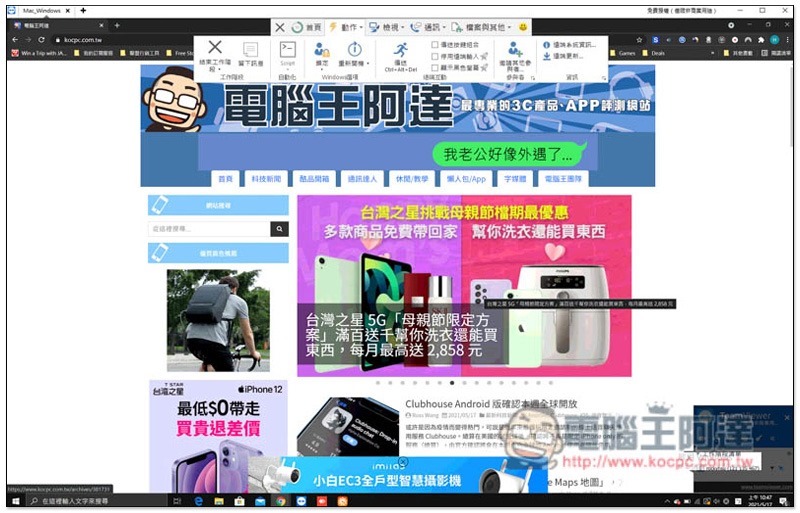
Most people should have heard of TeamViewer. It is a very old remote desktop software that provides remote control of computers. It has free and paid commercial versions. The free version is only for personal use. The interface design is very IT-like, and technicians will love it, but for some novices and people who don’t know much about computers, they may feel a little distant and difficult to get started.
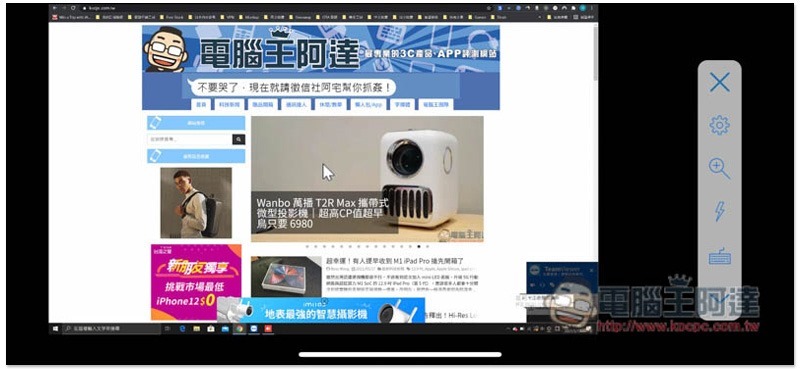
The mobile version does not provide many functions. It can only perform basic remote computer operations and does not have many auxiliary functions. I personally feel that the operation is not smooth. The computer version is better and has many functions, such as two-way calls, recording, screenshots, etc. Both the mobile and computer versions have file transfer functions.
The connection quality is pretty good. Stuttering will occasionally occur, but it won’t happen too often. However, I have encountered several disconnections in the mobile version, and the computer version is more stable.
One thing that is slightly annoying is that the free version will pop up a non-commercial warning every time you connect. Although it is a reminder, it is quite troublesome to press confirm every time.
Computer version interface:
In the mobile version, the only functions are the four icons on the right. By default, you must move the mouse to click. If you want to change the operation mode to tapping a certain position on the screen, you need to go into the settings to adjust:
2. AweSun
AweSun is a remote desktop software that has been rising rapidly recently. It has free and paid versions. The biggest feature of the free version is that it is very versatile. Unlike other competitors, which have some restrictions, such as file transfer, text chat records, voice real-time chat, whiteboard, screen recording or screenshots, voice conferencing, team collaboration, etc. In addition to remote desktop, it also supports remote control of Android phones. It can be said that the free version has the most functions among all remote desktop software.
The connection quality is also quite stable, and more importantly, this free version can be used commercially, which is a big plus for people who need to work from home.
Whether it is the mobile version or the computer version, the operation of AweSun is very intuitive and smooth. Especially the mobile version supports touch mode, which means you can directly click on the function you want to use on the screen, which is really convenient. In addition, the interface design is also very good, very textured, and it also supports dark mode.
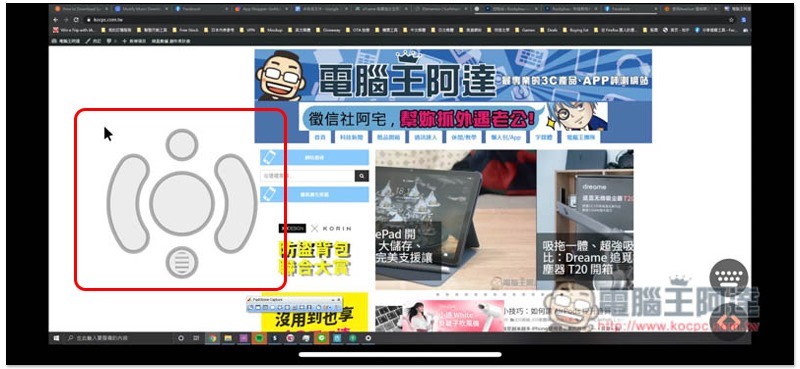
The mobile version provides two mouse modes, “touch mode” and “pointer mode”. Touch is AweSun’s unique mouse mode. It not only allows you to directly click on the function or position you want to use on the screen, but also has unique simulated mouse virtual buttons. As shown in the figure below, four virtual buttons will appear on the screen. Press and hold the “middle circle” to move the mouse. The “left and right” represent the left and right buttons of the mouse. Long press the “upper circle” to enter the sliding function page (that is, the feeling of sliding the mouse wheel). The lower “menu circle” simulates pressing the mouse wheel:
The operation method of the sliding function page is as follows: rotate clockwise to slide downwards, and counterclockwise to slide upwards:
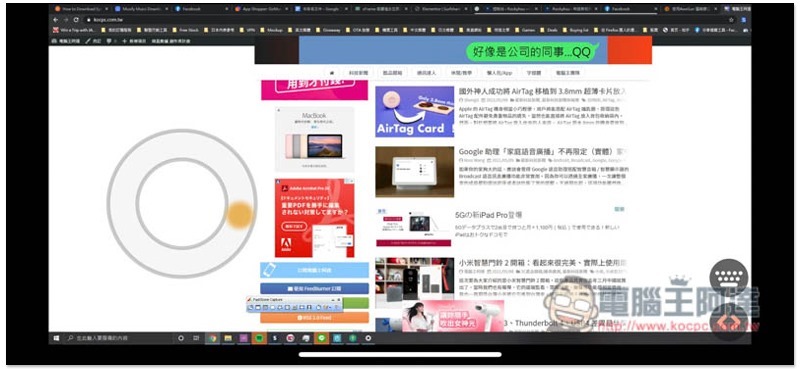
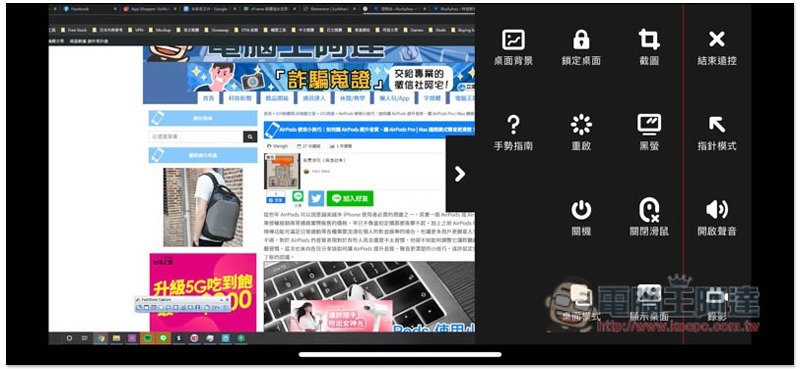
In addition, there are practical functions such as screenshots, video recording, one-click display, desktop locking and file transfer. The virtual keyboard is not only suitable for typing, but also has many built-in practical shortcut keys, such as cut, copy, paste, restore, etc. You can even customize the shortcut keys according to your own needs, which greatly improves the convenience of controlling the computer on your mobile phone:
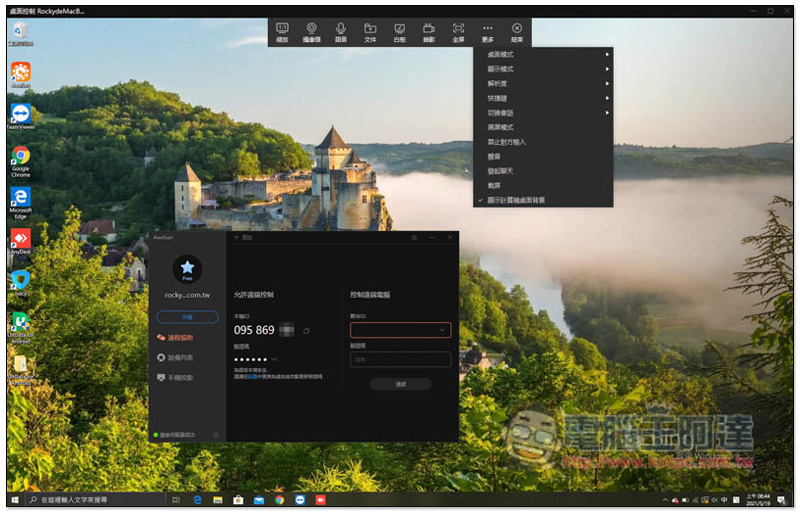
The computer version is not bad either. In addition to having most of the above functions, it also provides whiteboard, real-time voice chat, text chat and other functions. In addition, it also has built-in mobile phone projection, which can project the screen of iOS or Android mobile phones to the computer for display. Compared with other desktop software, the interface is really much better looking:
The connection speed and stability are also very impressive. During my use, even if the mobile phone remotely controls the computer, the response time is quite fast, not to mention the computer version.
3. AnyDesk
Although AnyDesk does not have as long a history as TeamViewer, it is still used by many business users. It only requires a set of codes to control remotely. Moreover, before connecting, the controlled terminal can set the permissions that the other party can use, such as whether it can draw on the screen, whether to allow the use of clipboards, whether to send sound effects, etc. There are both free and commercial versions, and the free version is for personal use only.
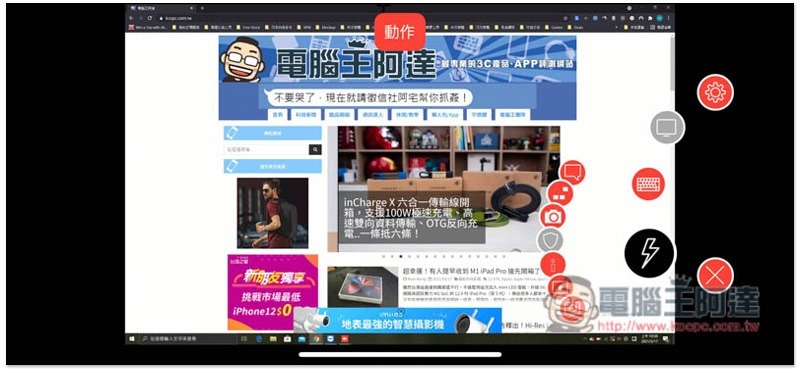
The menu of the mobile version is hidden on the side, and you have to slide it from the outside in to appear. I think this design is pretty good. It makes the mobile phone screen only have the computer screen, so you can be more focused when using it. However, the connection quality is mediocre, and the zoom screen can be obviously stuttery, and sometimes the operation will be a beat slower:
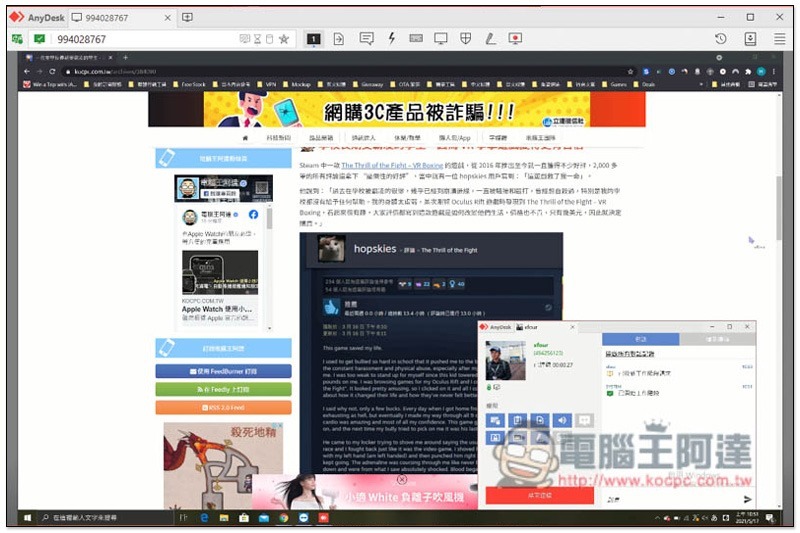
I don’t know if I should say the interface design of the computer version is elegant or simple. The information layout is also a bit messy. I personally don’t like it very much:
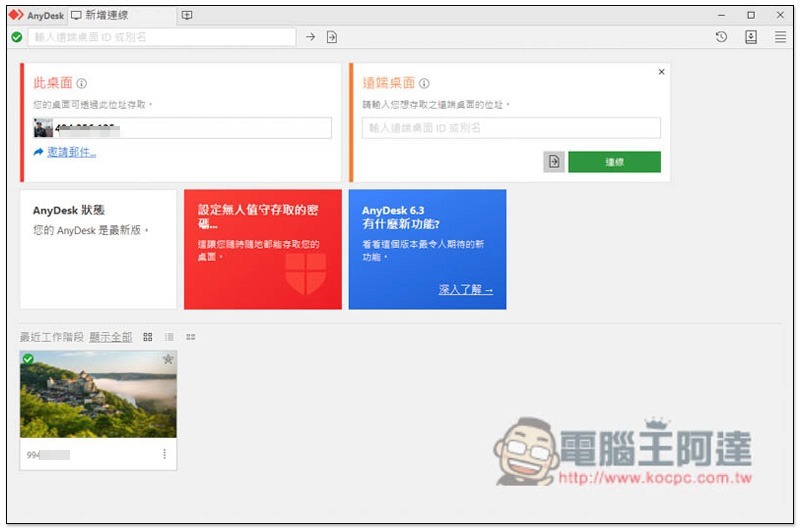
In terms of functions, it also has all the necessary functions, such as: whiteboard, video recording, screenshots, text chat, file transfer functions, etc.:
4. Chrome
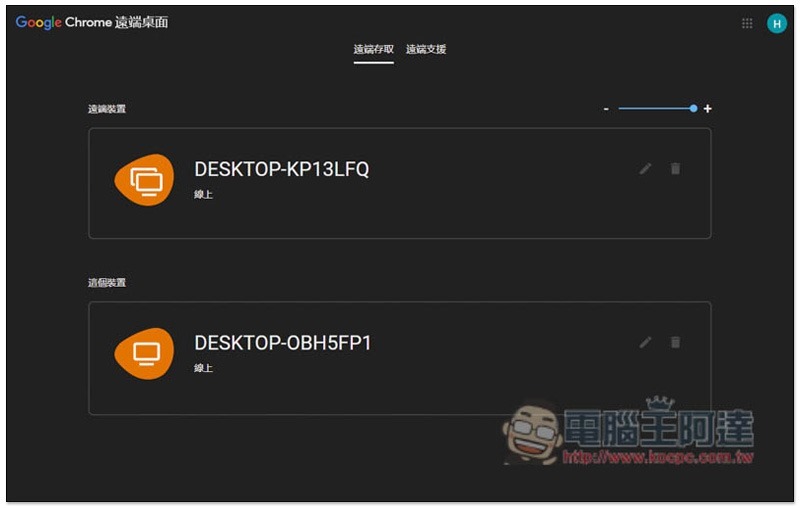
The functions provided by the Chrome browser, but require additional installation, can still control the computer remotely, but the functions are very basic and can only be operated remotely. There are no other additional functions, it does not support file transfer, cannot connect multiple devices, and does not provide commonly used shortcut keys, so it is more inconvenient to use. The only advantage is that for Chrome browser users, there is no need to install other software.
Which remote desktop software is the most recommended?
Comparing the four models, AweSun is undoubtedly the one. The mobile version and the computer version perform very well in all aspects, and the free version can be used commercially, so there is no need to worry about using it. What’s more worth mentioning is that AweSun also has an exclusive virtual keyboard specially designed for games, which makes it easier to play computer games remotely. Here are a few features that I think are pretty good for your reference.
Easily log in to bound devices remotely with one click
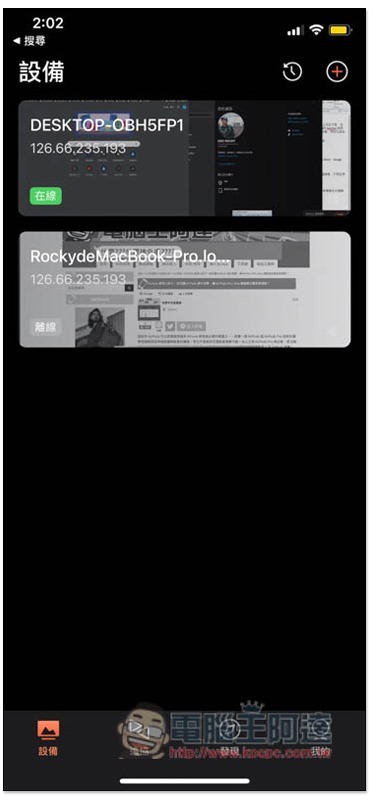
This can be said to be one of my favorite features of AweSun. After registering an account and binding it to a computer, you can easily log in remotely with one click on other devices in the future as long as you log in to the same account. Unlike other remote desktop software, some of which require you to write down the device ID, which is a lot more convenient. In addition, each device will also display whether it is “online”, so you can quickly check whether there are any problems with the network of this device:
The mobile version has a built-in ultra-comprehensive virtual keyboard
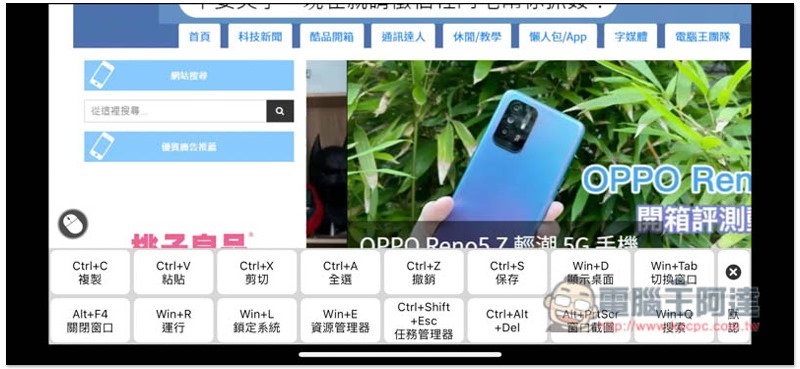
AweSun’s virtual keyboard is very unique. It virtualizes almost all the keys of the physical keyboard. Unlike other remote desktop software, which only has a few commonly used keys, it also provides more than practical shortcut keys, which is a great plus when using a mobile phone to operate a computer.
Commonly used ones include copy and paste, select all, save, show desktop, and switch windows:
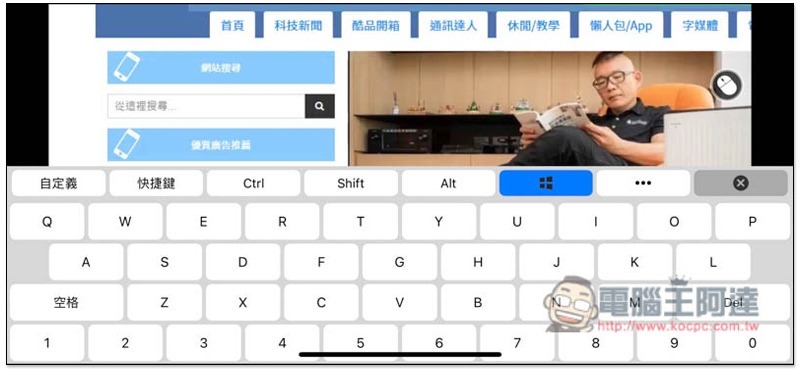
The Win, Alt, Shift, and Ctrl menu above can imagine that you are pressing this key. For example: I click the Win option. After it turns blue, it means that the computer keyboard is pressing this key. When I press the D key again, it will become Win + D, which executes the shortcut key to display the desktop:
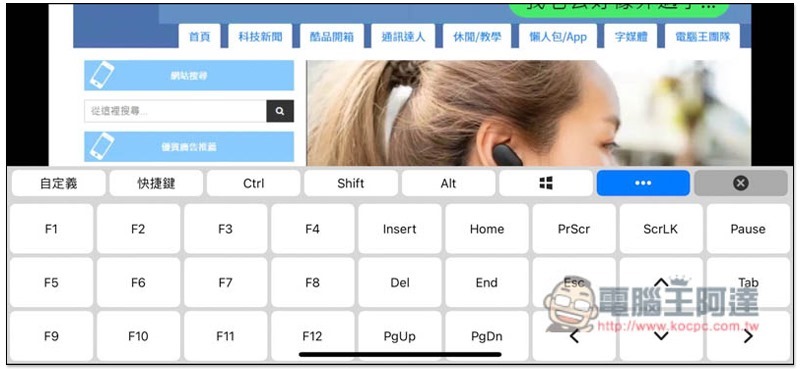
… There are more keyboard functions in the menu. F1~F12, arrow keys, PgUp/PgDn and other keys can be found here:
You can also customize commonly used keys. If you often need to remotely operate a certain set of software, play games, or manage download tasks, you can add frequently used shortcut keys from here, making your operations easier:
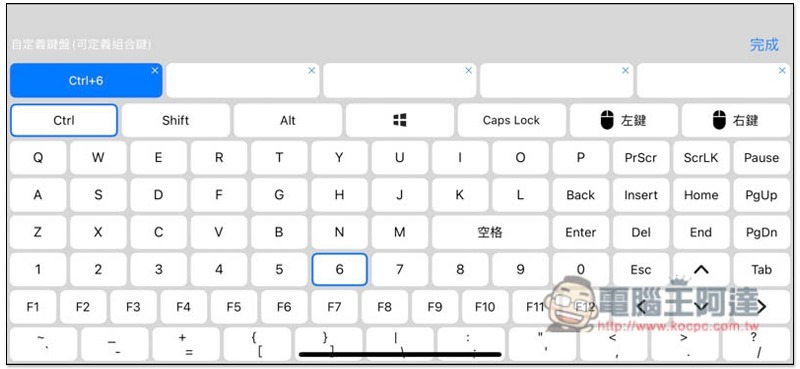
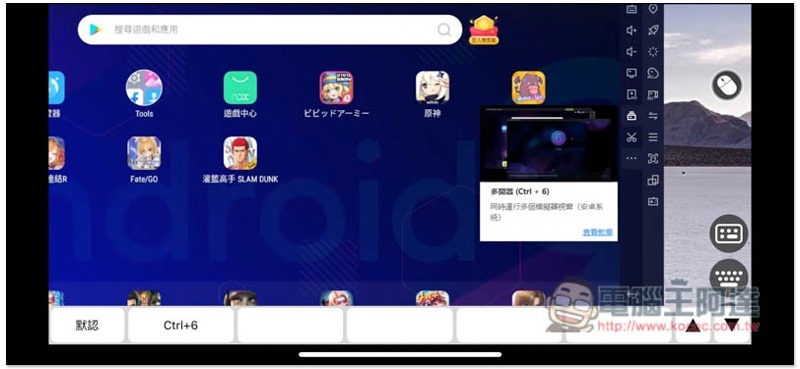
For example, I often use the emulator to hang up games. Sometimes when the computer is performing almost all other tasks and has extra performance, I will use the multi-open emulator and open another account to hang up and practice. Therefore, after customizing the Ctrl + 6 shortcut key, I can quickly activate it by pressing this key in the future, without having to zoom in to find the multi-open function:
Exclusive game-specific virtual keyboard makes it easier to play computer games remotely with your mobile phone
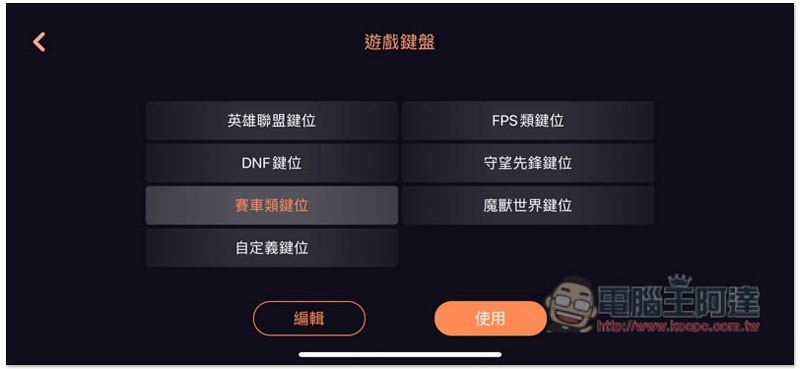
This is one of the major features of AweSun that many other desktop software do not have. For paid members of the Game level, the mobile version also provides a game-specific virtual keyboard, making it easier for players to play computer games on their mobile phones. It also has built-in key configurations suitable for various games, such as League of Legends, FPS, racing, etc. Of course, it can also be set manually.
The built-in keys include keyboard configurations for many popular games, such as World of Warcraft, League of Legends, Overwatch, as well as FPS, DNF and racing types:
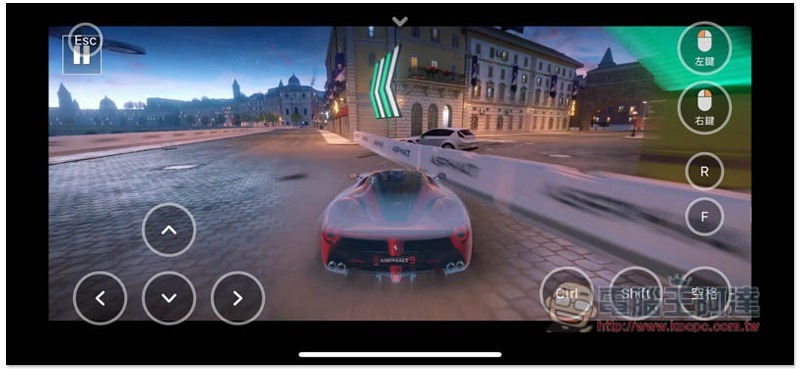
When playing a racing game, you can directly use the racing keys. The direction keys to control the car, the R or F keys commonly used for acceleration, and the Ctrl and Shift keys have all been set:
The paid version is affordable and also provides a sunshine store. Accumulate points to exchange for advanced functions.
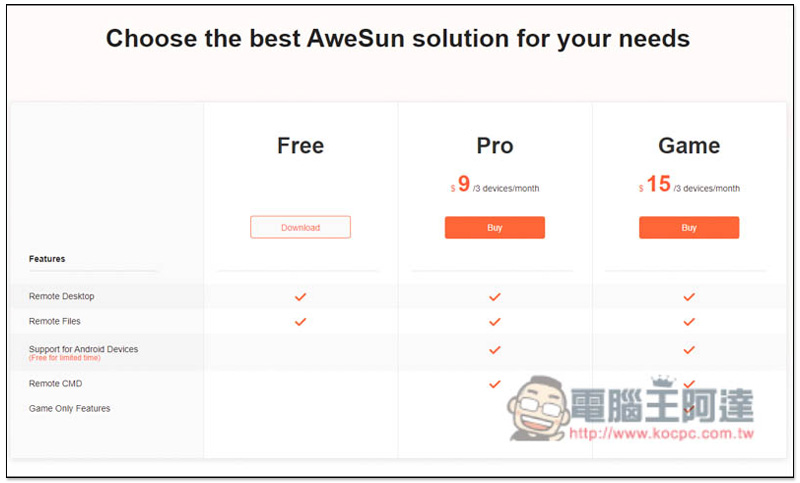
Compared with the paid version prices of TeamViewer and AnyDesk, AweSun is really much cheaper. The Pro version only costs 9 US dollars per month, and it has 3 devices, unlike others that only have 1 device. The most expensive one is only 15 US dollars:
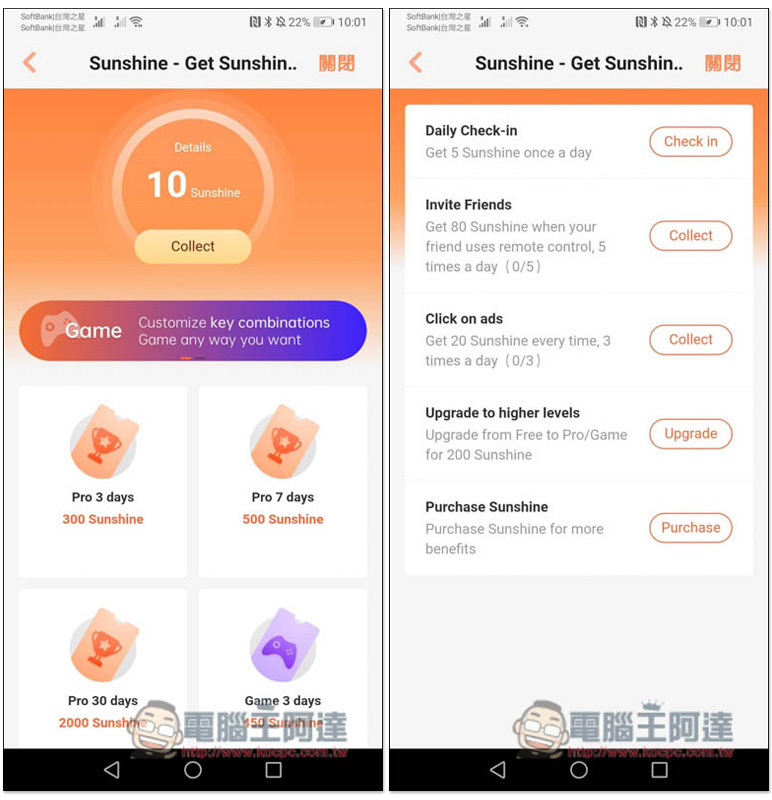
For those who don’t want to spend money, the App also provides a Sunshine Shop. There are some tasks every day to collect sunshine points. After reaching a certain number, you can redeem the paid version usage days, such as: 300 points can be exchanged for 3 days of Pro, 500 points can be exchanged for 7 days of Pro, etc.:
Not just computers, but also remote control Android phones
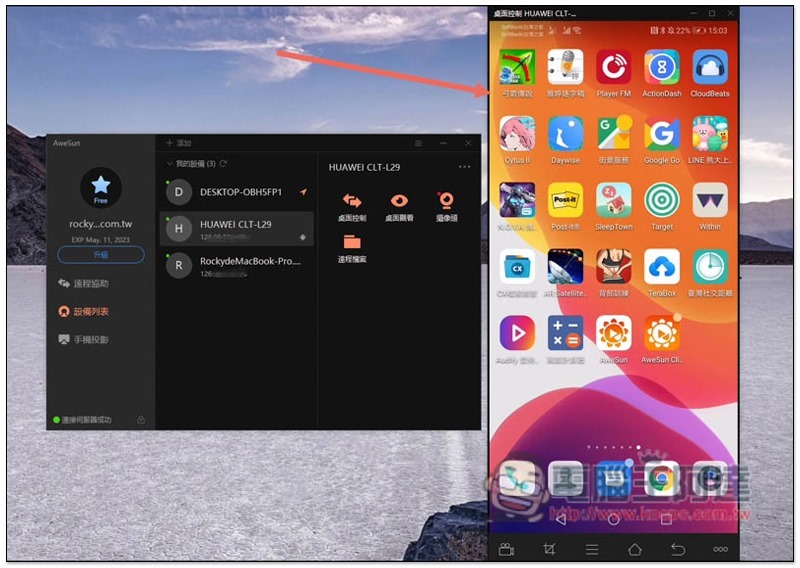
Although other remote desktop software has this function, almost all of them are only in paid versions, which means you have to spend extra money. However, AweSun currently provides free one-year membership for newly registered members. This is very good and saves a lot of money, especially for those whose elders use Android phones. With this function, you can remotely help them solve mobile phone problems or teach them.
However, currently remote control of Android phones requires ROOT. Without ROOT, you can only watch remotely:
Summarize
In comparison, of course, this does not mean that other remote desktop software is not good, but AweSun is better in terms of performance in all aspects. Moreover, everyone’s usage needs are different. In fact, it still depends on your usage habits. In any case, you can try it first. After all, there is a free version. The above is for your reference.
Source: KOCPC Chinese