


Although according to Apple’s official instructions, even the Apple Watch Series 6 has a maximum battery life of about 18 hours. For normal use, it is safer to charge the Apple Watch every day on average. In addition to placing the Apple Watch on the magnetic charger to charge before going to bed, if you want to use the sleep mode function of Apple Watch to detect sleep status, fully charge the Apple Watch before going to bed and wear it before sleeping.
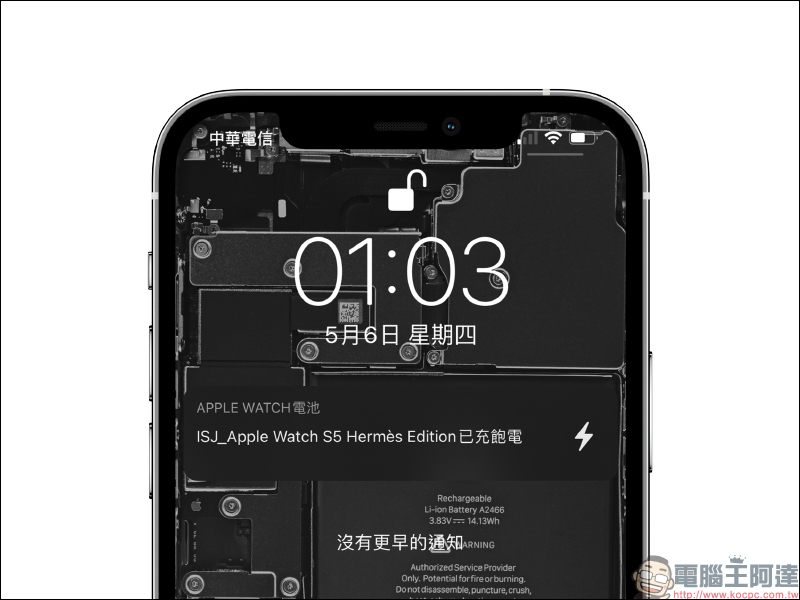
Today I will share how to automatically push a reminder notification on the iPhone when the Apple Watch is charged to 100%, so that users do not have to check the charging progress of the Apple Watch at any time.

Tips for using Apple Watch: Tutorial on how to set up automatic push notifications on a fully charged iPhone
Both iPhone and Apple Watch support “sleep mode”, which can detect and record the user’s sleep state. Compared with the iPhone’s sleep mode, many people rarely use the built-in sleep mode of Apple Watch. However, the sleep mode of Apple Watch can track the user’s sleep hours and use an alarm clock on Apple Watch to remind the user to wake up. At this time, to prevent Apple Watch from running out of power faster, it is very important to fully charge the watch before going to bed.
However, you definitely don’t want to have to pay attention to the charging progress of Apple Watch at all times. If you want to automatically push notifications to the user’s iPhone when the Apple Watch is charged to 100%, then you must learn this method today!
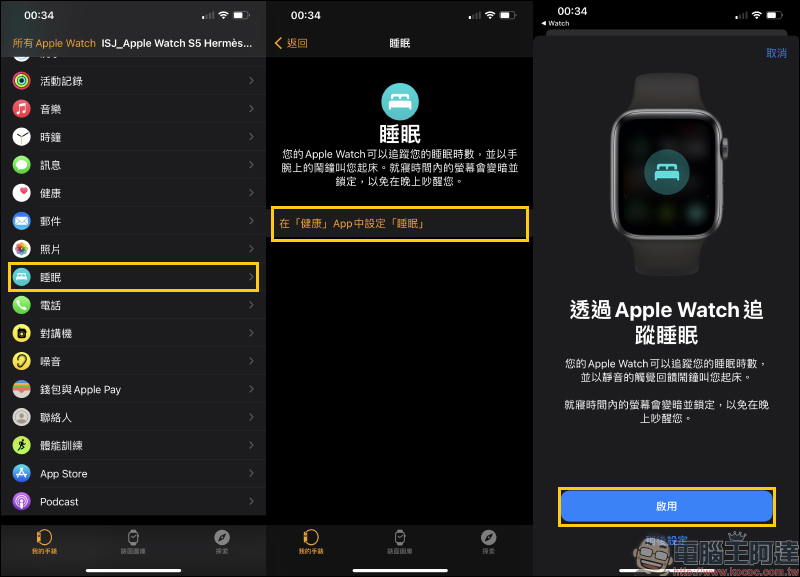
First, open the Watch App on your iPhone and click “Sleep” on the “My Watch” page. If you are using it for the first time, you need to complete the general settings before you can enable sleep tracking through Apple Watch. Once turned on, the user’s sleep hours will be tracked through Apple Watch, and a silent tactile feedback alarm will be used to remind them to wake up.
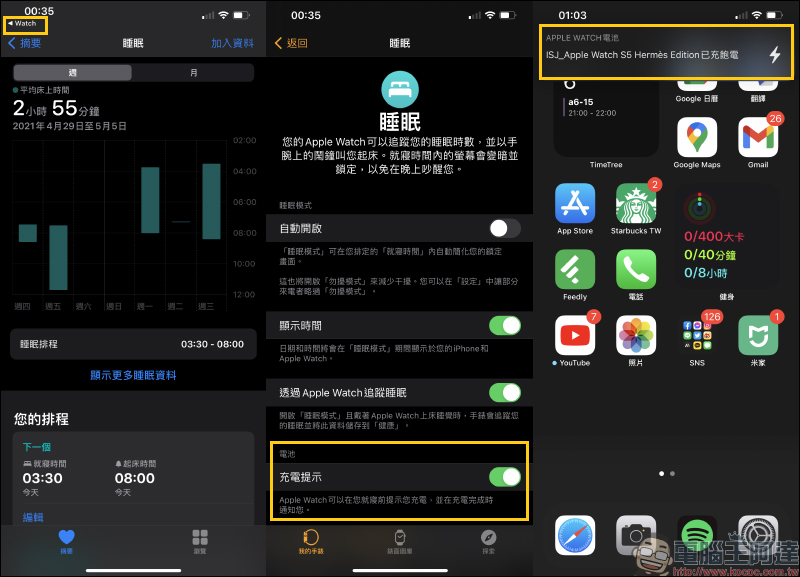
After clicking Enable, the screen will temporarily jump to the “Health” App, and then return to the original Watch App to open the sleep settings. This can actually be done by clicking on the “Charging Reminder” on the screen and turning it on. Then, when the Apple Watch is charged to 100%, a reminder notification will automatically be pushed on the screen to remind the user that the Apple Watch is fully charged.
Also featured: Use automated operations to set up push notifications when your iPhone is fully charged
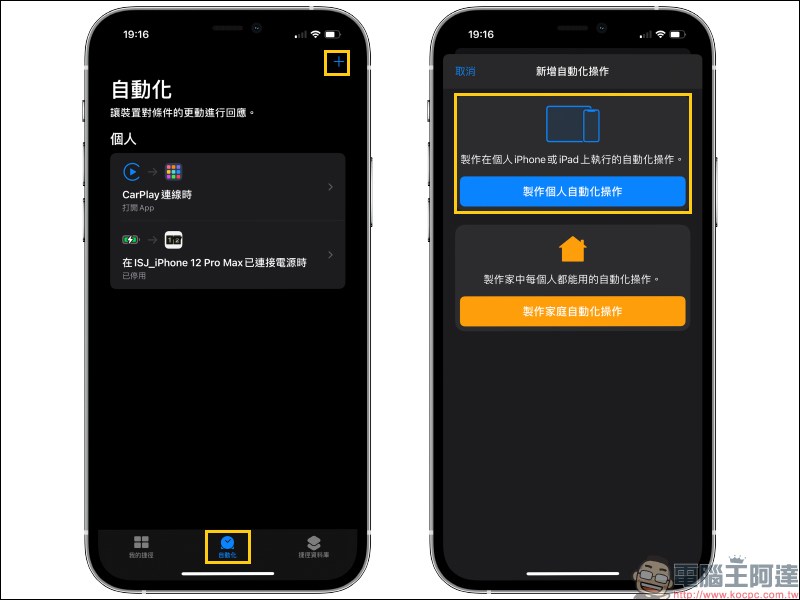
We have introduced a trick before Automatically turns on page-turning clock display when iPhone is chargingmethod. If you want to push a notification reminder when your iPhone is fully charged (or charged to a specified level), it is recommended to use the “automation” operation function of the Shortcut App. First click the “+” in the upper right corner to add an automated operation, and then select “Create Personal Automated Operation” to proceed to the next step.
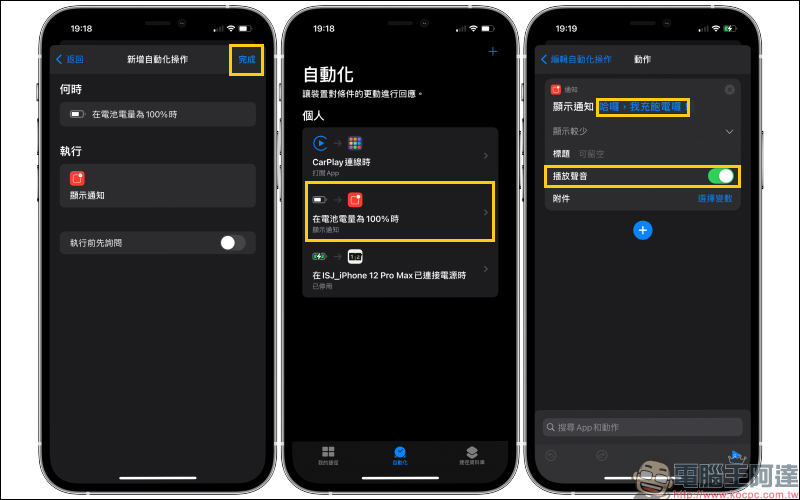
Select “Battery Level” in “Add Automated Action” and select the battery level for which you want to push reminder notifications. Taking the charging 100% notification as an example, select the battery level equal to 100%. After selecting, you can click “Next”.
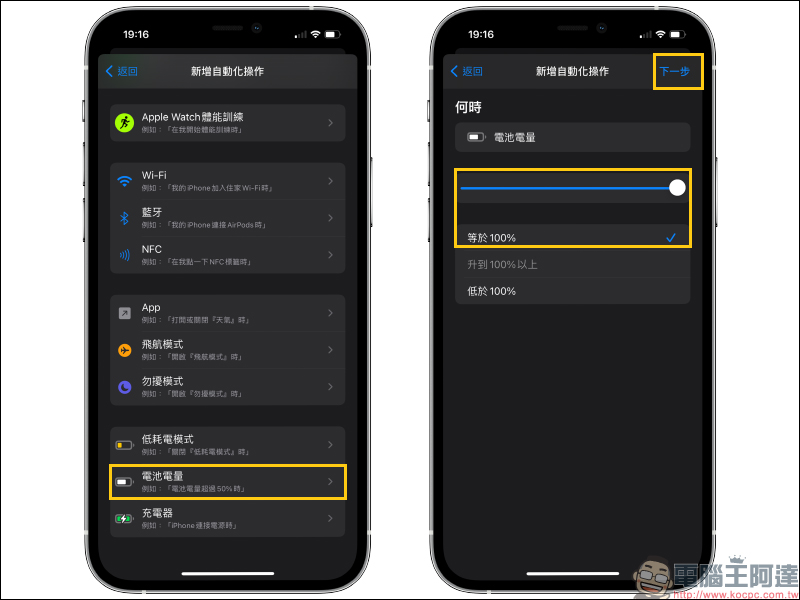
Next, “Add action” and select “Show notification”:
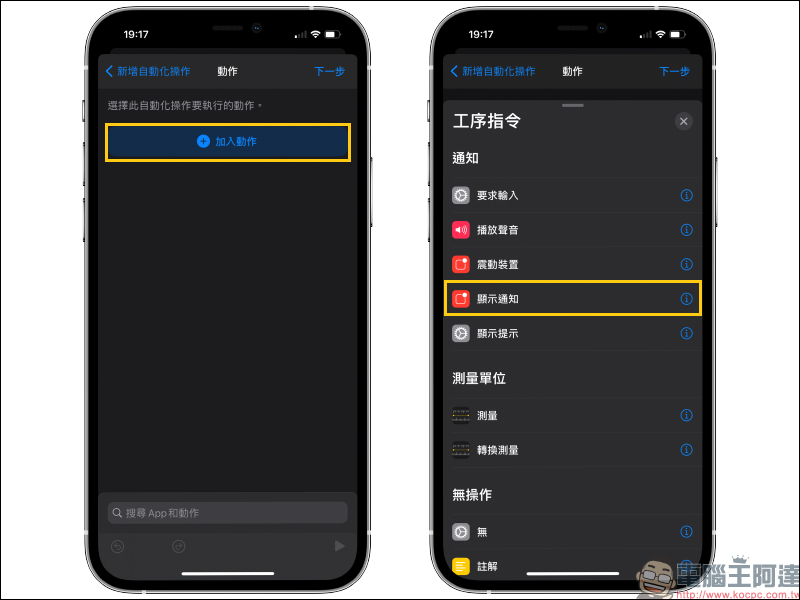
In the display notification, the user can edit the display text of the notification that he wants to push. After completing the selection, click “Next”:
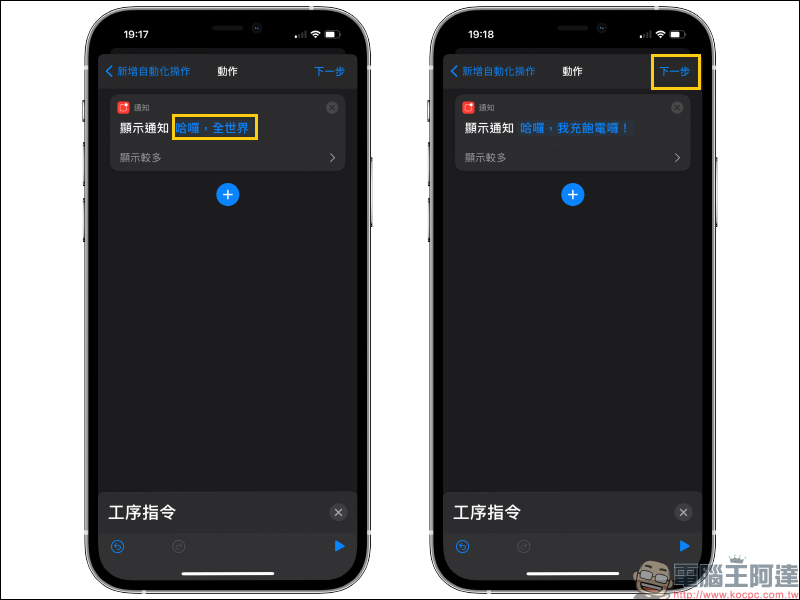
Finally, remember to turn off the “Ask before executing” function to push reminder notifications when specified conditions are met (battery power reaches 100%).
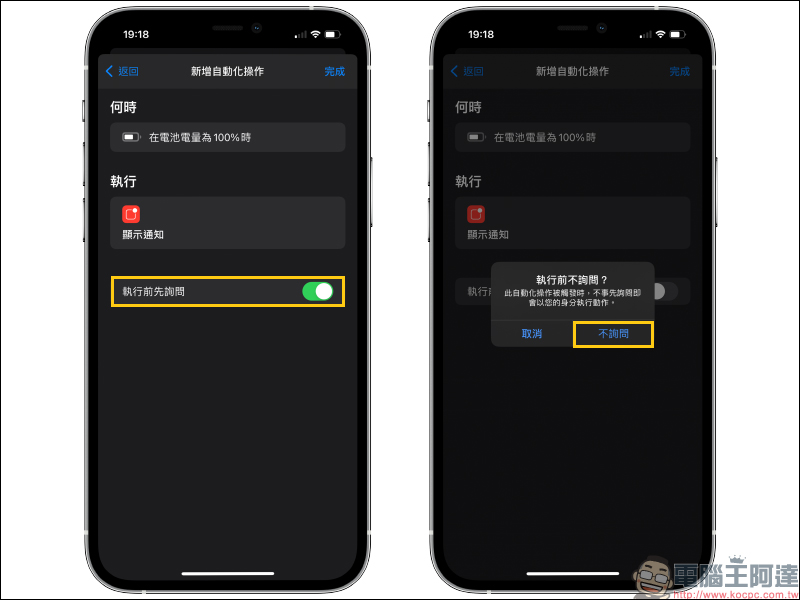
Finally, select “Finish” and you’re done! Users can also directly edit and adjust settings such as the text content of the notification display and whether the sound should be turned on at any time directly on the automation page.
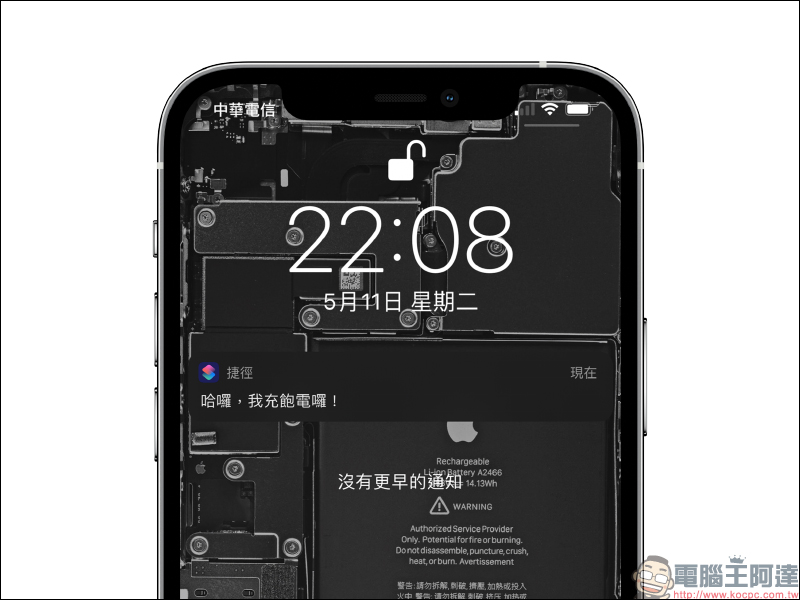
When fully charged, a reminder notification will pop up on the iPhone’s home screen!
Further reading:
Tips for using AirPods: How to improve the sound quality of AirPods and make the sound clearer in AirPods Pro | Max Transparency Mode?


Source: KOCPC Chinese