


In order to save power, Mac computers have made some optimized designs in terms of Apple computer battery management and power saving functions. macOS will turn on power saving mode by default, which means that your Apple computer will automatically enter sleep mode and turn off the screen or hard drive after being idle for a period of time.
But in some special cases, we actually don’t want the Mac computer to go to sleep, such as we have documents being downloaded, videos being output, etc. Today I will share one that can help you preventMacKeepingyouawake, a free software program for sleeping.
Keeping you awake
Keepingyouawake official website address:https://keepingyouawake.app/
Keeping you awakeHow to download and use?
first step, visit the Keepingyouawake official website address and click the Download button to download and install.Click me to download。
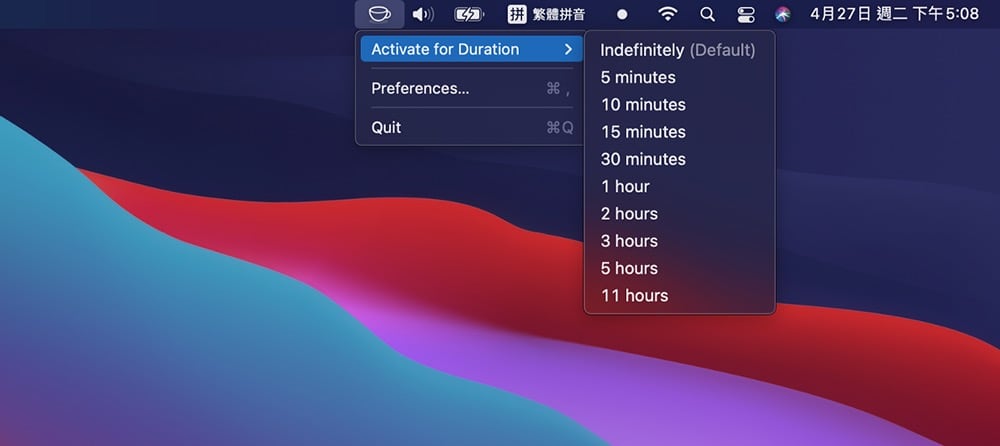
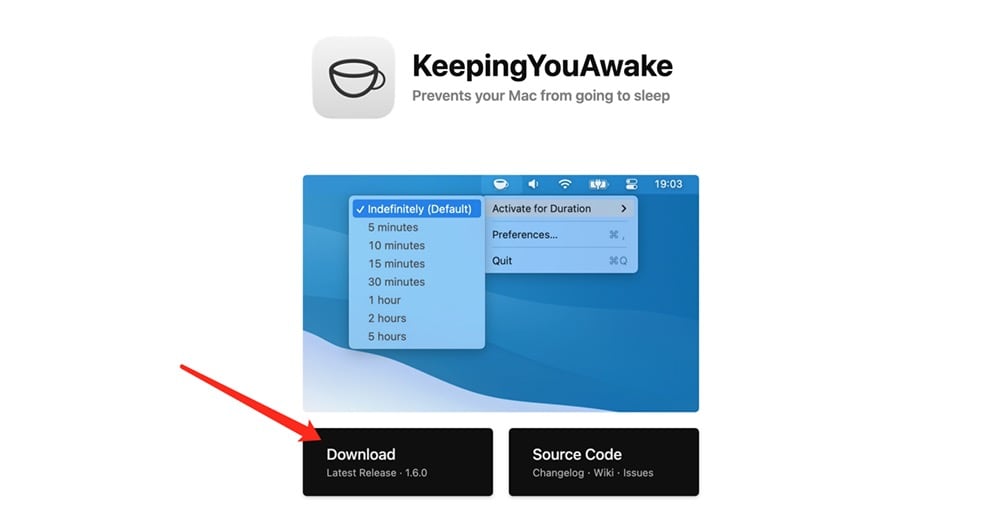 Step 2, install and start Keepingyouawake, you will see the Keepingyouawake application icon (coffee cup) in the menu bar in the upper right corner of the Apple computer desktop, right-click (or Option+click) the icon, and click Preferences in the drop-down menu.

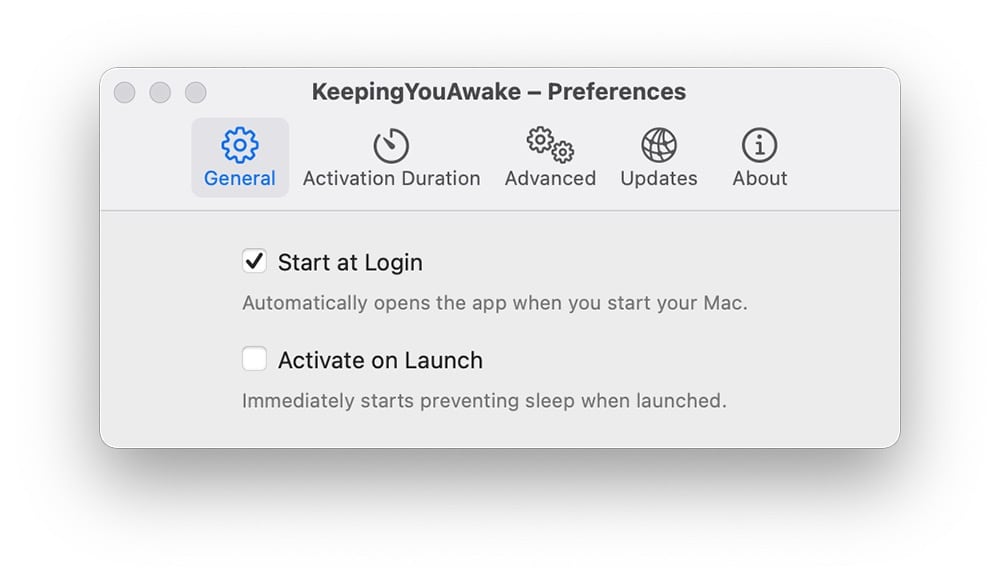
Step 3, in the General menu, you can check whether to activate on Launch or Start at Login.
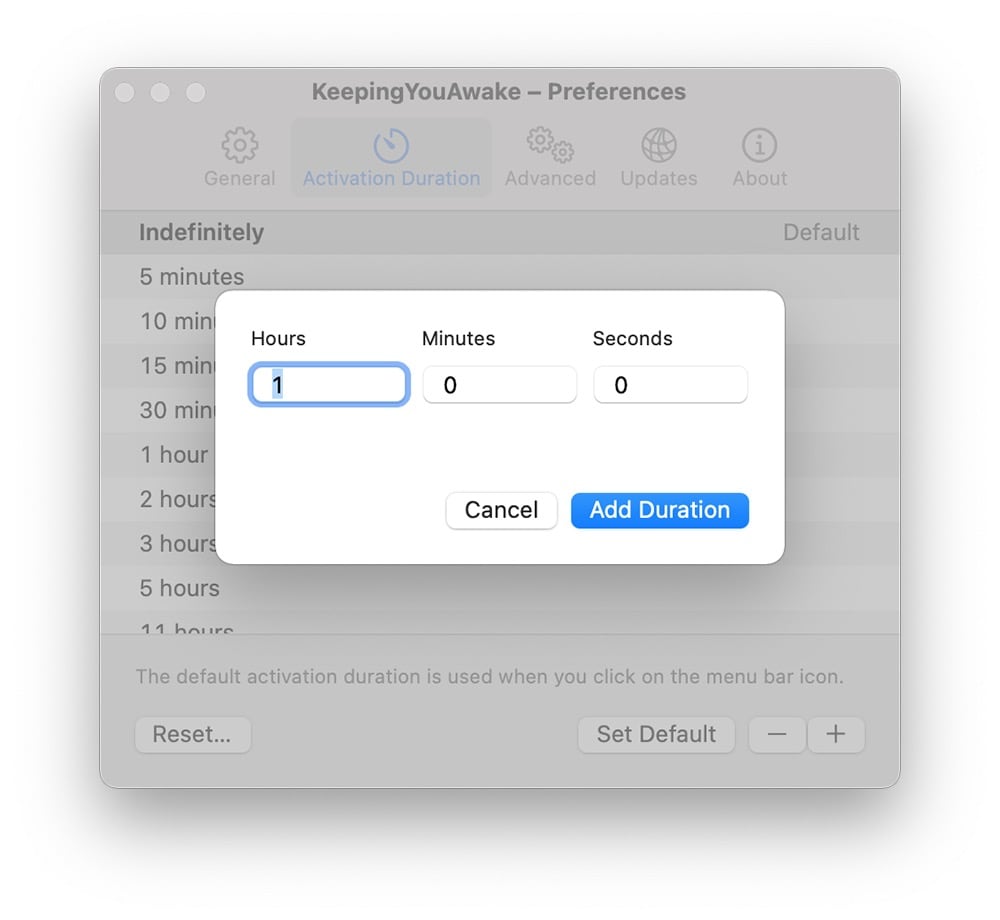
Step 4, under the time interval (Activation Duration) menu, Keepingyouawake provides some preset values of 5 minutes, 10 minutes, 15 minutes, 30 minutes, 1 hour, 3 hours, 5 hours, 11 hours and the default permanent. You can also click the Add button in the lower right corner of the time interval window to set your commonly used time interval. You can also click (Set Default) to set it as the default.
 Step 5, in Advanced Settings (Advanced), you can set the Mac computer to turn off Keepingyouawake when the battery is low, and you can also set other options.
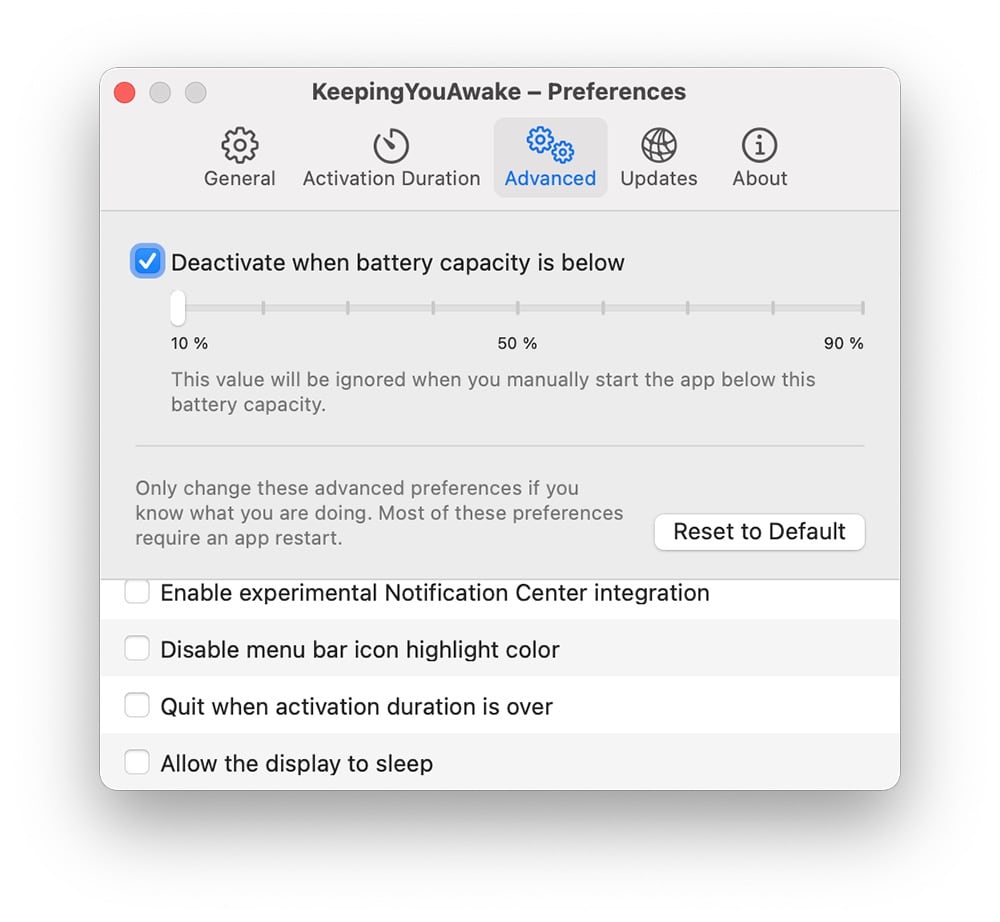
- Enable experimental notification
- Disable menu bar icon highlight color
- Quit APP after wake-up time (Quit when activation duration)
- Allow the display to sleep
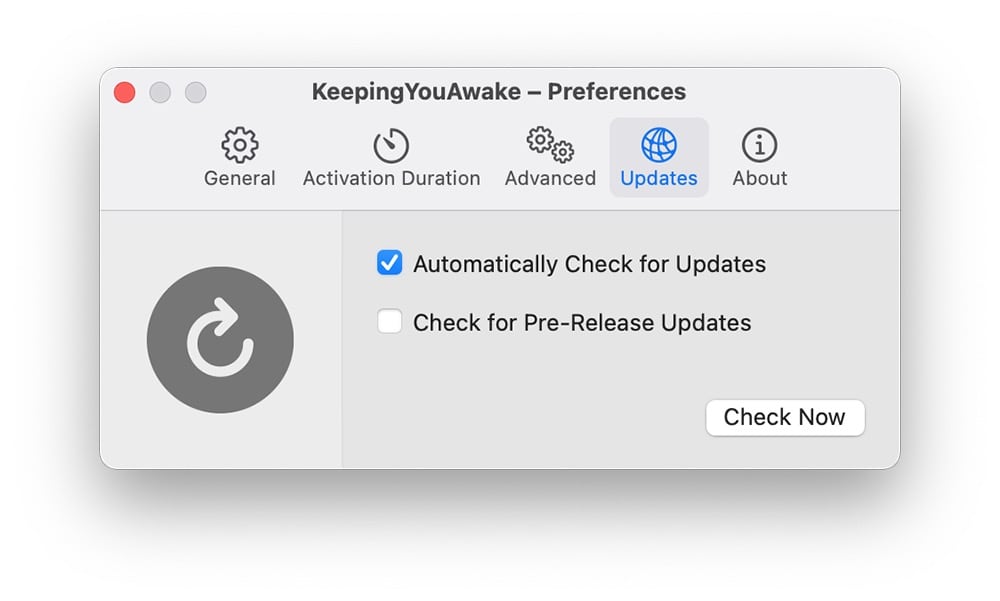
Step 6, under the Software Updates (Updates) menu, you can set whether to automatically check for updates (Automatically Check for Updates) and whether to check for pre-release version updates (Check for Pre-Release Updates). If you want to check for updates, you can also click the Check Now button to update the software.
total Knot
Keepingyouawake is a free and practical mac sleep-free software program, but you can also find more alternatives.Click here to read 4 free ways to prevent Mac from sleeping! If you can accurately estimate the time your computer needs to be idle and set the time interval through Keepingyouawake, you can not only complete downloads or other tasks normally, but also save power for your Apple computer.
Source: KOCPC Chinese