


Windows 10 is already the most popular operating system in the world, and File Manager is a commonly used and important built-in tool that allows you to store, delete, create, move, and copy various files, whether they are stored on the device, on the network, or in a cloud service like OneDrive. Although the process of opening File Explorer is very simple, what should I do if suddenly the most commonly used method does not work? This time, I will directly tell you 10 ways to open File Manager. You don’t have to worry about many skills, just learn them in case you need them.
A must-see for beginners! 10 ways to open File Explorer in Windows 10
Although the usual way to open File Explorer is to double-click on the icon with the mouse, there are unforeseen circumstances. What if this method doesn’t work? What if I accidentally delete the shortcut? Or maybe there is no response after clicking the shortcut? This time I will tell you 10 ways to open File Explorer!
Open from taskbar
This is the most basic method. Windows 10 pins the file manager to the taskbar by default so that you can see it at a glance. Anyway, this function is very commonly used and generally speaking, it will not be removed. If the mouse is unresponsive (out of battery or broken), you can directly press the Win + E key combination to turn it on.

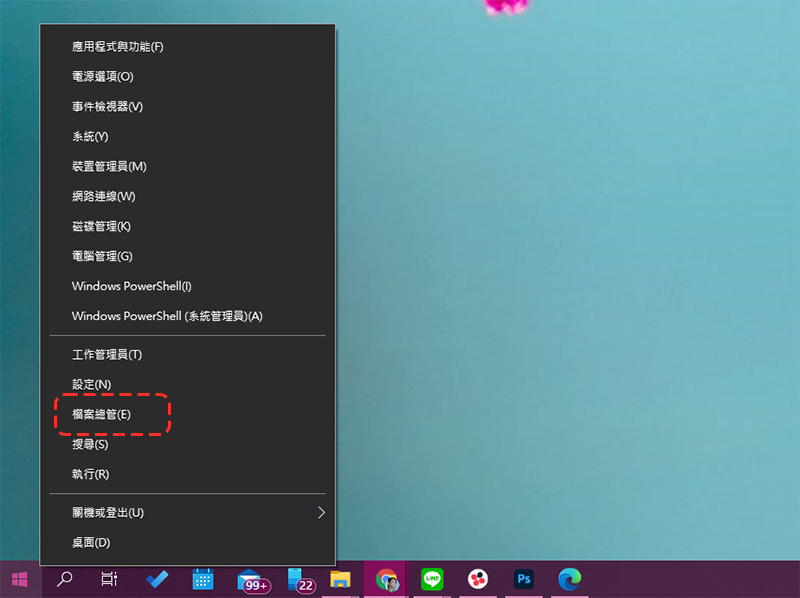
Open from Windows Quick Links
You can right-click the Windows icon in the lower left corner of your computer screen and select File Explorer.
Open from start menu
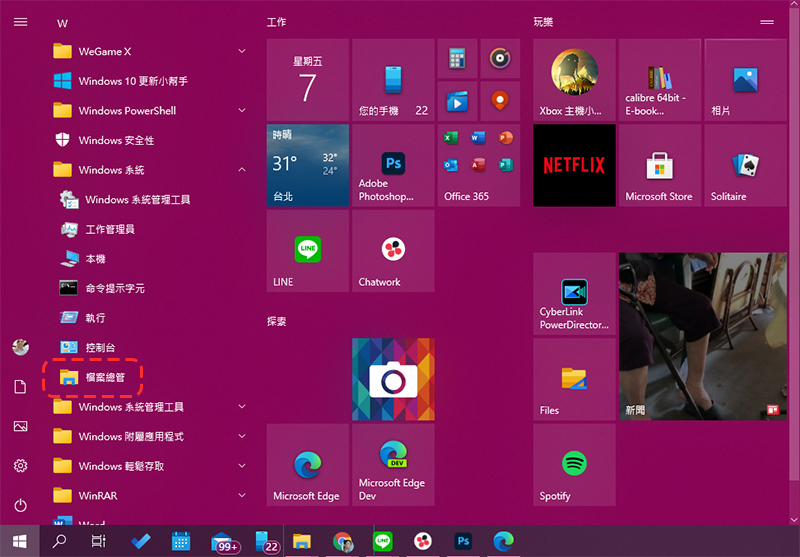
1. Click the left mouse button on the Windows icon in the lower left corner of the computer screen
2. Find “Windows System” in the category with the first letter W
3. File Explorer can be found in the Windows system folder
Open it in the quick list on the left side of the start menu (put File Manager into the quick list)
If you want to use this method, you must first make sure that File Explorer is set to the quick list. Here I will teach you how to customize the quick list.
1. Left-click on the Windows icon in the lower left corner of the screen
2. Right-click the quick list bar on the far left and select “Personalize this list”
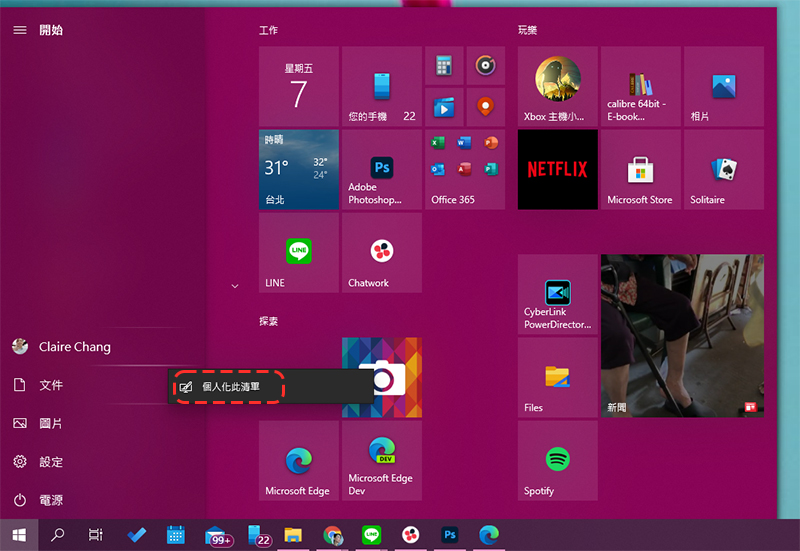
3. Open File Explorer in the settings window that appears next.
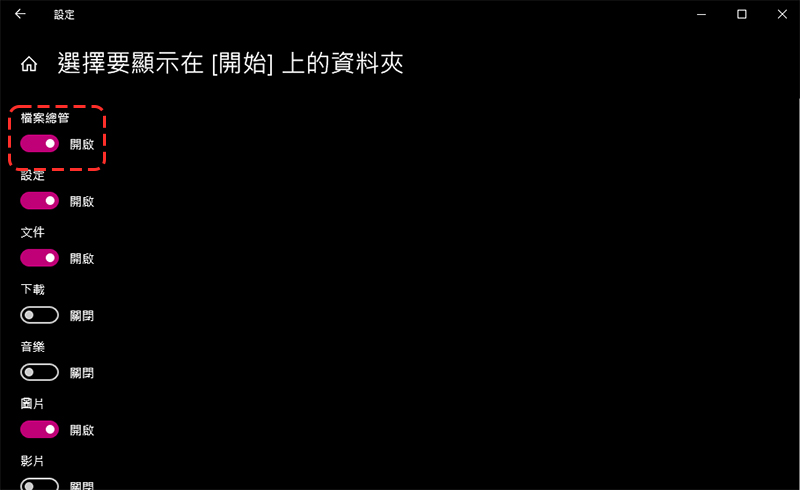
4. After that, if you click on the Windows icon, you will see a shortcut to File Explorer on the quick work list. Click it to quickly open it.
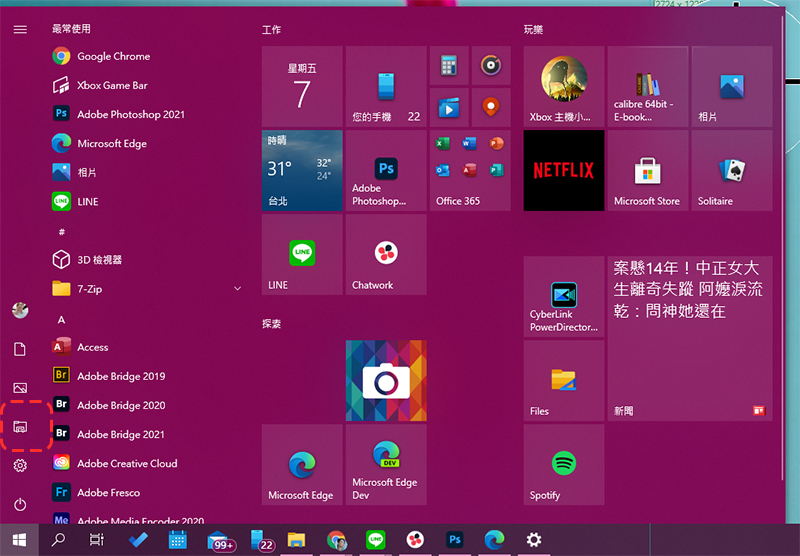
Use search to find it
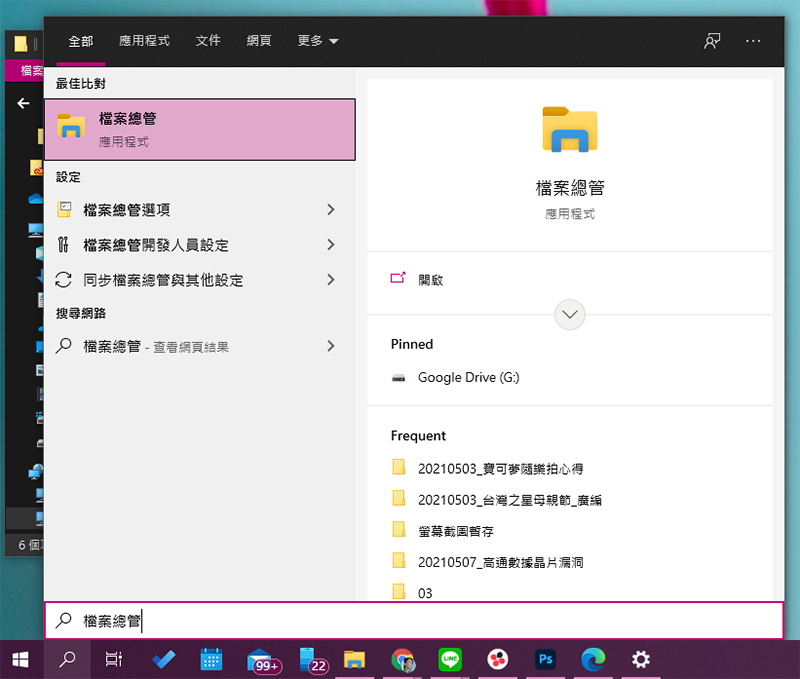
The easiest and most fool-proof way is to look for File Explorer directly in the Windows search function.
Just enter “File Manager” in the lower right corner to find it. If the search field doesn’t appear directly on your screen, click the magnifying glass icon next to the Windows icon in the lower left corner to bring up the search input field.
Call directly from Execution
This method should not be used usually, but I will tell you just in case. The steps to start File Explorer directly from execution are as follows:
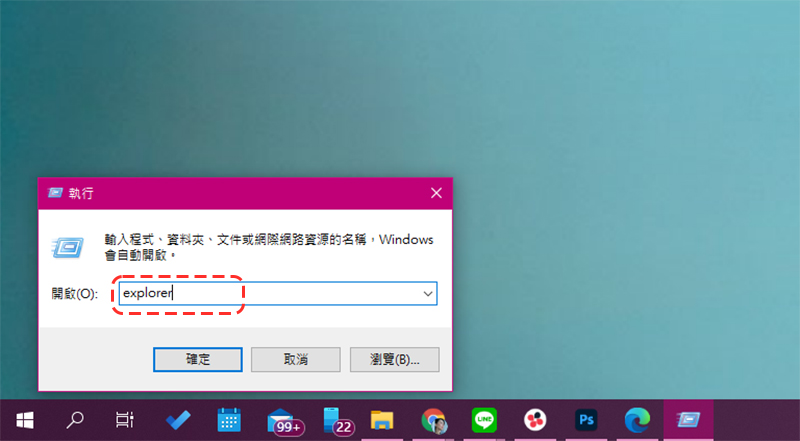
1. First search for “Go” in Windows Search and then launch it.
2. Enter “explorer” in the execution open field and press OK to call up the file manager.
Open from job manager
This is a method that few people know. You can also open File Manager directly from the work administrator.
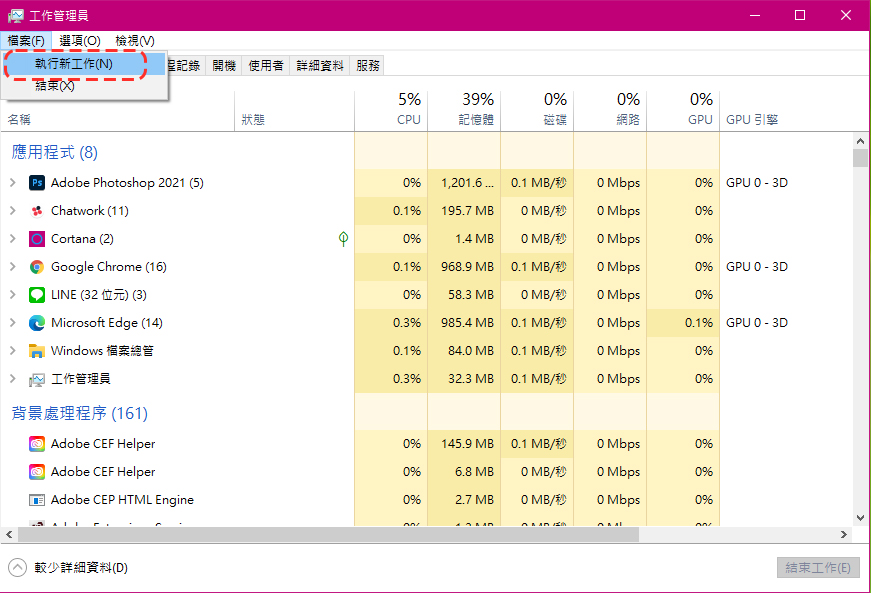
1. First press the “Ctrl + Shift + ESC” key combination to call out the “Job Manager”.
2. Click “File” in the upper left corner and select “Run New Job”
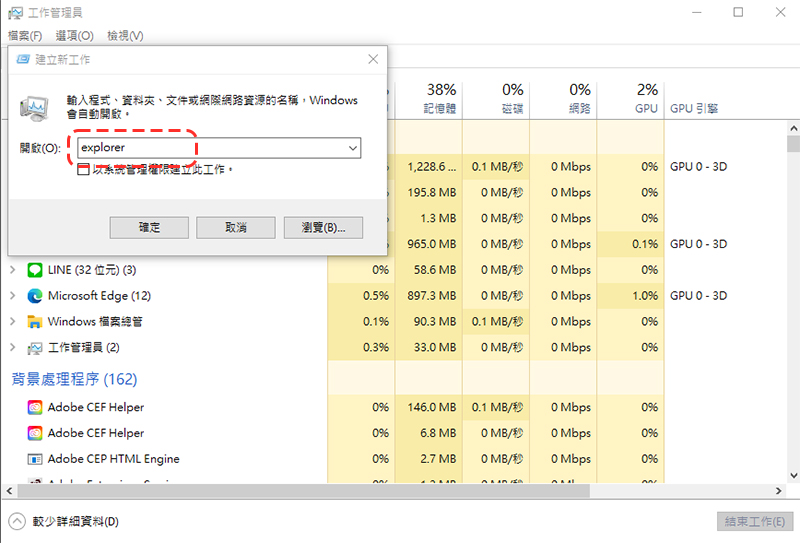
3. Enter “explorer” in the window opening field that appears next and click OK to open the file manager.
Open directly from the command prompt
This method is rarely used by ordinary people, but it is still listed for reference when needed or for those who need it.
1. Search for “cmd” and you will see the command prompt characters and start it.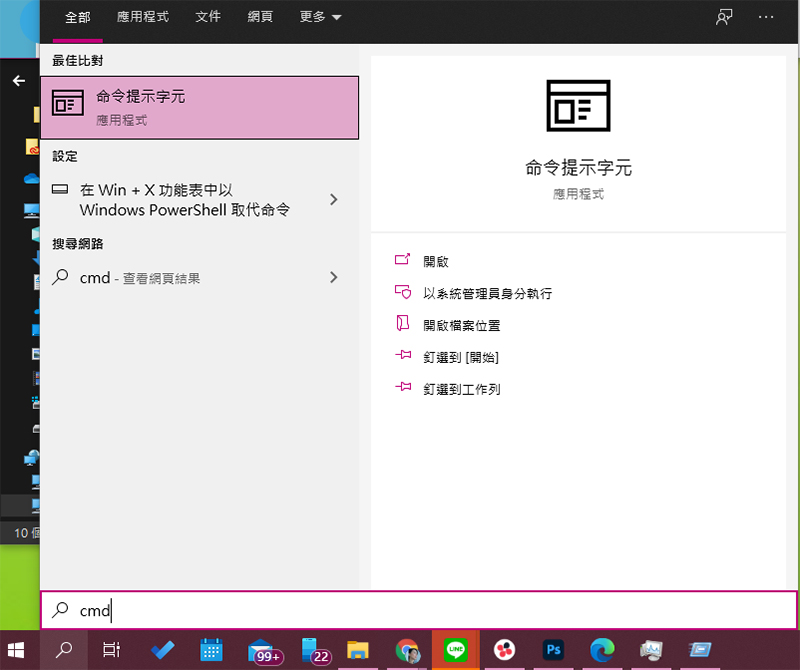
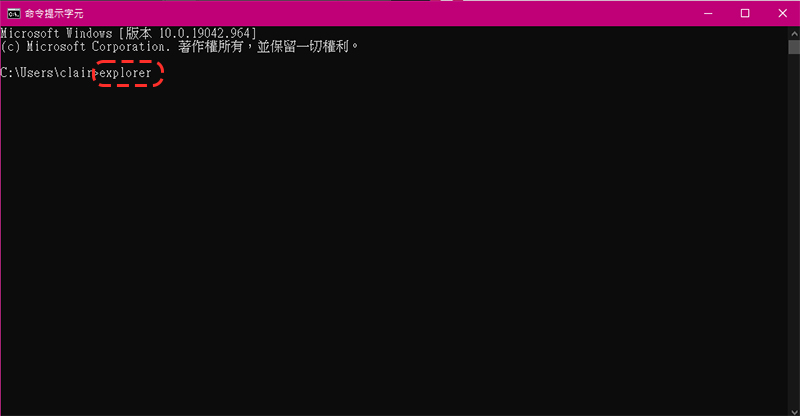
2. Enter “explorer” and press “Enter” to directly call the file manager.
Open from PowerShell
1. Search for PowerShell and launch it.
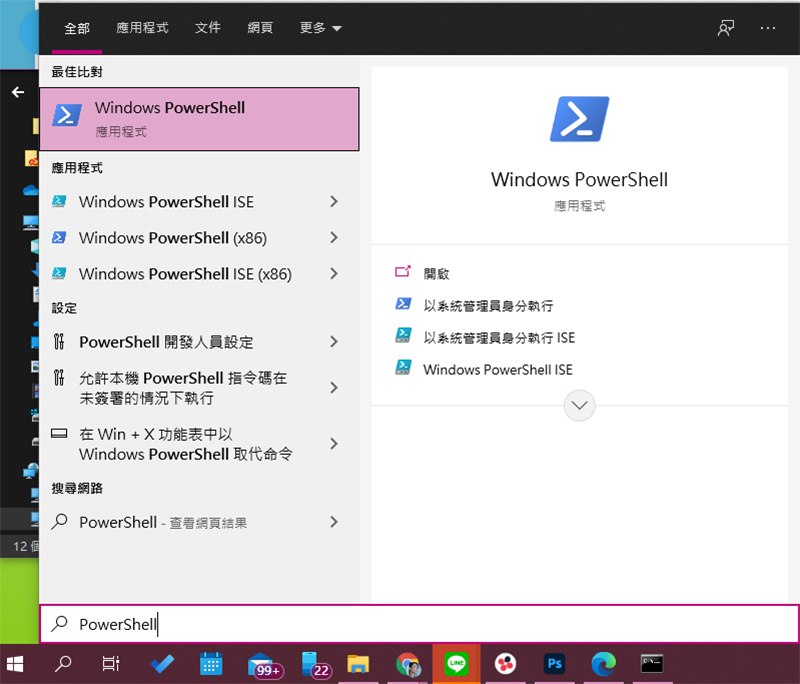
2. Enter “explorer” and press the Enter key.
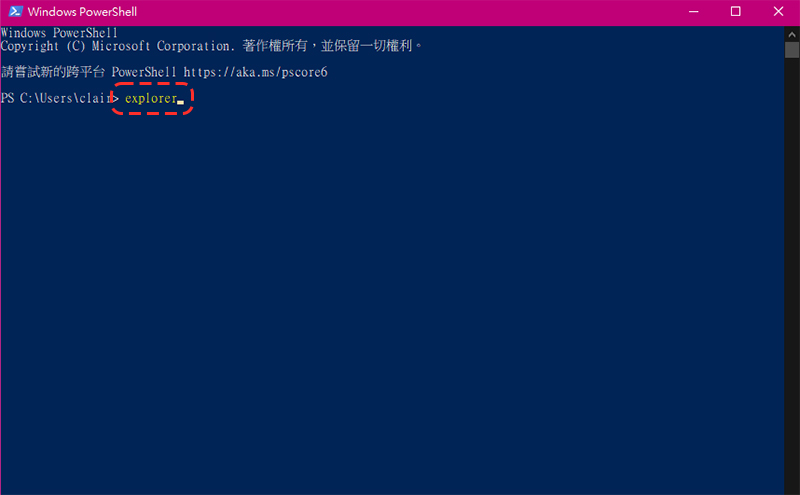
Open from desktop shortcut (add shortcut to desktop)
Although many people have File Explorer shortcuts on their desktops, some people delete them accidentally or don’t have them at all. Here we will also teach you how to call up the File Explorer shortcuts and put them on your desktop.
1. Open settings and select “Personalization”.
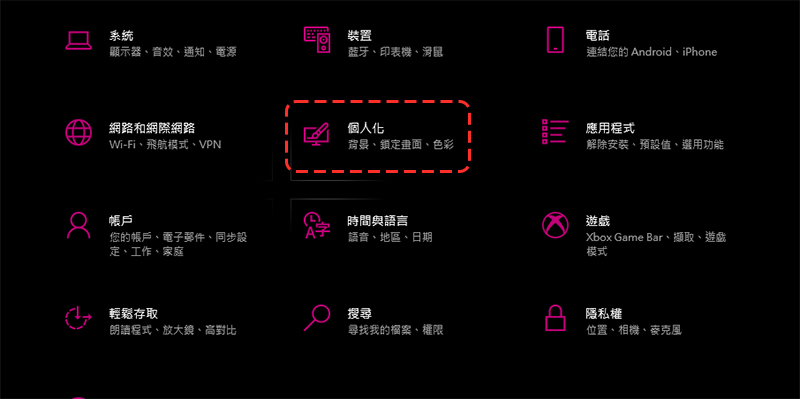
2. Select “Theme” in the sidebar, and then click “Desktop Icon Settings” in the “Related Settings” item on the right.
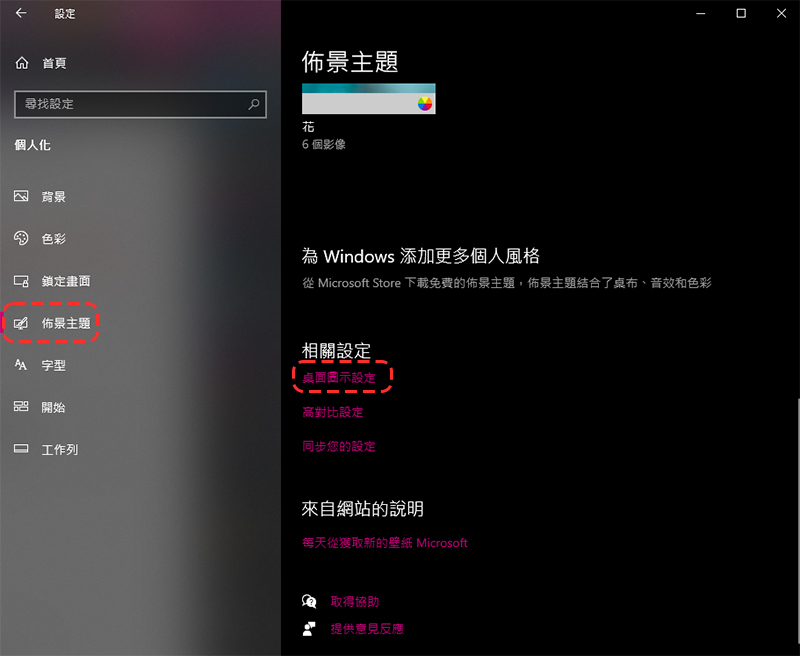
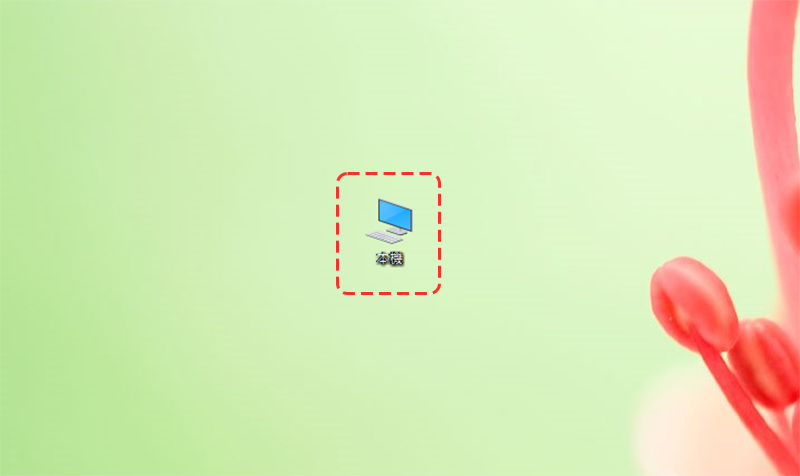
3. Check the “Computer” item, then apply and confirm. In the future, when you click the “Local” icon on the desktop, the file manager will appear.
Open from right-click menu (add File Explorer shortcut to desktop)
This item is also a way to add a file manager shortcut to the desktop.
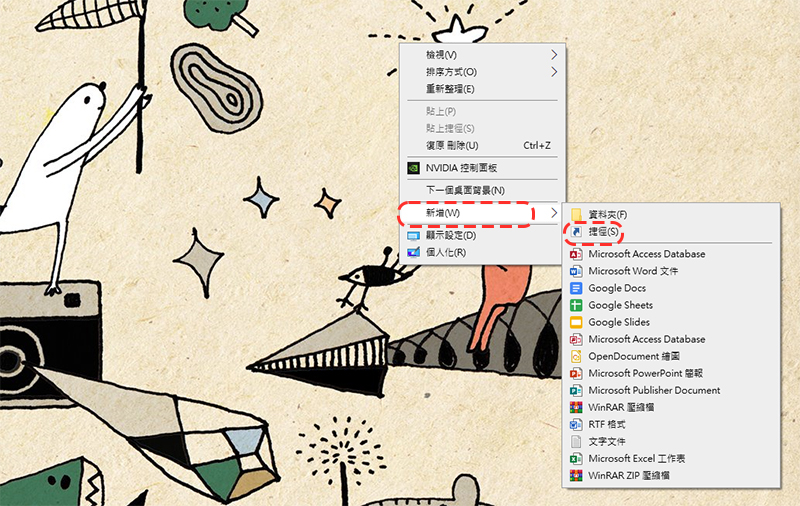
1. Right-click on the computer desktop and select “New >> Shortcut” from the list.
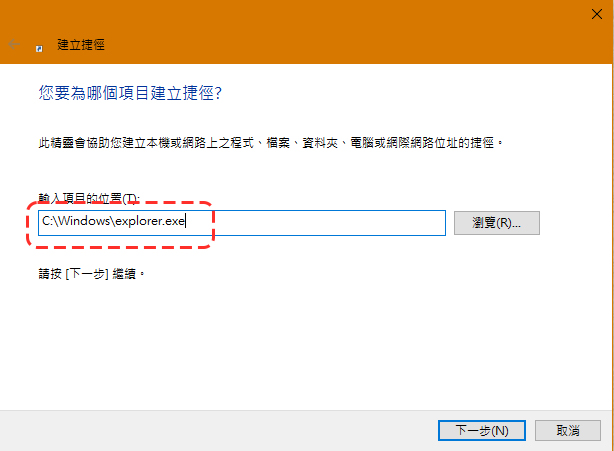
2. In the next window, directly enter “C:\Windows\explorer.exe” and click OK.
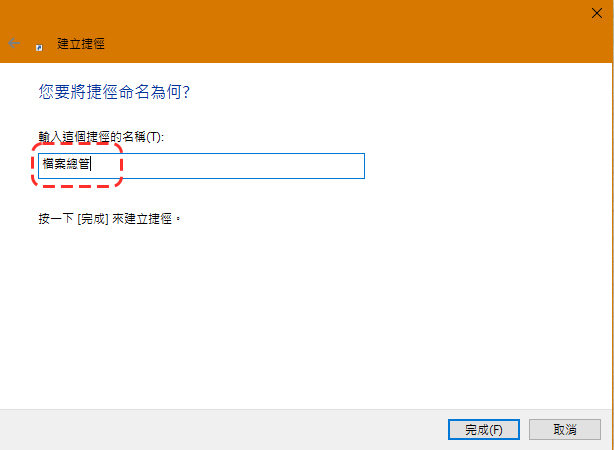
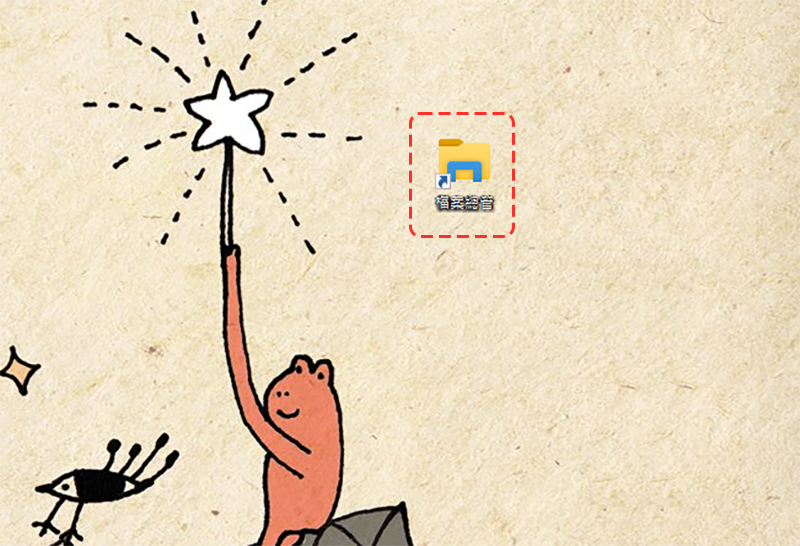
3. Next, name the shortcut. For easy identification, just call it “File Explorer”, and then click Finish.
4. In the future, you can click this “File Explorer” shortcut directly from the desktop to open it.
The 10 methods listed above basically cover the more common methods and less-used but feasible alternatives in Windows 10. However, the Windows 10 system is rich in content. There may be some methods that the author has not found yet, but you probably won’t use such secret and unknown methods, so I provide them here for your reference!
Source: KOCPC Chinese