

• About Us
King of Computer Media
  • Home
  • Tech News
  • AI News
  • Apps & Tutorials
  • Mobile & Telecom
  • Lifestyle
  • About Us
No Result
View All Result
  • Home
  • Tech News
  • AI News
  • Apps & Tutorials
  • Mobile & Telecom
  • Lifestyle
  • About Us
No Result
View All Result
King of Computer Media
No Result
View All Result

Home - Internet and software applications - Teach you how to turn off web page results in the Windows 10 search function to speed up searches and avoid missing clicks

Teach you how to turn off web page results in the Windows 10 search function to speed up searches and avoid missing clicks

Rocky by Rocky
December 29, 2020 - Updated on August 4, 2026
in Internet and software applications

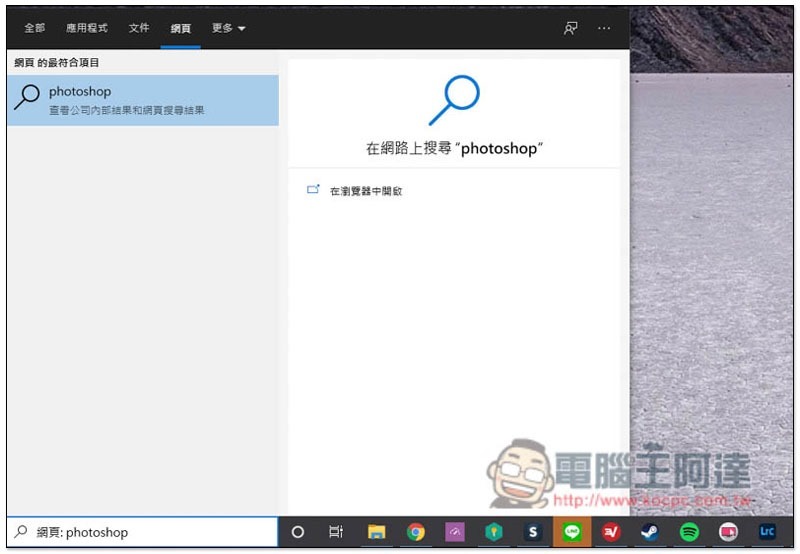
Although Windows 10 search has indeed become more and more user-friendly in recent years, as the functions increase, there will be some functions that are completely impractical. Web results are one of them. I believe that few people will use this to search for information online, not to mention that it still uses Bing to search. Ignoring it is one way, but with one more search result, the speed will definitely slow down a bit, and sometimes you may even accidentally click on it, so I will tell you how to turn off this “web result” below.
2020-12-29_111645

Steps to turn off web results in Windows 10 Search

In the past, this feature could not be turned off, but with the launch of Windows 10 20H1 and 20H2, Microsoft has finally delegated this permission, which means you must upgrade to these two versions to do it.

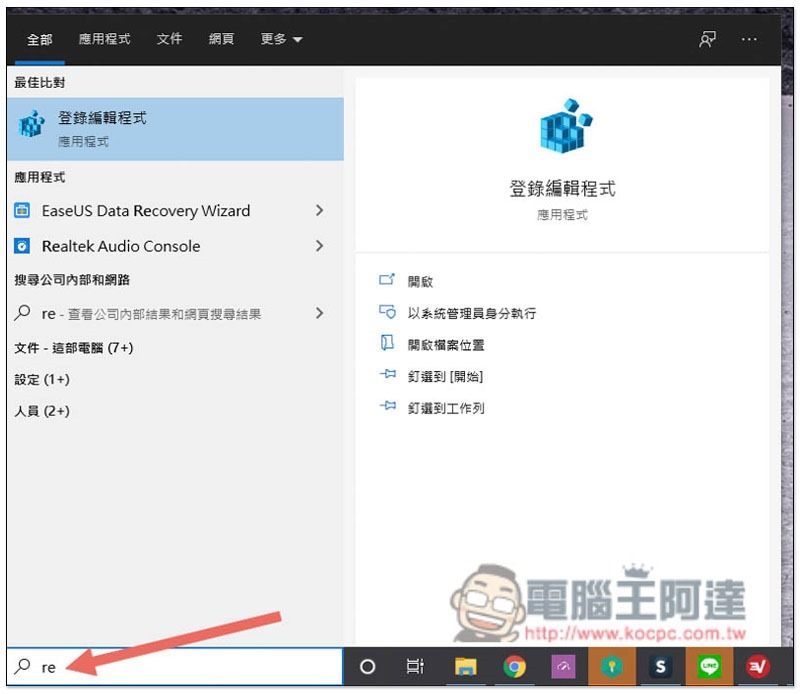
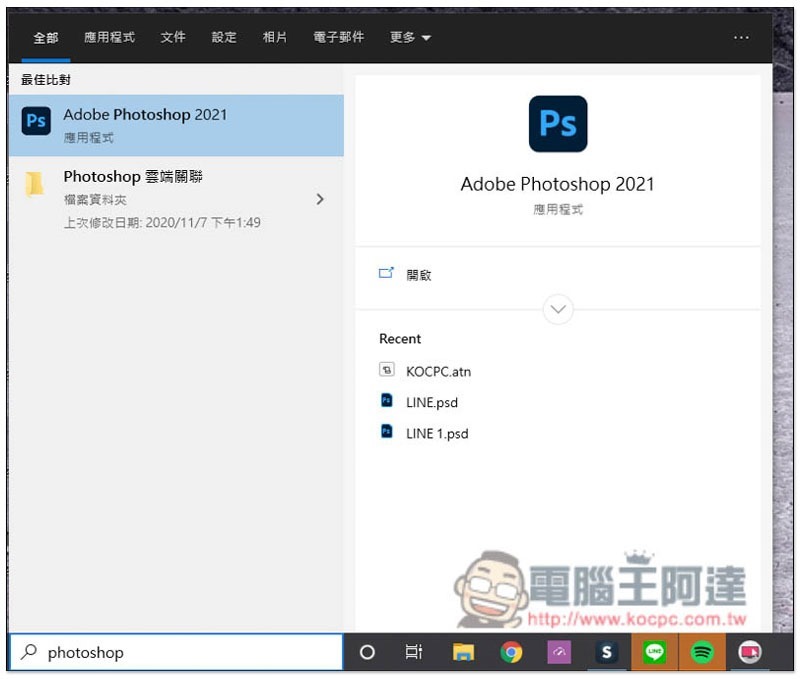
First, please open the “Login Editor”. You can enter re in the search, and the best matching results should appear:
Cropro-2020-12-29-11-16-34

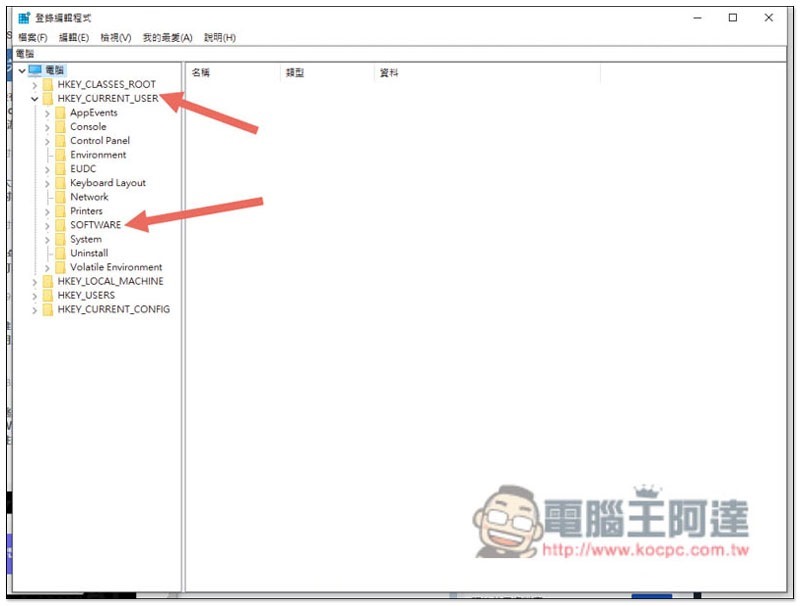
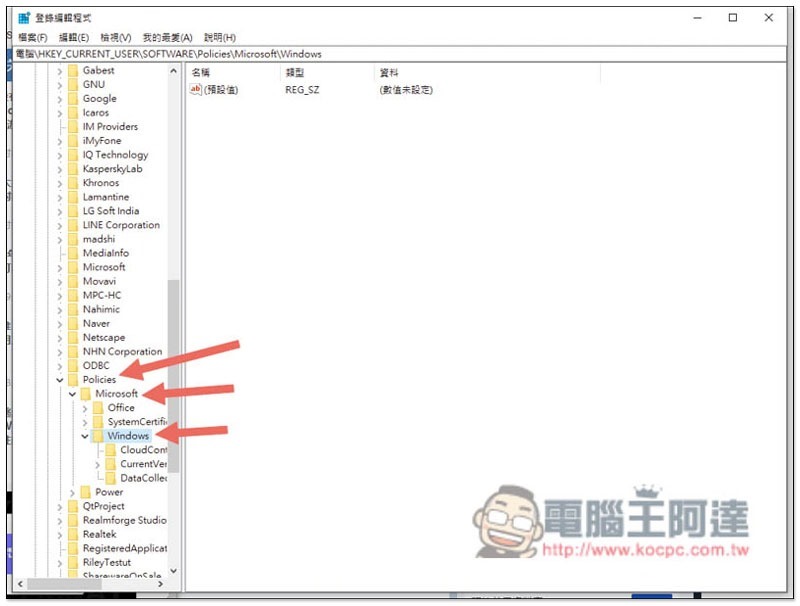
Then please enter the following path: HKEY_CURRENT_USER/SOFTWARE/Policies/Microsoft/Windows/

As shown in the figure below, first click HKEY_CURRENT_USER, then click SOFTWARE:
Cropro-2020-12-29-11-12-40

Scroll down to find Policies, then Microsoft & Windows:
Cropro-2020-12-29-11-13-12

Open the right-click menu of the Windows folder and click New –> Computer Code:
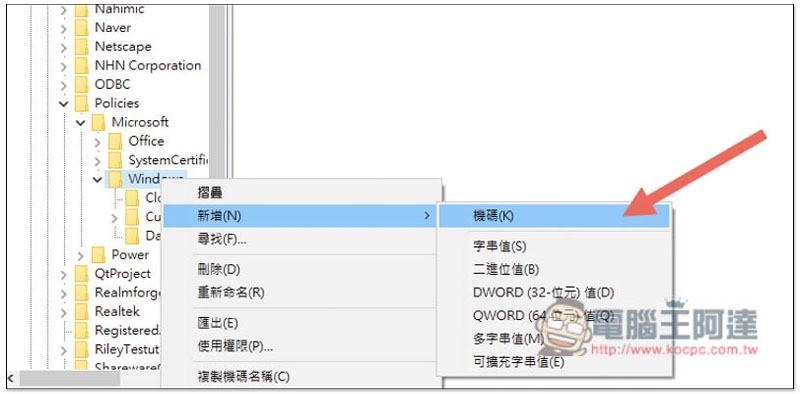
Cropro-2020-12-29-11-13-26

A new folder will appear on the left, please name it Explorer:
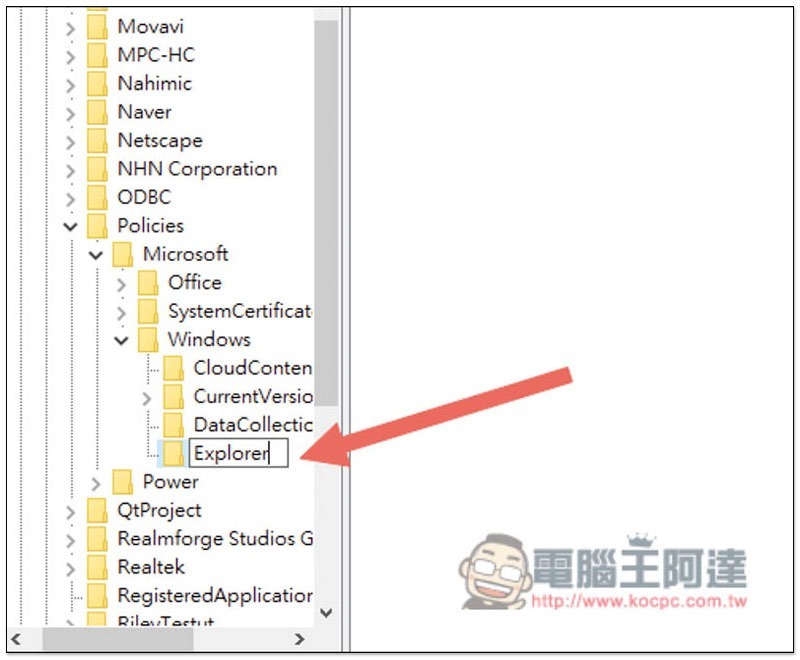
Cropro-2020-12-29-11-14-33

After naming is completed, open the Explorer right-click menu and click New –> DWORD (32-bit) value:
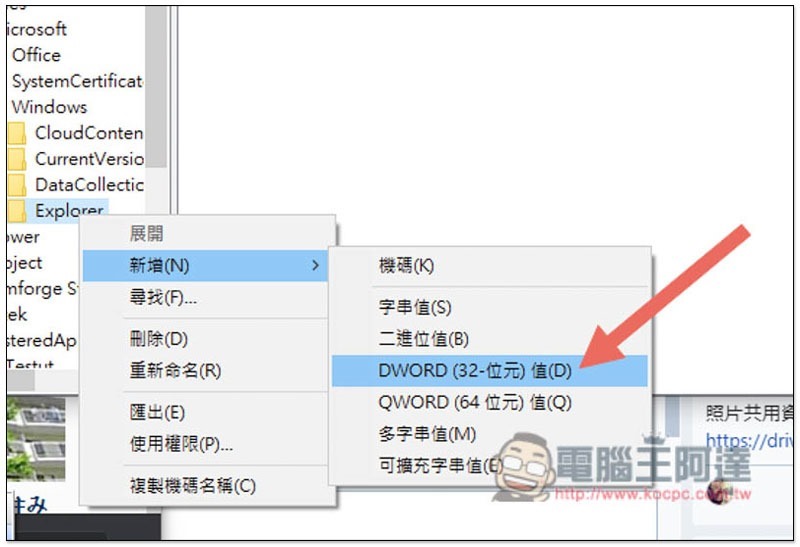
Cropro-2020-12-29-11-14-49

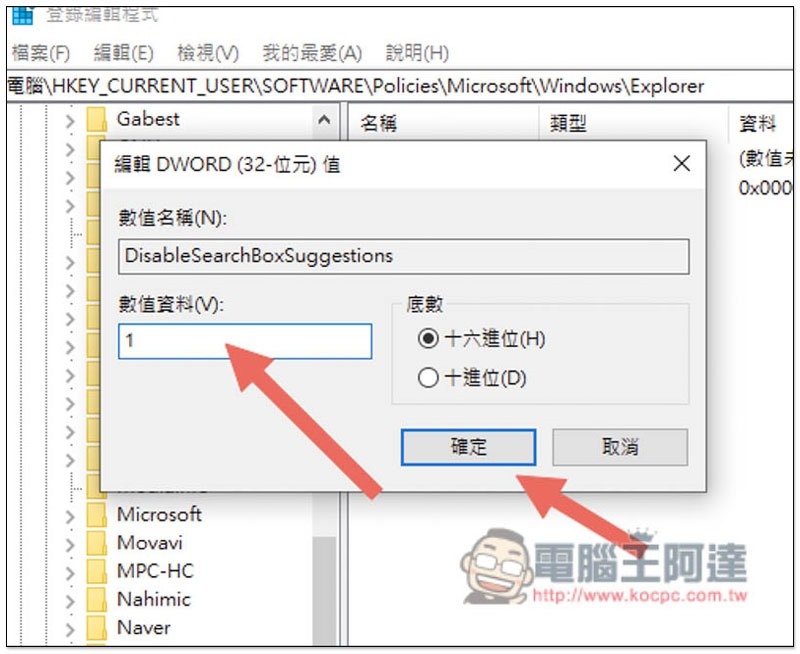
Please name the new DWORD 32-bit value that appears on the right screen “DisableSearchBoxSuggestions”:
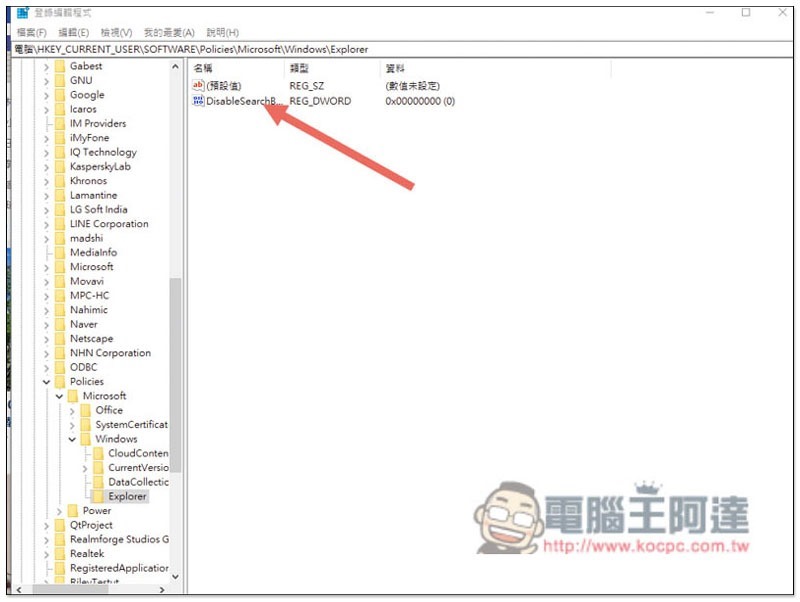
Cropro-2020-12-29-11-15-34

Finally, click the left mouse button twice, change the numerical data to 1, and click OK, and you are done:
Cropro-2020-12-29-11-15-52

After the above steps are completed, you need to restart your computer for it to take effect. In the future, web results will no longer appear when searching for anything through the Windows 10 search function. For personal use, I also feel that the speed does improve after turning it off. It should be more obvious for computers with poor hardware:
2020-12-29_111856

Windows 10 使用小技巧,內建超實用螢幕截圖工具

Source: KOCPC Chinese

Tags: Windows 10

Recent Posts

  • The Xiaomi Pad 8S Pro has passed network access certification and will debut with the self-developed XRING O3 chip.
  • The entire Google Pixel 11 lineup has been leaked! Official promotional renders of the Pixel 11 Pro XL have also surfaced
  • Are Chinese phone battery capacities falsely labeled? A brief look at the “capacity locking” phenomenon in Chinese silicon-carbon batteries.
  • NCC is leaderless, recklessly sending out national-level alert messages!?
  • What does “QR” in QR Code mean?

Recent Comments

No comments to show.
  • About Us

We welcome partnership inquiries and product review opportunities from smartphone manufacturers, iPhone accessory brands, and app developers.koc kocpc.com.tw|Privacy Policy |Hosting & Maintenance: Fast Line Taiwan, A-Chang Digital Technology

No Result
View All Result
  • Home
  • Tech News
  • AI News
  • Apps & Tutorials
  • Mobile & Telecom
  • Lifestyle
  • About Us

We welcome partnership inquiries and product review opportunities from smartphone manufacturers, iPhone accessory brands, and app developers.koc kocpc.com.tw|Privacy Policy |Hosting & Maintenance: Fast Line Taiwan, A-Chang Digital Technology