


After Google Photos canceled the benefit of unlimited backup of photos and videos, many people must be looking for any other free alternatives. In fact, there is. This TeraBox is a good choice. It is available in iOS and Android versions. With a free account, you can get a large capacity of 1TB, and it supports automatic backup function. It also backs up the original photos, not the compressed ones. Although the capacity is limited, 1TB can back up at least millions of photos, which I think is quite sufficient.

TeraBox application and operation tutorial
In fact, we have introduced TeraBox before,Formerly Dubox, the name was changed later. But I don’t know why, the web version has Chinese, but the mobile version does not. However, it is quite simple to use. People who are not good at English don’t need to worry too much. I will use the iOS version as an example below. Download link:
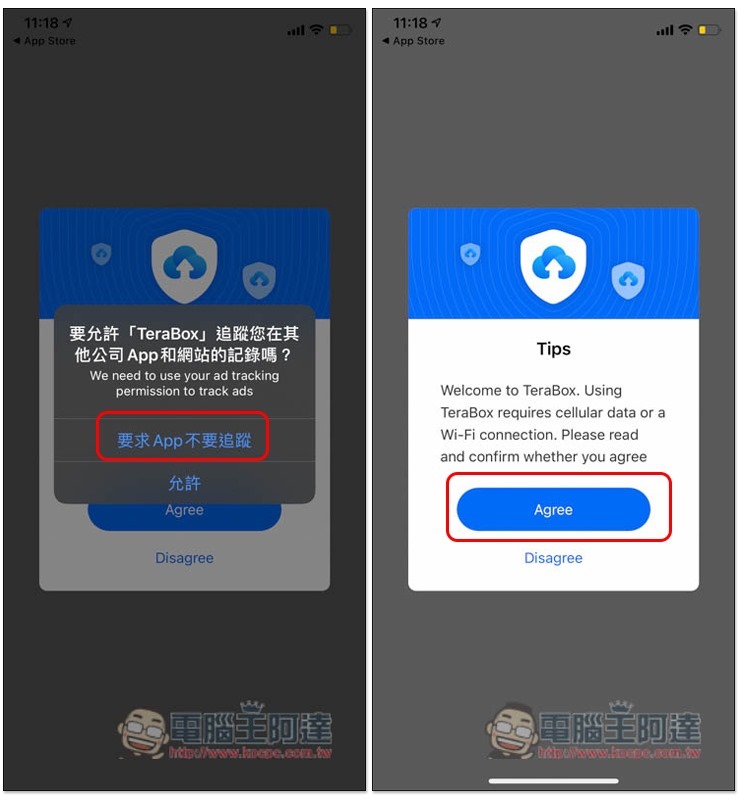
When you open the iOS version for the first time, you will be asked whether to allow this app to track your records. If you don’t want to, please click “Ask the app not to track” and then agree to the agreement:
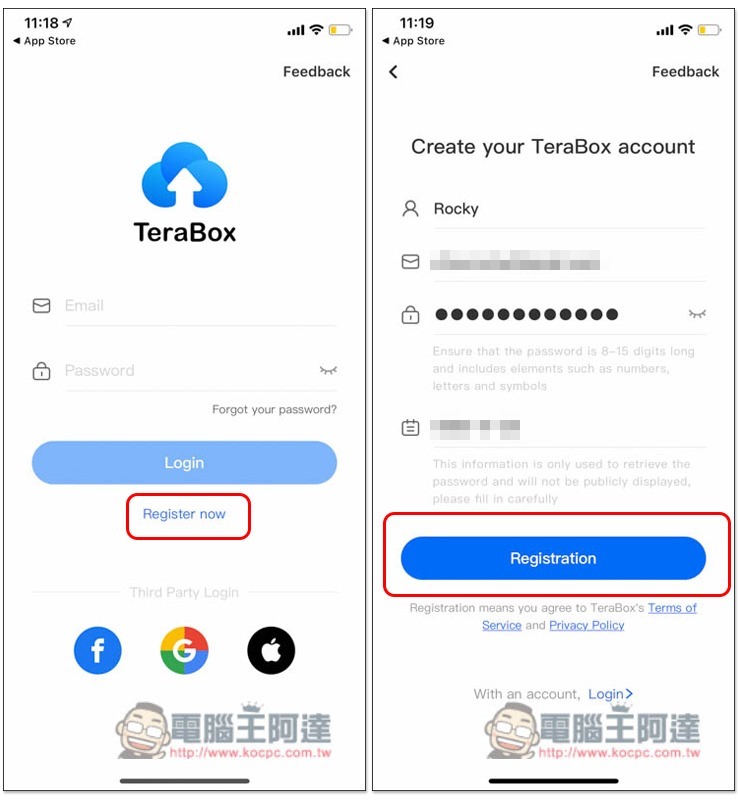
After entering the login screen, click Register Now below to register, fill in your name, email and password, and click Registration:
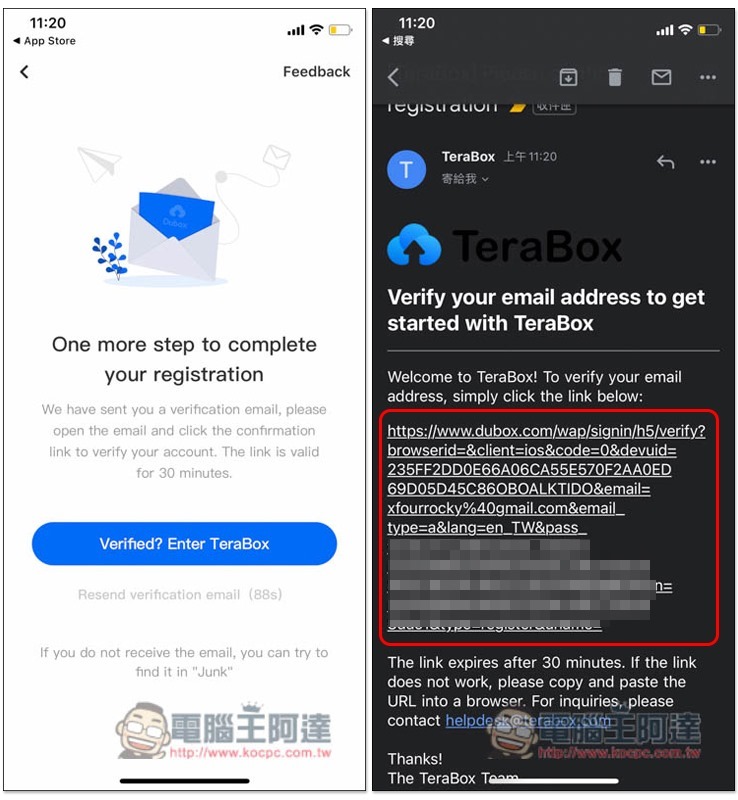
A verification letter will be sent to your mailbox. Click the specified link in the letter to activate:
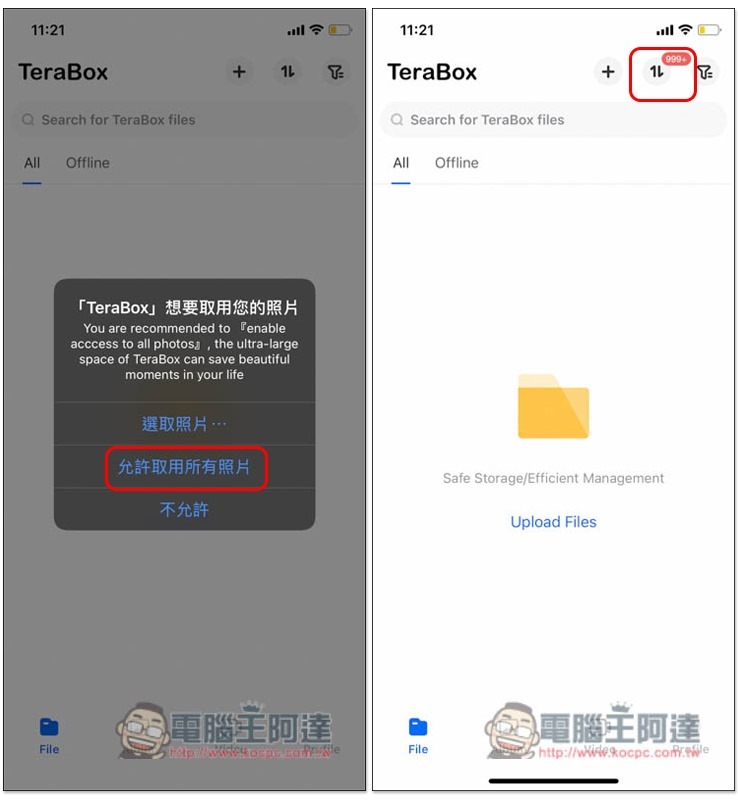
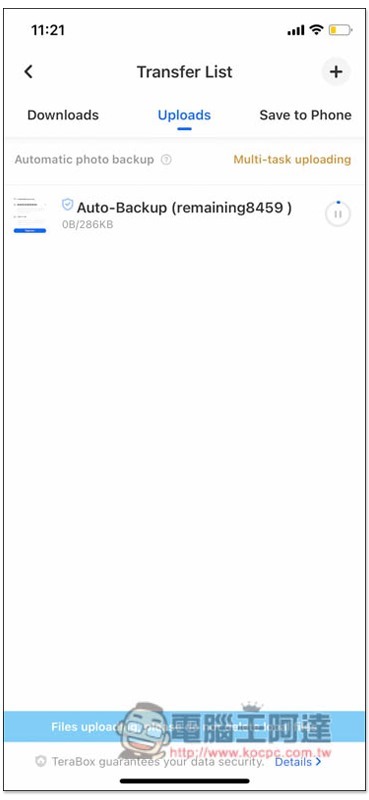
After completion, return to the TeraBox App and you will be asked if you want to enable automatic backup. Remember to select enable, and then “Want to access your photos” will pop up. Please select “Allow access to all photos” so that all photos can be automatically backed up. After entering the main screen, click the small icon in the upper right corner to view the backup progress:
As shown in the picture below, the backup of your mobile phone photos will begin:
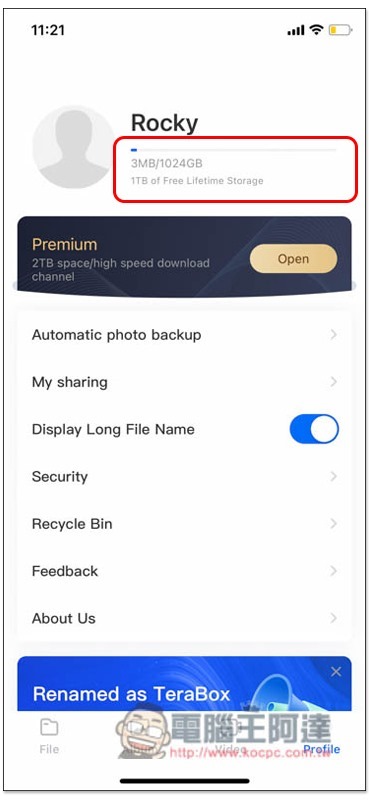
Open the Profile menu to see how much space is currently used:
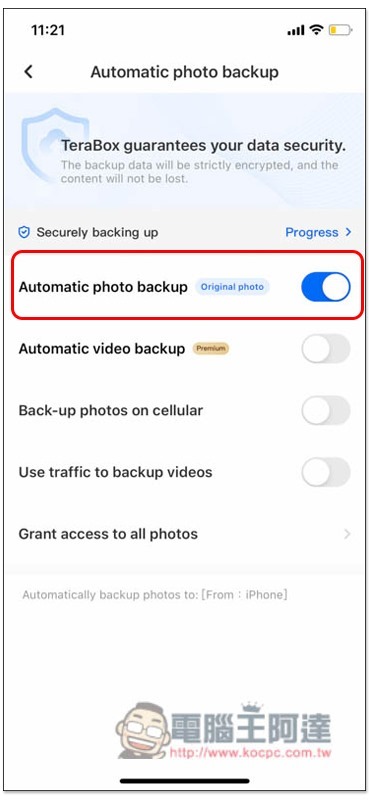
The Automatic photo backup menu can adjust the backup settings. Free users only provide automatic backup of photos, and videos need to be upgraded to Premium users. There is also an option to back up photos on the mobile network. It is turned off by default, which means that it will only be backed up when connected to a Wi-Fi wireless network. If you want to turn it on, just turn on “Back-up photos on cellular”:
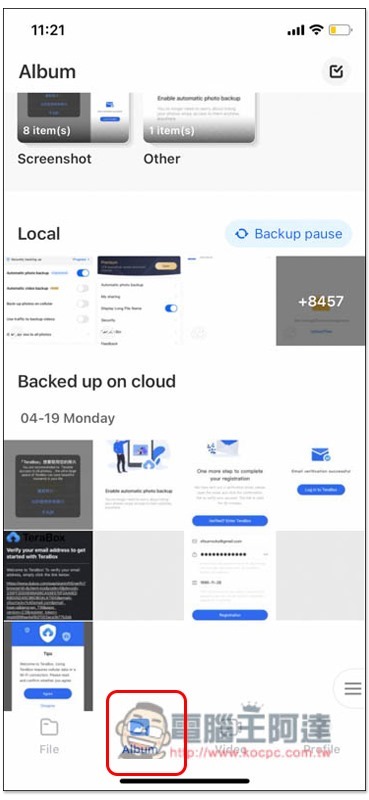
The Album menu allows you to browse all backed up photos:
Source: KOCPC Chinese