


The author has been messing around with computers for many years, and sometimes I often encounter Windows that suddenly cannot connect to the Internet. I usually check whether the network cable is disconnected first, but I believe many readers have encountered the dilemma of not being able to find the reason. Complete Internet Repair is a repair tool for the Internet. It can solve most problems encountered on the Internet, including network connection problems, and even Windows system problems or malicious programs that modify system files. Although you can ask Google for help, preparing a set of network connection repair tools is a must-have. The key point is that it is free, so you might as well download it in case of emergency.

用 Telegram 訂閱【挨踢路人甲】最新文章:https://t.me/itwshare
What should I do if the Windows network suddenly fails? Complete Internet Repair is a set of free multi-functional network repair tools that can be downloaded once to help you fix it.
[Software name]:Complete Internet Repair
[Software language]: English/Chinese
[Operating system]: Windows XP, Vista, 7, 8 / 8.1, 10 (32 and 64 bits)
[Official website]: Clickhere
You can see the resolved situation on the official website, as explained below:
- Internet or network problems after removing adware, spyware, viruses, worms, trojans, etc.
- After installing (uninstalling) a VPN, firewall, Internet security suite, antivirus program or other network program, the network connection will be lost
- An error window pops up, displaying a description of network-related problems.
- An error in the login file caused the network to be unable to connect.
- DNS query problem
- Unable to update IP address or other DHCP error
- Network connection issues, limited connectivity to some sites
- Windows update failed
- Problems connecting to SSL-encrypted websites (such as banks)
- Internet Explorer doesn’t work or crashes
- Proxy server problem
Enter the official website and scroll down to see the download link. There are installation and installation-free versions. Choose the version you want to install.

For example, if you choose the installation version, after downloading and installing, the installation wizard’s welcome screen, installation path and other inquiry screens will appear. All actions can be completed by just pressing [Next] with the mouse.

Don’t worry if you see that the program screen is in English.

It supports multiple languages, including Traditional Chinese. Enter from [File] → [Preferences], switch to the “Language” tab, select the desired language to switch, and finally press [Save]. However, you must restart the software to see the Chinese interface.

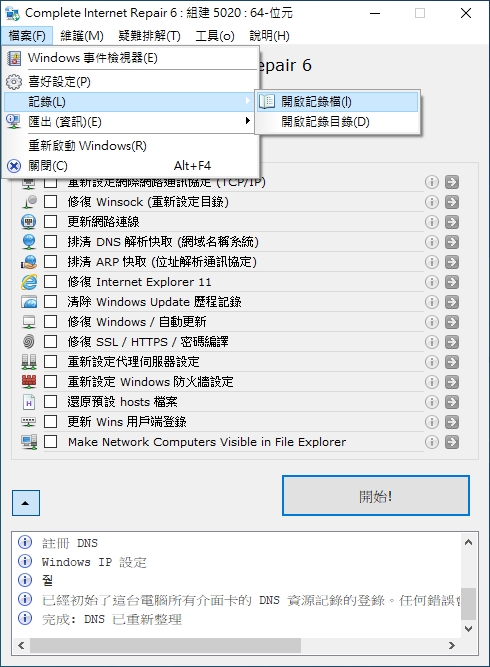
I always feel more friendly when I see Chinese. As you can see in the picture below, there are 14 kinds.If the network is normal, please do not use this tool.!

Each option is troubleshooting for the problem. If you don’t understand, you can click the “i” icon to view the explanation.

It is recommended to click “Select None” to cancel all options and then repair the items you want to repair.

The repair is in progress, and you can see the information in the message window below.

If you have a basic understanding of computers, you can also check the log file of the software you started to view the details.
Further reading:
Source: KOCPC Chinese