


Although now Windows 11 built-in Copilot The application already has Copilot Vision The screen sharing feature lets you share your entire screen or a specific app’s display with Copilot, but you have to open Copilot every time you want to use it, which honestly feels a bit redundant, especially since Copilot is Windows built-in AIThis doesn’t require separate installation, so it should theoretically be enabled everywhere. Recently, Microsoft finally optimized this with the new “Share App Window with Copilot” feature. Now you just need to hover over the app you want to share to find this new function.
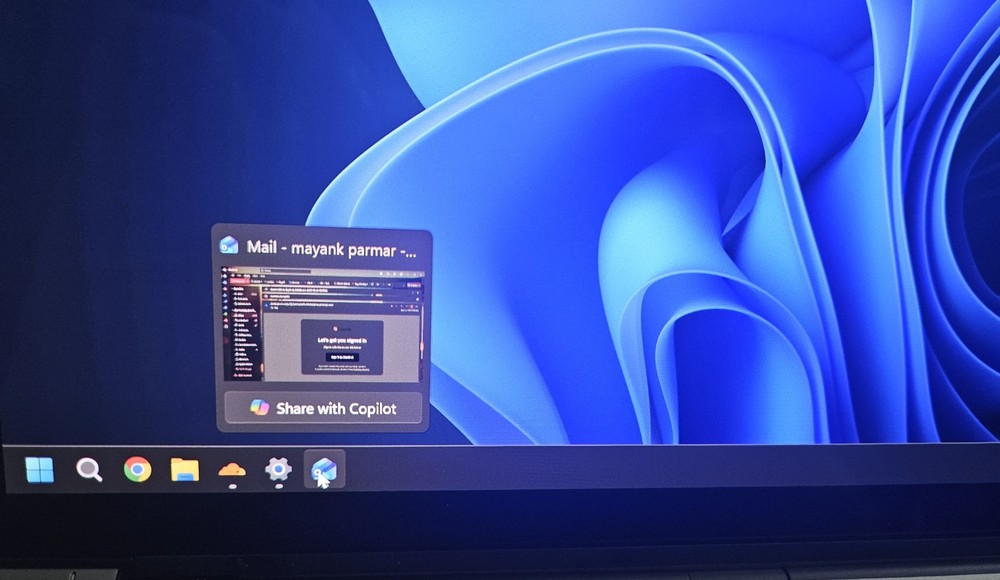
Image source: Windows Latest
Microsoft launches ‘Share App Window with Copilot’ feature, letting Copilot guide you on what to do and demonstrate where to click
Currently, in the built-in Copilot app on Windows 11, you can enable Copilot Vision by clicking the glasses icon below the input box, and choose whether to share your entire screen or a specific application window.
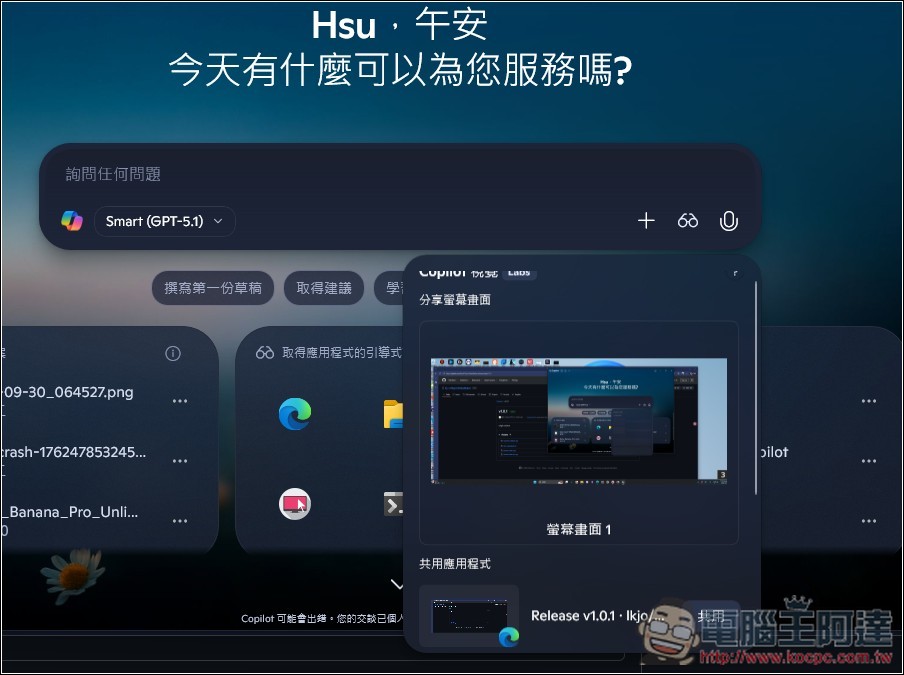
What sets Microsoft’s latest “Share with Copilot” feature apart is that you can simply hover your mouse over the app icon in the taskbar that you want to share, and the option will appear instantly. You can click to share right away—no need to open the Copilot app separately. While this is just a small change, it’s a major boost to the overall user experience.
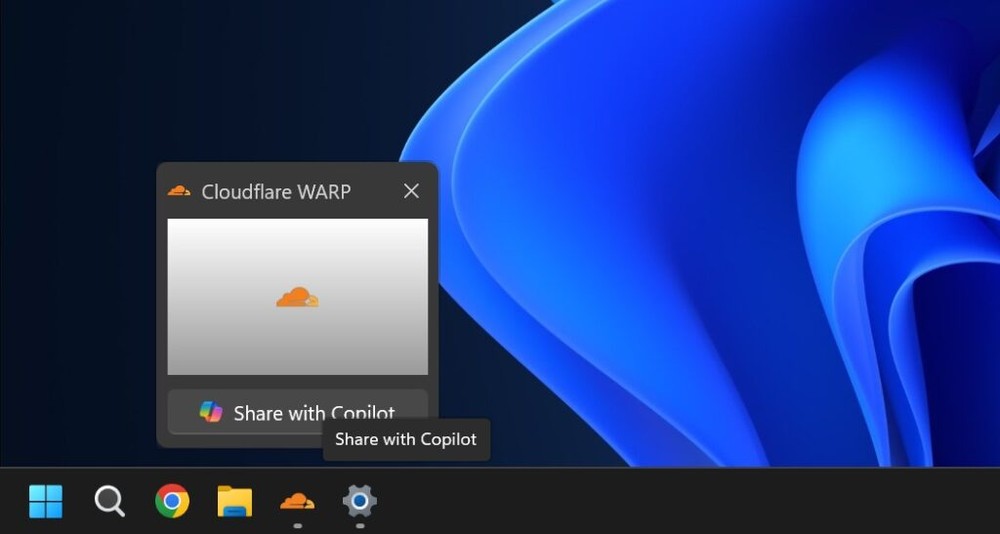
Image source: Windows Latest
Windows Latest has already gotten hands-on with the feature, and it’s rolling out to all users. This means whether your PC is an “AI PC” or not, both AMD and Intel platforms can use this new “Share App Window with Copilot” feature. The feature comes bundled with Windows 11 KB5072033 (version 26200.7462 / 26100.7462 or newer) and is enabled by default. If you find it unnecessary, you can manually disable it.
Note that if the application is DRM-protected, this feature will not be available.
According to Windows Latest, when you share any application window, Copilot uses cloud AI to analyze that app’s content and then provides relevant suggestions. For example, after opening an Outlook email in the background, if you share that window with Copilot, it will start reading the email you currently have open—but it can’t browse other emails, move windows, or click anywhere.
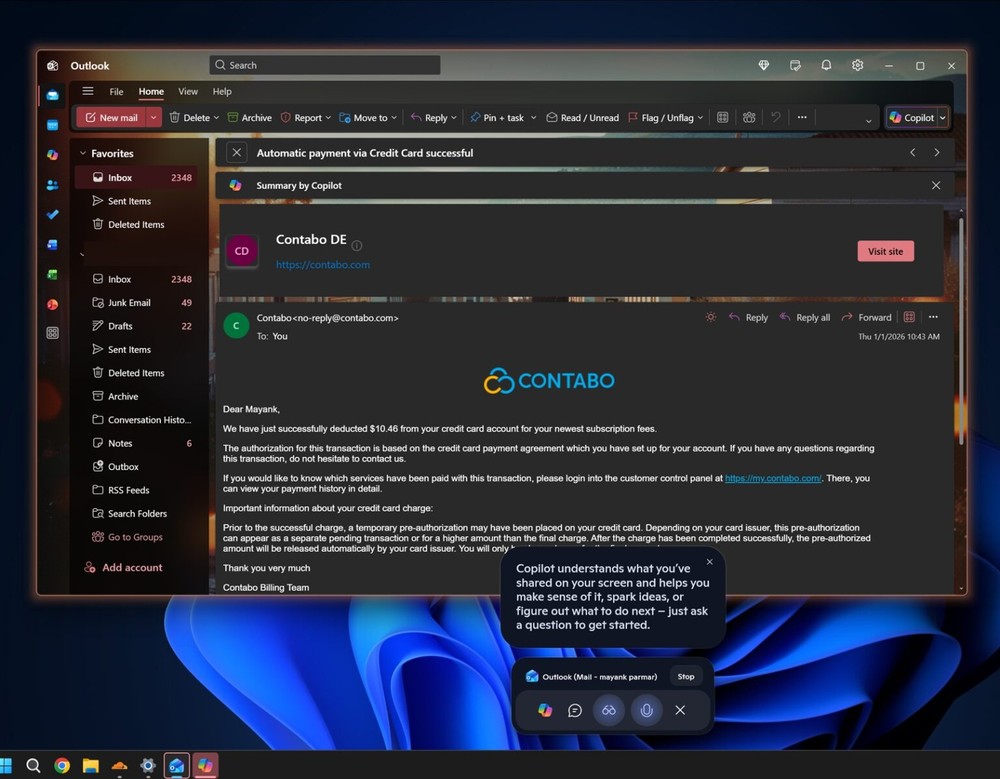
Image source: Windows Latest
In other words, Copilot can only see what’s currently on your screen and provide assistance suggestions—it cannot perform any actions.
When you ask Copilot how to do something, Copilot activates its own “cursor” and displays it on the screen, using highlighted indicators to show you where to click. This way, when you install new software or sign up for new services, you won’t have to worry about not knowing how to use them—you can always activate Copilot to teach you. Microsoft also refers to this feature as “guided assistance.”
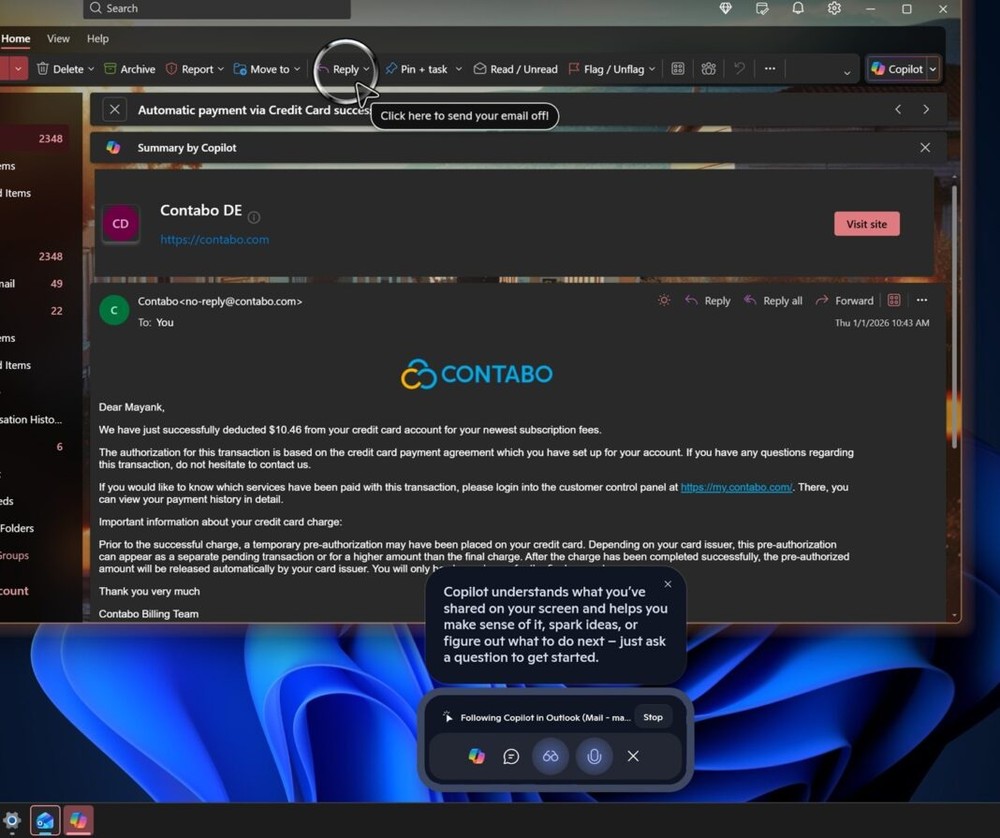
Image source: Windows Latest
If you don’t want to see this feature, you can go to Settings → Personalization and turn off the Taskbar option.
Source: KOCPC Chinese