


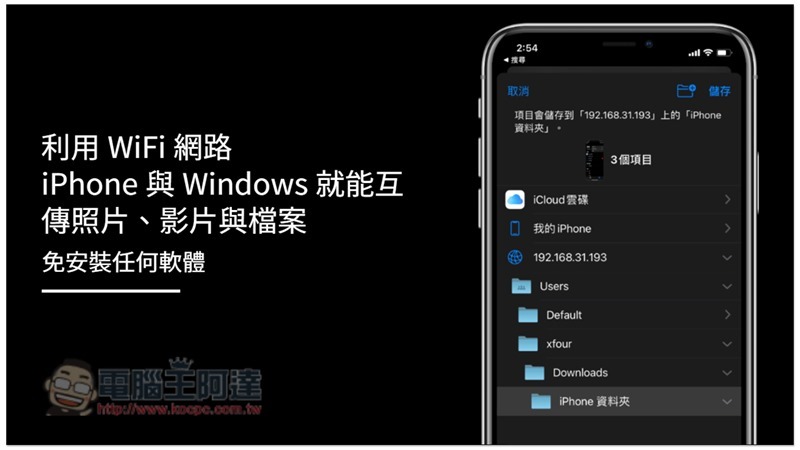
Although there are many iPhone and iPad data transfer software for Windows now, most of the good ones require payment, and almost all of them require wired transmission. The operation is still not as convenient as Mac’s AirDrop. In fact, Windows also has a little trick that can achieve functions similar to AirDrop, that is, iPhones and iPads can directly transfer photos, videos and files to Windows computers through WiFi wireless networks, and there is no need to install any software tools. It is very easy to use. The following will teach you the setup steps, and also recommend several paid and free iPhone file transfer methods that are also easy to use.
Use iPhone, iPad paid file management software to transfer files
Many netizens have reported that the settings are a bit complicated, so I would like to share two applications for your reference. If you don’t mind paying, it may be easier and more convenient to use a Phone or iPad data transfer software to manage and transfer mobile phone files.iPhone data management recommendations that everyone can tryTenorshare iCareFone, it can manage your videos and photos on your computer, and at the same time, you can import photos and videos from your computer to iPhone, or import iPhone files to your computer.
The picture below shows its “File Management” function. You can perform operations such as “View”, “Delete”, “Import” and “Export”. Any files except photos and videos can be managed and transferred here.

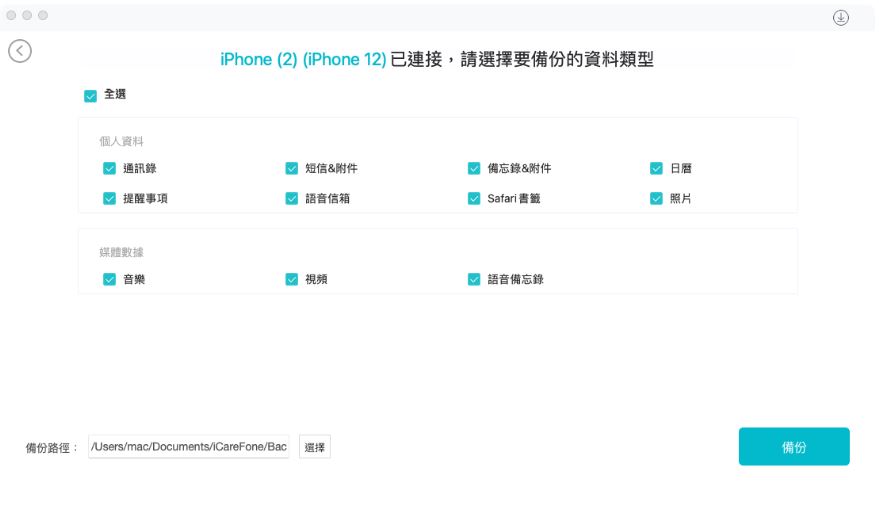
If you want to export all iPhone files to your computer with one click, you can use the “Backup” function. You can customize the content to be backed up, then set the export directory and confirm.
However, Tenorshare Icarefone transmission requires a data cable. The advantage of data cable transmission is that it is more stable. If you want WiFi transmission method, I will introduce to you how to use WiFi network to transfer photos, videos and files to each other between iPhone and Windows.
Click to download:Tenorshare iCarefone
Free cross-device wireless transfer application LocalSend
If you feel that you cannot understand the following teaching, Ada personally recommends this very easy-to-use free tool “LOCALSEND” (Please click me for teaching), no need to set IP, and can be used by all devices:
Use WiFi to transfer photos, videos and files between iPhone and Windows
After the iOS 13 version, support for the SMB network transmission protocol was added, so through the computer’s IP location (It is recommended to set a fixed IP), iPhone and iPad can find the user folder of the Windows computer and perform storage and reading operations (transfer files to each other). Of course, the premise is that they are under the same WiFi wireless network.
Video version of tutorial:
Create an iPhone or iPad shared folder on a Windows computer
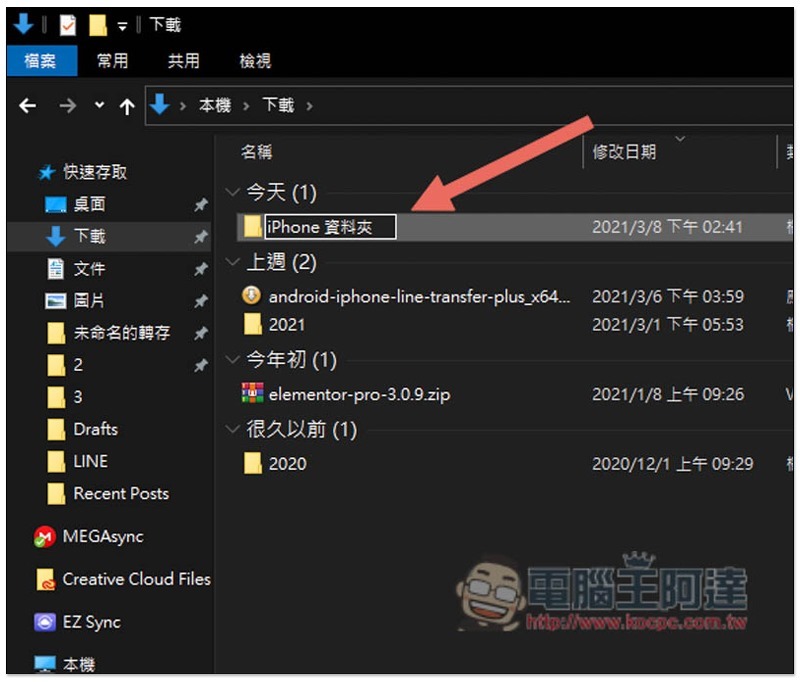
First of all, please go to the folder where you want to store iPhone or iPad files, and create a dedicated folder. You can put it wherever you want. I created it under the download folder, and you can name it whatever you like. I named it iPhone folder:
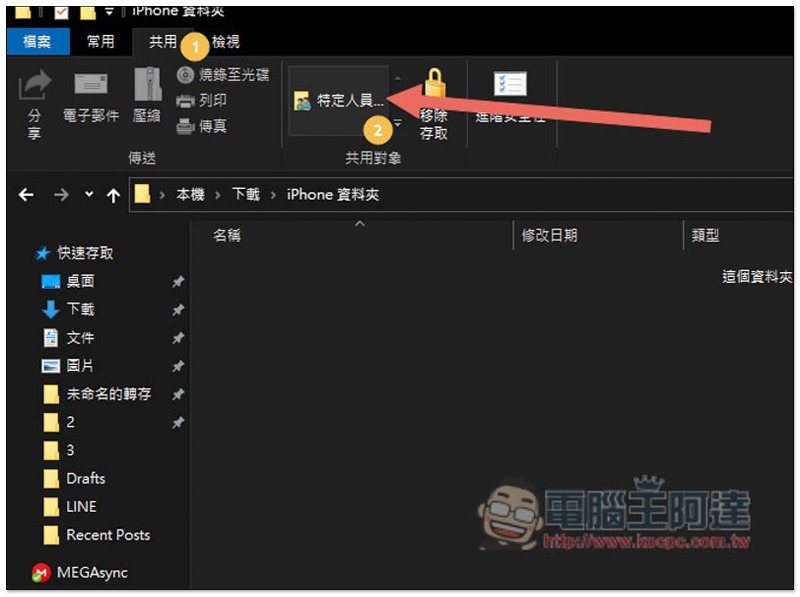
Then open the folder and click Share above –> Specific people… Function:
A network access window will pop up. Click the middle option and change it to Everyone:
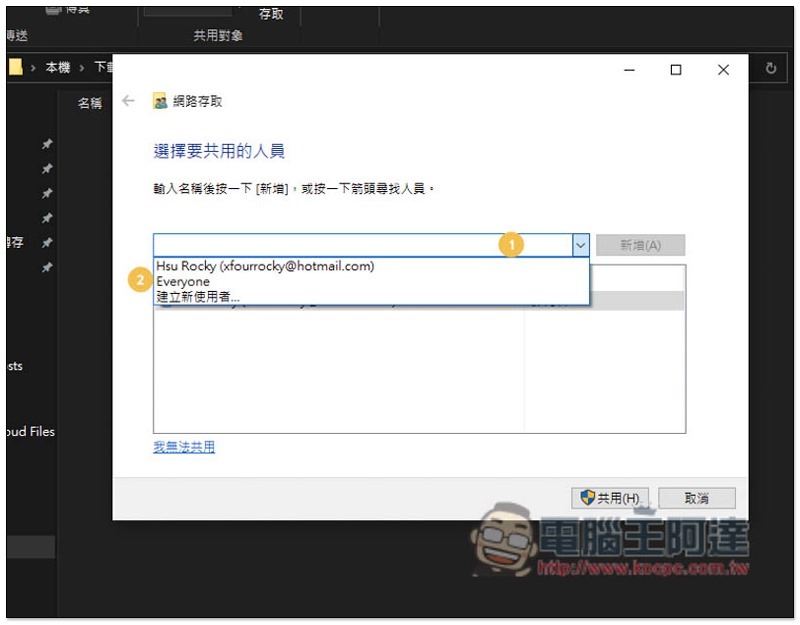
Then click Add on the right:
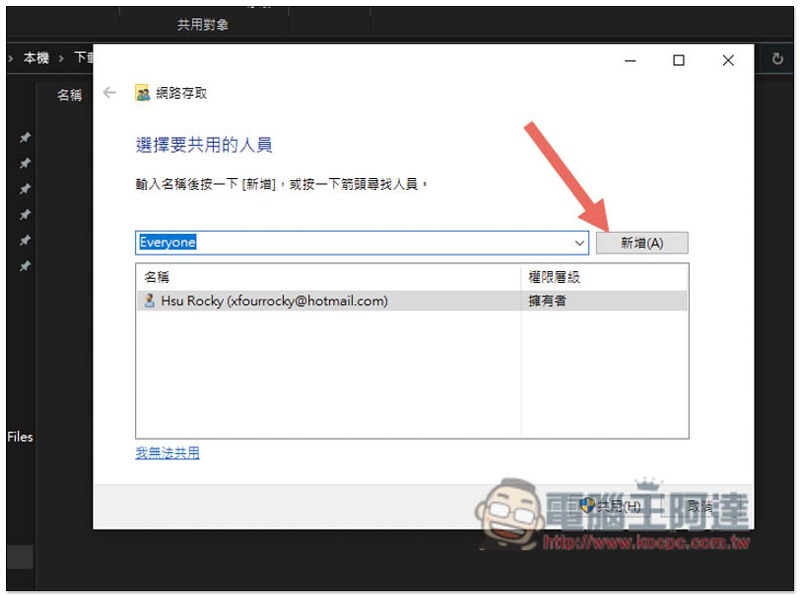
Set up to use Everyone’s permission level defaults to read only, so change it to “read/write”:
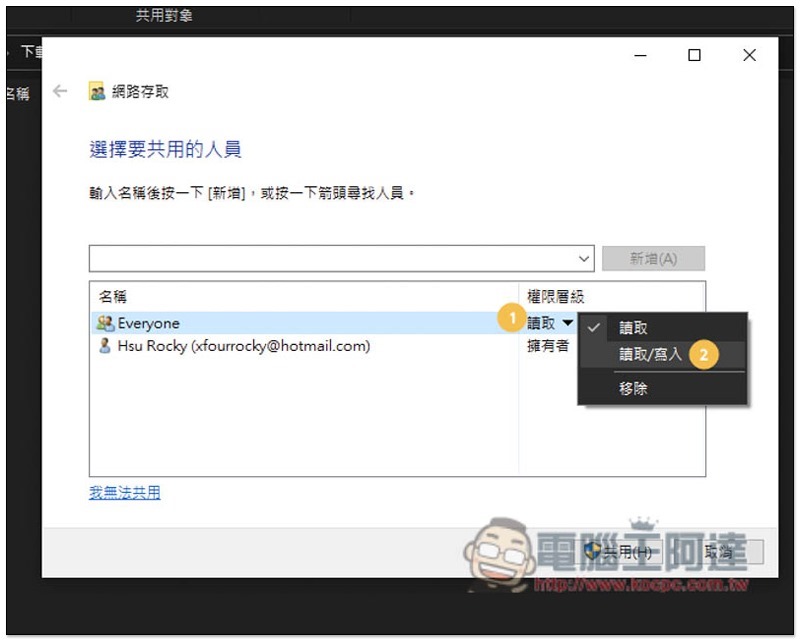
When finished, click Share below:
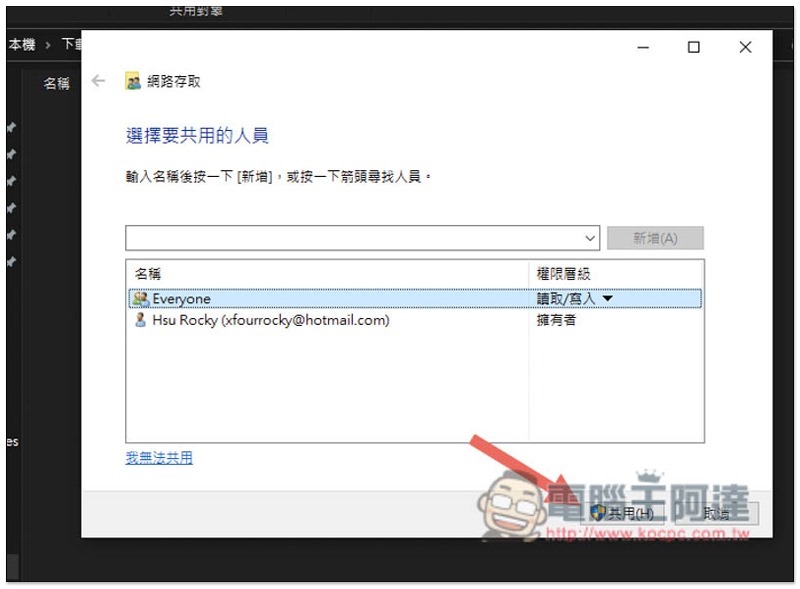
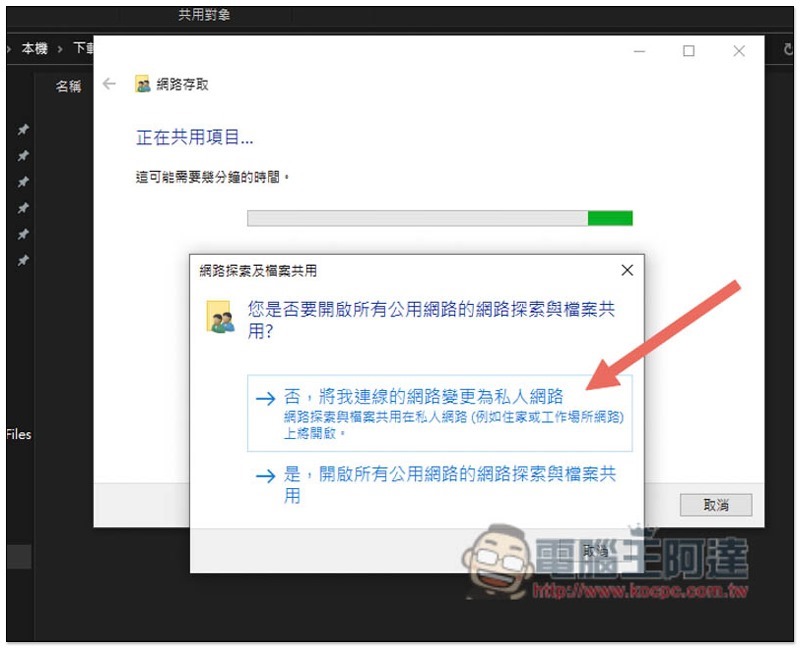
If this window pops up, select the first option “No, change the network I am connected to to a private network” if there is no special need:
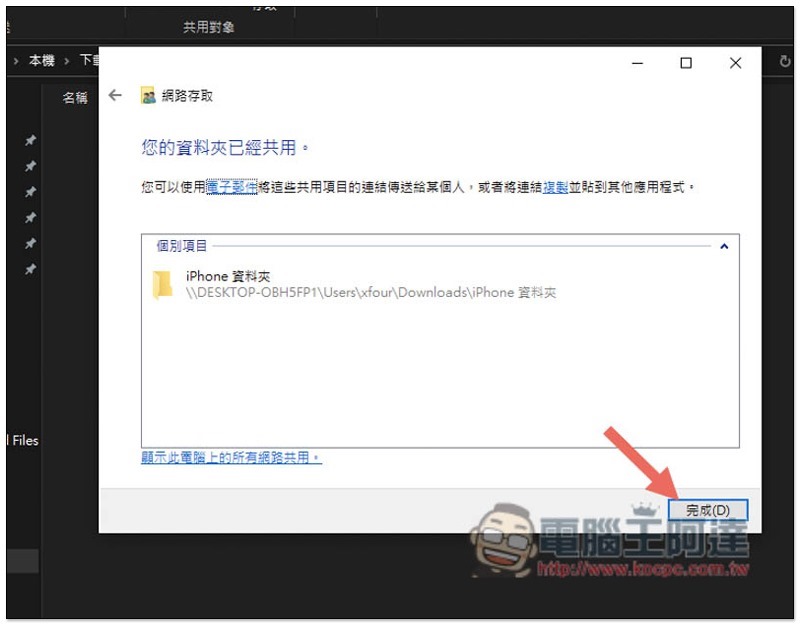
In this way, the shared folder is set up. Click on the lower right corner to complete:
The Windows default shared folders require an account to log in before they can be used. Those who don’t want this trouble can cancel this feature. But if the wireless network you set up is outside or in a company, then I recommend turning it on to ensure the security of your files. Otherwise, if you cancel it, if others know your IP location, they can easily access your files without entering any password.
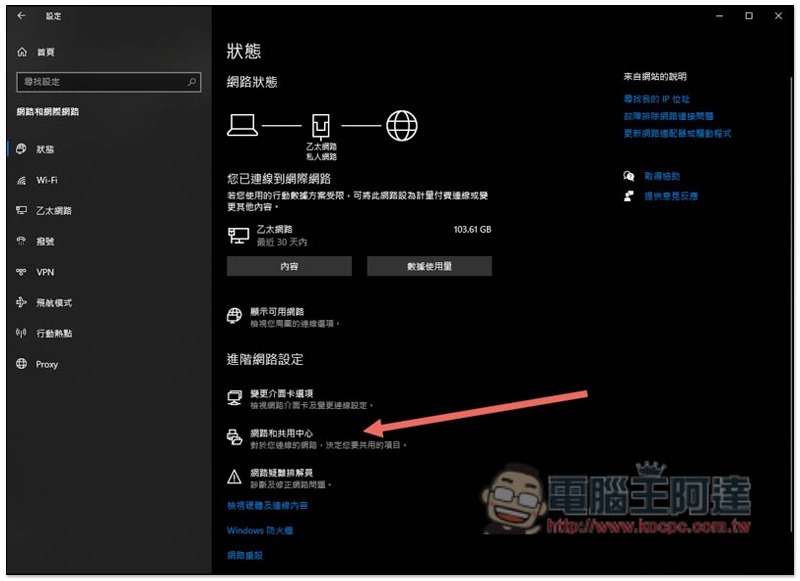
The cancellation method is also very simple. Open Settings -> Network and Internet Options -> In the status menu, click “Network and Sharing Center” below:
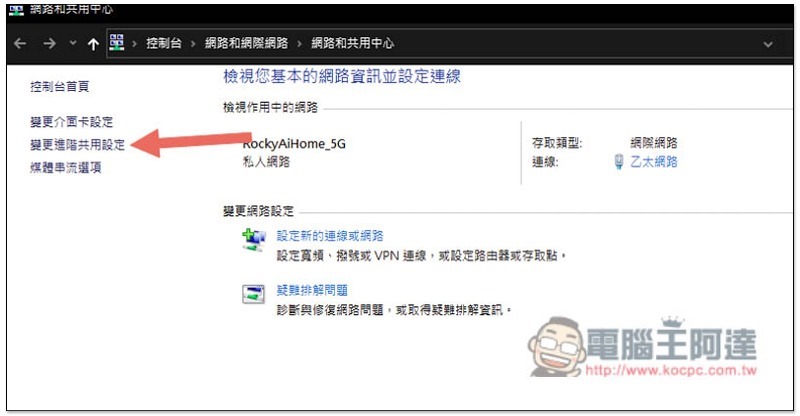
This window will open, please click “Change advanced sharing settings” on the left:
After entering this page, click the arrow to the right of all networks below:
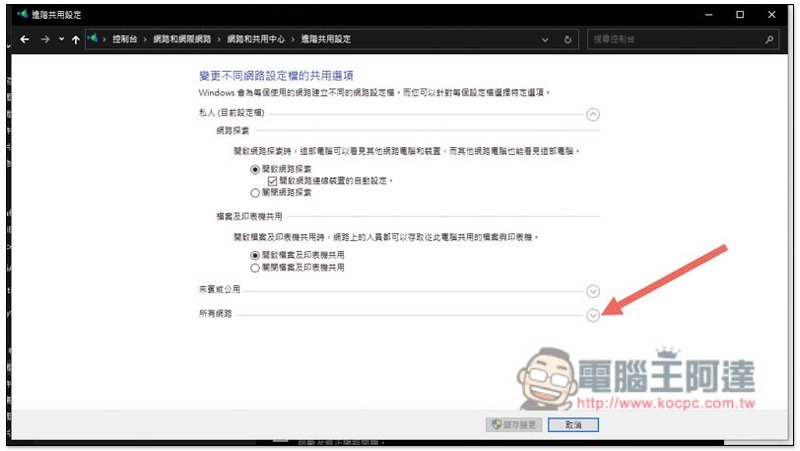
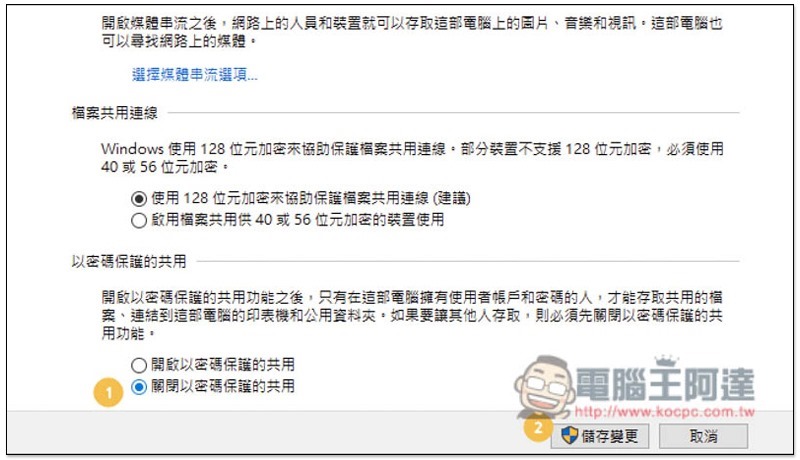
You can find the password-protected sharing settings at the bottom, change it to “Turn off password-protected sharing” and click Save Changes, then it is successfully canceled:
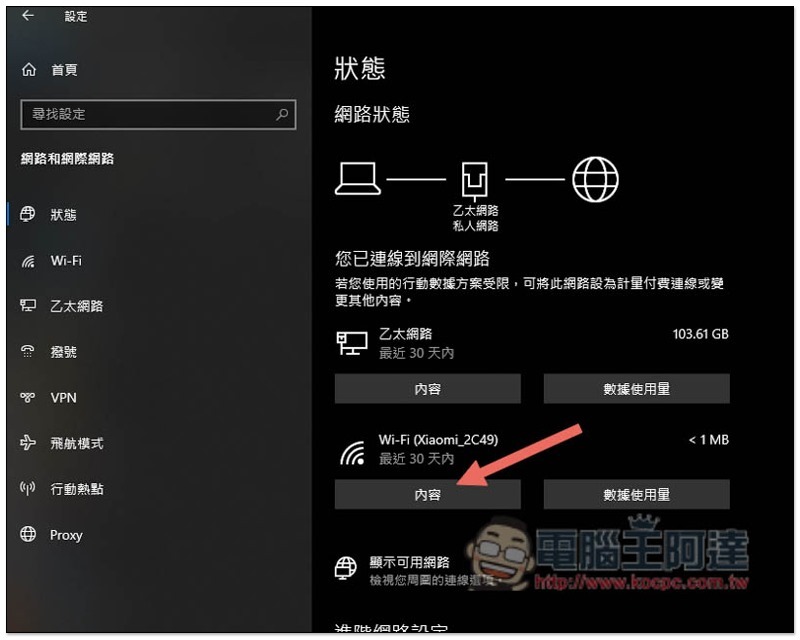
Then please find the network IP address of your Windows computer, and on the status page, click on the network content you are currently using:
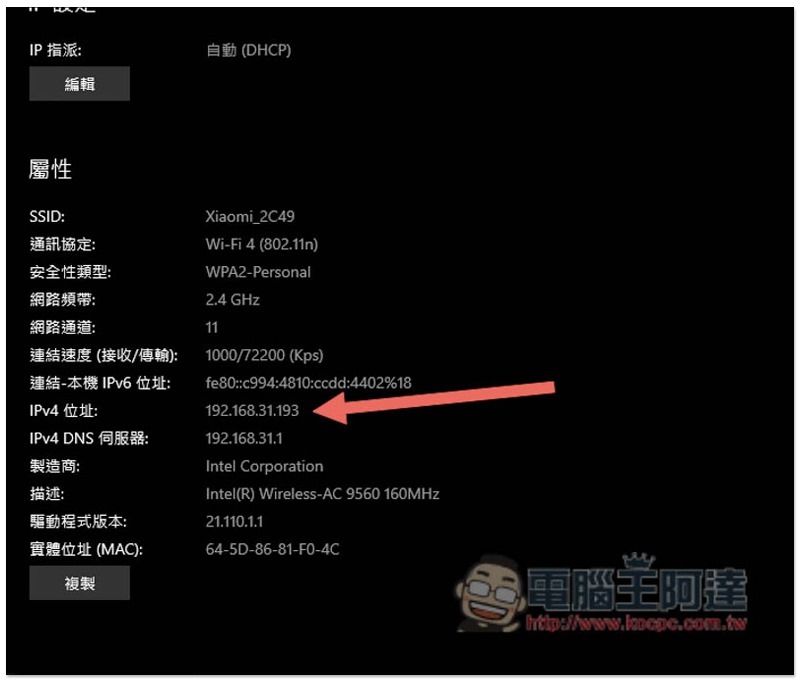
Scroll down the page, and this is the IPv4 location. Please remember it:
Set up shared folders on iPhone and iPad
Open the iCloud Files App, open the… option on the upper right, and find the “Connect to Server” function:
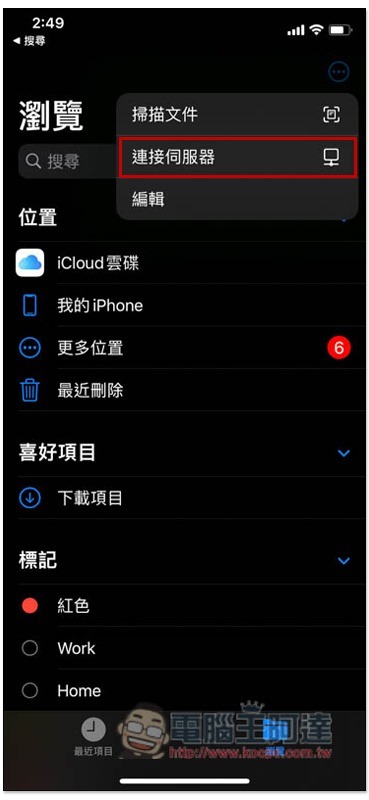
Friends who like me cancel the shared password and change the connection identity to guest can directly click next step:
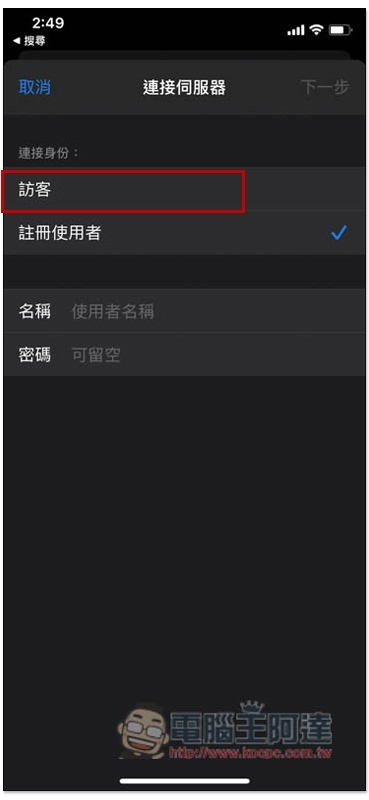
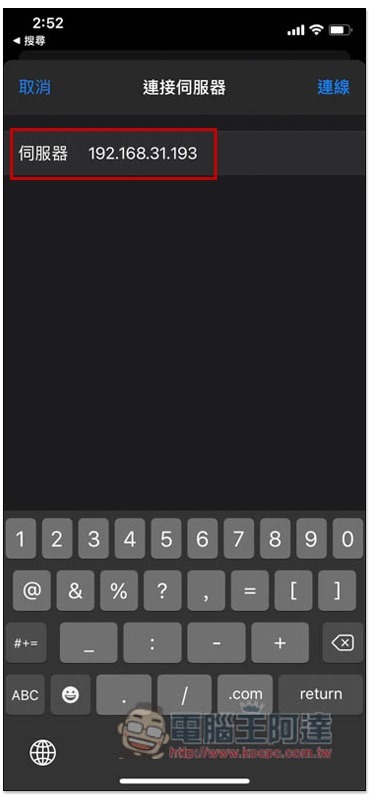
Enter your computer’s IPv4 address and press Connect:
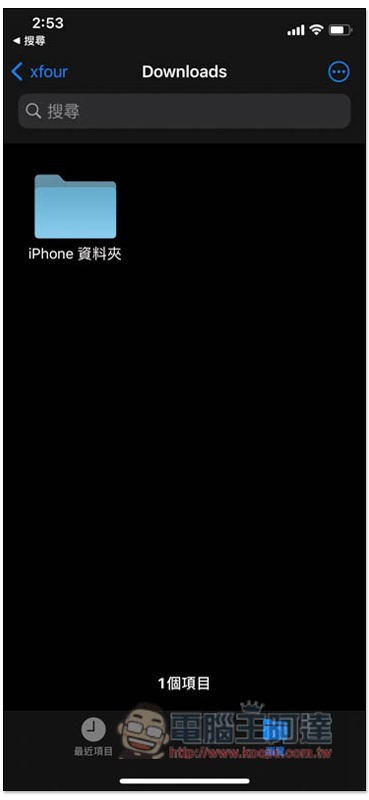
The setting is successful!于 iCloud 档案 App 中即可找到你设定的 Windows 共用资料夹:
iPhone and Windows photo transfer demonstration
The mutual transfer method is also very simple. If you want to transfer a Windows file to an iPhone, drag the file directly to this folder on the Windows computer, and then open the iCloud Files App on the iPhone and go to this folder to see it.
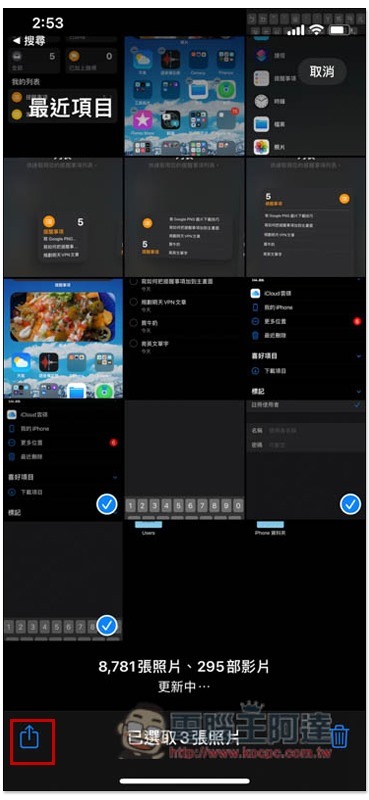
To transfer photos from iPhone to Windows computer, first open the photo album, select all the photos you want to transfer to Windows, and then click the share icon on the lower left:
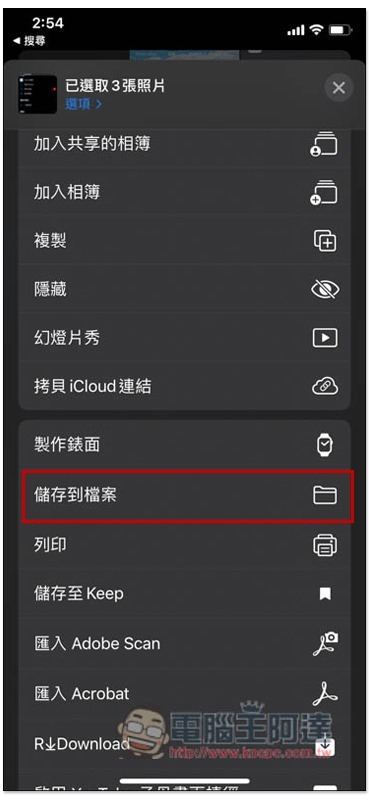
Scroll down and you will see the “Save to File” option:
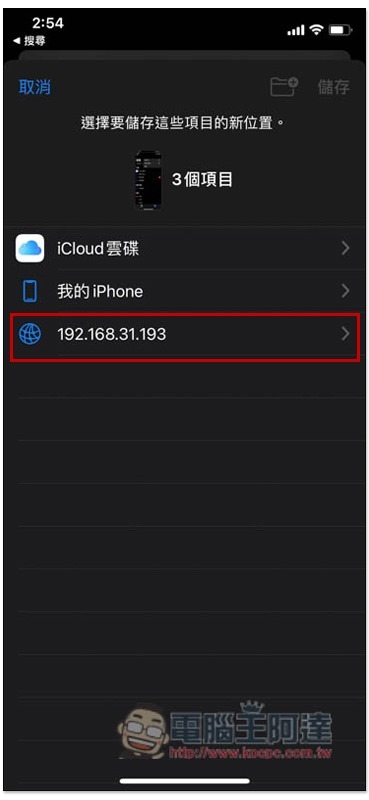
Then select the IP address:
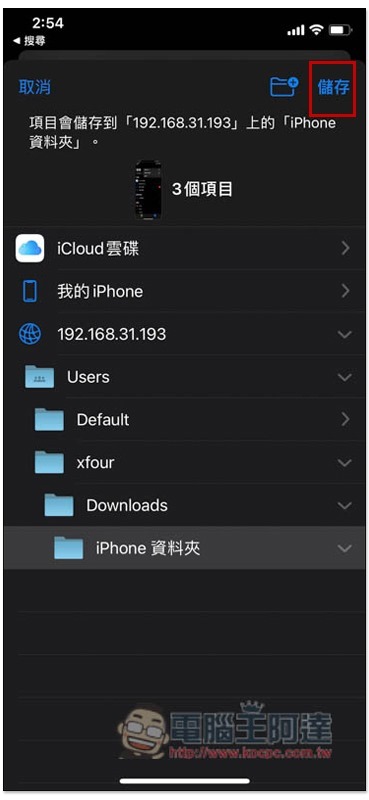
After finding the shared folder, click Save and the photos will begin to be transferred:
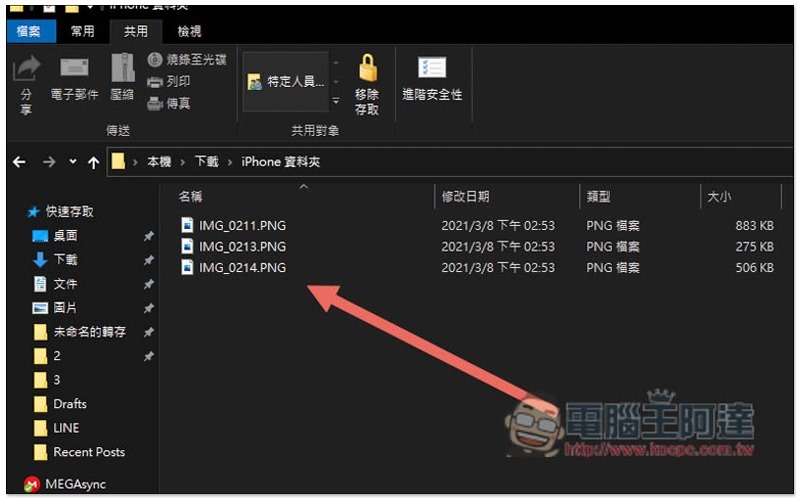
Once you open this folder on your computer, you will see all the photos transferred from your iPhone:
Summarize
Looking at the whole thing, some people may think that the setting is very troublesome, but after actually operating it, it actually takes less than a few minutes to complete, and it only needs to be set once.
Source: KOCPC Chinese