


In recent years, many people have gradually become accustomed to storing invoices in vehicle barcodes when checking out. This not only saves the trouble of printing paper electronic invoices, but also makes it easier to manage personal monthly consumption records. In the future, when the unified invoice lottery is held, in addition to the original prizes and easy redemption, the Ministry of Finance will also open additional exclusive prizes for this type of “cloud invoices”. I believe that for many iPhone users, they usually store vehicle barcodes on the iOS home screen, desktop gadgets or LINE Pay Checkout page. However, for users who also own an Apple Watch, if the vehicle barcode can be integrated into the watch and displayed directly, it can also greatly improve life efficiency and reduce the hassle of being busy at checkout. Today I will share a tutorial on how to use Apple Watch to quickly display vehicle barcodes.

Apple Watch invoice vehicle barcode setting tutorial, one-click to quickly wake up the vehicle barcode is super convenient!
I believe that all iPhone users who are using electronic vehicle barcodes have a vehicle barcoding tool that they are used to, whether it is the Ministry of Finance’s Unified Invoice Matching App, Water Drop Invoice, or something like the one that has been updated recently to add the electronic invoice vehicle function. LINE Pay Tools such as these are quite easy to use, but for people who want to make checkout and payment faster in daily life, it is a very convenient choice to do it directly through Apple Watch. The Apple Watch invoice carrier setting tutorial shared today requires the use of the “Invoice Passbook” app. iPhone users first download this app from the App Store and complete the login. They will see the following screen showing the mobile phone barcode on the electronic carrier page:
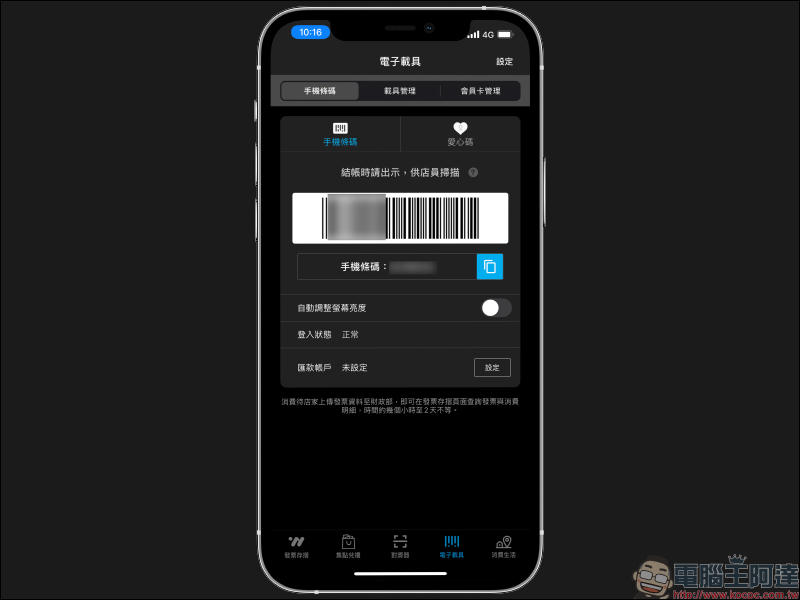
Invoice Passbook App:Click here to download (App Store)
Then open the Watch App and confirm that the “Invoice Passbook” App has been installed on the Apple Watch. If the installation has not been completed, click “Install”. After installing “Invoice Passbook” to Apple Watch, confirm again that “Show App on Apple Watch” is turned on:
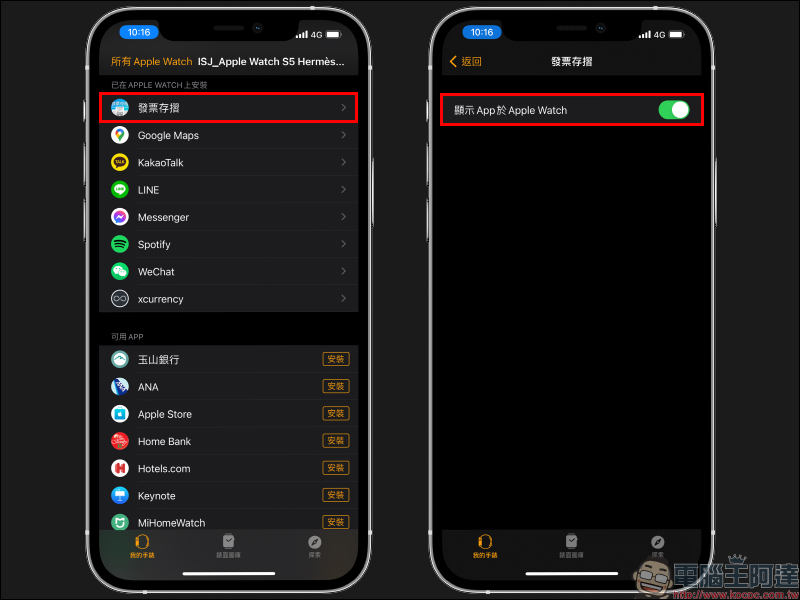
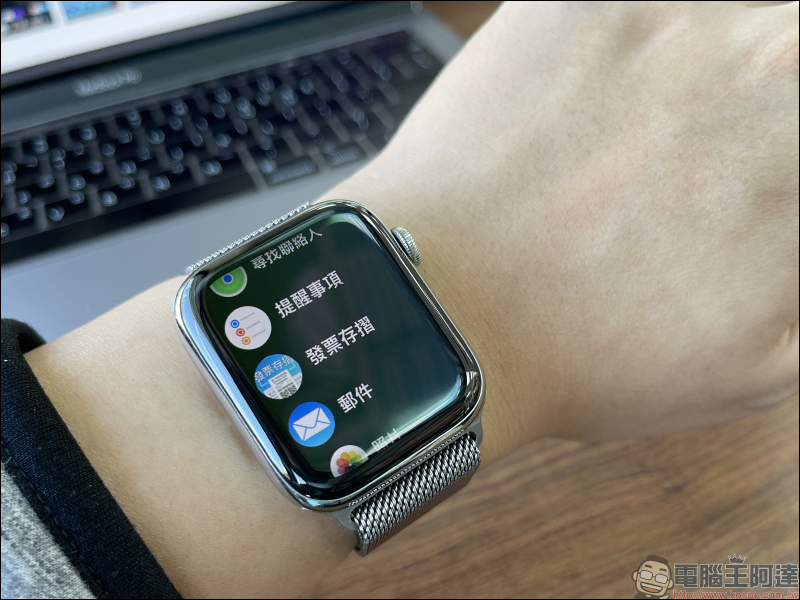
At this time, you can find the “Invoice Passbook” App on Apple Watch. Just click on it to display the vehicle barcode. But is there a faster way to enable vehicle barcodes on Apple Watch? If you don’t want to have to scroll on your watch for a long time to find the “Invoice Passbook” app every time you check out when the store clerk asks if you want to deposit your vehicle, in fact, it can also be set on the surface of Apple Watch.
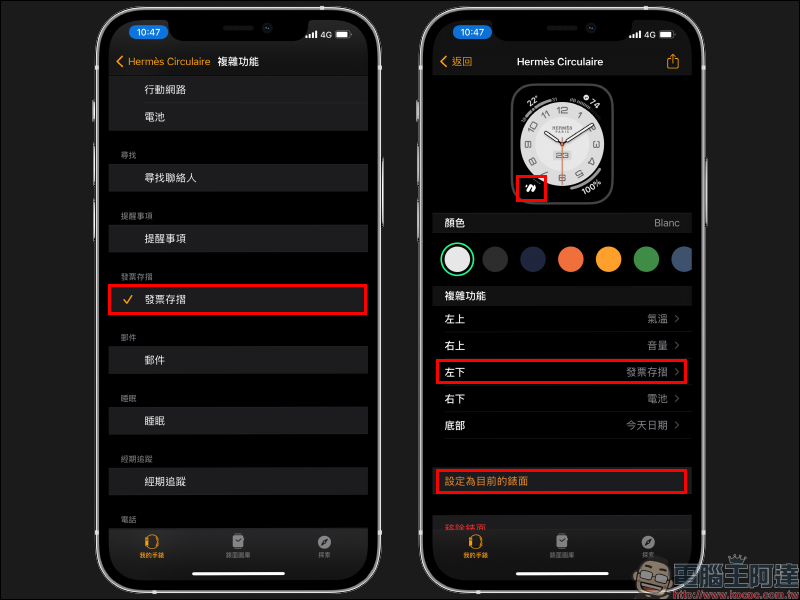
Just like the usual process of setting the Apple Watch watch face, first open the Watch App on the iPhone. Then if you want to edit it directly with the existing watch face, you can directly click “My Watch” at the top of the screen and select a watch face style that supports “Complex Functions.” Of course, users can also click “My Watch Library” at the bottom of the screen to add a new watch.
In the “Complex Function” on the surface editing page, you can select the location of the invoice carrier function according to your personal preferences and usual location:
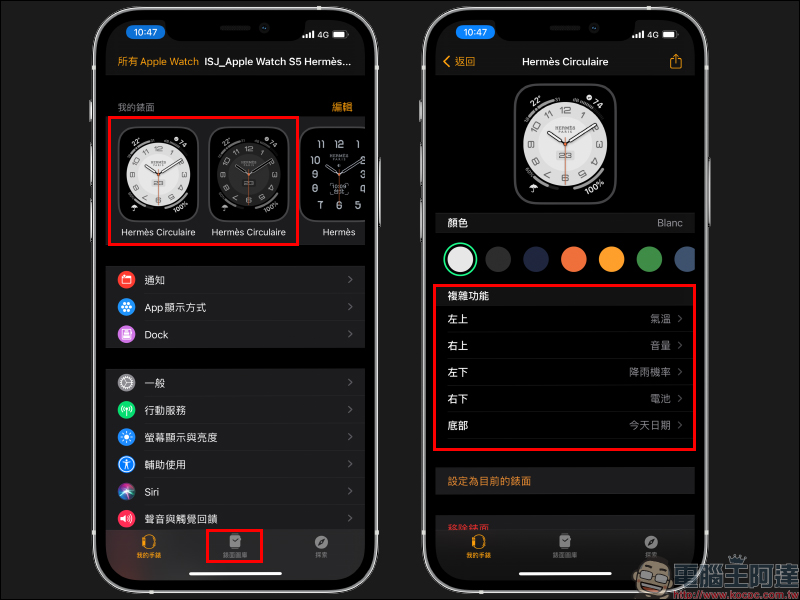
Select “Invoice Passbook” in the complex function, and then return to the editing page. You will see a W icon displayed on the preview screen for the Invoice Passbook function. After editing, click “Set as the current surface” and you are done!
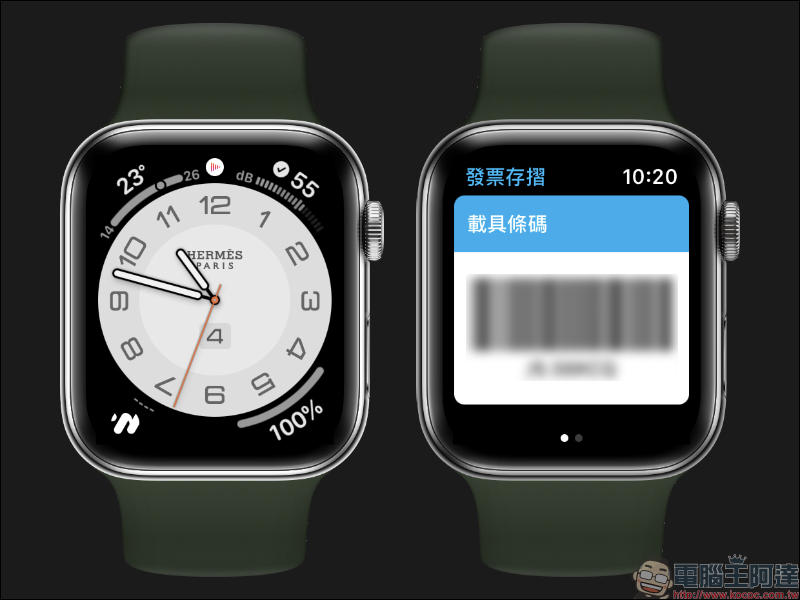
In the future, as long as the Apple Watch is worn and unlocked, you can directly wake up the vehicle barcode by clicking the invoice passbook function button on the surface:
Further reading:
LINE application tips: 10 practical tips for organizing your LINE account

Source: KOCPC Chinese