


Previously, we introduced a RemoveWindowsAI script, then you can remove it Windows 11 of AI The functionality requires using some commands, which can be a bit difficult for some users. Recently, a developer has created an open-source tool called Winslop based on this script, which comes with built-in Windows 11 AI feature removal and a GUI interface. You can completely remove them with just a few mouse clicks, without having to use complex commands anymore.
In addition, this tool also offers options to disable some pre-installed Windows 11 features (bloatware), such as advertising content and privacy-related tracking. For those who want to remove Windows 11 AI features or find these functions annoying, this is worth trying. However, a word of caution: this tool modifies some Windows 11 system settings, which could potentially affect your operating system’s stability. It’s recommended to create a restore point before proceeding to be safe.
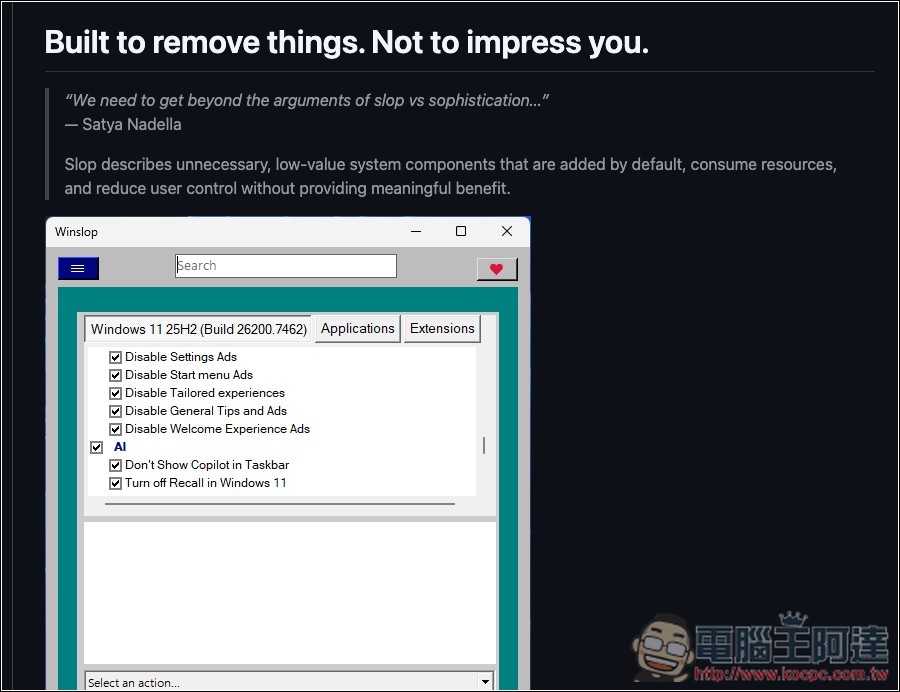
Winslop is a free, open-source tool that removes Windows 11 AI features and provides additional system control functionality
According to the developer, Winslop is a lightweight tool focused on “removing Windows bloat.” The core philosophy is to clean up system components that you don’t use but are silently consuming resources, and to disable unused built-in AI-related features in Windows 11, putting control back in the user’s hands.
The entire tool runs completely locally, with no cloud connection, no data collection, and no AI or automatic judgment mechanisms—everything is based on “you decide for yourself.”
Main Features
- Focus on Cutting System Slop: Target unnecessary features, services, and distractions
- 100% offline operation: no internet, no uploads, your privacy protected
- Simple and intuitive interface: No fancy design, easy for beginners to understand
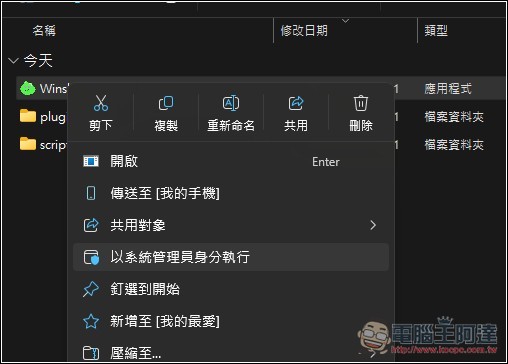
After downloading Winslop, please unzip it first. When launching the program, make sure to run it as administrator. This is important because all operations require access to Windows system settings. Without administrator privileges, the program will not be able to apply the necessary configurations.
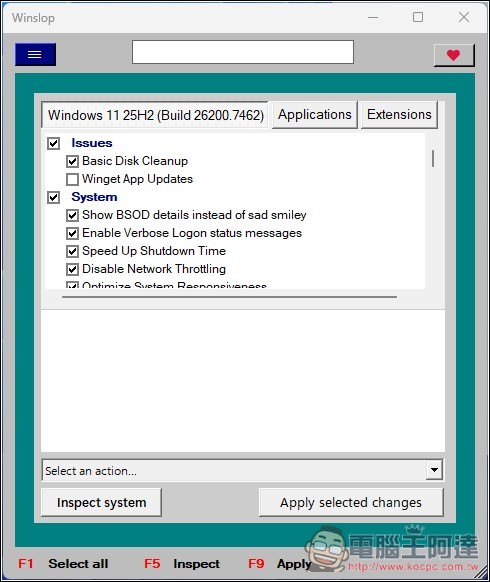
Then you will see this very nostalgic interface. The items with checkmarks in the list are the options you want to process. My suggestion is to open the menu in the top-left corner, first uncheck all the checked options, then go through them one by one and re-check them based on your needs:
The built-in Edge browser in Windows also has many unnecessary features you can turn off, such as preventing Edge from setting itself as the default browser, disabling Edge’s built-in price comparison and deal alerts, hiding sponsored/ad links on the new tab page, and more. It’s definitely worth taking a closer look at this.
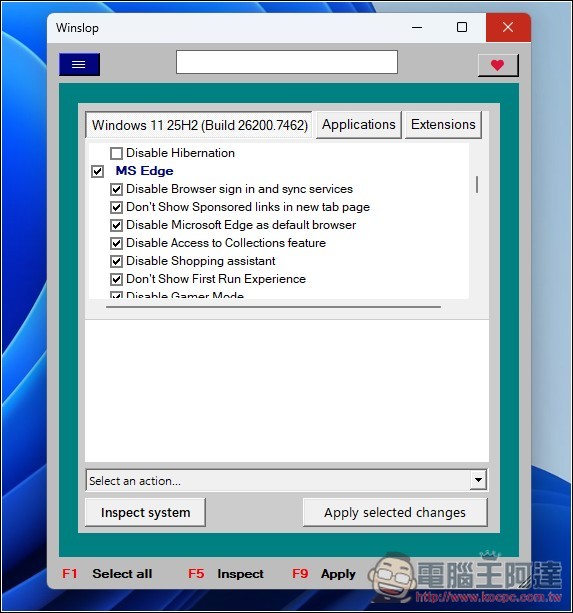
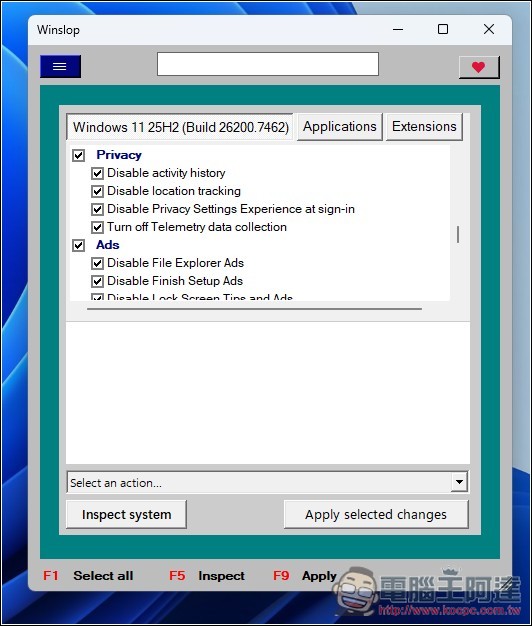
There’s also the privacy and advertising sections; if you don’t need either of them, you can turn them off:
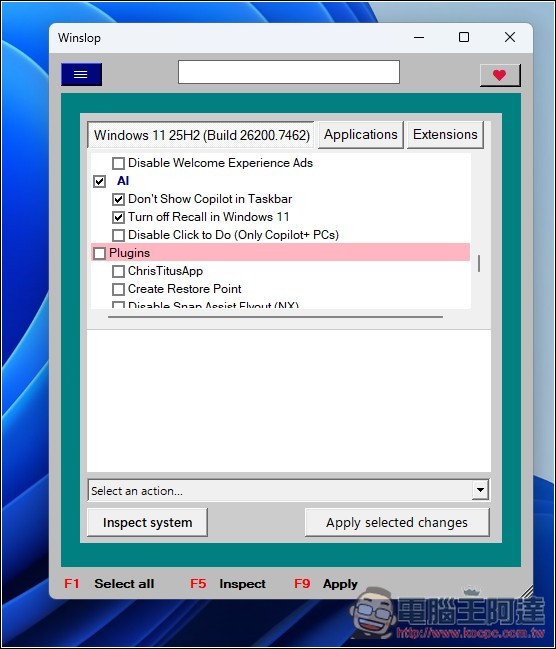
The AI options include “Remove Copilot from the taskbar”, “Turn off Recall in Windows 11”, and “Click to Do for Copilot+ PCs”.
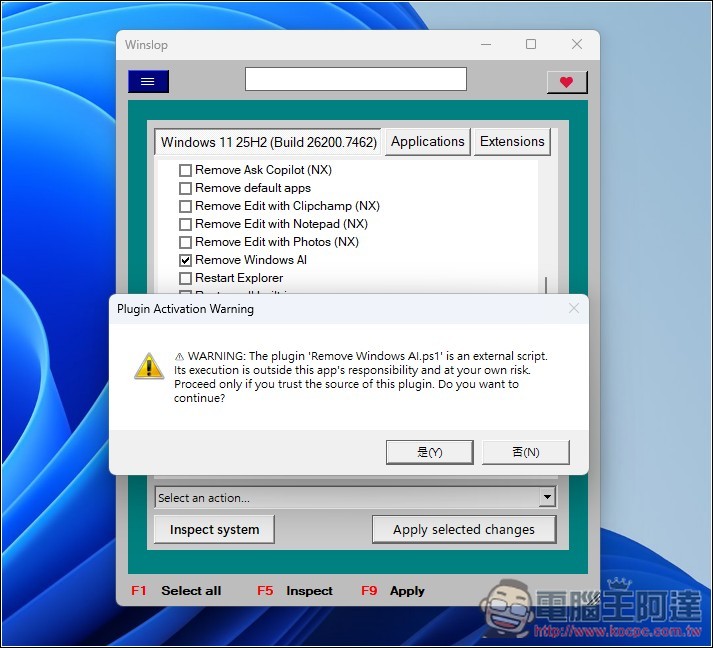
Additionally, scroll down in the Plugin list to find the script that removes all Windows AI. Once checked, click “Apply Selected Changes” in the lower right corner to start execution.
Source: KOCPC Chinese