


In the past, compared to Android, iOS has not had many customization options. Therefore, for those who want to have their own style, they cannot create their own iPhone interface. This is also what most people dislike about iOS. However, iOS seems to be showing signs of becoming more and more open recently, in addition to what we introduced a few days agoAutomatic tablecloth changing, now even the charging effect can be customized!
Now there are some free apps with charging animations in the App Store, and “Charging Show” is one that I found pretty good after testing it. It not only has charging animations, but also has charging notification sounds. Let me teach you how to set it up.
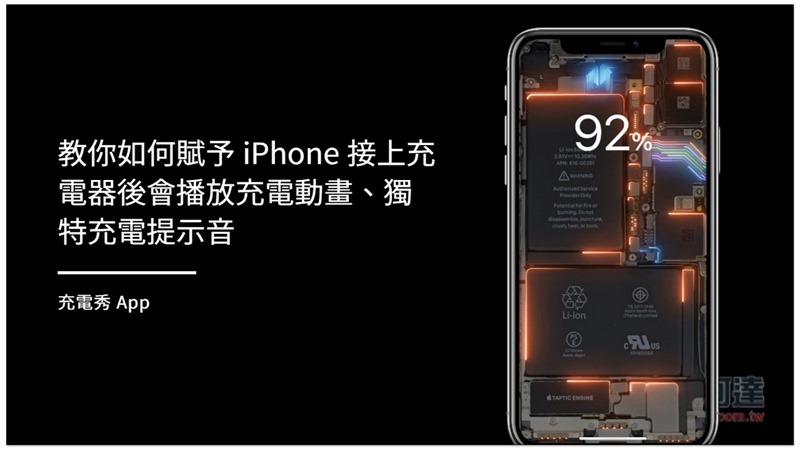
Charging Show App Operation Tutorial
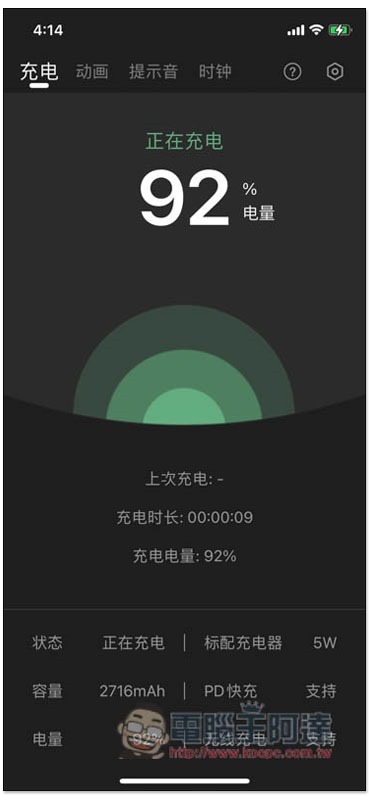
This Charging Show App has quite a complete set of functions. The homepage will display information such as your current iPhone’s remaining power, battery capacity, and whether it supports PD fast charging and wireless charging. To view the animation and prompt sounds, click on the option above:
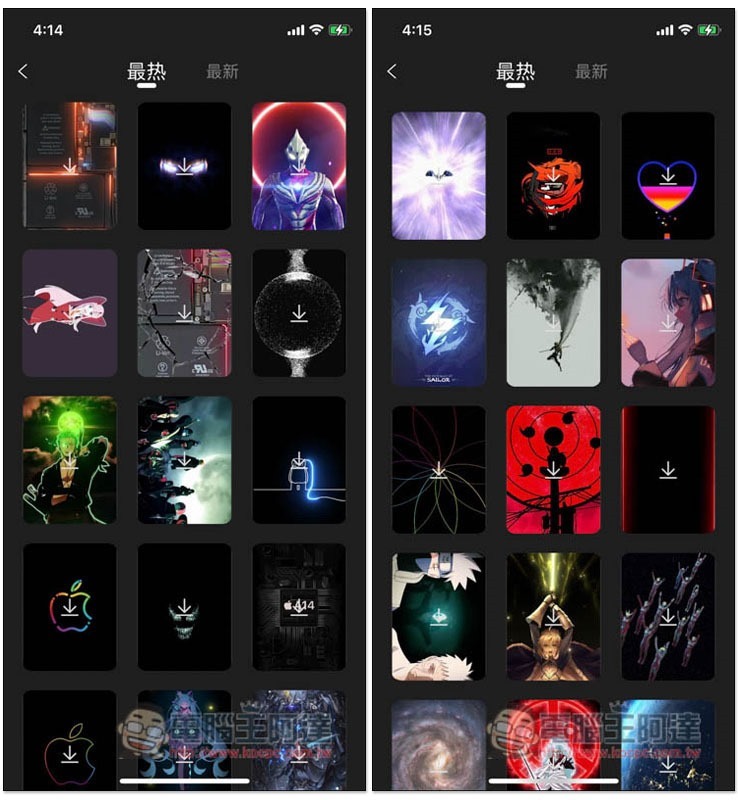
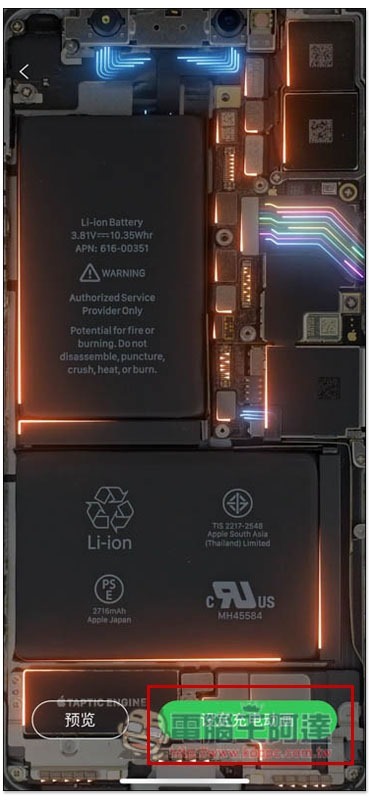
There are many charging animations provided, and they come in various styles, such as technology, animation, trend, Apple style, etc. However, these charging animations have not been downloaded to your phone at the beginning, so you can only view the preview. If you want to see the complete animation, you need to click to download:
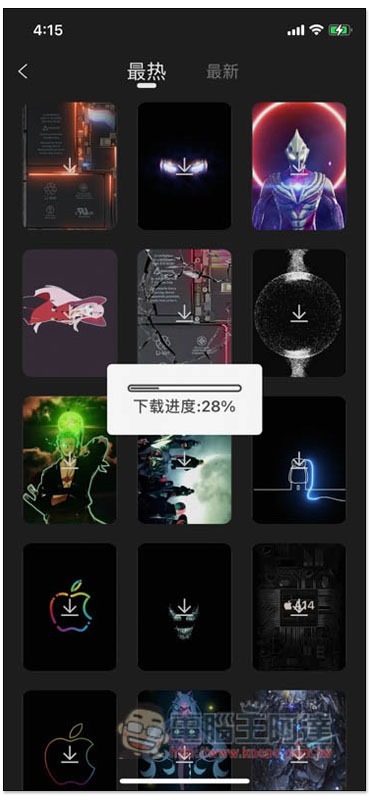
Click on the charging animation you want to watch and the download will start. The speed is quite fast:
If you feel good, please click “Set Charging Animation” in the lower right corner:
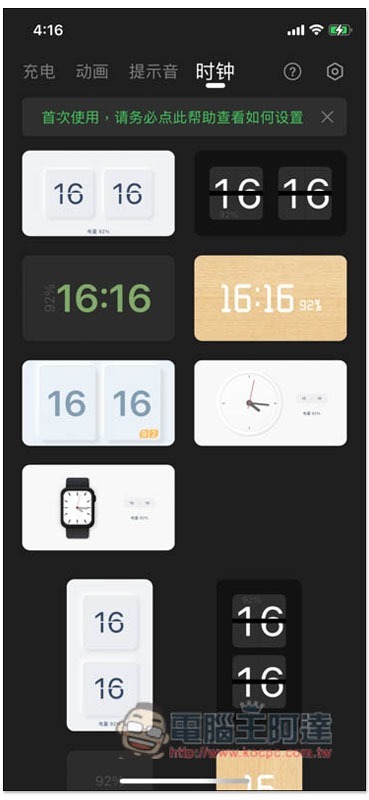
In addition to animations, this app also provides a clock, that is, when you connect the charger, the iPhone screen will display the time. There are also a lot of clocks, even in Apple Watch style:
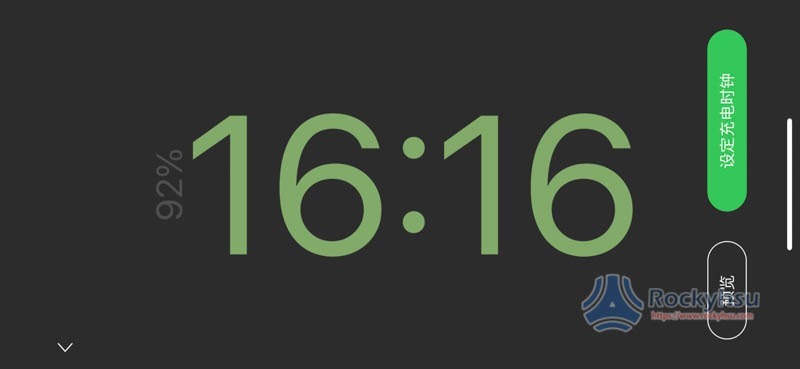
You can also preview it, and next to the time will be a reminder of the current full percentage:
The notification sound part is also very interesting. You can change the iPhone’s original login sound to funny dialogues, famous animation dubbing, etc. It not only starts charging, but also can be set when the battery is fully charged:
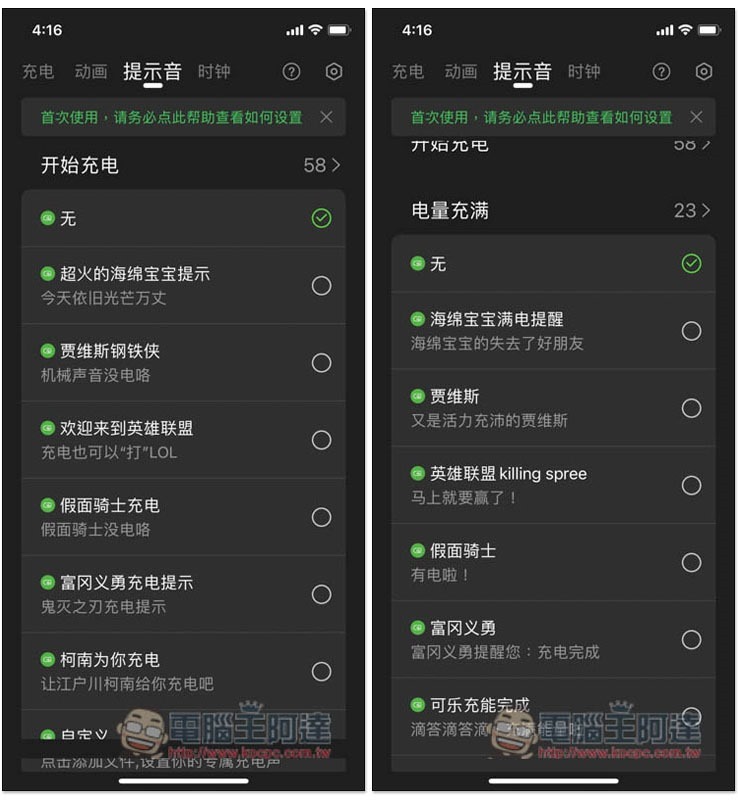
You can also listen to it. If you like it, just click “Set as Alert Sound” in the lower right corner:
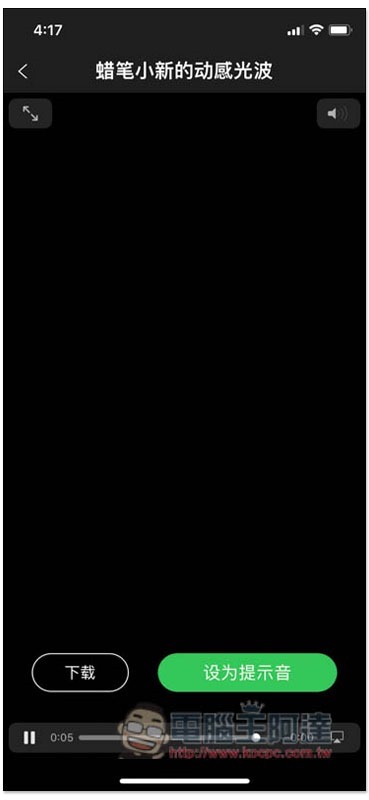
After everything is set up in the app, you still need to use the automation function of the iOS Shortcut App to tell the iPhone to enable the charging animation and prompt sound when the charger is connected.
If you haven’t downloaded the iOS Shortcuts App yet,Please click me to App Store。
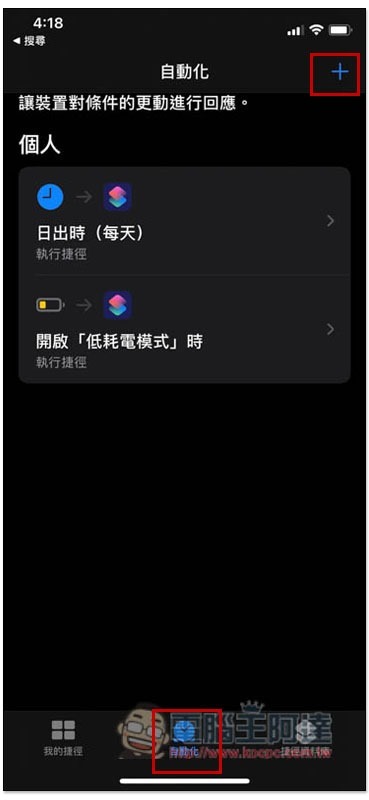
After opening the Shortcuts App, click Automation below, then click + Add in the upper right corner:
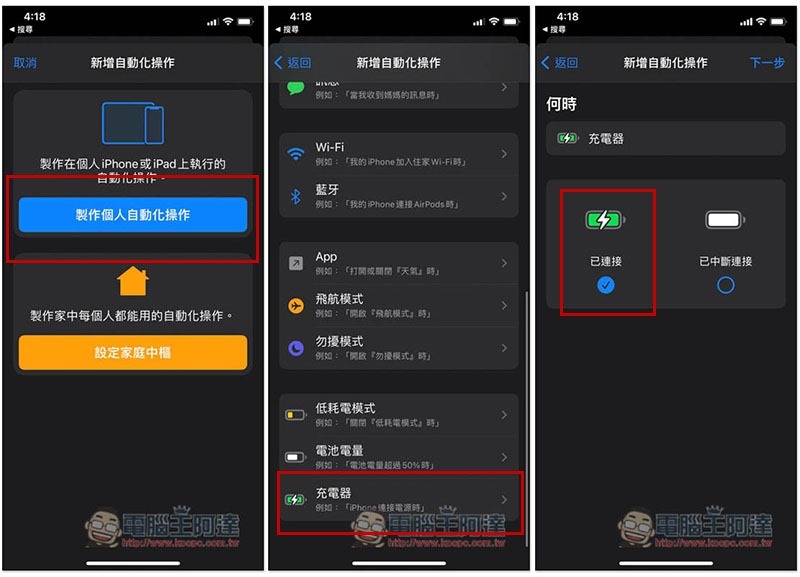
Select “Create Personal Automation Operations”, scroll down the page and you will find “Charger”, confirm that it is set to “Connected”, and then click Next in the upper right corner:
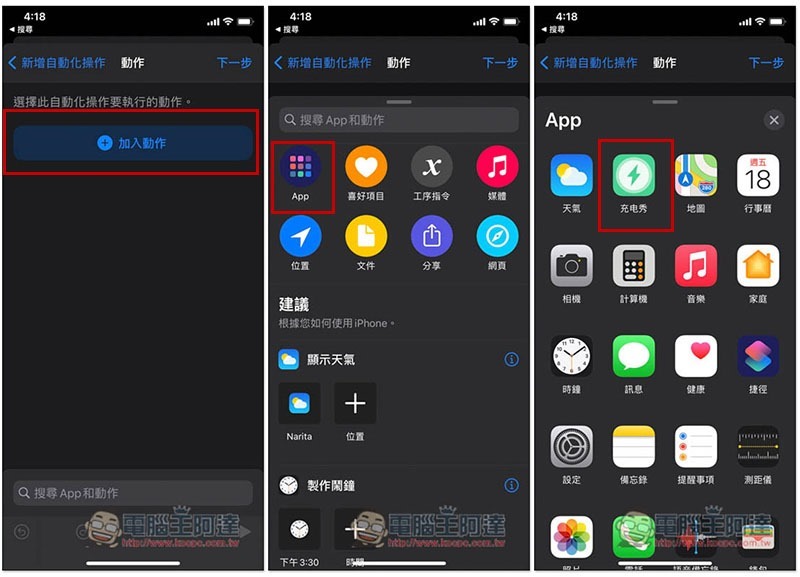
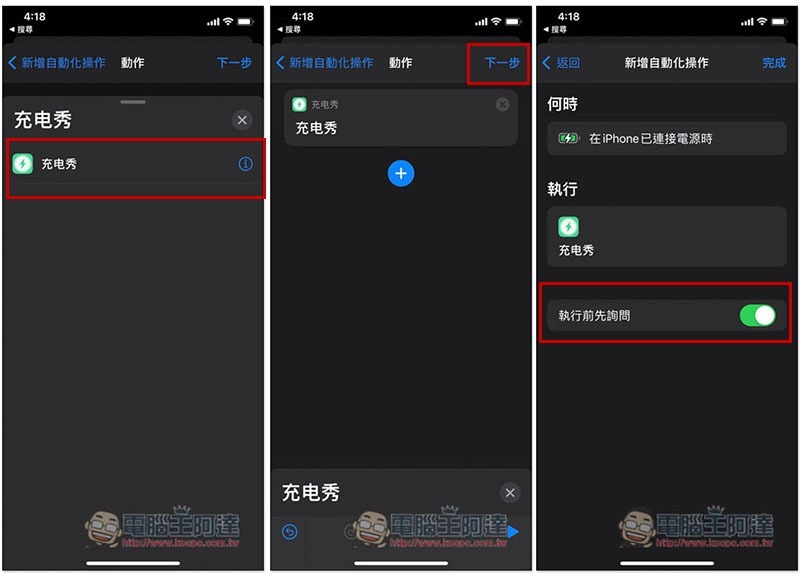
Click “Add Action” and select the first App icon to find “Charging Show”:
Click the charging show again, then click Next and cancel the “Ask before executing” at the bottom:
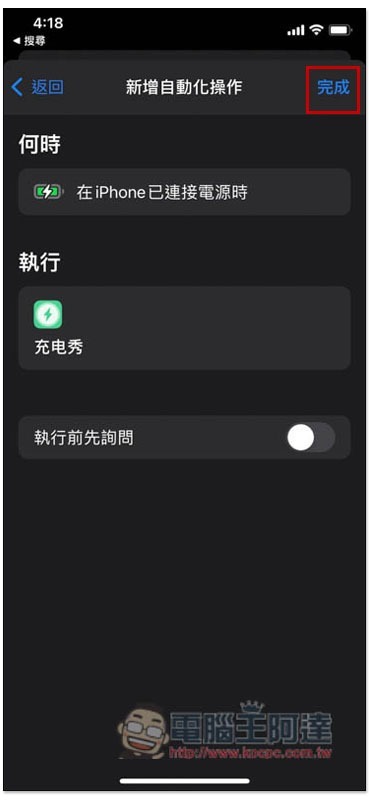
As shown below, if there are no problems, press Finish:
Next, when you connect the charger, the charging animation and charging prompt you set will pop up. However, one thing to note here is that this function will only work when the iPhone screen is unlocked. If the screen is locked when you connect the charger, it will not pop up and must be unlocked:
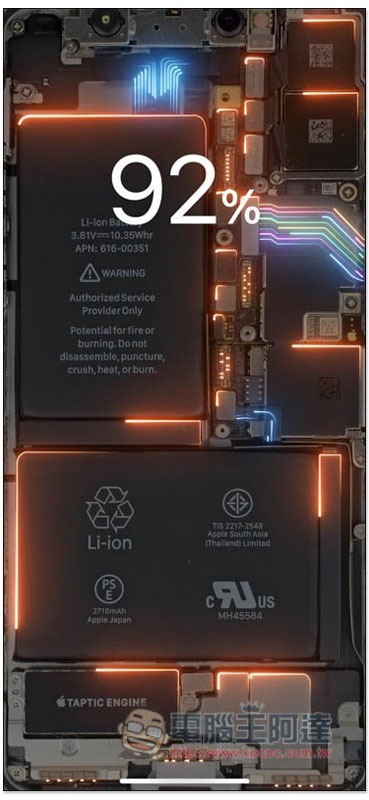
To put it simply, the operation process is that after the iPhone is connected to the charger, trigger the shortcut task to open the Charging Show app, and then the Charging Show will play the charging animation and prompt sound you set.
Supplementary information
- Charging Show App download page:Click here to go
Source: KOCPC Chinese