


We have shared many with you in the past LINE application tips, maybe it will be more convenient for everyone when using LINE. However, every day in a chat room with friends
When entering text content, I hope that the text can be wrapped to make the entire message neater and easier to read. This time I would like to share with you how to set it up if you want to enable the line wrapping function in chat messages to facilitate line wrapping. At the same time, users who do not want to use the line wrapping function can also turn off this function to make sending messages more direct and faster.
LINE application tips: How to turn on or off the “line wrapping” function of chat messages?
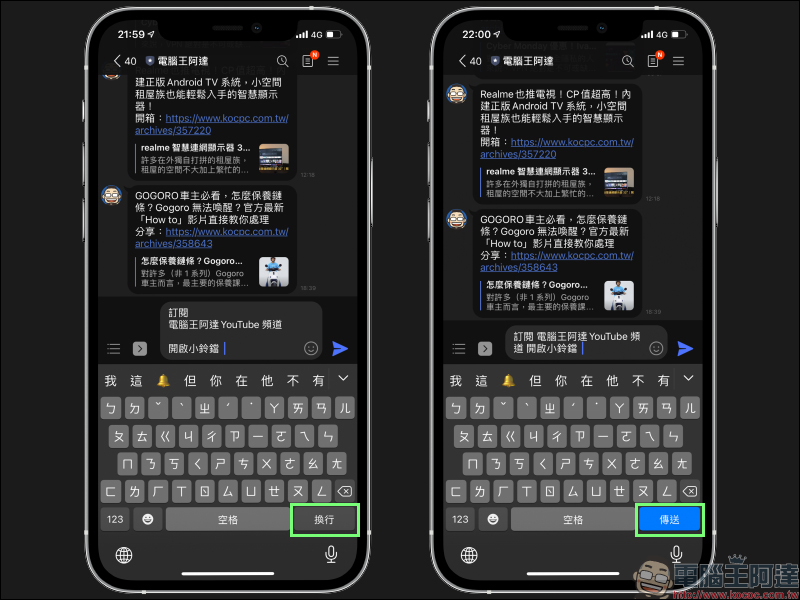
In the lower right corner of the text input keyboard in the LINE chat room, in addition to selecting the “Line Wrap” button, you can enter multiple lines of text to avoid cluttering the layout and causing inconvenience to the other party when sending long text messages.
In addition, users can also change the “Line Wrap” button to “Send” through setting changes according to their own needs. This will turn off the line break segmentation function of the button and make sending unsegmented text messages more efficient. Compare the two setting methods in the picture below, I believe everyone can tell the difference immediately.
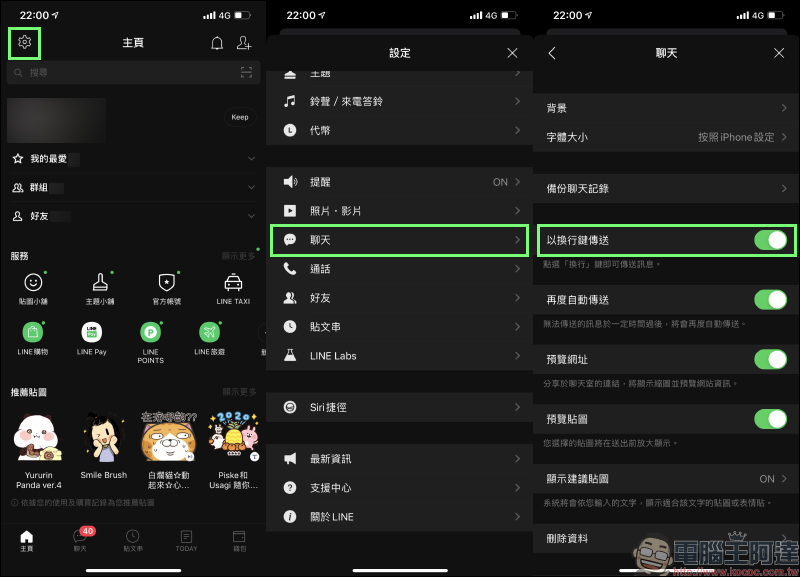
If you want to change the “Line Feed” and “Send” buttons on the keyboard, first go to the LINE homepage and click “Settings” (gear icon) in the upper left corner, then click “Chat” settings and you will see the “Send with Line Feed Key” setting. If this function is turned on, the original “Line Wrap” button in the lower right corner of the keyboard will be changed to a “Send” button. To send a message, the user can not only click the send button that looks like a paper airplane icon on the right side of the text input field to send the message, but also click the “Send” button on the keyboard to send the message.
On the contrary, if you turn off this function, you will see the “Line Wrap” button in the lower right corner of the screen, making it easier for users who need to enter multi-line text to send multi-line text messages.
As for the above two line break key settings, which setting should be chosen for daily use of LINE to chat with friends depends on the user’s personal needs and habits!
Further reading:
LINE iOS version also launches the “Chat Room Classification” experimental function: friends, groups, official accounts and social chats are automatically classified!
Google Play Store 2020 Best List Revealed (Full List of Apps & Games of the Year)

Source: KOCPC Chinese