


For LINE users, many people may have forgotten their LINE login account/password because their smartphones are always logged in. In addition to logging in through mobile barcodes, users can directly use their mobile phones to scan the login QR Code of the LINE computer version or iPad version to easily complete account login. From now on, LINE has also taken the lead in opening the “biometric login” function for the iPad platform, and will gradually open it to more platforms in the future.

LINE updates to open the “Biometric Login” function, iPad users can experience it first (instructions for use)
LINE recently released version 10.18.0 update for iOS/iPadOS, which adds a new feature to log in to the iPad version of LINE through biometrics, allowing LINE users to log in to their LINE account on the iPad platform with a mobile phone that has been logged into LINE. In addition to the iPad version, LINE officials also announced that the biometric login mechanism will also be introduced into the PC version of LINE as soon as this year. It is expected that starting next year it will also be used for mobile LINE accounts and logging in to LINE family services.

Before logging in to a LINE account on iPad using biometrics, in addition to updating the LINE App to version 10.18.0 (inclusive) or above, go to the phone to open the “Settings” page of the LINE app > “My Account”, and click “Start Sync” > “Enable” on Face ID (or Touch ID):
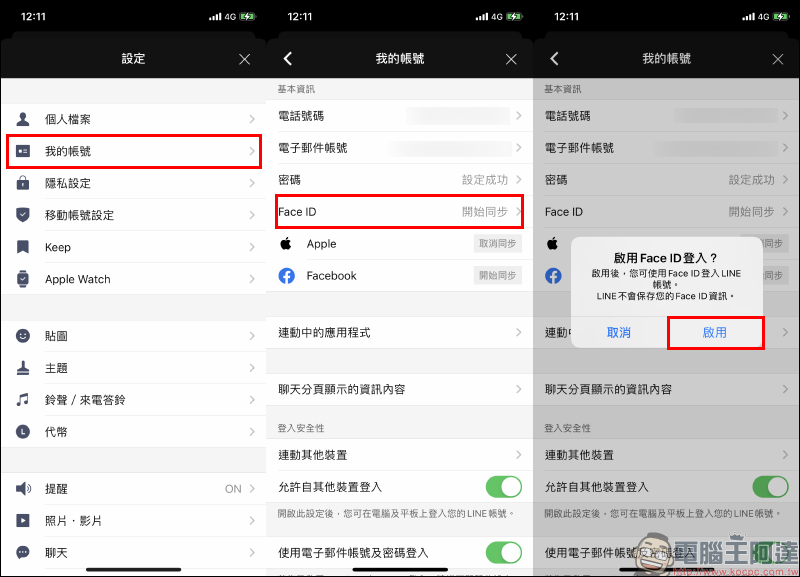
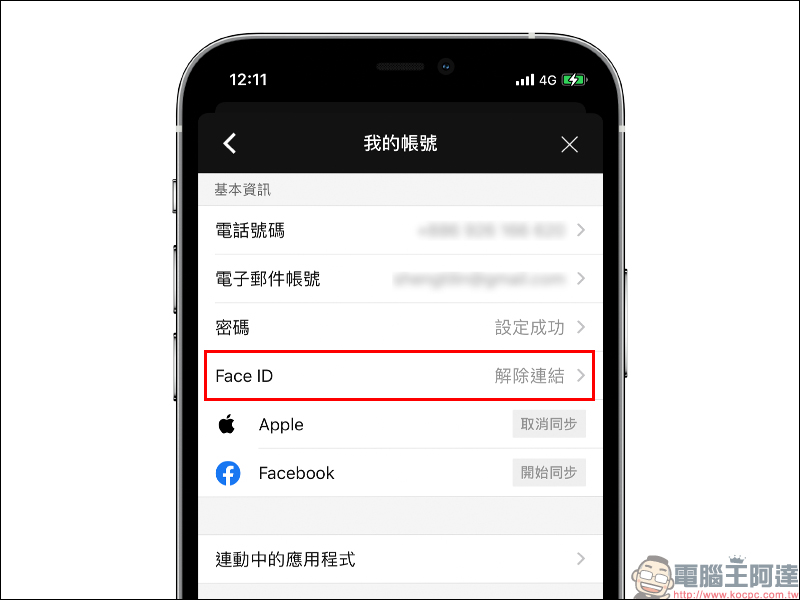
At this time, the phone will scan the face or fingerprint. After the biometric synchronization is completed, the field will display “Unlink”:
First-time iPad biometric login
Using “Biometric Login” on iPad and “Mobile Barcode Login” requires a mobile phone by your side.After completing the above synchronization actions, you can open the LINE application on the iPad for the first biometric login.
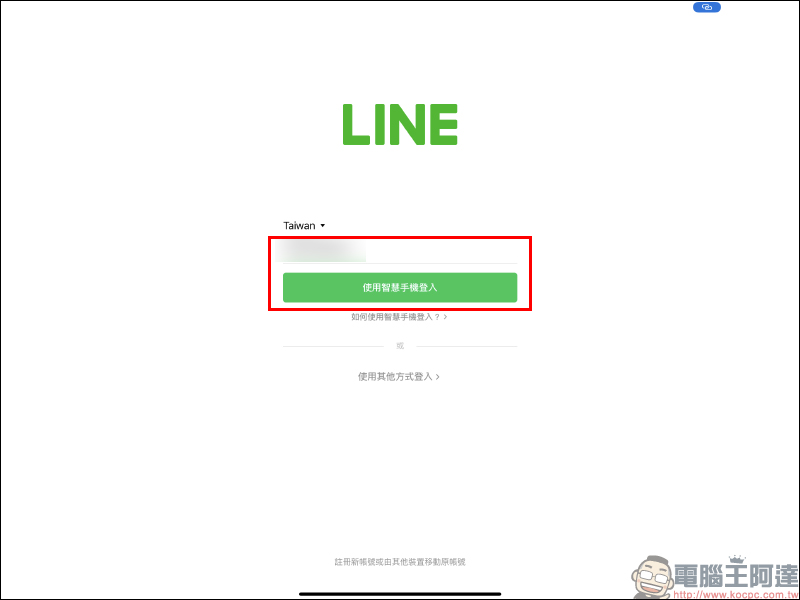
Again, be sure to confirm that the iPad’s LINE version has been updated to LINE iOS 10.18.0 (inclusive) or above. Select “Log in using your smartphone” as the login method, enter your phone number first and then click the “Log in using your smartphone” button:
At this time, a pop-up window will display the steps for connecting the smartphone for the first time. Click “Show Authentication Code” on the screen:
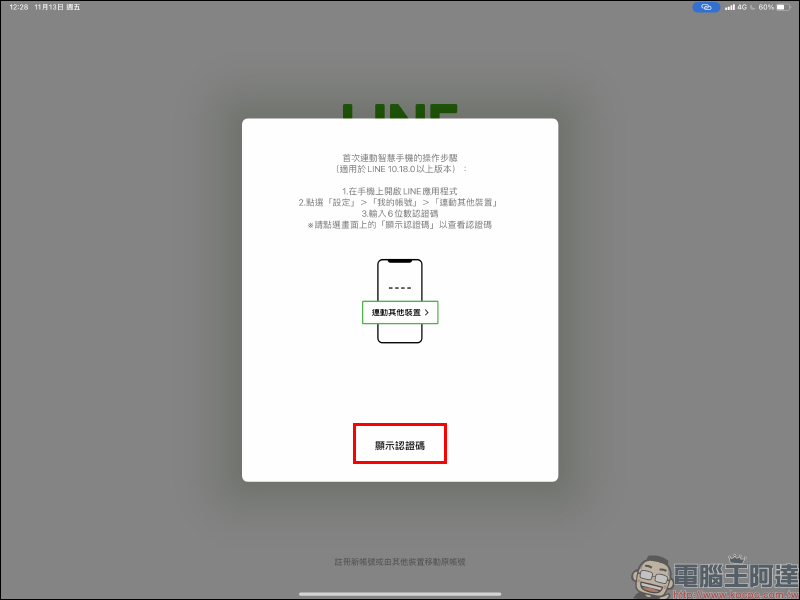
When the six-digit authentication code appears on the screen, then open the LINE application on your smartphone:

Select “Link other devices” on the “My Account” page and enter the six-digit verification code displayed on the iPad page. After confirming that login from other devices is allowed, click the “Log In” button to complete the first linkage and login steps.
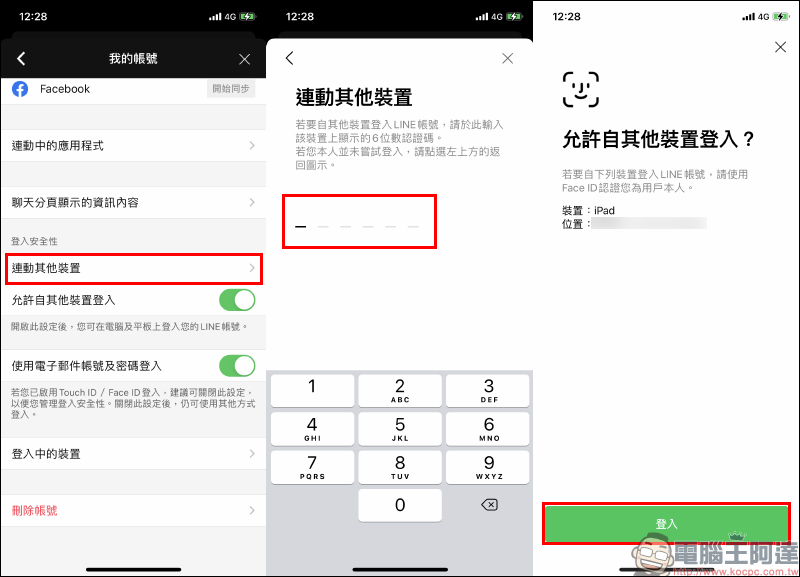
When pressing the login button, the iPad will also log in to the LINE account simultaneously:

Daily use of iPad biometric login
After completing the first login, to open the LINE iPad version daily, first enter the phone number bound to the LINE account and press the “Log in with smartphone” button:
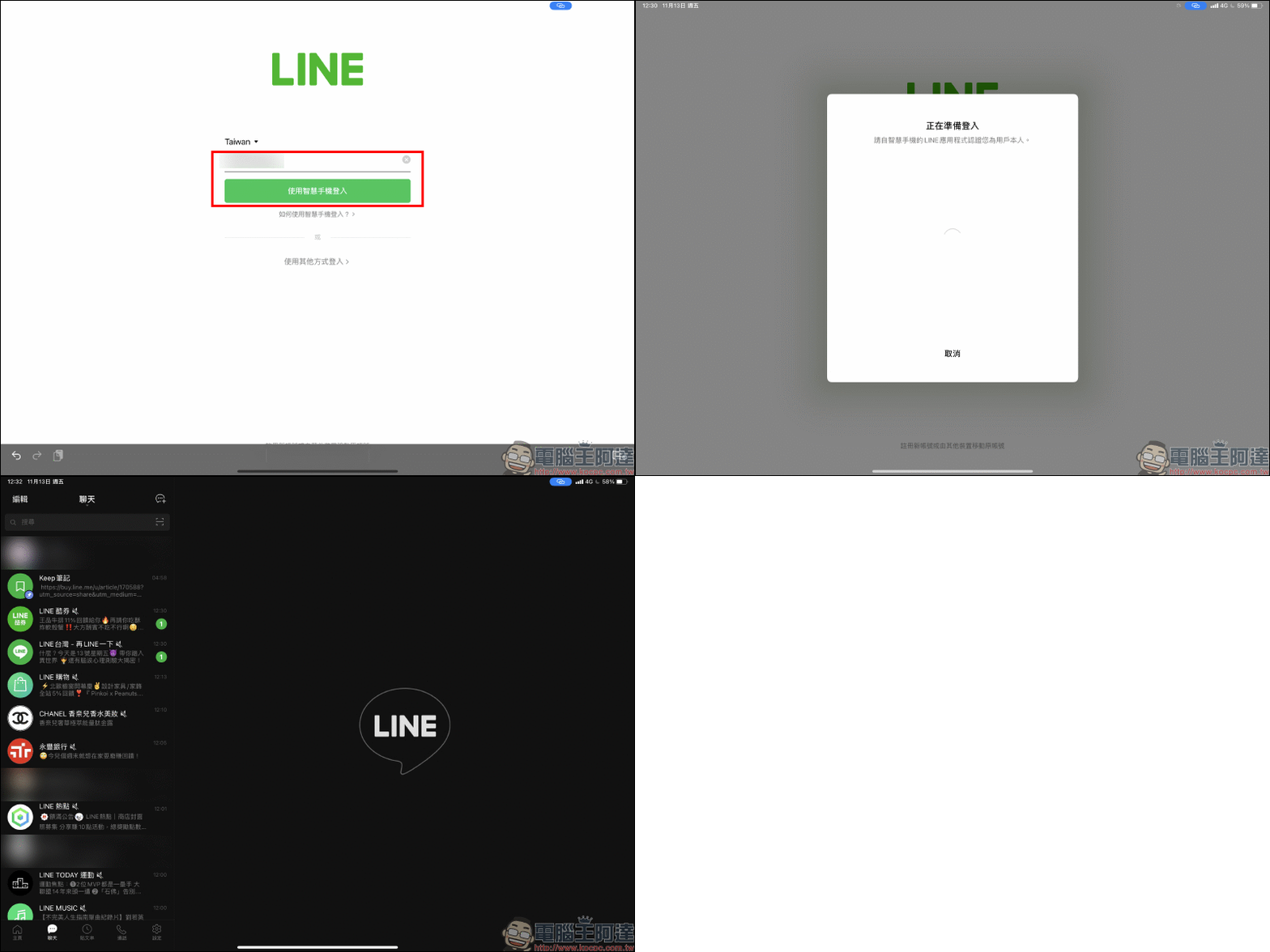
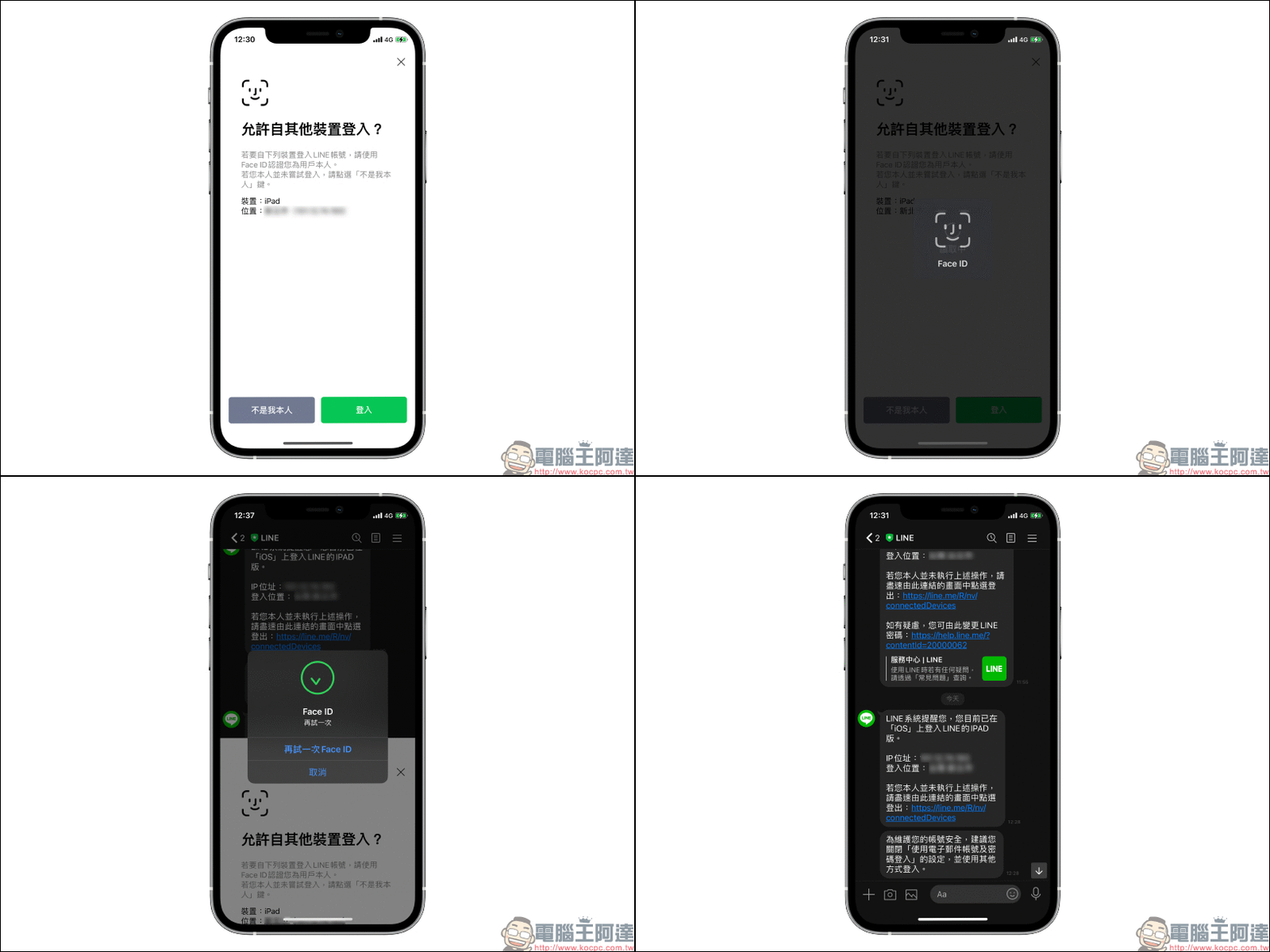
At the same time, open the LINE application on the smartphone, click the “Login” button and perform biometric authentication to complete the iPad biometric login.
In addition to biometric login, what other login methods does LINE iPad version support?
For different usage needs, in addition to biometric login, iPad users are also provided with a variety of login methods. The most traditional way to log in is to enter your LINE account (bound email account) and password:
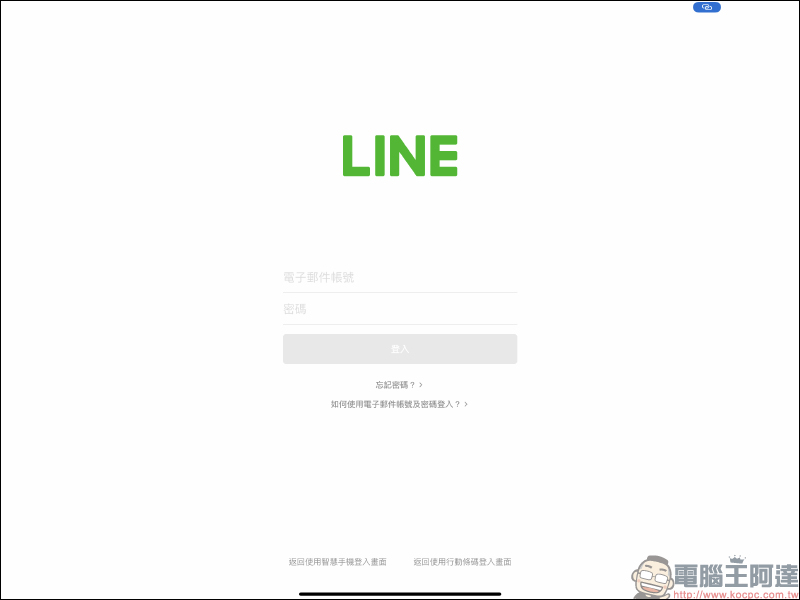
And “mobile barcode” login:
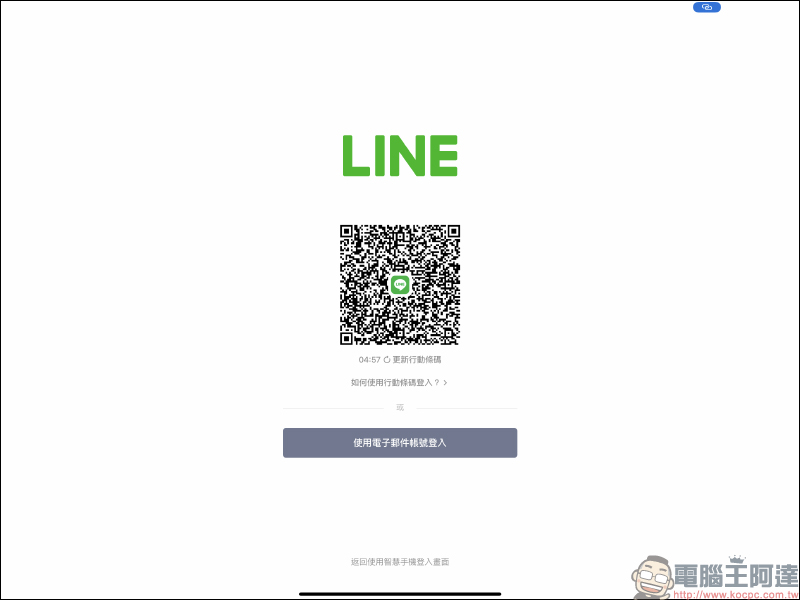
The setting option “Log in with email and password” is located on the “Settings” > “My Account” page of the LINE app. As long as the LINE account has a phone number + email set, this option will be turned on by default.
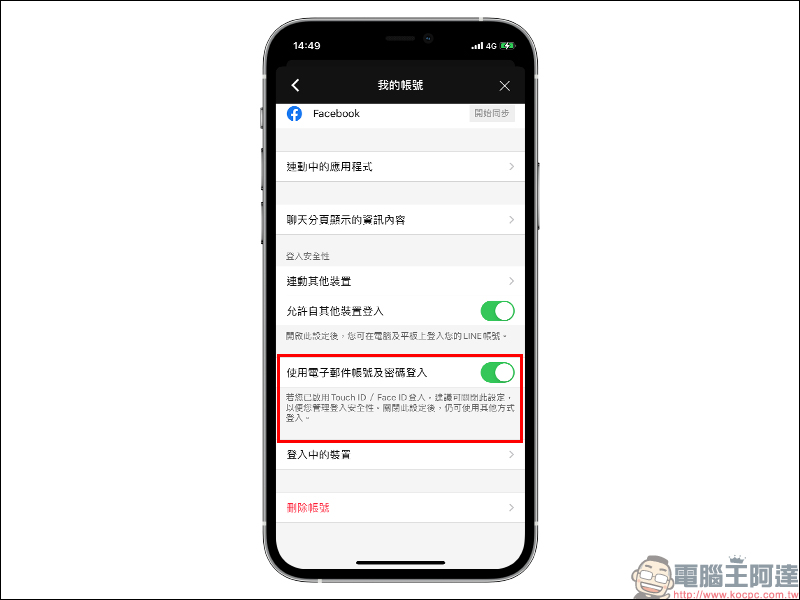
If you turn off the “Log in with email and password” option, every time you log in to LINE on a device other than your mobile phone (for example: iPad), the original method of entering your account number (email address) + password will be changed to “enter your phone number + biometrics”, or you can still log in with a QR Code or “Email + password”.
Since the “Biometric Identification” action is performed on the mobile phone, if this option is turned off, when the mobile phone is not around, you will not be able to scan your face or fingerprint, nor can you scan the QR Code, and you will be unable to log in to LINE!
How to “log out” of LINE iPad version?
After sharing various LINE login methods, don’t forget to learn how to log out of your LINE account on iPad! Otherwise, no matter which of the above methods is used to log in to the LINE account, LINE will be logged in for a long time. Then others only need to unlock LINE
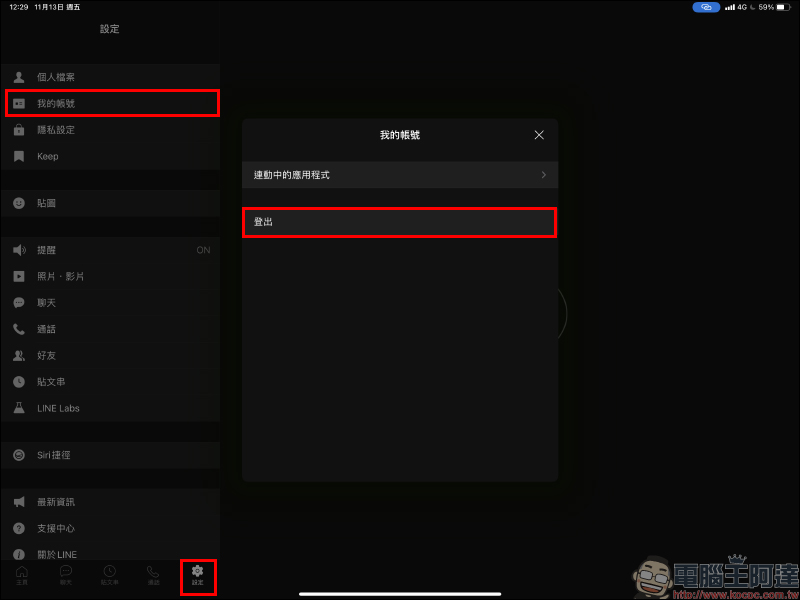
How does LINE for iPad improve privacy?
In the mobile version of LINE, users can use passwords and biometrics to prevent others from easily opening their LINE to improve privacy. Similar privacy settings are also available in the LINE iPad version. If you only occasionally use your iPad with others and do not want to log out/of LINE frequently, then it is more convenient to add a password through the privacy settings.
First, select “Privacy Settings” on the “Settings” page of the LINE app, and then turn on “Password Lock”:
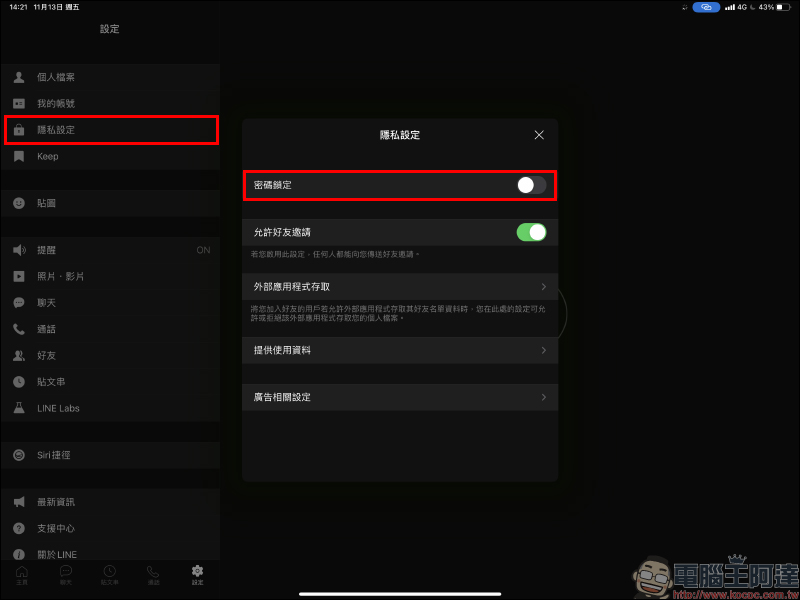
Set a numeric password to open the application:

After completing the password setting, taking the iPad Pro that supports Face ID as an example, you can also use Face ID to quickly unlock the LINE application:
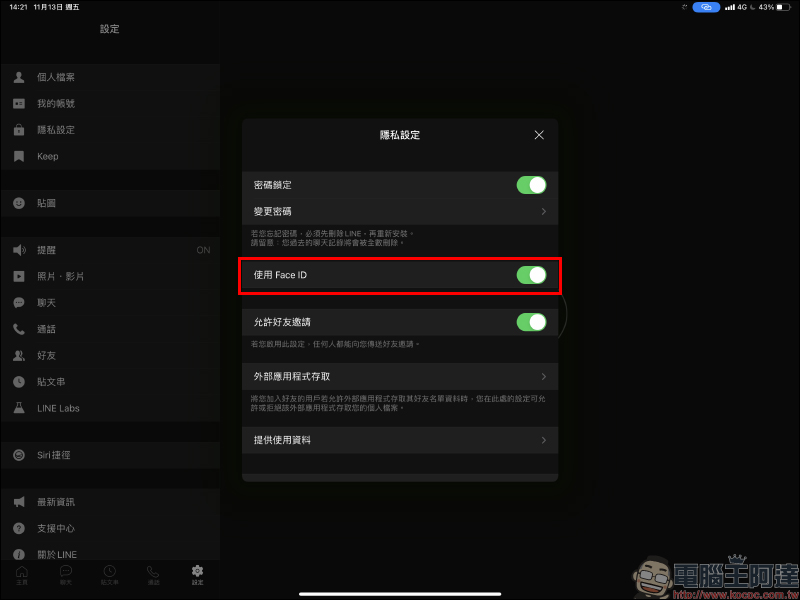
After completing the above privacy settings, allow the use of biometrics to unlock LINE for the first time: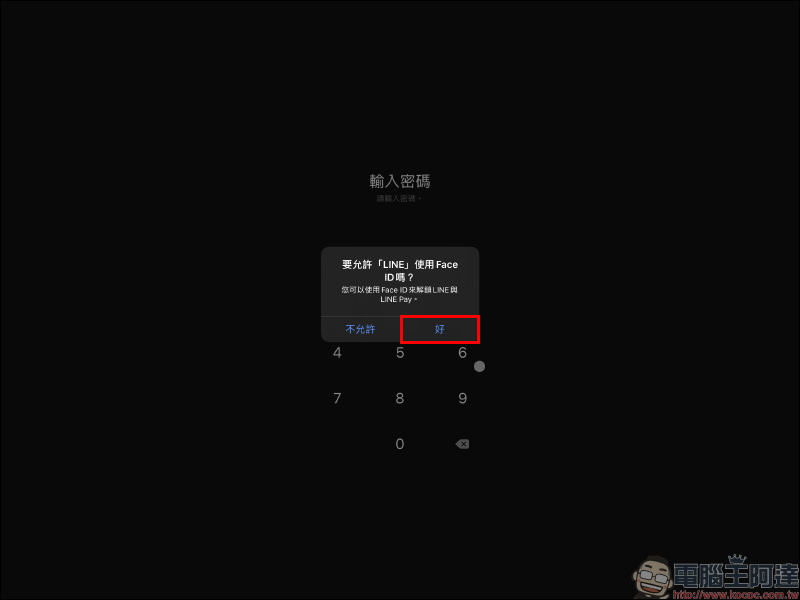
Then, when you open LINE on iPad Pro, you can directly scan Face ID or enter the lock password to open the LINE application:

Further reading:
Collection of 16 free stickers for LINE. Free download of many LINE stickers such as “Bye Bye Jiu Jiu”, “Shiigu Girl”, etc.!

Source: KOCPC Chinese