


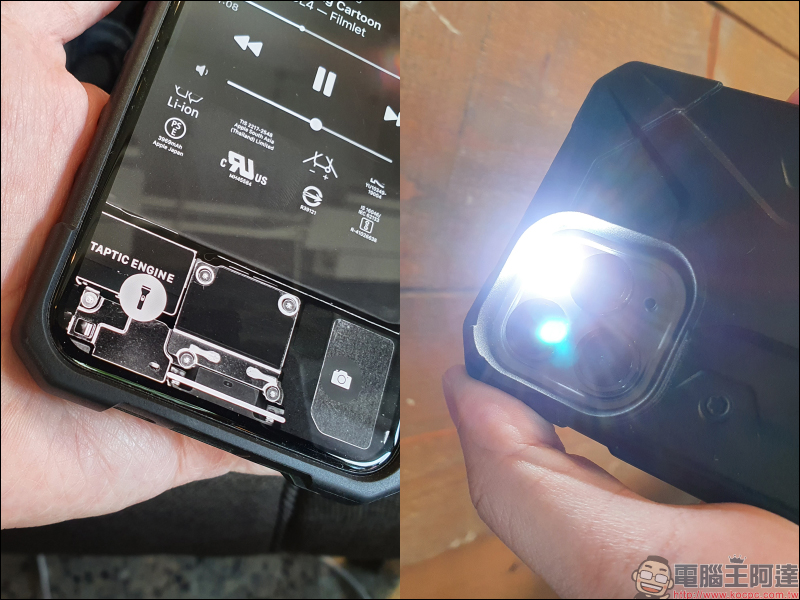
If we talk about the accidental touch functions that are most likely to trouble iPhone users in recent years, the top two are probably the flashlight and camera buttons at the bottom of the lock screen. Although it is very convenient to quickly activate the camera or flashlight without unlocking, it also comes with the worry of accidentally touching it when holding the iPhone or putting it in your pocket.
In addition, many users have carefully planned their own exclusive wallpapers, but due to the fact that these two buttons are locked at the bottom of the screen, some areas of the image will be blocked by the buttons. Today I’m going to share a secret trick that can temporarily turn off these two buttons, so that you can easily say goodbye to the trouble of accidentally touching them with disabled hands.

iPhone Lock Screen Camera/Flashlight Button Disabling Tip
The flashlight button on the left and the camera button on the right at the bottom of the iPhone lock screen are among the buttons that many iPhone users are most likely to accidentally touch. When holding a mobile phone, it is inevitable that the thumb accidentally touches the button without realizing it. It is quite embarrassing to accidentally turn on the flashlight and blind the passers-by in front of you. It can even lead to the misunderstanding that the other person thinks you are taking a secret photo. If you are also prone to accidentally touching it like this, hurry up and learn the method in this article!
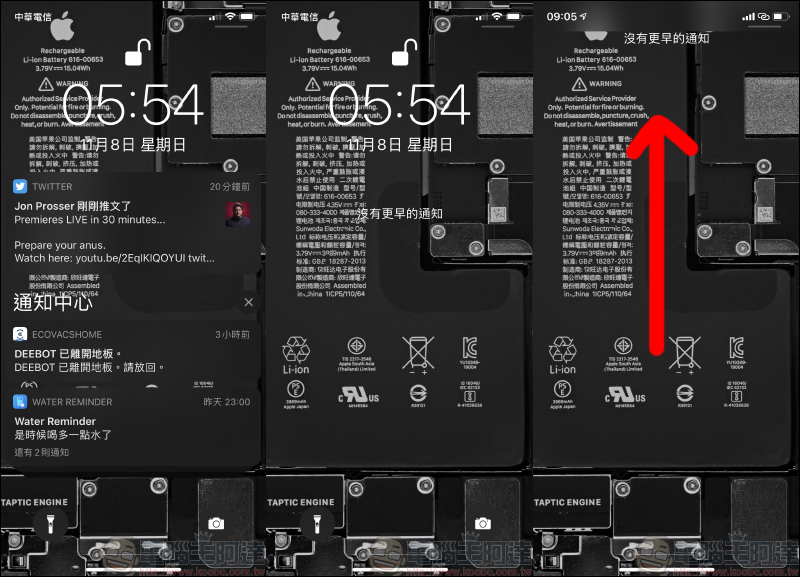
First, pull down the notification menu in the unlocked state and press the cross to close all notification messages. After confirming that all notification messages are cleared and “No earlier notifications” are displayed, slowly slide upward from the center of the screen until the date and time information in the center of the screen is no longer on the screen.Remember not to take your fingers off the screen during this period:
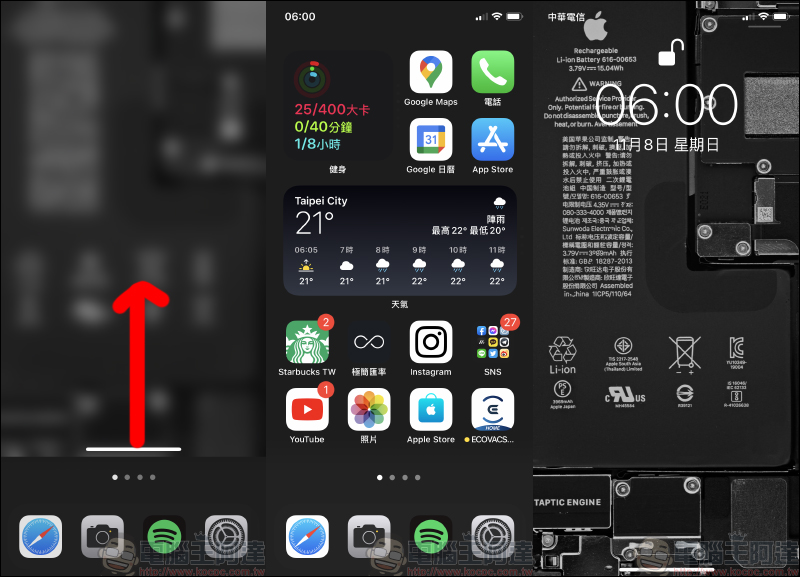
At this time, without letting go of the finger that originally slid up the screen, use another finger to slide up to unlock and open the screen. After successfully entering the home screen, try to lock the screen and then wake it up. Then you will find that the “Flashlight” and “Camera” buttons at the bottom of the locked screen are missing!
If you find it difficult to understand the text description, you might as well take a look at the author’s actual demonstration process. I believe everyone will be able to get started quickly after practicing a few times.
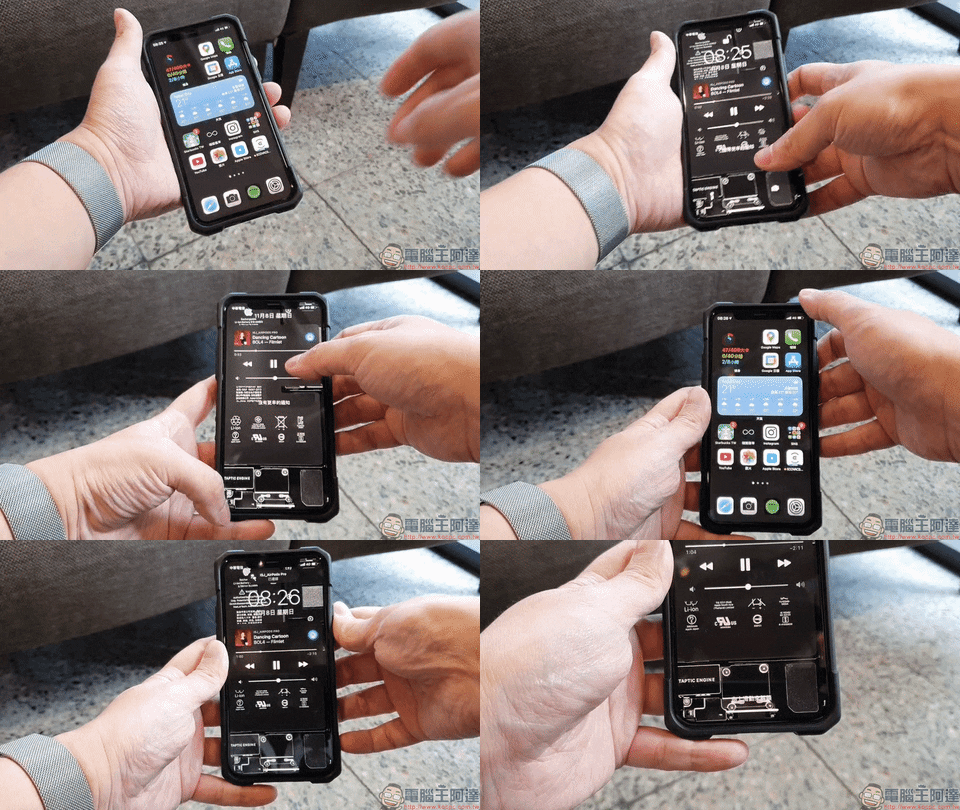
By hiding the camera and flashlight buttons on the lock screen, the chance of accidentally touching iPhone buttons can be greatly reduced:
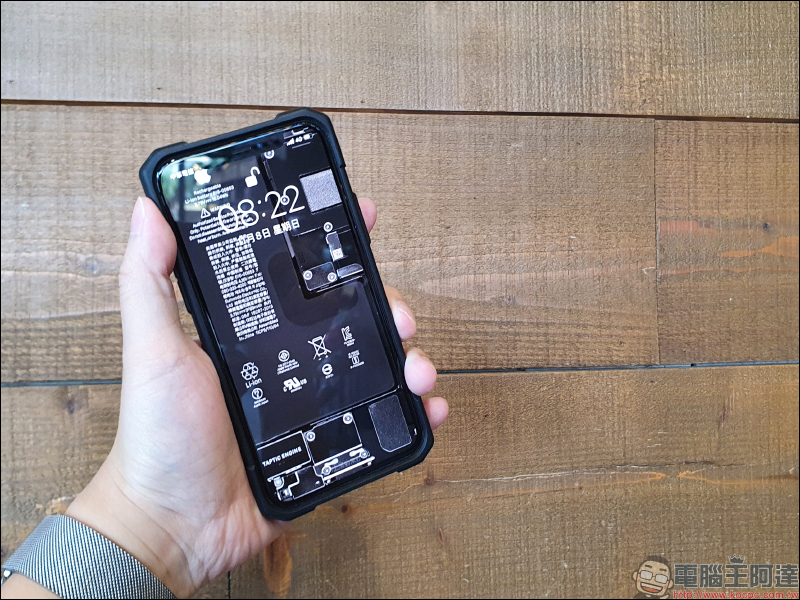
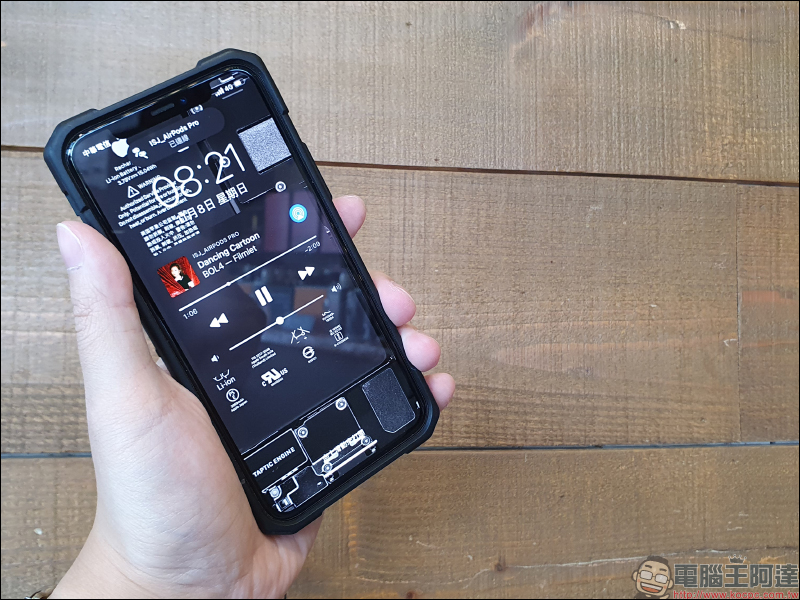
If you are using your iPhone to play music all the time, don’t worry, because this method can be used even when music is playing:
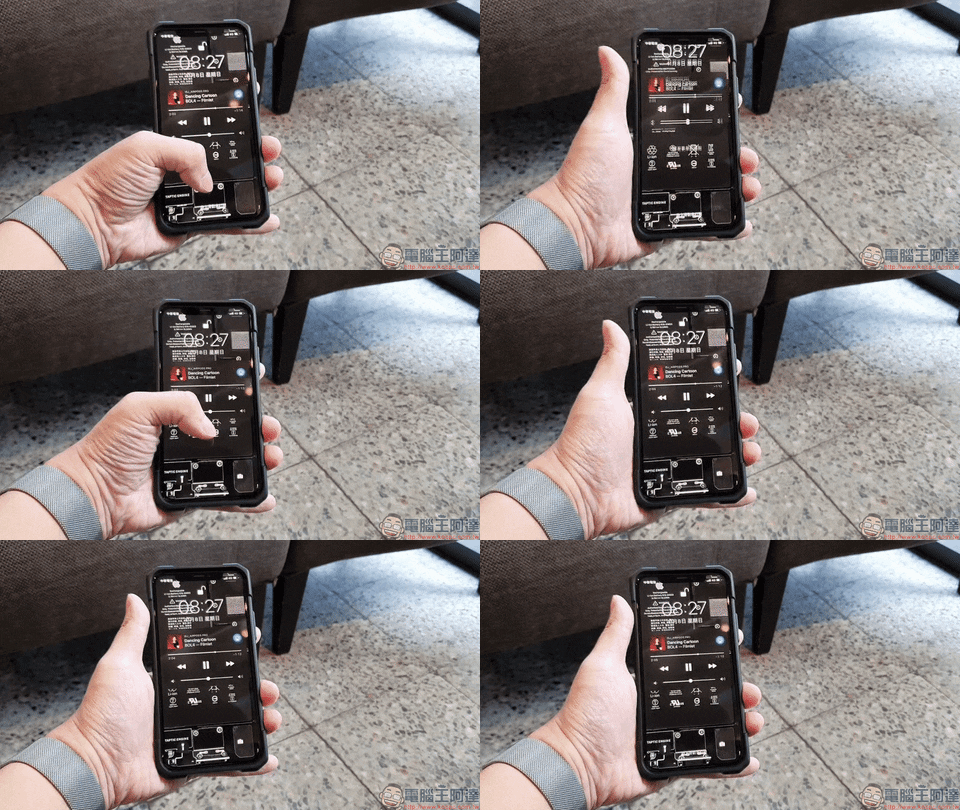
As for how to regain the two buttons at the bottom of the iPhone lock screen after closing it? In fact, as long as you swipe up slightly when the screen is awake, you can see it!
Although I am not sure whether this little trick is a current minor bug in iOS, and it may be corrected in the next few updates, but if you are often prone to accidentally touching these buttons, you might as well try to learn this method first!
Further reading:
Stay on top of real-time news on your iPhone home screen, try the Google News iOS gadget!


Source: KOCPC Chinese