


Nowadays, many people like to play mobile games, especially since there are no restrictions on regions or equipment. They can play them at any time to pass the time. This has also led to the development of more and more forms of mobile games. The operation and control methods of mobile games are nothing more than clicking, sliding, and zooming. Some games require you to click non-stop. Just like the game I played recently, my hands almost cramped when I clicked. Technology always comes from laziness, so I finally found and actually tested the dot-connecting tool “Click Assistant” that I found to be quite useful and easy to use, and I will share it with you immediately.
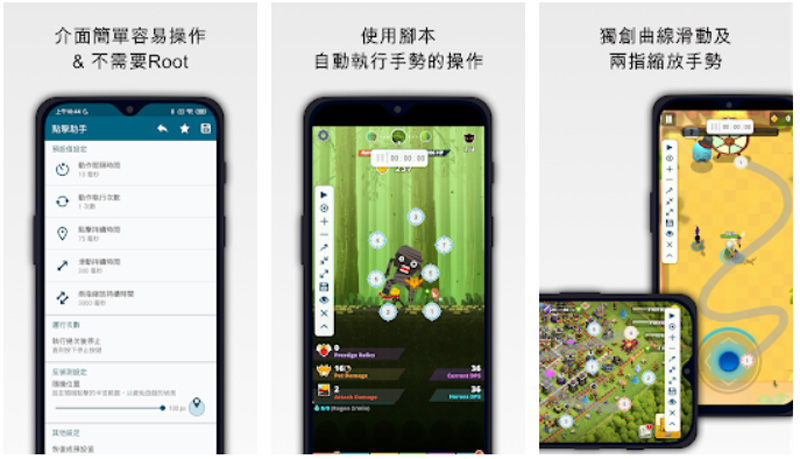
Free Android connection tool “Click Assistant”, root-free and super easy to operate
Most of the connect-dot apps I’ve seen in the past require you to root your phone first. As a person who is infinitely lazy and hates trouble, I certainly won’t wrong myself. The Android application I want to introduce to you this time is not only root-free, but also has no trouble at all even if you want to set up scripts. The point is that the free version is sufficient and is quite suitable for ordinary people who are lazy like me and want to do things simply.

Android download:Click here
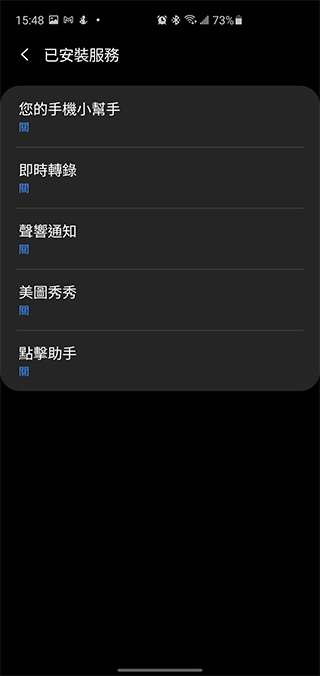
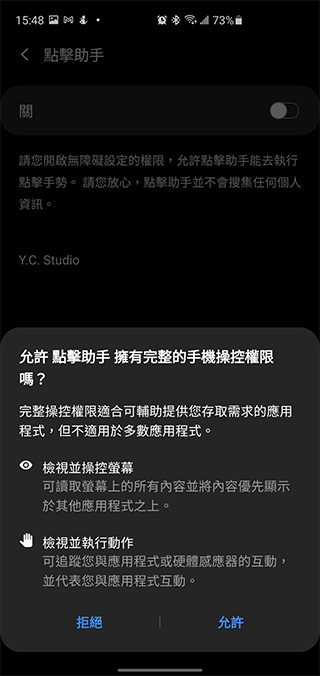
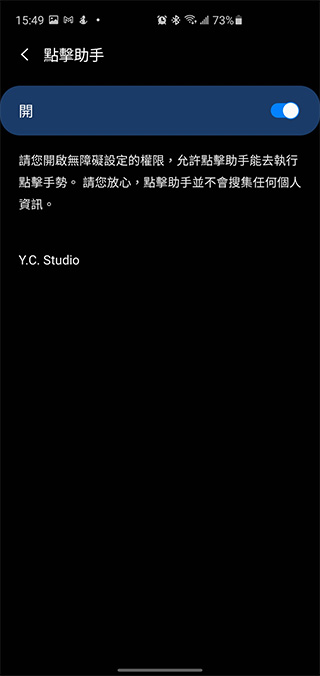
After downloading and installing the application, when you open the application for the first time, you will first be asked to set the Click Assistant to “On” in the accessibility settings. In this section, you grant the Click Assistant permission to view, control the screen, and view and perform actions.
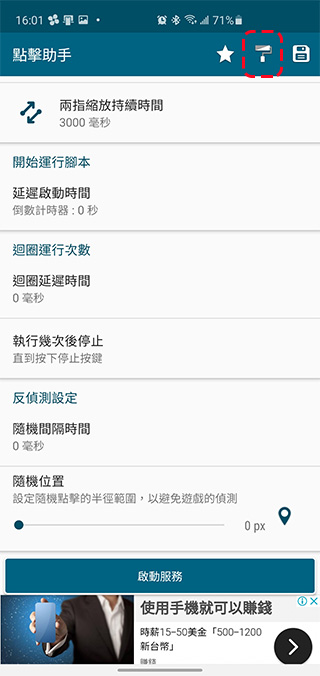
Next, go to the homepage. You can set a variety of items, including the duration of clicks, slides, and two-finger zooms, as well as the number of action executions and the action interval. In addition, further set the number of loops, execution times and random positions when the script is run. Some applications will detect whether the user is using the connect-dot tool. This application also has anti-detection settings to help you stay away from the radar. For the “Random Position” item below, you can set the radius within which you can click to avoid being detected by the game’s built-in mechanism if you repeatedly click on the same point too accurately.
The author recommends that you do not set the action interval too close. For example, in the “Animal Restaurant” I played, the ideal time is about 80 milliseconds. It allows me to manually click on what I want to do while connecting the dots, such as collecting dried fish, receiving orders, etc. You can try various combinations.
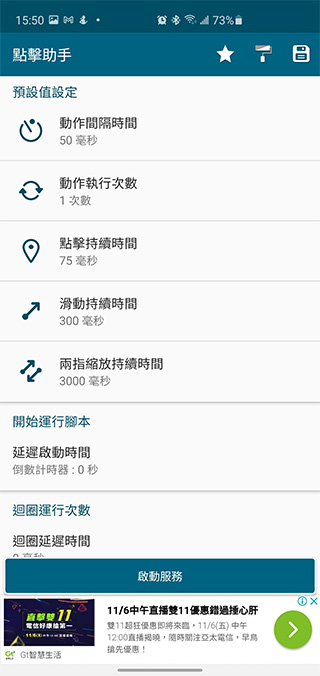
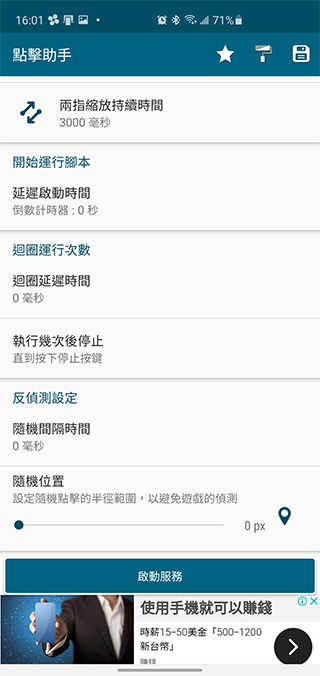
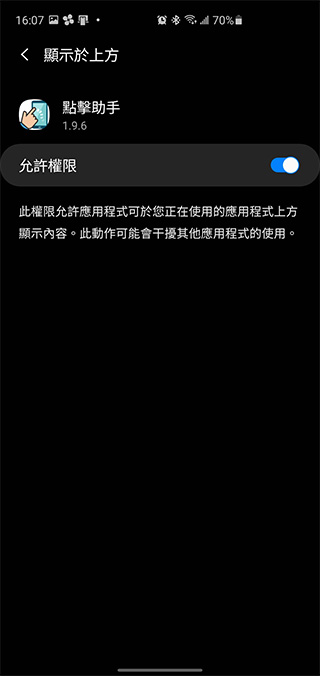
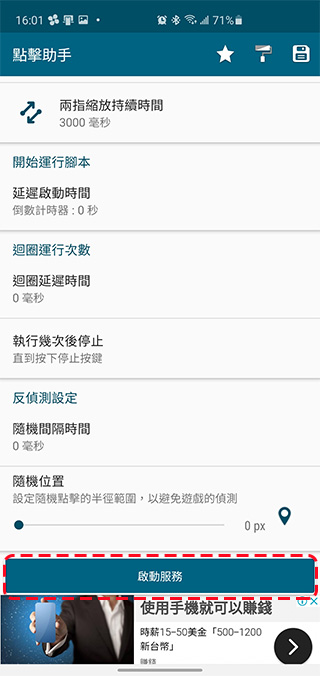
After setting up, click Start Service below. At this time, the system will ask you to grant permission to click the assistant displayed at the top. Please turn it on.
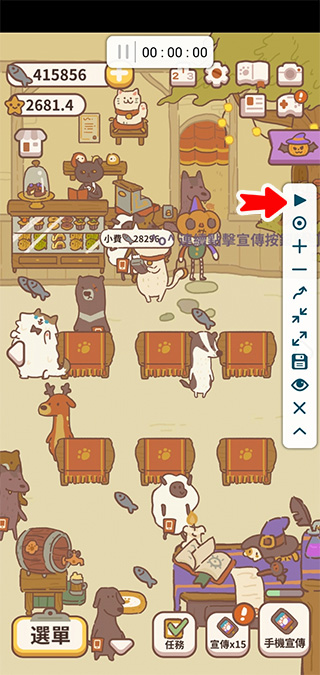
Then go back to the click assistant and you will see that the click assistant turns into a side control bar. The author will briefly describe the purpose of each icon below:
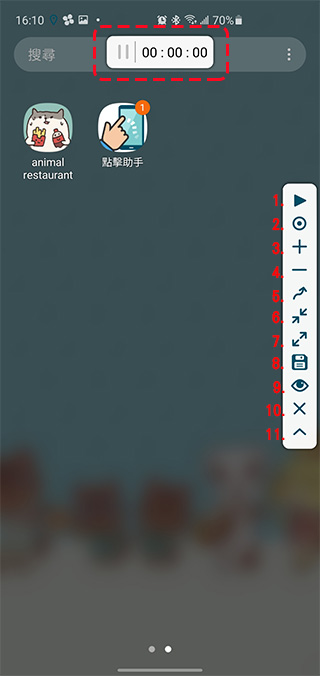
1. Start running the script:
After you have recorded the script, click this to start execution.
2. Record gestures:
Click this to record your gestures in the app.
3. Add clicks:
New click points can be added to the script.
4. Delete a gesture:
Delete the specified gesture in the script.
5. Curved gestures:
Click this item to start drawing a sliding gesture.
6. Two-finger zoom out gesture
Click this option to add a two-finger zoom gesture to the script.
7. Two-finger zoom gesture
Click this to add a two-finger zoom-in gesture to the script.
8. Save script
If you want to save the script for later use, click this button.
9. Whether to display actions
Click this option to choose whether to display actions when the script is running.
10. Turn off Click Assistant
Close the Click Assistant app.
11. Reduce the control bar
Make the control bar smaller so it doesn’t take up space.
★Time bar above:
This section shows the script running time. During the process, you can also press the pause button next to it to pause the script slightly for other in-game actions.
Regarding the item sorting, horizontal or vertical presentation, size, transparency, etc. of the side toolbar, you can make personalized settings from the click assistant.
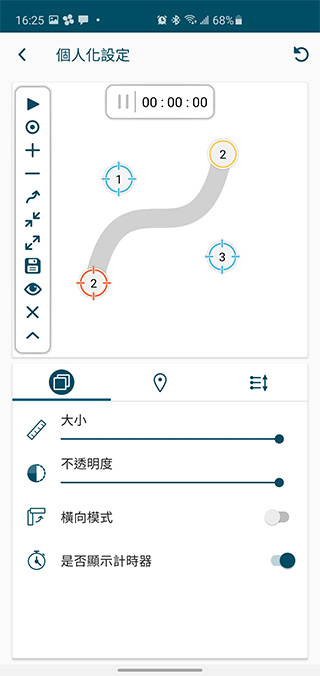
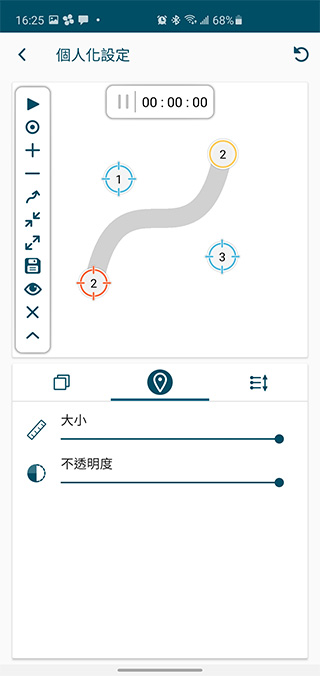
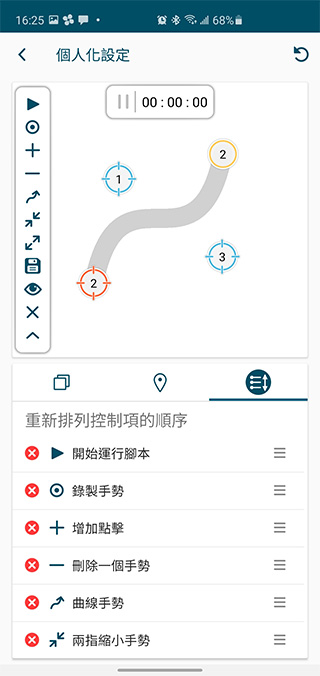
The operation steps are also very simple. Below I will use “Animal Restaurant” that I have been playing recently as the simplest and most basic demonstration. The script recording and execution of other games are also similar:
1. Open the click assistant before opening the application, set the execution details and press to start the service; after opening the game application, press the record gesture first.
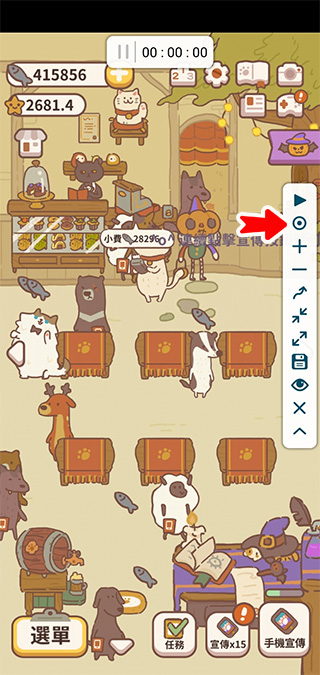
2. Next, start the action you want to record. The default is click. If you want to add sliding, two-finger zoom, etc., just click on the control item first and then proceed. The order of your actions will be numbered, so you can pay attention to it. After recording, just click Done in the upper left corner.
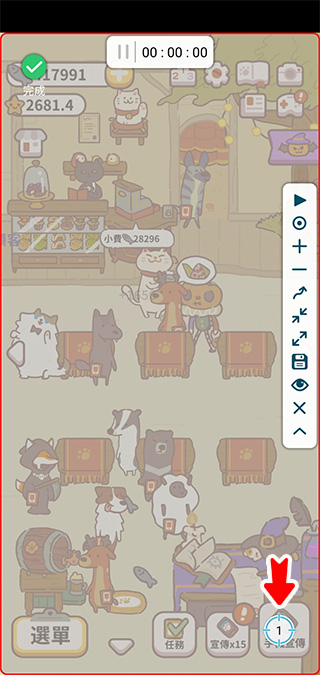
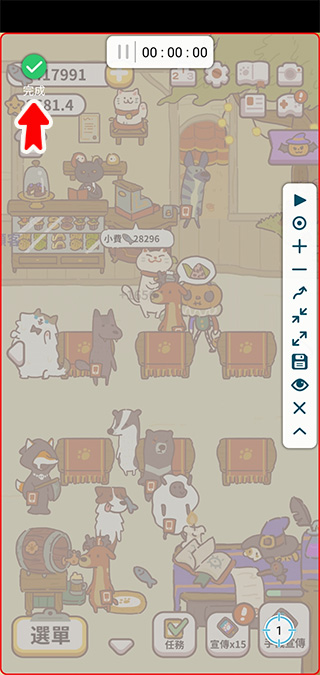
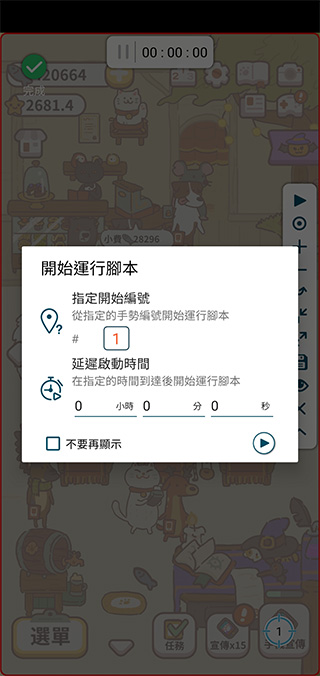
3. Then click Execute Script at the top, and set the action number to start executing and how long after that the script will be executed.
Take this game as an example. In the game, you must constantly click on the promotion button to attract customers. Currently, the author’s promotion level is the highest mobile promotion. You can only attract a customer by clicking on it 32 times. If you click on it with bare hands, you will be too weak, so I set this script to let it click on the mobile promotion by itself.
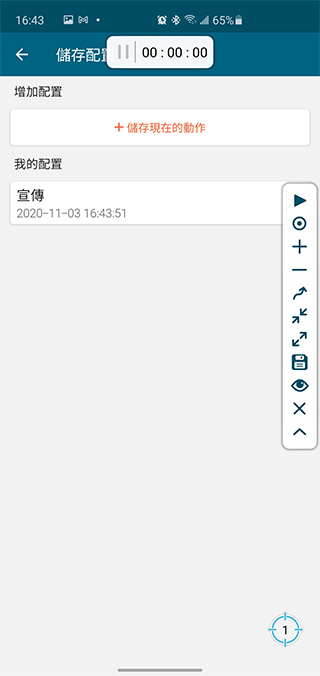
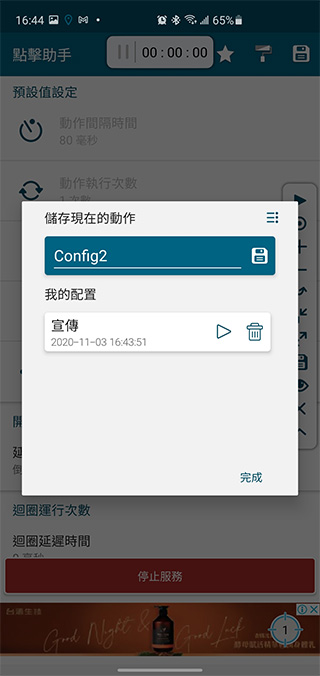
4. If you want to save this script for later use, click the control item to save the script, grant it permission to save, and then click the “Save current action” button at the top. You can also manage and delete scripts from the storage configuration in the future.
This is the click assistant application that I want to share with you this time. Although it has a payment mechanism, free is enough for general situations and does not exclude advertisements. However, I personally think that you should decide based on whether you need a few advanced actions.
Source: KOCPC Chinese