


After a computer has been used for several years, it will definitely become slower and slower. Although it is the easiest way to replace all the computers with new ones, it will cost a lot of money. Not everyone has the budget. Therefore, you will definitely want to ask if there is a cheap or even free way to speed up the old computer? The answer is of course yes. This article has compiled 7 methods that you can try before changing to a new computer. Maybe they will meet your needs.
7 ways to speed up your computer
1. Free – Manage your computer’s startup programs
When it comes to startup programs, many people may think that it only affects the boot speed. In fact, it is not only that. If there are too many applications that are automatically executed after booting and run in the background, it will also affect the running speed of the computer.
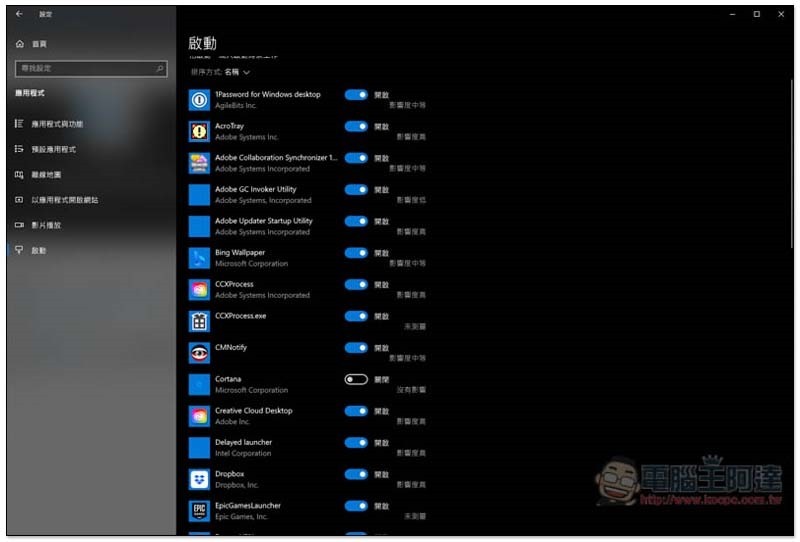
To do this, please open Windows 10 Settings -> Applications -> Startup, and you will be able to see all the applications that will be executed automatically after booting. Please check each item and cancel some unnecessary applications, such as Steam, Adobe, VPN, password tools, etc., and only keep the applications that you are sure to use every time you start the computer.
2. Free – Organize your computer
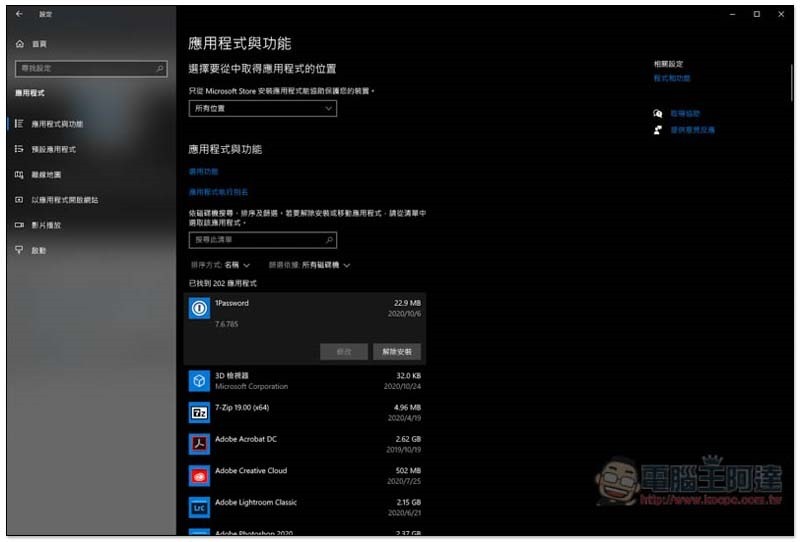
After using your computer for a long time, you will definitely have many applications installed, but not every one of them will be used continuously. If you do not organize it regularly and delete unused applications, it will not only occupy the storage space of the hard disk, but also affect the operating speed of the computer. Please go to Windows 10 Settings –> Applications –> Applications and Features and uninstall all applications that are not in use:
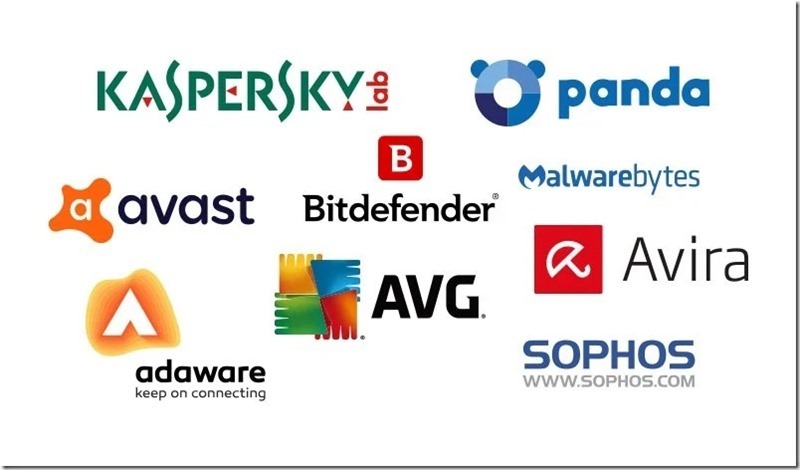
In addition, it is also recommended to perform a security scan to ensure that there are no viruses or malware slowing down the system. You can refer to our previously compiledFree antivirus software:
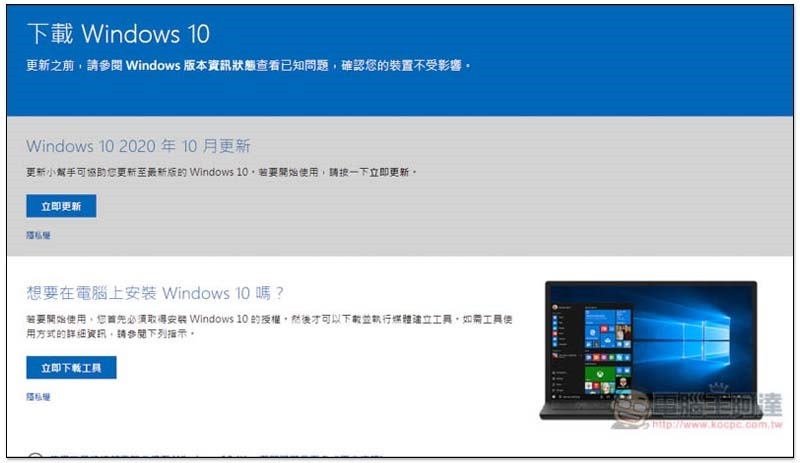
3. Free – Reinstall Windows 10 operating system
This is arguably my favorite method. After reinstalling the operating system, the computer will be in the cleanest initial state. Not only will all major and minor problems be solved immediately (such as applications, viruses, malware, etc.), but you will also feel that it runs faster immediately.
However, it should be noted that since restoring to the initial state also means that the originally stored data will be deleted, so before refilling, remember to back up important data. In addition, you can also download the driver installation file and the software you will use, and put it in the D slot or a portable hard drive, so that you can install it directly after the refill.
4. Free – Clean the dust in the computer host
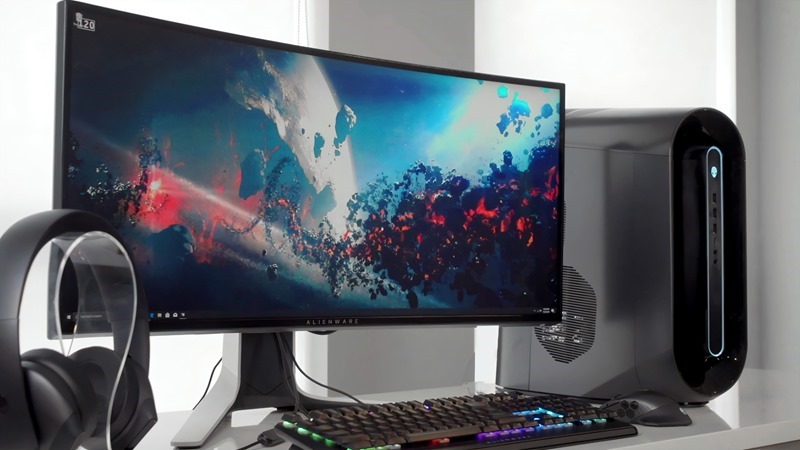
If you haven’t opened the casing of the computer for a long time and checked the hardware inside, a lot of dust should have accumulated by now. If the dust is too thick, it may affect the heat dissipation and cause the computer to run too hot. The system automatically adjusts performance to ensure safety.
Therefore, it is recommended to develop a habit of opening and cleaning it every once in a while. This can not only avoid the above situation, but also extend the service life of the hardware.
5. Install SSD
The read and write speed of SSD is much faster than that of traditional mechanical hard drives, which can be said to be several times faster. Therefore, when launching applications, transferring files, reading files, etc., the speed will be greatly improved, and it is very noticeable. If your computer uses a traditional mechanical hard drive (such as 3.5 inches, 2.5 inches), it is recommended to switch to SSD.
SSDs are also pretty cheap these days, and 512GB doesn’t require two kids.
6. Install additional RAM memory or replace the graphics card with a new one
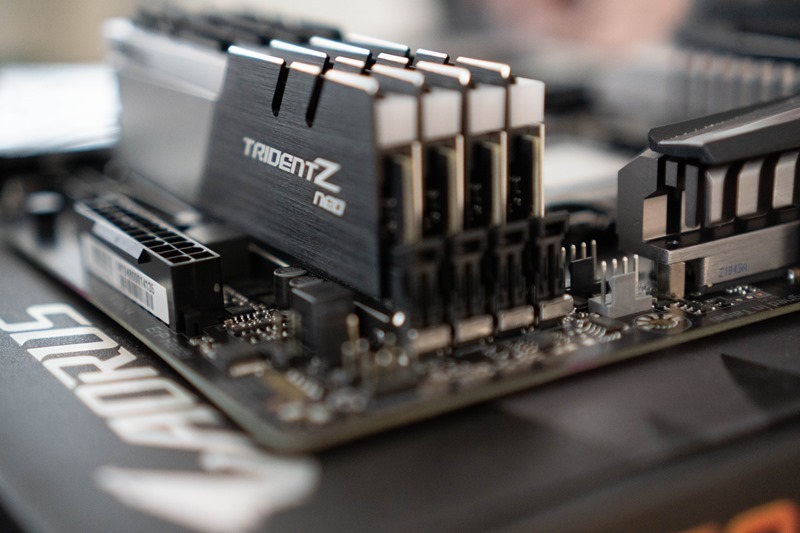
Nowadays, many people use computers to multi-task, that is, open multiple applications and browser paging. Therefore, if the RAM memory is too small, it will slow down. I usually recommend that modern computers should have at least 8GB or more, and it is better to install 16GB.
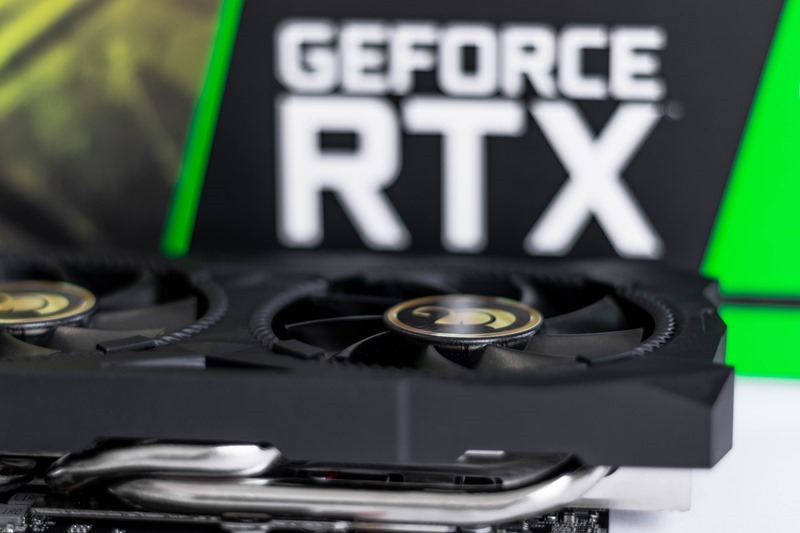
For those who like to play games, getting a better new graphics card can basically greatly improve your gaming experience without having to replace the entire unit. In addition, the prices of new cards from AMD and NVIDIA this year are surprisingly low. The prices of some flagship-level graphics cards from one or two years ago will definitely plummet, so you can take advantage of this time to buy them at a low price.
7. Use cloud gaming services
Cloud gaming services can be said to be good news for gamers with poor or old computers who want to play AAA masterpieces. Its method is to connect to the cloud server of the service provider through the Internet to play, so there is no problem if the local computer specifications are poor. Related introductions can be found hereRefer to this article。

in conclusion
Therefore, before changing to a new computer, it is highly recommended to try the above methods, especially SSD and graphics cards, because even if you want to replace the entire computer later, you can modify them to a new computer without buying a new one.
Source: KOCPC Chinese