


We have introduced a lot of Mac system cleaning software in the past, but most of them focused purely on the “cleaning” part, that is, removing Apps, analyzing system junk, etc. The TrashMe 3 we recommend in this article not only has these, but also provides some practical additional functions, such as finding duplicate files, freeing up memory, querying Mac hardware information, and maintenance tools, etc. It is very comprehensive, one can meet most needs, and the operation is also very simple.
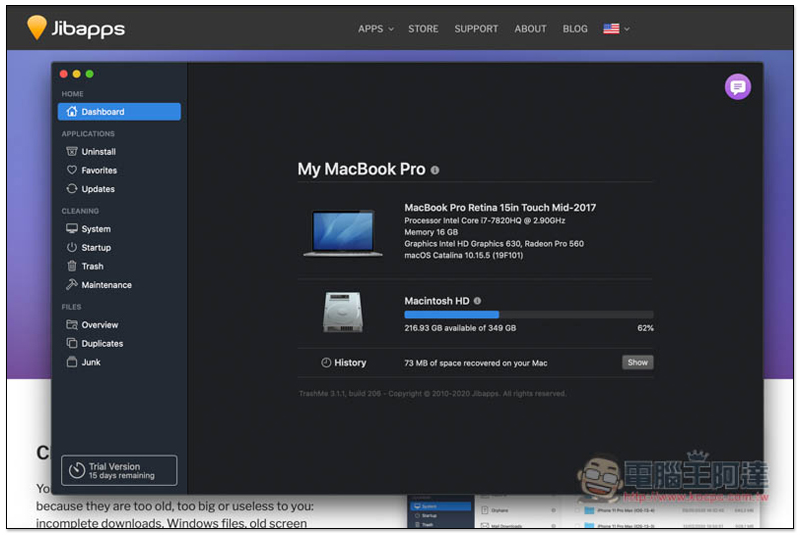
TrashMe 3 Introduction
Before I start the introduction, let me explain that this TrashMe 3 is not completely free software. It has a 15-day trial period. After that, you must purchase the paid version. It adopts a one-time buyout fee method. Unlike many software today that are subscription-based, people who think it is good can consider it.
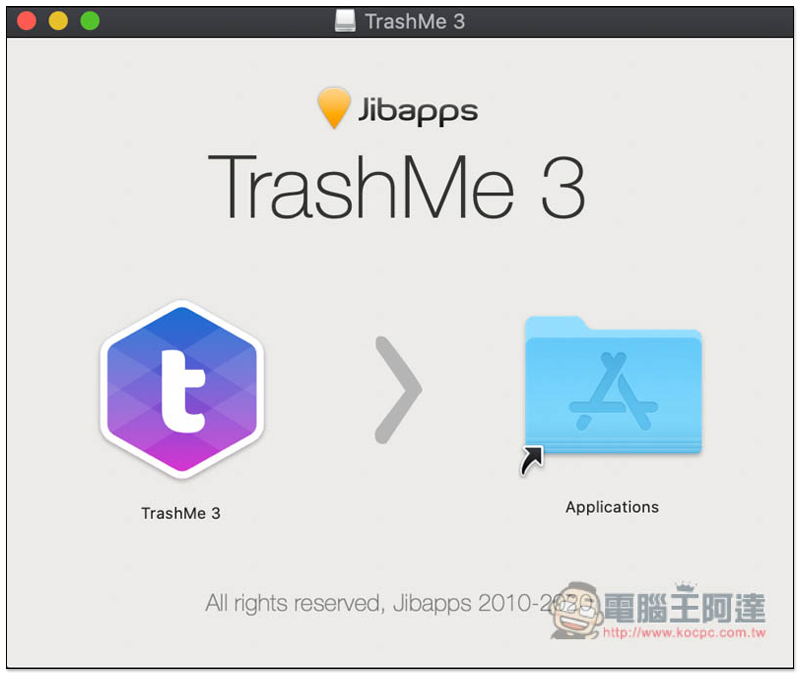
Click here to download the installation file from the official website, drag TrashMe 3 to the Applications folder on the right:
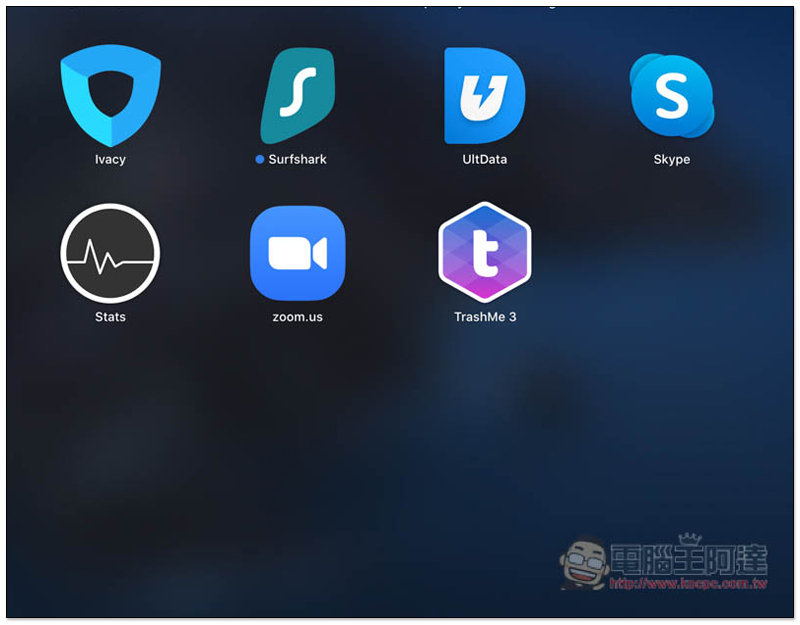
Then you can see the app in Launchpad:
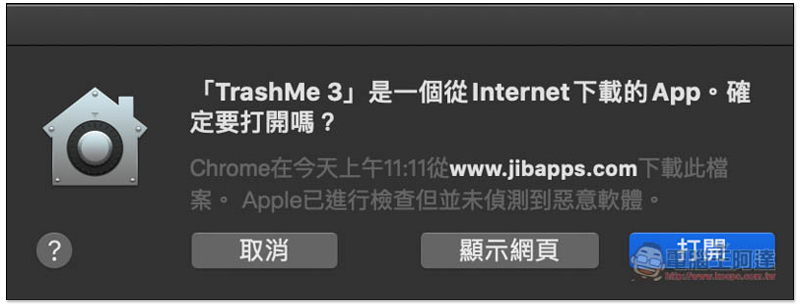
Because the software is downloaded from the Internet, this message will pop up when you open it for the first time. Click “Open”:
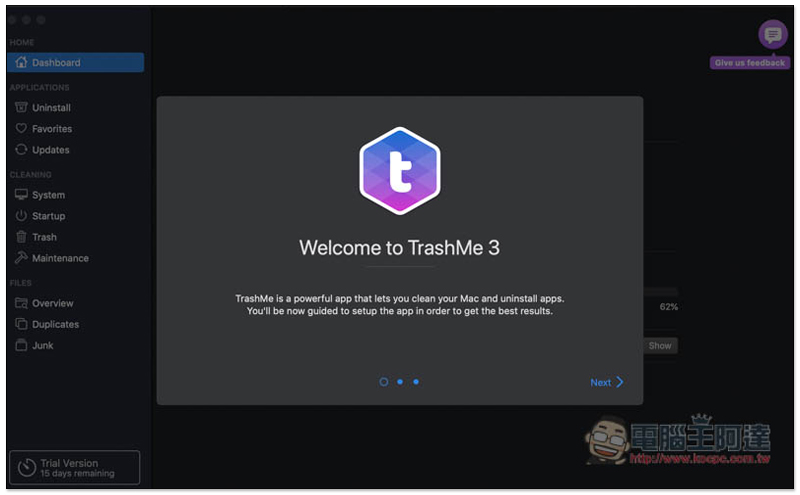
A brief introduction will follow:
You must allow some permissions before using it so that it can help you clean the system, perform scans, etc. Click Grant access to disk…:
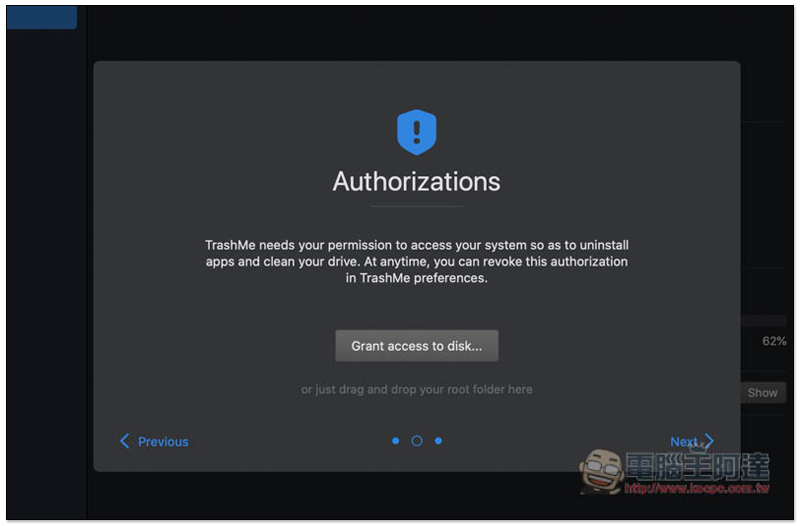
Just click Choose in the lower right corner:

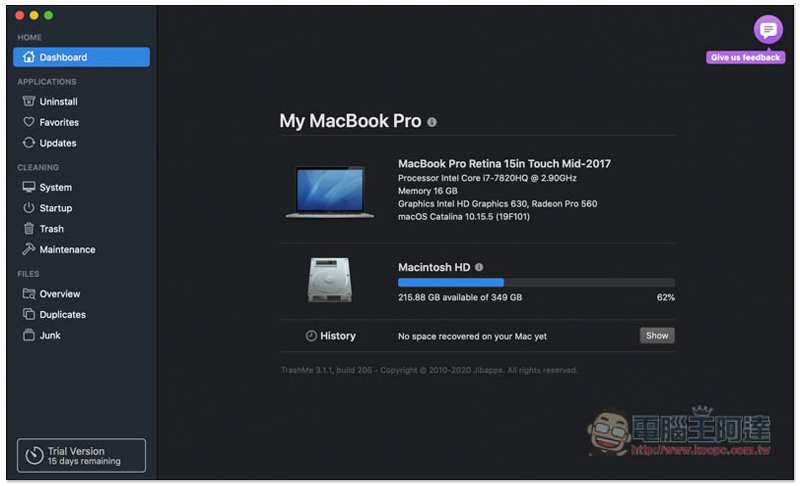
Then you can start using it. The homepage will display relevant hardware information and remaining storage space of your Mac:
There are quite a lot of functions provided. Let’s look at the removal tool (Uninstall) first. Click “Show all applications” to display all installed Apps: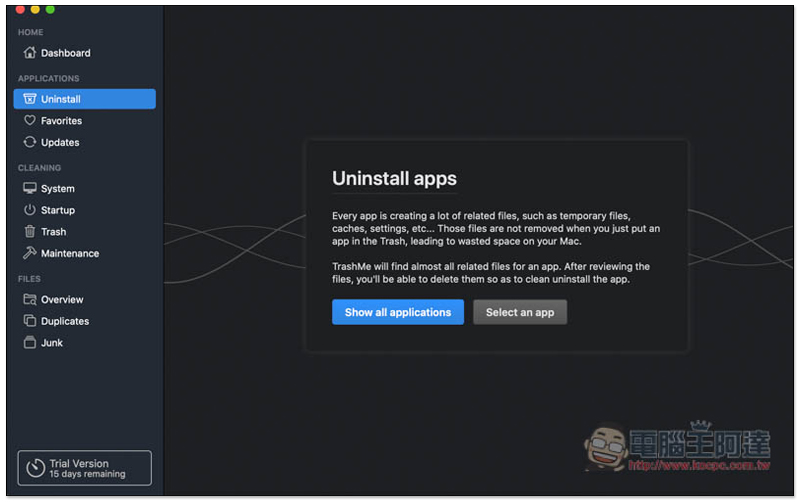
Check the Apps you want to remove, and then click Uninstall app in the lower right corner to start the removal. Multiple Apps can be removed at one time:
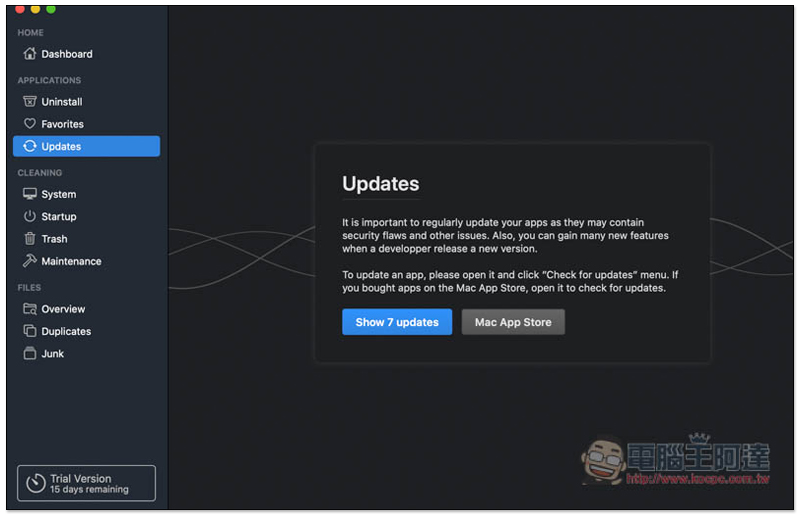
I also like Updates. It will automatically check whether there are new versions of Apps on Mac:
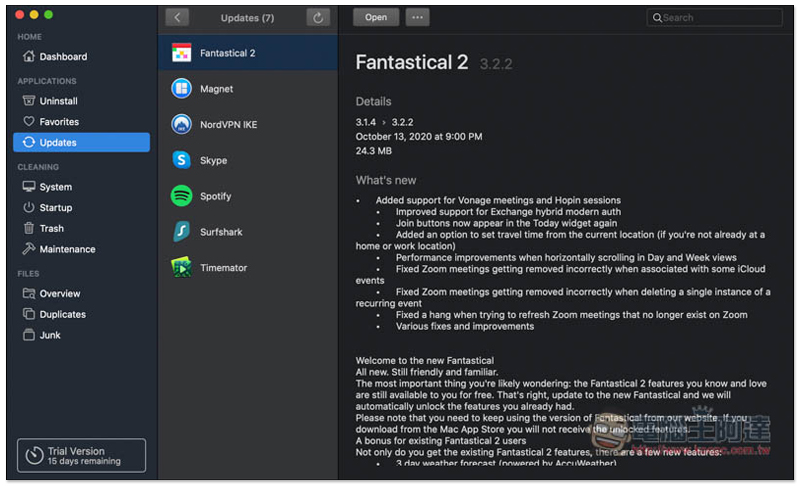
As shown in the picture below, click Open or View in App Store above to find the update method:
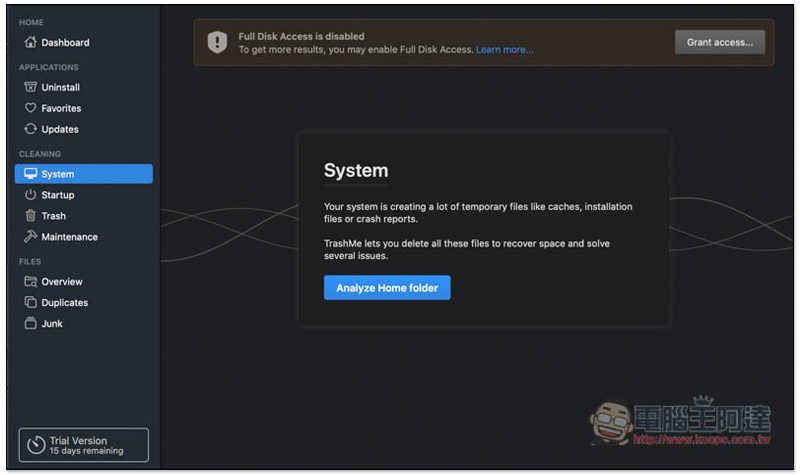
System will scan your Mac’s cache and error reports, allowing you to quickly find these useless temporary files and free up more storage space:
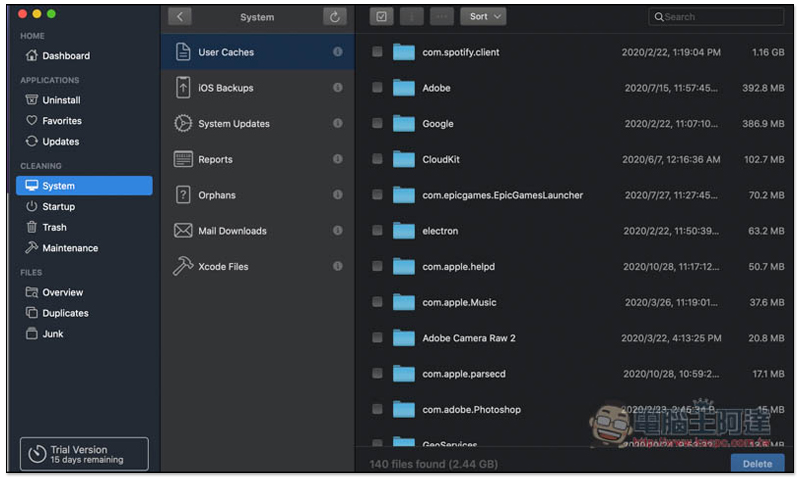
I didn’t expect my Spotify cache to take up so much space, over 1GB. This set can also scan iOS backup files, which is very useful for people who often use Mac to back up iPhone and iPad. Check whether there are any old backups that are useless:
Startup is used to check apps and services that are automatically executed at startup:
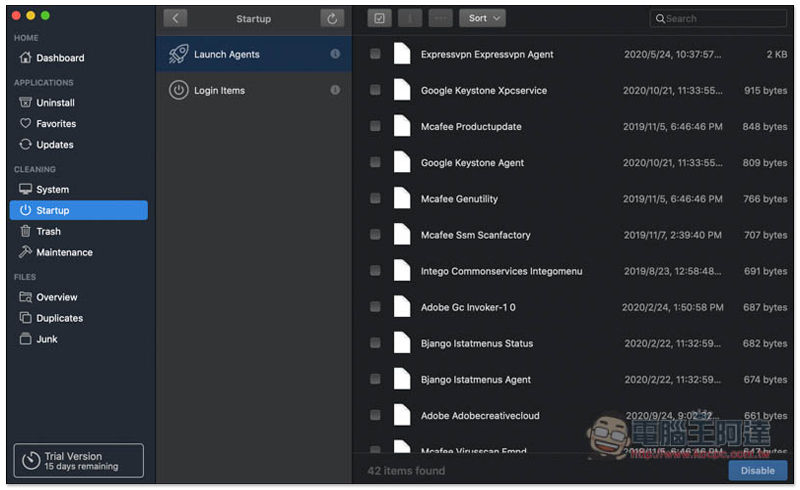
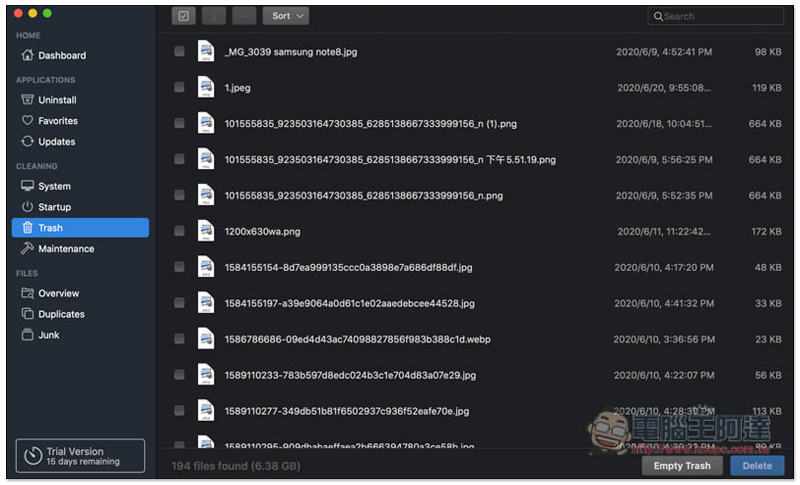
Trash is the recycle bin. If you have files that have not been cleared, they will appear in the list:
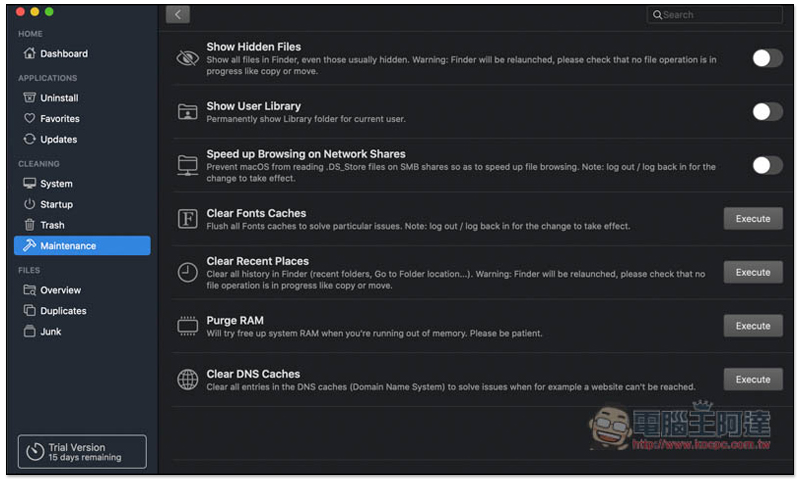
Maintenance maintenance also provides many practical functions, such as: quickly enabling the display of hidden files, accelerating Internet browsing, clearing font cache, freeing memory, and clearing DNS cache, all with one click:
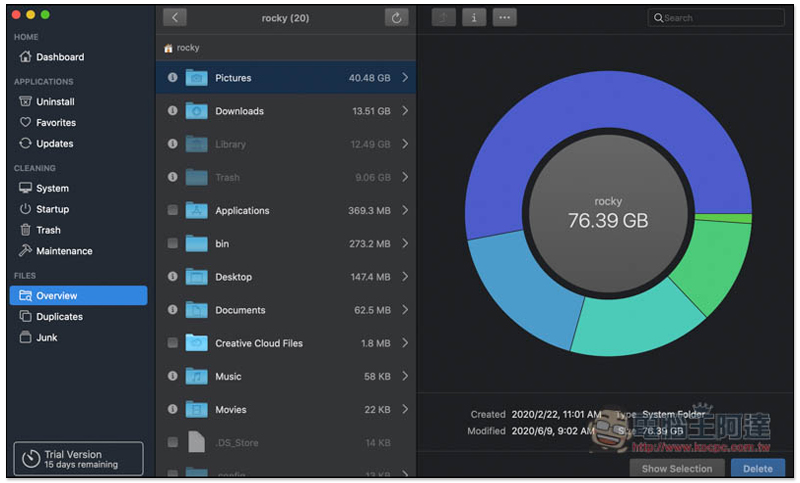
Overview lets you see how much capacity your Mac is using and find out which folders are taking up the most space:
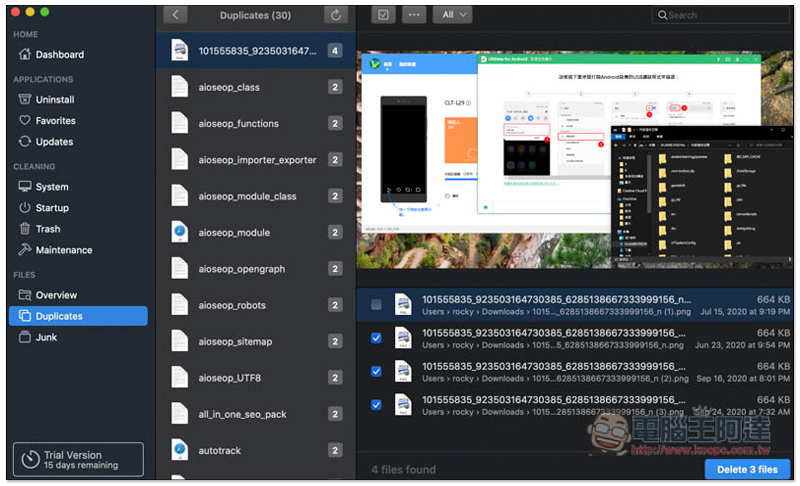
Duplicates looks for duplicate files. I didn’t expect there to be so many on my Mac:
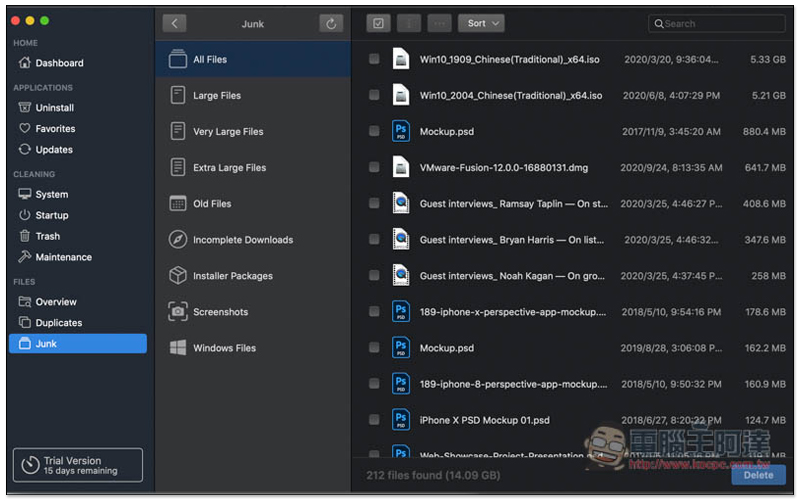
Junk is of course a junk file. If there are files that have been stored for a long time and have not been used, they will be listed here. The middle column also provides detailed classification:
Supplementary information
- App Name: TrashMe 3
- Nature: free trial, paid
- Official website:Click here to go
Source: KOCPC Chinese