


As smartphones become people’s daily social tools and body-worn cameras, the photos stored on the phone, conversation records in communication software and other applications often contain content that is inconvenient for others to see. In addition to keeping secrets through mobile phone passwords, Face ID/Touch ID or the built-in password lock function of some applications, in fact, as long as you can make good use of the settings of the “Screen Time” function, you can quickly achieve the purpose of effective apps, and it can be applied to any app on your phone. Read this article and learn along the way!
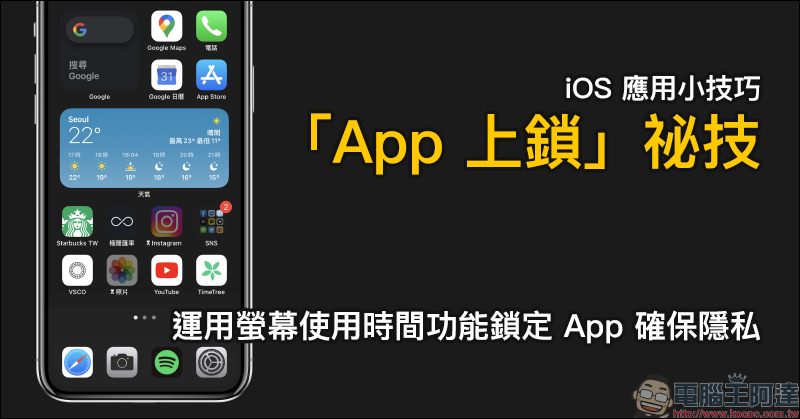
iOS application tips: “App lock” secret technique! Use Screen Time to lock apps to ensure privacy (tutorial)
The “Screen Time” feature launched as early as iOS 12 was originally intended to improve users’ mobile phone addiction. In addition to checking their daily usage time, users can also shorten their long-term dependence on their mobile phones through various restrictions. But in fact, as long as you use some setting methods, you can also lock the specified App from being opened by others.
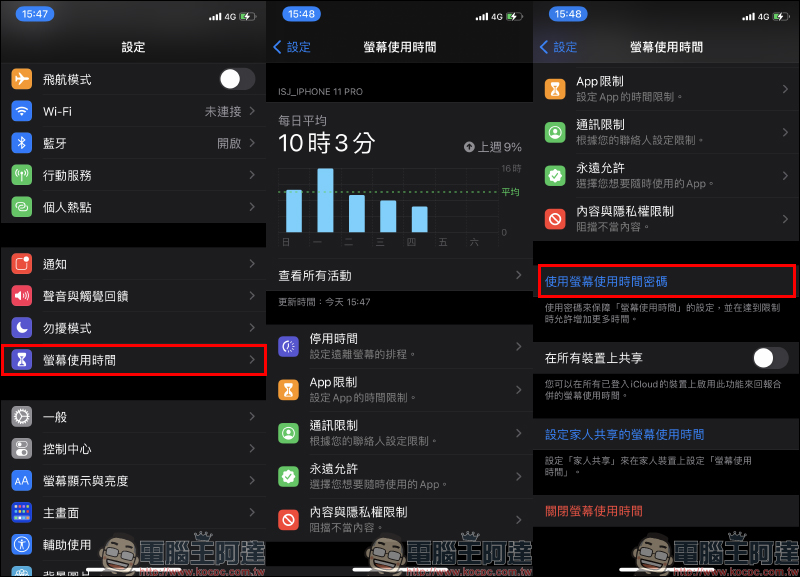
First, go to “Settings” and find “Screen Time”. If the Screen Time function has not been turned on, turn it on first. After turning on the feature, select “Use Screen Time Passcode” on the Screen Time page:
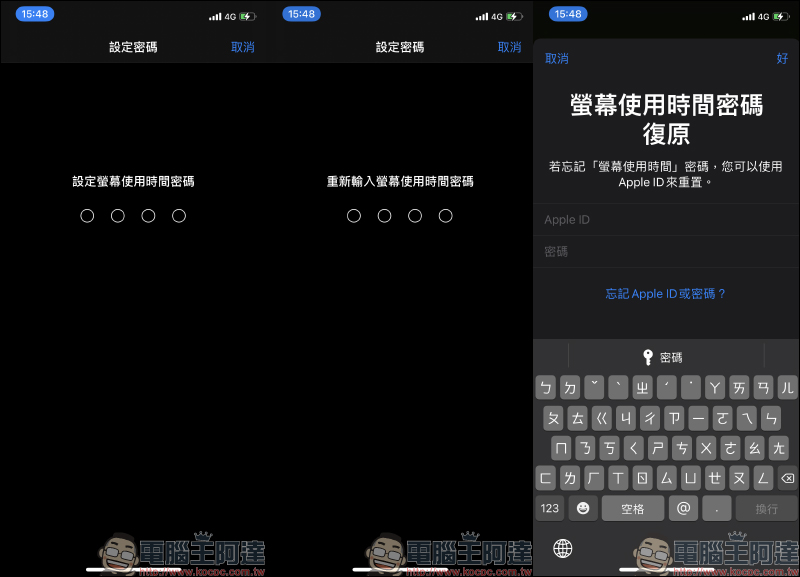
Then set a “Screen Time Password” with a total of 4 codes. If you are worried that the password is as easy to guess and crack as the screen lock password, it is recommended that you set another set of passwords to distinguish them. After setting the password, first enter the Apple ID and password (Apple ID password), so that if you forget the “Screen Time Password”, you can log in and reset it through your Apple ID:
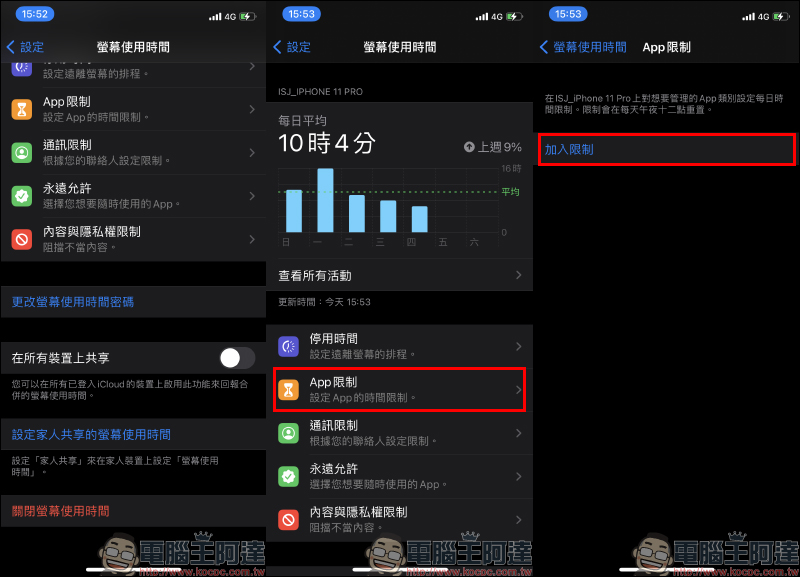
After setting the password, return to the “Screen Time” page, find “App Restrictions” and select “Add Restrictions”:
Then enter the Screen Time password again, and then select the app to lock. At this stage, you can choose to directly lock all apps of the same type according to categories at once, or only lock some single apps. If you want to lock “Photos”, you can find it in the “Creativity” category. Check the App you want to lock and click “Next”:
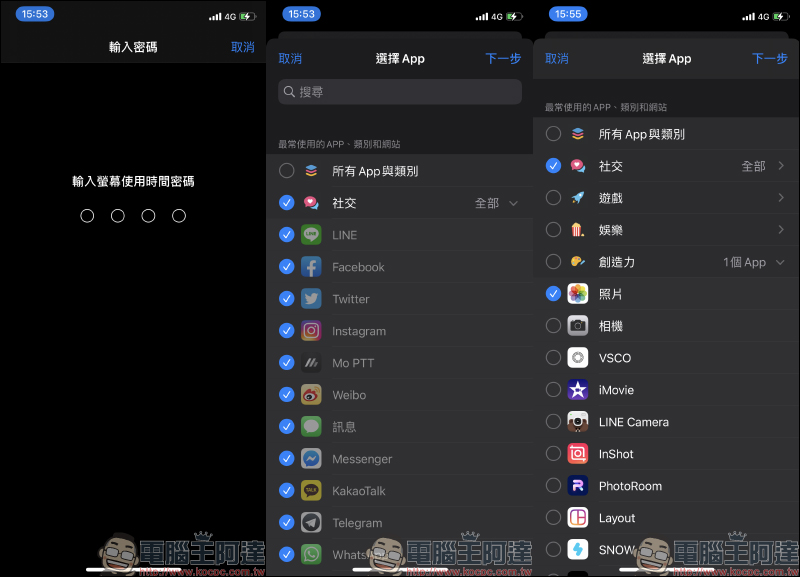
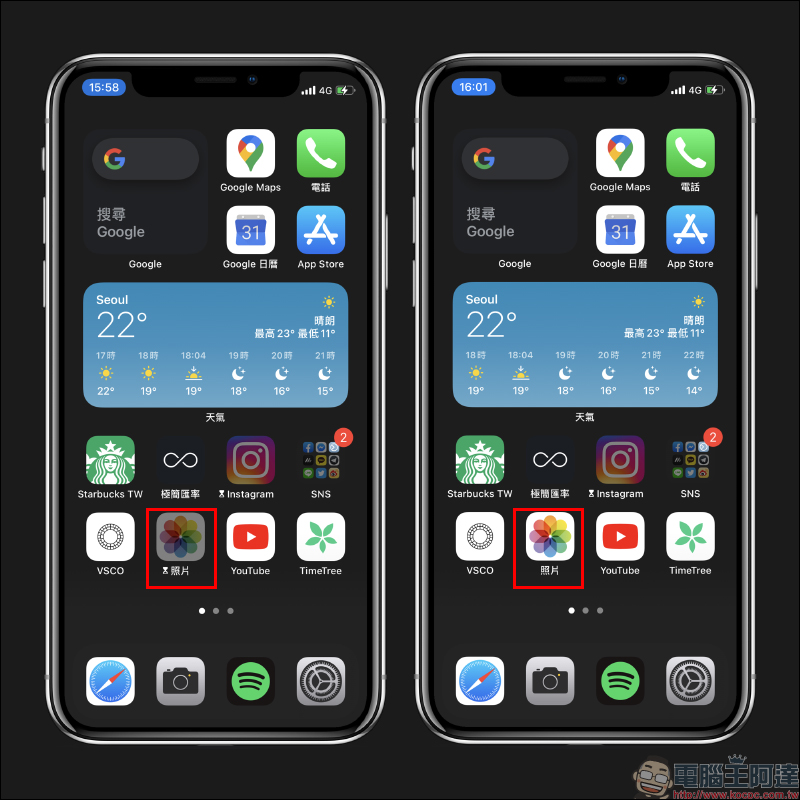
In this step, you need to set the lock time for the specified app. Here, set the time to “1 minute per day” and turn on “Block when limit reached”. After the setting is completed, the App restriction list will display the currently locked apps. Return to the main screen and you will find that restricted (locked) apps have been converted to an inverted gray appearance, and there is a screen usage icon next to the app name:
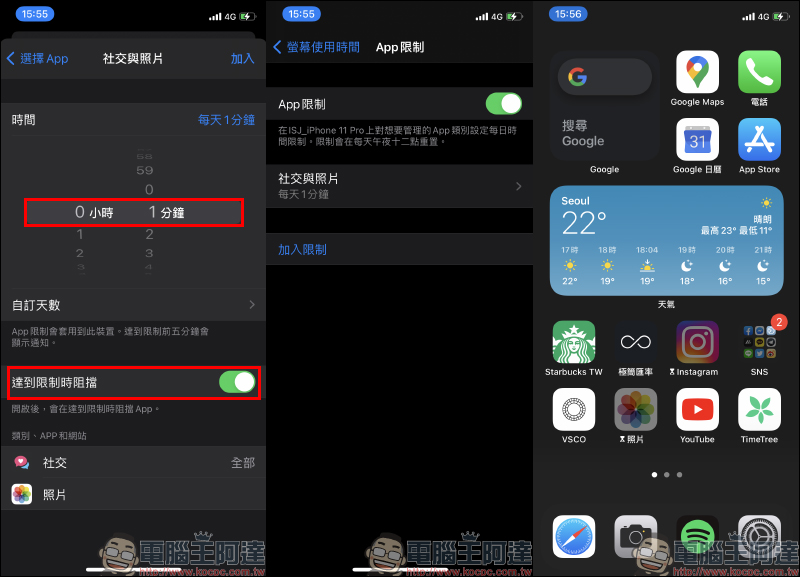
Here the author takes opening “Photos” as an example. When opening the App, the screen will display “You have reached the upper limit of using xx.” If you want to continue opening the App at this time, select “Request additional time”, and then select “One more minute.”
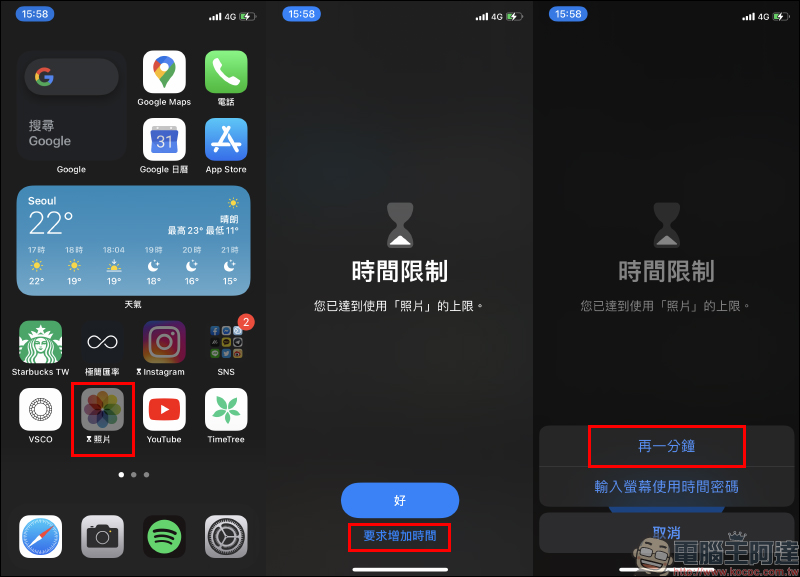
Each app has one “one more minute” opportunity to avoid entering a password. When the time is up, the app will be locked again. Once the time limit is reached, choosing to request additional time will only show the option “Enter Screen Time Password.”
Therefore, if you want to prevent others from using your phone to open the App, it is recommended that you use up the one minute without entering the password first, so that unless the other party guesses the screen password, they will not be able to open the App.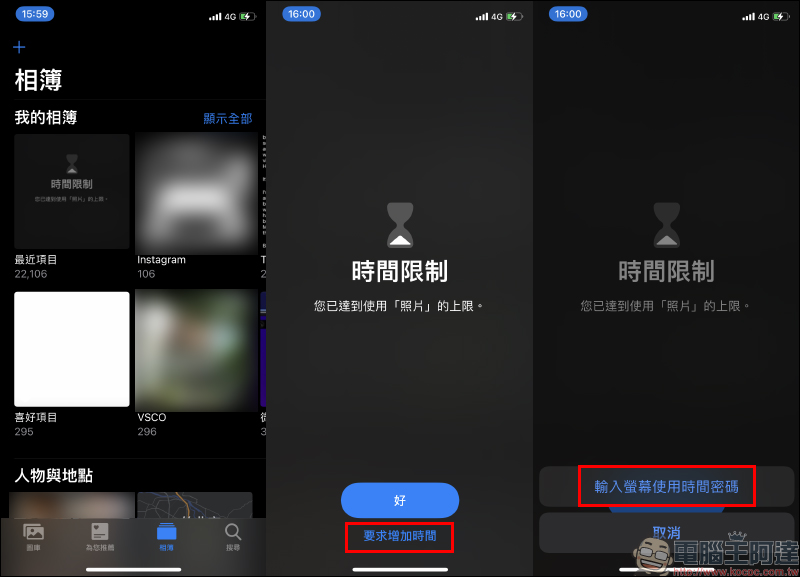
At this time, if you select “Enter Screen Time Password”, after completion, you can select the options of “Approve use for 15 minutes”, “Approve use for one hour” and “Approve use for a whole day”. After selecting, you can continue to use the App again. The length of use will be calculated according to the selected time:
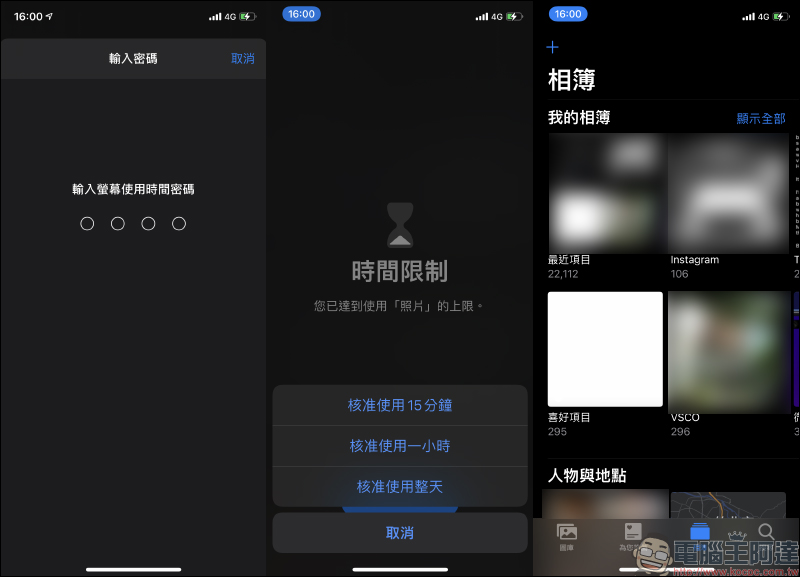
Compare the display difference between the locked and unlocked states of the app. When the user unlocks the app, the app icon will return to its original appearance during the period when the app is usable:
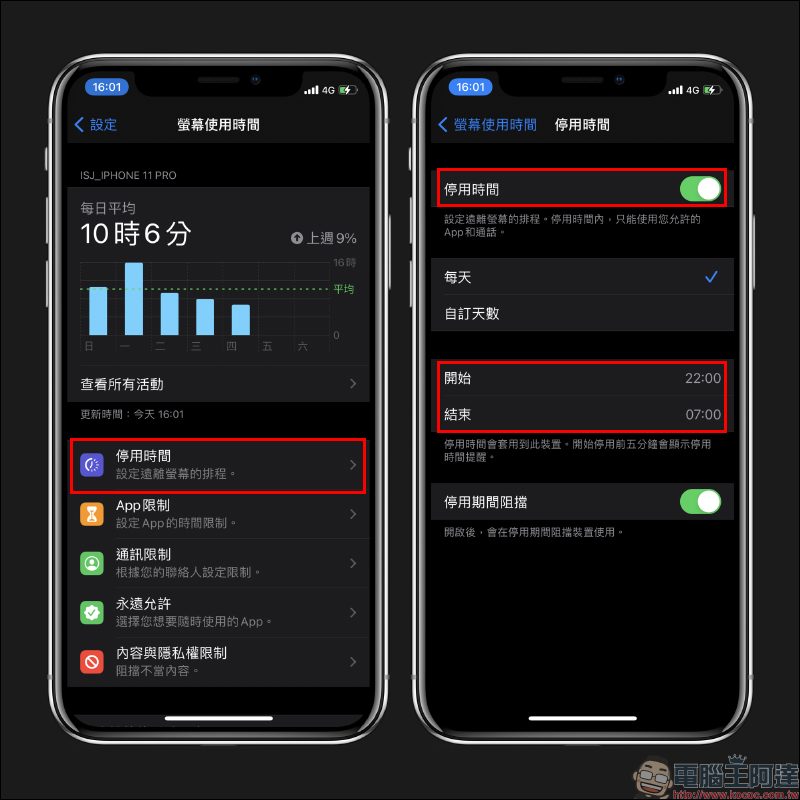
If you do not want your daily usage experience to be affected by the locking of the App, users who only want to lock the App during a specific time can also select “Deactivation Time” during the screen usage time, and the scheduled time to be locked will lock the App within the specified time:
Further reading:
YouTube silently resumes free members and can also use the iOS 14 “Picture in Picture” function, which can be used without shortcuts and fees.
Source: KOCPC Chinese