


Do you often accidentally touch the CapsLock button on the disk? Especially when entering a password field that is not displayed, you will be unable to log in if you accidentally press the CapsLock button. There are even password checking mechanisms on some financial websites. The author once accidentally pressed the CapsLock button without knowing it, and was banned from logging in if the password was wrong multiple times. In fact, I always use the [SHIFT] key to change case, and rarely use the CapsLock key, so I tried to turn off the function of the CapsLock key, but Windows 10 does not provide a direct method to disable CapsLock. Let’s take a look at this article to tell you how to disable the CapsLock key in Windows 10.

用 Telegram 訂閱【挨踢路人甲】最新文章:https://t.me/itwshare
Windows 10 does not provide the function to turn off the CapsLock key, so you must use the login editor toDisable CapsLock, please press the [Win]+[R] combination to create the execution screen, enter “gpedit.msc” and then press [OK].

In the Windows 10 environment, a window for using this account will appear during execution. This is because a security warning window of “User Account Control” will appear due to security issues. Mainly when the user performs some actions that will affect the system, a confirmation screen will often appear, so it is better to press [Yes] to continue (if you want to remove this warning, please refer to “Talking about User Account Control (UAC) in Windows 8/10″article).

Search for “HKEY_LOCAL_MACHINE\SYSTEM\CurrentControlSet\Control\Keyboard Layout” on the “Login Editor” window. After finding it, right-click the blank space on the right side of the window to add a binary value.

The name of this binary value is “ScanCode Map”. After creation, click the mouse twice on this name.

Fill in the value of “00 00 00 00 00 00 00 00 02 00 00 00 00 00 3A 00 00 00 00 00” and finally press [OK] to save. Please restart your computer and you will find that the CapsLock button is no longer functional.

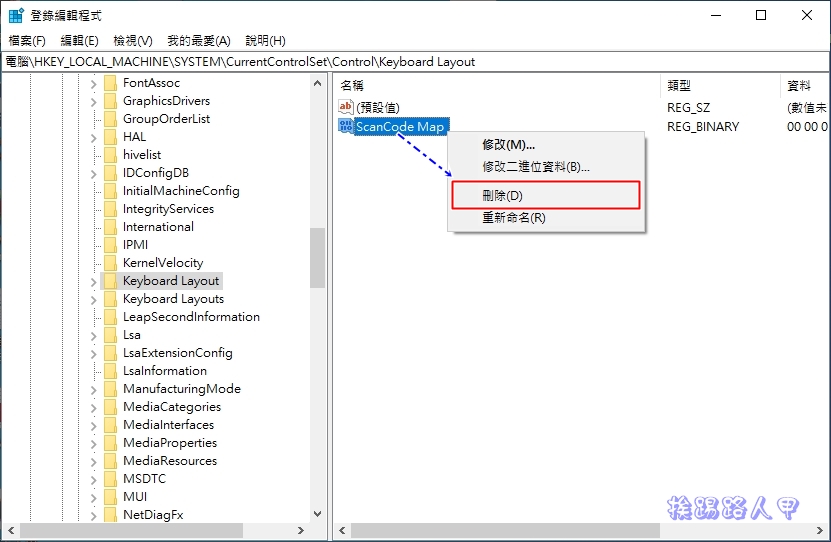
After the CapsLock button is turned off, if you want to use uppercase, you need to use [Shift] + [letter] to change the uppercase. If you want to restore the CapsLock button, you only need to delete the previously created “ScanCode Map”. It will also work if you restart the computer!
Further reading:
- File rescue tool for Windows 10 Windows File Recovery
- How to create a local account without password in Windows 10
- Use MediaCreationTool to create Windows 10 2004 version ISO file or USB installation disk
Source: KOCPC Chinese