


Every now and then, you may have photos or images with poor resolution or a size that’s too small and want to enlarge them. In this article, I’m going to recommend a very useful free and open-source tool called “bg2x.” It includes 10 AI models for upscaling based on different purposes, and it can enlarge images up to 4x. In addition to being deployable locally, it also offers an online version, and it likewise runs locally: images are not uploaded anywhere, and the AI models are downloaded into the browser. It’s easy to use and processes quickly.
Introduction to bg2x: A Free Open-Source AI Image Upscaling Tool
bg2x is a completely free, open-source AI image upscaling tool that focuses on no installation and no image uploads, using AI technology to improve image resolution, with support for up to 4x upscaling. Unlike typical AI image tools that require uploading photos to cloud servers for processing, all AI computations in bg2x are performed in the user’s own browser, which not only protects image privacy but also eliminates concerns about handing private photos to third-party services. In addition to Windows, macOS, and Linux desktop versions, bg2x also offers an online version that can be used simply by opening the webpage.
The online version is very easy to use. After entering the website, select the AI model you want to download, then drag an image in, or click to select an image file from your computer. Once you have set the AI model and magnification, processing can begin. It supports common image formats such as JPG, PNG, and WebP. Whether they are low-resolution photos, anime images, illustrations, or heavily compressed images, you can try using AI to improve their quality.
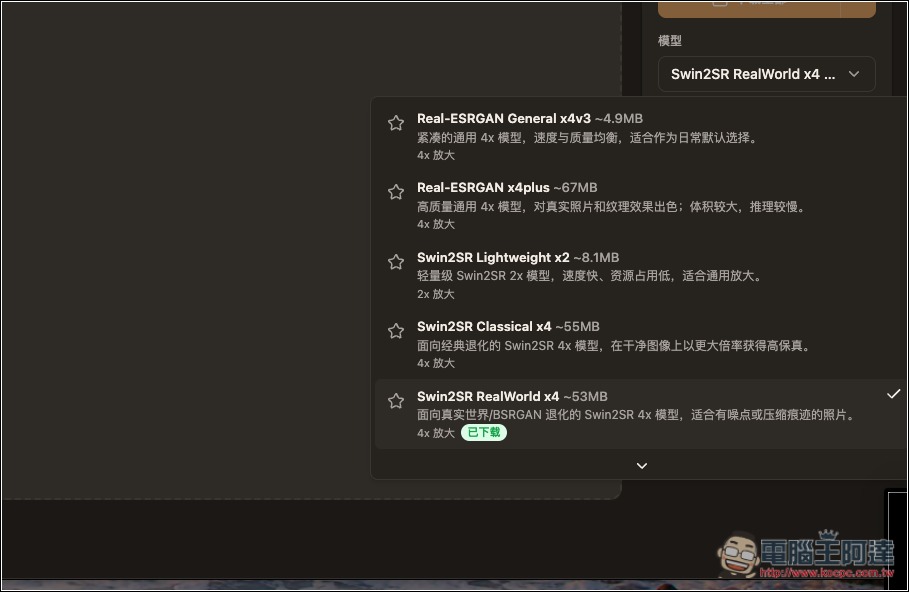
On the AI model side, bg2x has as many as 10 built-in options, covering three major series—Real-ESRGAN, Swin2SR, and Real-CUGAN—with each model suited to different scenarios. For example, Real-ESRGAN x4plus is suitable for general photos and texture details, while Real-ESRGAN AnimeVideo v3 is optimized for anime and video footage; for heavily compressed JPEG images, there is also a dedicated Swin2SR model to choose from. Depending on the model, it can perform 2x or 4x upscaling.
In terms of performance, bg2x supports WebGPU hardware acceleration. If the browser and computer hardware are compatible, it can use the GPU to speed up AI computation; if WebGPU is not supported, it can also process using the CPU via WASM, so a dedicated graphics card is not necessarily required.
Another practical feature is batch processing: you can add multiple images at once, and the system will upscale them one by one, then package the results into a ZIP file for download. After processing is complete, you can also use a comparison slider to view the difference before and after upscaling, and choose PNG, JPG, or WebP as the output format.
Key Features
- Completely free and open source: MIT-licensed, with no payment required for the online version.
- No installation required: simply open your browser to perform AI image upscaling.
- Up to 4x magnification: provides 2x or 4x resolution enhancement depending on the AI model.
- 10 AI models: including Real-ESRGAN, Swin2SR, and Real-CUGAN, suitable for photos, anime, and illustrations.
- Images don’t need to be uploaded: AI processing runs directly in your local browser, protecting image privacy.
- Supports GPU acceleration: WebGPU-compatible devices can use hardware acceleration; otherwise, it falls back to WASM.
- Batch image processing: add multiple images at once, upscale them sequentially, and package them into a ZIP for download.
- Before-and-after comparison: Provides an image comparison slider so you can easily check the actual improvement.
- Multiple image formats: supports JPG, PNG, and WebP import and export.
- AI model local cache: After the model is downloaded for the first time, it is stored in the browser to reduce repeated downloads.
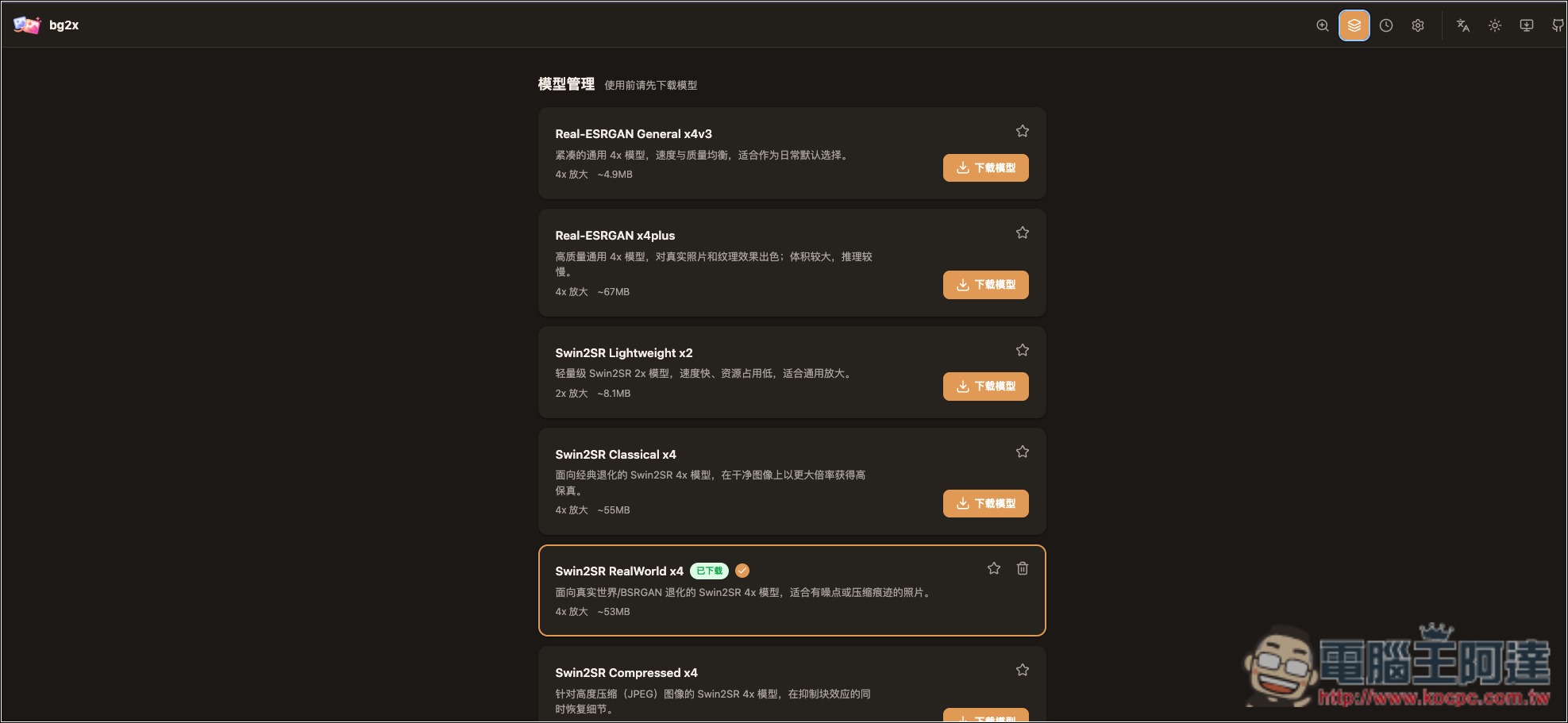
Here, I’ll go straight into how to use the online version. After clicking the link above to go to bg2x, you’ll see all supported models below:
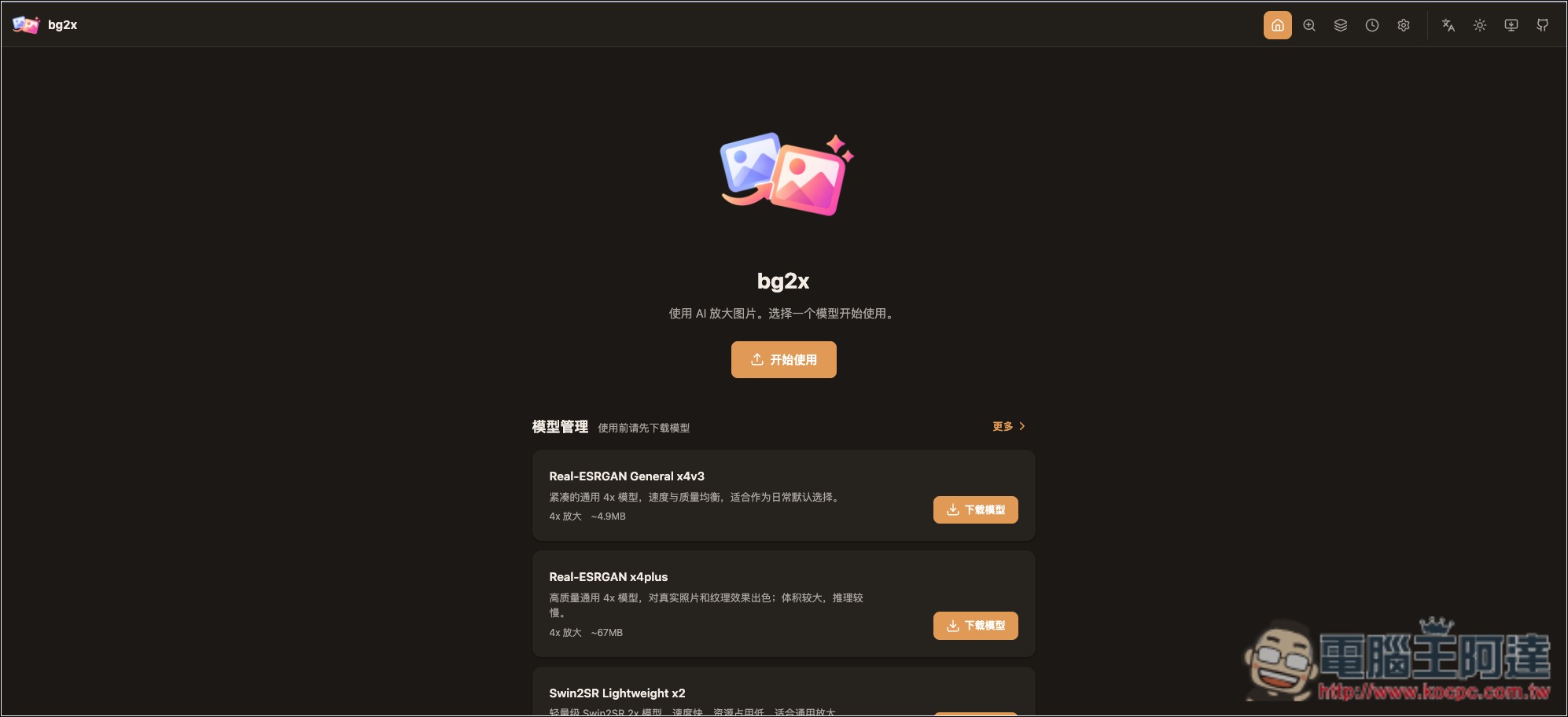
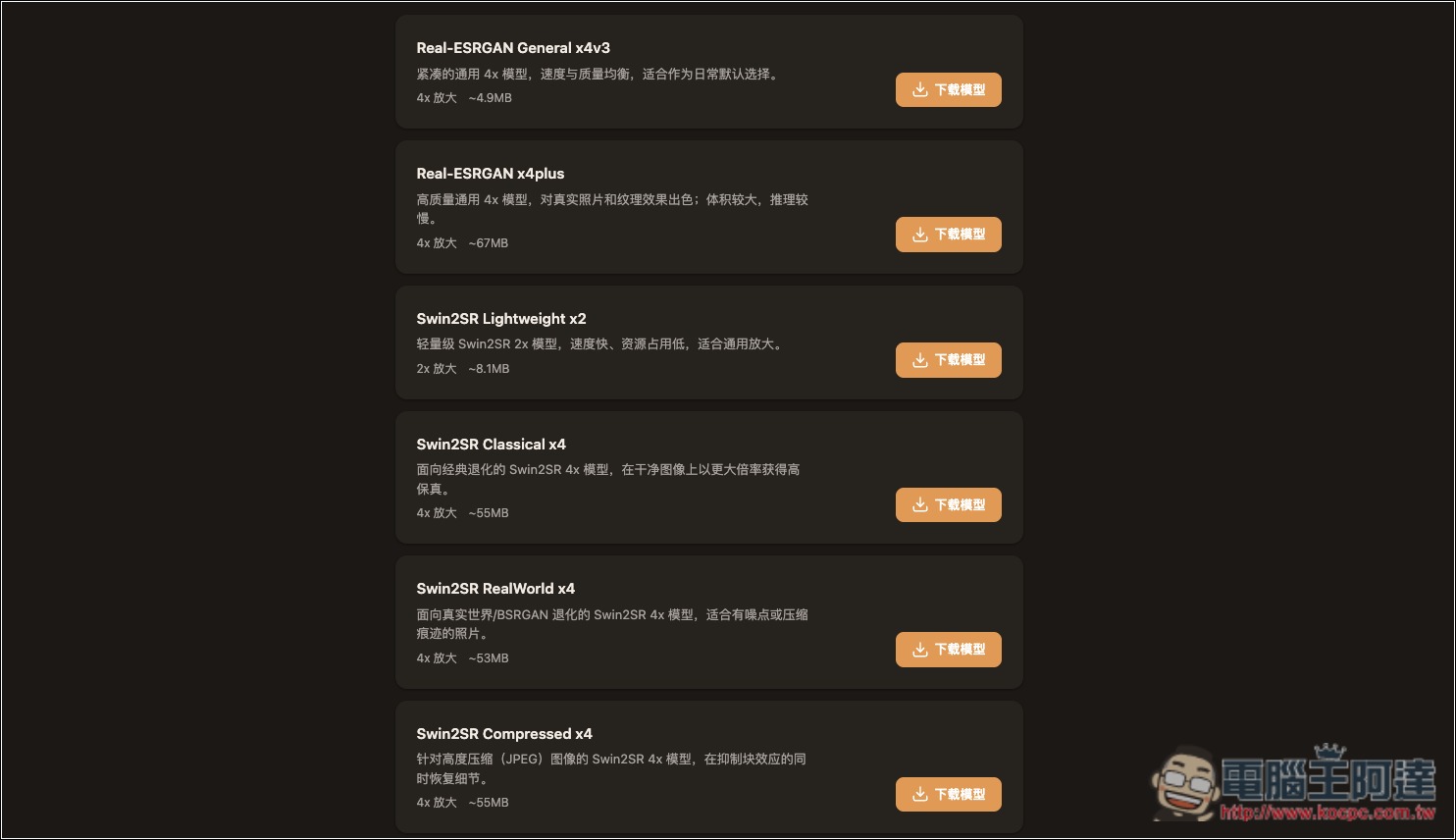
Each model has a description of its features. The model files are not very large—the largest is only nearly 70MB, and the smallest is only about 2.5MB. Also note that not every model can upscale 4x; some can only upscale 2x. Once you find the model you want to use, click the download button on the right:
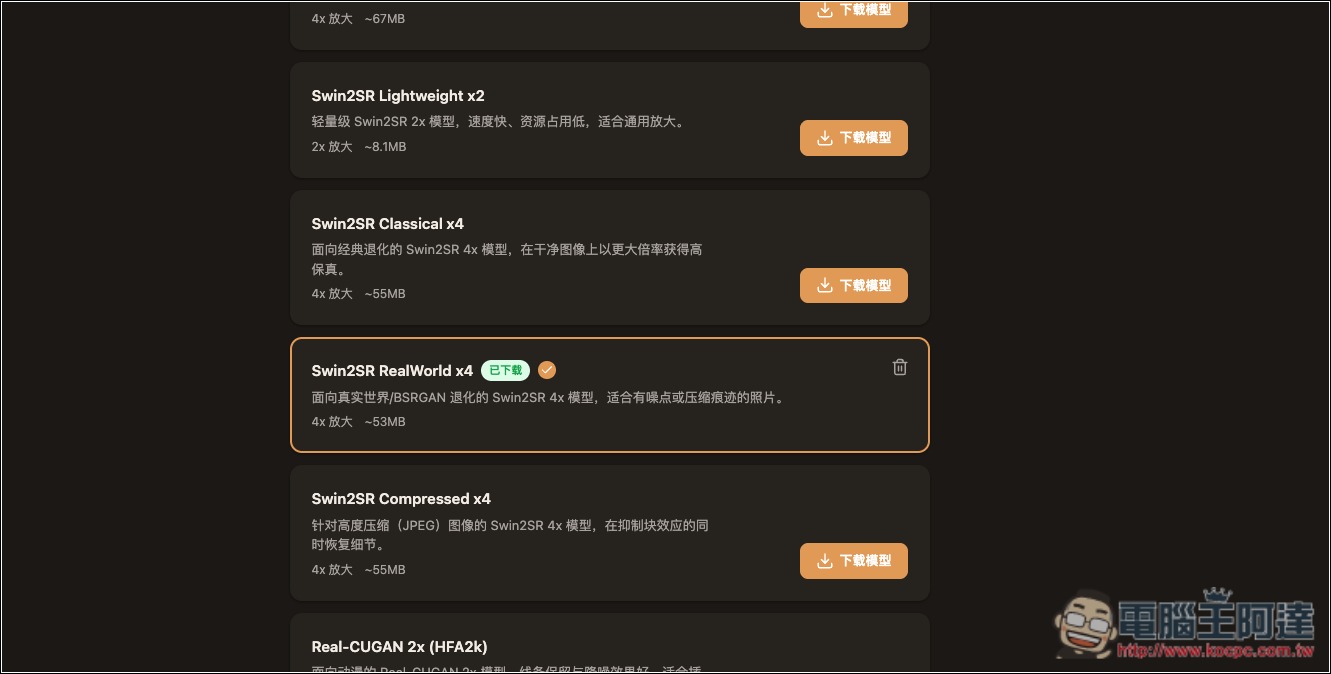
Downloaded models can be deleted at any time from the management page:
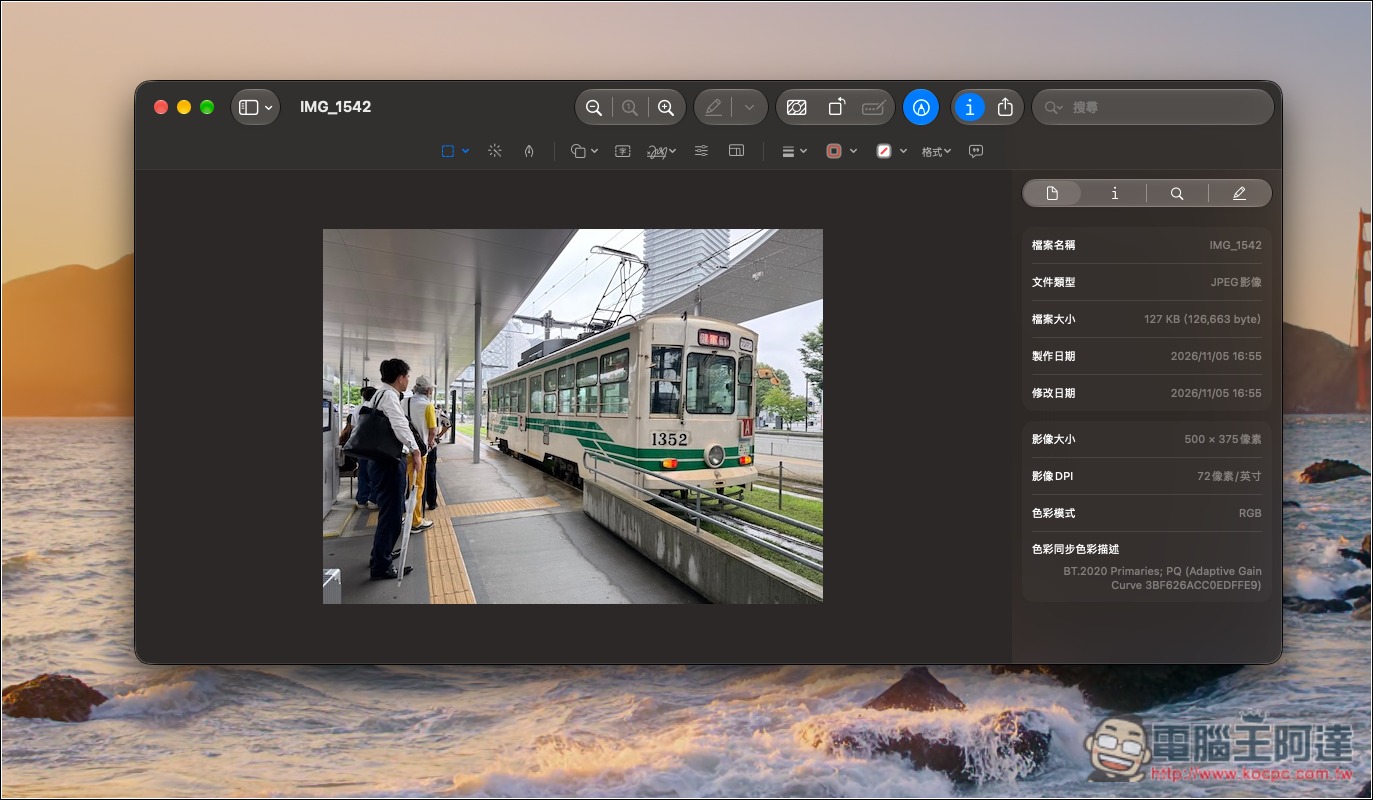
I’ll demonstrate with this image, which has a maximum width of only 500px:
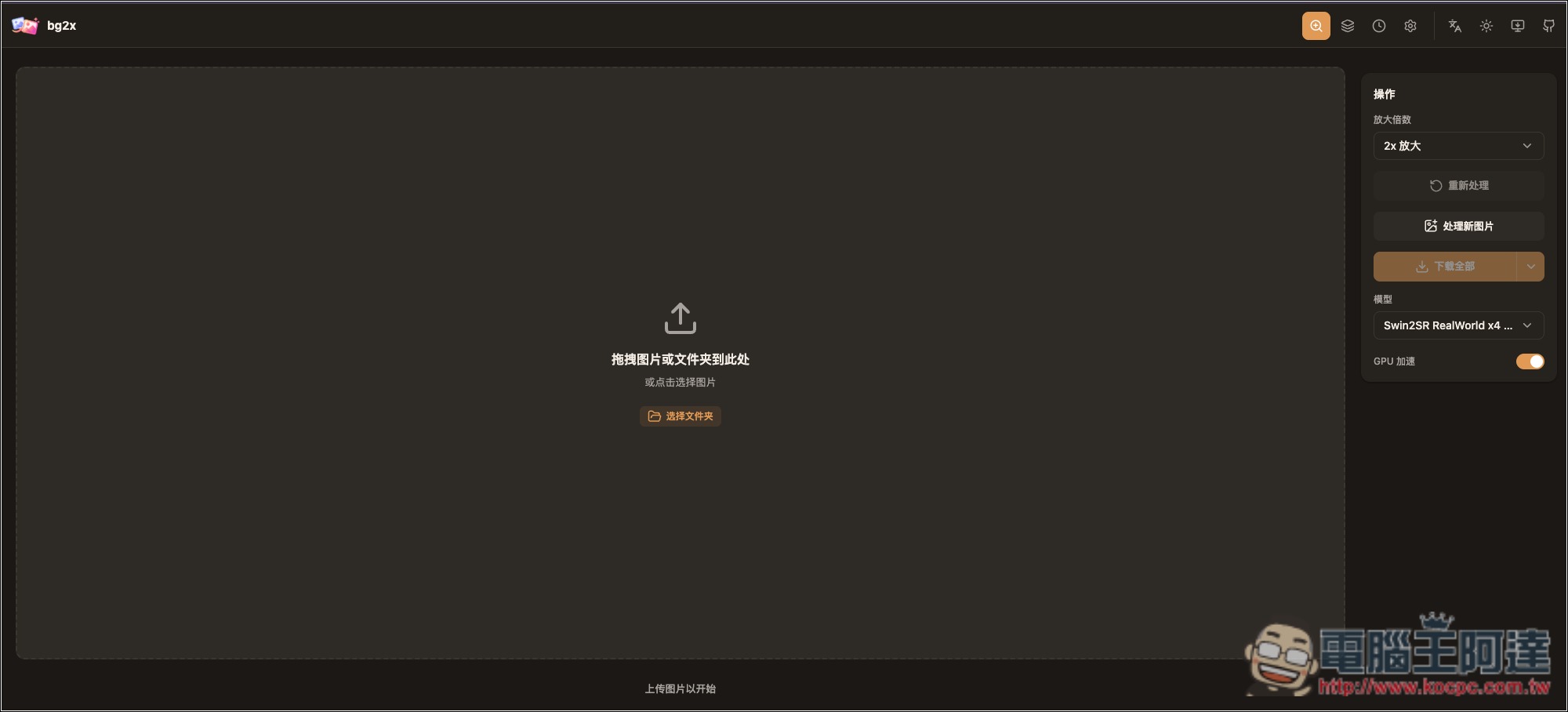
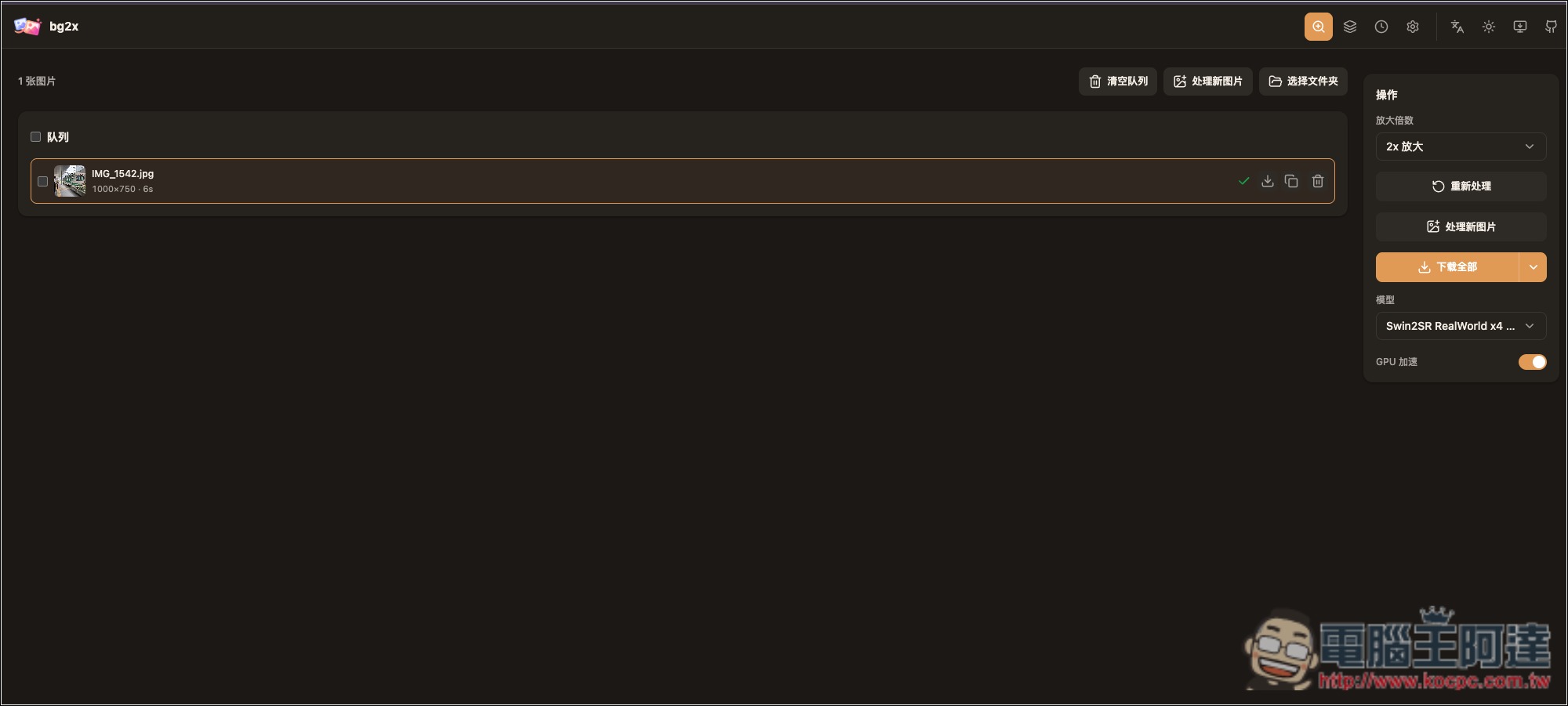
The image below shows the bg2x interface. On the right, you can select the magnification and model; set these first (they will run immediately when you import an image):
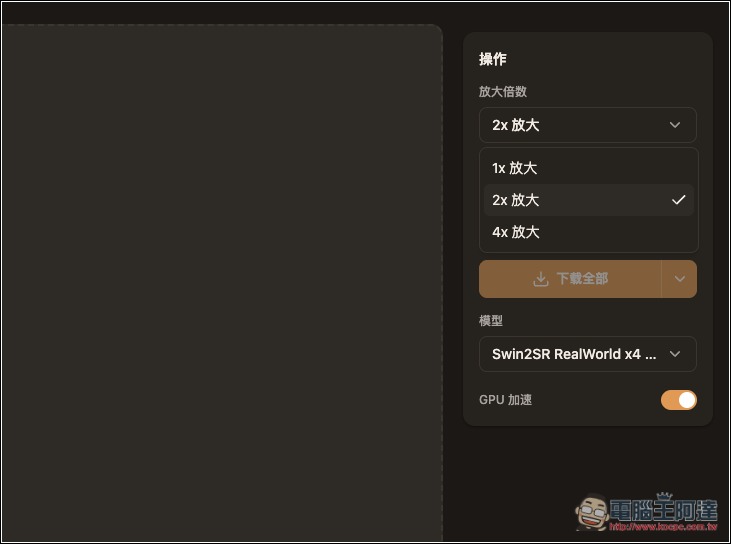
The magnification options are 1x, 2x, and 4x:
You can download more models and try them out to see which one works best:
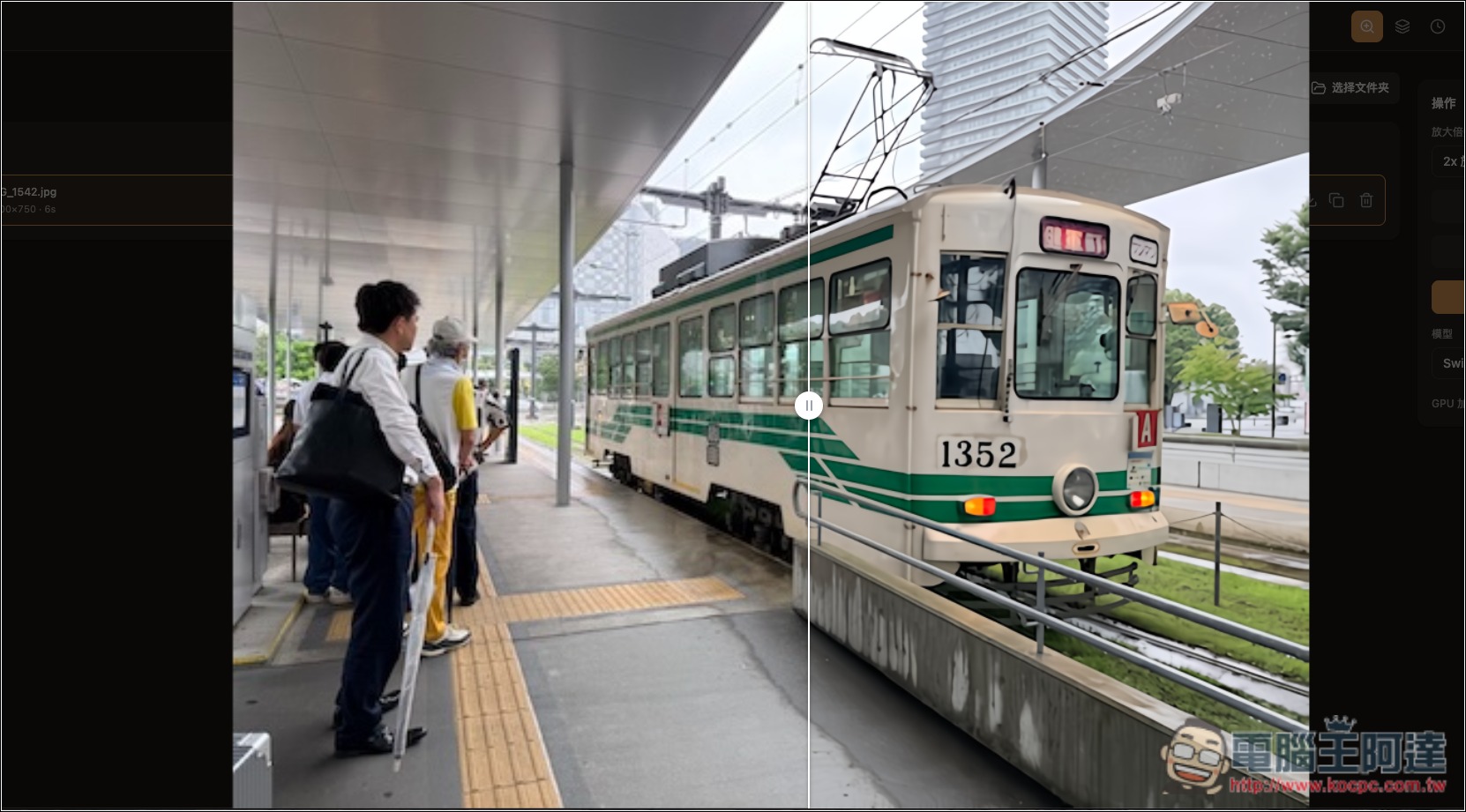
A few seconds after importing, upscaling is complete. You can click the image to view the result:
Like this, drag the slider in the middle to see the difference before and after zooming:
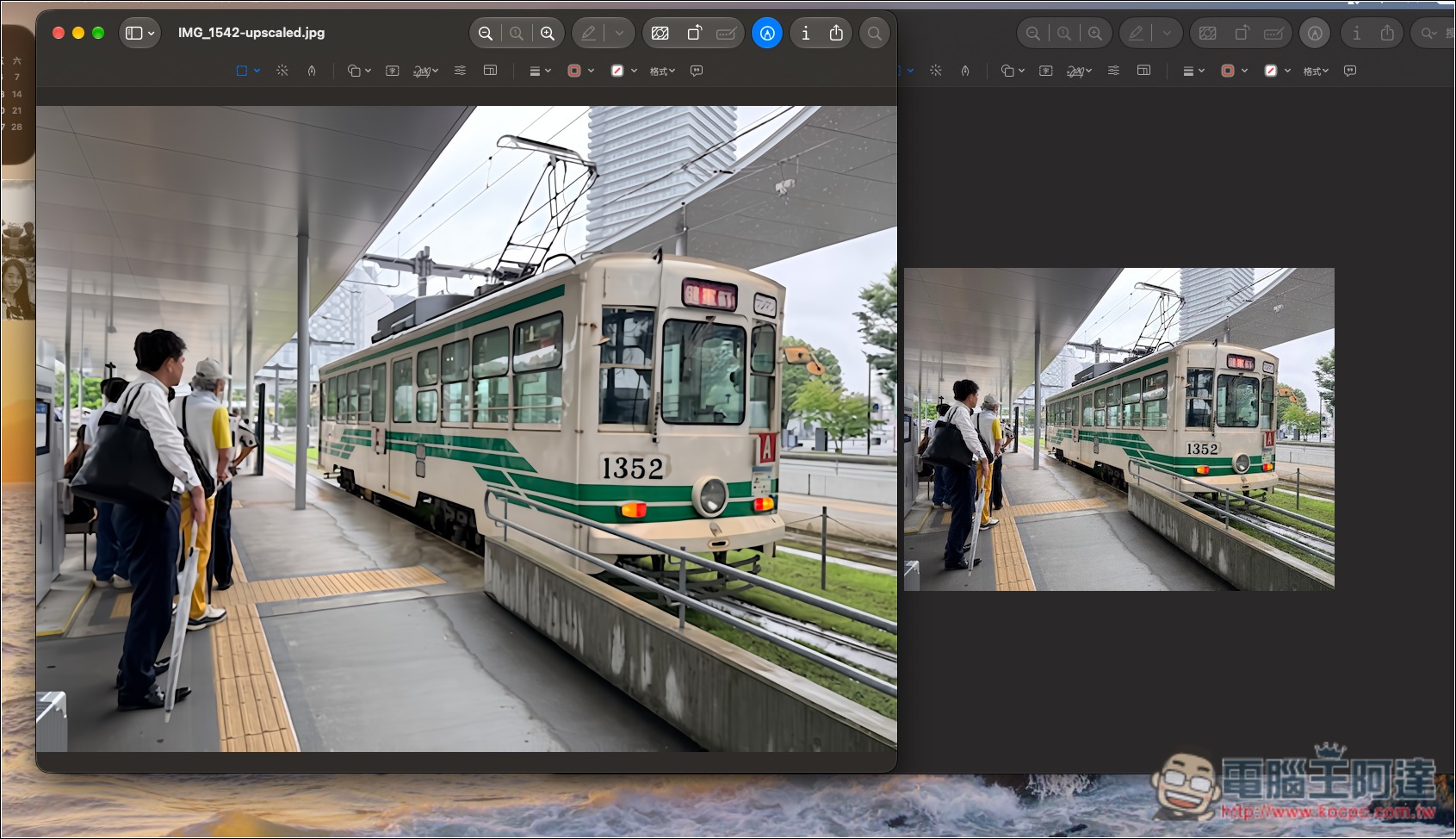
If you’re satisfied, you can save the image:
Source: KOCPC Chinese